
Home > Templates
Download this articleTemplates
A template allows you to configure the object properties to be displayed in document libraries, as well as conditional settings and machine learning settings to manage object properties more intelligently.
Create Templates
Refer to the following steps to create a template:
-
Click Templates on the left navigation to access the Templates page.
-
Click Create. The Create template page appears.
-
In the General information step, enter a name and an optional description for the template.
-
Click Next to go to the Property collection step. You can also click Save to save the template.
-
In the Property collection step, you can manually add properties or import properties in bulk.
To manually add properties, you need to define the properties in the collection first. Then, you can define how to configure properties for document sets, folders, and documents which have this template applied.
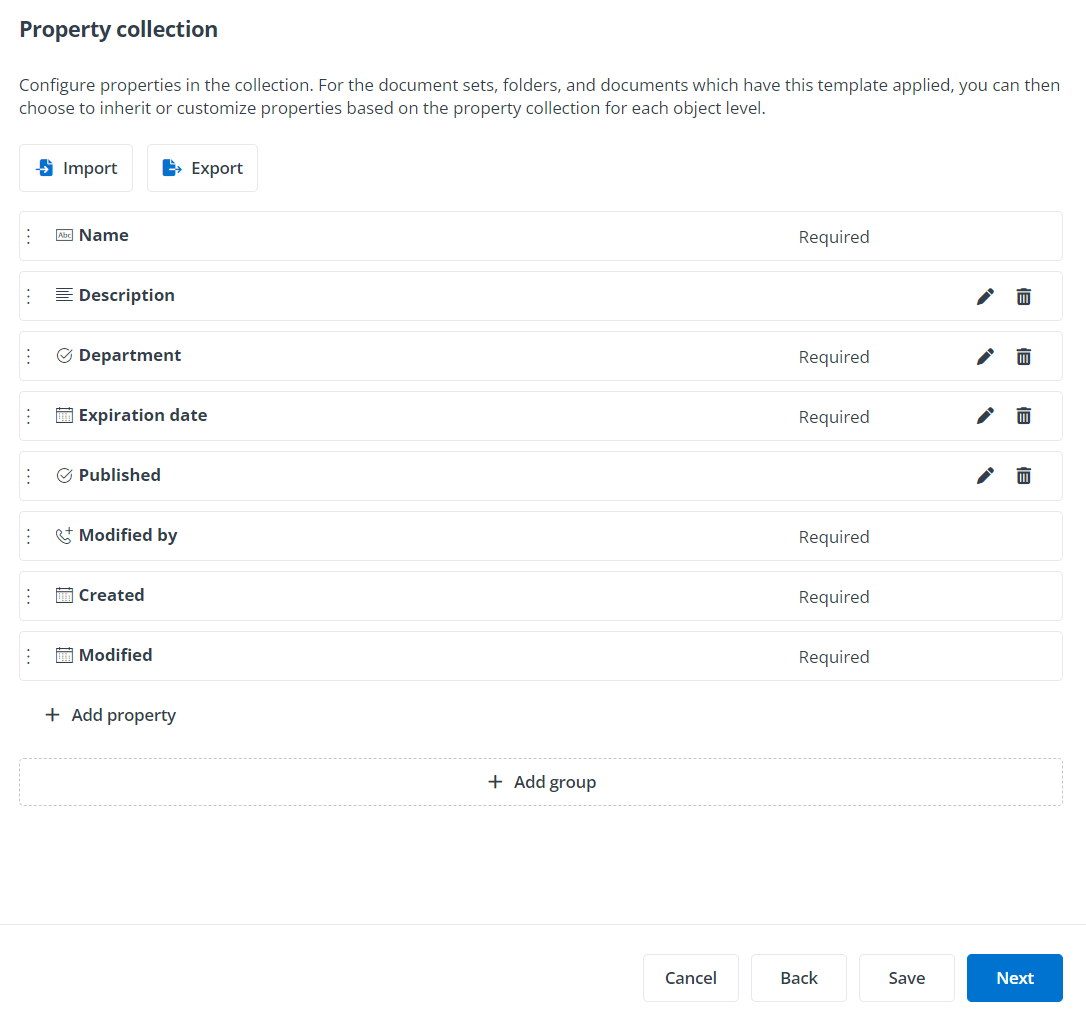
To manually add properties in the collection, refer to the following steps:
-
Click Add property to add properties that do not belong to any group. You can also click Add group to add a property group and click Add property in the group to add properties to this group or drag an existing property to the group.
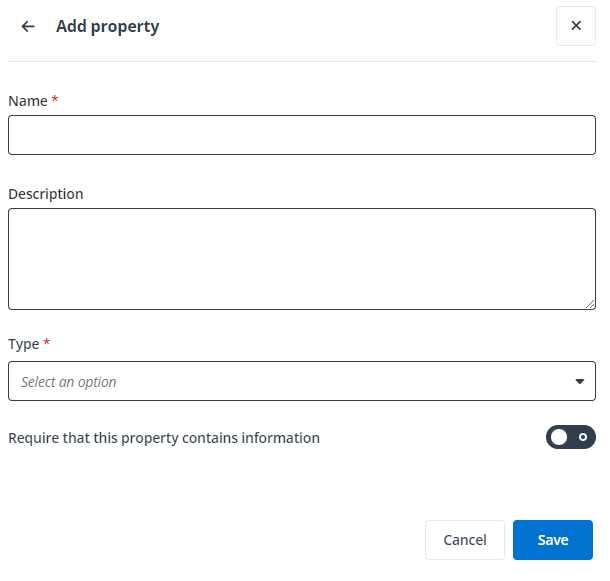
Then, the Add property panel appears.
-
Enter a name and an optional description for the property.
-
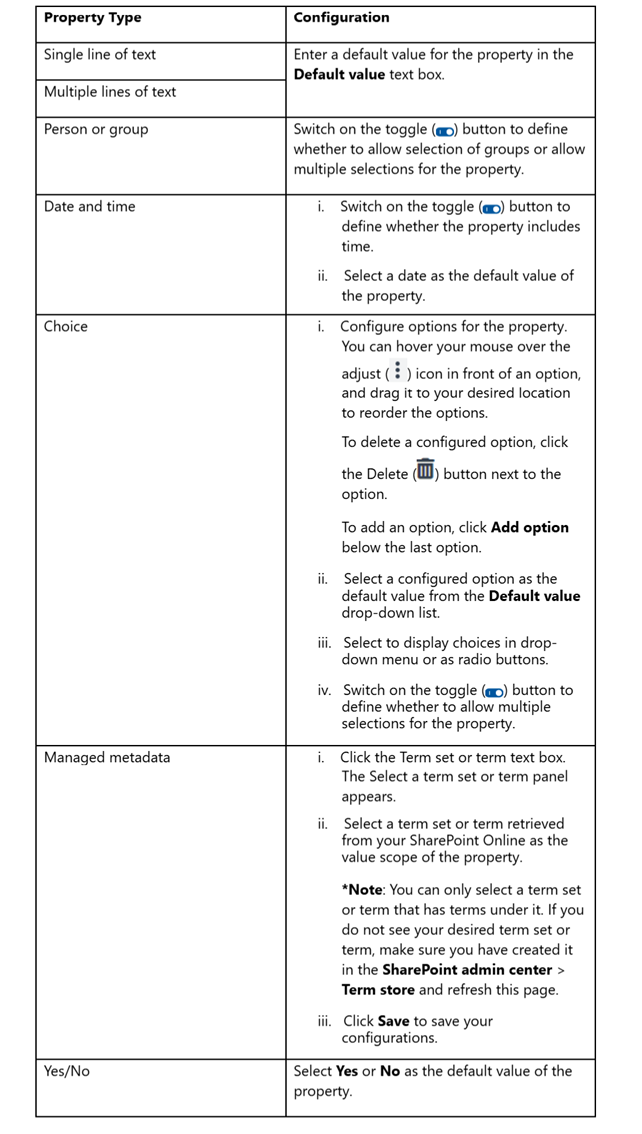
Select a type for the property from the drop-down list and configure the related configurations for the property. For detailed configurations, refer to the table below:
-
Switch on the toggle button to require that this property contains information.
-
Click Save to add this property. In the Property collection step, you can also perform the following actions:
-
Edit – Click the Pencil button next to a group or property to edit the group name or the property details.
-
Delete – Click the Delete button next to a group or property to delete the group or property.
NOTEThe built-in properties and property groups that contain built-in properties cannot be deleted.
-
Add group – Click Add group at the bottom of the page to add a property group.
-
Reorder – Hover your mouse over a property and drag it to your desired location.
-
-
Click Next to go to the Properties for different object levels step.
-
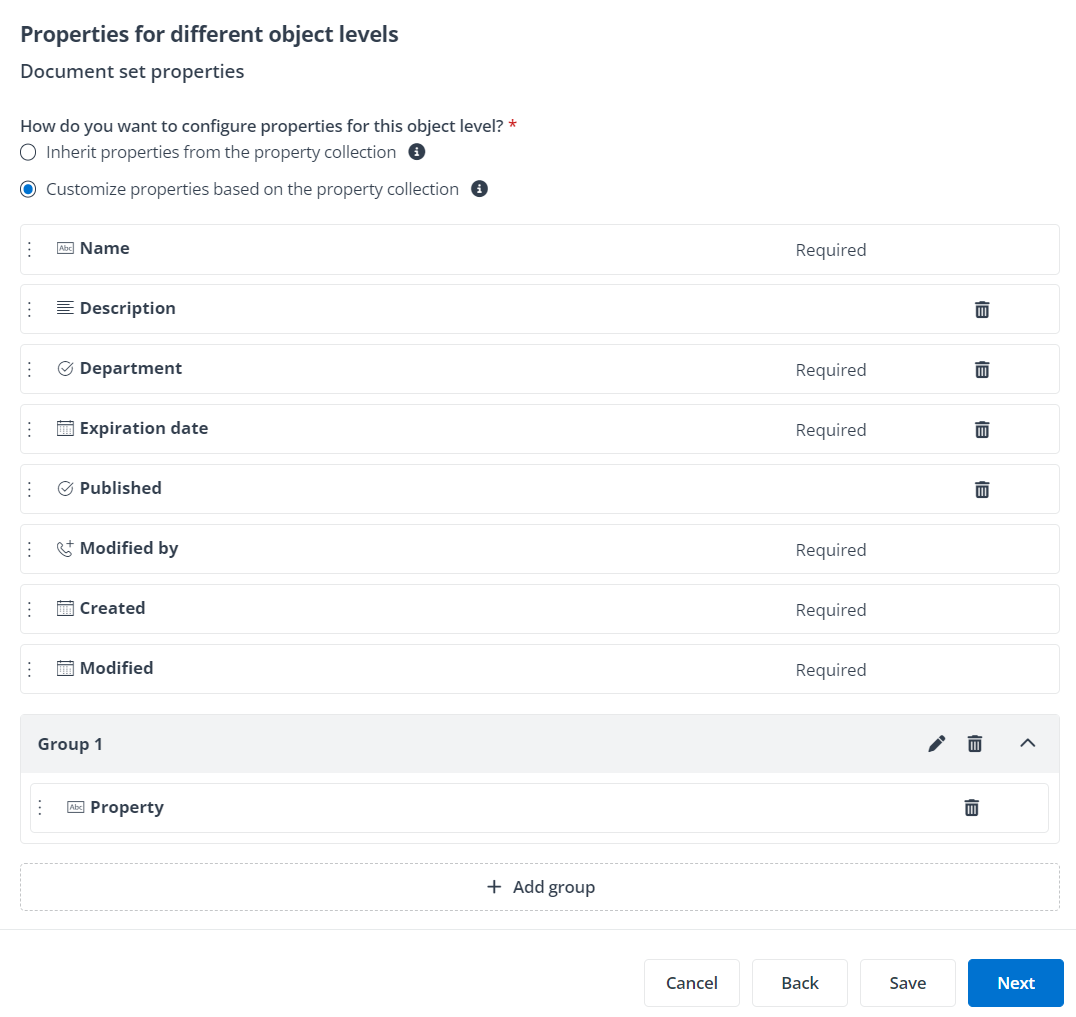
In the Properties for different object levels step, choose to inherit or customize properties based on the property collection for document sets, folders, and documents.
If you choose to inherit properties from the property collection, the property settings of the current object level cannot be modified, and all changes in the property collection will be automatically synchronized to the object level.
If you choose to customize properties based on the property collection, you can perform the following actions:
-
Edit group name – Click the Pencil button next to a group to edit the group name.
-
Delete – Click the Delete button next to a group or property to delete the group or property.
NOTEThe Name, Modified by, Created, and Modified properties, and the first property group cannot be deleted.
-
Add property – Click the Add from property collection link to add properties from the property collection.
-
Add group – Click Add group at the bottom of the page to add a property group.
-
Reorder – Hover your mouse over a property and drag it to your desired location.
-
To import properties in bulk by importing a configured Excel file, refer to the following steps:
-
Click Import above the first property group in the Property collection step. The Import window appears.
-
Download the template and configure properties directly in the file; or you can click Export above the first property group to export a property file and modify it.
-
After the configurations, import the file by dragging it or browsing it from the local location.
-
Click Save to import the file.
Note the following when you import properties to a configured template:
-
The existing properties will be replaced with the newly imported ones.
-
The property settings will be updated to Inherit properties from the property collection for each object level.
-
The conditional settings and machine learning will be disabled, and the configured data will be lost.
-
-
Click Next to go to the Conditional settings step. You can also click Save to save the template.
-
In the Conditional settings step, you can enable conditional settings. Then, actions configured in the Then branch will be performed on the data that meets the criterion configured in the If branch. You can add If/Then branches to define additional criteria for the template. You can also add invalid property validations to the template. The configured error message will be displayed if the specified trigger action is detected and the configured criteria are met. If you do not want to enable conditional settings, you can directly refer to step 8.
If/Then branch:
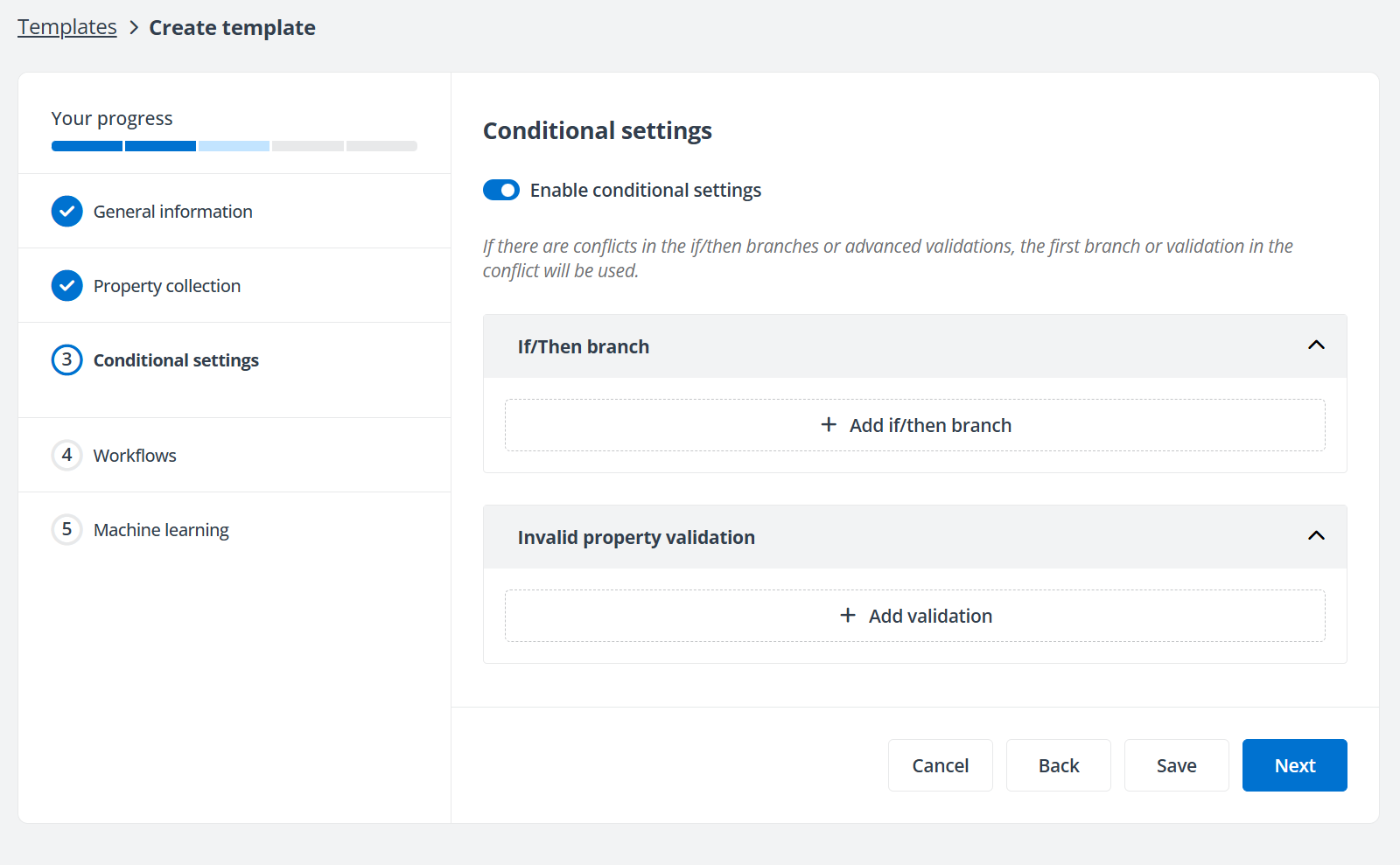
Refer to Appendix A - Supported Criteria for Conditional Settings to configure If/Then branches. In the If/Then branch section, you can also perform the following actions:
-
Add criterion – Click Add criteria below a criterion to add an If/Then criterion.
-
Remove criterion – Click the Delete button next to a criterion to remove an If/Then criterion.
-
Add If group – Click Add group above the Then branch to add an If group.
-
Configure If branch condition
-
Criterion level condition – If you only configure one If group and configure multiple criteria in the group, you can define the condition for when actions configured in the Then branch will be performed on the data. By default, the condition is All of these criteria are true, which means the data needs to meet all criteria in the If group. You can click All to change the condition to Any of these criteria are true. Then, actions configured in the Then branch will be performed on the data that meet any of the criteria in the group.
-
Group level condition – If you configure multiple If groups, in addition to criterion level condition, you can also define the If group level condition for when actions configured in the Then branch will be performed on the data. By default, the condition is All of these groups are true, which means the data needs to meet all If group criteria. You can click All to change the condition to Any of these groups are true. Then, actions configured in the Then branch will be performed on the data that meet any If group criteria.
-
-
Delete If/Then branch – Click the Delete button in the upper-right corner of an If/Then branch to delete the branch.
-
Add If/Then branch – Click Add if/then branch at the bottom of an If/Then branch to add a branch.
-
Reorder – Hover your mouse over the adjust icon in front of an if/then branch and drag the branch to your desired location.
Invalid property validation:
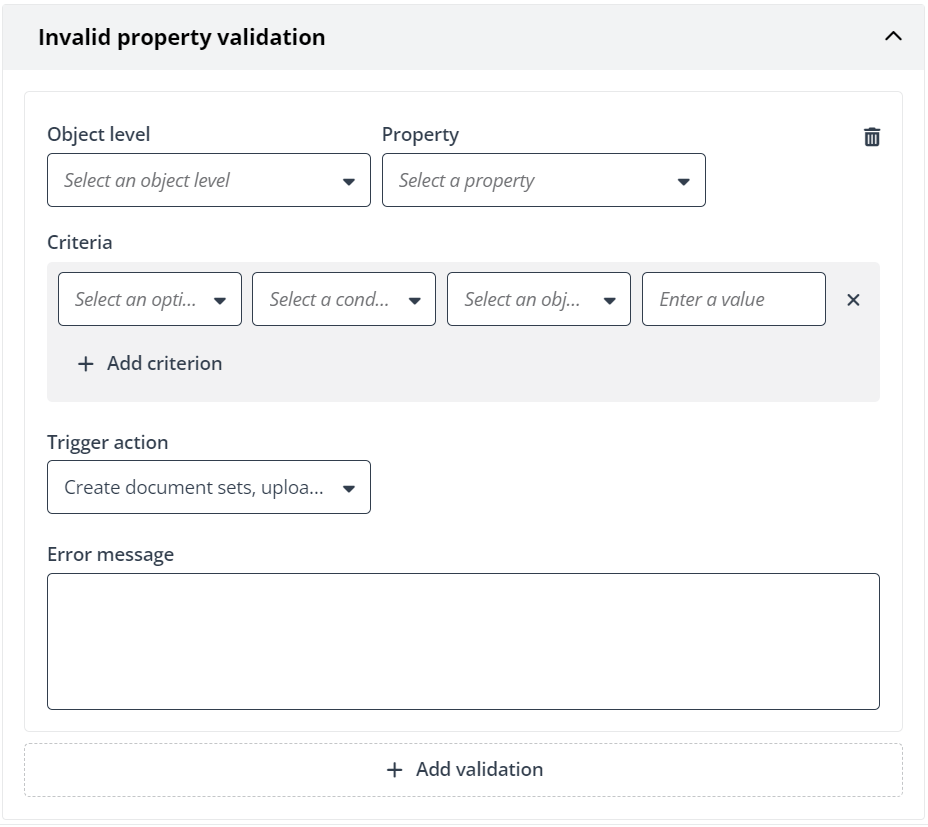
Refer to the following steps to configure invalid property validations:
-
Click Add validation and select an object level and a property from the drop-down lists.
NOTEOnly properties of the Single line of text and Multiple lines of text types will be displayed in the Property drop-down list.
-
Configure validation criteria. Refer to Appendix A - Supported Criteria for Conditional Settings for details.
-
The trigger action is automatically selected. By default, the action is to create document sets, upload documents, or edit object properties.
-
Enter an error message in the text box. The message will be displayed when the configured action is triggered.
In the Invalid property validation section, you can also perform the following actions:
-
Add criterion – Click Add criteria below a criterion to add a criterion.
-
Remove criterion – Click the Delete button next to a criterion to remove a criterion.
-
Delete validation– Click the Delete button in the upper-right corner of a validation to delete the validation.
-
Add validation – Click Add validation at the bottom of a validation to add a validation.
-
-
Click Next to go to the Workflows step. You can enable workflow and configure one or multiple trigger conditions for objects in the site collections where this template is applied.
-
Create object – Select a workflow for the condition. The selected workflow will be triggered when you create new document sets/folders in the object, or upload/copy/move documents to the object.
-
Edit object – Select a workflow for the condition. The selected workflow will be triggered when you rename or edit the object.
-
Manually trigger – Select one or multiple workflows for the condition. The selected workflows will be triggered when you manually trigger workflows for the object.
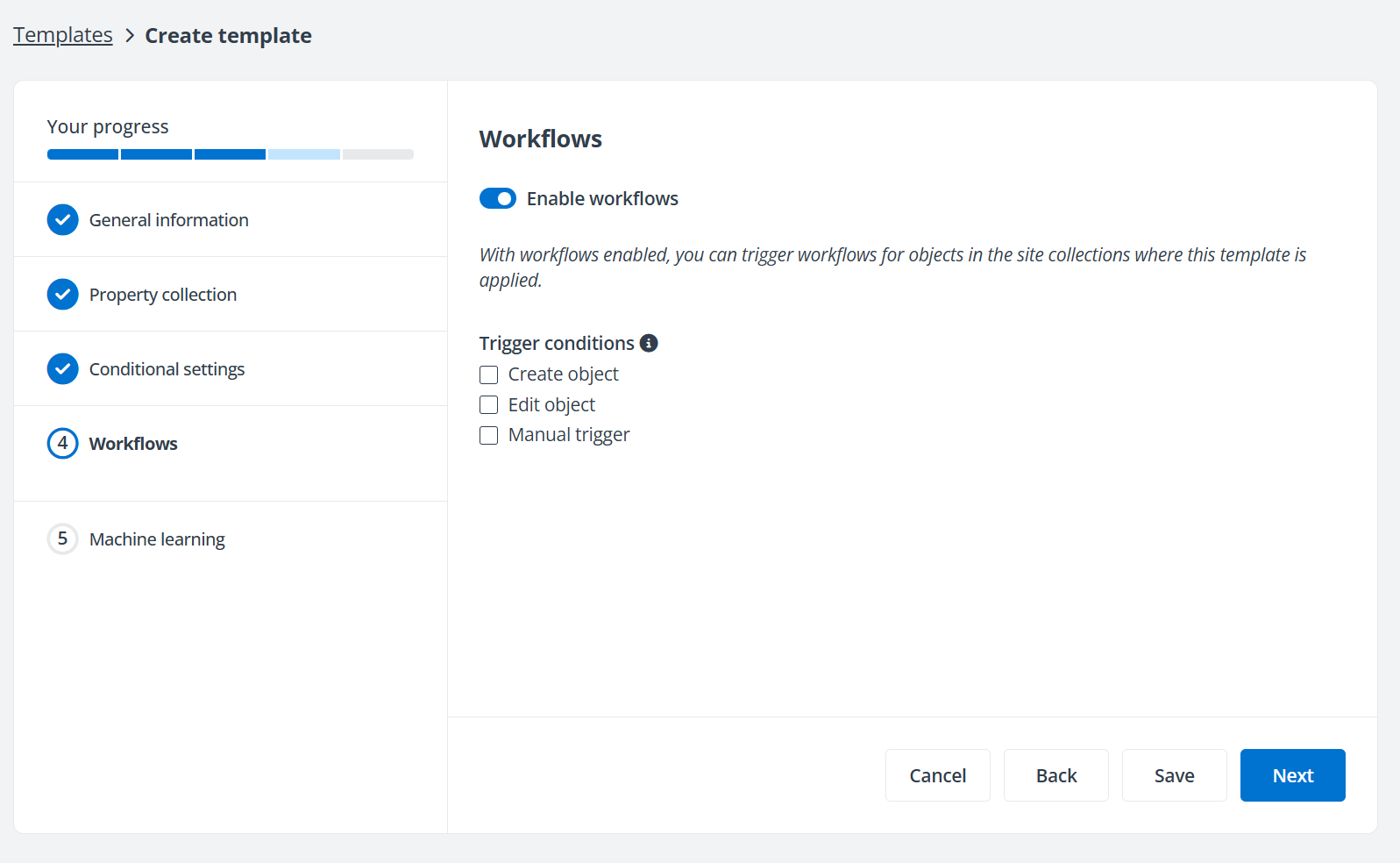
Select a condition and click the Select a workflow or Select workflows link to select workflows. When you select workflows, you can enter keywords in the search box to search desired workflows. If there are no desired workflows, you can click Go to Workflow Common Service to create and manage workflows, or click the More button and click Sync workflows from Workflow Common Service to sync workflow updates.
Before clicking OK to save the workflows, you need to click Check availability next to a workflow to check the availability of the workflow. The selected workflows will be displayed below the corresponding condition. You can click a workflow name to view the details of the workflow. In the Workflow details panel, you can click an action to view the details of the action. To change the selected workflows, click Change workflow to change the selections.
If you do not want to enable workflows, you can directly refer to step 9.
-
-
Click Next to go to the Machine learning step. You can also click Save to save the template. If your organization does not have the Machine learning service in DMS Online, you can directly refer to step 11.
-
In the Machine learning step, you can enable machine learning to automatically assign property values to documents when you upload documents. For details about machine learning, refer to Machine Learning. To enable machine learning, switch on the toggle button.
-
In the Model section, select a published model to apply to the template.
-
In the Properties section, select the properties for which you want to automatically suggest and assign values via machine learning.
NOTEName and property types that are Person or groups, Date, and Yes/No cannot be selected.
NOTEIf the properties are configured in both the selected machine learning model and If/Then branches, the property values configured in the If/Then branches have the priority.
-
-
Click Save to save the template.
Manage Templates
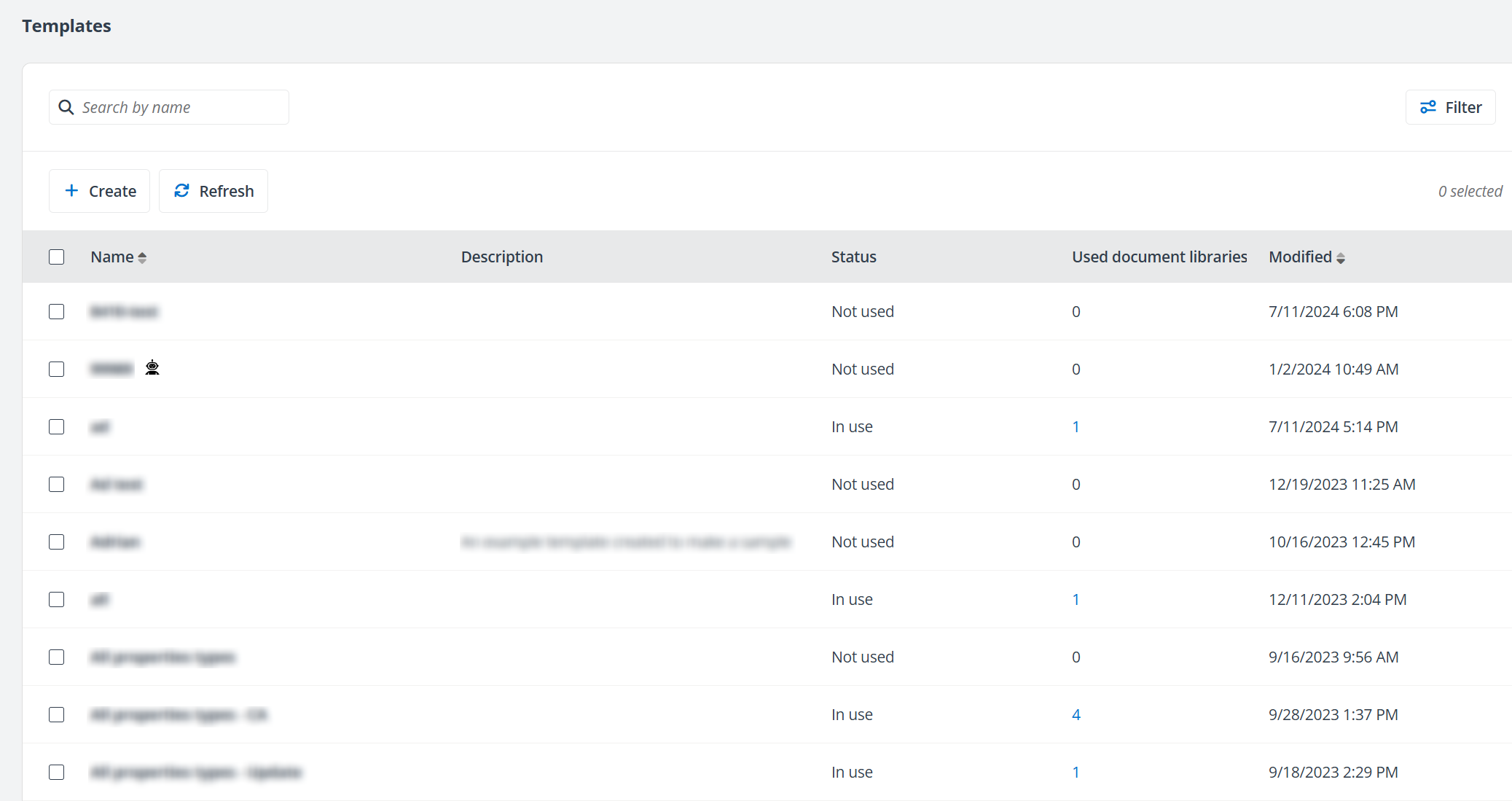
On the Templates page, you can perform the following actions to manage the templates:
If a robot icon is displayed next to the template name, it means that the template is applied with a machine learning model.
-
Search templates – Search for templates by entering the template name in the search box.
-
Filter – Click Filter on the Templates page, select the template status, and click Apply to filter templates with the selected status. You can also click Clear all to re-select the status.
-
Refresh – Click Refresh on the Templates page to refresh the templates displayed in the table.
-
Sort templates – By default, the templates are sorted in reverse order of created time. You can click the arrow button next to the Name column to sort templates alphabetically.
-
View template details – Click the template name to access the Template details page to view the template details. By default, you can view the property collection details in the Properties tab. You can click the Conditional settings tab to view the details of conditional settings, or click the Machine learning tab to view the details of machine learning.
-
Edit templates – To edit a template, click the template name to access the Template details page.
-
Click the Pencil button next to the template name to access the Edit general information panel and edit the name and description of the template. Then, click Save to save your edits.
-
Click Edit template to edit the template and then click Save to save your edits.
After editing a template in DMS Online, note the following:
-
The site collections to which this template is applied will be updated. The template cannot be edited until the update of site collections is completed.
-
If the template is in use, the property values of document sets, documents, and folders to which the template is applied may be lost.
-
The updates on properties can be synchronized to SharePoint Online. However, if you edit columns or properties in SharePoint Online, the updates cannot be synchronized to DMS Online.
-
-
Delete – To delete templates, select the desired templates and click Delete on the Templates page.
NOTETemplates that are in use cannot be deleted.
-
Save as – To create a new template based on an existing template, select the template and click Save as on the Templates page. Enter a new template name in the Save as a new template window and click Save. The saved template will be displayed on the Templates page.
When you edit or view the details of an existing template, you can also save the template as a new template by clicking Save as in the upper-right corner of the Template details page.
-
View used document libraries – Click the number in the Used document libraries column of a template to view the libraries that use the template.