
Home > Site Collections
Download this articleSite Collections
You can create new site collections in DMS Online, import existing site collections in SharePoint Online, and manage site collections in DMS Online. Refer to the following sections to create, import, and manage site collections.
Create New Site Collections in DMS Online
Refer to the sections below to create a site collection in DMS Online directly and manage it via DMS Online, or create site collections in bulk via an Excel file.
Create a Site Collection
Refer to the following steps to create a site collection:
-
Click Site collections on the left navigation to access the Site collections page.
-
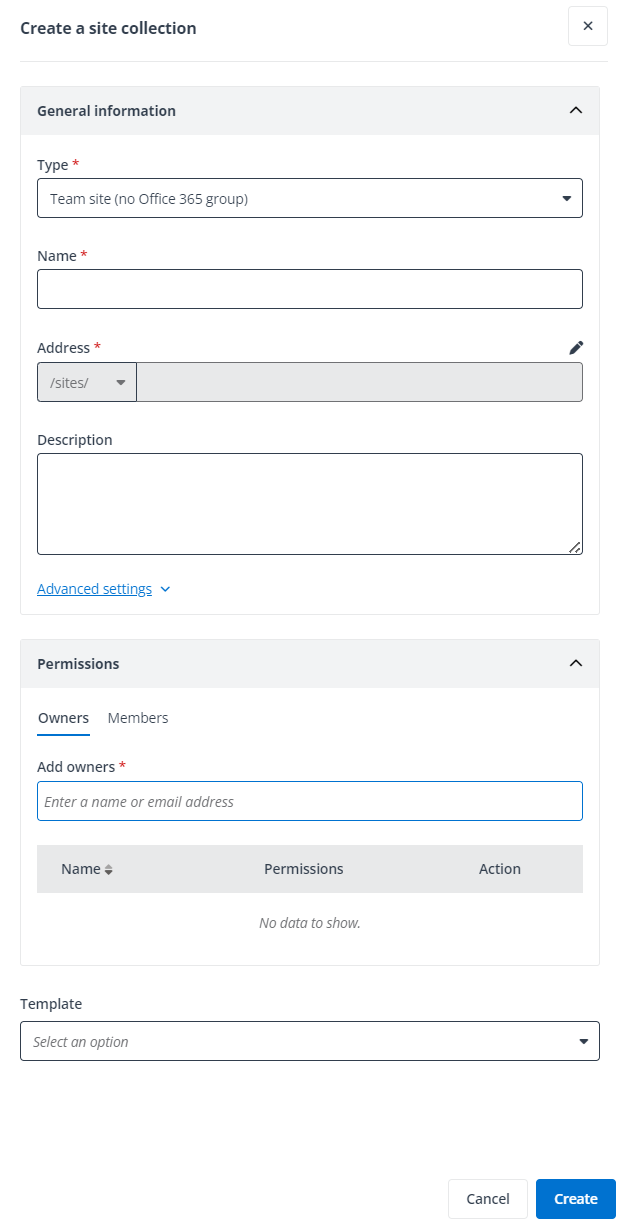
Click Create and click Create a site collection. The Create a site collection panel appears.
-
In the General information section, select a type for the site collection from the drop-down list, and enter a name and an optional description for the site collection.
 NOTE
NOTEAfter you enter the site collection name, the site collection address is automatically filled in and cannot be edited. If the address already exists or you want to edit the address or site type, you can click the Pencil button to edit the address or site type.
NOTEYou can click Advanced settings to view the Language and Time zone fields. By default, the Language and Time zone fields are automatically filled in and cannot be edited.
-
In the Permissions section, click the Owners tab, enter the name of a user in the text box to add an owner. Click the Members tab, enter the name of a user in the text box, and select a permission for the member. You can repeat the actions to add more owners and members. To delete an owner or member, click the Delete button next to the owner or member.
-
(Optional) Select a template from the Template drop-down list for the site collection. You can also click Create template to create a new template for the site collection. Refer to Create Templates for details.
-
Click Create to create the site collection.
Create Site Collections in Bulk
Refer to the following steps to create site collections in bulk:
-
Click Site collections on the left navigation to access the Site collections page.
-
Click Create and click Create site collections in bulk. The Import window appears.
-
Download the Excel template, configure the information of each site collection in one row, and save the file.
-
After the configurations, import the file by dragging the file or browsing the file from the local location.
Import Existing Site Collections in SharePoint Online
You can import existing site collections and subsites in your tenant to DMS Online by importing site collection names, the document library URLs of the site collections, or the subsite URLs. The imported documents can be managed in DMS Online together with the site collections.
You can only import site collections of the following templates:
-
Basic Search Center
-
Communication site
-
Community Portal
-
Community Site
-
Developer Site
-
Document Center
-
Enterprise Search Center
-
Enterprise Wiki
-
Project Site
-
Publishing Portal
-
Records Center
-
Team site (classic experience)
-
Team site (no Microsoft 365 group)
-
Visio Process Repository
Refer to the following steps to import existing site collections in your environment:
-
Click Site collections on the left navigation to access the Site collections page.
-
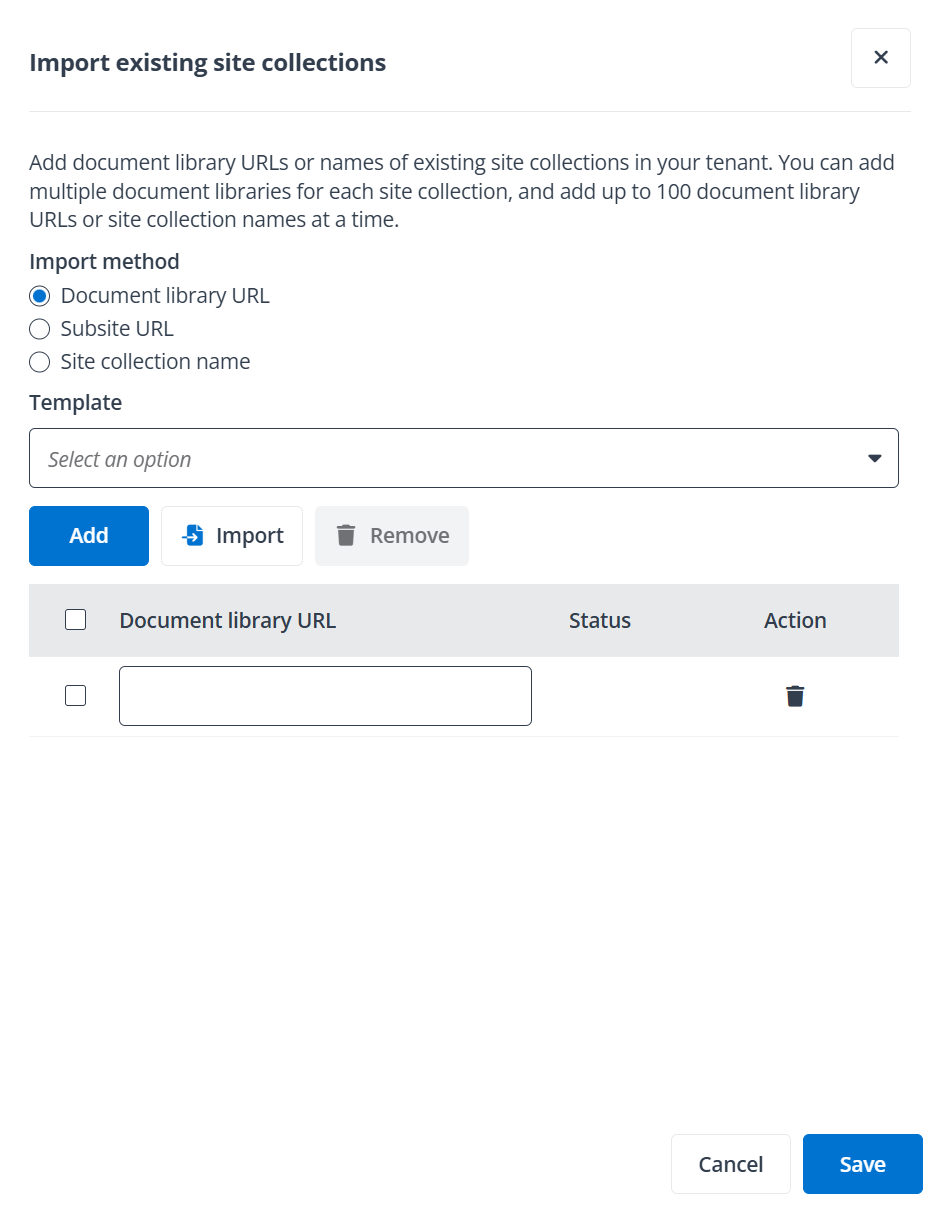
Click Import existing site collections to access the Import existing site collections panel.
-
Select a method and complete the following instructions to import site collections or subsites.
-
To import site collections via document library URLs, complete the following steps:
-
Select Document library URL in the Import method field.
-
(Optional) Select a template from the Template drop-down list.
-
Enter the URL of a document library in the root site collection or subsite in the text box.
To import more site collections or subsites, you can click Add to add more document library URLs.
-
Click Save to import the existing site collection.
You can also import existing site collections in your environment in bulk. Refer to the following steps to import site collections:
NOTEYou can only import 100 document library URLs at a time.
-
Click Site collections on the left navigation to access the Site collections page.
-
Click Import existing site collections to access the Import existing site collections panel.
-
Select Document library URL in the Import method field.
-
(Optional) Select a template from the Template drop-down list.
-
Click Import. The Import existing site collections window appears.
-
Download the Excel template, configure the URL of a root site collection/subsite document library in one row, and save the file.
-
Upload the file, select all URLs, and click Save to import existing site collections in bulk.
NOTEIf there are URLs whose status is failed, you need to remove failed URLs first. Then, you can select all URLs and click Save to import existing site collections.
-
-
To import subsites via URLs, complete the following steps:
-
Select Subsite URL in the Import method field.
-
(Optional) Select a template from the Template drop-down list.
-
Enter the URL of a subsite in the text box.
To import more subsites, you can click Add to add more URLs.
-
Click Save to import the existing subsite.
You can also import existing subsites in your environment in bulk. Refer to the following steps to import subsites:
-
Click Site collections on the left navigation to access the Site collections page.
-
Click Import existing site collections to access the Import existing site collections panel.
-
Select Subsite URL in the Import method field.
-
(Optional) Select a template from the Template drop-down list.
-
Click Import. The Import existing site collections window appears.
-
Download the Excel template, configure the URL of a subsite in one row, and save the file.
-
Upload the file, select all URLs, and click Save to import existing subsites in bulk.
NOTEIf there are URLs whose status is failed, you need to remove failed URLs first. Then, you can select all URLs and click Save to import existing subsites.
-
-
To import site collections via site collection names, complete the following steps:
-
Select Site collection name in the Import method field.
-
(Optional) Select a template from the Template drop-down list.
-
Click Scan in the Import existing site collections panel. The Scan results panel appears with site collections in your tenant listed.
-
Select site collections you want to import to DMS Online. Alternatively, you can enter keywords of a site collection name in the search box to search for the site collection.
-
Click Add to import the site collections. The built-in document libraries named Documents and all custom document libraries in the site collections will also be imported to DMS Online.
NOTEAfter the site collections are imported, the subsites in the imported site collections will also be imported to DMS Online.
You can also import existing site collections in your environment in bulk. Refer to the following steps to import site collections:
NOTEYou can only import 100 site collection URLs at a time.
-
Click Site collections on the left navigation to access the Site collections page.
-
Click Import existing site collections to access the Import existing site collections panel.
-
Select Site collection name in the Import method field.
-
(Optional) Select a template from the Template drop-down list.
-
Click Import. The Import existing site collections window appears.
-
Download the Excel template, configure site collection URLs in each row, and save the file.
-
Upload the file and click Import to import existing site collections in bulk.
NOTEIf there are site collection URLs whose status is failed, you can click Import to only import the site collections whose status is successful. Alternatively, you can download the import report to view details, and import all site collections again after modifying the Excel file accordingly.
NOTEAfter a site collection has been imported to DMS Online via the site collection name, document libraries that are created for the site collection in SharePoint Online will be automatically synchronized to DMS Online. The synchronization time varies based on the number of document libraries that are newly created in SharePoint Online.
-
-
After you import site collections, note the following:
-
If imported document libraries do not apply with DMS Online templates, the properties of document libraries will be displayed based on the properties of their content types in SharePoint Online.
-
If the document sets feature is enabled for the site collection, but no document sets are used in the document library of the site collection in SharePoint Online, you cannot create a document set in this document library in DMS Online. If you create a new document library in this site collection in DMS Online, you can create a document set in the newly created document library.
Auto Sync Site Collections to DMS Online
You can sync SharePoint Online site collections and Microsoft Team sites to DMS Online. The documents in the site collections can be managed in DMS Online together with the site collections.
Refer to the following steps to auto sync site collections:
To auto sync site collections to DMS Online, make sure you perform auto discovery in AvePoint Online Services. For details, refer to Manage Auto Discovery.
For Microsoft Teams workspace, only Team sites can be synced. Microsoft 365 Group sites and Viva Engage community sites cannot be scanned and synced.
-
Click Site collections on the left navigation to access the Site collections page.
-
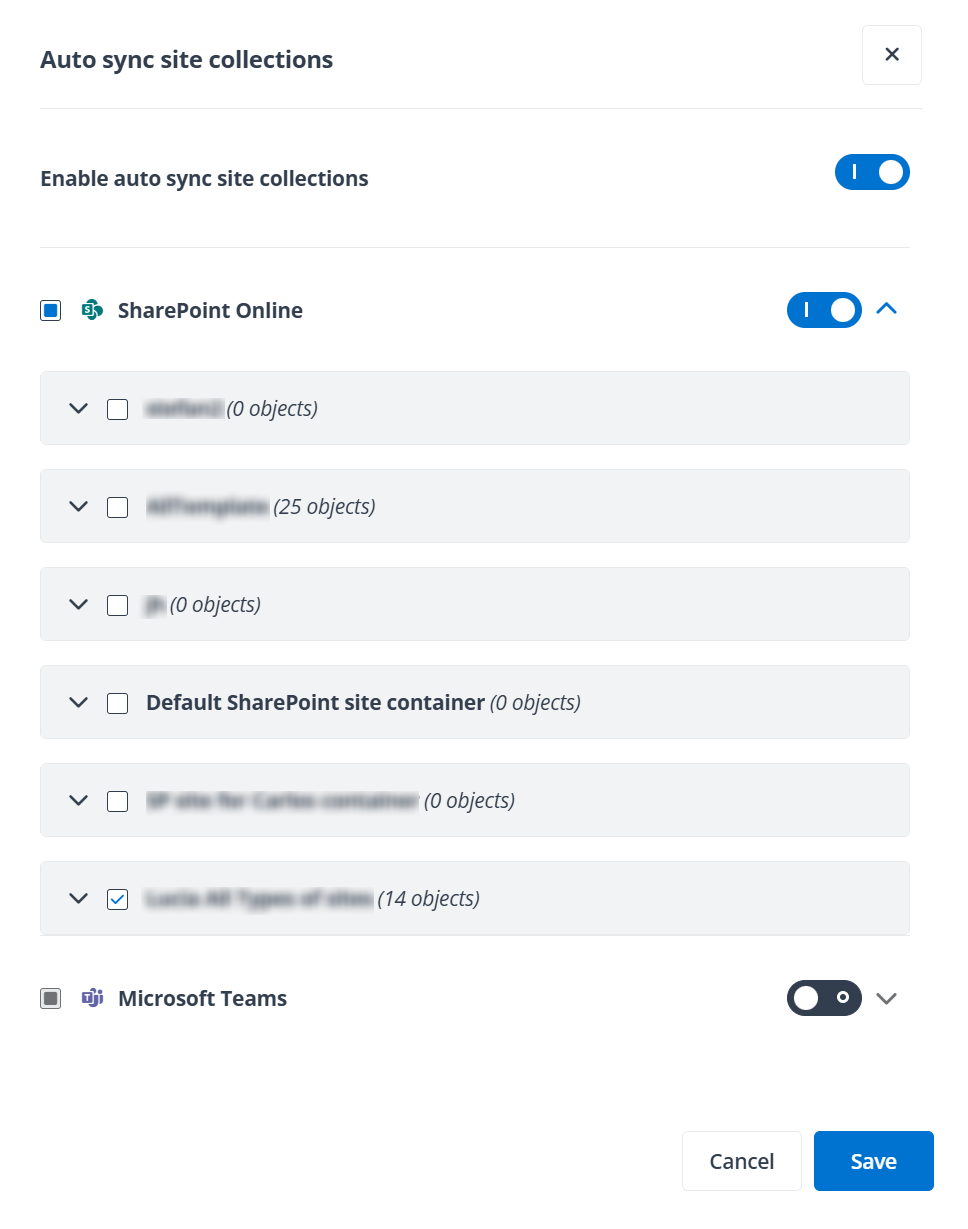
Click Auto sync site collections to access the Auto sync site collections panel.
-
Switch on the toggle button to enable auto sync site collections.
-
Switch on the toggle button next to the SharePoint Online or Microsoft Teams workspace. The containers of the workspace will be listed and you can expand a container to view the site collections scanned into the container.
-
Select the SharePoint Online or Microsoft Teams workspace to sync scanned site collections in all containers. You can also select the desired containers to sync site collections in the container.
-
Click Save to sync site collections.
NOTEIf the private channels or shared channels are newly created in Microsoft Teams, it will take a few hours to retrieve the sites related to the private channels and shared channels from AvePoint Online Services and sync them to DMS Online.
Manage Site Collections and Teams
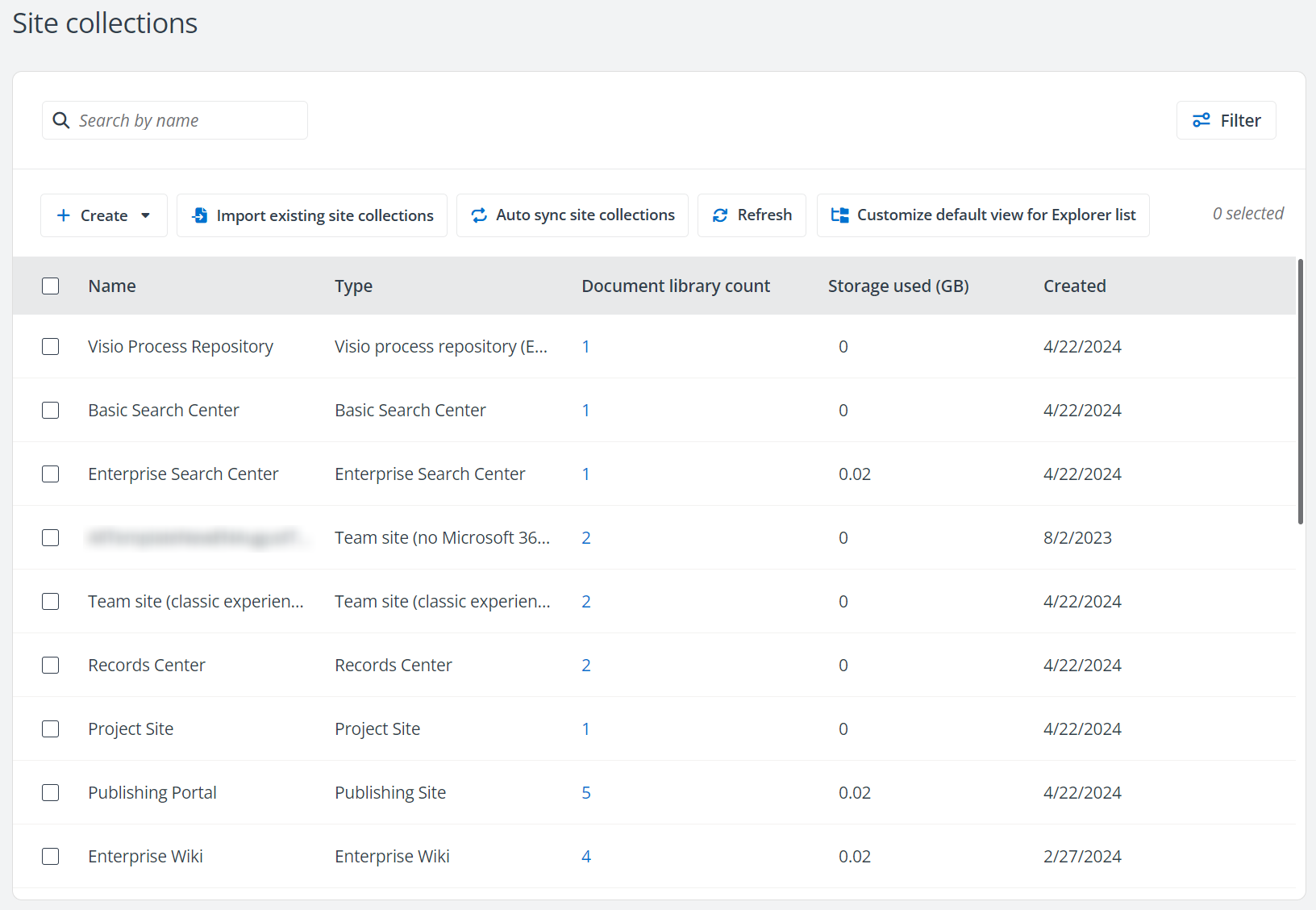
On the Site collections page, you can perform the following actions to manage the site collections:
-
Search site collections – Search for site collections by entering the site collection name in the search box.
-
Filter – Click Filter on the Site collections page to filter site collections by the site collection type and/or template.
-
Customize default view for Explorer list – Click Customize default view for Explorer list. The Customize default view for Explorer list panel appears. You can adjust the order of a site collection by dragging it to a desired location. You can define whether to enable site collection groups by switching on or off the toggle button and click OK. With site collection groups enabled, you can classify site collections by groups. You can click Add group to add a site collection group and perform the following actions to manage site collection groups:
-
Rename – Click the Pencil button next to a site collection group to rename the group.
-
Delete – Click the Delete button next to a site collection group to delete the group.
NOTEThe default site collection group cannot be deleted.
-
-
Edit site collections/Teams – To edit a site collection/Team, select the site collection/Team and click Edit on the Site collections page to edit the general information and site permissions/Team membership.
NOTEWhen a site collection/Team is being updated since the template applied to the site collection/Team has been updated, the site collection/Team cannot be edited until the update is completed.
-
Remove – To remove site collections from DMS Online, select the desired site collections and click Delete on the Site collections page.
NOTEThe site collection will not be removed from SharePoint Online. You can add the site collection to DMS Online again via the Import existing sitecollections function. Refer to Import Existing Site Collections in SharePoint Online for details.
-
Refresh – Click Refresh to refresh site collections displayed in the table.
-
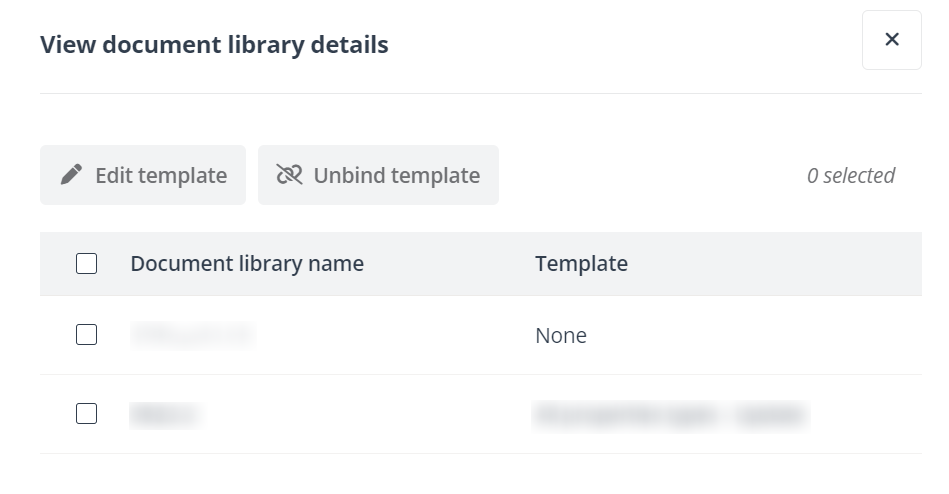
View document library details – Click the number in the Document libraries column to access the View document library details panel to view details. You can also perform the following actions on the panel:
-
Edit template – Select one or multiple document libraries, click Edit template, and select a new template for the selected document libraries. You can also click Create template to create a new template for the document libraries. Refer to Create Templates for details.
NOTEThe changes in the template created by DMS Online will be automatically synchronized to the SharePoint Online content type.
NOTEThe same properties as the new template in the old template can be kept after changing the template.
-
Unbind template – Select one or multiple document libraries and click Unbind template to unbind templates from the selected document libraries.
-
-
View permissions – Select a site collection and click View permissions to access the View permissions panel to view the owners and members of the site collection. You can click Edit to update the owners and members. Click the Owners tab, enter the name or email address of a user in the text box to add an owner. Click the Members tab, enter the name of a user in the text box, and select a permission for the member. You can repeat the actions to add more owners and members. To delete an owner or member, click the Delete button next to the owner or member. Then, click Save to save the updates.
-
View membership – Select a team and click View membership to access the View membership panel to view the owners and members of the team. You can click Edit to update the owners and members. Click the Owners tab, enter the name or email address of a user in the text box to add an owner. Click the Members tab, enter the name of a user in the text box, and select a permission for the member. You can repeat the actions to add more owners and members. To delete an owner or member, click the Delete button next to the owner or member. Then, click Save to save the updates.
NOTEIf a Team applies the dynamic membership rules, the membership of the Team is dynamic. The members are automatically updated based on the rules and cannot be edited.
NOTEYou can add Microsoft 365 users, Microsoft 365 Groups, mail-enabled security groups, distribution groups, and security groups as the owners or members of site collections or Teams that do not apply dynamic membership rules. For Teams with dynamic membership rules applied, only Microsoft 365 users can be added as owners.
-
Manage template – Select one or multiple site collections and click Manage template to access the Manage template panel. Select a template for the document libraries in the selected sites. The document libraries that already have a template bound will be listed in the table below the drop-down list. The templates of these document libraries will not be updated by default. To replace their templates, select the Replace the existing templates checkbox below the table. Then, click Save to save the updates.
NOTEThe properties of files/folders/document sets in these document libraries cannot be kept in DMS Online system after updating the template.