
Home > Recycle Bin
Download this articleRecycle Bin
Deleted objects will be stored in the recycle bin and remain for about 90 days or until they are deleted from the recycle bin. Click Recycle bin on the left navigation to access the Recycle bin page. By default, you can view the objects deleted from the first site collection in the Site collections tab.
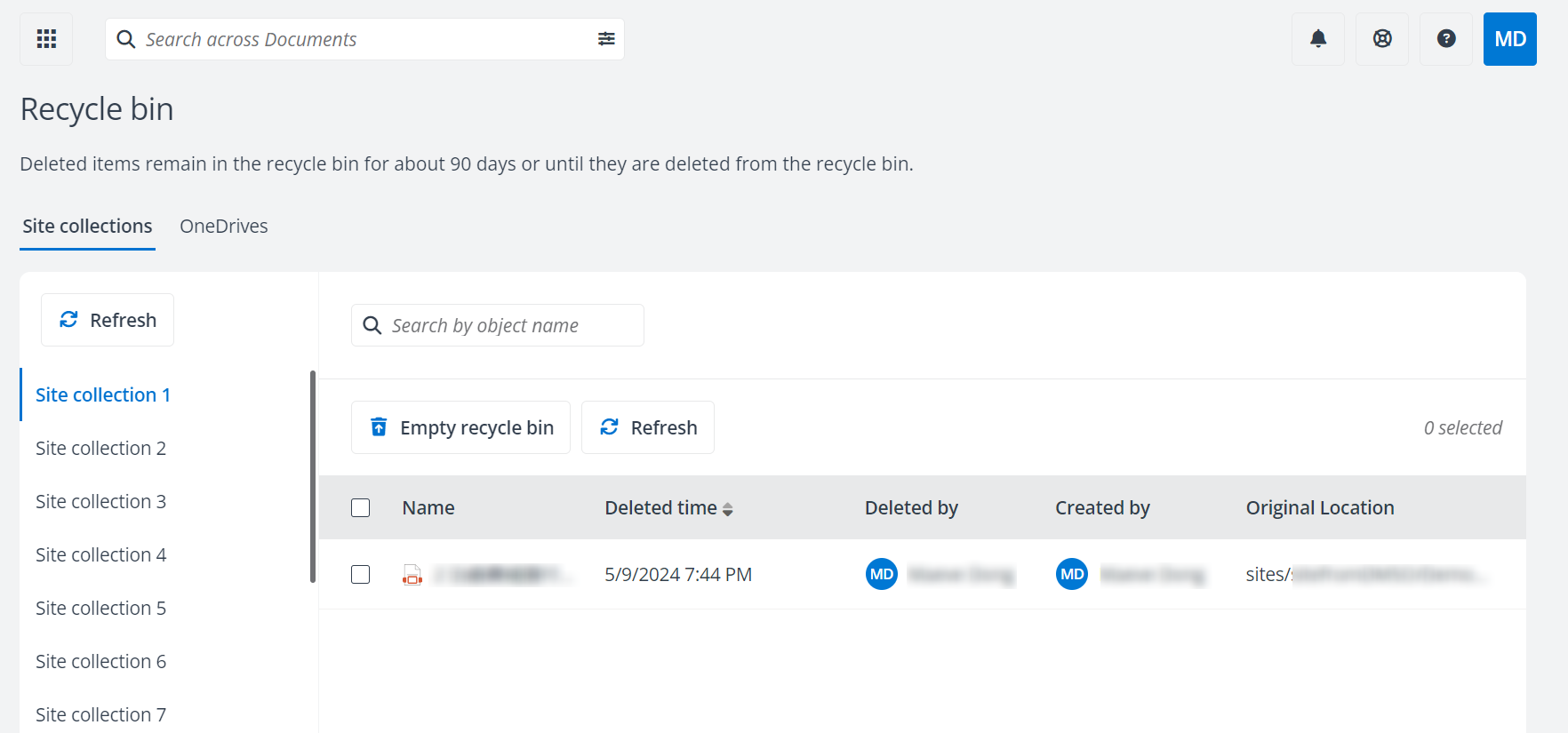
For each object, you can view the name deleted time, deleted user, created user, and the original location of the object.
You can also perform the following actions to manage the deleted objects:
-
Refresh site collections – Click Refresh above the site collection list to refresh site collections displayed in the list.
-
Refresh deleted objects – Click Refresh above object table to refresh the deleted objects displayed in the table.
-
Search – Search for objects by entering the object name in the search box.
-
Empty recycle bin – Under the Site collections tab, click a site collection from the left list and click Empty recycle bin to empty the deleted objects in the selected site collection from the recycle bin. Under the OneDrive tab, click Empty recycle bin to empty the deleted objects in the OneDrive from the recycle bin.
-
Delete – Under the Site collections tab, click a site collection from the left list, select an object in the table, and click Delete to delete the object. Under the OneDrive tab, select an object and click Delete to delete it. To delete multiple objects, select the objects and click Delete.
-
Restore – Under the Site collections tab, click a site collection from the left list, select an object, and click Restore to restore it. Under the OneDrive tab, select an object and click Restore to restore it. To restore multiple objects, select the objects and click Restore.