
Home > FAQs
Download this articleFAQs
DocuSign App Connection Errors
Find solutions for common DocuSign connection errors. Each section includes the error message, its cause, and resolution steps.
Error 1
DocuSign API error message
This error commonly occurs when requesting a DocuSign access token using the JWT (JSON Web Token) authorization flow. It indicates that the DocuSign server cannot validate the signature of the JWT sent in the request. In most cases, this is caused by an issue with the RSA private key configuration.
Resolution
-
Check the creation time of your app. Newly created apps require up to 48 hours to be fully confirmed before they can be used.
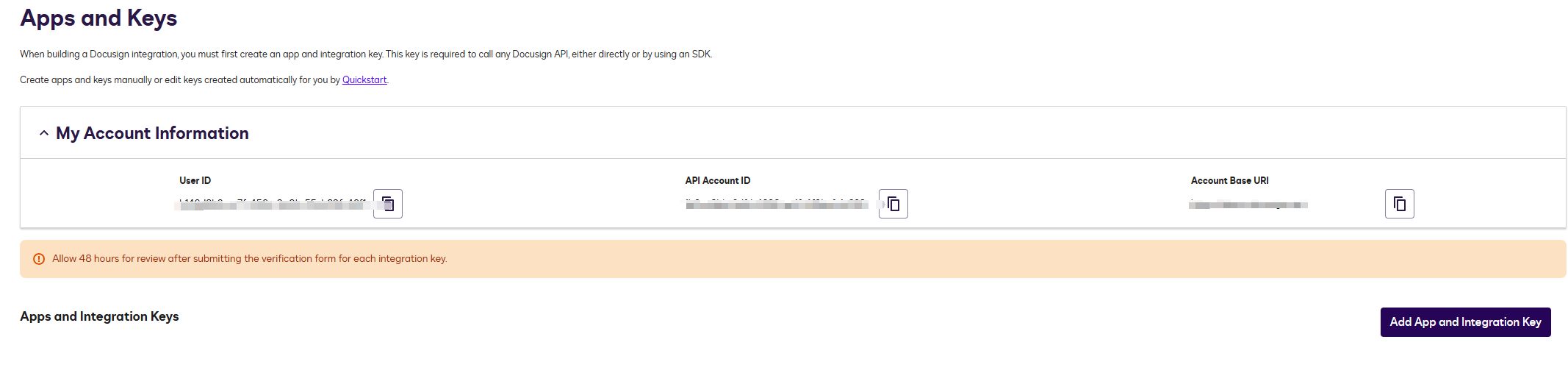
-
Verify that the RSA private key matches the Integration Key configuration. If you are unsure whether the current private key is correct, log in to the DocuSign developer console, locate your Integration Key, and generate a new RSA key pair. Replace the private key in your code with the newly generated one and discard the old key.
Error 2
DocuSign API error message
Resolution
-
Verify that the correct Auth Server URL is used:
-
Developer (Demo) environment:
account-d.docusign.com -
Production environment:
account.docusign.com
-
-
Ensure that the Integration Key configured in your application exactly matches the Integration Key shown in the DocuSign developer console.
Error 3
DocuSign API error message
Resolution
Verify that the Impersonated User ID configured in your application matches the User ID shown in the DocuSign developer console.
