
Home > Application Resilience > Restore and Recover Your Data > Jira Admin Settings
Download this articleJira Admin Settings
To restore Jira Admin Settings data, follow the steps below:
-
Go to the Application resilience page.
-
Click Restore on the Jira Admin Settings service tile.
-
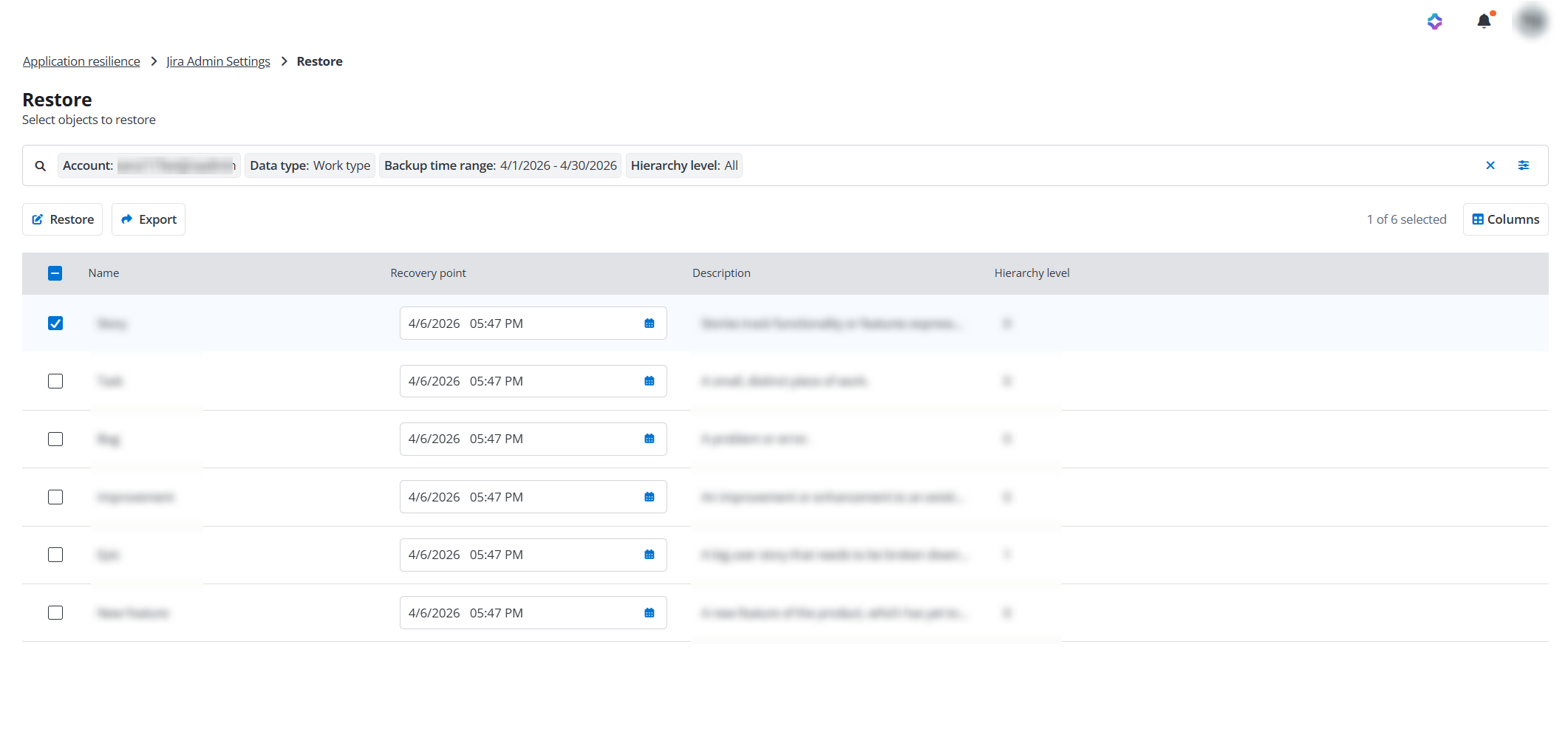
On the Restore page, click the Filter button to apply data type and other relevant filters to find the data you want to restore.
-
Select the data you want to restore, select a corresponding recovery point from the drop-down list, and then click the Restore button.
-
In the View properties step, view the information of the restore objects and then click Next.
-
In the Restore options step, select how to handle conflicts during restoration and then click Next. Based on the data type being restored, you can select the following conflict resolutions:
-
Skip - Destination data will be retained, and the backup data will be ignored.
-
Created new - Existing data in the destination will be retained. The backup data will be restored as a new, separate object.
NOTEFor content-level objects (Work type, Sub-task, Priority, Field, Resolution, Status, Work item linking, and Work item security level), if the object already exists in the destination, the Create new option will be not available.
-
Merge - Source and destination data will be combined at the field or attribute level using a merge strategy.
-
-
In the Overview step, review the restoration and click Restore to run the restore job. The restored object name will be updated to include the suffix: Restore_at_restore_time.