
Home > Template Gallery > Manage Templates
Download this articleManage Templates
You can perform the following operations to manage a template:
Available operations may vary depending on the template type and deployment status.
-
Update – Select the Update button to update the template. Changes will be synchronized to the template that has already been deployed.
NOTEThe Update button appears only when a new version of the template is available.
-
Publish – Select the Publish button to publish a draft template. Only published templates are available to be deployed.
-
Push – Select the Push button to push the template to your SharePoint. When users apply templates in SharePoint, they can find this template under the From your organization tab, and then apply it directly to a site in SharePoint.
-
Withdraw – Select the Withdraw button to withdraw the template from SharePoint site templates. Then, users will not find the template in SharePoint site templates when applying a template.
-
Deploy – Select the Deploy button to deploy the template to Microsoft Teams or SharePoint sites.
-
Discard – Select the Discard button to discard the draft template changes. The template is converted to the previous Published version.
-
Edit – Select the Edit button to edit the template.
-
Copy – Select the Copy button to copy a published template and then use the copied template to create your own template. Enter a template name and an optional description. You will be redirected to the Edit Template page, where you can customize the template. The copied template is in the Draft status.
-
Delete – Select the Delete button to delete the template. A template cannot be deleted if it has already been deployed.
Create a Template
If the built-in templates do not meet your organization’s brand and identity, refer to the following steps to create a new template:
-
Click Create Template.
-
In the Create Template window, select a template type from the following:
-
Teams App Builder – Customize your app to collect and organize employee information in Teams.
-
Groupware – Utilize groupware offerings for Teams to fulfill your business requirements.
-
Teams Portal – Build your intranet portal to use within Teams.
-
Portal Builder – Build your intranet portal to use within SharePoint.
-
-
Click Create to create the template.
The platform to which the template type can be deployed is displayed next to the template type. See how the template can be deployed to SharePoint Online or Teams below:
-
SharePoint Online – Deploy the template to a SharePoint communication site or team site.
-
Microsoft Teams – Deploy the template to Microsoft Teams as an app or tab (under the General channel of the selected teams).
Customize a Template
You can customize your template under the edit mode. The configurations are different depending on the template type.
Groupware
Utilize our suite of groupware offerings to fulfill your business requirements.
The following actions are available at the top of the template editing page:
-
Preview – Click Preview to preview this template on the Preview page. On the page, you can preview the app in the phone, tablet, and PC views by clicking the corresponding buttons.
NOTEThis is only available in the Template Configuration tab.
-
Publish – Click Publish to publish this template. Once this template is published, the template is ready for deployment to Teams.
-
Discard – Click Discard to discard changes made to this template.
-
Edit – Click Edit to edit this template.
-
Delete – Click Delete to delete this template.
-
Copy – Click Copy to create a new template with the same information.
-
Deploy – Click Deploy to deploy this template to Teams.
Complete the following sections to configure a template in this type:
Basic Information
In the Basic Information tab, edit the template name and description based on your requirements and click Save to save your edits.
Template Configuration
In the Template Configuration tab, select an app under App Suite to insert the app into the template.
For available groupware offerings in AvePoint Portal Manager and their detailed information, refer to App Suite.
The following actions are available in the tab:
-
Save – Click Save to save configurations in the tab.
-
Save and Generate Thumbnail – Click Save and Generate Thumbnail to save configurations in the tab and generate a thumbnail for the template.
-
Discard – Click Discard to discard changes made to the tab.
Theme
In the Theme tab, choose a built-in theme and then customize the theme to apply, or you can follow the site theme in SharePoint. The template is then updated based on the theme.
To edit the theme's primary color under CUSTOMIZE, click the Edit button.
Template Owner
By default, the creator of a template is the owner of this template. You can change the template owner to a new user or group by selecting the user or group. Then, click Save.
Administrators can choose any user or group in the system as the new template owner. Advanced Users can only choose the group where they exist as the new template owner.
Teams Portal / Portal Builder
Build your intranet portals to use within Teams or SharePoint.
The following actions are available at the top of the template editing page:
-
Preview – Click Preview to preview this template on the Preview page. On the page, you can preview the app in the mobile, tablet, and PC views by clicking the corresponding buttons.
NOTEThis is only available in the Template Configuration tab.
-
Publish – Click Publish to publish this template. Once this template is published, the template is ready for deployment to Teams or SharePoint.
-
Discard – Click Discard to discard changes made to this template.
-
Edit – Click Edit to edit this template.
-
Delete – Click Delete to delete this template.
-
Copy – Click Copy to create a new template with the same information.
-
Deploy – Click Deploy to deploy this template to your workspaces.
Complete the following sections to configure a template of this type:
Basic Information
In the Basic Information tab, edit the template name and description based on your requirements and click Save to save your edits.
Template Configuration
In the Template Configuration tab, refer to the following steps to configure the template:
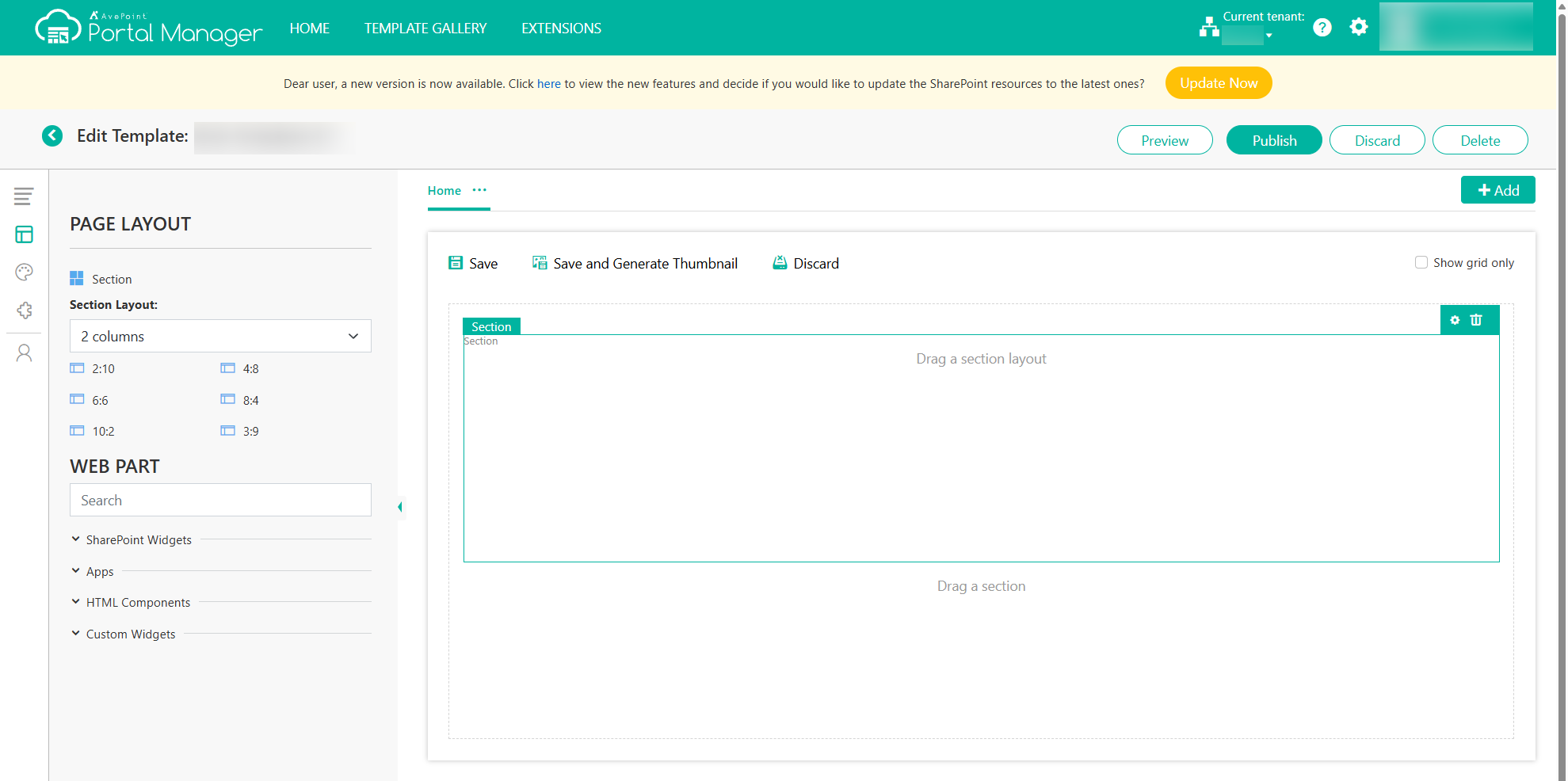
-
Drag the Section icon to the page one or multiple times to define the page structure. After adding a section, click it and then click the Settings button in the upper-right corner to edit the section or click the Remove button to remove the section. Section settings are:
-
Hide this section – Choose whether to hide this section.
-
Color Code – Select a color code to define the color of the section.
-
Custom CSS – Modify the section with custom CSS code.
-
-
Drag the Section Layout icon to each section to separate the section into one or multiple columns to display elements. After adding a section layout, click it and click the Settings button to edit the section layout or click the Remove button to remove the section layout. Section layout settings are:
-
Enable full width – Choose whether to expand the layout to the full width of the page without any horizontal margin or padding.
-
Color Code – Select a color code to define the color of the section layout.
-
Custom CSS – Modify the layout with custom CSS code.
-
Column Settings – Modify the columns with custom CSS code and CSS style.
-
-
Drag a web part to a column in a section layout. Click the Edit button to edit the web part properties or click the Remove button to remove the web part. For more information on the web parts that AvePoint Portal Manager supports, refer to Appendix B - Table of the Supported Web Parts.
NOTEFor templates of Portal Builder, app suites are available to be added as web parts. Only one app can be added to a template.
-
Click Save to save the changes or click Discard to discard the changes you made to this page.
You can also click Save and Generate Thumbnail to save the configured settings and generate a thumbnail for the template.
Theme
In the Theme tab, choose a built-in theme, customize a theme to apply, or follow the site theme in SharePoint. The template is then updated based on the theme.
To edit theme components such as font, logo image, color schemes, etc., click the Edit button, and update the theme component. You can also modify the theme with custom CSS or custom JavaScript.
You can select or customize a date format and a time format here. The date and time on the web parts of the current template will be displayed in the selected formats. Note that the date format and time format will not take effect on SharePoint out-of-the-box (OOTB) web parts. For the date and time format codes that you can use when customizing the date format and time format, refer to Appendix E - Date and Time Format Codes.
After customizing a built-in theme, click Save Theme to save it as a new theme; after modifying a custom theme, click Save Theme to save it as a new theme or save changes to the current theme.
Extensions (Only for Portal Builder)
In the Extensions tab, choose whether to enable the following features, and then click Save to save the changes.
-
Enable global navigation – By selecting the checkbox, the global navigations configured on the Extensions page will be consistent across all Communication site type site collections where the template is deployed. Select one of the following menu styles: Mega menu or Cascading.
-
Enable global footer – By selecting the checkbox, the global footer configured on the Extensions page will be consistent across all Communication site type site collections where the template is deployed. You can choose to stop inheriting the global footer when customizing the intranet portal site in SharePoint if the intranet portal site needs to have its own footer.
-
Apply a site template – Choose whether to apply a site template to define the site scripts that will be applied to a site after the template is deployed to the site. All site templates that have ever been registered to SharePoint will be available to choose from.
-
Enable multiple languages – Before enabling multiple languages, make sure you have already enabled the multilingual site feature in the SharePoint site. With multiple languages enabled, you can filter items by languages on the News, Quick Links, and Announcements web parts in the SharePoint sites where the template is deployed.
-
Enable multiple regions – With this feature enabled, you can filter items by regions on the News, Quick Links, and Announcements web parts in the SharePoint sites where the template is deployed.
-
Others – Configure the following features:
-
Choose whether to display the Zoom button on the portal site so that users can click the button to zoom the page.
-
Choose whether to display the Back to top button on the portal site so that users can click the button to go back to the top of the page.
-
Choose whether to display the Go home button on the portal site so that users can click the button to go back to the home page from other pages.
-
Choose whether to display the Edit Staff Profile button on the staff profile page so that users can edit their staff profile.
-
Choose whether to display site navigation in mobile view.
-
For more information on configuring global navigation, global footer, and regions, refer to Extensions; for more information on customizing the intranet portal site in SharePoint, refer to Configure the Intranet Portal Site in SharePoint.
Template Owner
By default, the creator of a template is the owner of this template. You can change the template owner to a new user or group by selecting the user or group. Then, click Save.
Administrators can choose any user or group in the system as the new template owner. Advanced Users can only choose the group where they exist as the new template owner.
Teams App Builder (Private Preview)
The Teams app builder supports flexible customizations for apps, allowing you to start online quickly. Customize your apps to collect and organize various employee information, such as daily reports and time clocks. To learn about how apps built by Teams App Builder are used in Teams, refer to Teams App Created by Teams App Builder.
Teams App Builder is not available for all APM tenants. To use or learn more about the template type, contact your AvePoint sales representative for details.
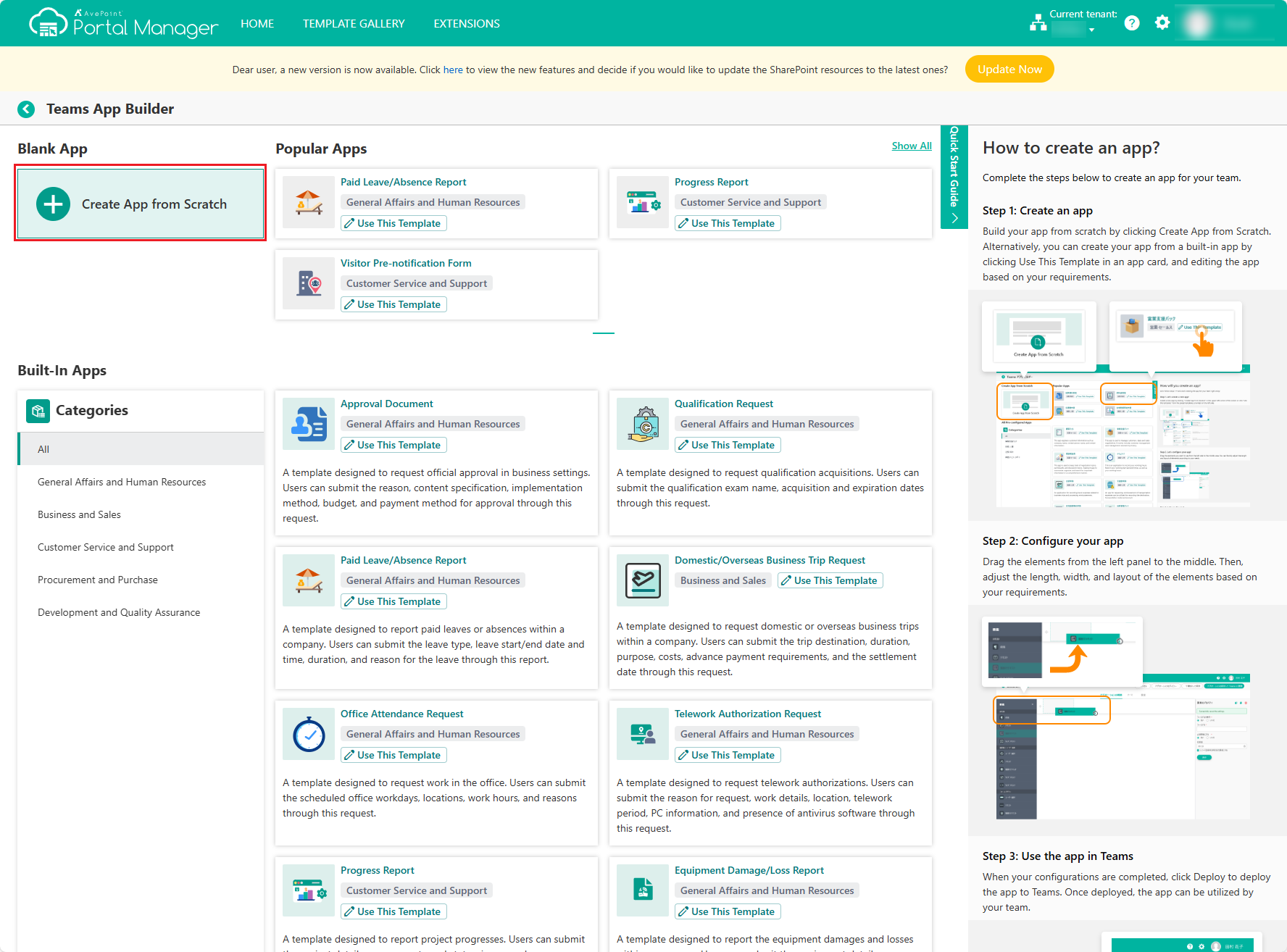
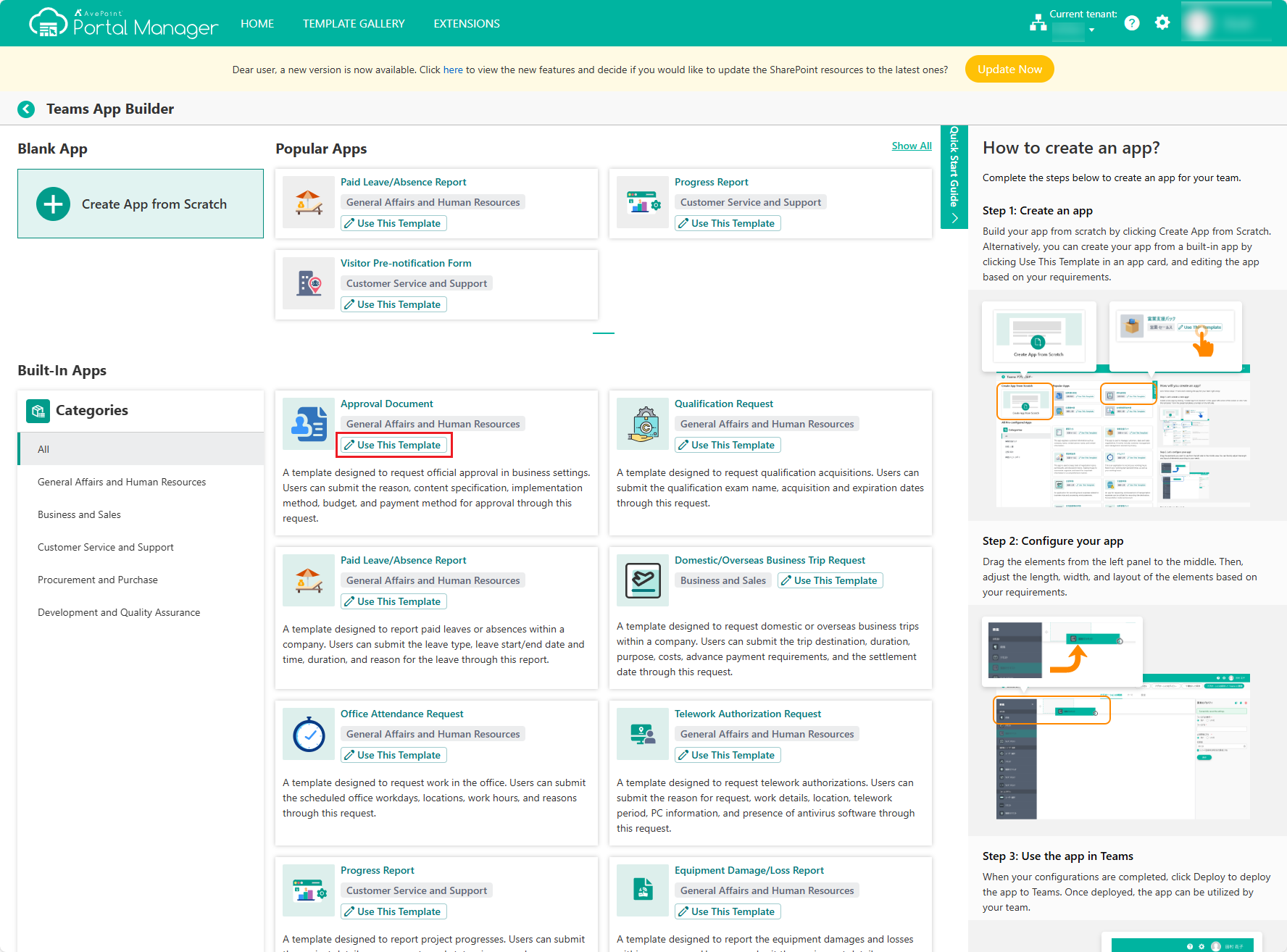
When creating an app via the Teams app builder, you can either create your app from scratch or use a built-in app as a template and then edit the template based on your requirements.
To create your app from scratch, click Create App from Scratch to access the app editing page.
To create your app based on a built-in app, click Use This Template in the app card to access the app editing page.
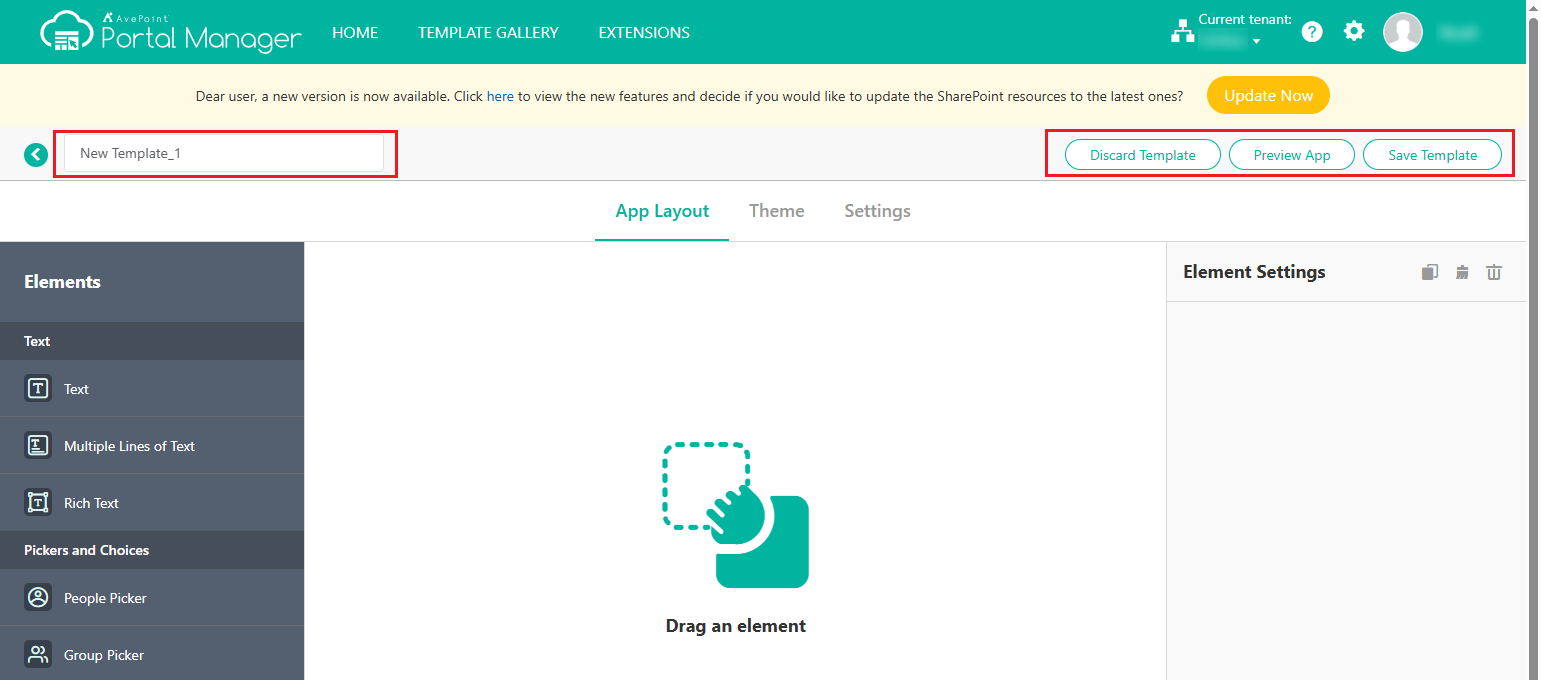
The following actions are available on the top of the app editing page:
-
Edit template name – Enter the new template name in the upper-left corner of the page.
-
Discard Template – This action is only available when the template is newly created and has not been saved. Click Discard Template to discard the creation of the template.
-
Discard Changes – Click Discard Changes to discard the changes you made after the template is last saved.
-
Delete – Click Delete to delete this template.
-
Preview App – Click Preview App to preview this template in the Preview page. On the page, you can preview the app in the mobile, tablet, and PC views by clicking the corresponding buttons.
-
Save Template – Click Save Template to save the template you created.
-
Save Changes – Click Save Changes to save the changes you made to the template.
-
Publish – Click Publish to publish this template. Once this template is published, the template is ready for deployment to Teams.
-
Deploy – Click Deploy to deploy this template to Teams.
Complete the following sections to configure a template in this type:
App Layout
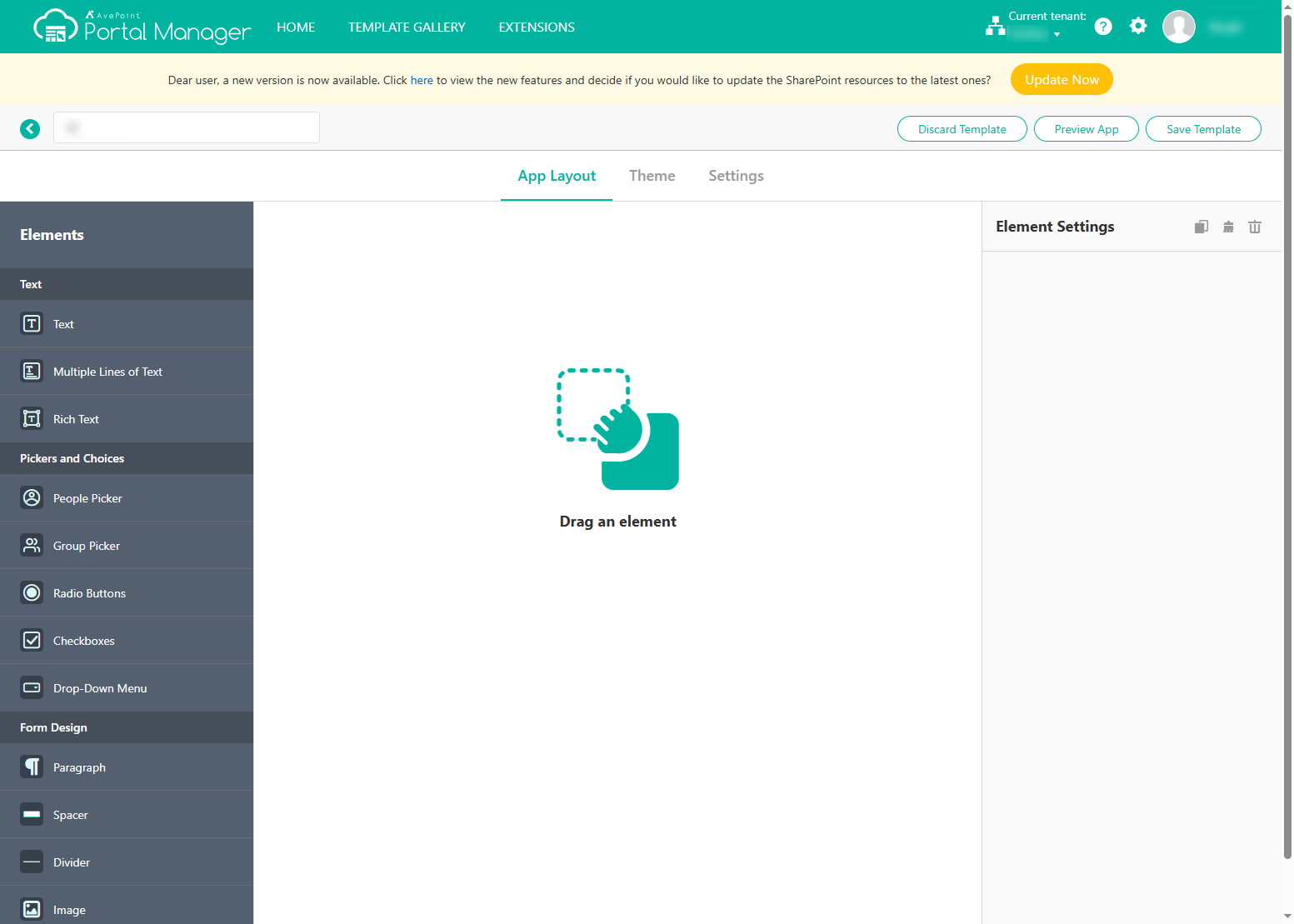
Under the App Layout tab, drag the elements from the Elements panel to the desired locations.
Once an element is dropped, the settings of the element are displayed and editable under the element settings panel. Alternatively, you can click an element to display and edit its settings.
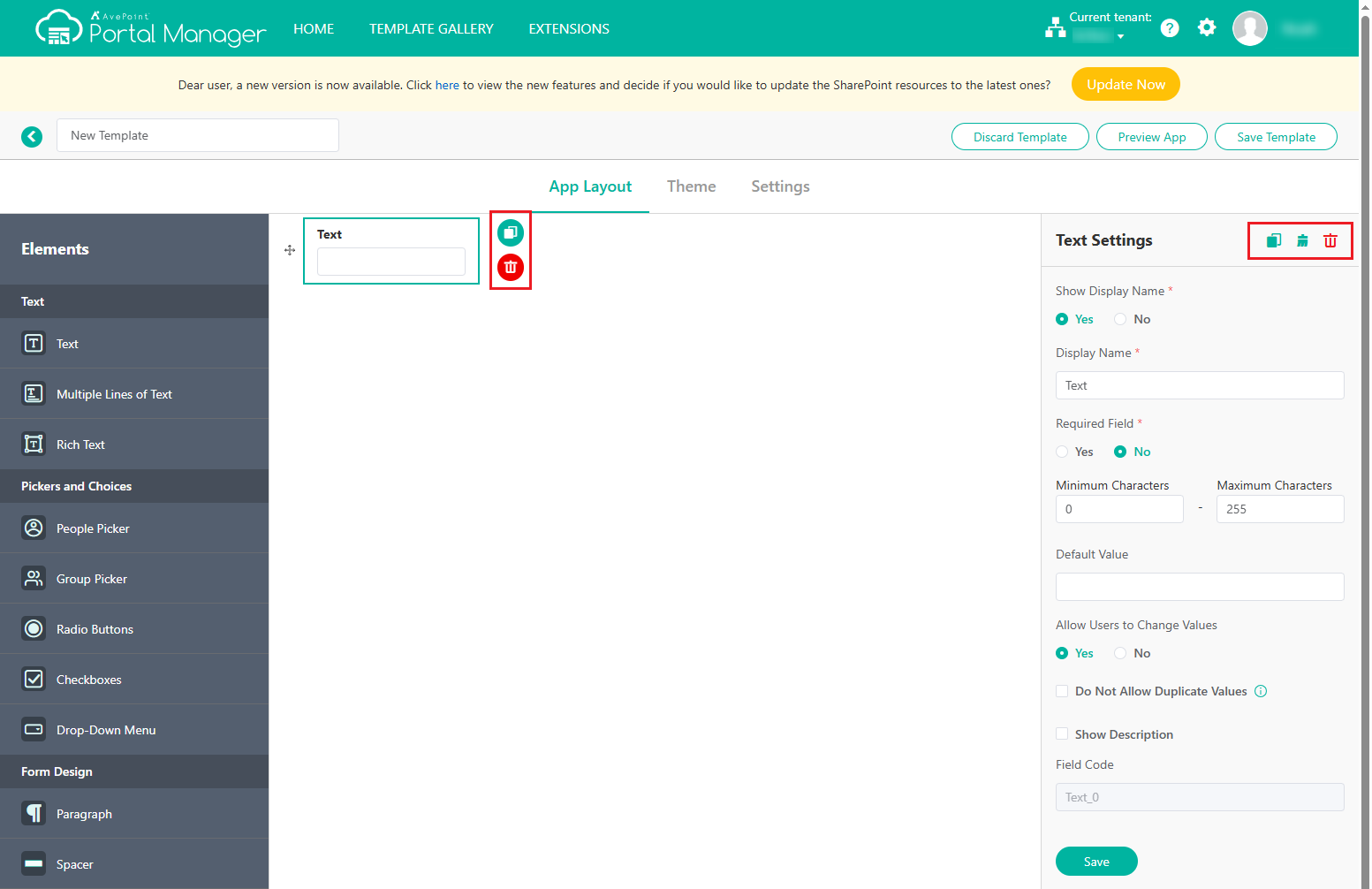
The following actions are available for each element:
-
Duplicate – Click the Duplicate button next to the element or click the Duplicate button in the Element Settings panel to duplicate the element with all settings duplicated together.
-
Clear – Click the Clear button to reset to default settings.
-
Delete – Click the Delete button next to the element or click the Delete button in the Element Settings panel to delete the element.
For elements that AvePoint Portal Manager supports and their settings, refer to Appendix G - Table of Supported Elements.
When you finish editing an element, click Save to save your edits.
Theme
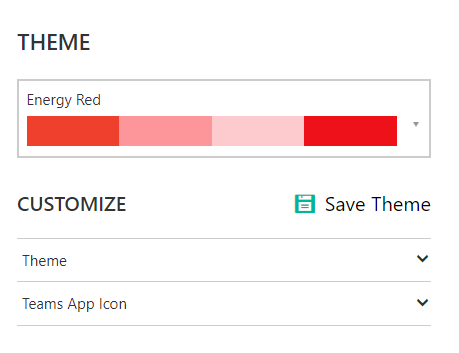
Under the Theme tab, choose a built-in theme and then customize the theme to apply, follow the site theme in SharePoint, or select a custom theme. The template is then updated based on the theme.
The theme and Teams app icons are editable under CUSTOMIZE. Click the Edit button to update the theme components.
Settings
Under the Settings tab, configure the following settings for the template:
-
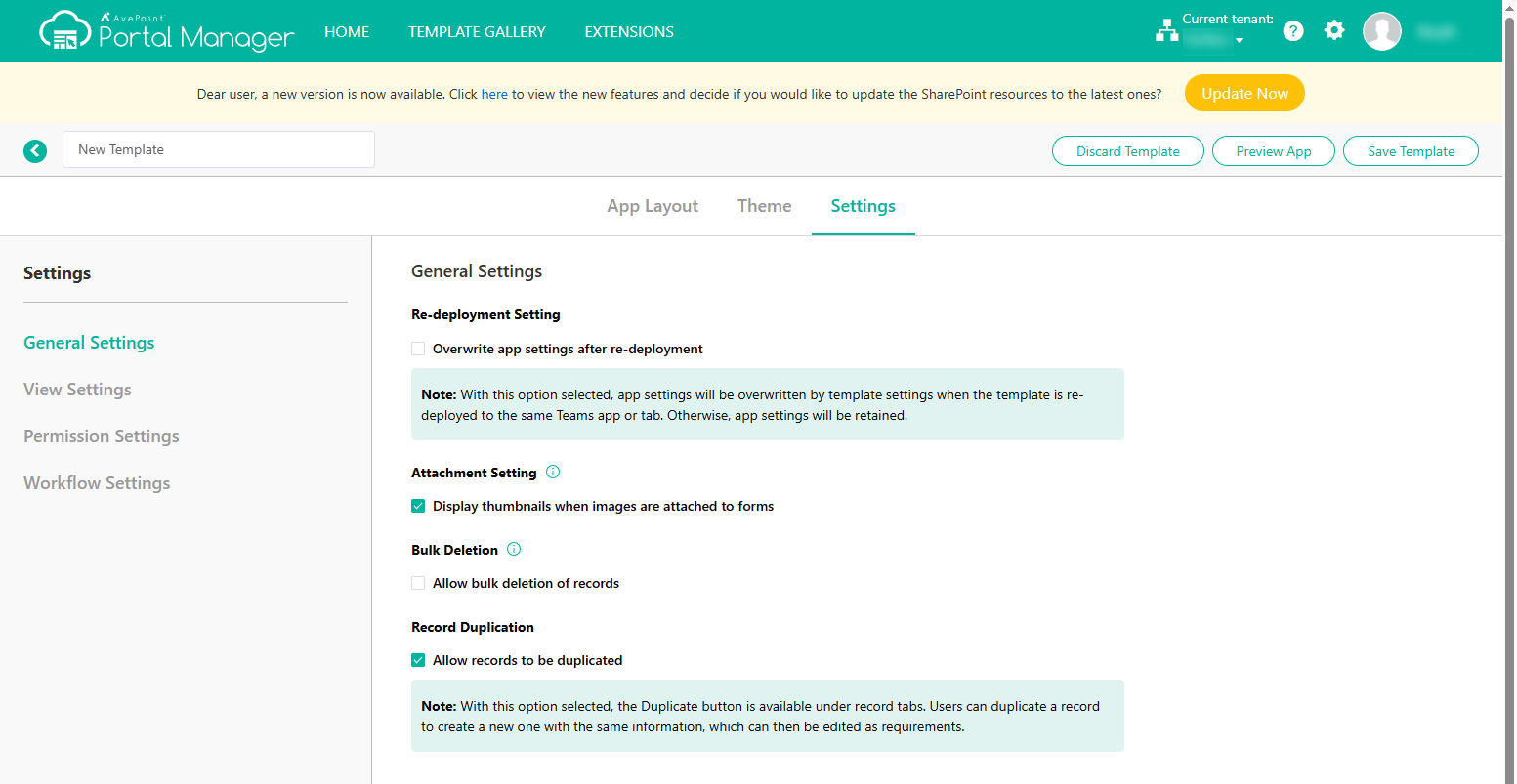
General Settings – Configure the following template settings:
-
Re-deployment Setting – Choose whether to Overwrite app settings after re-deployment. With this option selected, app settings will be overwritten by template settings when the template is re-deployed to the same Teams app or tab. Otherwise, app settings will be retained.
-
Attachment Setting – Choose whether to Display thumbnails when images are attached to forms. With this option selected, images attached to the attachment elements on a form will be displayed as thumbnails. Otherwise, image names will be displayed. Users can click a thumbnail to view and download the image.
-
Bulk Deletion – Choose whether to Allow bulk deletion of records. With this option selected, multiple records can be deleted simultaneously under the My Records and All Records tabs.
-
Record Duplication – Choose whether to Allow records to be duplicated. With this option selected, the Duplicate button is available in record tabs. Users can duplicate a record to create a new one with the same information, which can then be edited as requirements.
-
-
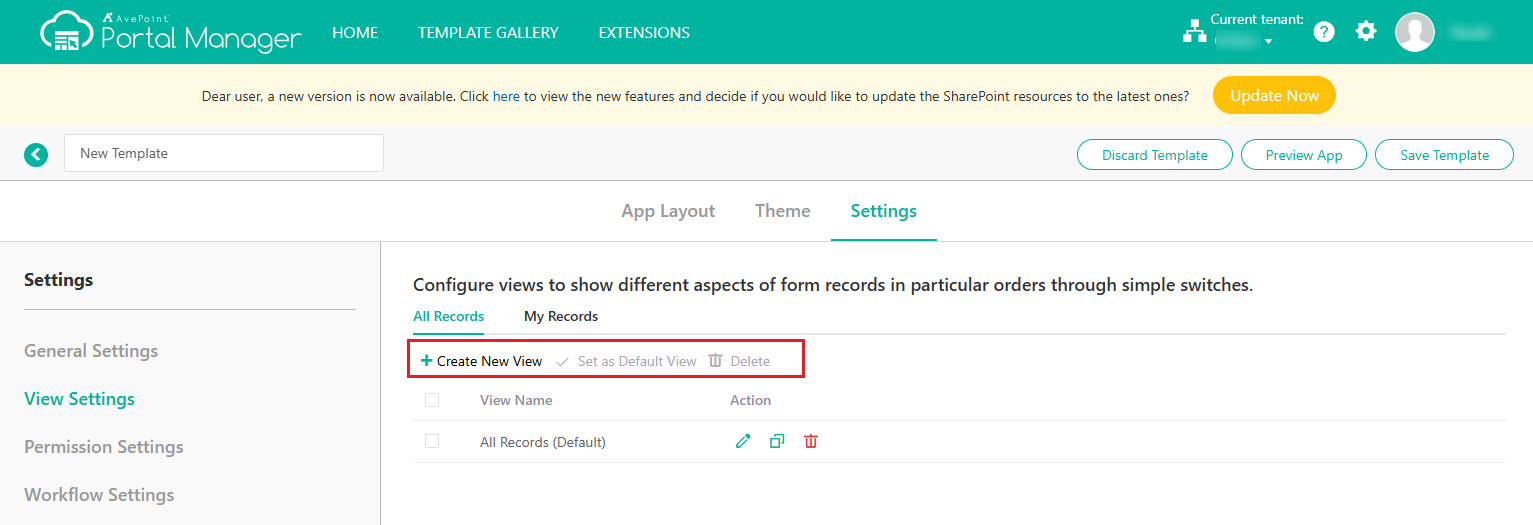
View Settings – Configure built-in views in the All Records and My Records tabs to show different aspects of records in particular orders.
The following actions are available in View Settings:
-
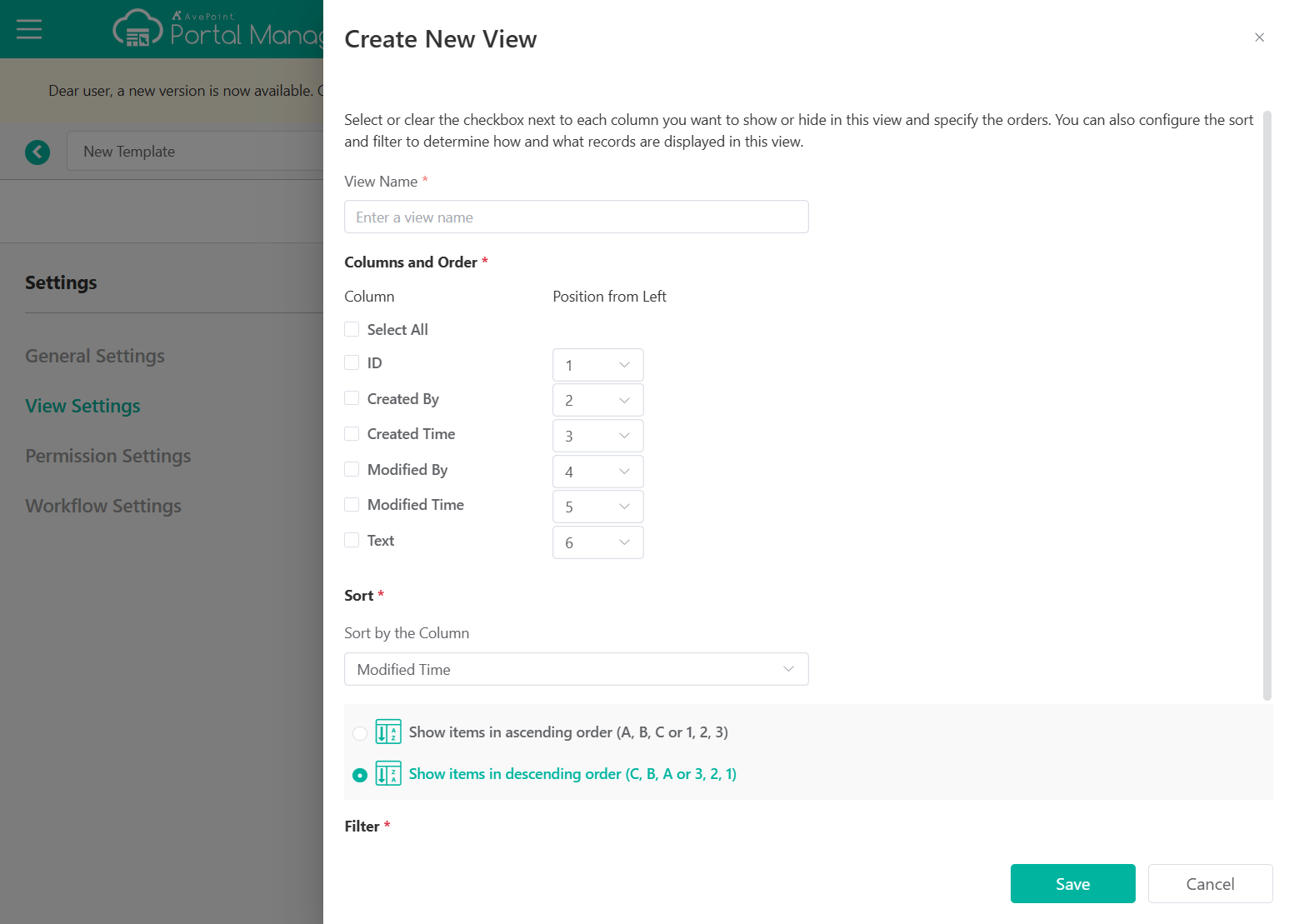
Create New View – To create a new view, click Create New View. In the Create New View panel, edit the view name, display columns and orders, sort, and filter for the view and click Save to create the view.
-
Set as Default View – To set a view as the default view, select the view and click Set as Default View above the view table. The view will be set as the default view in the All Records tab.
-
Delete – Select one or multiple views and click Delete above the view table to delete the selected views.
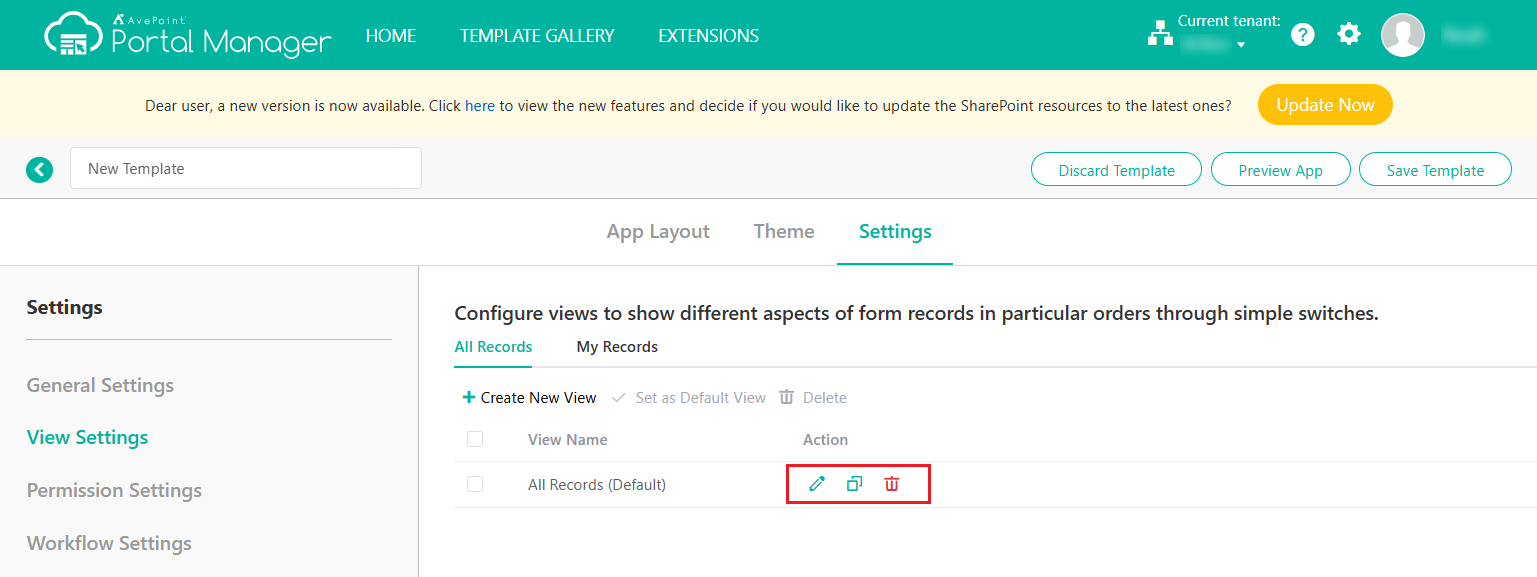
For each view, the following actions are available:
-
Edit view – Click the Edit button to edit the view name, display columns and orders, sort, and filter for the view in the Edit View panel and click Save to save your edits.
-
Duplicate view – Click the Duplicate button to copy and create a new view in the table with the same information. The new view will be labeled with Copy following the view name.
-
Delete view – Click the Delete button to delete the view.
NOTETo delete a default view, make sure to set another view as default before deleting it.
-
-
Permission Settings – Specify users and groups for each user role of the app by entering the user or group names in the role cards, or remove roles from users or groups by clicking the remove button next to them.
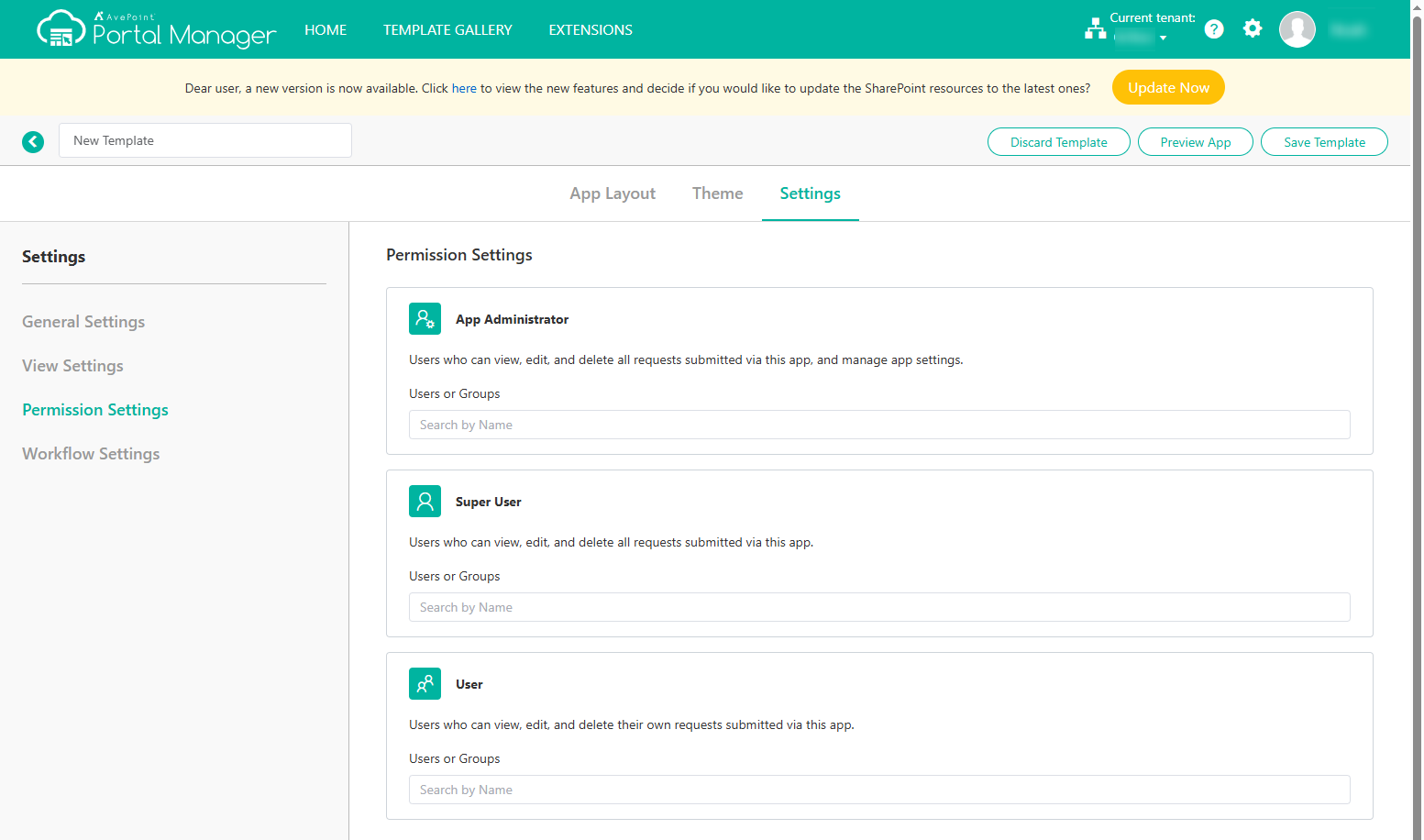
The available user roles and their permissions are listed below:
-
App administrator – Users who can view, edit, and delete all form responses, and manage app settings.
-
Super user – Users who can view, edit, and delete all form responses.
-
User – Users who can view, edit, and delete their own form responses.
-
-
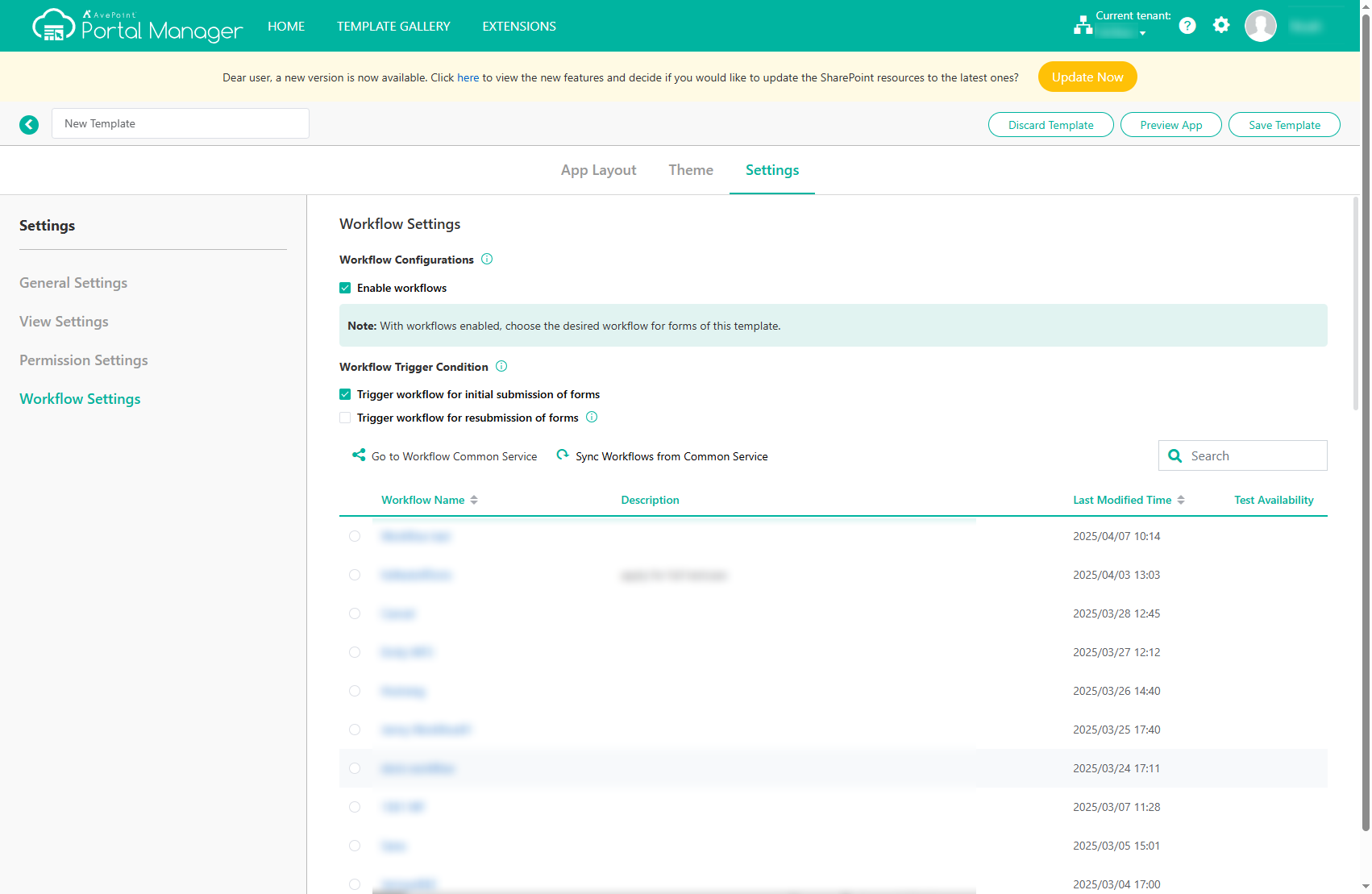
Workflow Settings – If you want to enable workflows for forms submitted using this template, select the Enable workflows checkbox and complete the following settings:
NOTEIf you do not have sufficient permissions to configure the workflow settings, a message will appear. Contact your administrator for assistance.
-
Workflow Trigger Condition – Select one or both workflow trigger conditions.
-
Trigger workflow for initial submission of forms – Triggers workflow when forms are initially submitted.
-
Trigger workflow for resubmission of forms – Triggers workflow when forms are resubmitted. If there are ongoing workflows for the original form responses when the forms are resubmitted, the workflow status will change to “Skipped” and new workflows will begin for the updated form responses.
-
-
Workflow Selection – Specify the workflow to apply to the template.
You can search workflows by workflow name using the search box and click the workflow name link to view the workflow details.
To create or edit workflows, click Go to Workflow Common Service. For more details, refer to Workflows.
NOTETo create or edit workflows in Workflow Common Service, you must be added as a Workflow Common Service user or administrator.
To get the latest workflows from Workflow Common Service, click Sync Workflows from Common Service.
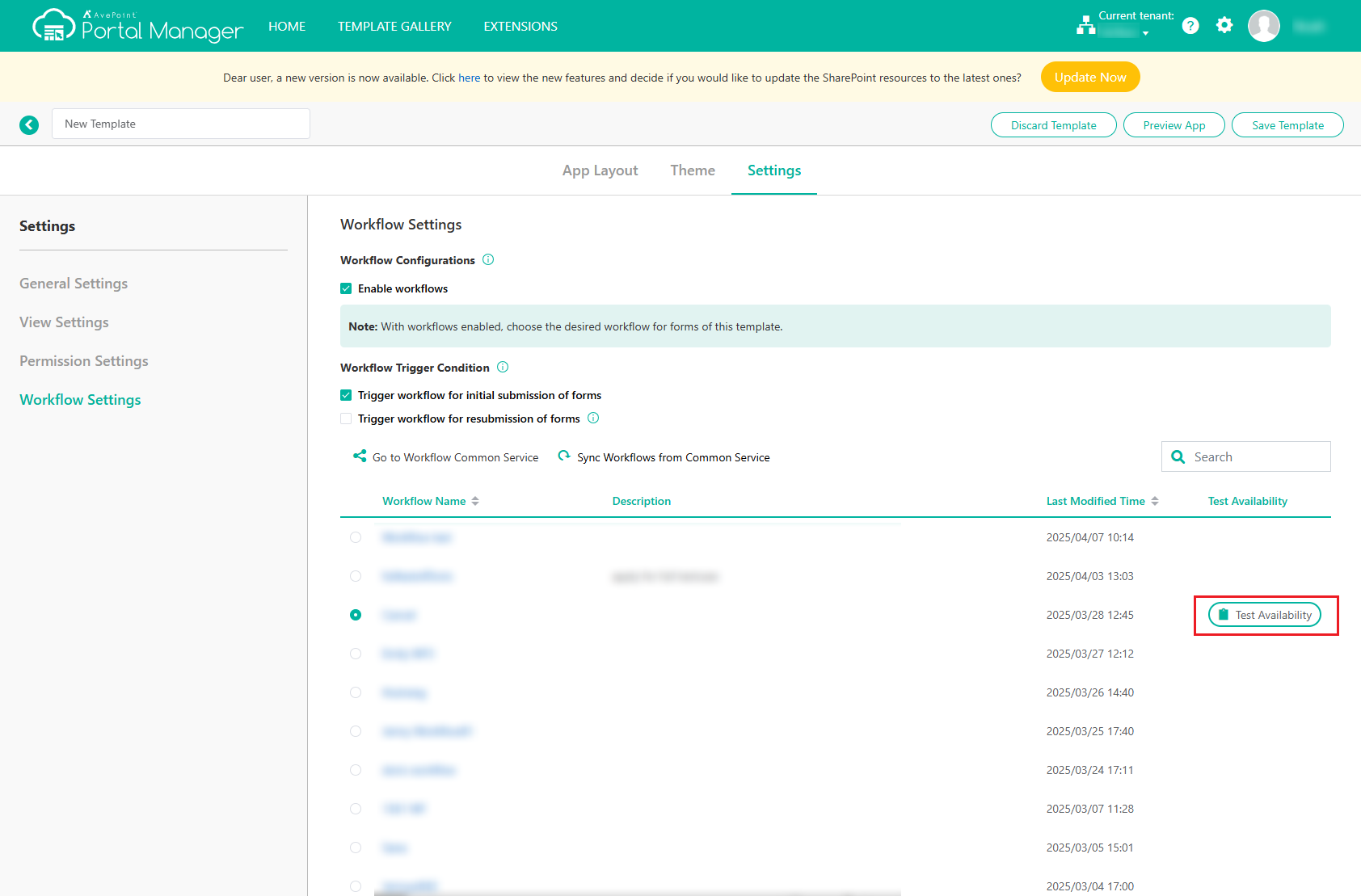
Select the desired workflow in the workflow table and click Test Availability to ensure the workflow is available for the template. If the test result is Available, you can click Save to save your workflow configurations. If the test result is Not Available, you can click View Details to view more details.
NOTEMake sure your selected workflow is available before saving your configurations.
-