
Home > App Suite > Desk Reservation > Use the Desk Reservation App
Download this articleUse the Desk Reservation App
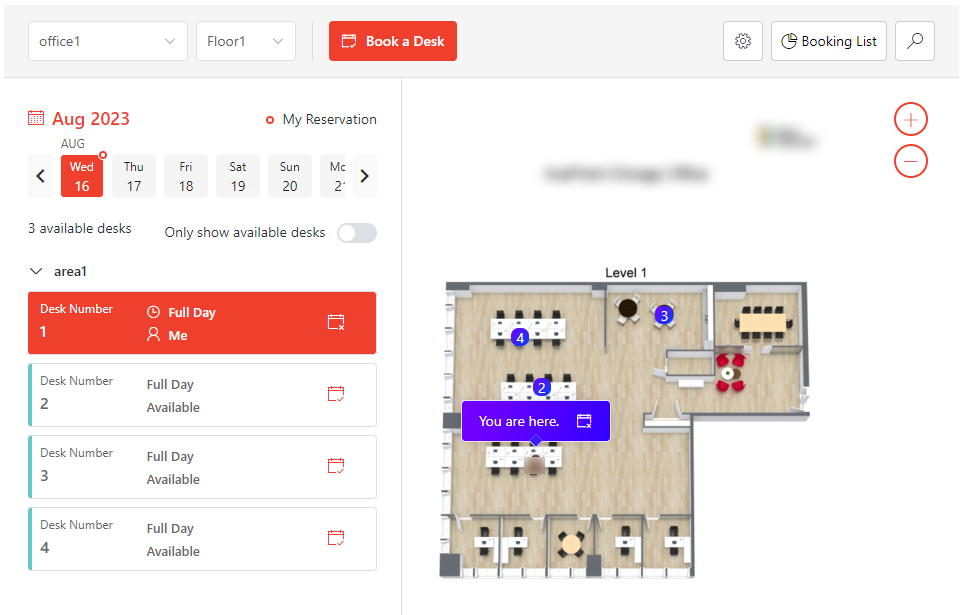
Below is a homepage overview of the desk reservation app:
The Working Environment
In the upper-left corner of the app homepage, select the office and floor from the drop-down lists. Areas and desks in the location will be displayed in the viewing pane.
In the left pane, the desk information and reservation status of the current date are displayed and categorized by area. You can click a date to view the desk information and reservation status of the corresponding date. A circle icon is displayed in the upper-right corner of the dates when you have desk reservations.
Turn on the Only show available desks switch if you want to view available desks in the location only.
You can click the Book a Desk button to the right of the desk information to book the desk or click the Cancel button to cancel the desk reservation.
You can only cancel desk reservations whose booking requests are submitted by yourself.
In the right pane, you can view the floor plan. Desks on the floor are displayed on the floor plan and labeled by the desk numbers. You can click the zoom in button in the upper-right corner to zoom in on the floor plan or click the zoom out button to zoom out of the floor plan.
On the top of the homepage, the following actions are available:
-
View desks in a different location – Select the desired office and floor from the drop-down lists to view areas and desks, and book desks in the location.
-
Book a Desk – Click Book a Desk to access the BOOK A DESK window and submit the booking request. For details, refer to the Desk Reservation Process section below.
-
Configure Settings – Click the Settings button to access the Settings page. For details, refer to Settings for Desk Reservation App.
NOTEThe button is only visible for administrators.
-
Access Booking List – Click Booking List to access the Booking List page. For details, refer to the Desk Reservation Process section below.
-
Use Search Center – Click the Search Center button to access the Search Center page.
On this page, you can refer to the following steps to search for desk reservations of specific users:
-
Enter the username in the search box and select the desired user from the suggestion list. You can add multiple users in the search box by using the step above.
-
When all desired users are added, click Search to search for desk reservations of the users in 2 weeks. The search results are categorized by dates.
To search for desk reservations of the users in a custom date range, click the date range filter below the search box, the drop-down list appears. In the drop-down list, the following actions are available:
-
Click Last Week, Last Month, Next Week, or Next Month on the left of the list to view desk reservations in the corresponding period.
-
Click the start date and then click the end date on the calendar to customize the date range and view desk reservations in the custom date range.
-
View Desk Reservation Status
When you click a desk in the left pane, the desk information card appears next to the corresponding desk on the floor plan. You can also click the desk number on the floor plan to view the desk information card.
-
If the desk is available for booking, you can click Book This Desk in the desk information card to book the desk. For details, refer to the Desk Reservation Process guide.
-
If the desk has been booked for yourself, the You are here message appears.
If the booking request is submitted by yourself, you can click the Cancel button next to the message to cancel the desk reservation.
If the booking request is submitted by an administrator, contact the administrator to cancel the desk reservation if required.
NOTEFor booking requests submitted by administrators, Booked by Admin is displayed next to the user name.
-
If the desk has been booked for another user, you can view the user name in the information card.
View My Reservations/Team Reservations
You can view the desk reservations that are booked for yourself on the Booking List page. If the desk reservation app is deployed as tabs of specific teams, the team managers can also view team reservations on the Booking List page.
Click Booking List in the upper-right corner of the app homepage to access the Booking List page. On the page, the My Reservations and Team Reservations tabs are displayed.
The Team Reservations tab is only visible when:
-
The desk reservation app is deployed to Microsoft Teams.
-
The desk reservation app is deployed as tabs of specific teams.
-
You are in the team and there are people who directly report to you in the team.
NOTEThe organization relationship is retrieved from Microsoft Entra ID.
In the My Reservations tab, the desk reservations for yourself in 2 months are displayed, you can view the date, period, office, floor-area information, and desk number of each reservation. You can use the date range filter in the upper-left corner of the page to view your desk reservations in custom date ranges.
You can use one of the following methods to cancel the desk reservations:
-
Click the Cancel button next to a desk reservation to cancel the reservation.
-
To cancel desk reservations in bulk, select the reservations you want to cancel and click Cancel Reservation above the table to cancel the reservations.
In the Team Reservations tab, the Date View and People View are available.
In both views, desk reservations of people who directly report to you are displayed by default. You can turn off the Show people who directly report to me switch to view desk reservations of all subordinates.
You can use the department filter to filter desk reservations of specific departments or use the team member search box to search for desk reservations of specific team members.
In the Date View, people in the report scope and their desk reservations of the current date are displayed by default and are categorized by People with reservation and People with no reservations. You can click other dates from the calendar to view desk reservations of the corresponding dates.
In the People View, people in the report scope are displayed and sorted in descending order of the reservation volume. You can view the team member who has the most desk reservations in 1 week and the desk reservations in the viewing pane by default.
You can view desk reservations of team members in custom date ranges by using the date range filter above the viewing pane.
You can also sort the team members by the Employee Name by configuring the Sort by field above the viewing pane.
Desk Reservation Process
You can book a desk using one of the following methods:
-
Book a desk with the Book a Desk button:
-
Select the office and floor on which the desired desk is located in the upper-left corner of the app homepage.
-
Click Book a Desk and the BOOK A DESK window appears.
-
In the window, complete the following information:
-
Book for – User name of the current login account is displayed by default and not editable for users. If you are an administrator, you can change the user in this field to book a desk for another user.
-
Area – Select an area from the drop-down list.
-
Desk – Select a desk from the drop-down list.
-
Select dates – Click Select dates and click the dates when you want to book the desk on the calendar. Click OK and the selected dates will be displayed below Booking Time.
For each date, you can book the desk for the Full Day, AM, or PM by selecting the corresponding booking time from the drop-down list next to the date.
You can click the delete button next to a date to delete the desk booking on the date.
-
-
Click Submit to submit the booking request.
-
-
Book a desk in the desk information:
-
For a desk of which the reservation status is available, click the Book a Desk button to the right of the desk information in the left pane to access the BOOK A DESK window.
NOTETo access the BOOK A DESK window, you can click the desk information and click Book This Desk in the desk information card on the floor plan. Alternatively, you can click the desired desk number on the floor plan and click Book This Desk in the desk information card.
-
In the window, complete the following information:
-
Book for – User name of the current login account is displayed by default and not editable for users. If you are an administrator, you can change the user in this field to book a desk for another user.
-
Area/Desk – The area and desk you are about to book are displayed and not editable.
-
Select dates – The current date and booking period are displayed under Booking Time and editable. You can add other booking dates by clicking Select dates and clicking the dates when you want to book the desk on the calendar. Click OK and the selected dates will be displayed below Booking Time.
For each date, you can book the desk for the Full Day, AM, or PM by selecting the corresponding booking time from the drop-down list next to the date.
You can click the delete button next to a date to delete the desk booking on the date.
-
-
When the booking request is submitted, the user for whom the desk is booked will receive an email reminder on the day before the booking dates and can use the desk on the dates that have been booked.