
Home > Integrate with AvePoint Cloud Governance
Download this articleIntegrate with AvePoint Cloud Governance
AvePoint Portal Manager can integrate with AvePoint Cloud Governance. When Cloud Governance administrators create a service for site collection provisioning, they can define the AvePoint Portal Manager templates that are available to be deployed to the site collections. When business users request this service to create a site collection, they can choose from the available templates set by the administrator. AvePoint Cloud Governance will then create the site collection and deploy the defined template to the site collection.
Refer to the following steps to integrate AvePoint Portal Manager with AvePoint Cloud Governance:
-
Sign in to the AvePoint Cloud Governance admin center as an administrator.
-
Navigate to Settings > Request Management > Service to access the Services page where you can create and manage AvePoint Cloud Governance services.
-
Create or edit a Create Site Collection or Create Group/Team/Community service.
-
In creating or editing a service interface, configure the following settings:
-
In the Metadata section, add metadata to define the AvePoint Portal Manager templates that are available to be deployed to the site collections.
-
Click Add Metadata to open the Add Metadata window.
-
Name and Type – Enter a metadata name, for example, APM Template Title, and then select Choice (menu to choose from) as the metadata type.
-
Additional Column Settings – Enter the name of the APM templates that are available to choose from when business users request this service to create site collections, one record for each line.
NOTEMake sure you have already created templates in AvePoint Portal Manager, and the templates are published. You can modify the metadata values later when there are changes in AvePoint Portal Manager templates.
-
Configure other settings if required.
-
Click Save to save the changes.
-
Select the newly created metadata, and then click Add to list.
-
-
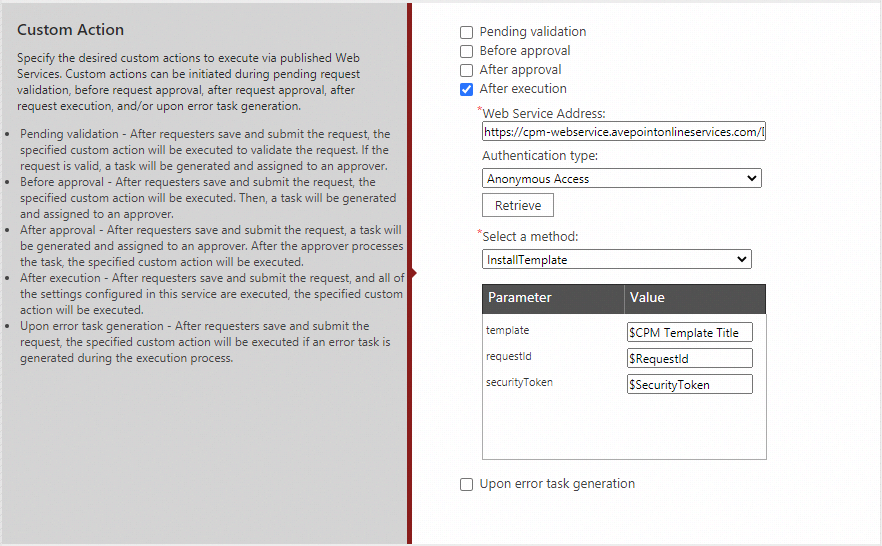
In the Custom Action section, apply a Web Service to an AvePoint Cloud Governance custom action.
-
Select After execution.
-
In the Web Service Address text box, enter the URL below:
-
For the United States data center, enter https://cpm-webservice.avepointonlineservices.com/DeploymentService.asmx.
-
For the Japan data center, enter https://jpcpm-webservice.avepointonlineservices.com/DeploymentService.asmx.
-
-
Select Anonymous Access as the authentication type that will be used to access the Web service.
-
Click Retrieve to retrieve the method in the Web Service. The parameters defined in the selected method are displayed in the table below.
-
Define the parameter values as below:
-
template – Enter $ and then enter the custom metadata name created above. When the custom metadata is applied to the service, the requester will define a value for the metadata. The defined metadata value will become the parameter value.
-
requestId – Enter $RequestId as the parameter value.
-
securityToken – Enter $SecurityToken as the parameter value.
-
-
-
Save changes to the service.
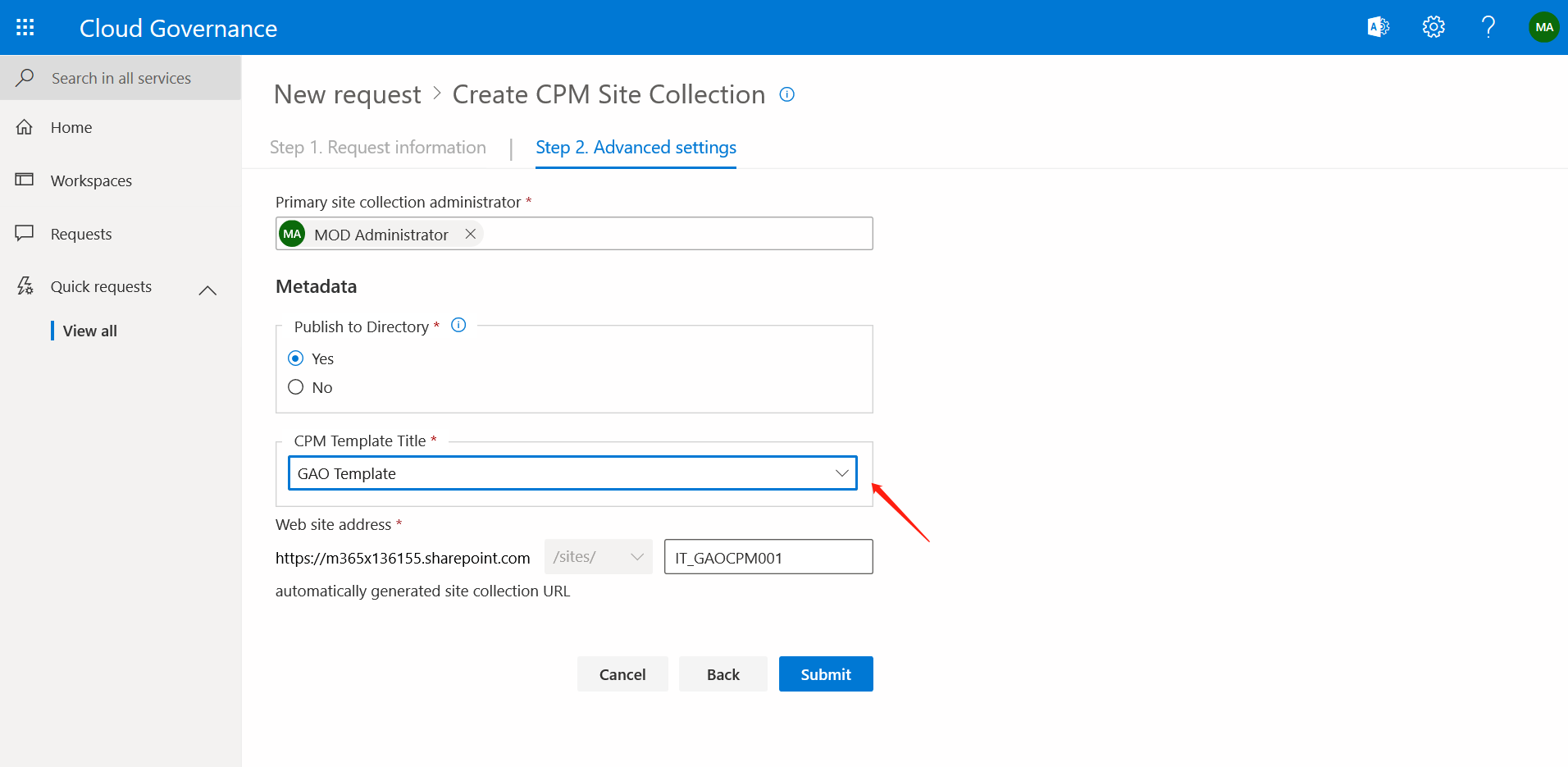
When business users start a request for a Create Site Collection or Create Group/Team/Community service, they can choose the template that will be deployed to the site collection from the available AvePoint Portal Manager templates set by the administrator.
For additional instructions on creating a service as an administrator, refer to AvePoint Cloud Governance Administrator Guide; for additional instructions on starting a request for a service as a business user, refer to AvePoint Cloud Governance Portal User Guide.