
Home > App Suite > Teams App Created by Teams App Builder (Private Preview)
Download this articleTeams App Created by Teams App Builder (Private Preview)
The Teams app builder supports flexible customizations for apps, allowing you to start online quickly. Customize your apps to collect and organize various employee information, such as daily reports and time clocks.
In the deployed location of the customized app, users can refer to Use App to use the app. Administrators can refer to Configure App Settings to manage the app.
Use App
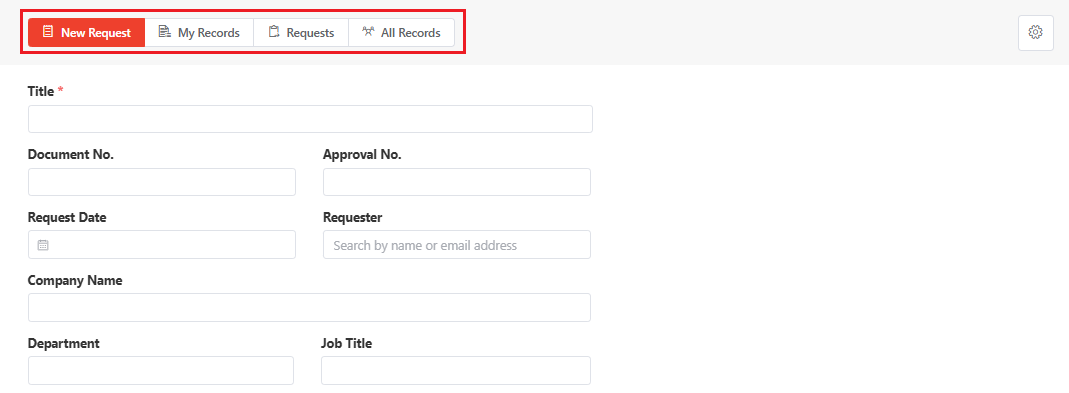
In the app, the New Request, My Records, Requests, and all Records tabs are available to you. Refer to the sections below for details of each tab:
New Request
New Request is used to submit the request information to be collected by your organization.
Complete the request form and click Submit to submit your response. Once submitted, the request is recorded under the record tabs.
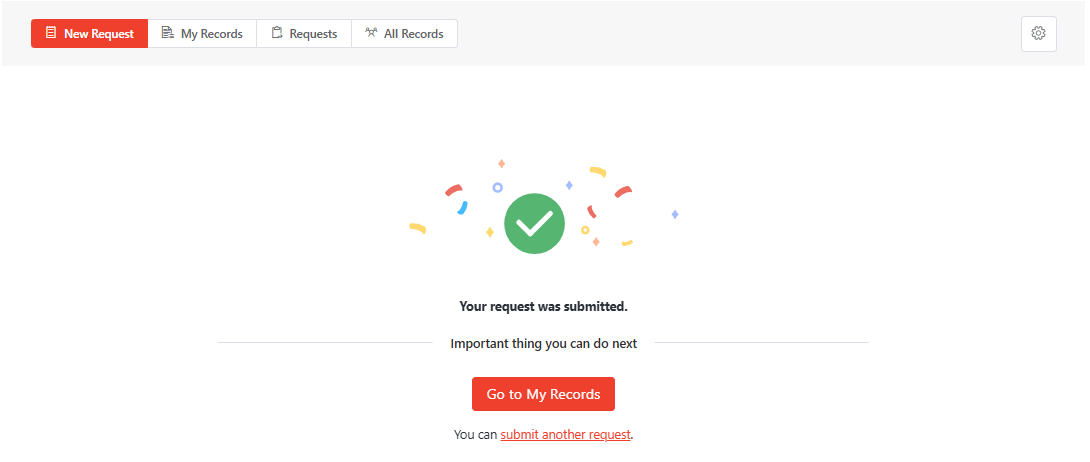
On the submission result page, you can click Go to My Records to view and manage your requests or click submit another request to submit another request.
All Records / My Records
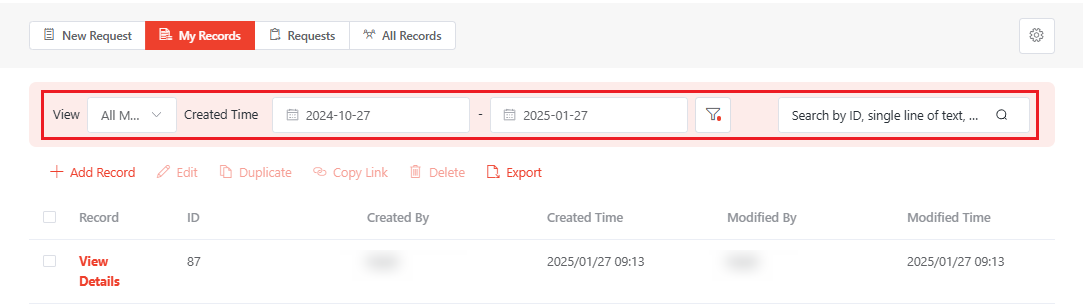
Under the All Records tab, all requests in your organization to which you have permission are displayed. Under the My Records tab, all requests submitted by yourself are displayed.
Under the My Records tab, you can select a view from the view drop-down list to view records in the view, filter records by created time, click the Filter button to define your filter in the Filter window, or search for specific records by ID, values of single line of text type fields, or selected drop-down menu options.
Under the All Records tab, you can select a view from the view drop-down list to view records in the view, click the Filter button to define your filter in the Filter window, view the number of requests, or search for specific records by ID, values of single line of text type fields, or selected drop-down menu options.
For both tabs, the following actions are available:
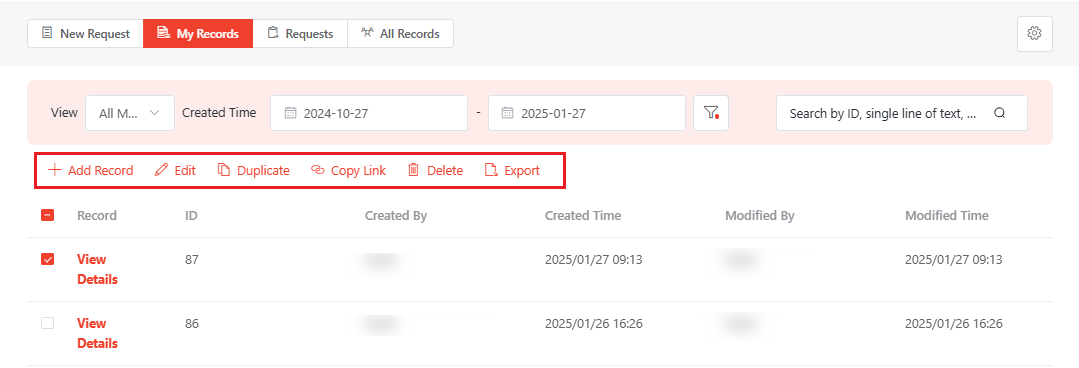
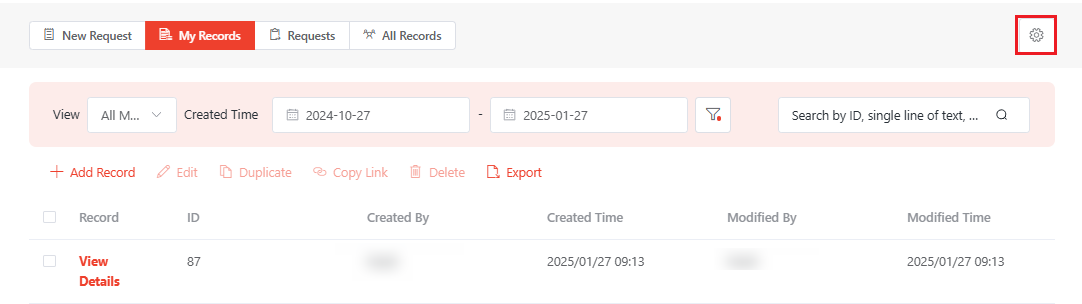
Available actions on the ribbon.
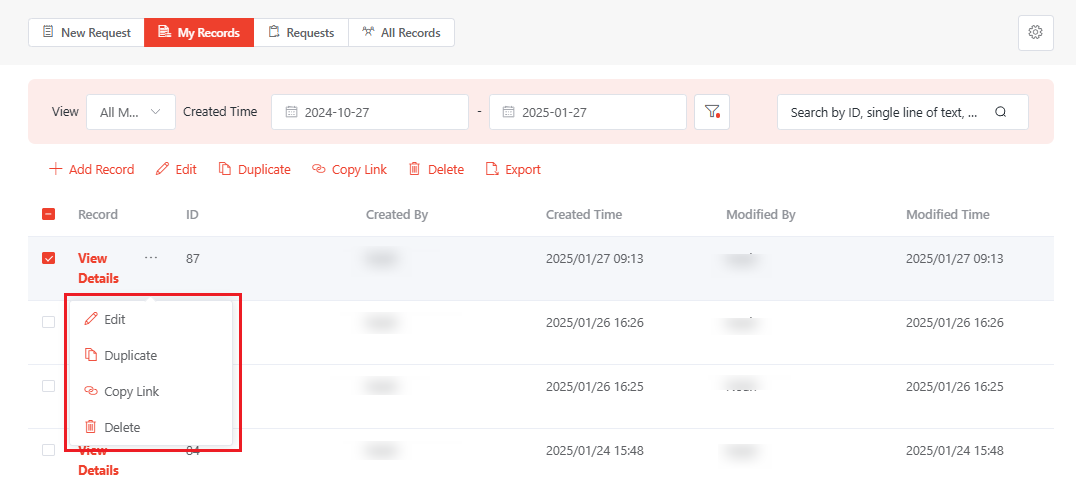
Available actions in the action menu.
-
Add Record – To submit a request, click Add Record and you will be redirected to the New Request tab to submit your response.
-
Edit Record – Select a record and click Edit or hover your mouse over the record and click the Actions button > Edit. The View Details page appears where you can edit the record. When you finish, click Save to save your edits.
-
Duplicate Record – Select a record and click Duplicate or hover your mouse over the record and click the Actions button > Duplicate. You will be redirected to the Form tab with the same response as your duplicated one. You can edit the response based on your requirements and click Submit to submit the response.
NOTEThe Duplicate button is hidden if your organization does not allow records to be duplicated.
-
Copy Record Link – Select a record and click Copy Link or hover your mouse over the record and click the Actions button > Copy Link. The link to the record will be copied and you can share it based on your requirements.
NOTEUsers with permission to the record can access the View Details page through the provided link. If users do not have permission to the record, an error message will appear when they access the record via the record link.
-
Delete Record – Select one or more records and click Delete or hover your mouse over the record and click the Actions button > Delete to delete the records.
NOTEThe Delete button is grayed out when you select multiple records if your organization does not allow multiple records to be deleted simultaneously.
-
Export Record – Click Export to export all records in the tab.
Requests
Requests that need approval are listed under the Requests. The following tabs are available on this page:
-
My Requests – Displays requests submitted by yourself.
-
My Review Tasks – Displays requests pending your review.
-
Completed Tasks – Displays your reviewed requests and completed requests of which you are assigned as one of the reviewers.
The following actions are available in the My Requests and My Review Tasks tabs:
-
My Requests:
-
Cancel Request – You can cancel requests in all statuses. Select the request and click Cancel Request. The request status will be updated to Canceled.
-
Reopen Request – You can reopen requests that are canceled or rejected. Select the request and click Reopen Request. The request status will be updated to Pending Review.
-
-
My Review Tasks:
-
Reassign Request – If you are not the reviewer for requests and need to reassign requests to other reviewers, select the request and click Reassign Request. In the Reassign Request window, enter the name or email address of the new assignee and select the assignee from the suggestion list. Then, click Reassign to reassign the request.
-
Review Request – Click View Details, and you can review the request details, review process and history. In the Decision section, select your decision to the request and enter your comment if any. Then, click Submit to submit your decision.
NOTEIf you have the Edit permission to requests, you can click Edit in the upper-right corner of the Details section to edit the request details.
-
Under all tabs, you can filter requests using filters in the upper-right corner and view request details by clicking View Details.
On the View Details page, the following information are available:
-
Review process – Displays the current review progress, review history, and review comments.
-
Details – Displays the information submitted through the request.
NOTEIf you have the Edit permission to requests, you can click Edit in the upper-right corner of the Details section to edit the request details.
Configure App Settings
To configure app settings, click the Settings button in the upper-right corner of the app to open the Settings page. This button is only available for app administrators.
On the page, the following app settings are configurable:
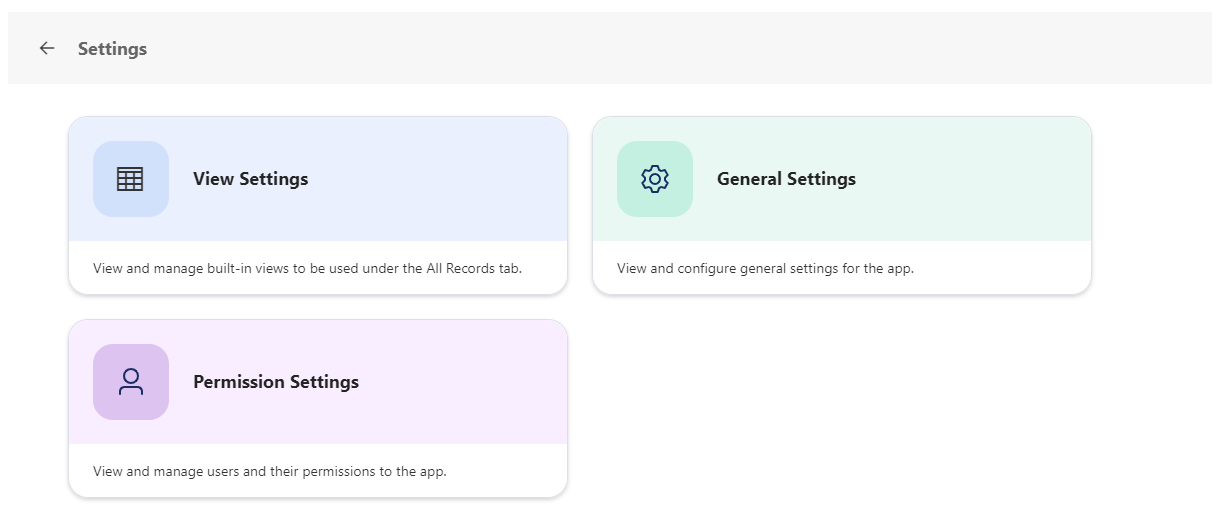
View Settings
Configure built-in views in the All Records and My Records tabs to show different aspects of records in particular orders through simple switches.
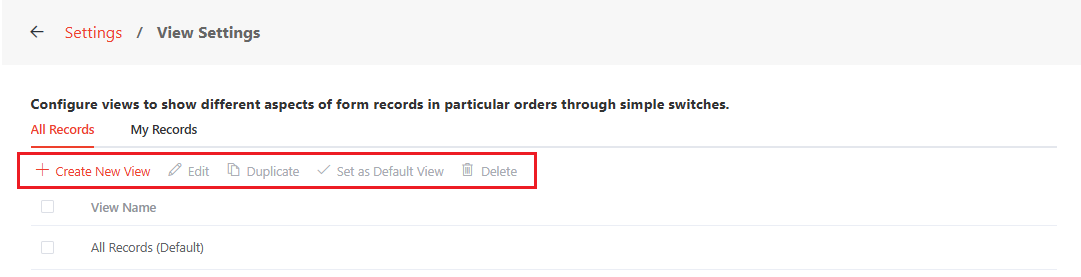
The following actions are available in View Settings:
-
Create New View – To create a new view, click Create New View. In the Create New View panel, edit the view name, display columns and orders, sort, and filter for the view and click Save to create the view.
-
Edit View – Select a view and click Edit or hover your mouse over the view and click the Actions button > Edit. The Edit View window appears where you can edit the view. When you finish, click Save to save your edits.
-
Duplicate View – Select a view and click Duplicate or hover your mouse over the view and click the Actions button > Duplicate. A new view is created in the table with the same information and labeled with Copy following the view name.
-
Set as Default View – Select a view and click Set as Default View or hover your mouse over the view and click the Actions button > Set as Default View. The view will be set as the default view in the All Records tab.
-
Delete View – Select one or more views and click Delete or hover your mouse over the view and click the Actions button > Delete to delete the views.
General Settings
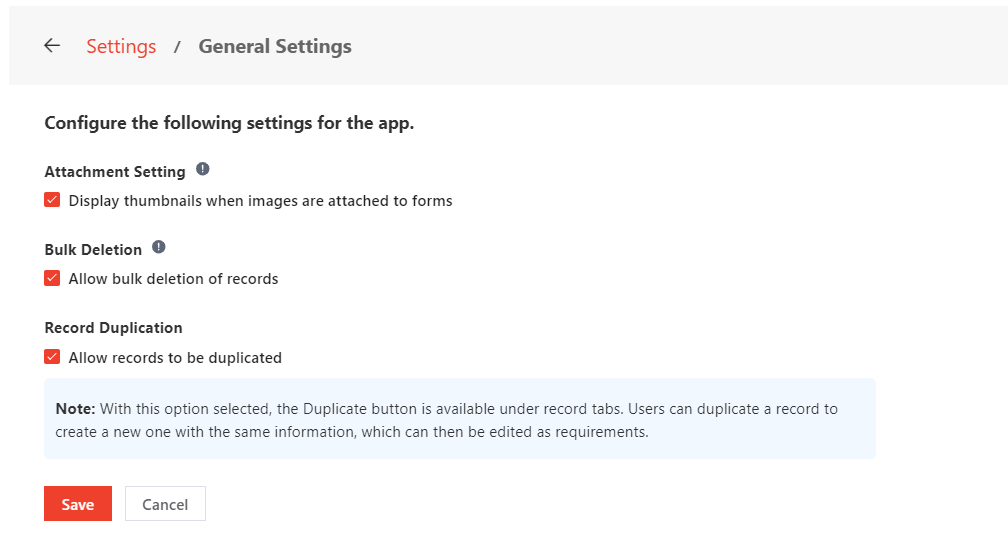
You can configure the following settings for the app:
-
Attachment Setting – Choose whether to Display thumbnails when images are attached to forms. With this option selected, images attached to the Attachment elements on a form will be displayed as thumbnails. Otherwise, image names will be displayed. Users can click a thumbnail to view and download the image.
-
Bulk Deletion – Choose whether to Allow bulk deletion of records. With this option selected, multiple records can be deleted simultaneously under the My Records and All Records tabs.
-
Record Duplication – Choose whether to Allow records to be duplicated. With this option selected, the Duplicate button is available in record tabs. Users can duplicate a record to create a new one with the same information, which can then be edited as requirements.
When you finish, click Save to save your configuration.
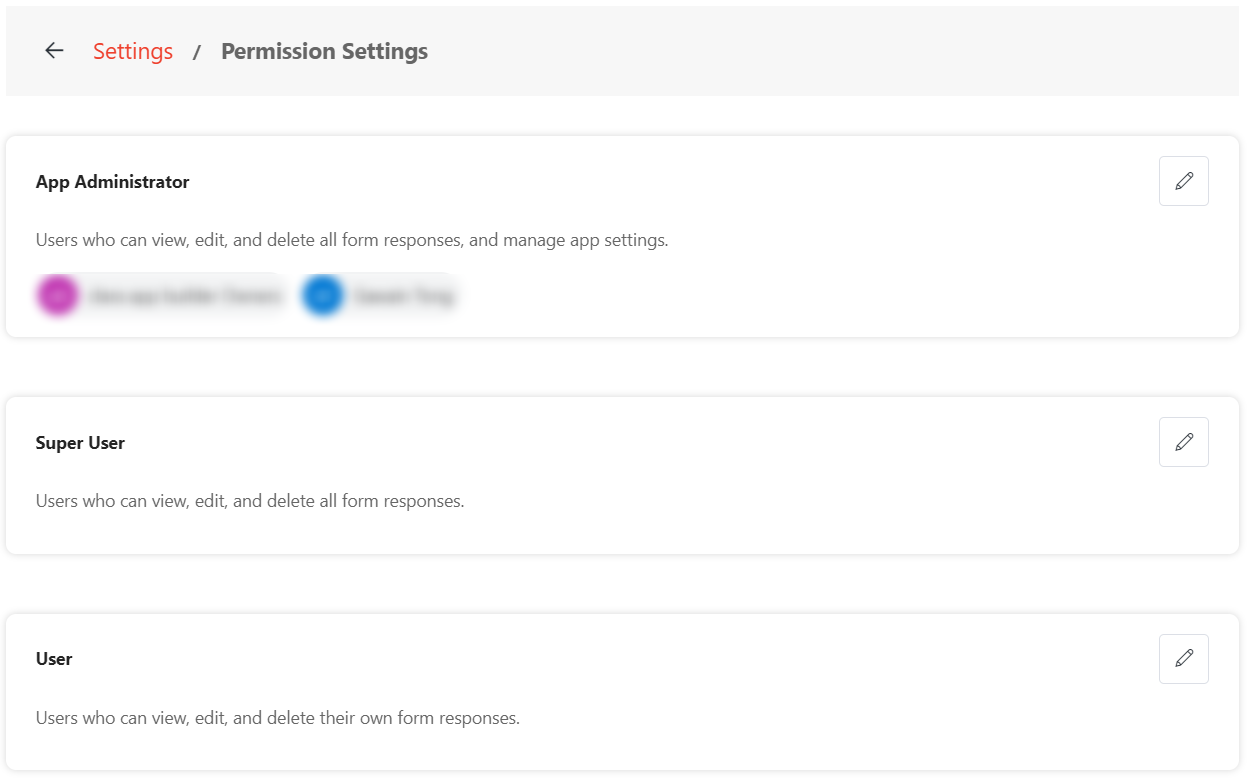
Permission Settings
You can manage members of each user role and their permissions using the following steps:
-
Click the edit button in the upper-right corner of the desired section. The Edit window appears.
-
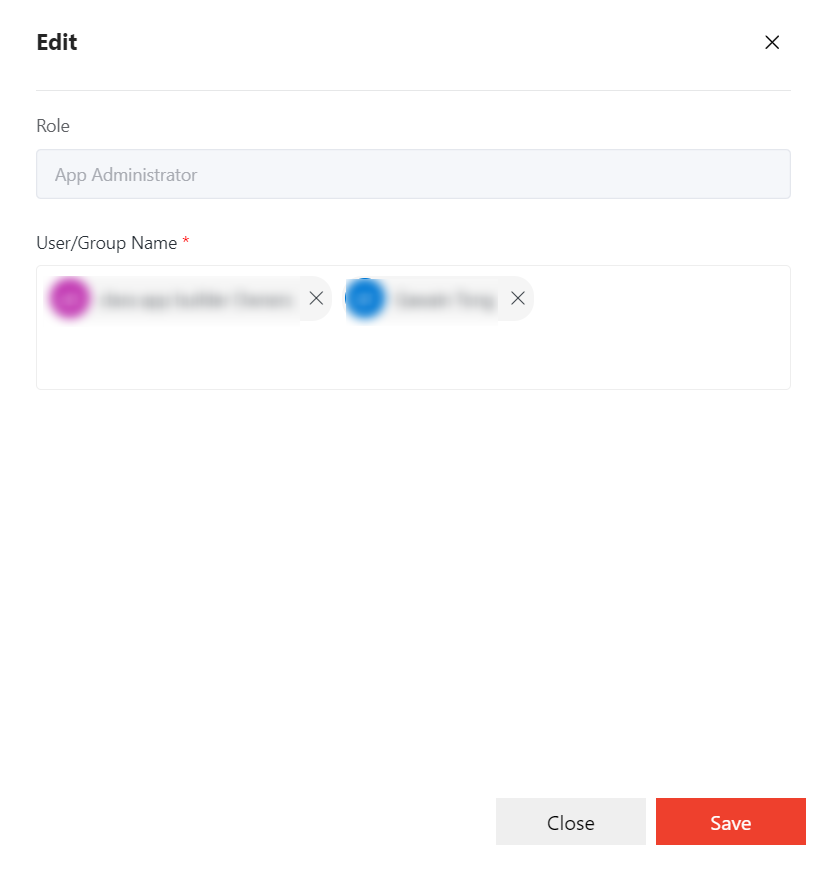
In the Role field, the role you are editing is displayed. In the User/Group Name field, you can manage the users and groups with the role:
-
Add User and Group – Enter the names of the users and groups to whom you want to assign the role and select the desired users and groups from the suggestion list.
NOTEUsers who have been blocked from signing in to Microsoft 365 cannot be added as app administrators, super users, or users.
-
Delete Users or Groups – Click the delete button to the right of the desired users or groups from whom you want to remove the role.
-
-
Click Save to save your edits.