
Home > Appendices > Appendix H - Create, Update, or Delete an App in Microsoft Teams
Download this articleAppendix H - Create, Update, or Delete an App in Microsoft Teams
If your tenant has only the custom Azure app configured, complete the steps below to deploy, update, or undeploy a template as a Teams app:
The following actions must be performed by global administrators.
You can either perform the actions in Microsoft Teams or use Microsoft Teams PowerShell. Before using the Microsoft Teams PowerShell, make sure to install and connect it to your tenant. If you haven’t, you can refer to the following steps:
-
To install Microsoft Teams PowerShell, open Windows PowerShell as administrator and run the following command:
-
Run the following command and sign in with your credentials to connect to your tenant:
Deploy a Template as Teams App
Refer to the steps in Deploy a Template to Microsoft Teams to deploy the template as a Teams app and click Download Package when the deployment progress reaches 100% to download the configuration package. With the configuration package, you can use one of the following methods to create the Teams app:
-
Create an App in Microsoft Teams
-
Sign in to Microsoft Teams with your Microsoft credentials.
-
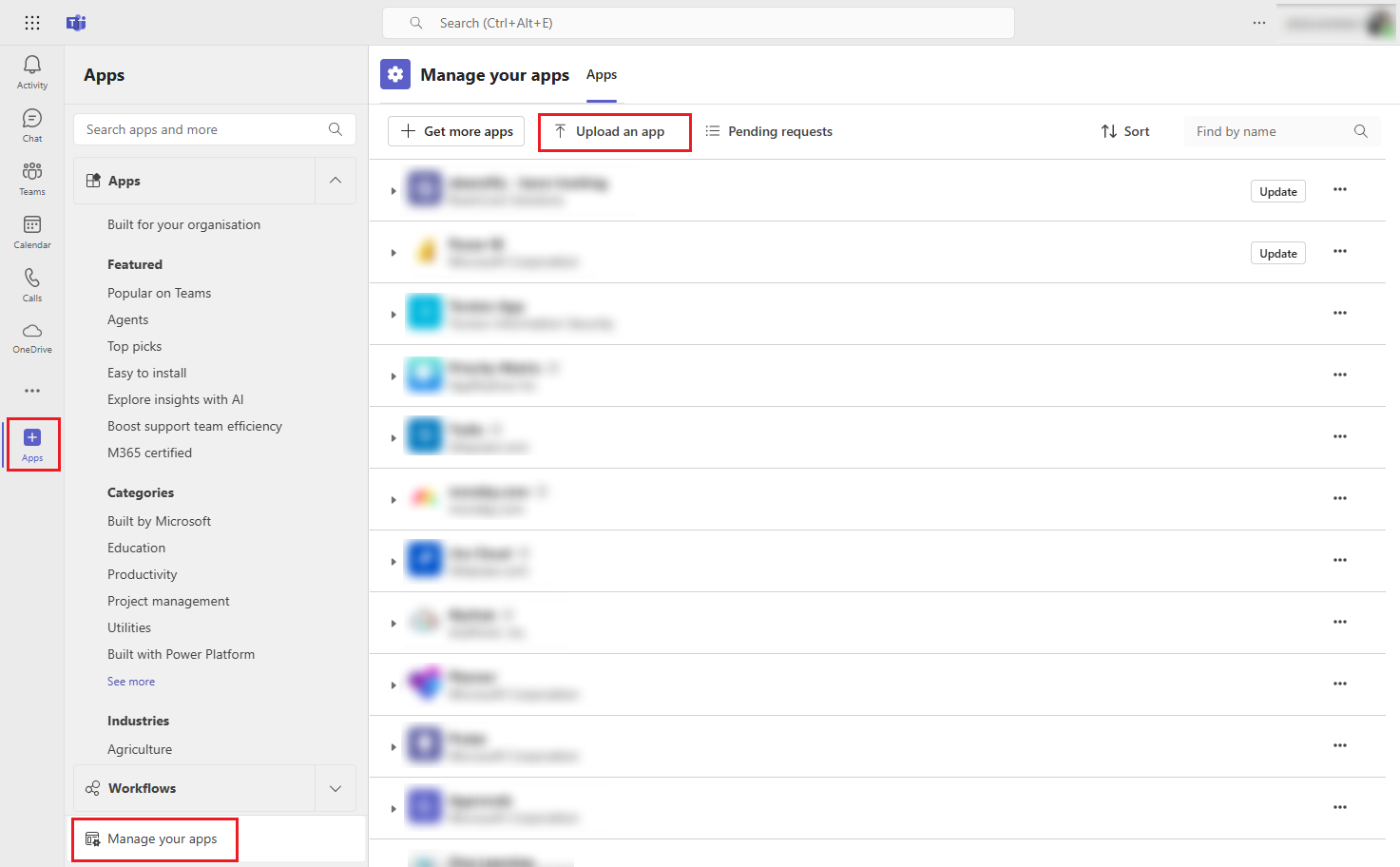
Click Apps > Manage your apps > Upload an app.
-
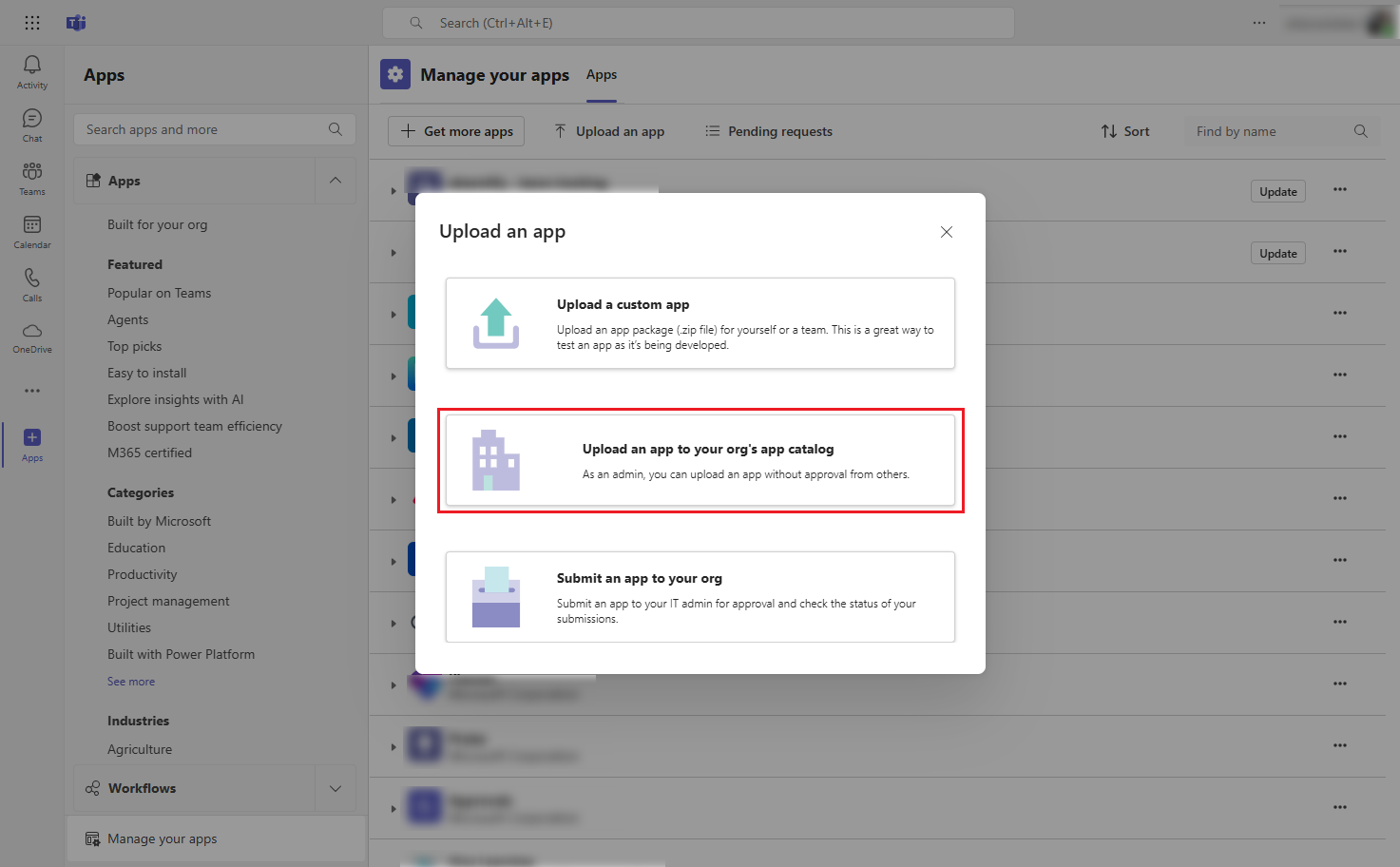
In the Upload an app window, select Upload an app to your org’s app catalog.
-
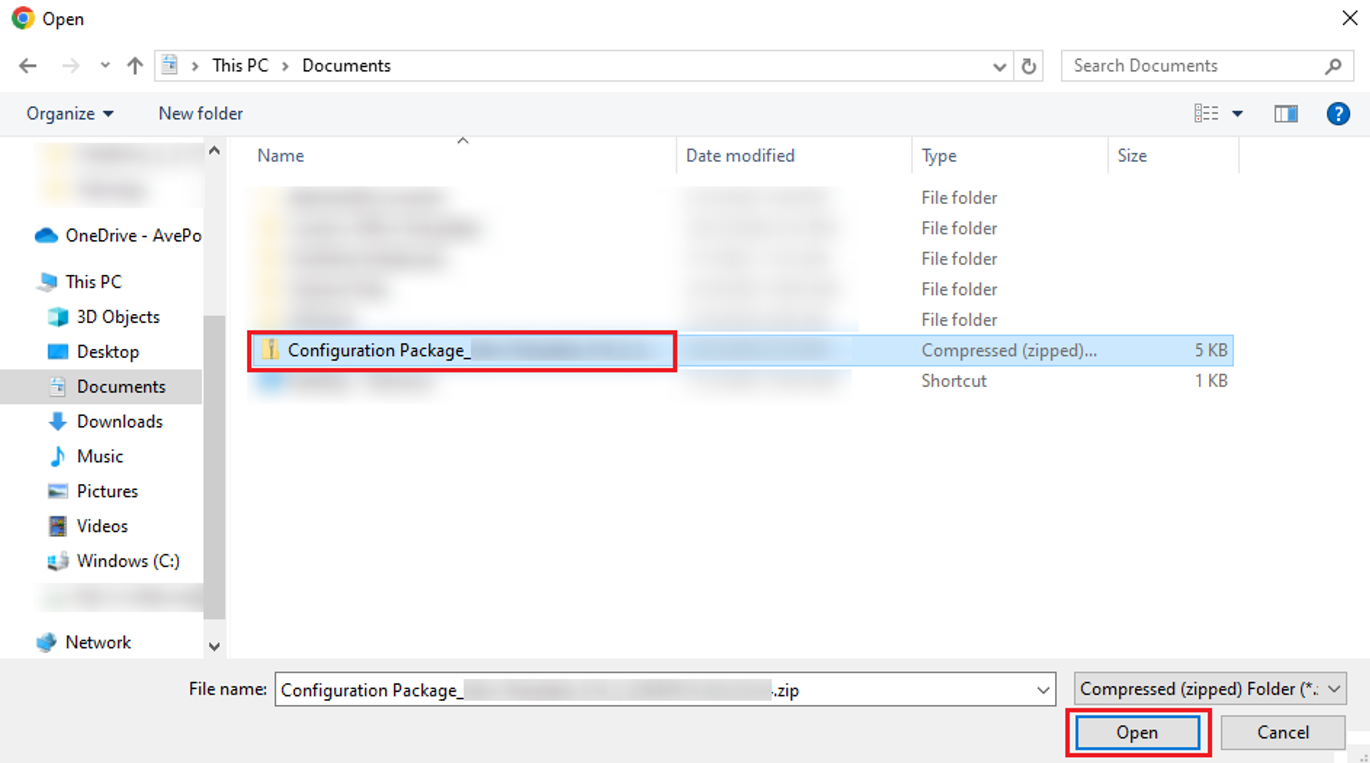
In the Open window, select the downloaded package and click Open.
-
The Teams app is created. After the app is approved by your global administrator, you can search for the app from Apps in Teams and click Add in the app card to add the app.
-
-
Create an App in Teams Admin Center
-
Sign in to Teams admin center with your Microsoft credentials.
-
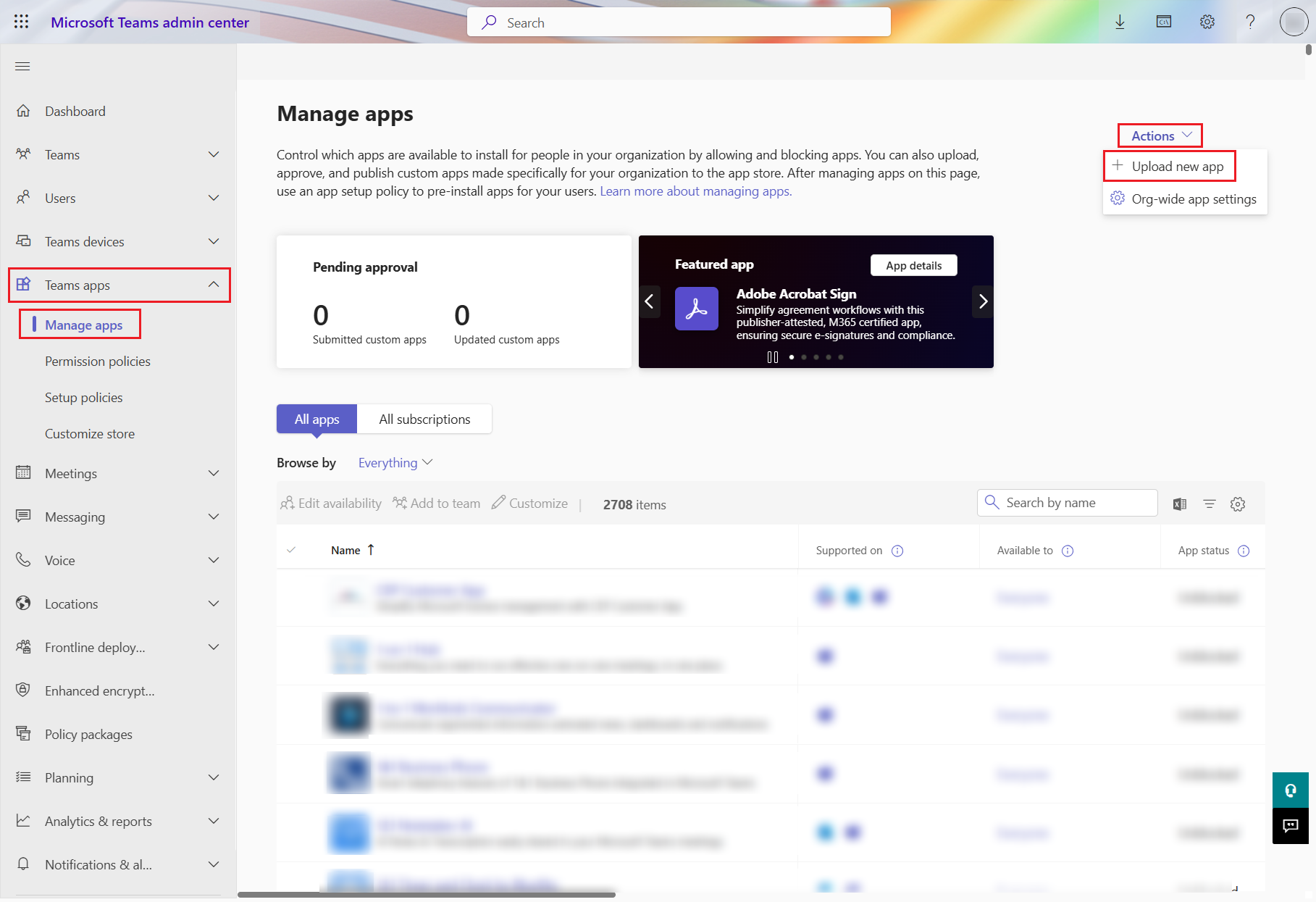
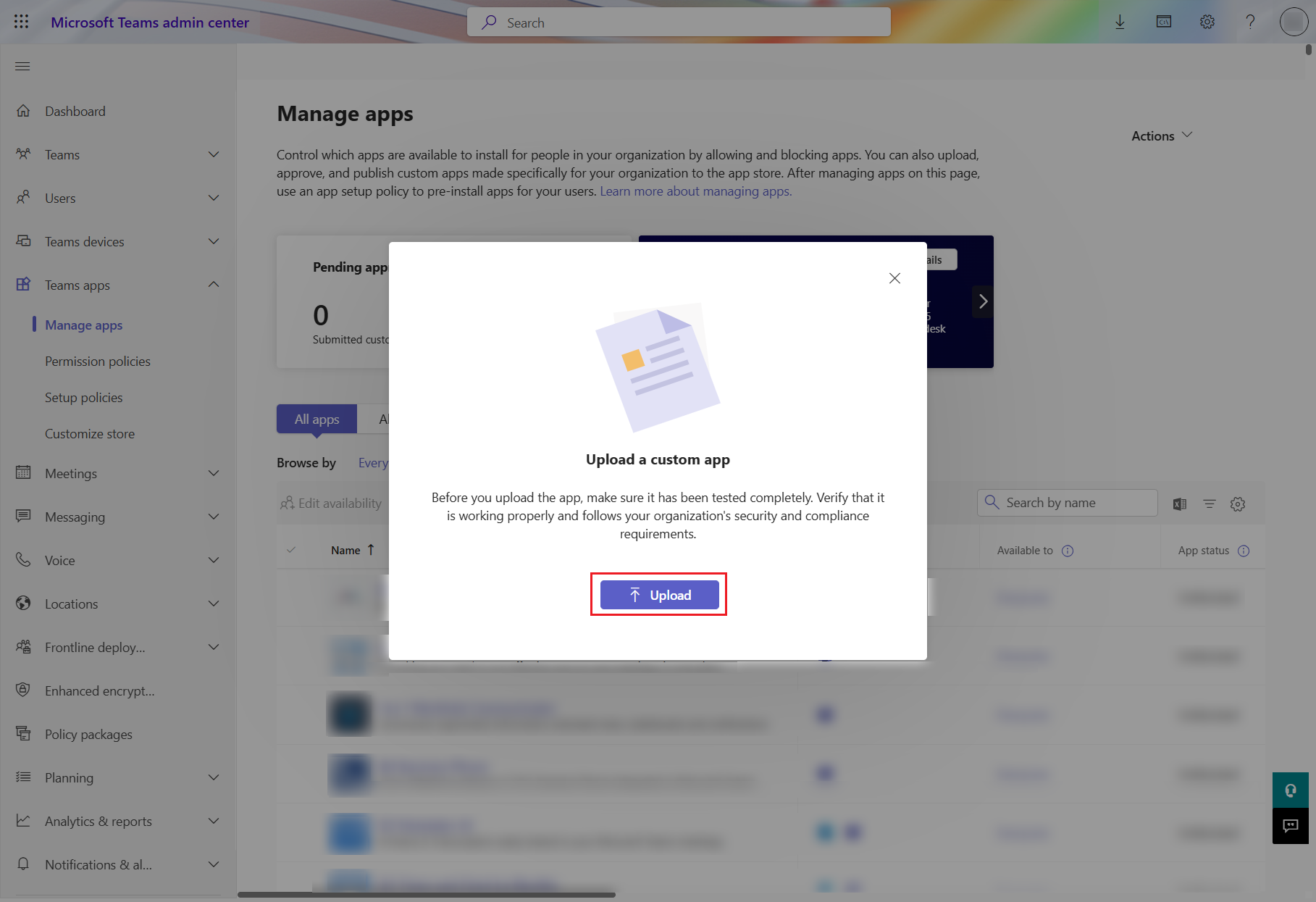
Click Teams apps > Manage apps. Then, click Actions > Upload new app.
-
In the Upload a custom app window, click Upload.
-
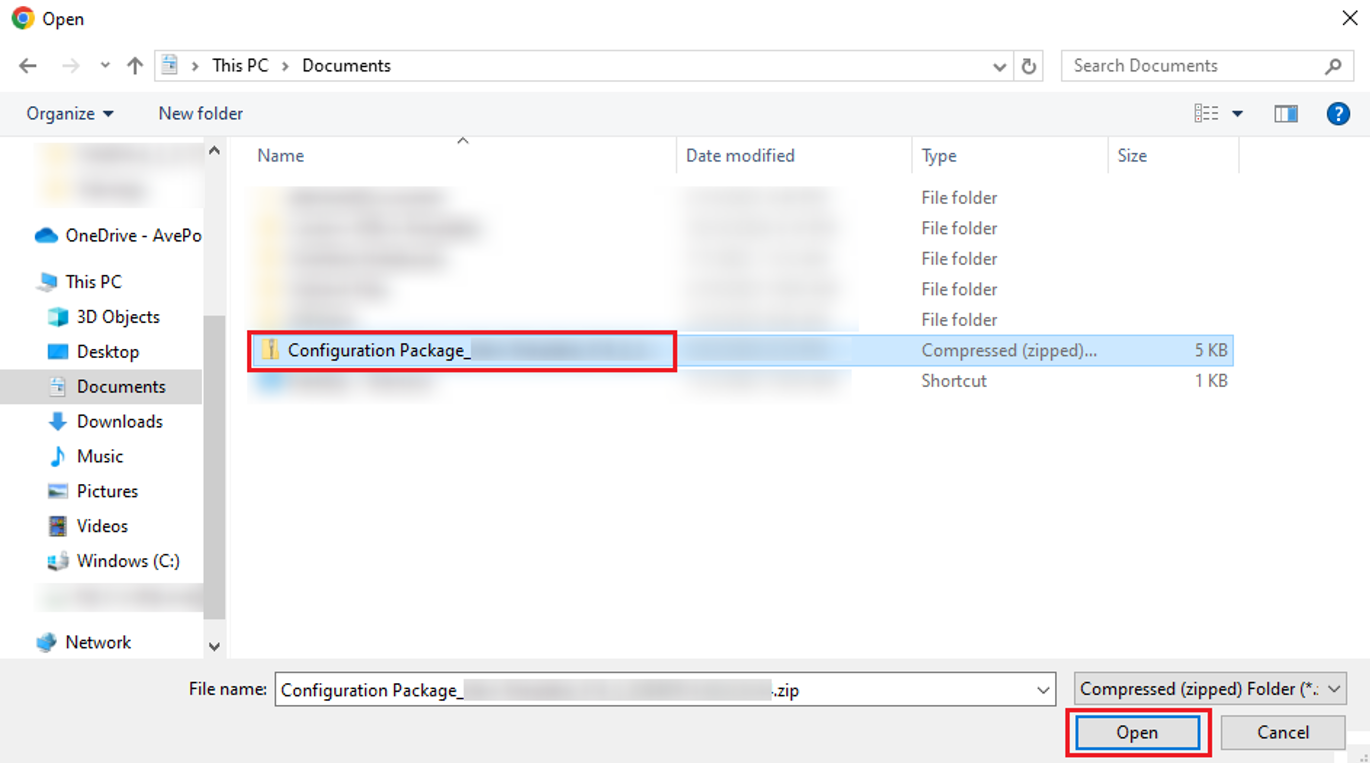
In the Open window, select the downloaded package and click Open.
-
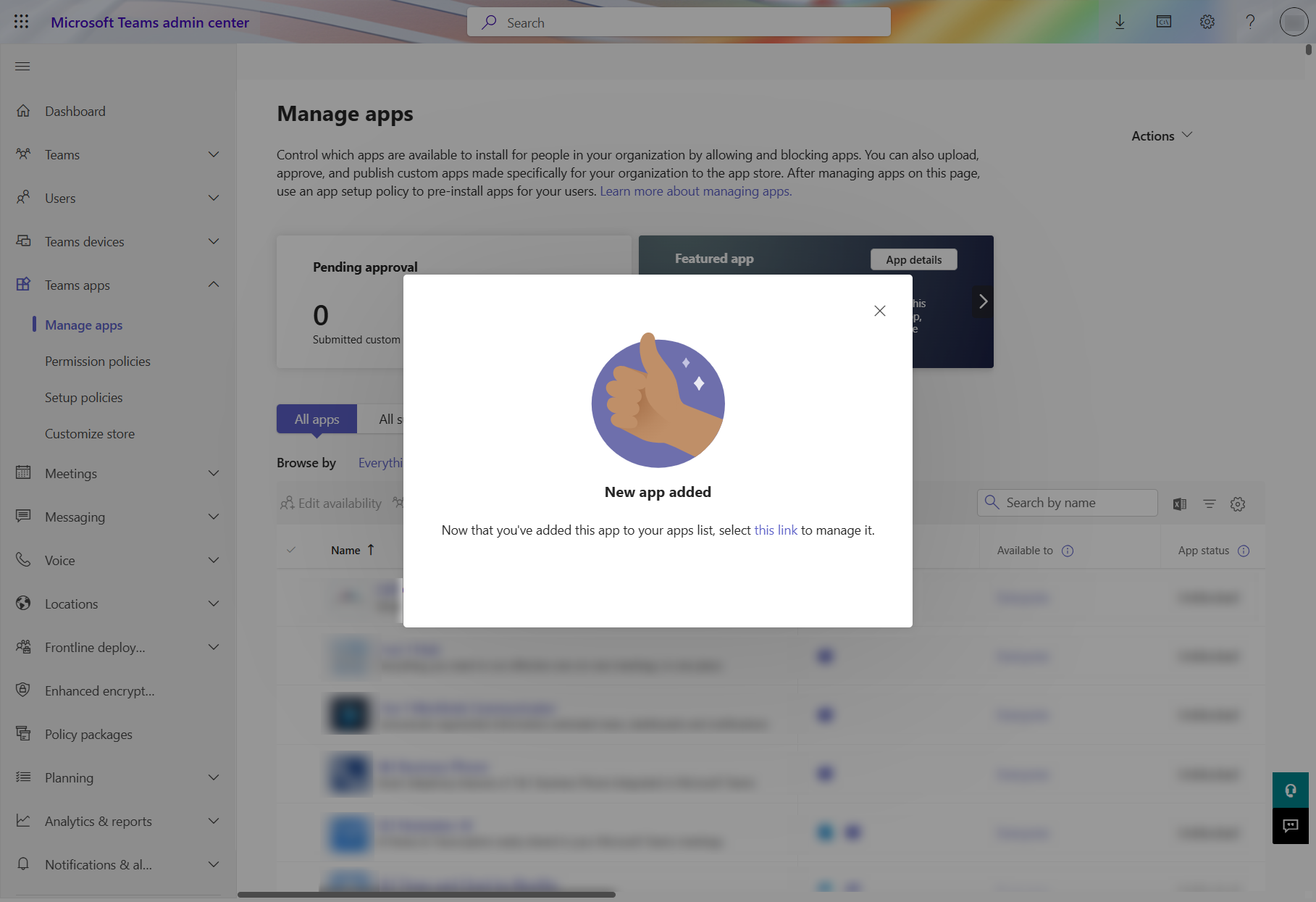
The app is created in your organization’s apps list.
-
-
Create an App with Microsoft Teams PowerShell
To create a Teams app, run the following command in Windows PowerShell. Make sure to replace {path to the package file} with the path of the download configuration package.

Update a Deployed Teams App
To reflect your template changes on the deployed Teams app, download the updated configuration package and use one of the following methods to update a deployed Teams app:
-
Update App in Teams Admin Center
-
Sign in to Teams admin center with your Microsoft credentials.
-
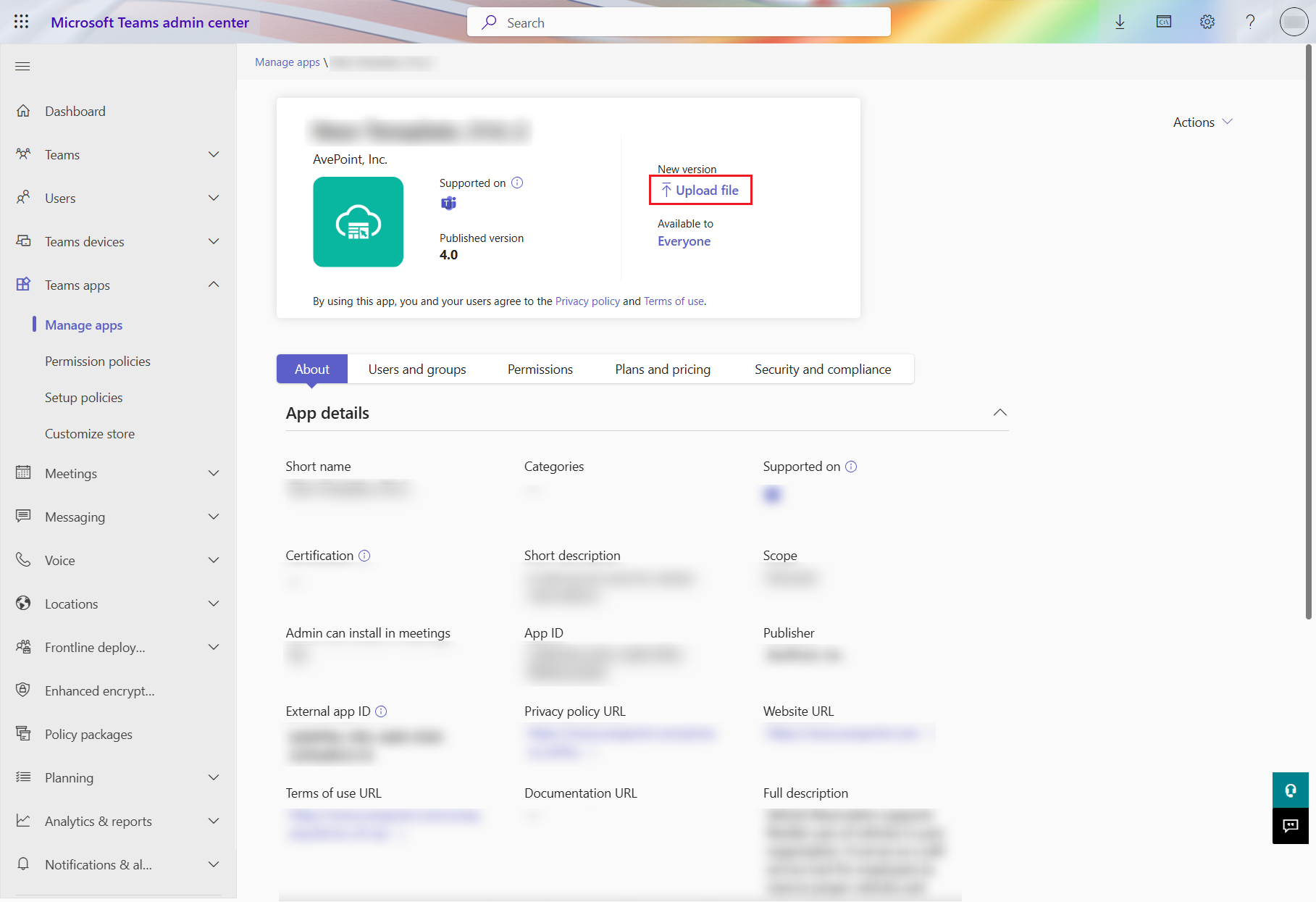
Click Teams apps > Manage apps. Then, click the app name to access the app details.
-
In the app card, click Upload file.
-
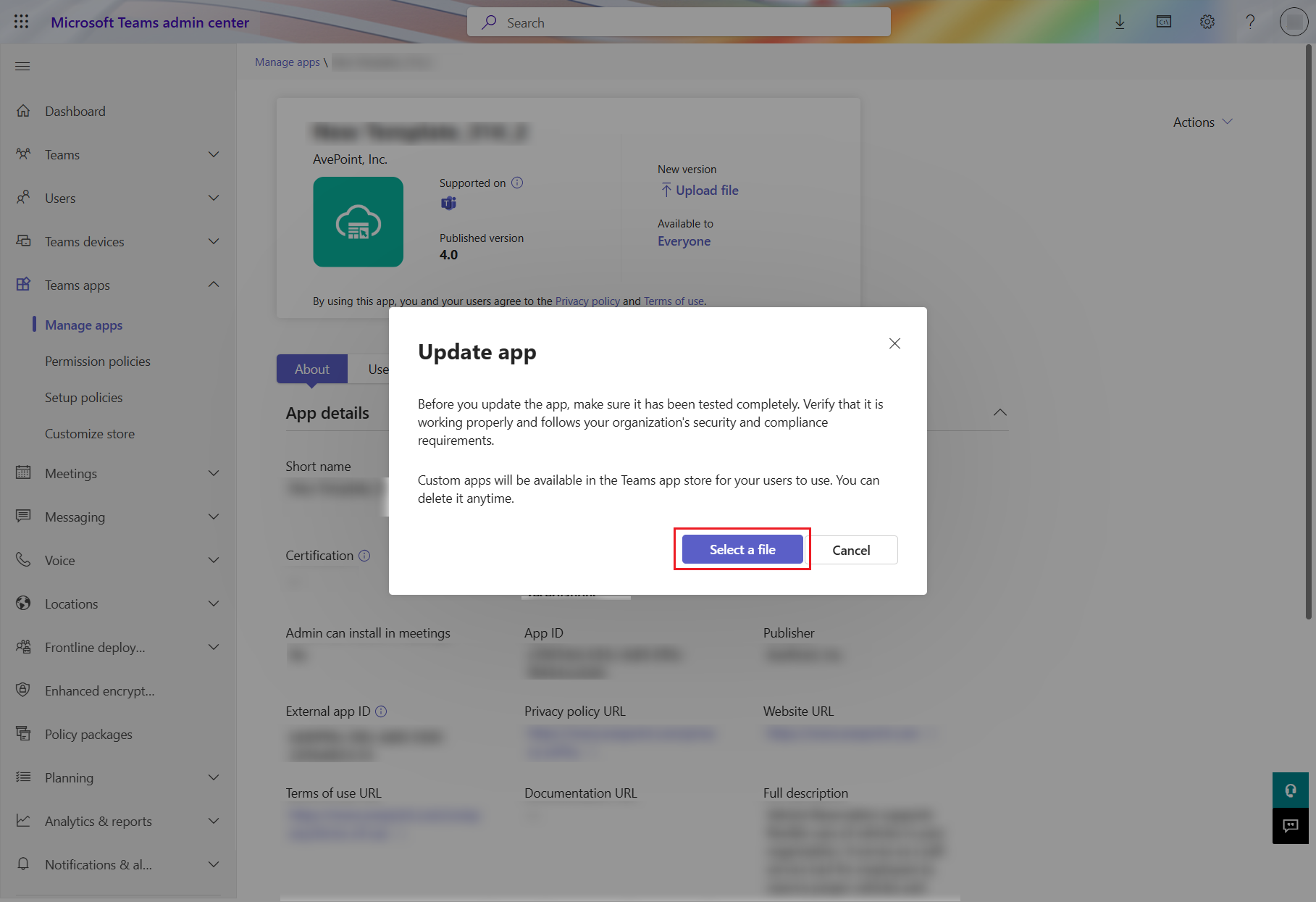
In the Update app window, click Select a file.
-
In the Open window, select the downloaded package and click Open.
-
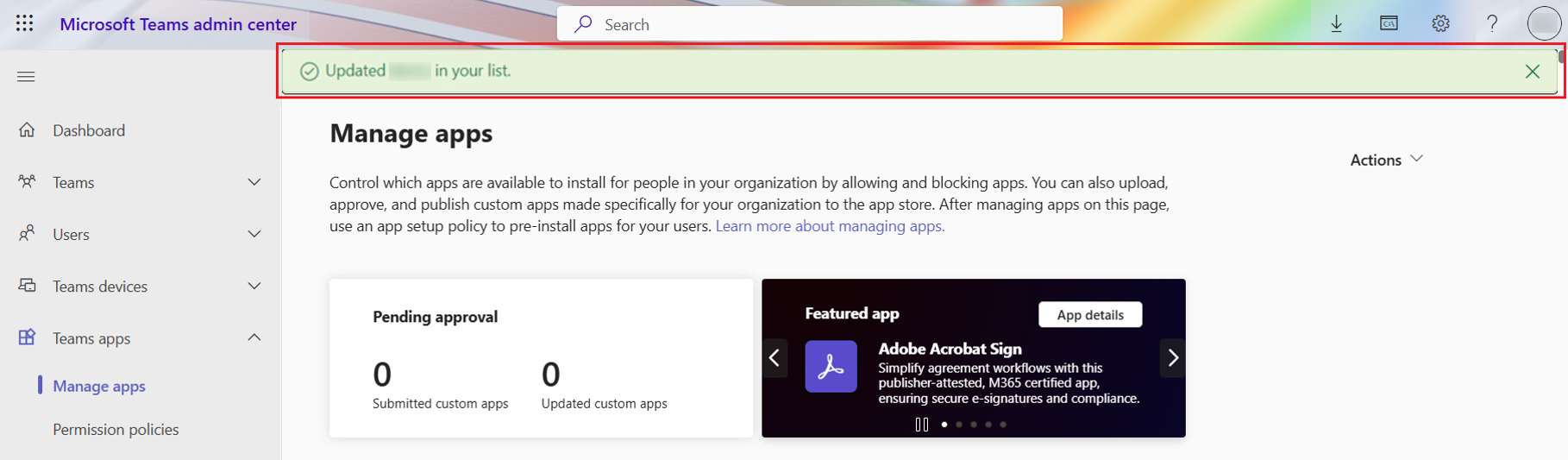
The app is updated successfully.
-
-
Update App with Microsoft Teams PowerShell
-
Run the following command in Windows PowerShell to get the app’s ID and copy the app ID. Make sure to replace {App’s display name} with the deployed app’s display name.

-
Run the following command in Windows PowerShell. Make sure to replace {Teams App Id} with the ID gained in step 1.
 NOTE
NOTE- After the app is updated, please wait a while to get the app’s information from the store.
- When getting the app’s information, the app’s display name is case sensitive.
-
Undeploy a Teams App
Undeploy the Teams app template in AvePoint Portal Manager. When the undeployment progress reaches 100%, use one of the following methods to delete the app from Teams.
-
Delete App in Teams Admin Center
-
Sign in to Teams admin center with your Microsoft credentials.
-
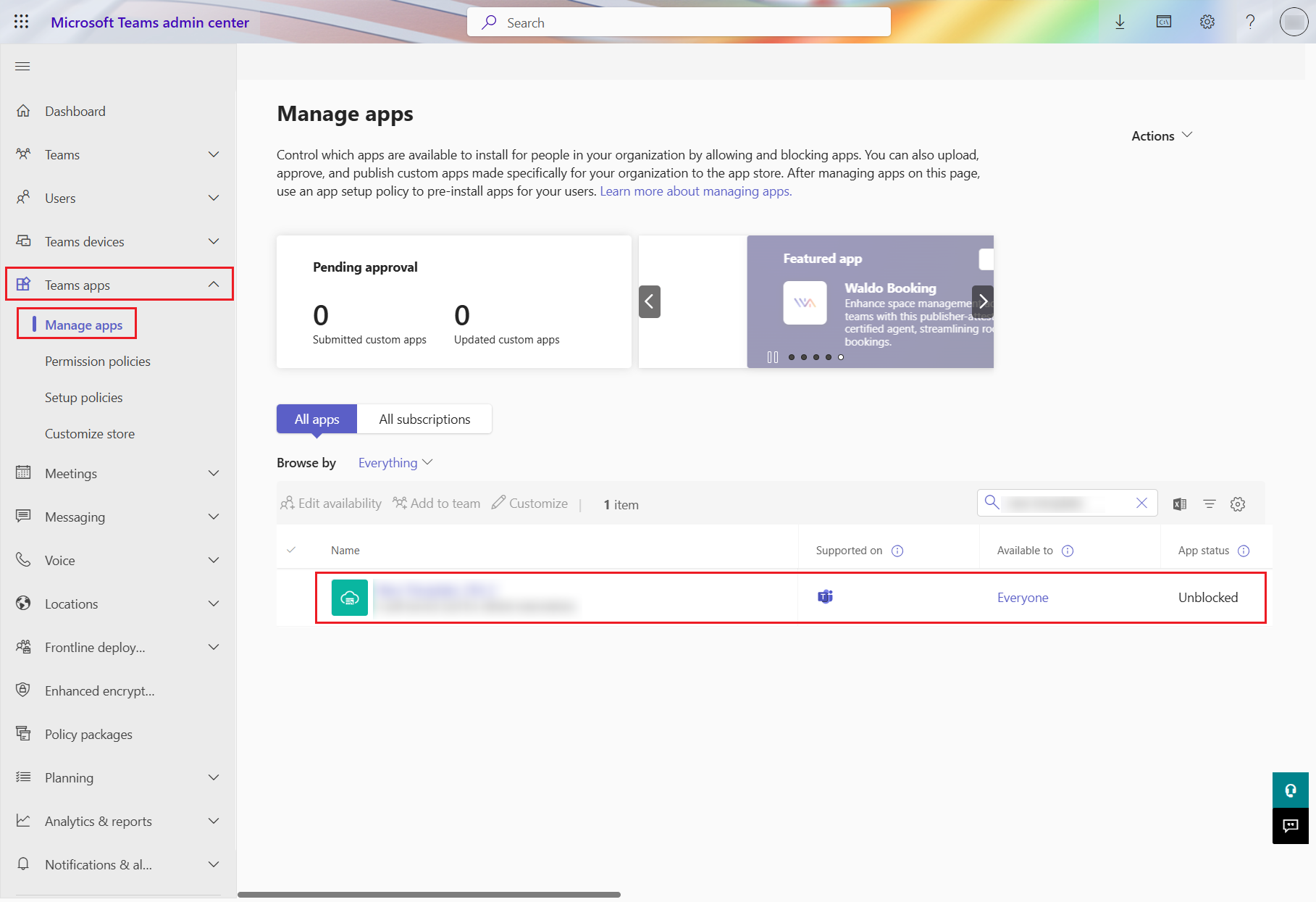
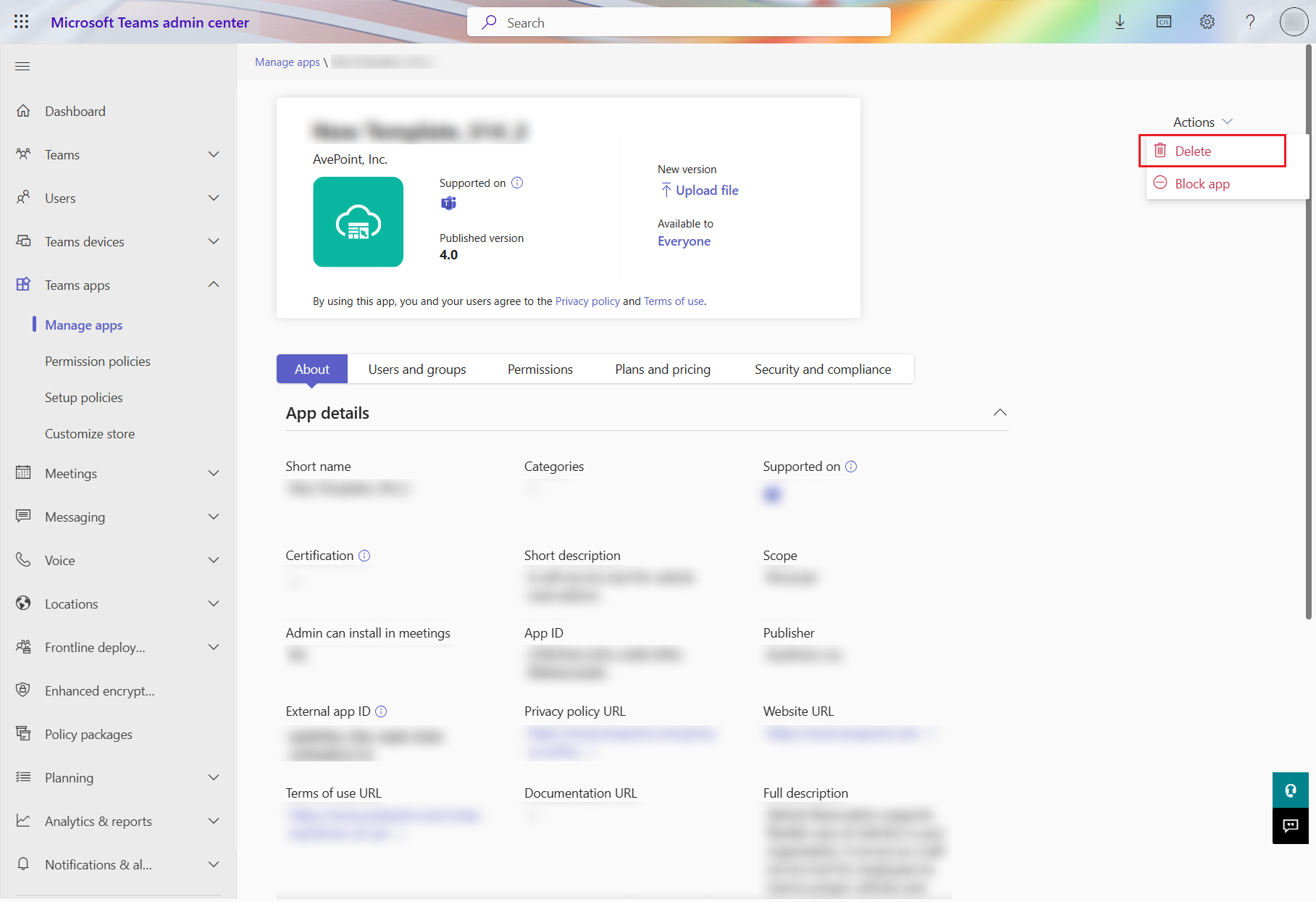
Click Teams apps > Manage apps. Then, click the app to access the app details.
-
Click Actions > Delete.
-
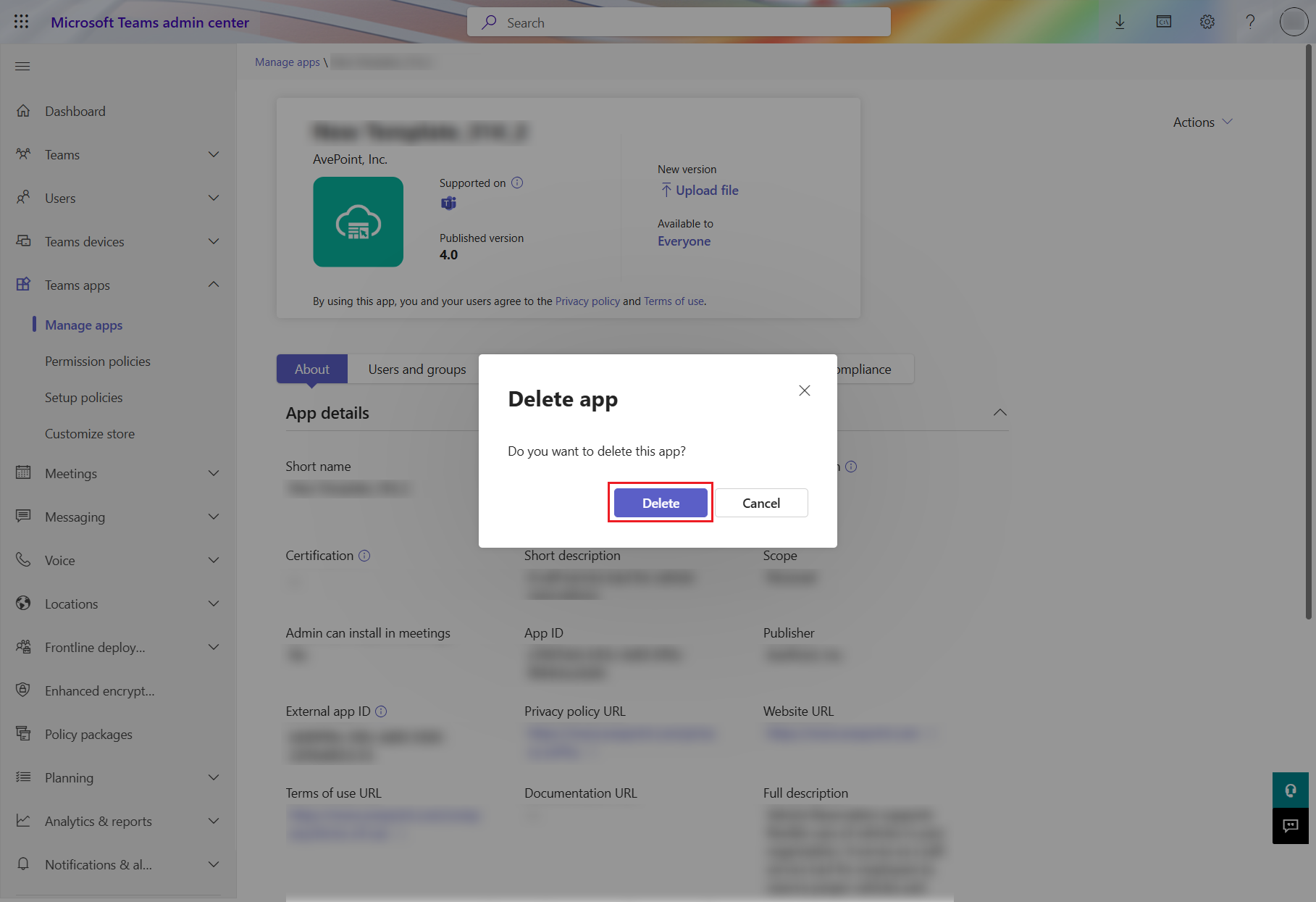
In the Delete app window, click Delete.
-
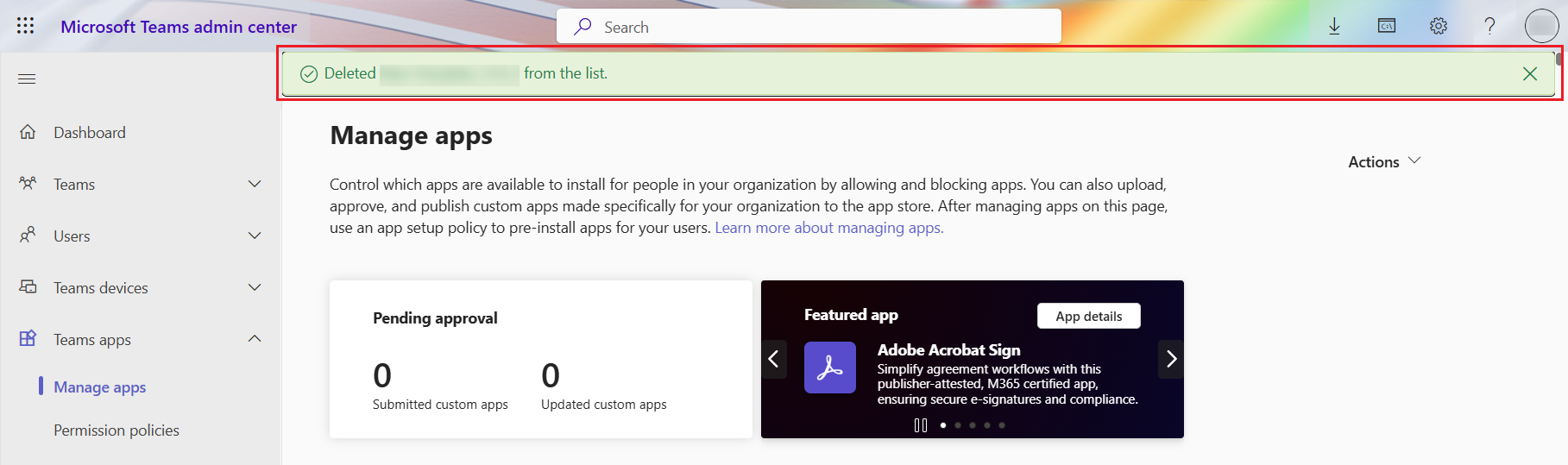
The app is deleted successfully.
-
-
Delete App with Microsoft Teams PowerShell
-
Run the following command in Windows PowerShell to get the app’s ID and copy the app ID. Make sure to replace {App’s display name} with the deployed app’s display name.

-
Run the following command in Windows PowerShell to delete the app. Make sure to replace {Teams App Id} with the ID gained in step 1.

-