
Home > Extensions
Download this articleExtensions
On the EXTENSIONS page, you can configure navigations and footers to give users quick access to frequently used sites and pages, create site templates & site scripts to specify the actions to be performed on a site, and configure regions to show data based on a user’s specific locations.
Configure Global Navigation
Global Navigation is used to display up to three-level navigation links on the top of site collections for a consistent appearance. To enable global navigation, you need to select the Enable global navigation checkbox under the Extensions section when designing a template. Links configured on this page will be displayed at the top of all site collections where the template has been deployed.
Complete the following steps to configure Global Navigation:
-
Click Global Navigation.
-
Click Add Link to add a navigation link. In the Add Link window, complete the following information about the link:
-
Choose an option – Select URL to add a link, or select Header to add a label that is not hyperlinked.
-
Address – Enter the URL for the link you want to add.
-
Display Name – Enter the display name for the link or label.
-
-
Click Save to save the changes.
-
Click Preview to preview the currently configured global navigation.
-
After the preview, if you are fine with the currently configured global navigation, click Save, and then click Publish to publish the global navigation to the site collections.
After the preview, if you do not like the currently configured global navigation, click Cancel to discard the changes and backtrack to the previously configured global navigation. If you have saved your changes, click Discard to discard them.
-
After adding a link, click the ellipses (…) button to manage the link. The following options are available:
-
Add Sub Link – Add an indented link under the current link.
-
Make Sub Link – Make the current link a sub-link.
-
Promote Sub Link – Promote the current link to a primary link.
-
Move up – Move up the current link. You can drag and drop a link to change the link positions at the same level.
-
Move down – Move down the current link. You can drag and drop a link to change the link positions at the same level.
-
Edit – Edit the current link.
-
Delete – Delete the current link.
-
Configure Global Footer
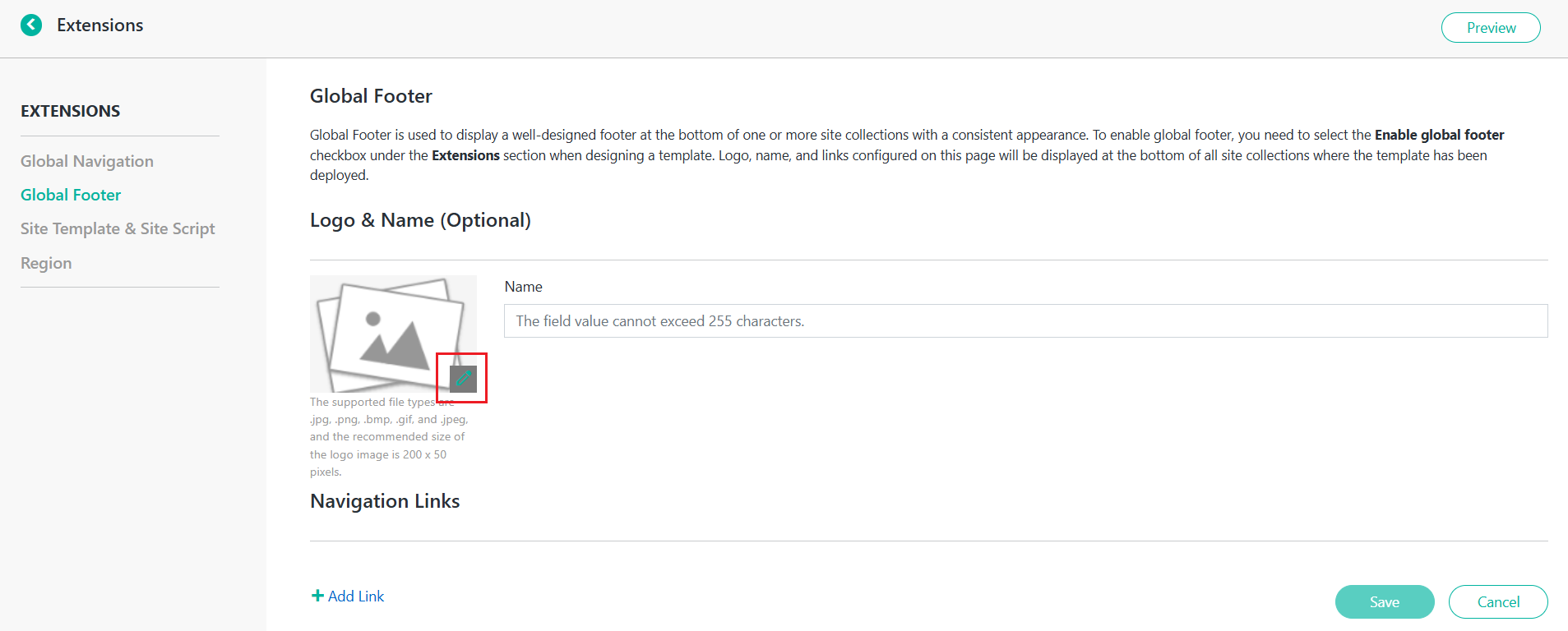
Global Footer is used to display a footer at the bottom of site collections for a consistent appearance. To enable a global footer, you need to select the Enable global footer checkbox under the Extensions section when designing a template. The logo, name, and links configured on this page will be displayed at the bottom of all site collections where the template has been deployed.
Complete the following steps to configure the global footer:
-
Click Global Footer.
-
Enter a footer name.
-
Click the Change button to change the logo displayed on the footer.
-
To add a link to the footer, click Add Link. In the Add Link window, complete the following information about the link:
-
Choose an option – Select URL to add a link or select Header to add a label that is not hyperlinked.
-
Address – Enter the URL for the link you want to add.
-
Display Name – Enter the display name for the link or label.
-
-
Click Save to save the changes.
-
Click Preview to preview the currently configured global footer.
-
After the preview, if you are fine with the currently configured global footer, click Save and then click Publish to publish the global footer to the site collections.
-
After the preview, if you do not like the currently configured global footer, click Cancel to discard the changes and backtrack to the previously configured global footer. If you have saved the changes, click Discard to discard them.
-
After adding a link, click the ellipses (…) button to manage the link. The following options are available:
-
Add Sub Link – Add an indented link under the current link.
-
Make Sub Link – Make the current link a sub-link.
-
Promote Sub Link – Promote the current link to a primary link.
-
Move up – Move up the current link. You can drag and drop a link to change the link positions at the same level.
-
Move down – Move down the current link. You can drag and drop a link to change the link positions at the same level.
-
Edit – Edit the current link.
-
Delete – Delete the current link.
-
Configure Site Template & Site Script
If you have additional requirements beyond deploying web parts to SharePoint sites using templates, you can configure site templates and site scripts to define more actions that you want to apply to your site, such as creating lists, etc.
Microsoft has a limitation of 100 site templates and 100 site scripts per tenant. The templates that you created on the Template Gallery page also occupy a limited number.
Manage Site Templates
Site templates are a set of site scripts that you want to apply to a site.
Complete the following steps to create a site template:
-
Click Create Site Template.
-
Site Template Name – Enter a site template name.
-
Description – Enter an optional description.
-
Thumbnail – Browse a thumbnail for the template. The supported types are .jpg, .png, .bmp, .gif, and .jpeg, and the recommended size of the image is 400 x 300 pixels.
-
Platform – Site templates are only available for the SharePoint Online platform. You can apply a site template to a SharePoint communication site.
-
Applied Site Scripts – Select site scripts to specify the actions to be performed in a site. You can drag and drop site scripts to change their order. Actions will be executed in the defined order.
-
Click Add Site Script, and then select the site scripts that you want to add to this site template.
NOTEOnly the site scripts that have ever been registered to SharePoint are available to choose from.
-
Click Create Site Script to create a new site script to add to this site template.
-
-
Click Save to save the site template. The site template will be in the Draft status.
Click Save and Publish to save the site template and register it to SharePoint. The site template will be in the Published status.
NOTEIf a site template has ever been registered to SharePoint, it will be available under the From your organization tab, so that when users apply site templates in SharePoint, they can find the site template and apply it directly to a site in SharePoint.
Click Cancel to cancel without saving any changes.
-
After creating a site template, you can edit the site template, discard the draft site template changes, or delete the site template.
Manage Site Scripts
Site scripts are JSON files that provide the action details of a site template.
Complete the following steps to create a site script:
-
Click Create Site Script.
-
Site Script Name – Enter a site script name.
-
Description – Enter an optional description.
-
JSON – Enter values in the JSON format. For detailed instructions, refer to the Microsoft article: JSON schema reference.
-
Click Save to save the site script. The site script will be in the Draft status.
Click Save and Publish to save the site script and register it to SharePoint. The site script will be in the Published status.
Click Cancel to cancel without saving any changes.
-
After creating a site script, you can edit the site script, discard the draft site script changes, or delete the site script.
Configure Regions
If there is area-specific data in SharePoint sites and you want to show data based on a user's location, you can configure the region list on this page and then choose the Enable multiple regions checkbox under the Extensions section to enable multiple regions when designing a template. With this feature enabled, you can filter items by regions on the News and Quick Links web parts in the SharePoint sites where the template is deployed.
-
The list of regions will be stored as terms in the SharePoint Term Store. Make sure the service account has the SharePoint Term Store Administrator permission.
-
Currently, News and Quick Links are supported to display data based on locations (more web parts will be supported soon).
Complete the following steps to configure a region:
-
Click Region.
-
Click Add Region, enter a region name, and then click Add to add the region.
-
After adding a region, click the ellipses (…) button to manage the region. The following options are available:
-
Set as default – Set the current region as the default region.
-
Edit – Edit the current region.
-
Delete – Delete the current region.
-