
Home > Workflows
Download this articleWorkflows
You can configure specific processes for workflows in WCS. Refer to the following sections to create and manage actions and workflows.
Action Pool
Action pool is used to configure and store actions to be used in workflows. The pool allows you to select existing actions from the pool when configuring workflows without configuring the same settings repeatedly.
Create Actions in the Pool
Refer to the following steps to create an action:
-
Click Workflows > Action pool on the left navigation to access the Action pool page.
-
Click Create and the Create action panel appears.
-
Select an action type, enter a name and an optional description for the action, and refer to the following instructions to complete the configurations based on the action types below.
-
Review process – Used to configure the reviewers, review method, decision options, and advanced settings for a workflow.
-
Property value update – Used to automatically update configured property values.
-
Notification settings – Used to configure notification type and template.
-
Permission change – Used to process current and new permissions of related users and groups.
-
If/else – Used to check if the property values of the object match the configured criteria.
To create an action of the Review process type, refer to the following steps:
-
Select a type for the reviewers.
-
Base on role – Select one or multiple roles from the drop-down list. You can click Create role to create a new role. Refer to Create Roles for details. Users with the selected roles will be the reviewers of the request.
-
If you select multiple roles, select a review method for the stage. You can select to require all roles to review the request or specify the number of roles to review the request.
-
Specific users or groups – Configure reviewers for the action. If you configure multiple reviewers, select a review method for the stage. You can select to require all reviewers to review the request or specify the number of reviewers to review the request.
You can configure a group other than a distribution list or a dynamic distribution list as a reviewer. After a member of the group processes the request, it will be regarded as the group has processed the request.
NOTEThe Microsoft 365 Group cannot receive email notifications if the following email settings are disabled for the group in the Microsoft 365 admin center:
-
Let people outside the organization email this team
-
Send copies of team emails and events to team members’ inboxes
NOTEThe mail-enabled security group cannot receive email notifications if the Allow external senders to email this group setting is disabled for the group in the Microsoft 365 admin center.
-
-
-
Configure the positive and negative decision options for the action. By default, the decisions are automatically selected. You can also refer to the following steps to customize a decision:
-
Click the Positive decision name or Negative decision name drop-down list and click Add decision option. The Add decision option window appears.
-
Enter a name and an optional description for the decision option.
-
Click Add to add the option to the decision option list. To delete an added decision, click the Delete button next to the decision.
-
-
Select whether to enable the return process. With this setting enabled, you can select a previous Review process action or the Start action to return the workflow to the selected action for processing.
To create an action of the Property value update type, enter the property name and the new property value in corresponding text box. If you want to configure a specific time as the new value, select the Configure a date and time as the new value checkbox and configure a desired date and time. You can click Add to add a new group of update settings, or click the Delete button to delete a group of update settings.
To create an action of the Notification settings type, refer to the following steps:
-
Select an option below as the notification type.
-
Receive the notification via email
-
Receive the notification via Microsoft Teams
-
Receive the notification via email and Microsoft Teams
-
-
Configure the notification template based on your selection.
-
If you select the Receive the notification via email option, select a template for the email notification. You can click Preview email template below the text box to preview the selected email template. You can also click Create email template from the Email template drop-down list to add a new email template. Refer to Create Notification Templates for details.
-
If you select the Receive the notification via Microsoft Teams option, select a template for the Microsoft Teams notification. You can click Preview Microsoft Teams template below the text box to preview the selected template. You can also click Create Microsoft Teams template from the drop-down list to add a new template. Refer to Create Notification Templates for details.
-
If you select the Receive the notification via email and Microsoft Teams option, configure an email and a Microsoft Teams templates based on the above instructions.
-
-
Select one or more options below as required recipients.
-
User who triggered the workflow
-
Users who made the decision on the previous review process action
-
Reviewer of the next action
You can also enter one or multiple email addresses of users as the required recipients. If you enter multiple email addresses, separate the email addresses with semicolons. For example,
name@example.com;name2@example.com. -
-
(Optional) Select one or more options below as optional recipients.
-
User who triggered the workflow
-
Users who made the decision on the previous review process action
-
Reviewer of the next action
You can also enter one or multiple email addresses of users as the optional recipients. If you enter multiple email addresses, separate the email addresses with semicolons. For example,
name@example.com;name2@example.com. -
To create an action of the Permission change type, refer to the following steps:
-
(Optional) Select whether to clear current permissions from related users and groups.
-
Select the user type to grant permissions to。
-
Grant permissions to specific sets of users and groups – Enter users or groups in the text box and select the permission to grant to the users and groups. You can click Add set to add a new set of users and groups, or click the Delete button next to a set to delete the set.
-
Grant permissions to specific roles – Select a role from the drop-down list and select the permission to grant to the role. You can click Add role to add a new role group, or click the Delete button next to a role group to delete the group.
-
Grant permissions to users related to the workflow – Select a reference from the drop-down list and select the permission to grant to the users. You can click Add user to add a new user group, or click the Delete button next to a user group to delete the group.
-
To create an action of the If/else type, refer to the following instructions:
Enter a property name in the first text box, select a condition from the second drop-down list, and enter a property value in the third text box to configure a criterion. If you want to configure a date and time as the property, select the Configure a date and time as the new value checkbox and configure the desired date and time. You can click Add criterion to add more criteria, or click the button next to a criterion to remove the criterion.
-
Criterion level condition – If you only configure one criteria group and configure multiple criteria in the group, you can define the condition among the criteria. By default, the condition is All of these criteria are matched, which means the object needs to match all criteria in the group. You can click All to change the condition to Any of these criteria are matched, which means the object needs to match any of the criteria in the group.
-
Group level condition – If you configure multiple criteria groups, in addition to criterion level condition, you can also define the criteria group level condition among the groups. By default, the condition is All of these groups are matched, which means the object needs to match all group criteria. You can click All to change the condition to Any of these groups are matched, which means the object needs to match any group criteria.
-
-
Click Save to save the action.
Manage Actions in the Pool
On the Action pool page, you can perform the following actions to manage the actions:
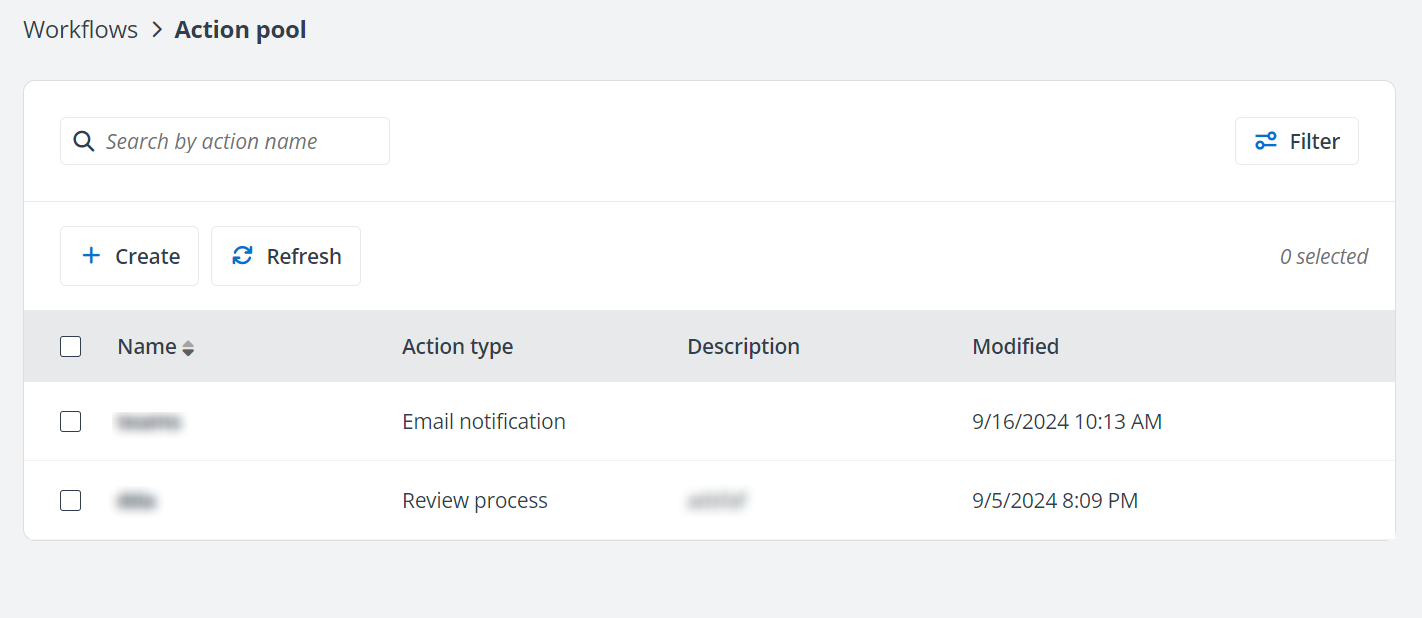
-
Search actions – Search for actions by entering the action name in the search box.
-
Filter – Click Filter on the Action pool page, select the action type, and click Apply to filter actions. You can also click Clear all to re-select the action types.
-
Refresh – Click Refresh on the Action pool page to refresh the actions displayed in the list. You can also select desired actions and click Refresh to refresh the information of selected actions.
-
Sort actions – By default, the actions with the latest created time are shown first. You can click the arrow button next to the Name column to sort actions alphabetically.
-
Edit actions – To edit an action, click the action name to access the Action details page and click Edit at the top of the page. You can also select a desired action and click Edit on the Action pool page to edit the action.
-
View action details – Click the action name to access the Action details page to view the action details.
-
Delete – Select the desired actions and click Delete on the Action pool page to delete the selected actions.
Workflow Management
Refer to the following sections to create and manage workflows.
Create Workflows
Refer to the following steps to create a workflow:
-
Click Workflows > Workflow management on the left navigation to access the Workflows management page.
-
Click Create and the Create workflow window appears.
-
Enter a name and configure one or multiple owners for the workflow. Owners have full control on the workflow.
-
(Optional) Configure one or multiple members and enter a description for the workflow. Members can only view the workflows.
-
Click Save to access the Create workflow page.
-
In the General information section, you can edit the name, description, owners, and members of the workflow.
-
In the upper-right corner of the Workflow configurations section, you can click the Zoom in button or Zoom out button to zoom in or zoom out the workflow, or click the Enter full screen button to view the workflow in full screen. When in full screen, you can click the Exit full screen button in the right corner to exit the full screen.
-
Click the add button below the Start and/or Cancel stages and select a type of action.
NOTEThe review process action is unavailable when the workflow is canceled.
-
Click the link below the action to access the configuration panel. You can select an existing action from the action pool or create a new action.
-
To select an existing action, refer to the following instructions:
-
Click the Select an existing action from the pool link in the configuration panel. The Select an existing action from the pool window appears.
-
Select an action from the drop-down list.
-
Click Select to select the action. You can edit the action based on your needs.
-
-
To create a new action, refer to Create Actions in the Pool for details.
To edit or delete the added action, click the more button next to the action and click Edit or Delete.
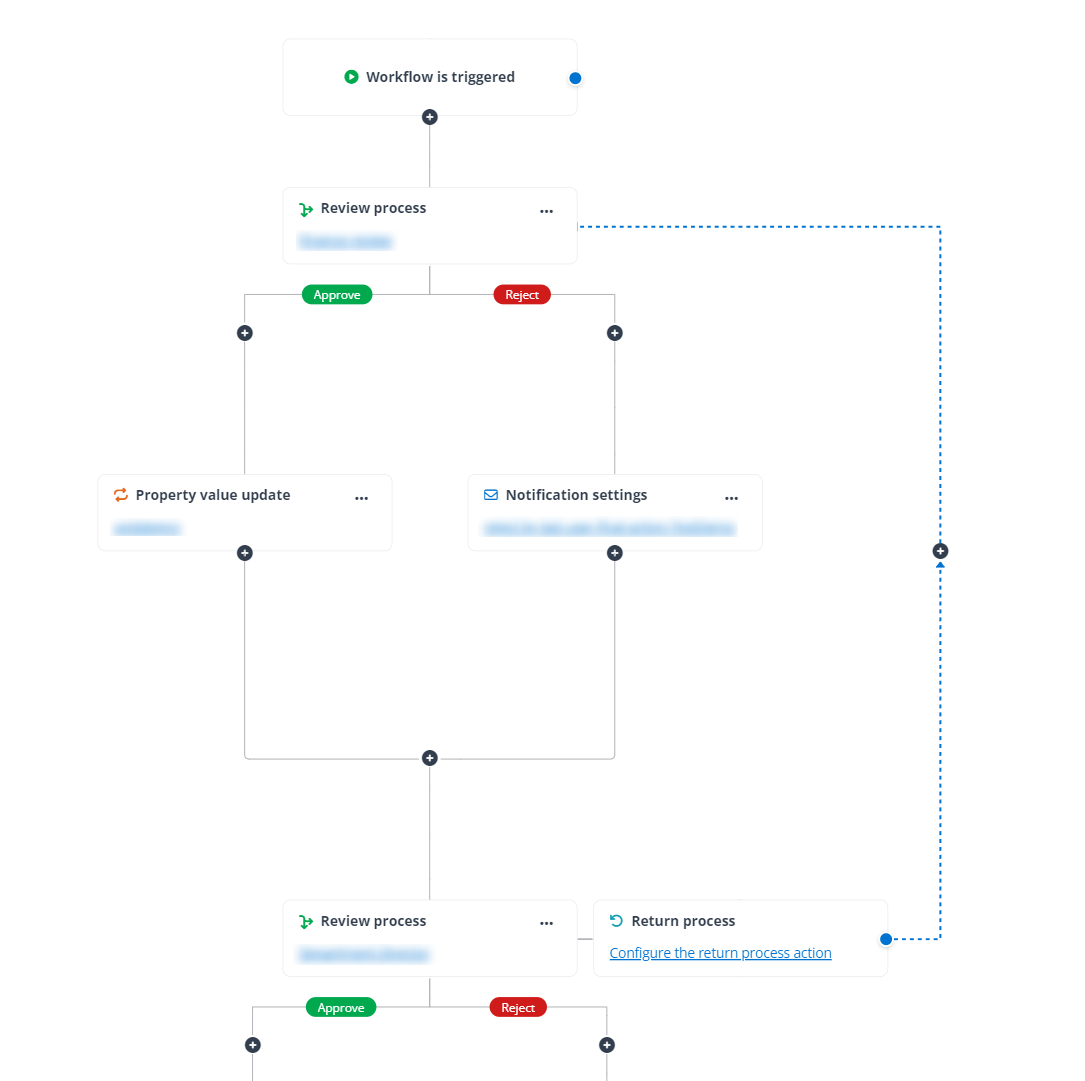
For a Review process action, if you enable the return process, the Return process action will be displayed next to the action. You can hover the mouse over the blue dot and drag and drop it to a previous action to which you want to return the workflow. Then, you can and click the add button in the dashed line to add a desired action.
-
-
Click Save to save the action. You can also click Save and add to action pool to save the action and add the action to the action pool.
-
Repeat the steps 8 to 10 to add more actions.
Manage Workflows
On the Workflows management page, you can perform the following actions to manage the workflows:
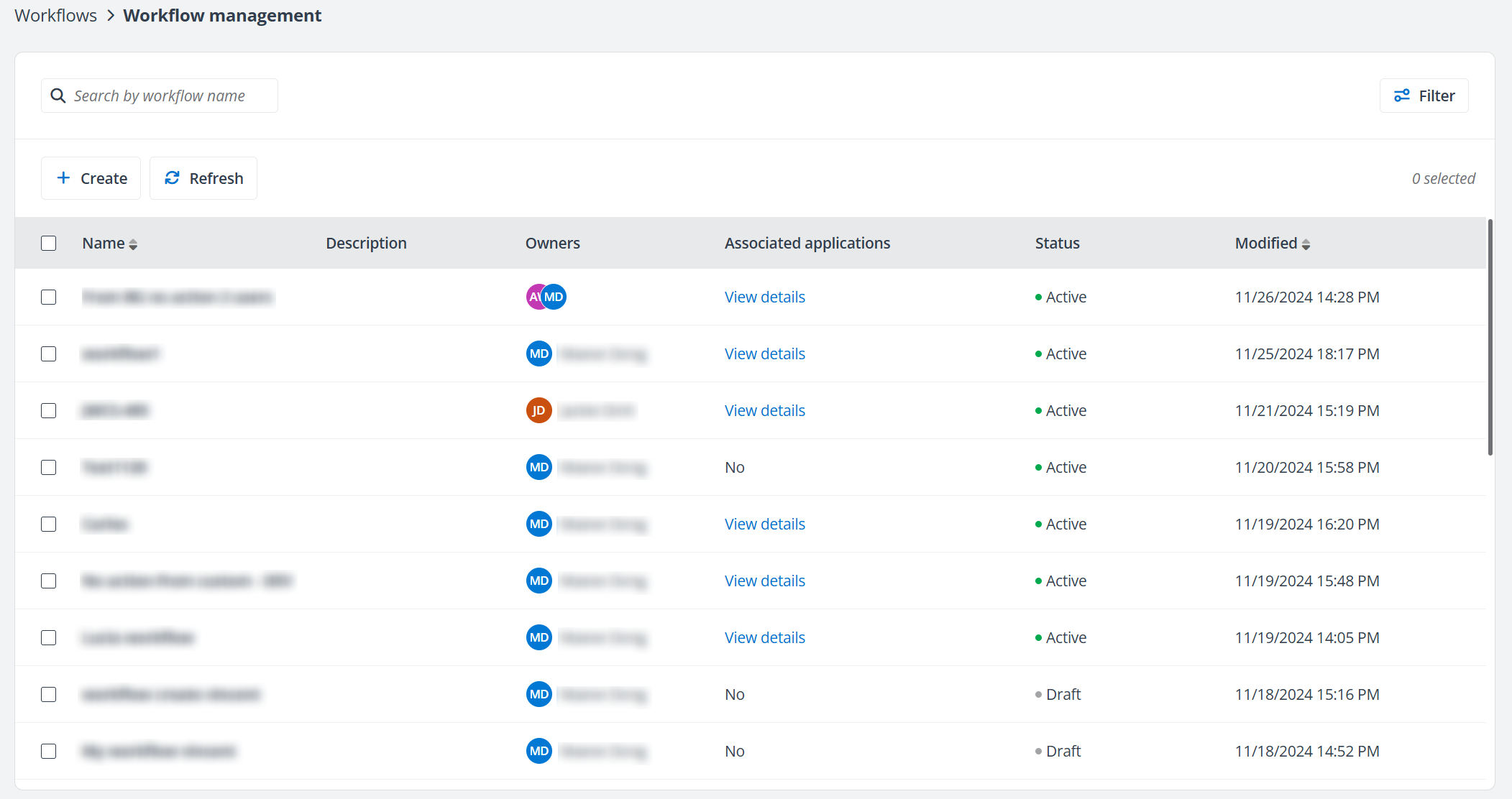
-
Search workflows – Search for workflows by entering the workflow name in the search box.
-
Filter – Click Filter on the Workflows page, select the workflow status, and click Apply to filter workflows with the selected status. You can also click Clear all to re-select the status.
-
Refresh – Click Refresh on the Workflows page to refresh the workflows displayed in the list. You can also select desired workflows and click Refresh to refresh the information of selected workflows.
-
Sort workflows – By default, the workflows with the latest created time are shown first. You can click the arrow button next to the Name or Modified column to sort workflows alphabetically or chronologically.
-
Edit workflows – To edit a workflow, click the workflow name to access the Workflow details page and click Edit in the upper-right corner of the page to edit the workflow.
In the right corner of the Workflow configurations section, you can click the Zoom in button or Zoom out button to zoom in or zoom out the workflow, or click the Enter full screen button to view the workflow in the full screen. In the full screen, you can click the Exit full screen button in the right corner to exit the full screen.
After you edit a draft workflow, you can click Save to save the workflow. You can also click Save and activate to save and activate the workflow. Then, the workflow status will be updated to Active and the workflow can be triggered for objects. For an active or inactive workflow, you can click Save to save the workflow.
-
View workflow details – Click the workflow name to access the Workflow details page to view the workflow details.
In the right corner of the Workflow configurations section, you can click the Zoom in button or Zoom out button to zoom in or zoom out the workflow, or click the Enter full screen button to view the workflow in the full screen. In the full screen, you can click the Exit full screen button in the right corner to exit the full screen.
-
View associated applications – Click View details in the Associated applications column to view the applications related to the workflow.
-
Activate – To activate an inactive workflow, select the workflow and click Activate on the Workflows page. Then, the workflow can be triggered for objects.
-
Deactivate – To deactivate an active workflow, select the workflow and click Deactivate on the Workflows page. Then, the workflow can no longer be triggered.
NOTEWorkflows that are being used cannot be deactivated.
-
Save as – To create a new workflow based on an existing workflow, select the workflow and click Save as on the Workflows page. Enter a new workflow name in the Save as a new workflow window and click Save. The saved workflow will be displayed on the Workflows page.
-
Delete – To delete workflows, select the desired workflows and click Delete on the Workflows page.
NOTEWorkflows that are being used cannot be deleted.