
Home > Settings
Download this articleSettings
Administrators can manage users, customize notification preference, and deploy Microsoft Teams app in WCS. Refer to the following sections for details.
User Management
You can add and manage administrators and normal users in WCS. Refer to the following sections for details.
Add Users
Administrators have full access to WCS and can manage all modules. Normal users have partial access to WCS and can manage Role management, Notification templates, and the workflows they have permissions to.
Before adding users to WCS, note the following:
-
Tenant users with the Service administrator role in AvePoint Online Services will be automatically synchronized to the Administrator list.
-
Only Microsoft 365 users in AvePoint Online Services can be displayed in the Administrator list and Users list.
Refer to the following steps to add users:
-
Click Settings on the left navigation to access the Settings page.
-
Click User management. The list of administrators appears by default.
-
Click Add to access the Add users panel.
-
Configure one or multiple users in the User section as the administrators.
-
Click Save to add administrators.
-
Click the User tab to access the list of normal users.
-
Click Add to access the Add users panel.
-
Configure one or multiple users in the User section as the normal users.
-
Click Save to add normal users.
Manage Users
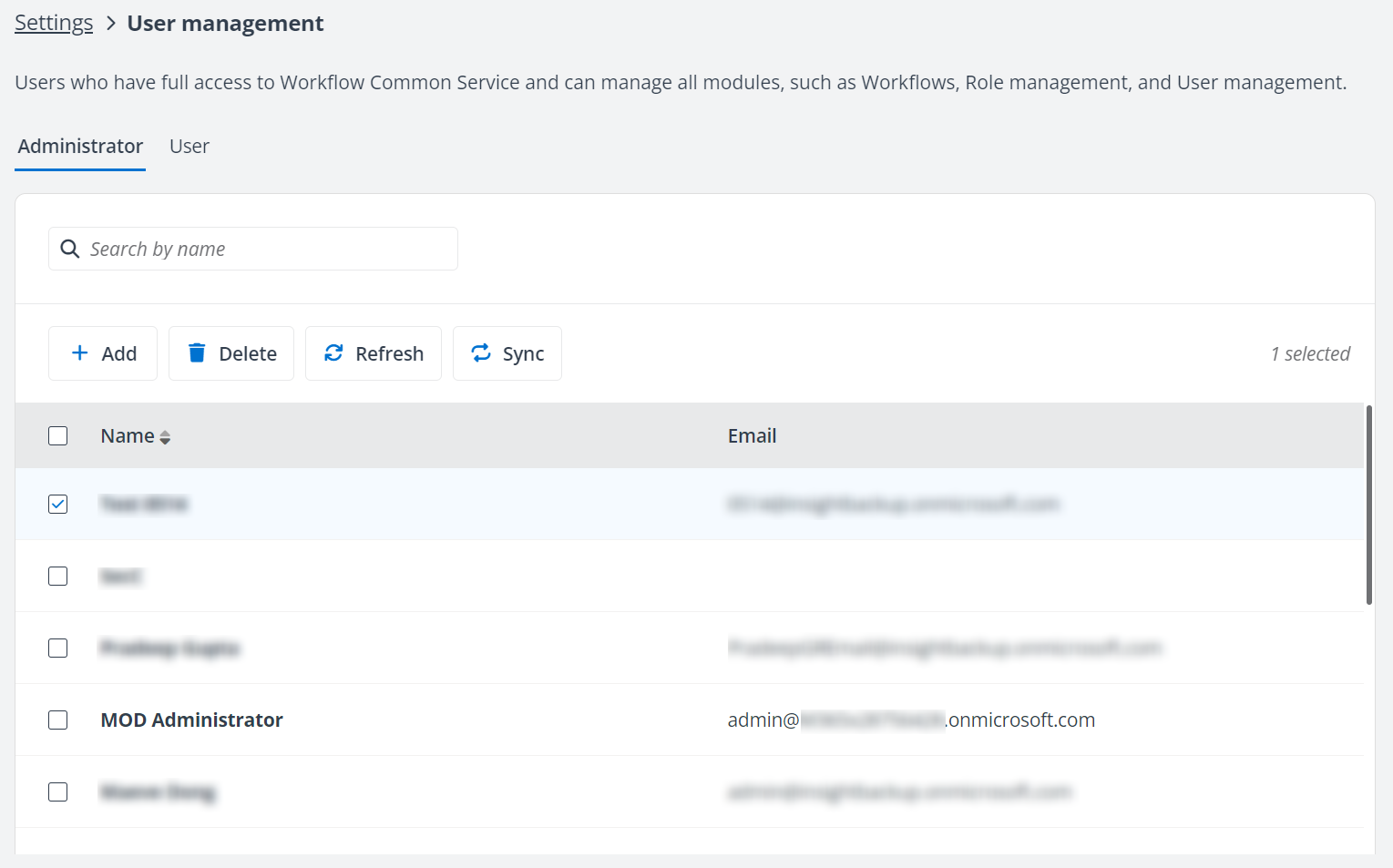
On the User management page, you can perform the following actions to manage users:
-
Search users – Search for users by entering the user name in the search box.
-
Refresh – Click Refresh on the User management page to refresh the users displayed in the list. You can also select desired users and click Refresh to refresh the information of selected users.
-
Sort actions – By default, the users are sorted from the newest to the oldest based on the time when they were added. You can click the arrow button next to the Name column to sort users alphabetically.
-
Delete – Select the desired users and click Delete on the User management page to delete the selected users.
-
Sync – Select one or multiple users and click Sync to synchronize the user changes in AvePoint Online Services.
NOTEThis button only appears under the Administrators tab.
Notification Preference
Refer to the following steps to select the preferred method for your users to receive notifications when actions outside the configured workflow, such as reopening, reassigning, or canceling requests, are performed on the requests.
-
Click Settings on the left navigation to access the Settings page.
-
Click Notification preference. The Notification preference page appears.
-
Select an option below as the preferred notification method.
-
Receive the notification via email
-
Receive the notification via Microsoft Teams – Use the Cloud Attendant app deployed in Microsoft Teams to receive notifications. For more details, refer to Teams App Deployment.
-
Receive the notification via email and Microsoft Teams – Receive notifications via both email and the Cloud Attendant app deployed in Microsoft Teams.
-
-
Click Save to save the configuration.
Teams App Deployment
In Notification Preference, if you select Receive notifications via Teams or Receive the notification via email and Teams as the method to receive notifications, you need to deploy the Cloud Attendant app in Microsoft Teams.
-
Click Settings on the left navigation to access the Settings page.
-
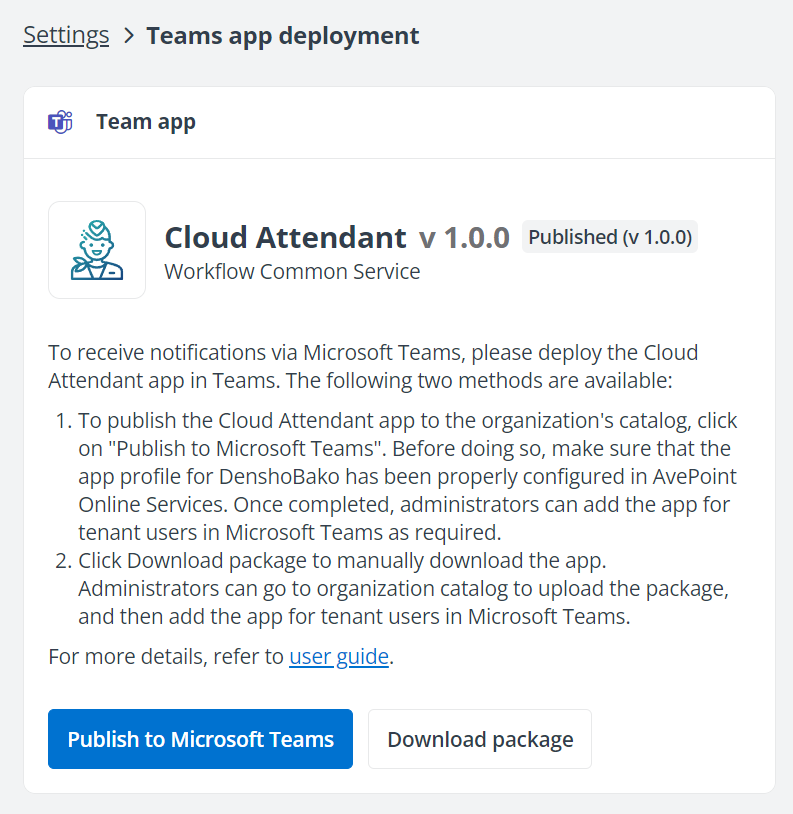
Click Teams App Deployment. The Teams App Deployment page appears.
-
Select a method to deploy the Cloud Attendant app in Teams.
-
Publish the Cloud Attendant app to your organization's Teams app store (Recommended) – Refer to the following steps to deploy the app:
-
Click Publish to Microsoft Teams and click OK in the Publish Cloud Attendant app to Teams window to publish the app to the organization catalog in Microsoft Teams.
-
Log in to Microsoft Teams and click Apps on the left navigation. Enter Cloud Attendant in the search box and click the search button. The app will appear in the search results.
-
Click Add to add the Cloud Attendant app. By using this deployment method, all users in the organization can use the Cloud Attendant app by default. You can configure setup policies to restrict which users or groups can use this app. For more details, refer to the Restrictions for Users or Groups Using the Cloud Attendant App section below.
-
-
Upload the Cloud Attendant app package to the Microsoft Teams admin center for deployment – Refer to the following steps to deploy the app:
NOTEOnly Teams administrators can use this method to deploy the app.
-
Click Download package to download the TeamsAppPackage.zip.
-
Navigate to Microsoft Teams admin center > Teams apps > Manage apps, click Actions in the upper-right corner of the Manage apps page, and click Upload new app. The Upload a custom app window appears.
-
Click Upload, select the TeamsAppPackage.zip package, and click Open to upload and deploy the app.
-
-
Upload the Cloud Attendant app package to Teams for deployment – Refer to the following steps to deploy the app:
-
Click Download package to download the TeamsAppPackage.zip.
-
Share the package with end users. End users can deploy the app in Microsoft Teams > Apps > Manage apps.
-
After publishing the Cloud Attendant app to Teams, a Published (v 1.0.0) tag will be displayed next to the Cloud Attendant app on the Teams app deployment page.
-
Add the Cloud Attendant App for Specific Users or Groups
If you want to add the Cloud Attendant app for specific users or groups, you can create a setup policy in the Microsoft Teams admin center and assign the policy to the specific users or groups. For details, refer to the following instructions:
-
To add the app for specific users:
-
Navigate to Microsoft Teams admin center > Teams apps > Setup policies. The App setup policies page appears.
-
Click Add to access the Add page. Enter a name and a description for the policy, and click the Add apps in the Installed apps section to access the Add installed apps panel.
-
Enter Cloud Attendant in the search box, and click Select next to Cloud Attendant app in the drop-down list.
-
Click Add in the panel to add the installed Cloud Attendant app to the policy.
-
Click Save to create the policy.
-
Under the Manage policies tab, select the newly created policy, click Manage users, and click Assign users to access the Manage users panel.
-
Enter the username in the search box and click the Add next to the desired user to add the user.
-
Click Apply to apply the policy to the users.
-
-
To add the app for specific groups:
-
Navigate to the Microsoft Teams admin center > Teams apps > Setup policies > Group policy assignment tab.
-
Click Add to access the Assign policy to group panel.
-
Enter the display name of a group in the search box and click the Add next to the desired group to add the group.
-
Select a policy for the selected groups.
-
Configure the rank for the groups.
-
Click Apply to apply the selected policy to the groups. Then, all users in these groups can use the app directly without adding it manually.
-
Language and Time
Refer to the following steps to configure the language and time:
-
Click Settings on the left navigation to access the Settings page.
-
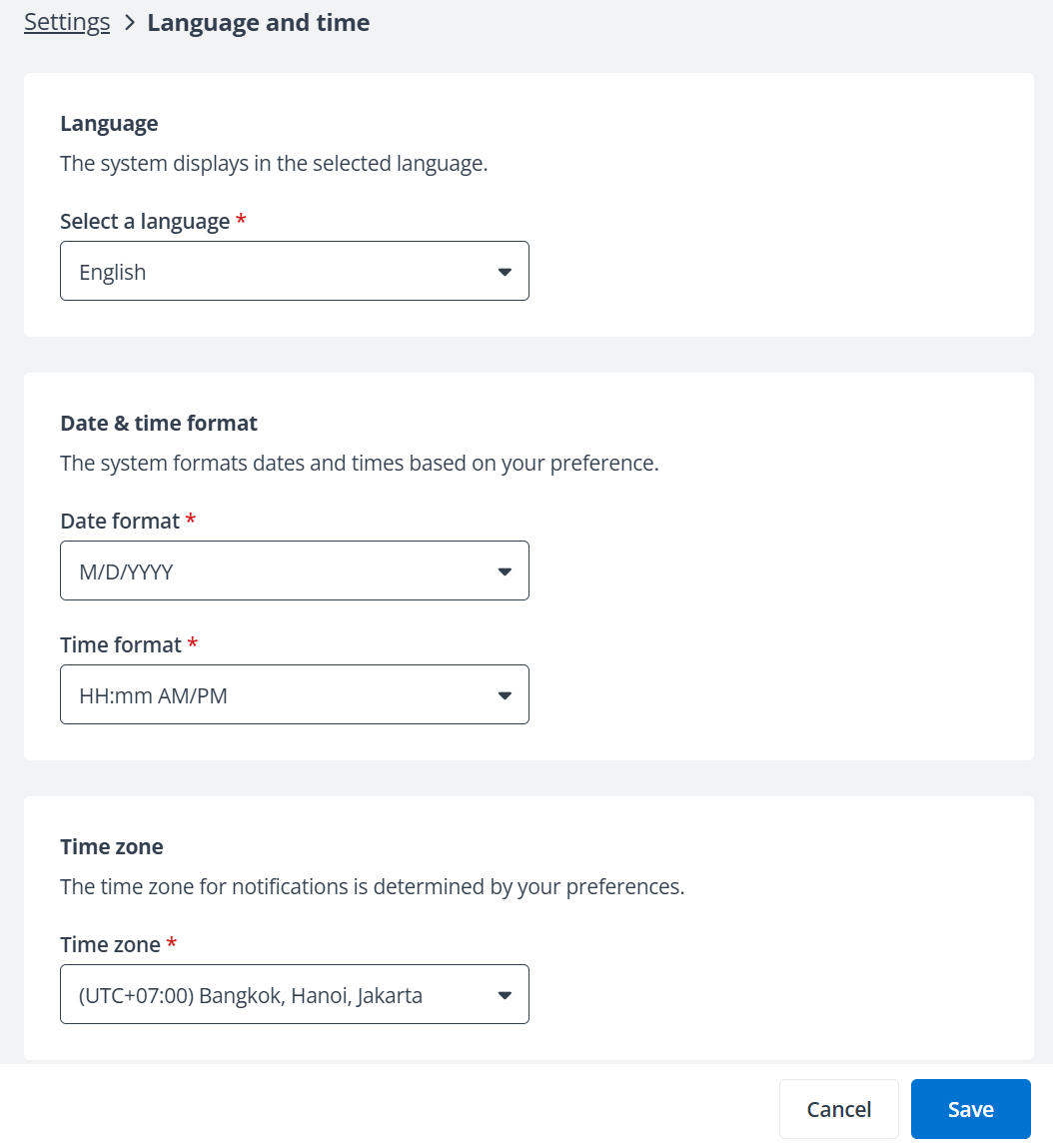
Click Language and time to access the Language and time page.
-
In the Language section, select a display language from the drop-down list for the system.
NOTEThe system displays in the selected language.
-
In the Date & time format section, select a preferred date or time format from the drop-down list.
NOTEThe system formats dates and times based on your preference.
-
In the Time zone section, select a desired time zone.
NOTEThe time zone for notifications is determined by your preferences.
-
Click Save to save your configurations.