
Home > App Suite > Vehicle Reservation
Download this articleVehicle Reservation
Vehicle Reservation supports flexible uses of vehicles in your organization. It serves as a self-service tool for employees to reserve proper vehicles and record their usage. Administrators can manage the vehicle information and oversee all reservations.
App administrators must complete the Initial Configurations to set up the necessary departments and vehicles before users can reserve vehicles using this app, and can further manage Settings for Vehicle Reservation App based on their requirements.
Users can refer to the following steps to get started:
-
Access the vehicle reservation app in the deployed location.
-
To get familiar with the app, you can refer to Get Familiar with the Vehicle Reservation App.
-
Now, you can reserve vehicles using the app based on your requirements. For more information, refer to Vehicle Reservation Process.
-
Once your reservation is accepted, you can proceed to pick up the key, use the vehicle, and finally, return the key. For information required to be completed for each vehicle usage stage, refer to Vehicle Usage Stages.
Initial Configurations
Before app users can reserve vehicles using the app, app administrators must follow the steps below to complete the necessary configurations:
-
Click the settings button in the upper-right corner of the reservation pane to access the Settings page.

-
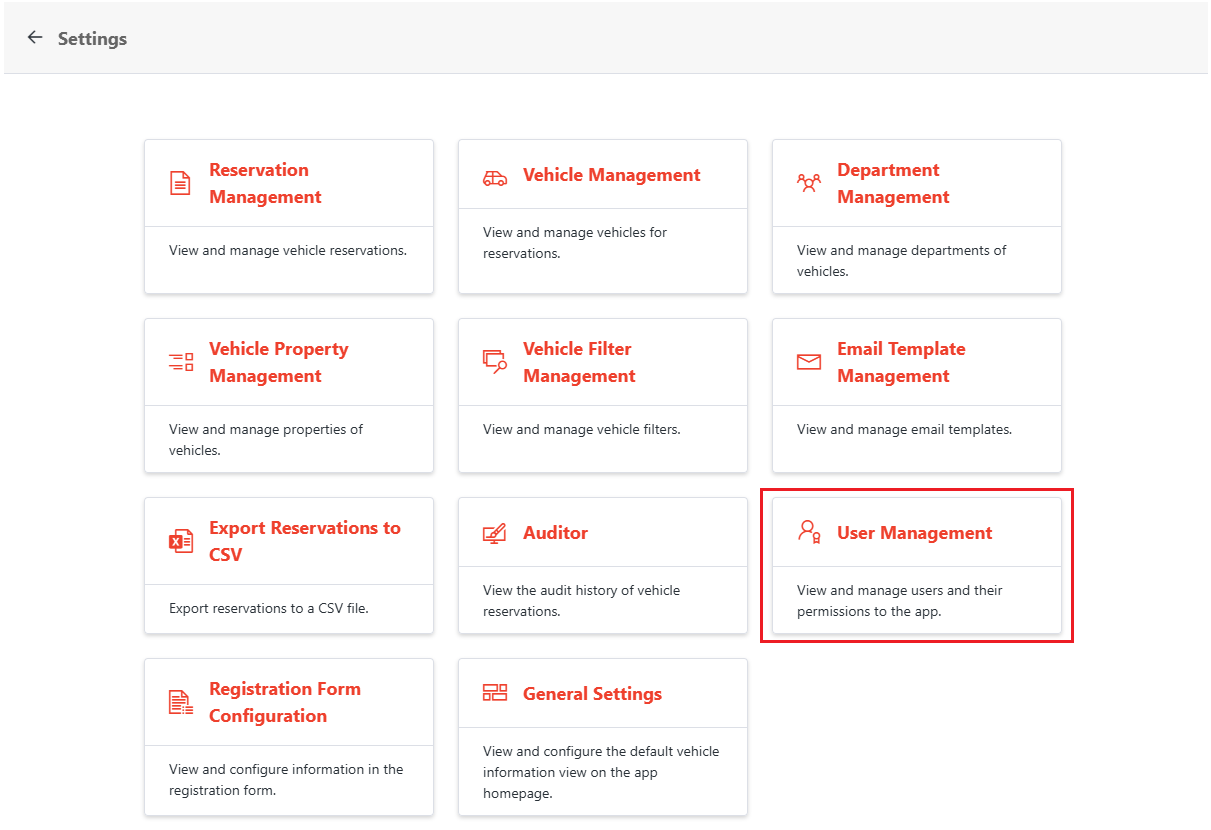
Click User Management on the Setting page. The User Management page appears. On the page, make sure to add all intended administrators and users since access to this app is restricted to the app members specified here. For details, refer to the User Management section on the Settings for Vehicle Reservation App page.
-
Click Department Management on the Settings page. The Department Management page appears.
NOTEThe app administrators and department administrators of the app can also refer to Settings for Vehicle Reservation App for further management.
-
Click Add Department in the upper-left corner of the page. The Add Department window appears.
-
Enter information in the Department Code, Department, and Display Order fields.
-
If you want vehicles in this department to be reserved by all app administrators and users, select All Users in the Requester Scope field. If you want vehicles in this department to be reserved by specific users only, select Specific Users and then enter the email address or name of the desired user and select the user from the suggestion list. You can repeat this action to add multiple users.
-
You can assign Microsoft 365 users, Microsoft 365 Groups, security groups, and mail-enabled security groups with access to the app as the department administrators, vehicle administrators, and reservation administrators separately by entering the desired names in the corresponding fields.
-
The vehicles in this department are available for reservation by default. If you do not want the vehicles in the department to be reserved, select No in the Available for Reservation field.
-
-
Click Save to save the department.
-
You can add multiple departments with the steps above.
-
After all necessary departments are added, click Settings or the return button next to Settings in the upper-left corner of the page to go back to the Settings page.

-
Click Vehicle Management to access the Vehicle Management page.
NOTEThe app administrators, department administrators, and vehicle administrators of the app can also refer to Settings for Vehicle Reservation App for further management.
-
Click Add Vehicle in the upper-left corner of the Vehicle Management page. The Add Vehicle window appears.
-
Enter the vehicle information in the corresponding fields.
-
In the Approval Required for Reservations field, select Yes if you want reservations for this vehicle to be reviewed. You can configure up to 3 stages of approvals by selecting the Add Stage 2 Reviewers and Add Stage 3 Reviewers checkboxes and entering the name of reviewers for each stage. The vehicle can only be used by “Reserve For” users once all stages of approvals are received.
NOTEThe reviewers can be Microsoft 365 users, Microsoft 365 Groups, security groups, and mail-enabled groups with access to the app.
-
This vehicle is configured as available for reservation by default. If you do not want the vehicles to be reserved, select No in the Available for Reservation field.
NOTEIf a department is not available for reservation, vehicles of the department are not available for reservation regardless of the Available for Reservation setting for the vehicles.
-
You can set the reservation rules for this vehicle in the Vehicle Reservation Rules field:
-
Limit allowed reservation duration – Limit the duration allowed in a reservation for this vehicle. With the checkbox selected, specify a number and select a unit as the allowed duration.
-
Limit vehicle reservable period – Limit the reservable period for the vehicle. With the checkbox selected, select the start time and end time for the reservable period. When users reserve this vehicle, their reservation start and end time will be required to fall within the specified period.
-
Limit open period for vehicle reservation – Limit the open period to submit reservations for this vehicle. With the checkbox selected, select the start time and end time for the open period. Users can only submit reservations for this vehicle within the specified period.
-
-
-
Click Save to save the vehicle.
-
You can add multiple vehicles with the steps above. After all necessary vehicles are added, the available vehicles are displayed on the homepage of the app.