
Home > App Suite > Office Equipment Management
Download this articleOffice Equipment Management
Office Equipment Management supports flexible uses of office equipment in your organization. It serves as a self-service tool for employees to request for office equipment. Administrators can supervise the inventory and status of office equipment and oversee its purchase and consumption over time.
The app administrators must complete the Initial Configuration before users can request for equipment using the Office Equipment Management app. App administrators and equipment administrators can supervise equipment and request status and manage the app settings in Equipment Overview and Request Management and Settings for Office Equipment-Management-App.
-
App administrators can manage the app administrators of the app. For details, refer to the Manage User section on the Equipment Management page.
-
App administrators can manage equipment administrators of offices while adding or editing offices. Equipment administrators can manage the equipment administrators of the offices where they serve as equipment administrators while editing offices.
Both users and administrators can refer to the following steps to request for equipment items:
-
Access the Office Equipment Management app in the deployed location.
-
Request for office equipment based on your requirements by using the instructions on the Equipment Request Process page.
-
Track your requests in Borrowed Equipment & Requests > My Requests. Once your requests are approved, you can pick up the office equipment you requested.
-
Track the status of your borrowed equipment and, if required by your organization, submit a return request in Borrowed Equipment & Requests > Borrowed Equipment and physically return it upon approval.
Initial Configuration
App Administrators must complete the initial configurations before the app can be used. Access the app and complete the following configurations:
The following sections below can also be completed by equipment administrators of each office: Add Equipment Templates, Add Equipment Types, and Add Equipment.
Specify Users for the App
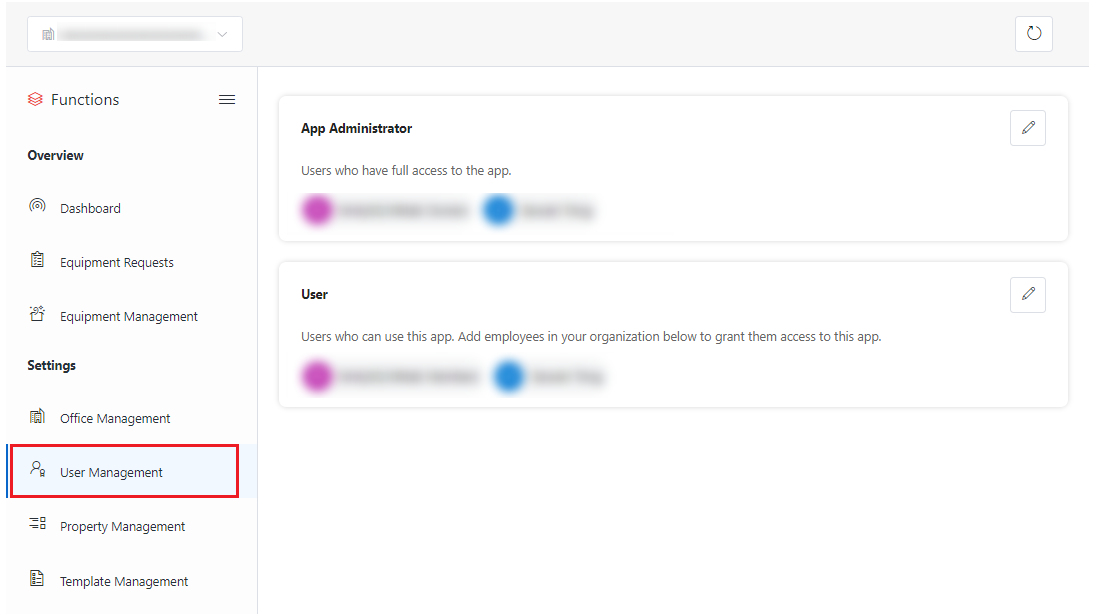
Click User Management in the left navigation to access the user management page. You can manage the app administrators or users using the following steps:
-
Users who have been blocked from signing in to Microsoft 365 cannot be added as app administrators or users.
-
Make sure to add all intended administrators and users here since access to this app is restricted to the specified app members here.
-
Click the edit button in the upper-right corner of the App Administrator or User section to manage the corresponding user group, and the Edit window appears. The current role is displayed and read-only in the Role field.
-
In the User/Group Name field, enter the user or group name to whom you want to assign the role and select the desired user or group from the suggestion list.
-
You can add multiple users and groups by repeating the step above.
-
You can delete a user or group by clicking the delete button next to them.
-
After the necessary edits are completed, click Save to save your edits.
Add Offices of Your Organization
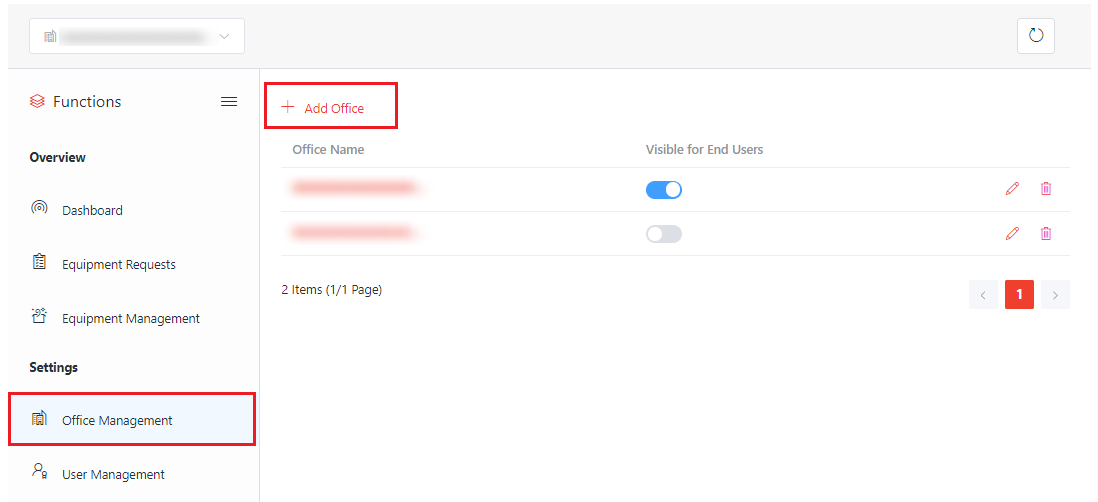
Click Office Management in the left navigation to access the office management page.
You can specify the equipment administrators of each office while adding or editing offices. The equipment administrators can perform management on the equipment of the offices where they serve as equipment administrators.
You can add an office using the following steps:
-
Click Add Office above the table. The Add Office window appears.
-
Complete the following information in the window:
-
Office ID – Enter an office ID for the office in the text box.
-
Office Name – Enter the office name in the text box.
-
Equipment Administrators – Enter the desired name in the text box and select the administrator from the suggestion list. You can add multiple equipment administrators for the office.
NOTEThe administrators can be Microsoft 365 users, Microsoft 365 Groups, security groups, and mail-enabled groups with access to the app.
-
Visible for End Users – Select whether the office is available for end users.
-
Photo – Click Browse to browse to and select the office photo and then click Open to insert the photo.
-
-
Click Save to save the office.
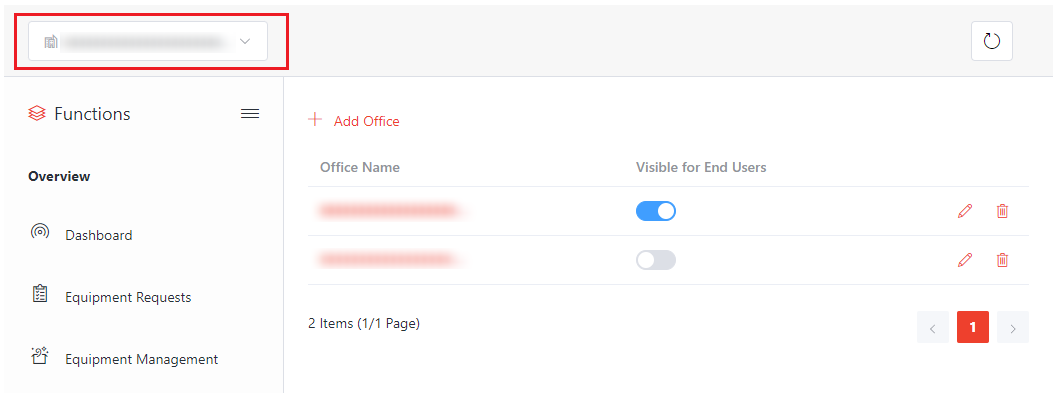
If multiple offices are added, you can select the office in which you want to supervise and manage equipment from the office drop-down list in the upper-left corner of the app pages. Then, you can perform management on the equipment of the office on the corresponding pages.
Add Equipment Templates
You can use equipment templates to specify the information to be completed while adding equipment.
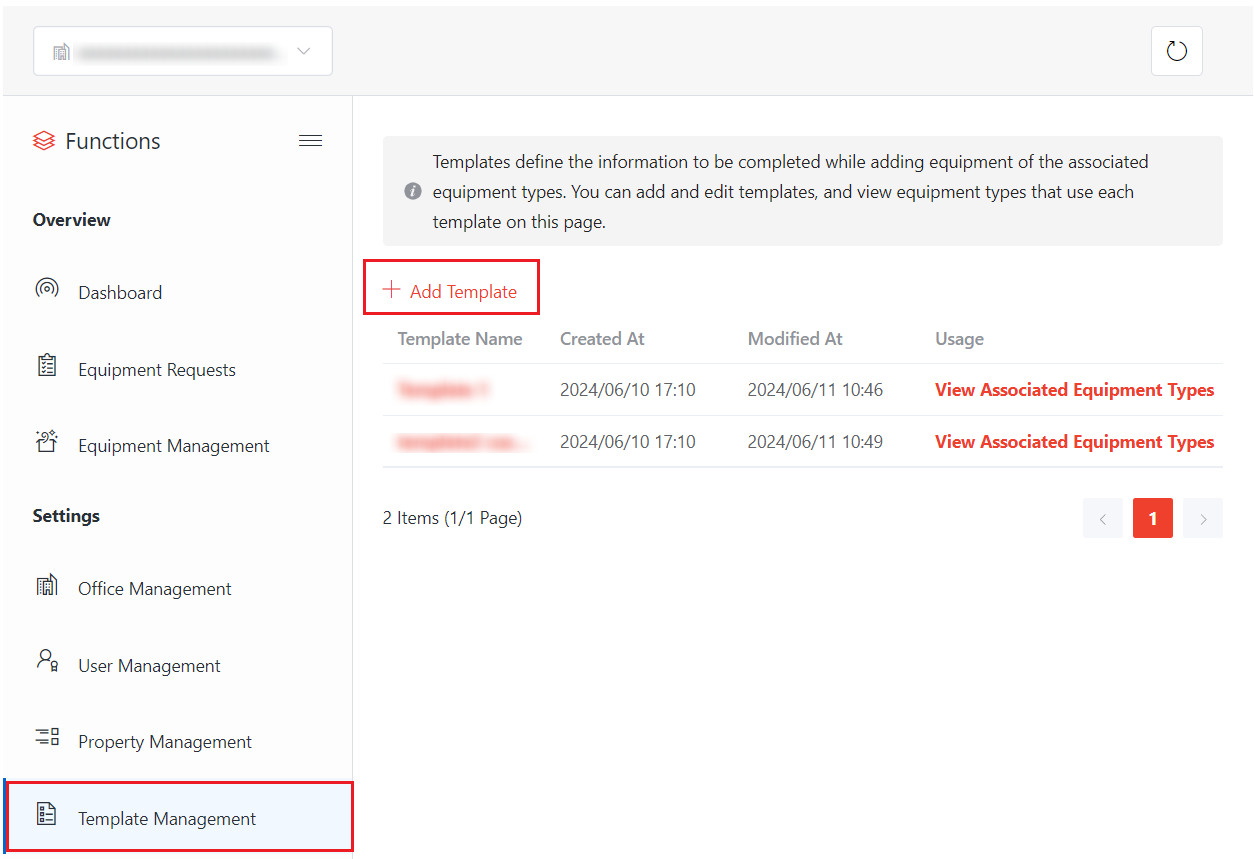
Select the desired office from the office drop-down list in the upper-left corner of the app pages, and then click Template Management in the left navigation to access the equipment template management page of the office. On the page, you can add equipment templates for the selected office using the following instructions:
-
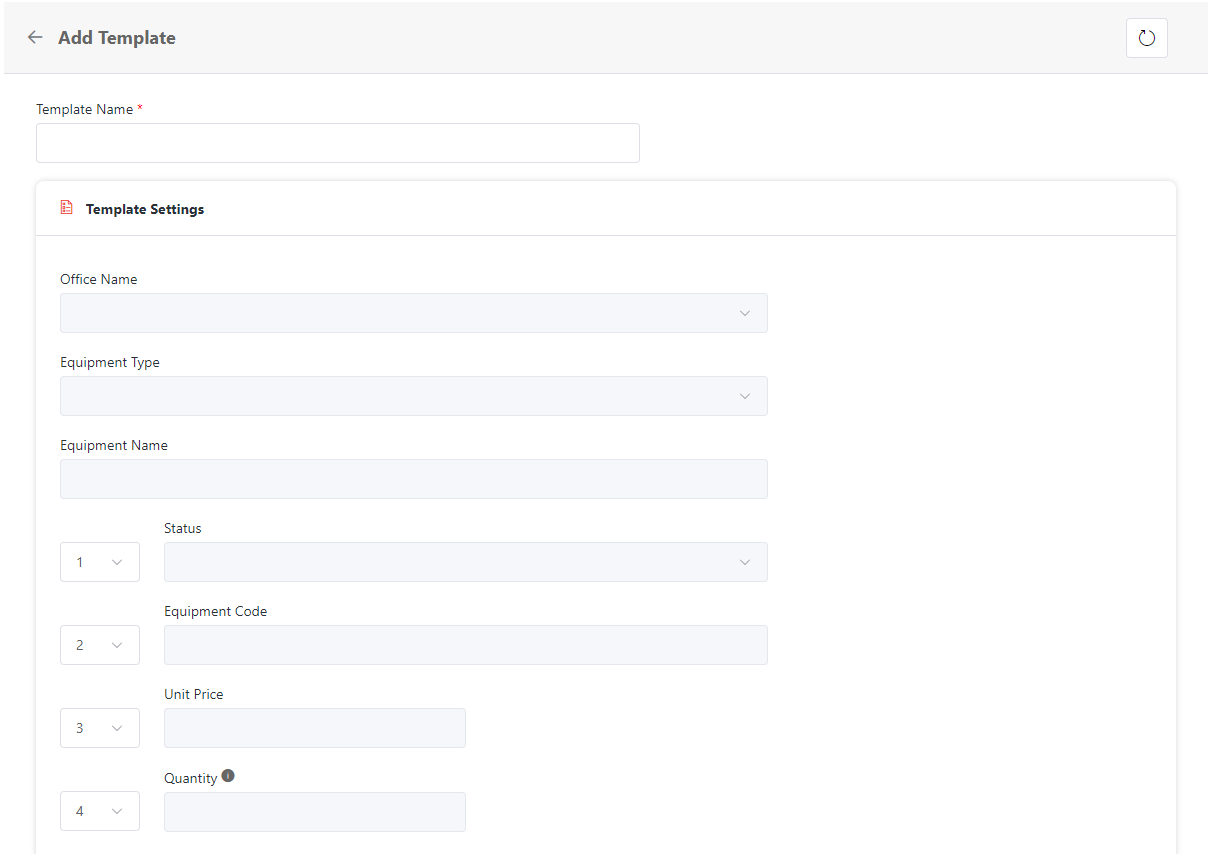
Click Add Template above the table. The Add Template page appears.
-
On the page, complete the following information:
-
Template Name – Enter the template name in the text box.
-
Template Settings – The default fields of the template are displayed and cannot be edited.
You can add fields to the template by clicking Add Field at the bottom of the page. The Add Field window appears. Select the desired equipment property for the corresponding information to be completed while adding equipment of the equipment types that use the template and click Save to save your edits.
If you cannot find the desired property, click Add Property to add a property. In the Add Property window, complete the property information and click Save to save the property. You will go back to the Add Field window and the property you added will be displayed in the window. For details about adding a property, refer to the section below.
-
-
Click Save to save the template.
Add Equipment Types
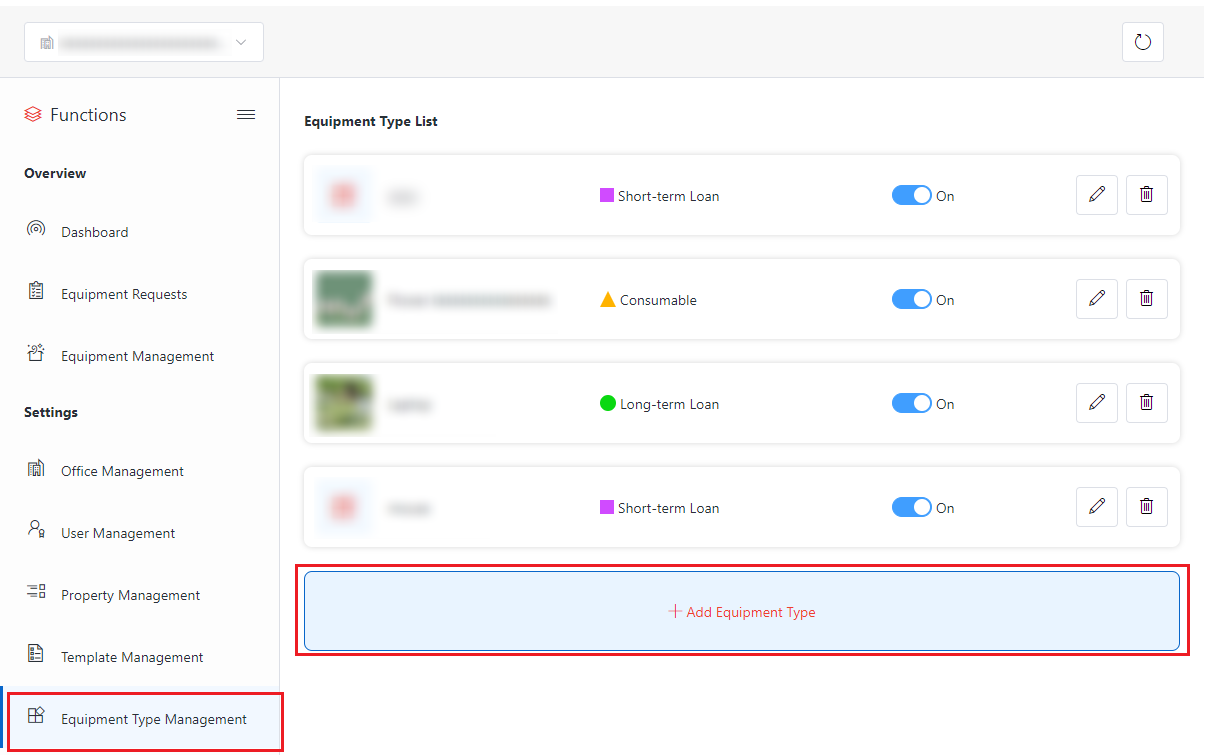
Select the desired office from the office drop-down list in the upper-right corner of the app pages, and then click Equipment Type Management in the left navigation to access the equipment type management page of the office. On the page, you can add equipment types for the selected office using the following instructions:
-
Click Add Equipment Type and the Add Equipment Type window appears.
-
Complete the following information in the window:
-
Office – The current office is displayed by default. If you are an App Administrator or an Equipment Administrator of multiple offices, you can select the desired office from the drop-down list.
-
Icon – The default icon is displayed. To change an icon, click Change Icon and the icon list appears. Select an icon and click Save to save your selection.
-
Name – Enter the equipment type name in the text box.
-
Type – Select from the Consumable, Long-term Loan, and Short-term Loan categories to define this equipment type.
NOTEDue to the distinct properties of each category, this setting cannot be changed once it's saved.
-
Equipment Code Generation – Select the equipment code generation method of the equipment type.
NOTEIf you choose to enter equipment codes manually, you will not be able to do batch adding equipment of the equipment type.
-
Equipment Template – Select the desired template for the equipment type.
-
Inventory Warning – Select the Inventory Warning checkbox if you want to enable inventory warning. Administrators will be able to view the equipment types in the Attention Required section in the dashboard when the quantity of available equipment of the equipment type is lower than the warning quantity.
If you select the Inventory Warning checkbox, enter the warning quantity in the Quantity text box.
-
Requester Scope – Select one of the following options as the requester scope of the equipment type:
-
All Users – All app administrators and users can submit equipment requests of the equipment type.
-
Specific Users – Only specific users can submit equipment requests of the equipment type. Enter the email address or username of the desired user in the text box and then select the user from the suggestion list. You can add multiple users in the text box.
-
-
Auto Approval – Select whether to approve equipment requests of this equipment type automatically. Once enabled, the Auto Approval Process field appears below, where you can choose whether to automatically approve Borrow Equipment requests, Return Equipment requests, or both of this equipment type.
-
-
Click Save to save the equipment type.
Add Equipment
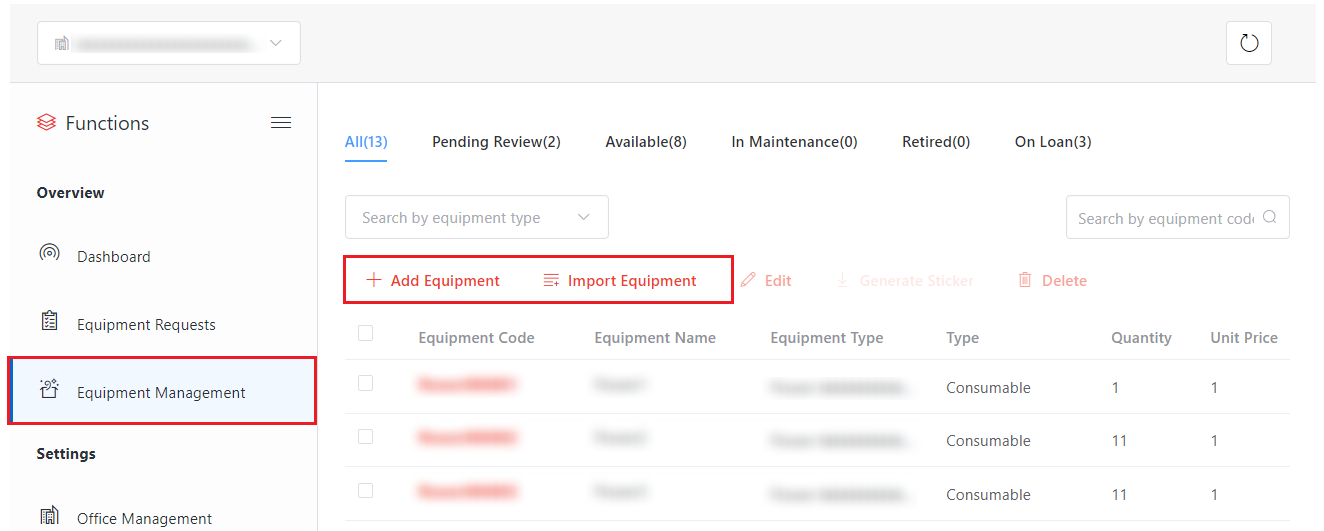
Select the desired office from the office drop-down list in the upper-left corner of the app pages, and then click Equipment Management in the left navigation to access the equipment management page of the office. On the page, you can either add equipment manually for the selected office or import equipment using the following instructions:
-
Add equipment manually
-
Click Add Equipment above the table and the Add Equipment window appears.
-
Complete the following information in the window:
-
Office – The current office is displayed by default. If you are an App Administrator or an Equipment Administrator of multiple offices, you can select the desired office from the drop-down list.
-
Equipment Type – Select the desired equipment type from the drop-down list.
-
Equipment Name – Enter the equipment name in the text box.
-
Equipment Status – Select the equipment status from the drop-down list.
-
Equipment Code – The equipment code is generated and displayed by default if the equipment codes of the selected equipment type are generated automatically. Or you can enter the desired equipment code if the equipment codes of the selected equipment type are generated manually.
-
Equipment Price – Enter the unit price of the equipment in the text box.
-
Equipment Quantity – The quantity of the equipment you want to add.
NOTEThis field is only for equipment of the equipment type of which the type is consumable.
-
Attachment – Drag and drop the desired files to the Attachment field, or you can select click to upload files to browse to and upload the desired files.
-
Equipment Photo – Click Browse to browse and select the equipment photo, and then click Open to insert the photo.
-
Purchase On – Select the date when the equipment is purchased.
-
Add Equipment in Bulk – With this option selected, enter the quantity of the equipment items to be added. Bulk addition is only available when equipment codes are automatically generated for the equipment type.
-
Sticker – A sticker for the equipment is automatically generated during the equipment creation.
-
-
Click Save to save the equipment.
-
-
Import equipment
-
Click Import Equipment above the table and the Import Equipment window appears.
-
Click download the template to download the template file to your local device.
-
Add equipment items and their information in the downloaded file. When you finish, save the file.
-
Drag the file to the upload box or click browse to select the file and click Open.
-
Click Save and the import of the equipment items starts.
-