
Home > Use MyHub for Microsoft 365 > Use the New MyHub > Overview
Export to PDFUse the New MyHub
New MyHub delivers a streamlined, feature-rich interface designed for a more intuitive and efficient experience. This interface allows you to effortlessly manage your spaces, scheduled activities, and track recent documents with risk assessments. Additionally, it consolidates tasks from multiple sources into a single, intuitive list and offers an improved service request experience.
*Note: Risk status insights are gathered based on the detection scope of your tenant in Insights. Make sure that you have an available subscription for Insights to view risk information and perform risk-related operations.
Access MyHub
If you have a subscription for Cloud Governance integrated with MyHub, the rollout of the new MyHub experience is managed by your administrator. You may have access to either the MyHub experience, the new MyHub experience, or both. If both experiences are available, the New MyHub toggle is shown, allowing you to switch between the new MyHub and MyHub interfaces.
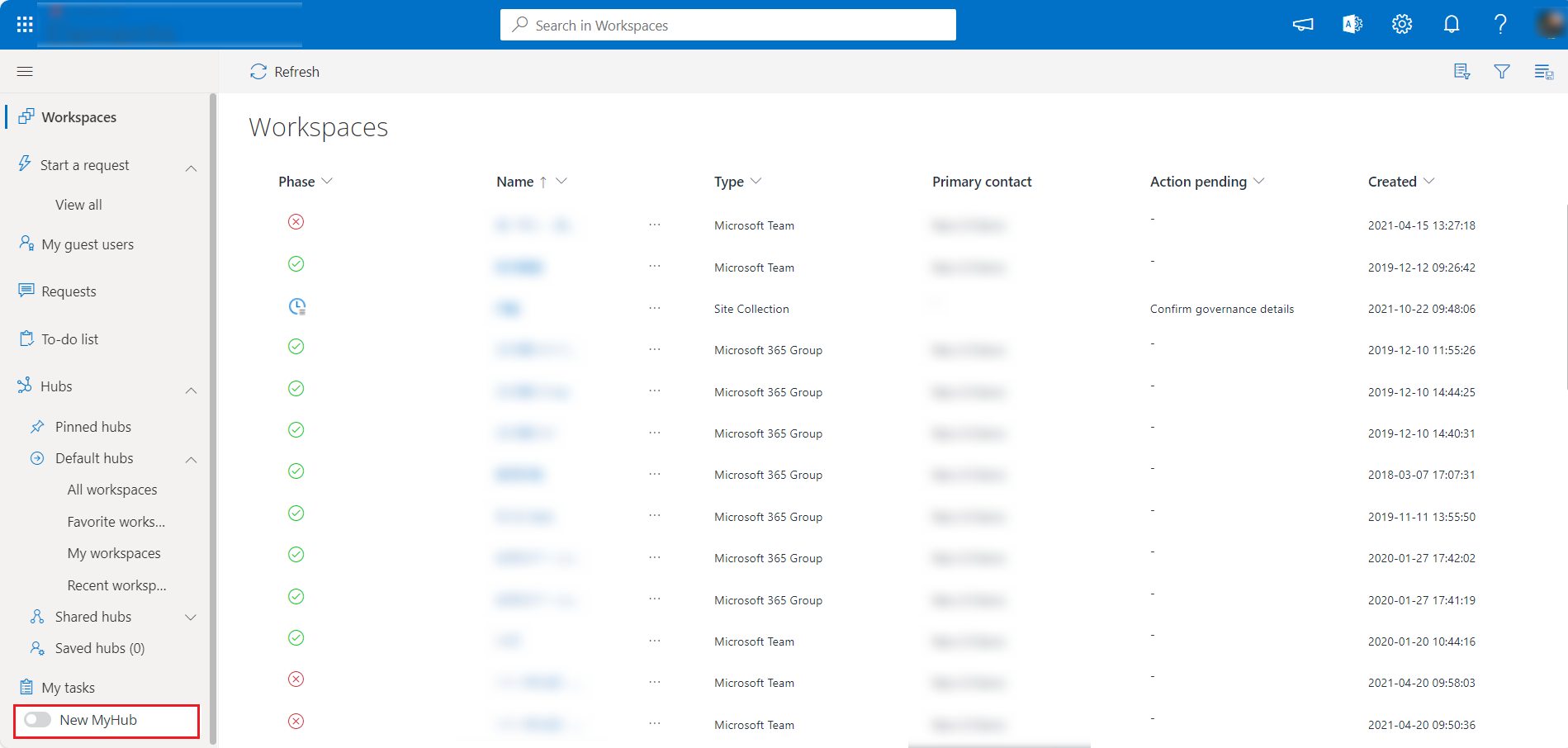
New MyHub switch in the MyHub web portal.
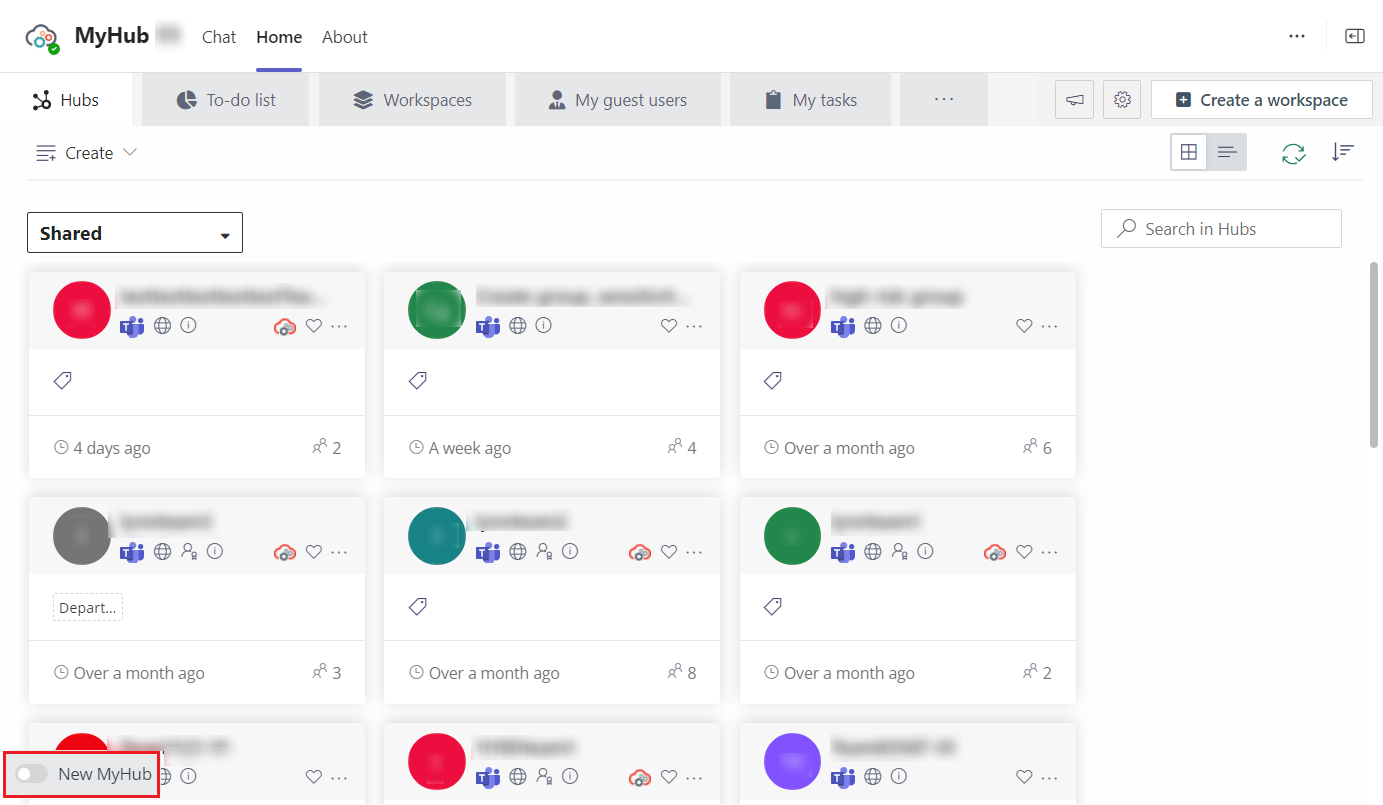
New MyHub switch in the MyHub Teams app.
The Working Environment
The common actions in the new MyHub experience are listed below:

-
Profile card – This allows you to access your profile and account or sign out from MyHub.
-
Navigation panel – This allows you to navigate to different pages in the portal.
-
Search – This allows you to search for items by the keyword you designate. Enter your keyword in the search box and press Enter on the keyboard.
-
Filter items – This allows you to filter which items in the list are displayed. To apply filters, use the following steps:
-
Click Filter.
-
In the filter drop-down list, you can search the filters you want by filter name or value.
-
Configure your filters and click Apply changes.
To remove a filter, click the remove (
 ) button next to the filter. To remove all filters, click the remove (
 ) button next to Filter.
 -
-
Choose columns – This allows you to select the columns that you want to display in a table by completing the following steps:
-
Click Column.
-
Select your desired column names.
-
Click Apply changes to save your choice.
-
-
Sort items – This allows you to sort items. Click the sort (
 ) button in a column name to sort by older to newer or newer to older or sort by A to Z or Z to A.
 -
Views – This allows you to access built-in or custom views by one click. To manage views, use the following instructions:
-
To view items in a view, select the view.
-
To create a custom view, search or filter items, click Save view as, enter the view name, and click Save.
-
To set a view as the default view, hover your mouse over the view, and click actions (
 ) > Set current view as default.
 -
To delete a custom view, hover your mouse over the view, and then click actions (
 ) > Delete.
 -
To rename a custom view, hover your mouse over the view, and then click actions (
 ) > Rename. In the Rename window, enter the new view name and click Save.
-