Use the Legacy MyHub
If you have a Cloud Governance subscription integrated with MyHub, the legacy MyHub is your default end-user portal. If your administrator has enabled the new MyHub experience, you’ll see a New MyHub toggle, allowing you to switch between the legacy and new interfaces in both the MyHub web portal and Teams app.
Refer to the sections below to explore the MyHub and MyHub Teams App interfaces.
The Working Environment
Refer to the following sections for common actions in the MyHub portal, MyHub app in Teams desktop or web app, and MyHub app in Teams mobile app.
MyHub Portal
The MyHub end user portal provides different hubs and features for you to view and manage your Microsoft 365 workspaces.
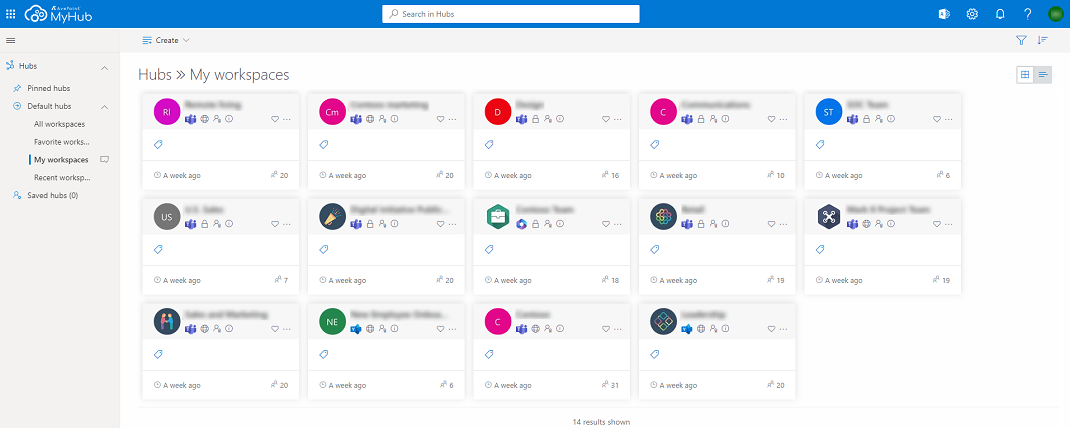
- **Pinned hubs** – All hubs that you choose to pin for quick access are displayed in this section.
To pin/unpin a hub, hover your mouse over the hub, click the More actions () button, and click **Pin**/**Unpin**.
- There are four built-in hubs including different types of workspaces in each hub:
- **All workspaces** – Displays the following Microsoft 365 workspaces:
- All public groups, teams, and communities.
- All private groups.
- Private teams and communities you are a member or owner/admin of.
- If your administrator enables the discovery and management of SharePoint sites, you can view all sites or sites you have permissions to in this hub based on the access scope defined by your administrator.
- **Favorite workspaces** – Displays all Microsoft 365 workspaces that you have marked as favorite ones.
- **My** **workspaces** – Displays all Microsoft 365 workspaces that you are an owner/community admin or member of.
- **Recent workspaces** – Displays all Microsoft 365 workspaces that had activities over the last 30 days.
> ***Note**: Due to the Microsoft Graph API limitation for fetching a workspace’s last active time in the Microsoft 365 US Government GCC High environment, the **Recent** **workspaces** hub is unavailable for GCC High users.
The **All workspaces**, **Favorite workspaces**, **My workspaces**, and **Recent workspaces** built-in hubs are visible only when your administrators allow you to view and access the corresponding hubs.
- **Saved hubs** – All custom hubs that you created are displayed in this section, except the hubs that you choose to pin.
- **Set as default** **hub** – To set a hub that will appear as the default page when you access MyHub, hover your mouse over the hub, click the More actions () button, and click **Set as default hub**.
