
Spaces

On the Spaces page, you can view spaces to which you have access. You can view the space name, last active time, tags, and space type for each space.
The following views are available as sub-navigations for the Spaces report and you can click a view to access spaces in the view:
-
Personal views – The roll-out of the following personal views are controlled by your administrator. Based on your administrator’s configuration, you may see all, some, or none of the following views.
-
All spaces - Displays all spaces that you are a contact/owner/community admin or member of and site collections that you have permissions.
-
Favorites – Displays all spaces marked as favorites.
-
Owner – Displays all spaces that you are an owner/community admin of.
-
Member – Displays all spaces that you are a member of.
-
-
Discover spaces – Displays all public teams, Microsoft 365 Groups, and communities that you are not an owner or member of. These are spaces you can join.
-
Shared spaces – Views shared with you are displayed. Each shared view contains a set of filtered spaces that are shared with you for specific objectives.
-
My views – Displays custom views created by yourself.
For each space, the following actions are available:
-
View space details – Click a space name to view the space details. For details, refer to View Space Details.
-
Manage tag – Complete the steps below to add personal tags to a space:
-
Click the tag (
 ) button and the Tag as window appears.
 -
Select the personal tags you want to add to the space, or click the remove (
 ) button next to an existing tag to remove it.
If you want to create a new personal tag to apply, enter the new tag name in the search box and click tag name(new) to create and select the tag.
-
Click Apply to apply the tags.
-
-
View risk item count – A risk (
 ) icon is displayed if the space contains high risk items. Hover your mouse over the icon to view the number of high risk items that are found in the space site.NOTE
You can only see the icon when you are the owner/contact of the space and have an available subscription for Insights.
-
Add to favorites – Click the add to favorites (
 ) button to add the space to favorites.
 -
Remove from favorites – Click the remove from favorites (
 ) button to remove the space from favorites.
 -
Start a request – Click the actions (
 ) button > Start a request. You will be redirected to select a service to start a request for the space.
 -
Edit settings – Click the actions (
 ) button > Edit settings to edit the name, description, and type of the space.NOTE
Only settings of teams, groups, and communities can be edited.
-
Delete space – Click the actions (
 ) button > Delete this space to delete a space.
 -
Leave team – For teams, click the actions (
 ) button > Leave team to leave a team.
View Space Details
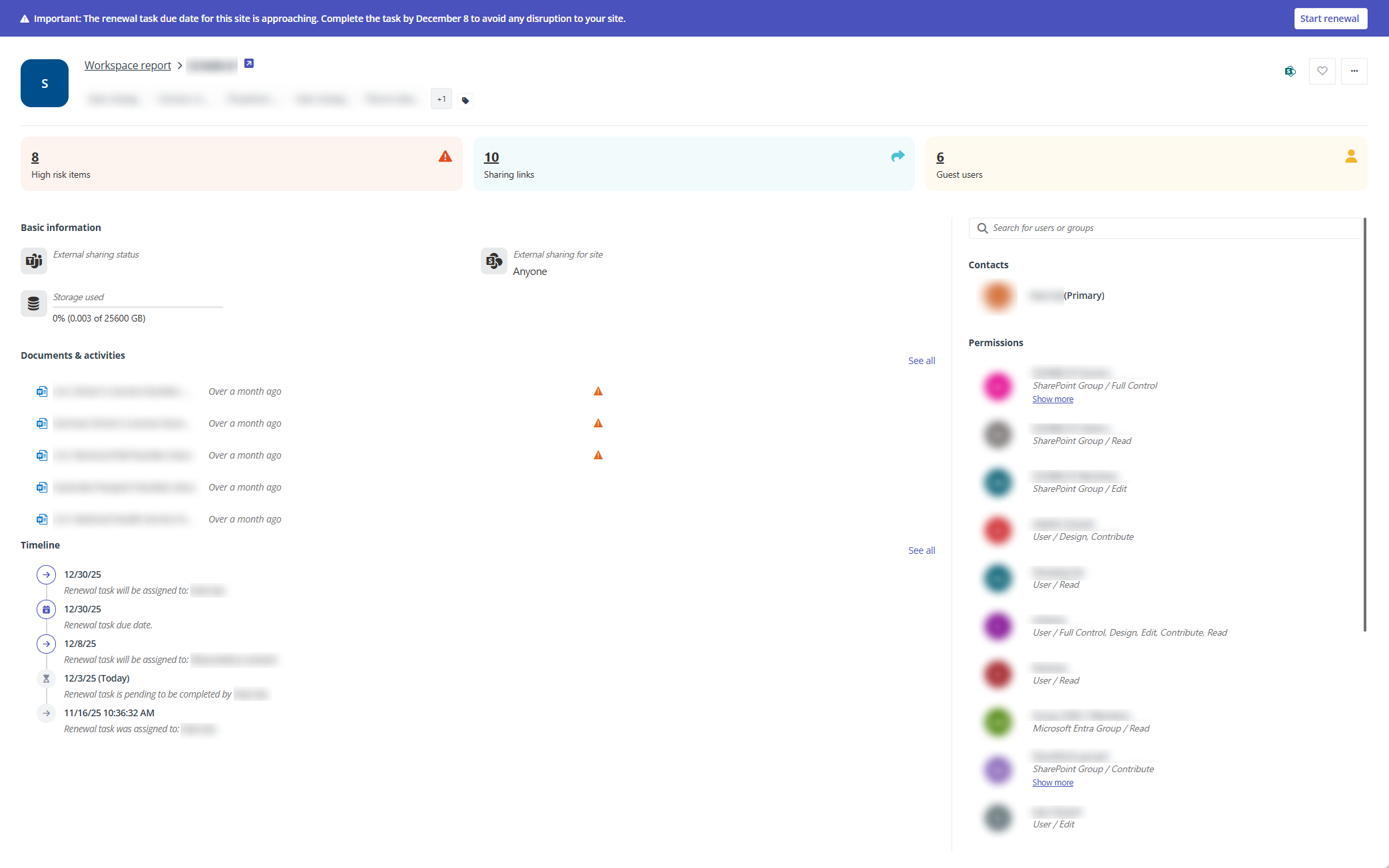
Space information displayed on the space detail page varies on space type. The followings detail the information in each section.
Basic information
This section provides information about the current space and only appears if the current space is managed by Cloud Governance.
Risk Information
Four risk dimensions in this area are listed along with their corresponding data:
-
High risk items – High risk items found in this space.
-
Sharing links – Active links to objects with high and medium sensitivity found in the space.
-
Guest users – Guest users who have been invited to collaborate with the space.
-
Shadow users/groups – Users/Groups who are not members of the team or group but have permissions to the content in the group team sites.
-
To display the risk information of the space, make sure the space is in the detection scope and has been scanned by Insights.
-
To view the risk information, you must:
-
Have an available subscription to Insights.
-
Be the owner/contact or have Full Control permission for the space.
-
-
The risk information is not available for Viva Engage communities.
-
The shadow users/groups information is not available for site collections.
You can click the link to view the corresponding risk detail page:
-
High risk items – On the High risk items page, all high risk items in the space are listed. You can view the name, creator, sensitive info type, sensitivity label, exposure level, and last modified time of the items in the table.
The following actions are available on the page:
-
Open in SharePoint – Click the Open in SharePoint button next to the item name to open the item in SharePoint.
-
Manage sensitivity label – Select one or more items and click Manage sensitivity label above the table. In the Manage sensitivity label window, select the sensitivity label from the drop-down list and click Save.
To manage the sensitivity label of a specific item, you can also hover your mouse over the item, and then click the actions button > Manage sensitivity label to access the Manage sensitivity label window.
-
View permission – Select an item and click View permissions above the table or hover your mouse over the item, and then click the actions button > View permissions to access the View permissions window.
In the window, users and groups that have permission to the item and their permission are listed. You can select the users and groups and click Remove permission to remove their permission to the item. To remove a user or group’s permission to the item, you can also hover your mouse over the user or group and click the remove permission button.
-
Refresh – Click the refresh button to refresh high risk items in the table.
-
-
Sharing links – On the Sharing link page, all sharing links to objects in this space are displayed by link types in the All, Anyone, Organization, Specific tabs. You can view the link name, people who share the link, the number of people with whom the link is shared, object sensitivity, and link permission for each link in the table.
To view links to objects with high sensitivity of each type, click Link to items with high sensitivity in the left pane of the tab.
The following actions are available on the page:
-
View shared with – You can view the users and groups with whom a link is shared by clicking the number link under Shared With.
-
Notify – Select one or more links and click Notify to access the Notify window. In the window, enter your comment to guide the content owner on next steps about the potential risks and click Send. To notify risks on a specific link, you can also click the actions button > Notify to access the Notify window.
-
Set expiration date – Select one or more links and click Set expiration date to access the Set expiration date window. In the window, select the new expiration date and click Save. To set a new expiration date for a specific link, you can also click the actions button > Set expiration date to access the Set expiration date window.
NOTEThis action is only available for anyone links.
-
Remove access – By removing access, access to the object shared with the link together with the link will be removed from Microsoft 365. Select one or more links and click Remove access, and then click Remove in the Remove access window. To remove access of a specific link, you can also click the actions button > Remove access.
-
Refresh – Click the refresh button to refresh links in the table.
-
-
Guest users – Guest users invited to the space are listed. You can assess if their continued access to your content is necessary. For unnecessary guest users, you can select them and click Remove permissions to remove them.
-
Shadow users/group – Shadow users and group in the space are listed.
The following actions are available to shadow users and groups:
-
View permission – Select a shadow user or group and click Permission details. Alternatively, click the actions button > Permission details to view permissions of the shadow user or group. In the Permission details window, you can view the objects that the user or group has permissions, the specific permissions, by whom the permissions are granted, and the object sensitivity levels.
-
Remove shadow user/group – Select one or more shadow users and group and click Remove. To remove a specific shadow user or group, you can also click the actions button > Remove. Once shadow users and groups are removed from the site, their permissions to all objects in the site will be removed, and the links that give access to the users and groups will be deleted together.
-
Documents & activities
This section shows the document activities within this space. You can click a document name to open the document in a new tab. To view the complete activity log, click See all in the upper-right corner of the section.
If you are the administrator/contact of the site that holds the document, you can see the risk (  ) icon when a file is identified as medium-or high-risk by Insights and click the icon to view the risk information. Hover your mouse over the file, you can click the actions (
  ) button and perform the following actions:
-
Open in SharePoint – Open the file in SharePoint.
-
Send risk notification – Notify the object content owner of the potential risks identified for this document. Add your comment to guide the content owner on the next steps and click Save to send the notification.
NOTETo perform this action, you must have available subscription for Insights.
-
Edit sensitivity label – Select the sensitivity label to be added to the file and click Save.
NOTEThis action will be hidden if sensitivity label is not enabled in your tenant.
Contacts
In this section, contacts of the current space are displayed. You can hover your mouse over the contact name to view the contact information.
This section only appears if the current space is managed by Cloud Governance.
Membership
In this section, space membership is listed. If you are the owner or admin of this space, you can perform the following actions to manage the space membership:
-
Add member – Complete the steps below to add members:
-
Click Add next to Members.
-
In the Add member window, enter the name or email address of the user or group you want to add as a member and select the user or group from the suggestion list.
You can repeat this step to add multiple members.
To remove an added member, click the remove button next to the member.
-
Click Add to add the members.
-
-
Demote to member – Hover your mouse over an owner/community admin and click the actions button > Demote to member.
-
Promote to owner/community admin – Hover your mouse over a member and click the actions button > Promote to owner/community admin.
-
Remove member – Hover your mouse over a member and click the actions button > Remove member.
Permissions
If the current space is a site collection to which you have Full Control permission, this section displays the site collection contacts, and the users and groups with their assigned permissions to the site collection. The permissions are view-only and cannot be added or edited.
If the current space is a cloud/on-premises shared or resource mailbox to which you are a contact, you can perform the following actions to manage the shared or resource mailbox permission.
-
Add permission – Complete the following steps to add permissions to the shared or resource mailbox:
-
Click Add next to Permissions.
-
In the Add user window, enter the name or email address of the user you want to grant permission to the shared or resource mailbox and select the user from the suggestion list. You can repeat this step to add multiple users and added users are displayed in the user table.
-
In the Permission column, choose one or more permissions from Send on behalf, Send as, Read-only, and Full access to grant to the user.
-
Click Add to add the users and they’ll be displayed in the Permissions section.
-
-
Edit permission – To edit a user’s permission to the shared or resource mailbox, hover your mouse over the user and click the more actions button > Edit permission. In the Edit permission window, select the permissions to grant to the user or deselect the permissions you want to remove from the user and click Save when you finish.
-
Remove permission – To remove a user’s permission to the shared or resource mailbox, hover your mouse over the user and click the more actions button > Remove.
Timeline
In this section, the timeline of the current workspace is displayed.
This section only appears if the current space is managed by Cloud Governance.