
Home > Quick Start with the New MyHub
Download this articleMyHub Quick Start
The new MyHub introduces a redesigned experience focused on productivity and consolidation. You’ll see a dashboard snapshot of your day, a unified tasks and to-dos list drawn from connected services, and a single entry point to view and manage your workspaces. It also integrates with AvePoint products like Insights and Opus (when licensed) to remediate risks and process record-related approvals.
For a guided walkthrough of key features and common actions, see the AvePoint MyHub Quick Start Guide (PDF).
This resource supports end‑user enablement and may be shared to help guide adoption. The MyHub User Guide and individual articles are also available as downloadable PDFs for reference and supplemental training.
Who Can Access the New MyHub?
Access to the new MyHub is dependent on the subscription type.
-
If you have a subscription for the stand-alone MyHub or a bundled subscription with AvePoint products, excluding Cloud Governance, the new MyHub experience is your default and only end user experience.
-
If you have a subscription for Cloud Governance integrated with MyHub, the rollout of the new MyHub experience is managed by your administrator. Depending on your administrator’s configuration, you may have access to:
-
New MyHub only
-
Legacy MyHub only
-
Both new MyHub and legacy MyHub
If both experiences are available, the New MyHub toggle is shown, allowing you to switch between the new MyHub and legacy MyHub interfaces.
-
What Does the New MyHub Do?
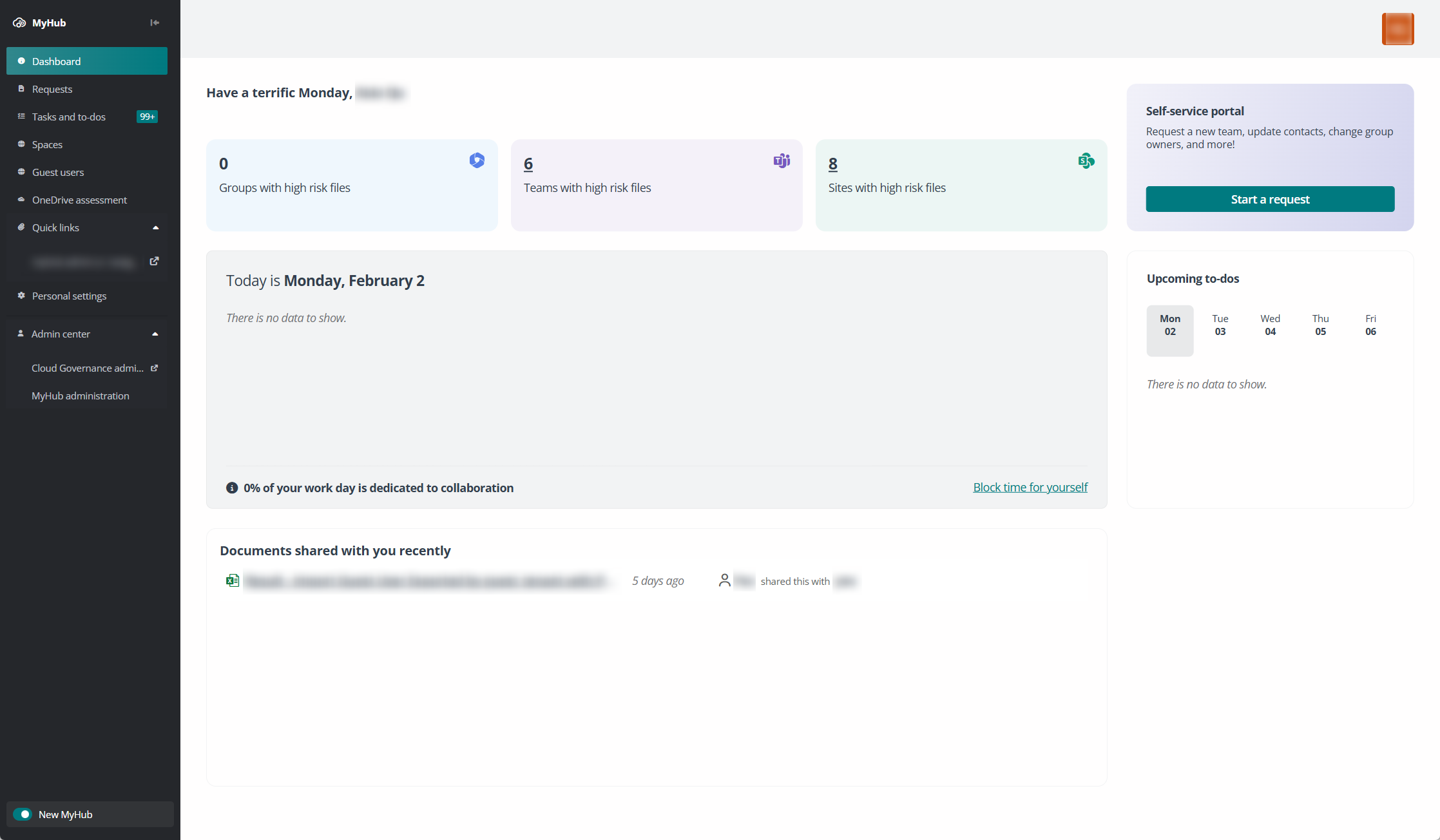
See below for what you can do under each navigation item:
The information is a full list of features provided by MyHub. Your access to these features is controlled by your administrators, which means you may not have access to all of them.
-
Dashboard – A smart and action-oriented dashboard which is customizable by your administrators. You may see:
-
Upcoming tasks you need to follow up on
-
Recent document activities related to you
-
A daily snapshot of what your day looks like
-
An overview of groups, teams, and sites with high risk files identified by Insights
-
-
Requests – Centralized page for starting requests and status tracking, where you can:
-
Personalize which request information is displayed in the request listing using Column.
-
Create views to clearly review requests filtered by specific service, request detail, activity, metadata, or tag.
-
-
Tasks and to-dos – Unified tasks and to-dos management, allowing you to:
-
Track all tasks in one place from Cloud Governance, Microsoft To Do, Opus, and stay tuned for more integrated AvePoint services.
-
Use unified management actions – You can filter tasks by type, due date, or status, view task details, state irresponsibility, start processing, and delete necessary spaces directly from this page.
-
-
Spaces – Single entry point for space management that combines the legacy MyHub workspace report and standalone hubs functionality.
-
Clearly view and manage spaces where you are an owner or member, your favorite spaces, and discover more spaces you can join.
-
View important or collaborative spaces shared by your administrators.
-
Tag, organize, delete, or take actions on spaces directly.
-
-
Guest users – A comprehensive list of AvePoint Cloud Governance managed guest users that you are responsible for as a primary or secondary contact, as well as their related information. You can filter and start a request for guest users from the page directly.
-
OneDrive assessment – Periodically review risky items, sharing links, and external users within your OneDrive to resolve security risks.
-
Quick links – Useful links published by your organization. If allowed by your administrator, you’ll see an Add link option to customize your personal links.
-
Personal settings – Defines your preferred theme color, time zone, language, and date and time format within your MyHub portal.
-
Admin center – Provides MyHub administrators quick access to the MyHub admin center or Cloud Governance admin center.
-
New MyHub toggle – If you have both new and legacy MyHub access, you’ll see this toggle and can use it to switch between the new and legacy MyHub.
What Can I Do in the New MyHub?
While there are many configurable features within MyHub, there are two main areas to highlight for getting started quickly: Requests and Spaces.
-
Submit a request from MyHub – Use one of the following methods to request a new team, update contacts, change group owners, and more!
-
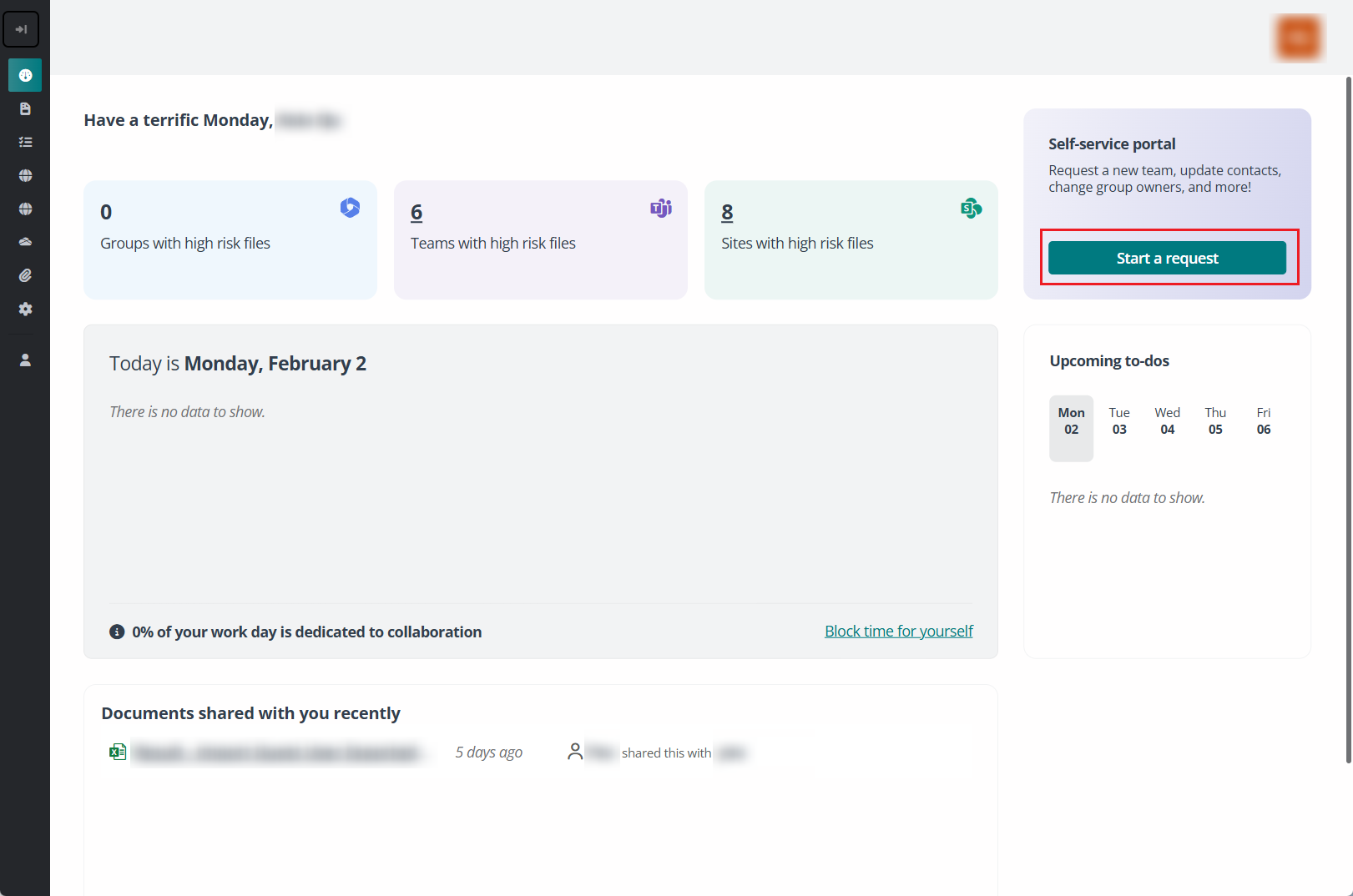
Start a request from the dashboard – Click Start a request to select a service and start the request. Note that this entry may be hidden based on your administrator’s configurations:
-
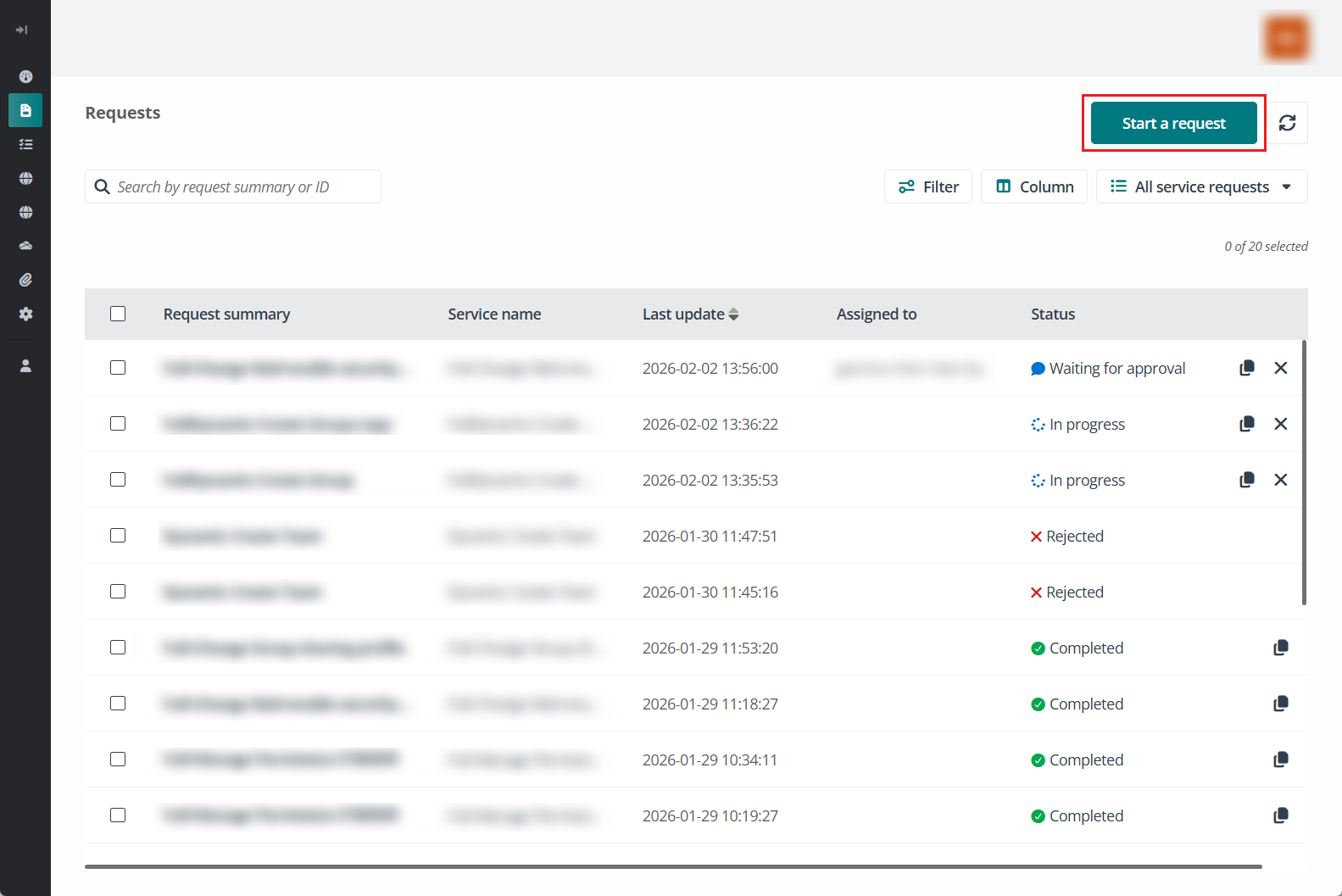
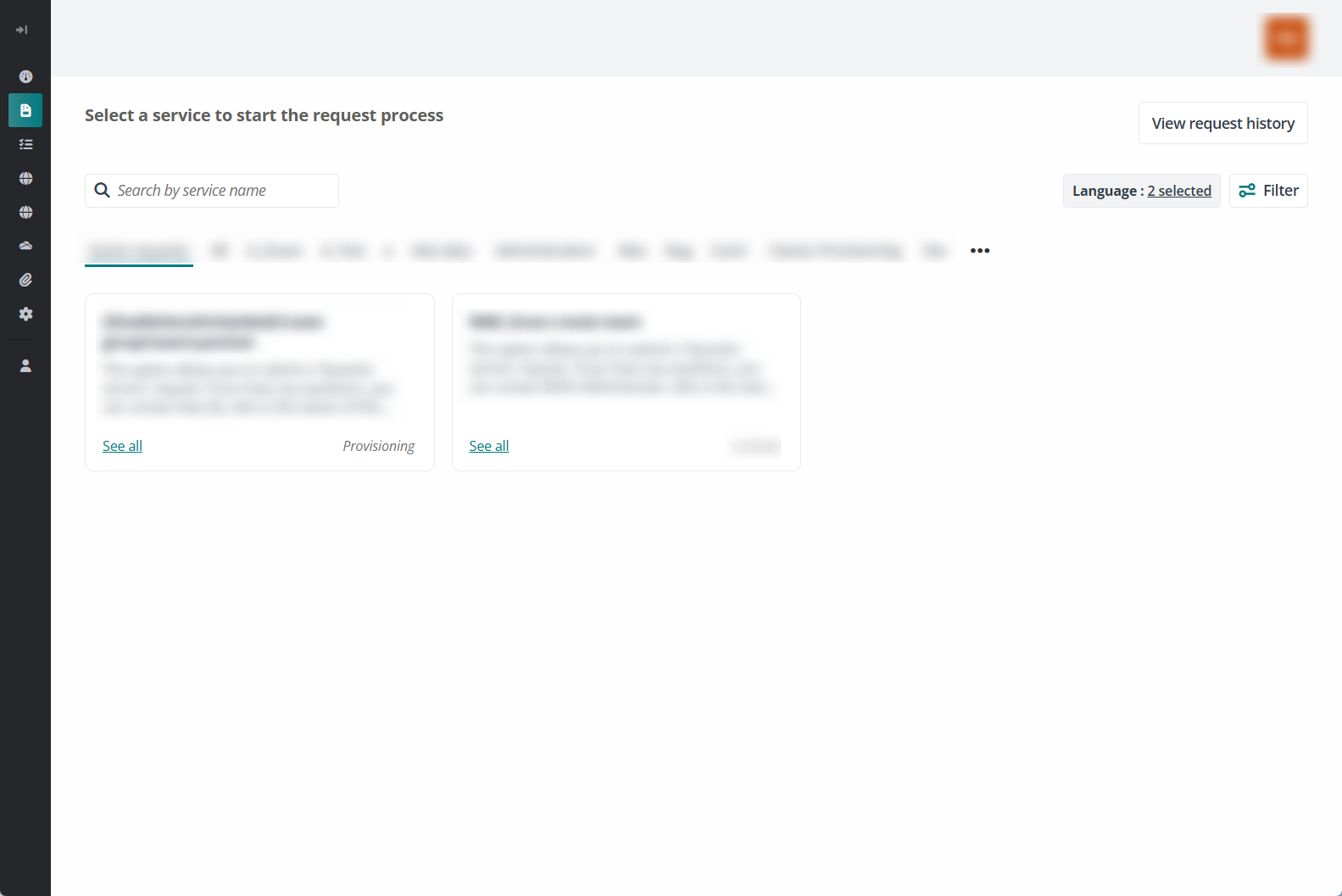
Start a request from the Requests page – There are two landing pages for the Requests pages: request listing and service catalog.
If you are on the request listing page, click Start a request to select a service and start the request.
If you are on the service catalog page, click the service you want to submit a request to start the request.
-
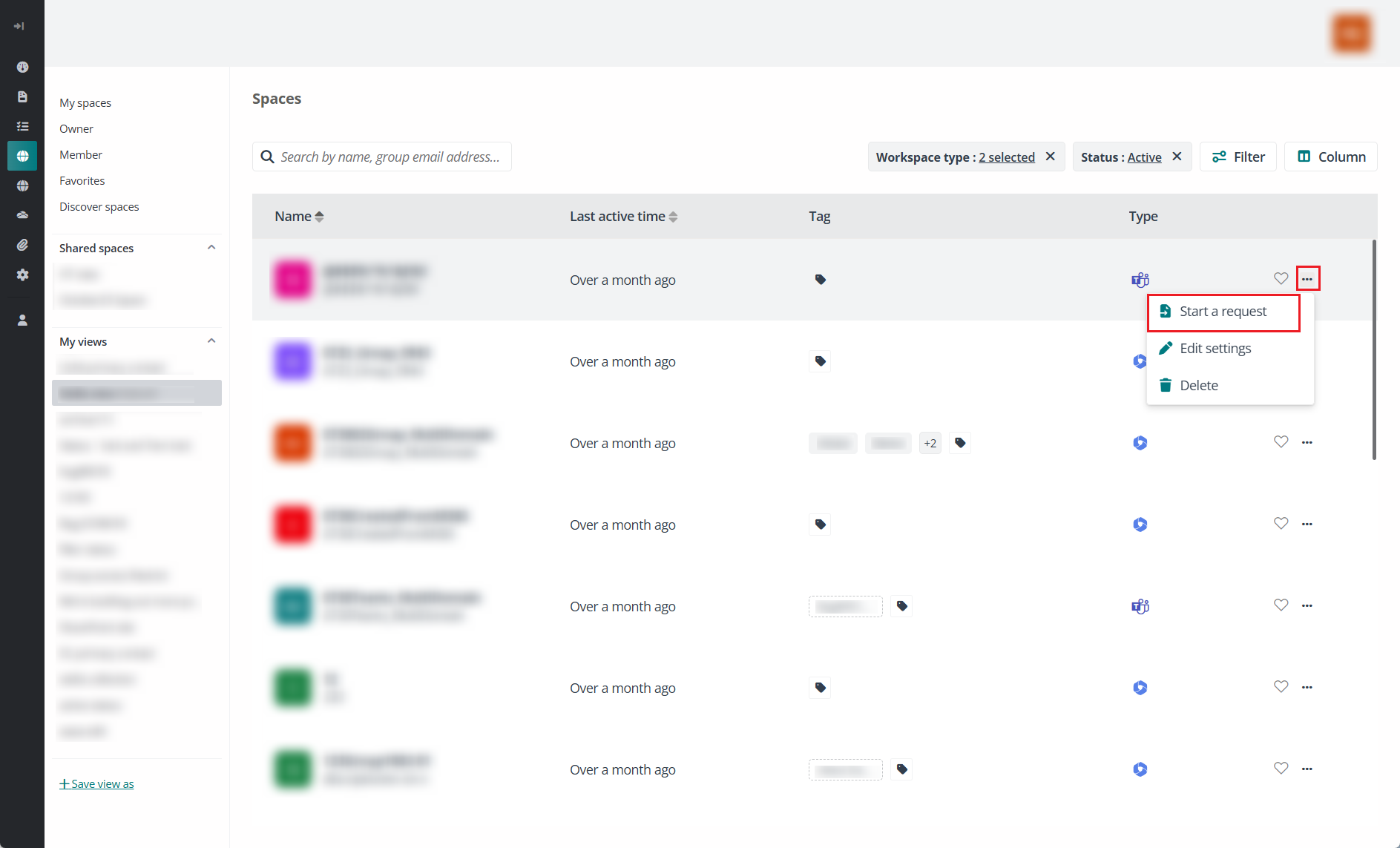
Start a request from the Spaces/Guest users page – Click the More actions button next to the space or guest user you want to start request for, and select Start a request.
-
-
Manage spaces from MyHub – From the Spaces page, you can tag spaces with labels, favorite spaces, and easily access numerous personal and shared views that help you sort, group, filter, and organize your spaces to make your day easier.
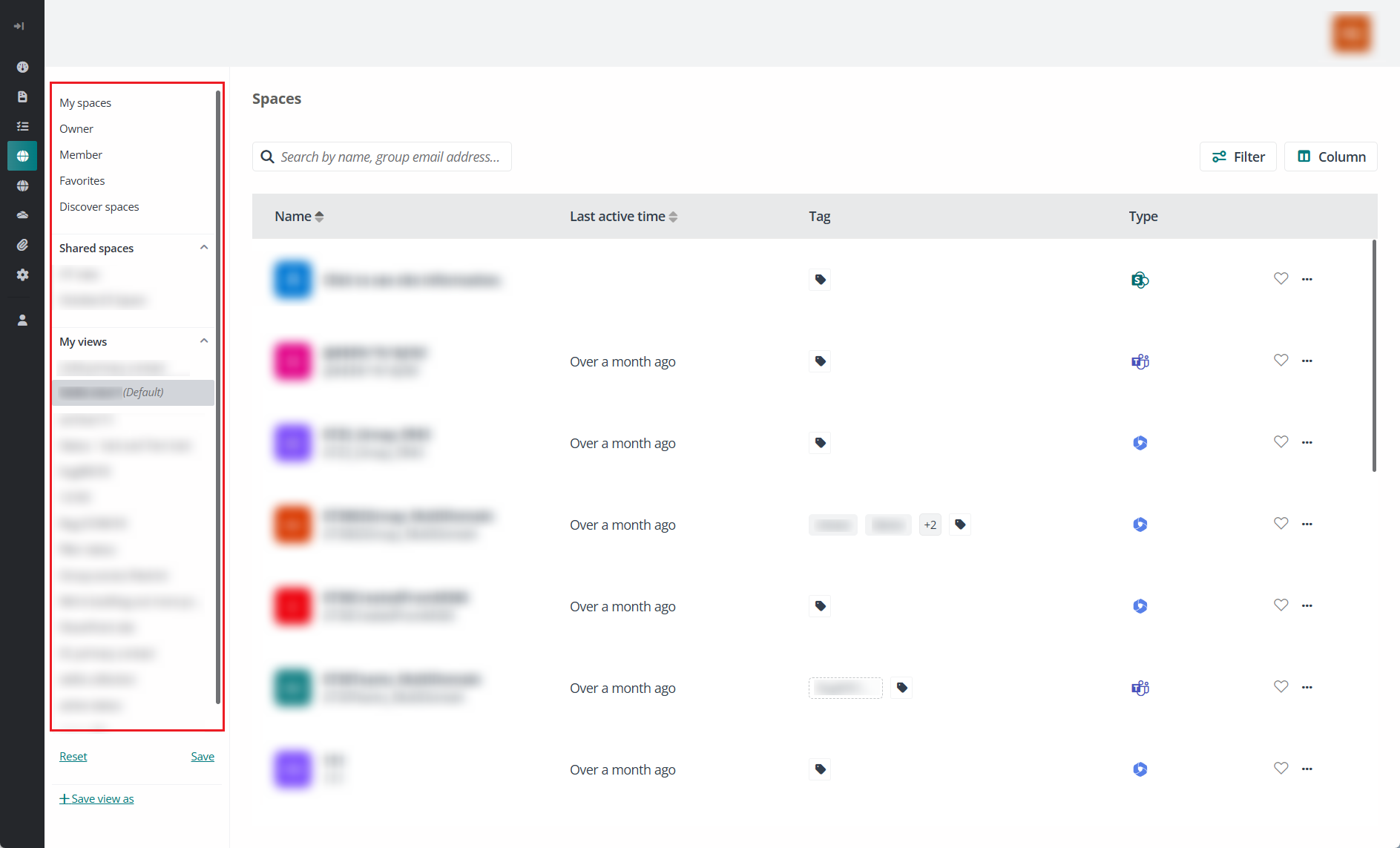
From any view, click Filter to filter spaces by type, privacy, role, favorites, tags, activity, and status, and then click Apply changes. Click Save view as in the lower-left corner, enter a view name, and click Save to pin the new view to the navigation for quick access. This helps you group your spaces into dynamic views that make finding information simpler.