
Home > コマンド センター > AgentPulse > はじめに > AgentPulse 接続の構成
この記事をダウンロードAgentPulse 接続の構成
AgentPulse のオンボーディング プロセスの完了後、対応するすべての AI エージェント プロバイダーへの接続を構成するには、サービス管理者は 構成 > AgentPulse 接続 に移動して、ソールを追加することができます。
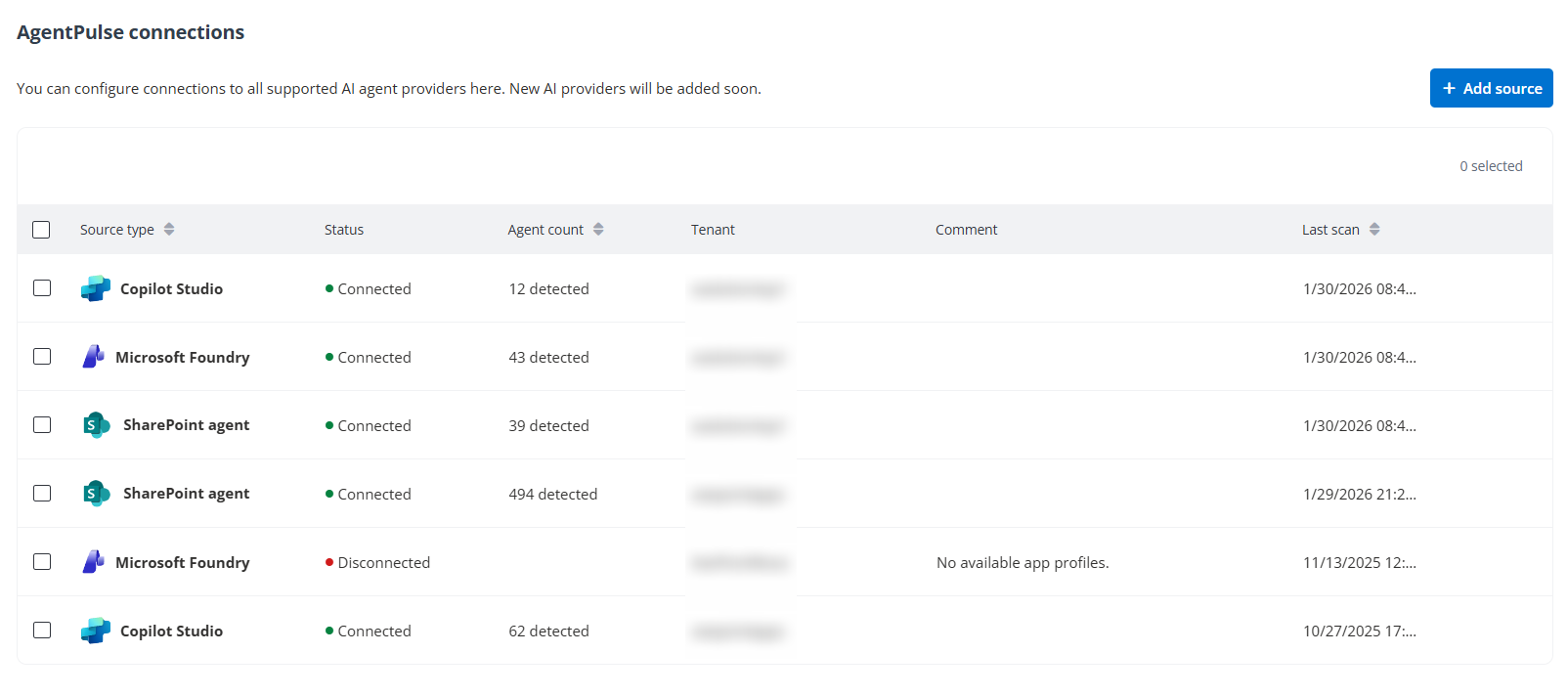
エージェント ソースを追加するには、以下の説明を参照してください。
-
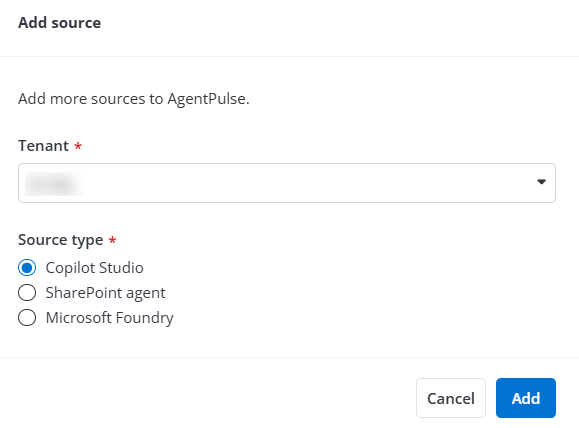
[エージェント ソースの追加] をクリックします。
-
ソースを追加するプラットフォームを選択します。
-
Microsoft – Microsoft エージェント ソースを追加するには、以下の構成を選択して完了します。
-
テナント – ドロップダウン リストからテナントを選択します。
-
ソース タイプ – ドロップダウン リストからソース タイプを選択します。
各ソース タイプに必要なアプリ プロファイルについては、以下の表を参照してください。
ソース タイプ 必要なアプリ プロファイル Copilot Studio AgentPulse SharePoint AgentPulse Microsoft Foundry AgentPulse Microsoft Foundry これらのアプリ プロファイルに必要な API アクセス許可については、AgentPulse アプリ プロファイル を参照してください。
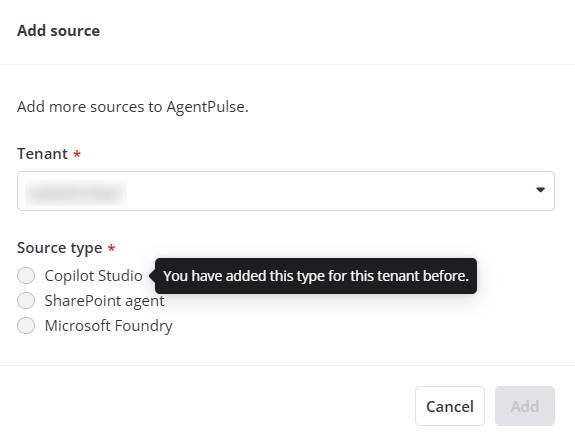
NOTE選択したテナントがソース タイプに接続されている場合、既存のソース タイプを選択することはできません。
制限された権限を持つカスタム アプリを手動で作成および構成する必要がある場合は、[詳細構成] をクリックし、カスタム アプリへの同意を付与するために以下のステップを完了します。
-
必要に応じて カスタム Azure アプリ用の証明書の準備 を実行します。
-
その後、カスタム Azure アプリの作成 を参照して、カスタム アプリを作成します。
-
カスタム アプリの作成後、Microsoft Entra 管理センター > Entra ID > アプリの登録 に移動して、以下の構成を完了します。
-
作成したカスタム アプリを選択します。
-
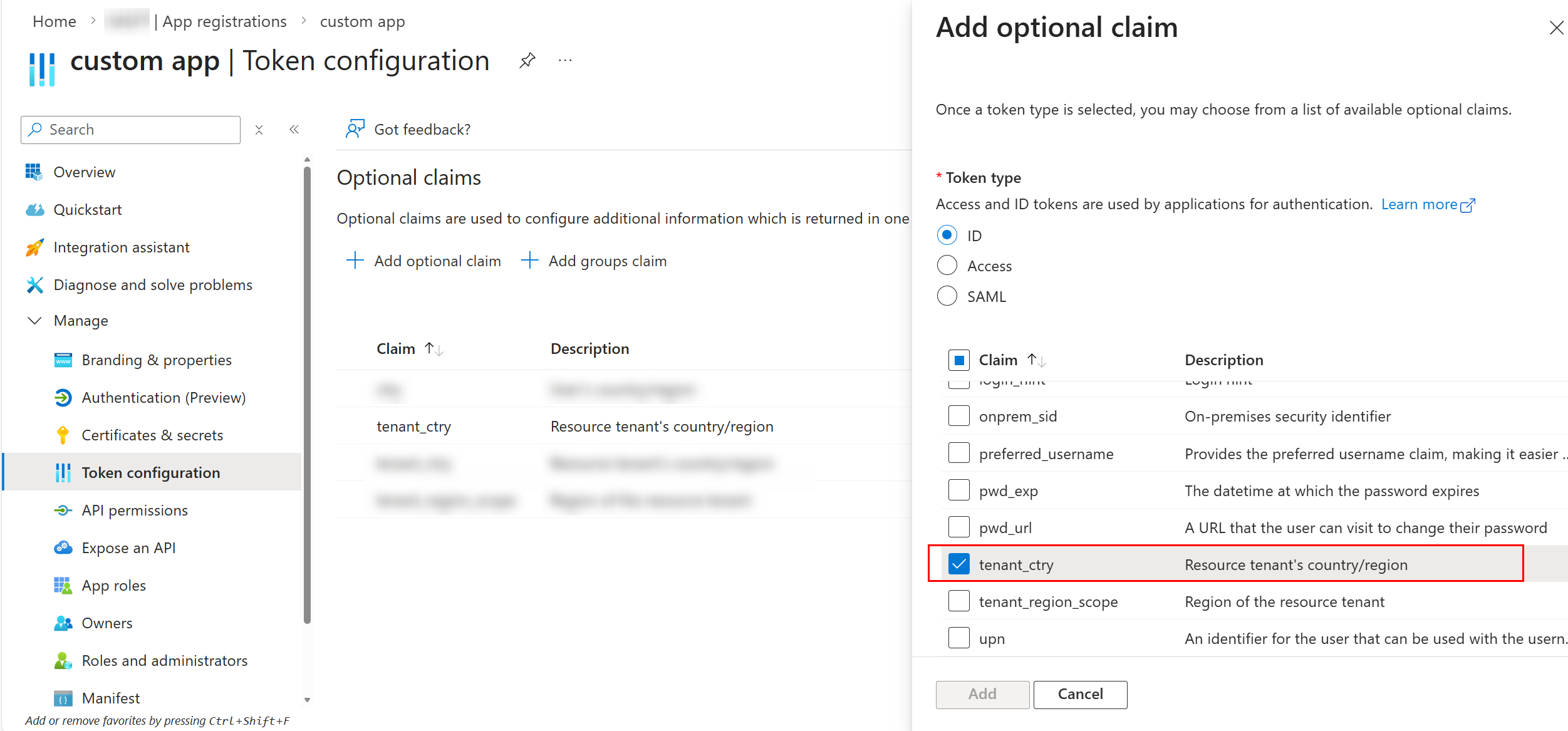
管理 で、トークン構成 を選択します。
-
[オプションの要求の追加] をクリックします。オプションの要求の追加 パネルで、ID を トークンの種類 として選択します。
-
tenant_ctry 要求を選択して、[追加] をクリックします。
-
-
次に、カスタム Azure アプリへの同意 を参照して、Microsoft 365 カスタム モード ウィンドウでカスタム アプリのアプリ プロファイルを構成します。
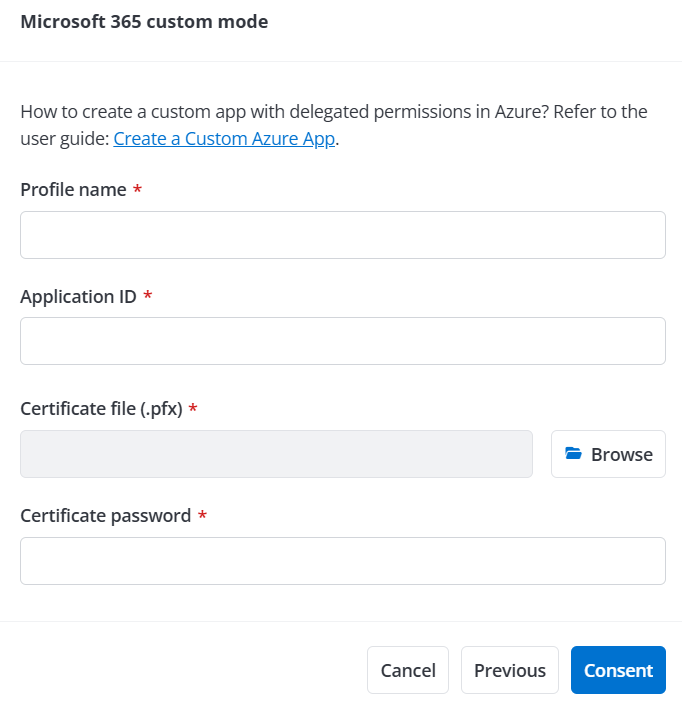
-
これらのステップを完了すると、[同意] をクリックして Microsoft 365 グローバル管理者アカウントでサインインし、アプリに同意して、選択したソース タイプのスキャン ジョブをトリガーします。
-
-
Google – Google プラットフォームを選択し、Google エージェント ソースを追加するために以下の構成を完了します。
NOTE選択したテナントがソース タイプに接続されている場合、既存のソース タイプを選択することはできません。
-
ドロップダウン リストからテナントを選択します。
-
[次へ] をクリックします。
-
以下の権限を持つ特権管理者アカウントでサインインします。ユーザー > 読み取り、グループ > 読み取り、ライセンス管理 > ライセンス読み取り
-
カスタム アプリの登録 ウィンドウで、カスタム アプリの同意を付与するために必要な構成を完了します。Google で委任されたアクセス許可を持つカスタム アプリを作成する方法にいついては、カスタム Google アプリ プロファイルの構成 を参照してください。
-
これらのステップを完了すると、[同意] をクリックしてアプリに同意し、Google エージェント ソースのスキャン ジョブをトリガーします。
-
-
-
同意の完了後、新しい接続がテーブルに追加されます。接続の詳細については、以下の情報を参照してください。
-
ソース タイプをスキャンするスキャン ジョブの実行中に、状態 列に 接続中 が表示されます。
-
ソース タイプのスキャン ジョブの完了後、状態 列に 接続済み が表示され、 エージェント数 列にジョブで検出されたオブジェクトの数が表示され、前回のスキャン日時 列にスキャン ジョブが完了した日時が表示されます。
-
スキャン ジョブが失敗した場合、状態 列に 未接続 が表示され、コメント 列にエラーの詳細が表示されます。未接続 ソース タイプを選択して、テーブルの上部にある [再接続] をクリックし、アプリ プロファイルを再承認して別のスキャン ジョブを実行することができます。
![[再接続] をクリックしてアプリ プロファイルを再承認してスキャン ジョブを実行](/en/platform-overview-and-key-features/command-centers/agentpulse/get-started/images/image6.png "[再接続] をクリックしてアプリ プロファイルを再承認してスキャン ジョブを実行")
-
同意を完了すると、管理 > アプリ管理 で新しく作成されたアプリ プロファイルを表示し、自動検出 > スキャン プロファイル で新しく作成されたスキャン プロファイルを表示することができます。