
Home > コマンド センター > AgentPulse > エージェント インベントリ
この記事をダウンロードエージェント インベントリ
Agent Inventory タブで、組織内で検出されたすべての AI エージェントの詳細レポートを表示することができます。Copilot Studio lite または Microsoft 365 Agents Toolkit などのエージェント タイプのインベントリは、レポート期間内にアクティビティがある場合にのみ利用できます。
Agent Inventory タブをクリックして、表示するテナントを選択します。このテーブルには、選択したテナントで検出されたすべてのエージェントおよびそれらの詳細が表示されます。テナントをクリックして、異なるテナントを切り替えることができます。
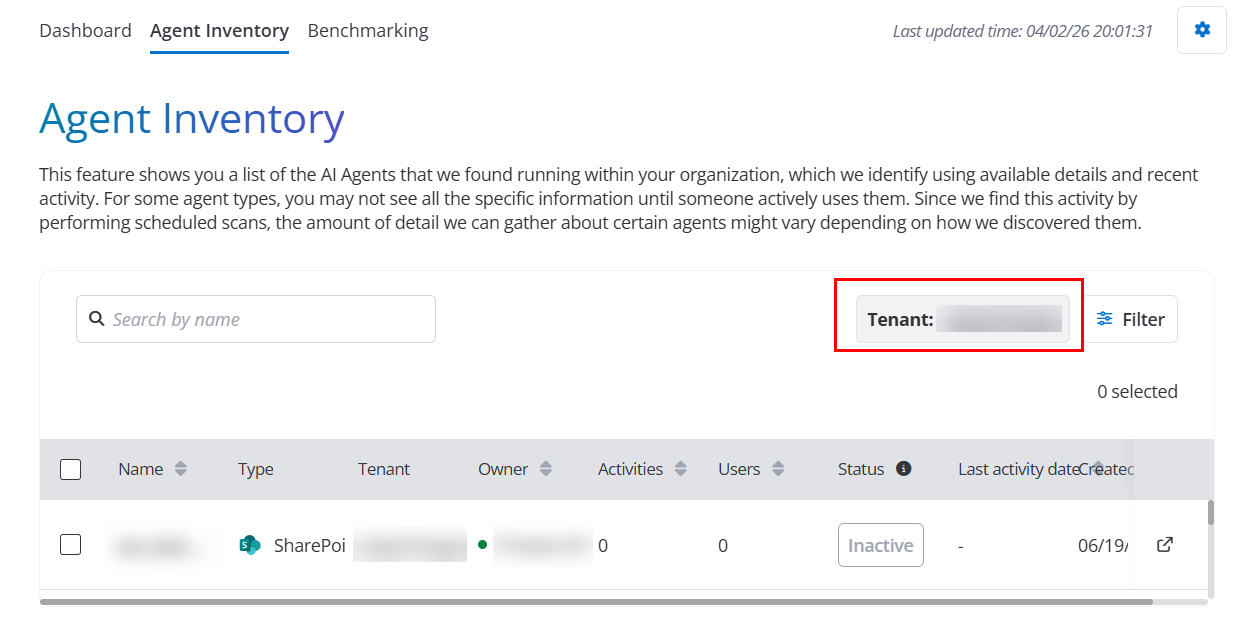
特定のエージェントの詳細を表示するには、テーブルでエージェント名をクリックします。利用可能なタブが 2 つ存在します。
[EnPower で管理] をクリックすると、EnPower でエージェントを表示・管理することができます。詳細については、Agent Inventory を参照してください。
-
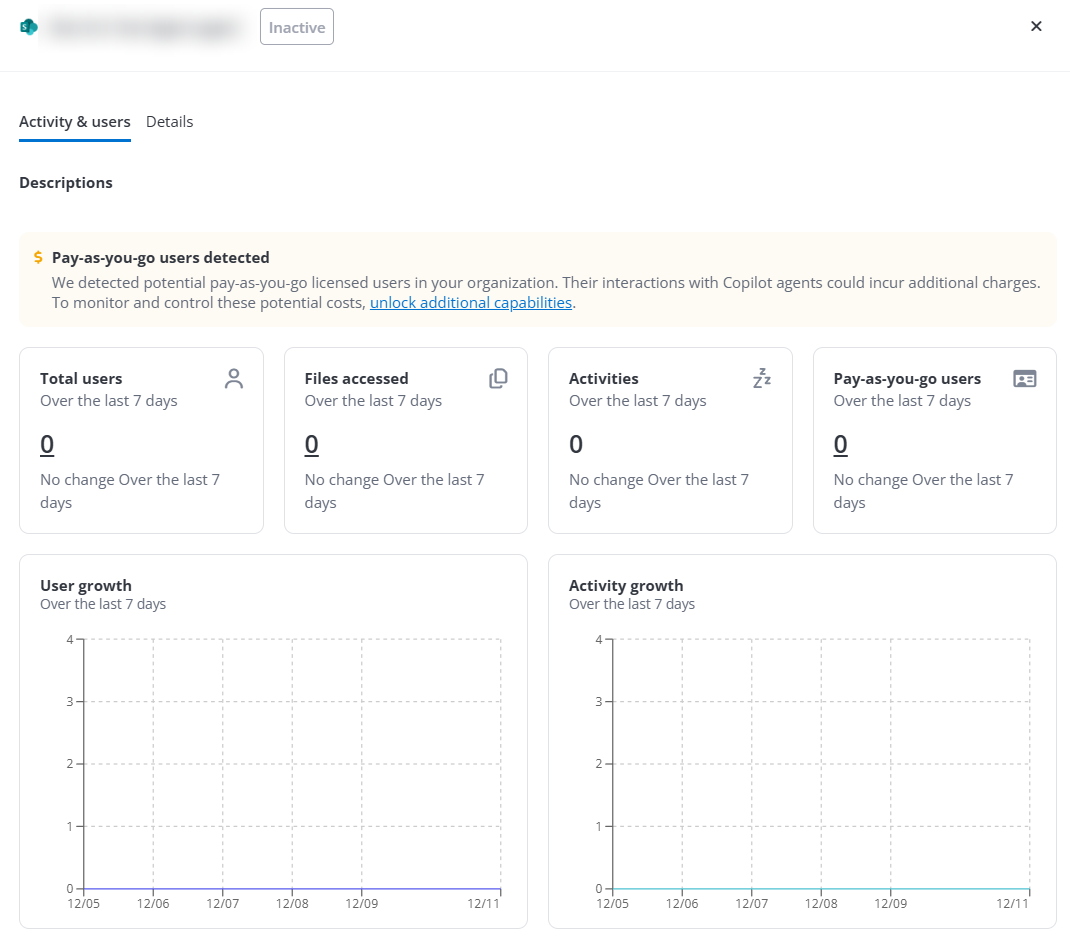
アクティビティとユーザー – 以下のレポートが表示されます。また、[EnPower で管理] をクリックすると、EnPower でエージェントを表示・管理することができます。詳細については、Agent Inventory を参照してください。
-
ユーザーの合計数 – 特定のテナントのアクティブ ユーザーの合計数および前週のデータと比較した変化を表示します。
-
アクセスされたファイル – 特定のテナントの過去 7 日間のアクセスしたファイルの数および前週のデータと比較した変化を表示します。
-
アクセスされた機密ファイル – 特定のテナントの過去 7 日間のアクセスされた機密ファイルの数および前週のデータと比較した変化を表示します。
-
アクティビティ – 特定のテナントの過去 7 日間のアクティビティ数および前週のデータと比較した変化を表示します。
-
従量課金制ユーザー – 特定のテナントの過去 7 日間の従量課金制ユーザー数および前週のデータと比較した変化を表示します。
-
最終利用日 – エージェントが使用された最終の日付です。
-
ユーザーの増加状況 – 過去 7 日間のアクティブ ユーザー数を時系列で表示します。
-
アクティビティの増加状況 – 過去 7 日間のアクティビティ数を時系列で表示します。
NOTE詳細 タブは、コンテナーにスキャンされた以下のエージェントのタイプでのみ利用可能です。
-
Microsoft Foundry エージェント
-
SharePoint
-
Copilot Studio エージェント
-
Vertex AI
-
-
最もアクティブなユーザー – 最もアクティビティ数が多い上位ユーザーをエージェント別で表示します。
-
アクセスされたファイル (秘密度ラベル別) – カスタム期間内にエージェントのアクティビティ数を、秘密度ラベルで分類して表示します。
-
-
詳細 – 以下のレポートが表示されます。
-
一般情報 – 包括的なエージェント情報を表示します。
-
権限 – エージェントへのアクセス権を持つユーザー / グループを表示します。 EnPower サブスクリプションを持っている場合、チャート名をクリックして EnPower に移動して詳細情報を確認できます。
-
ナレッジ ソース – エージェントが接続しているナレッジ ソースを表示します。Insights サブスクリプションを持っている場合、チャート名をクリックして Insights に移動して詳細情報を確認できます。
-