
Home > Get Started with MyBiz > Initial Setup for Individuals
Download this articleInitial Setup for Individuals
For MyBiz End User Portal
To use MyBiz End User Portal, you can directly access the AvePoint Online Services Sign-In page, click Sign in with Salesforce, and sign in with your Salesforce credentials. Then, you can start using MyBiz End User Portal.
For MyBiz Teams App
To use MyBiz Teams app, you need to add the app to Teams first and then register the app. Refer to the following steps for details:
-
To add the MyBiz Teams app to Teams, refer to the following instructions:
-
Add the app from Microsoft Teams app store (Recommended) – Refer to the following steps to add the app:
-
Navigate to Microsoft Teams > Apps.
-
Search MyBiz in Microsoft Teams app store.
-
Click Add to add the application to Teams.
-
-
If your administrator has uploaded the app to your organization’s app catalog in Teams, refer to the following steps to add the app:
-
Navigate to Microsoft Teams > Apps.
-
Click Build for your org and click Add to add the application to Teams.
-
-
If you have obtained the MyBiz.zip package from your administrator, refer to the following steps to add the app:
-
Navigate to Microsoft Teams > Apps > Manage your apps.
-
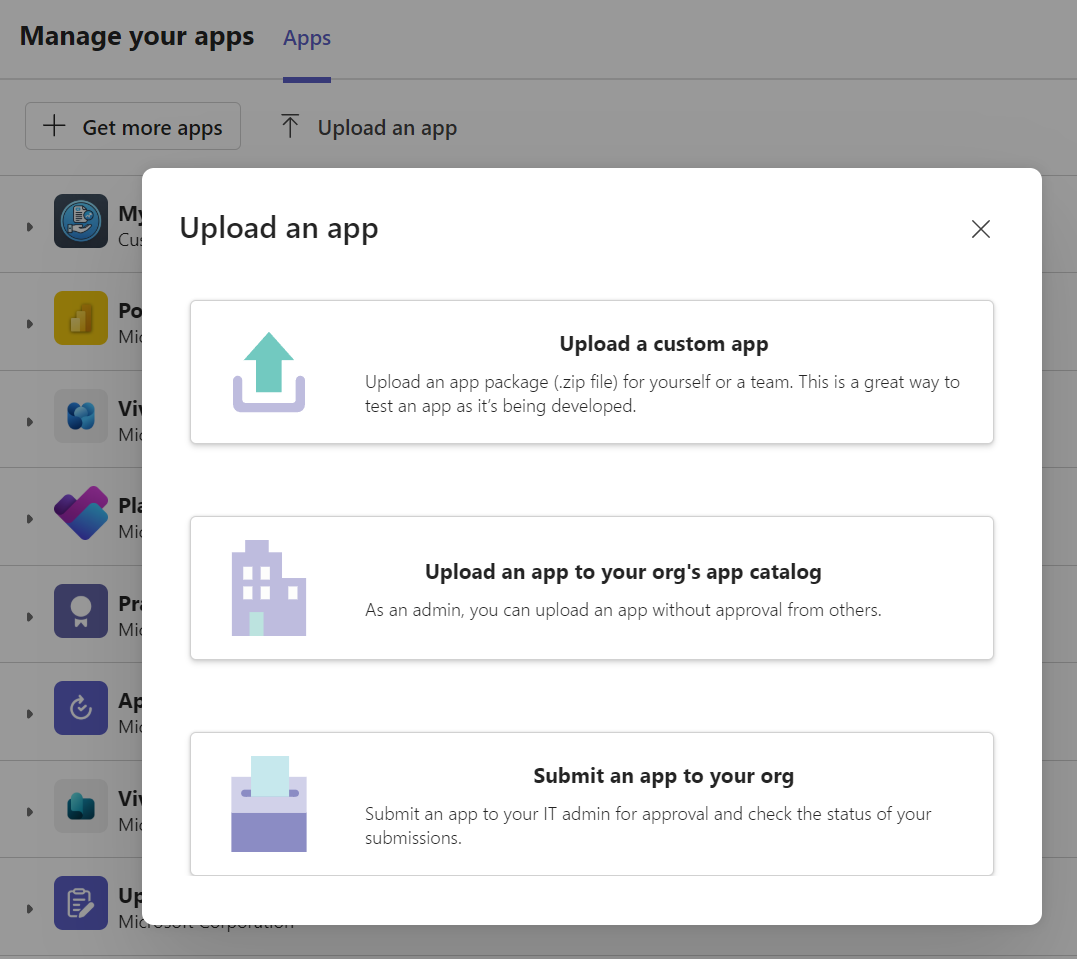
Click Upload an app and click Upload a custom app.
-
Upload the MyBiz.zip package and click Add to add the application to Teams.

-
-
-
To register the MyBiz Teams app, refer to the following steps:
-
Click MyBiz in Teams and the Salesforce login window appears.
-
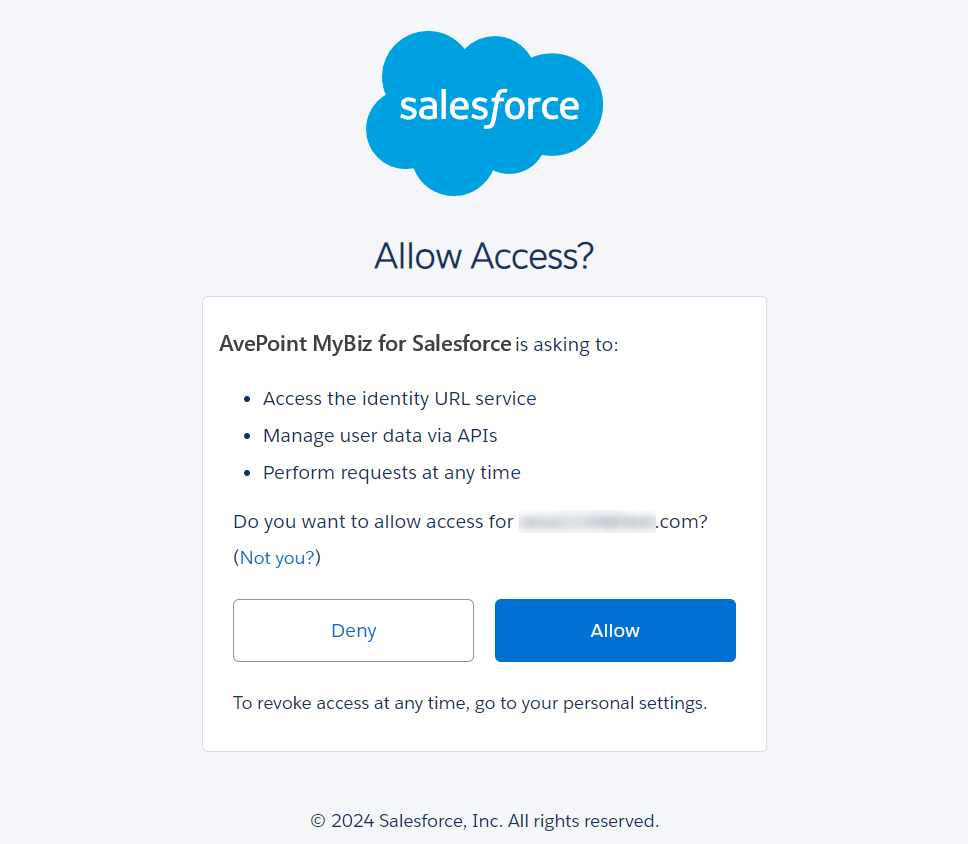
Log in to Salesforce and click Allow to allow access.
-
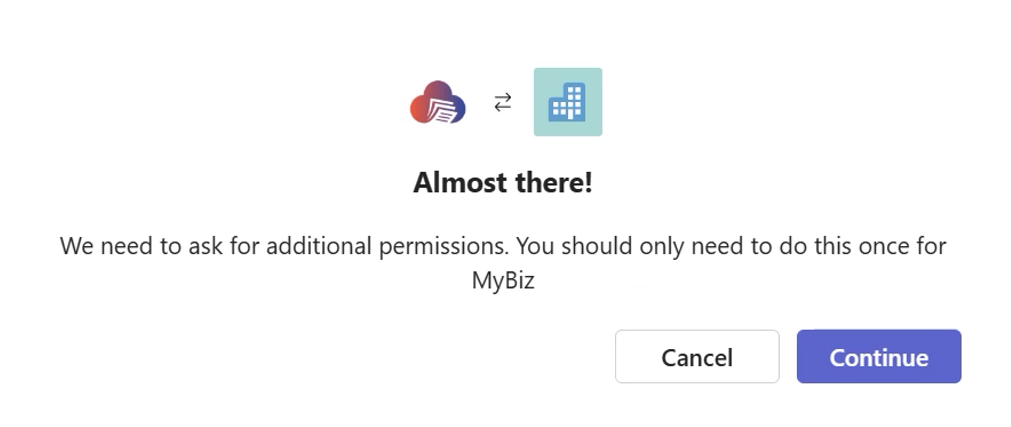
Click Continue to continue registering.
Then, the Permissions requested page appears. On the page, you can review the permissions required for using MyBiz and click Accept to allow the AvePoint MyBiz Azure AD app to get access to your data. (The required permissions are listed in the table below.) Then, you can start using MyBiz.
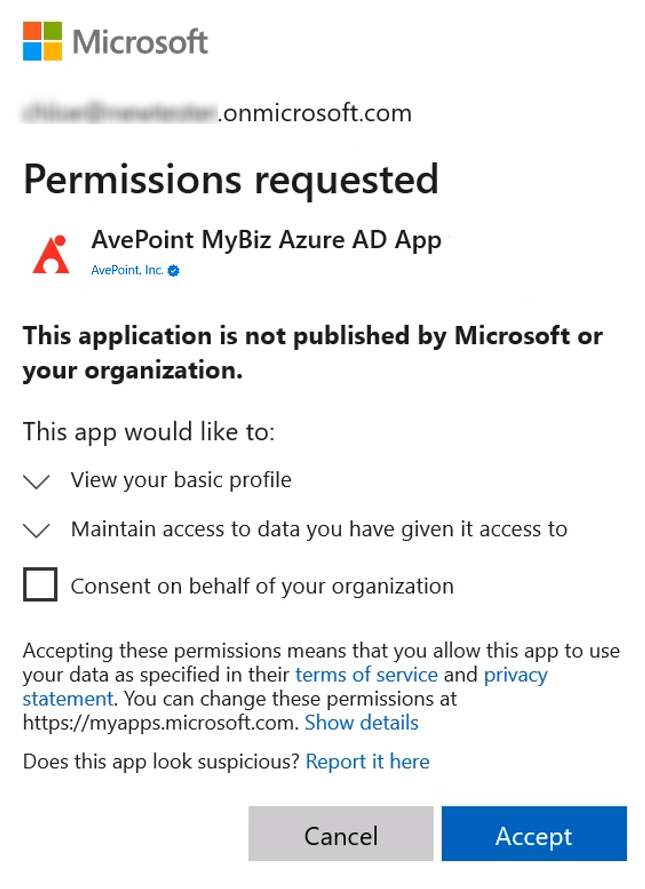
Permissions requested page 1.
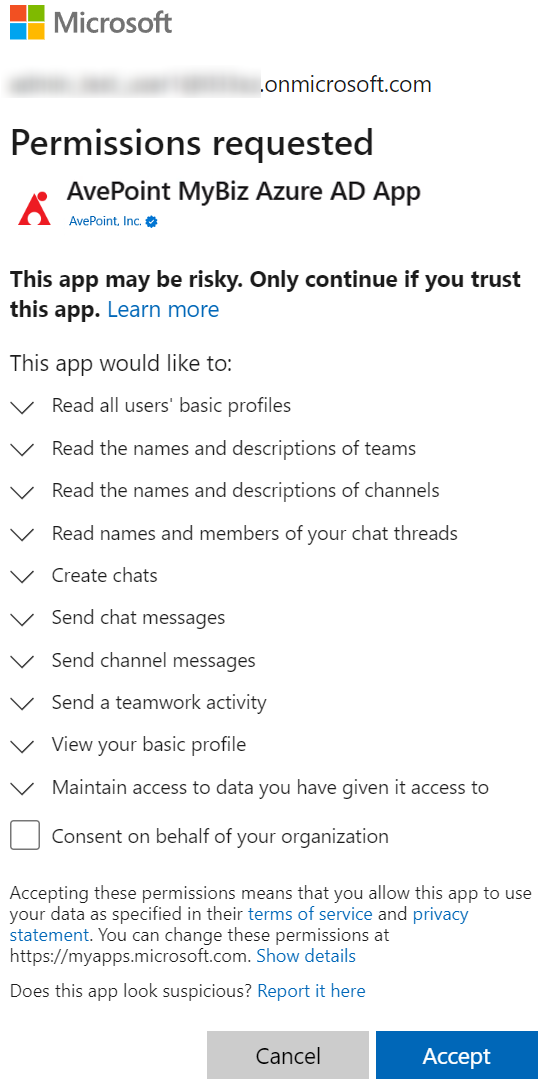
Permissions requested page 2.
-
Permissions Required by App Profile
The table below lists the permissions that should be accepted when you accept the AvePoint MyBiz Azure AD app.
| API | Permission Name | Type | Description | Purpose |
|---|---|---|---|---|
| Microsoft Graph | User.ReadBasic.All | Delegated | Read all users' basic profiles | Retrieve profile properties of users in your organization. |
| Microsoft Graph | Team.ReadBasic.All | Delegated | Read the names and descriptions of teams | Retrieve the names and descriptions of teams. |
| Microsoft Graph | Chat.ReadBasic | Delegated | Read names and members of user chat threads | Retrieve the members and descriptions of one-to-one and group chat threads. |
| Microsoft Graph | Channel.ReadBasic.All | Delegated | Read the names and descriptions of channels | Retrieve channel names and descriptions. |
| Microsoft Graph | Chat.Create | Delegated | Create chats | Send shared links in Teams chats. |
| Microsoft Graph | ChatMessage.Send | Delegated | Send user chat messages | Send shared links in Teams chats. |
| Microsoft Graph | ChannelMessage.Send | Delegated | Send channel messages | Send shared links in channels. |
| Microsoft Graph | TeamsActivity.Send | Delegated | Send a teamwork activity as the user | Send shared links in Teams. |
| Microsoft Graph | Delegated | View users' email address | Retrieve users' primary email address. | |
| Microsoft Graph | openid | Delegated | Sign users in | Allow users to sign in to the app and allow the app to see user profile information. |
| Microsoft Graph | profile | Delegated | View users' basic profile | Allow the app to see users' profile information. |
For MyBiz Salesforce App
After you have been added to MyBiz by your administrator, if the Download AppExchange Packages permission is assigned to you in Salesforce, you can install this app in your Salesforce environment. Refer to the following sections to get started with the MyBiz Salesforce app.
If you do not have the Download AppExchange Packages permission, contact a user with the permission for help. Then, you can go to the step 2.
-
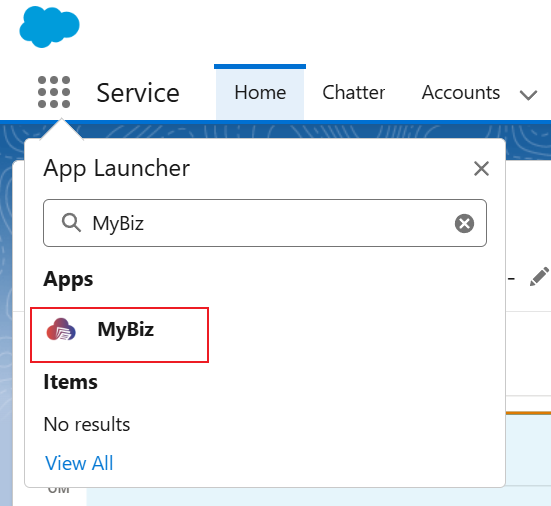
Click the App Launcher button in the upper-left corner, enter MyBiz in the search box, and click MyBiz to open the MyBiz Salesforce app.
-
Complete the initial setup to get started with MyBiz for Salesforce. Refer to Use the Quick Start Wizard for details.
Install the App Package
Complete the following steps to install the app package:
-
Click one of the following entries to install the app package:
-
To install the app to your production environment, access the package installation details page and sign in with Salesforce credentials.
-
To install the app to your sandbox environment, access the package installation details page and sign in with Salesforce sandbox credentials.
-
-
Select an install method.
-
Click Install. The Approve Third-Party Access window appears.
-
Select Yes, grant access to these third-party web sites checkbox.
-
Click Continue to start the package installation process.
-
When the installation process is complete, the following page appears. Click Done to confirm the installation. The app package is installed into your environment successfully.
Use the Quick Start Wizard
When you first log into MyBiz Salesforce app, the Quick start wizard appears with major steps displayed. Refer to the following details about the major steps:
For the settings you have configured, an icon will be displayed next to the steps as an indication.
-
Security authentication – Configure security authentication to connect to AvePoint Online Services.
-
App registrations – Click the AvePoint Online Services > App registrations link to register an app in AvePoint Online Services and copy its application (client) ID and client secret. Refer to Configure App Registrations for details.
-
Then, paste the application (client) ID and client secret to the corresponding field in the App registrations section. MyBiz will automatically add the information to Named credentials in Salesforce. You can refer to the following steps to check the information:
-
In Salesforce Lightning, click the Setup icon in the upper-right corner and navigate to Setup.
-
In the left navigation, click SETTINGS > Security > Named Credentials, and then click the External Auth Identity Providers tab.
-
Click AvePoint MyBiz Identity Service Provider and navigate to the AvePoint MyBiz Identity Service Provider page.
-
On the page, check the information in the Client Identification section.
-
-
Permission sets – Click the Salesforce setup > Permission sets link to add yourself to the AvePoint_MyBiz_User permission set to retrieve data from MyBiz. Refer to the following steps for details:
-
In Salesforce Lightning, click the Setup icon in the upper-right corner and navigate to Setup.
-
In the left navigation, click Users > Permission sets.
-
Click AvePoint MyBiz User, and then click Manage Assignments.
-
Click Add Assignment and select users to assign. Then click Next and select an expiration option for assigned users.
-
Once completed, click Assign.
-
-
-
Tenant connection – Click the AvePoint Online Services > Tenant management link to connect your Salesforce tenant to AvePoint Online Services. Refer to Connect Your Tenants to AvePoint Online Services.
-
Credential setup – Click the AvePoint Online Services > App management link to create an app profile in AvePoint Online Services to manage Salesforce data. Refer to Create an App Profile for details.
-
User invitation – Invite Salesforce users to AvePoint Online Services.
-
Invite users to AvePoint Online Services – Click the AvePoint Online Services > User management link to add Salesforce users to AvePoint Online Services. Refer to Manage Users for details.
-
Permissions sets – Add Salesforce users to the AvePoint_MyBiz_User permission set to grant them permissions.
-
Sync users from AvePoint Online Services to the Salesforce permission set – Click Sync now to automatically sync users already added to AvePoint Online Services to the AvePoint_MyBiz_User permission set.
-
Manually add users to the Salesforce permission set – Click the Salesforce setup > Permission set link and refer to the following steps to manually add users already added to AvePoint Online Services to the AvePoint_MyBiz_User permission set.
Step 1: Click AvePoint MyBiz User, and then click Manage Assignments.
Step 2: Click Add Assignment and select users to assign. Then click Next and select an expiration option for assigned users.
Step 3: Once completed, click Assign.
-
-
Then, click Get started to get started with MyBiz Salesforce app.