
Home > Books > Create and Manage Folders
Download this articleCreate and Manage Folders
You can create folders in MyBiz to categorize your books. Refer to the following sections to create and manage folders.
Create Folders
Refer to the following steps to create a folder:
-
Click Folder in the upper-left corner to access the Create folder panel.
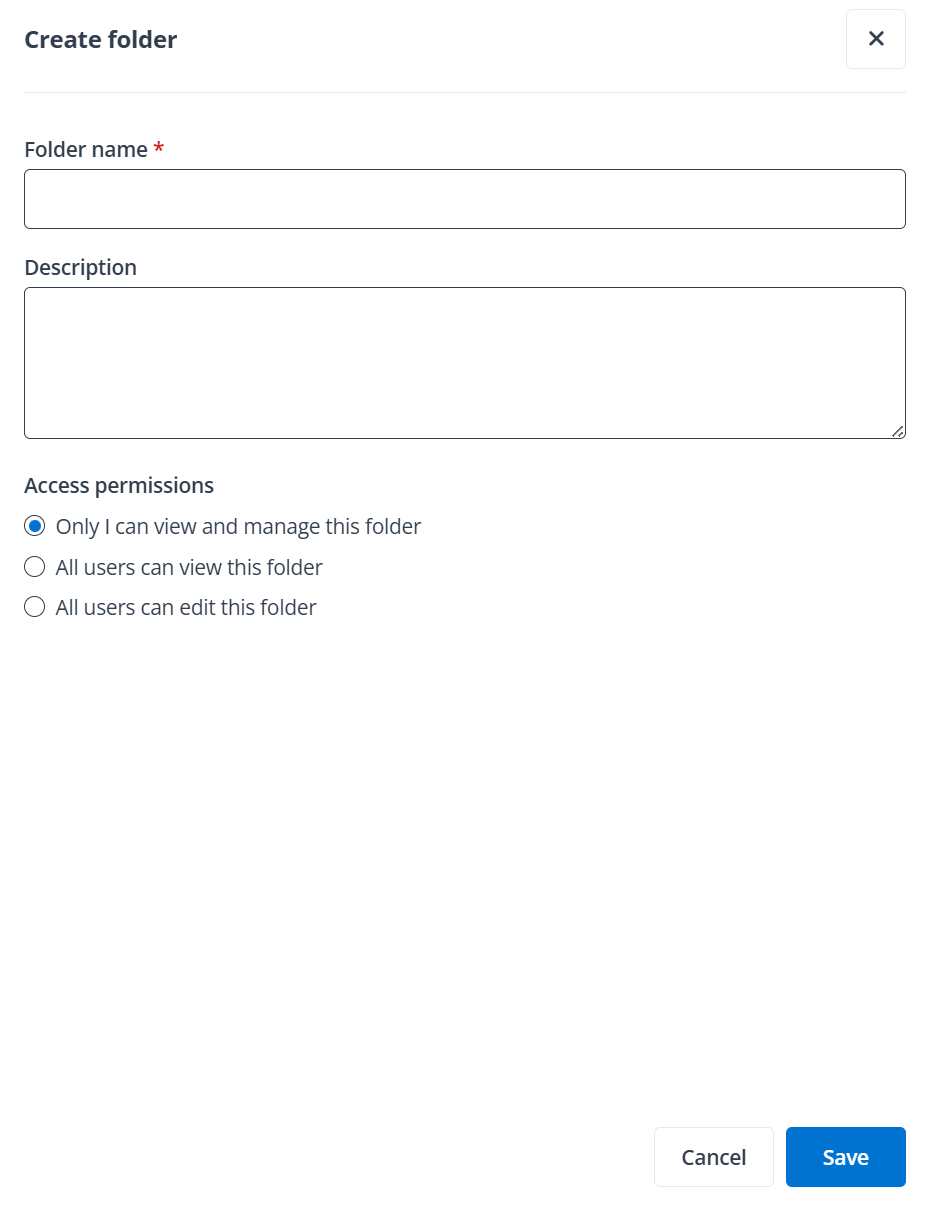
Create folder panel in end user portal/Teams app.
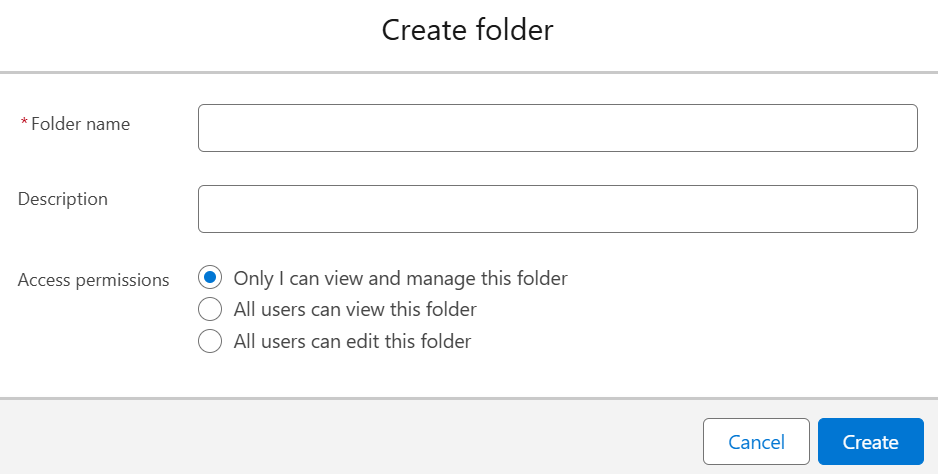
Create folder panel in Salesforce app.
-
Enter a name for the folder.
-
Enter an optional description for the folder.
-
Select the access permission for the folder to define whether the folder is public or private.
-
Click Save to create the folder.
View Folder Details
To view the details of a folder, click the More button next to the folder in the left navigation and click Details to access the View details panel. On the panel you can view the description, created time, last modified time, owner, and access permission of the folder. You can also click the Pencil button next to the Description, Owner or Access permission field to edit the field.
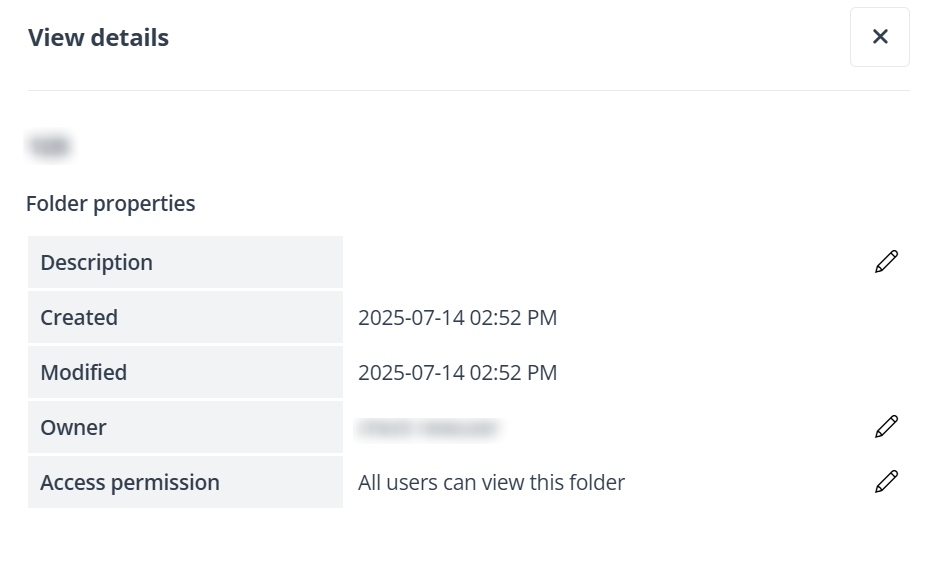
View details panel in end user portal/Teams app.
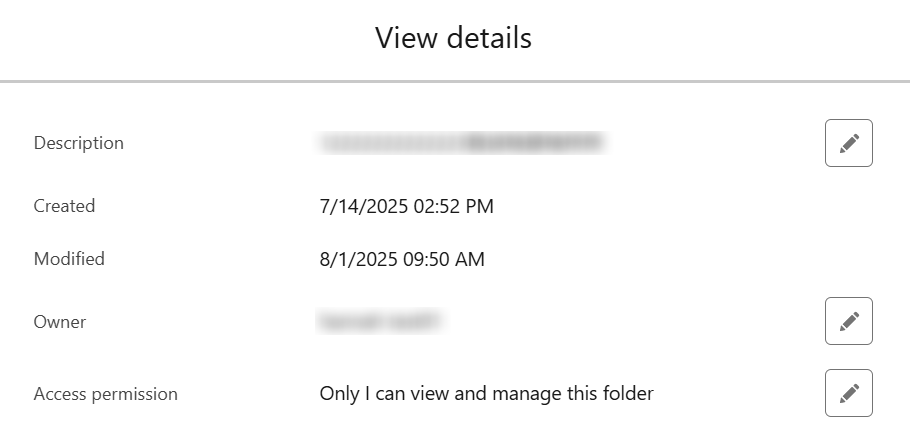
View details panel in Salesforce app.
Edit Folders
Click the More next to a folder in the left navigation and then you can also perform the following actions to manage the folder:
-
Rename a folder – Click Rename to access the Rename the folder window. Enter the new name in the Folder name text box and click Save to rename the folder.
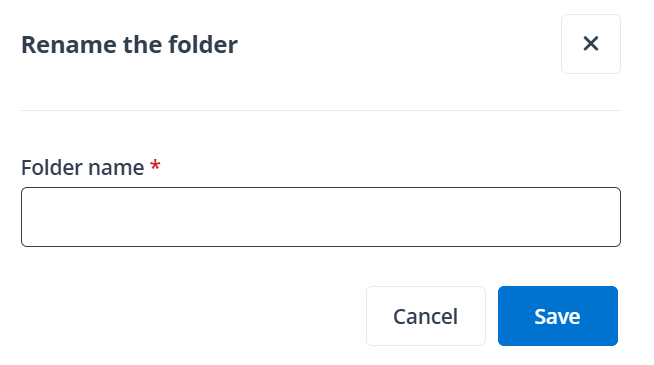
Rename the folder window in end user portal/Teams app.
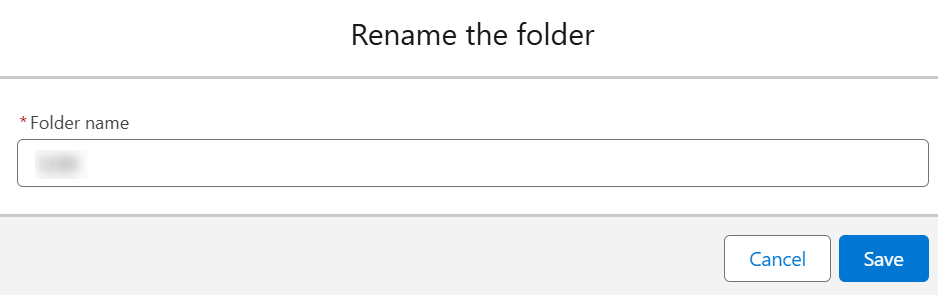
Rename the folder window in Salesforce app.
-
Delete a folder – Click Delete and click Delete in the Delete the folder? window to delete the folder and all books in the folder.
-
Create and manage a book – Refer to Create and Manage Books for details.
-
Move up – Click Move up to move the folder up to the folder above it.
-
Move down – Click Move down to move the folder below its next folder.
Share Private Folders
Refer to the following steps to share a private folder:
-
Click Share to access the Share the folder window.
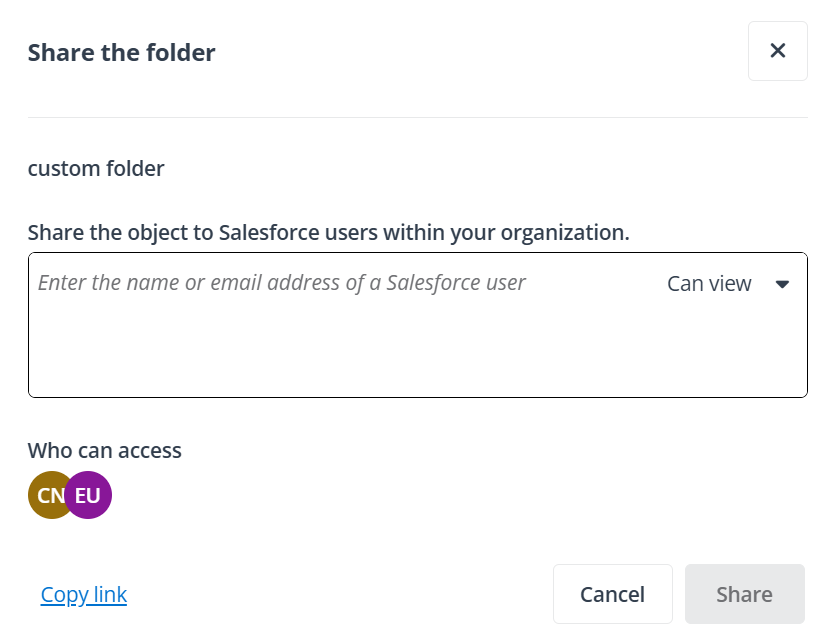
Share the folder window in end user portal/Teams app.
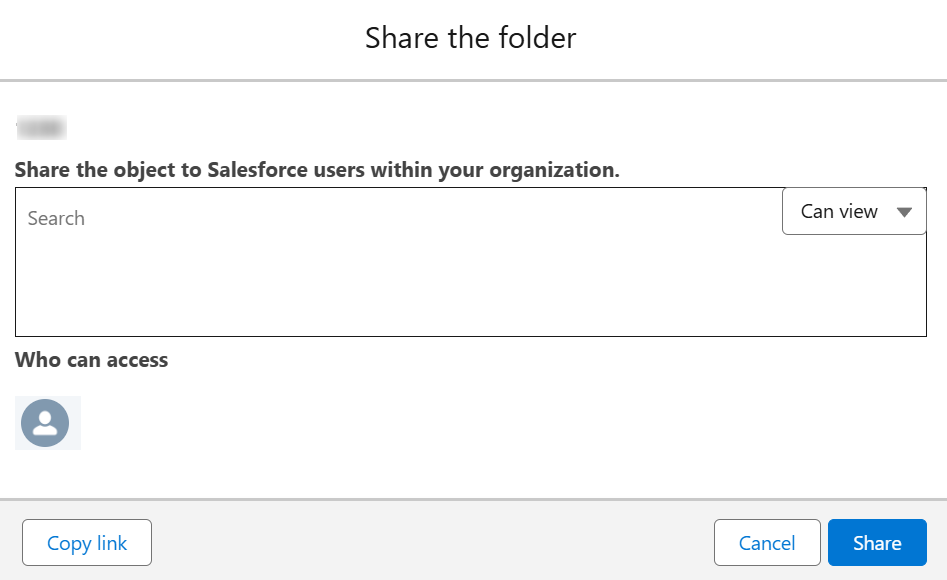
Share the folder window in Salesforce app.
-
Enter the username or full name of one or more active Salesforce users in the text box and click the permission in the upper-right corner to assign permission to these users.
-
Click Share to share the folder with these users, or click Copy link and send the copied link to these users.
Notify Shared Users (Only for MyBiz Teams App)
After sharing a folder to specified users via MyBiz Teams app, you can refer to the following steps to send a Teams notification to these users:
-
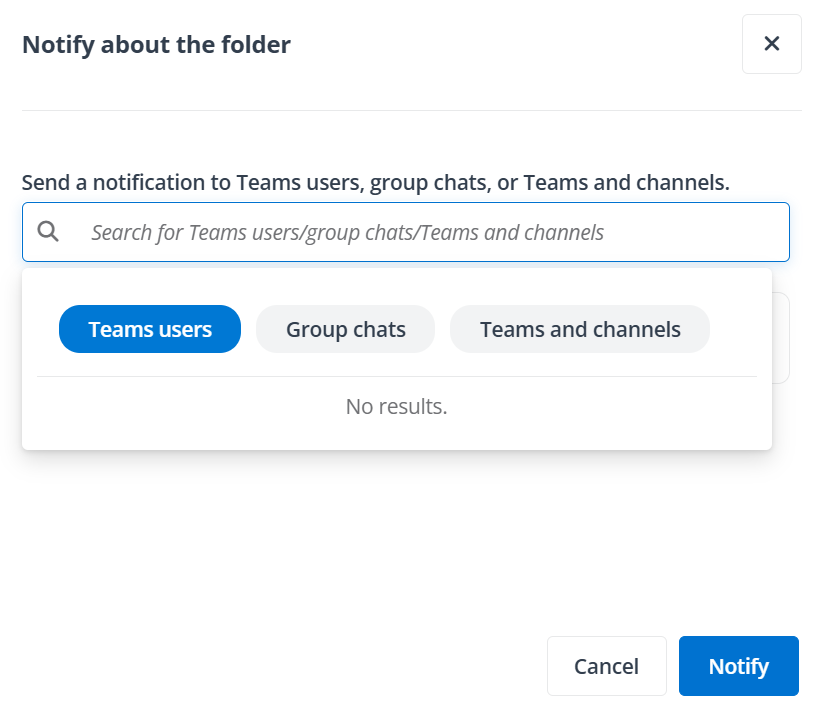
Click Notify. The Notify about the folder window appears.
-
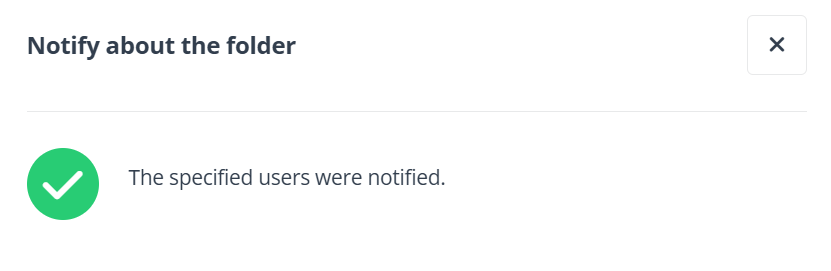
Enter the name of users, group chats, or teams and channels in the text box, and click Notify to send a Teams notification to them as a reminder.
Manage Private Folder Access
Refer to the following steps to manage access of a private folder:
-
Click Share to access the Share the folder window.
-
Click the users in the Who can access section to access the Manage access window.
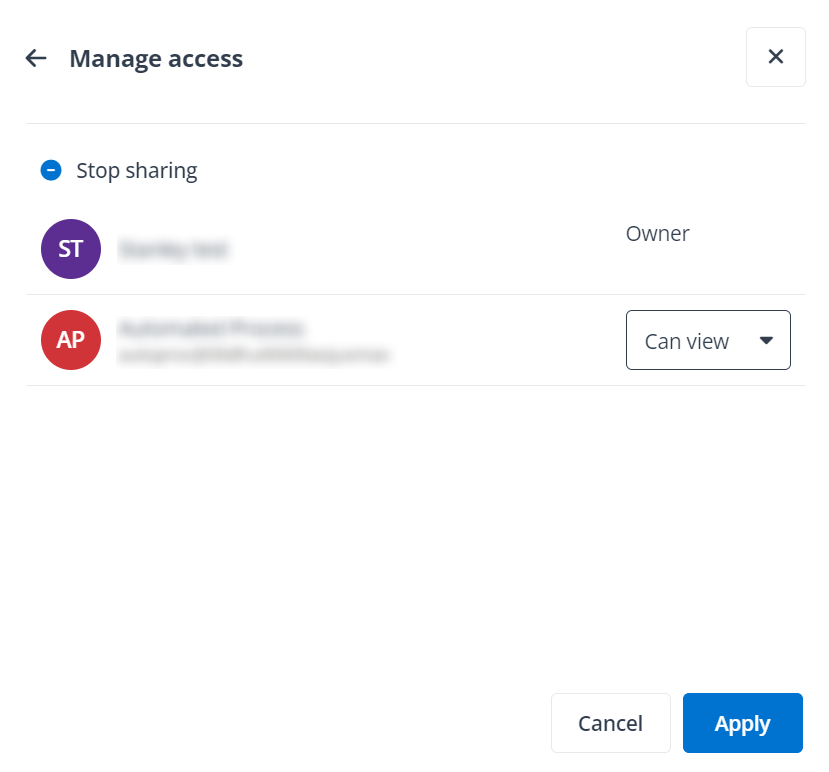
Manage access window in end user portal/Teams app.
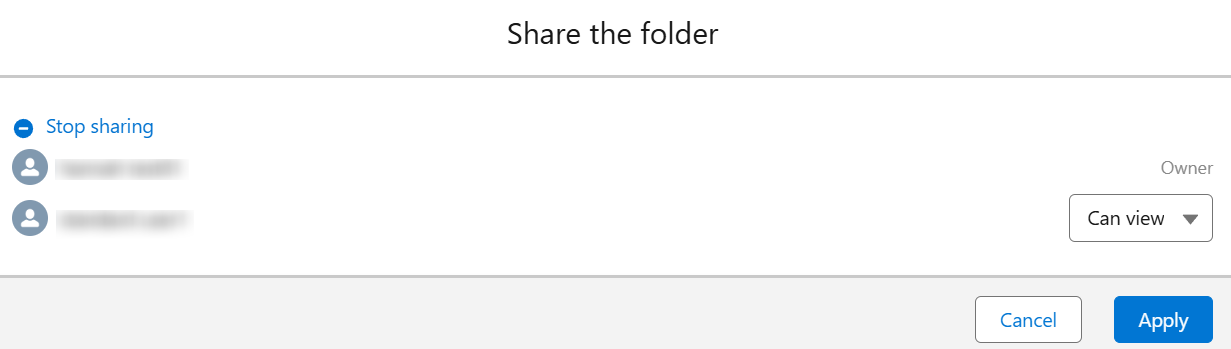
Manage access window in Salesforce app.
-
Click the permission next to a user, select a new permission, and click Apply to update the permission of the user. The permission of the folder owner cannot be edited.
You can also click Stop sharing to remove the permissions of all shared users. After you stop the data sharing, only the owner can access the folder.