
Home > Books > Add MyBiz Book Widgets to Salesforce
Download this articleAdd MyBiz Book Widgets to Salesforce
With the MyBiz book widgets, you can work seamlessly within Salesforce pages (Record, Home, and App Pages) without switching tabs.
Refer to the following steps to add a MyBiz book widgets to Salesforce Lightning:
-
In Salesforce Lightning, you can edit the record page in the following two ways:
-
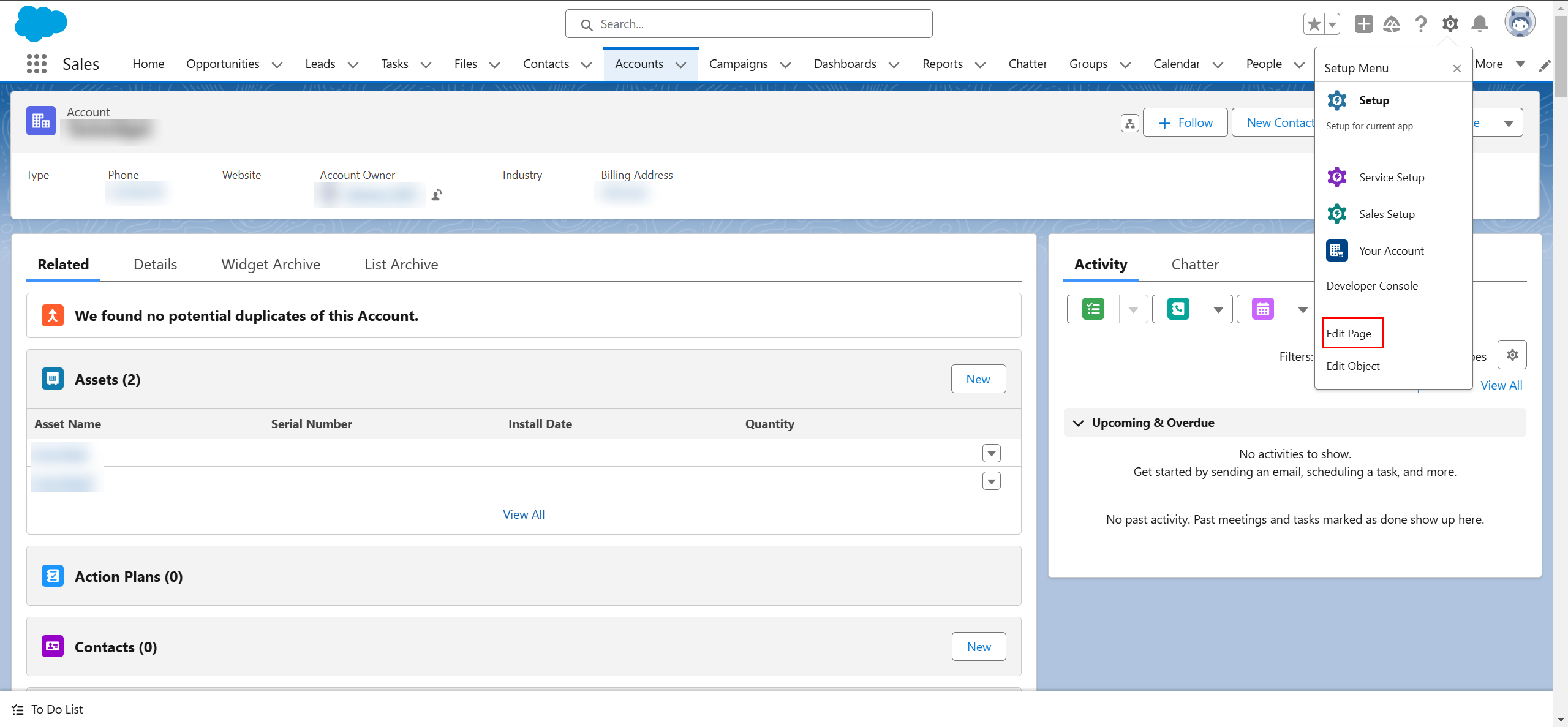
Click the App Launcher button in the upper-left corner, search and access the object page where you want to add the widget. Select the required record, click the Setup button in the upper-right corner of the object page, and then click Edit Page.
-
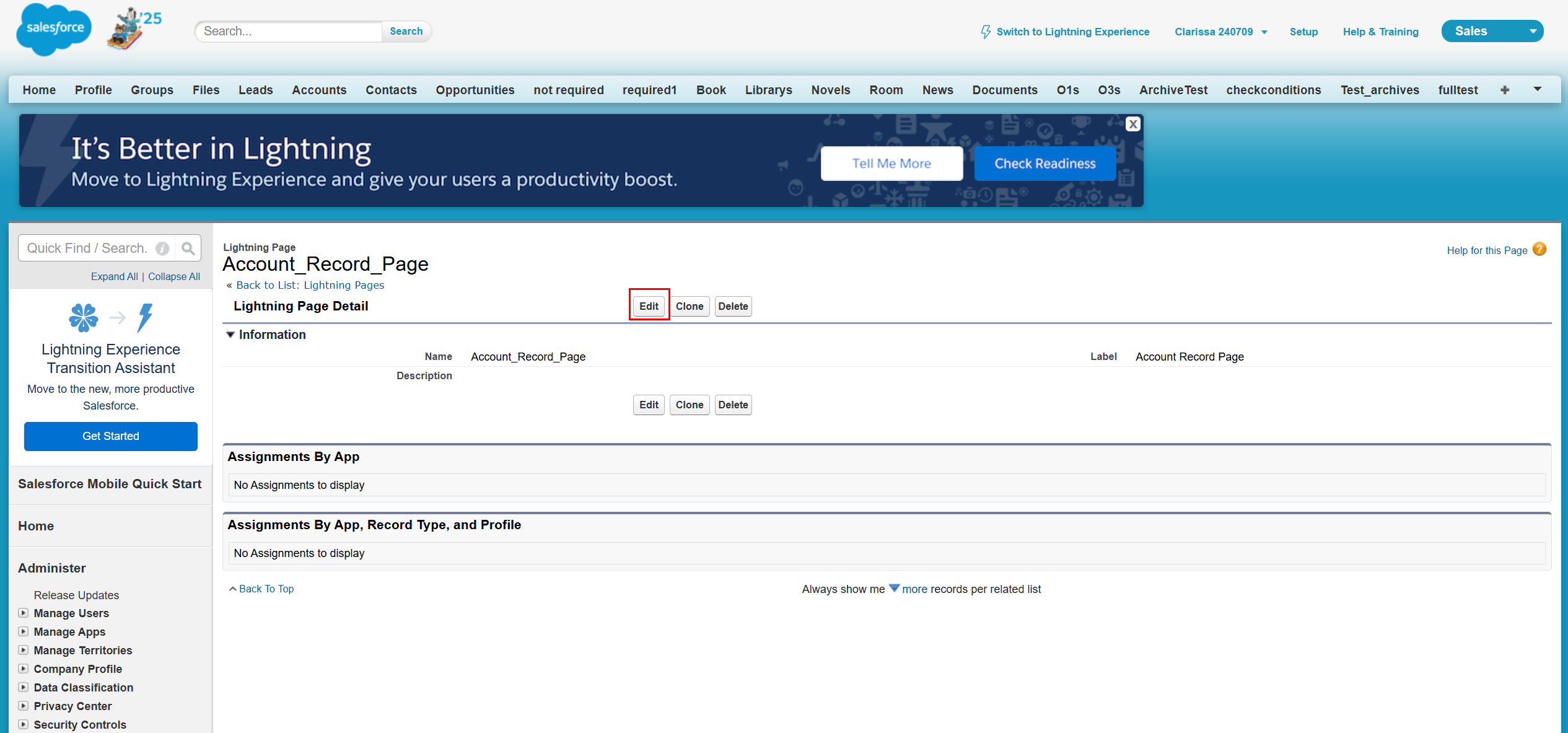
Navigate to Setup > Object Manager tab, select the required object where you want to add the widget. Click Lightning Record Pages in the left navigation, and then select a record page or click New to create a new record page. On the record details page, click Edit.
-
-
On the Lightning App Builder page, click the middle section of the page and then click Add Tab in the Tabs pane to add a new tab.
-
Click the newly added tab, select Custom in the Tab Label field and enter a Custom Label.
-
To add a visibility rule to show or hide the tab, click Add filter > Advanced. Under the Advanced tab, select a field and an operator, and then enter a value for the filter. Once completed, click Done.
-
Click the newly added tab in the middle of the page.
-
In the Components tab of the left pane, drag the MyBiz – Record Page Extension widget in the Custom - Managed section to the area under the newly added tab.
-
Click the widget and configure the following settings:
-
Book ID – Enter the ID of the book to display. You can get it in the book details by clicking the More button next to the desired book and clicking Details.
-
Sheet ID – Enter the ID of the sheet to display. You can get it in the sheet details by right-clicking the sheet and clicking View details.
-
Height – Enter the height of the sheet to display.
-
-
Once completed, click Save in the upper-right corner and click Activate in the pop-up window.
-
In the Activation window, click the APP DEFAULT tab and click Assign as App Default.
-
In the Select Apps window, select MyBiz, and click Next.
-
In the Select Form Factor window, select Desktop and phone, and click Next.
-
Click Save to add the widget.