
Home > Get Started with MyBiz > Initial Setup for Administrators
Download this articleInitial Setup for Administrators
Refer to the steps below to complete the initial setup:
-
Sign into AvePoint Online Services with your administrator credentials.
-
Connect Salesforce tenant. Go to Tenant management to connect your Salesforce tenant to AvePoint Online Services. Refer to Connect Your Tenants to AvePoint Online Services.
NOTEThe app created in your Salesforce environment upon connection to your tenant is named AvePoint Online Services Tenant Registration.
-
Go to User management > Add users to add the Salesforce/local/Google/Microsoft 365 users who need MyBiz access. Refer to Manage Users for details about user management.
NOTELocal/Google/Microsoft 365 users can only access the MyBiz Admin center.
NOTESalesforce Sandbox users can only access the MyBiz Salesforce app.
-
Create an app profile to authenticate the connection between MyBiz and Salesforce. Follow the steps below:
-
Click Create on the App management page. The Create app profile page appears.
-
In the Select services step, select a desired tenant, and choose the app named MyBiz.
-
Click Next to go to the Choose setup method step.
-
In the Choose setup method step, select the Modern mode.
-
Click Next to go to the Consent to apps step.
-
If your tenant environment is Salesforce, click Consent next to the MyBiz app.
-
If your tenant environment is Salesforce Sandbox, click Consent next to the MyBiz for Salesforce Sandbox app.
-
Then, the Allow Access? page appears. Review the permissions required for using MyBiz and click Allow to allow the MyBiz app to get access to your data in Salesforce. Then, the app profile is created successfully and the AvePoint MyBiz for Salesforce app is created in your Salesforce environment.
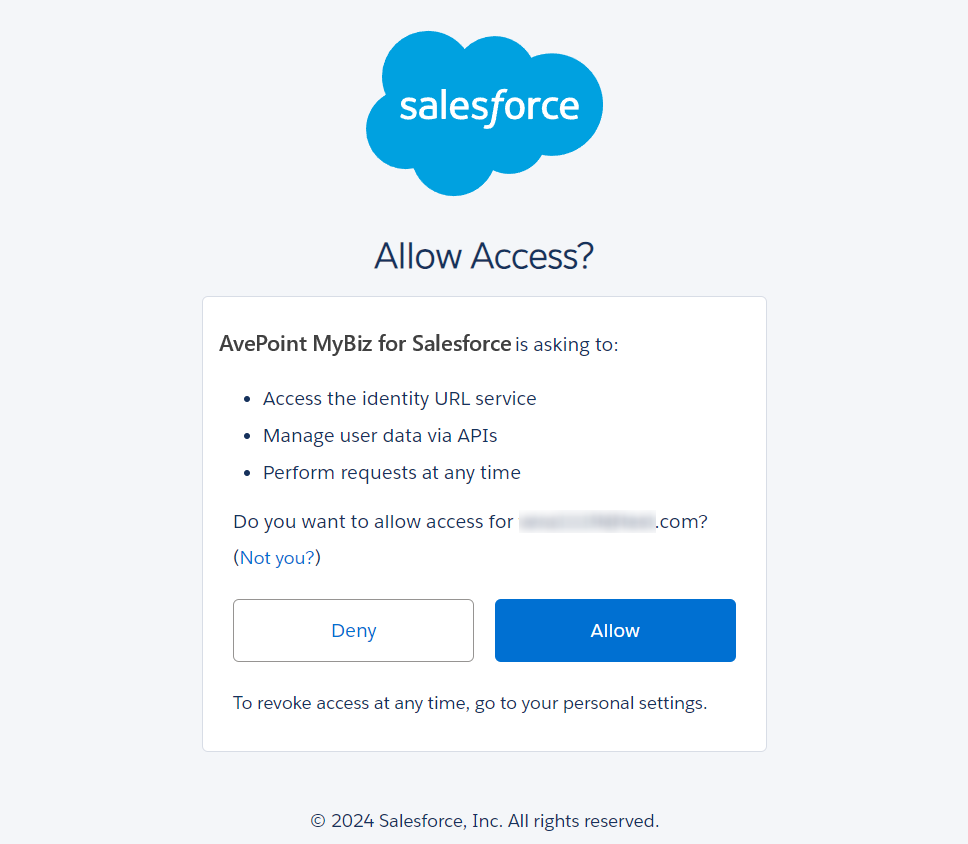
Example for AvePoint MyBiz for Salesforce app.
NOTEAfter consenting to the AvePoint MyBiz for Salesforce app, the app will be recorded in Salesforce as an uninstalled connected app. Salesforce has published an announcement to restrict the use of uninstalled connected apps since early September 2025. To use MyBiz, you must install the app in your Salesforce environment or ensure the user consenting to the app has the following required permissions:
-
If API Access Control is enabled, only the Use Any API Client permission gives access to use uninstalled apps.
-
If API Access Control isn’t enabled, trusted users can use uninstalled apps if they have the Approve Uninstalled Connected Apps permission.
-
-
-
Access MyBiz admin center.
-
Go to Home > All services, click MyBiz.
NOTEIf you are a Salesforce user, click Allow on the Allow Access? page to access MyBiz Admin center. If you are a local user, you need to sign in using a Salesforce account and click Allow on the Allow Access? page to access MyBiz Admin center.
-
When accessing the MyBiz admin center for the first time, you will be automatically guided to the Preparation page to configure essential settings for your organization, and you can also go to Settings page later within the MyBiz admin center interface to define the feature availability in MyBiz for end users and enable bulk option for specific objects. Refe to Settings for details.
-
-
(Optional) If your organization allows end users to use MyBiz Teams app, administrators can refer to Teams App Deployment to deploy the app.