
Home > Use MyBiz Admin Center > Settings
Download this articleSettings
In settings, you can define the availability of some features in MyBiz and configure bulk operation settings for specific objects. Refer to the following sections to configure feature settings and object settings.
Feature Settings
-
Click the Settings > Feature settings in the navigation to access the Feature settings page. Switch on the toggle button next to each feature and click Edit in the Organizations column to select organizations for which you want to enable the feature. Then, click Save to enable the feature for end users in the selected organizations.
-
Apply search Salesforce data for lookup fields – Search Salesforce data for lookup fields in MyBiz. You can click Edit to configure organizations for which you want to enable the feature.
NOTEWith this setting enabled, it will consume the API count of your organization.
-
Create records – Create new records for objects. You can click Edit to configure organizations for which you want to enable the feature.
-
Delete records – Delete existing records of Objects. You can click Edit to configure organizations for which you want to enable the feature.
-
Export sheets – Export sheets as CSV files to local. You can click Edit to configure organizations for which you want to enable the feature.
-
Share folders, books, or sheets and manage access permissions – Share folders, books, or sheets to others and update the access permissions of shared users. You can click Edit to configure organizations for which you want to enable the feature.
-
Edit columns – Hide or show columns in a sheet of an object. You can click Edit to configure organizations for which you want to enable the feature.
-
Sales – Customize metrics to view the trends of opportunities and configure notifications to track updates on key opportunities. You can click Edit to configure organizations for which you want to enable the feature. Before enabling the Sales feature, you need to enable Change Data Capture for opportunity in Salesforce. Refer to the Configurations in Salesforce for Sales Feature section below.
-
Maximum records per sheet – Configure the maximum number of records to load per sheet. If this setting is disabled, each sheet will load up to 2000 records by default. You can click Edit to configure the maximum number of records to load for all organizations or for each organization.
-
Configurations in Salesforce for Sales Feature
Login to Salesforce as a system administrator and refer to the following steps to enable Change Data Capture for opportunity:
-
Click the Setup button in the upper-right corner of a page and click Setup to access the Home page.
-
Navigate to PLATFORM TOOLS > Integrations > Change Data Capture in the left navigation.
-
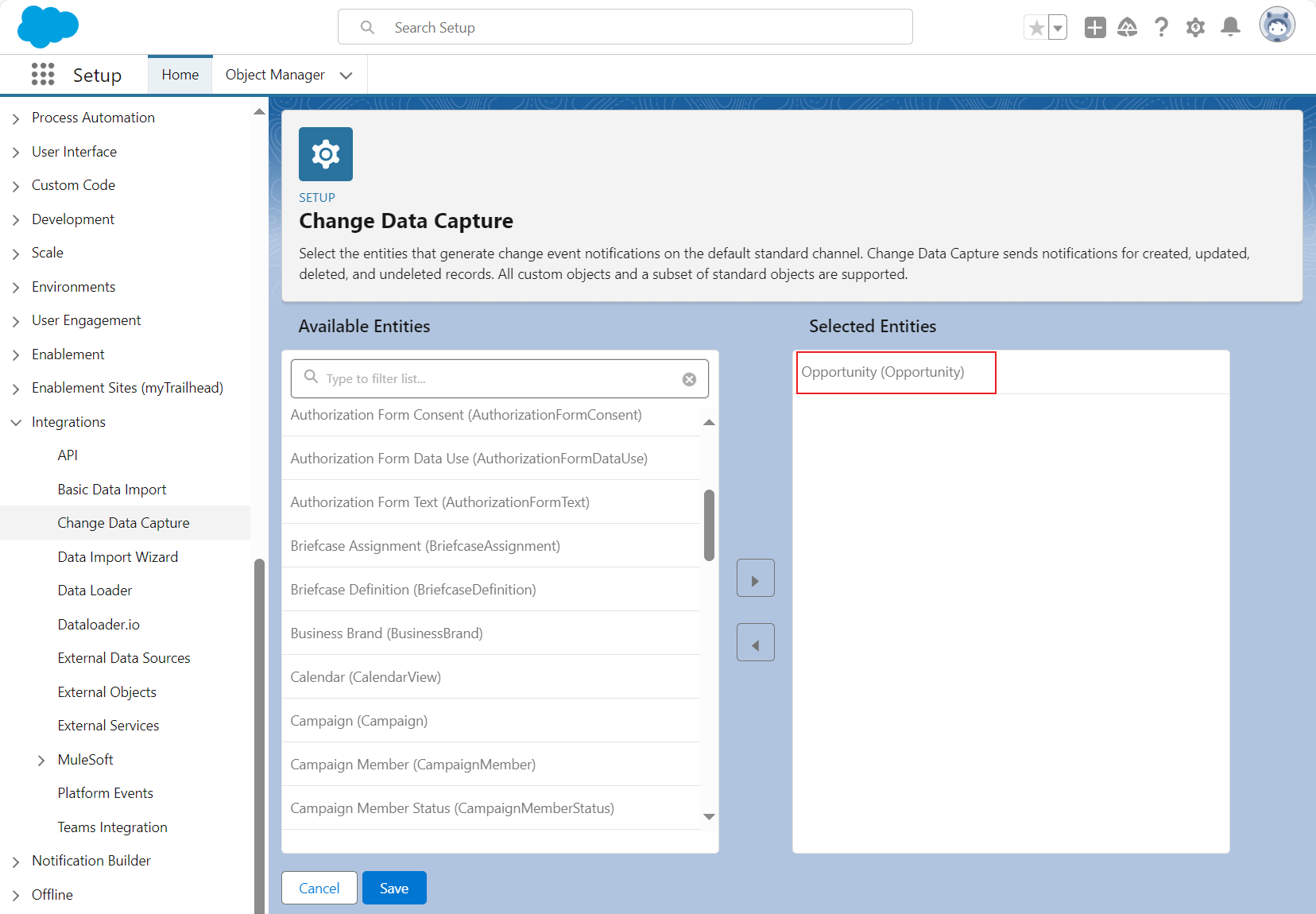
Click Opportunity (Opportunity) in the Available Entities section and click the right arrow button to add the entity to the Selected Entities section.
-
Click Save to save the configurations.
Object Settings
Refer to the following steps to configure bulk operation settings for specific objects within an organization:
-
Click the Settings > Object settings in navigation to access the Object settings page.
-
Switch on the toggle button in the Status column of an organization.
-
Click the Pencil button in the Object column of the organization to access the Configure bulk operation settings panel.
-
Click Add object. Then, select an object from the drop-down list and configure the maximum numbers for batch copy and deletion. To remove an object record, click the Remove button next to the record. You can click Add object to enable bulk operation for more objects.
-
Click Save to enable bulk operation for configured objects.
User Management
Refer to the following steps to manage uses, user roles, and the default role.
Manage Tenant Users
Refer to the following steps to manage tenant users:
-
Click Settings on the left navigation to access the Settings page.
-
Click User management. The User management page appears.
-
Click Tenant users to access the Tenant users panel. All Salesforce users added in AvePoint Online Services will be listed. You can enter the name of a user in the search box to search for the user, or filter users by role or organization. You can also click the Refresh button to sync the users added in AvePoint Online Services.
-
By default, the synced standard users are automatically assigned with the Business user role and administrators are automatically assigned with the Director role.
-
To change user roles, select one or multiple users and click Change role to access the Change role window. Select a new role from the Role drop-down list and click Apply to change the role.
Manage User Roles
A user role defines the user's access permissions in the end portal. Refer to the following steps to manage user roles:
-
Click Settings on the left navigation to access the Settings page.
-
Click Role settings. The Role settings page appears. You can perform the following actions to manage user roles:
-
Edit – Select a role and click Edit to edit the role.
-
Delete – Select one or multiple roles and click Delete to delete the roles.
-
Add role – Click Add role to access the Add role panel. Complete the following steps to add a role:
-
Enter a name and an optional description for the role.
-
Enable at least one function and select the permissions to assign to the role.
-
Click Save to save the role. The saved role will be displayed in the Role drop-down list when you manage tenant users.
-
-
Manage Default Role
When the newly added tenant users to AvePoint Online Services are synced to the MyBiz End user portal, they will be automatically assigned with the default role. Refer to the following steps to configure the default role:
-
Click Settings on the left navigation to access the Settings page.
-
Click Default Role. The Default Role panel appears.
-
Switch on the toggle button to enable the default role.
-
Select a role from the Role name drop-down list
-
Click Save to save the default role.
Teams App Deployment
Users now can manually add the MyBiz Teams app from Microsoft Teams app store. You can also refer to the following steps to deploy the MyBiz Teams app for users:
-
Click Settings on the left navigation to access the Settings page.
-
Click Teams app deployment. The Teams app deployment page appears.
-
Click Download package to download the MyBiz.zip.
-
Select a method to deploy the MyBiz app:
-
Upload the MyBiz app package toyour org’s app catalog – Refer to the following steps to deploy the app:
NOTEOnly Teams administrators can use this method to deploy the app.
-
Navigate to Microsoft Teams > Apps > Manage your apps.
-
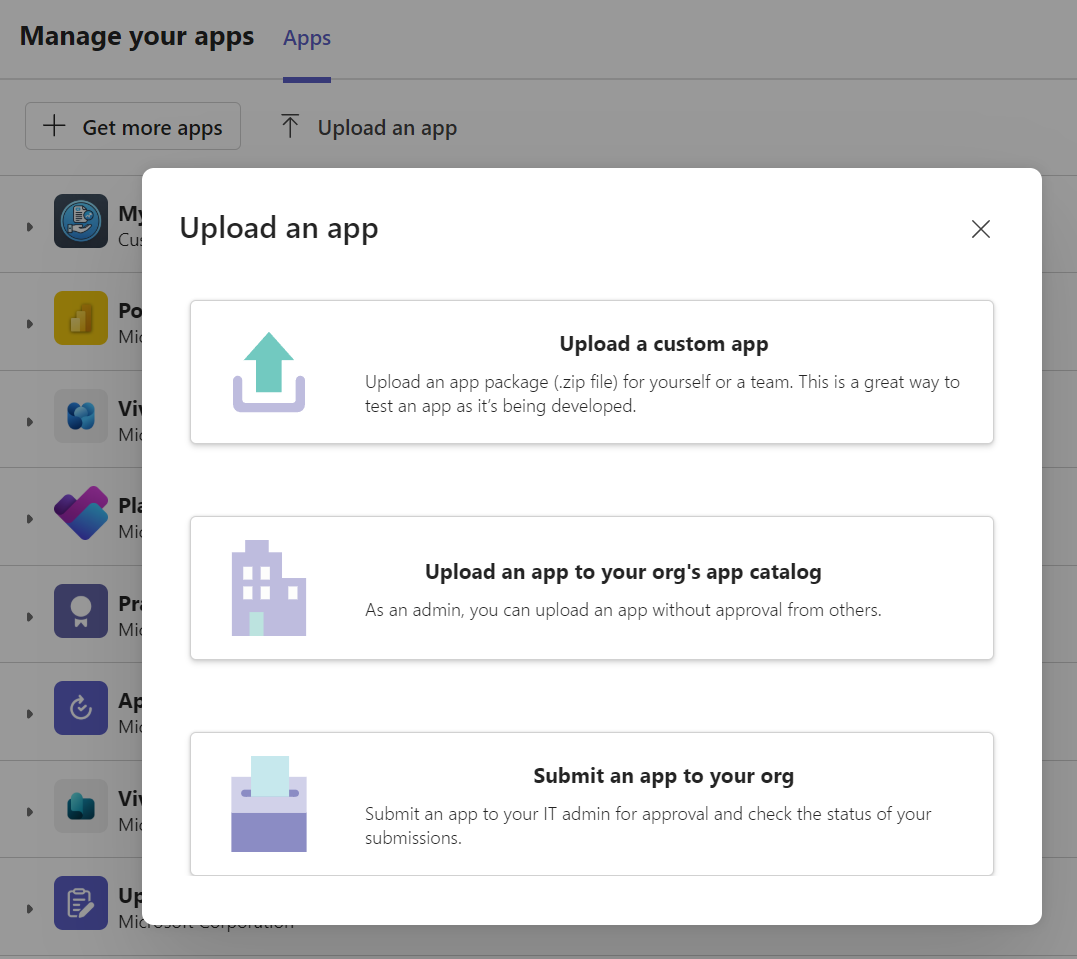
Click Upload an app and click Upload an app to your org’s app catalog.
-
Upload the downloaded MyBiz.zip package. Then, end users can manually add the app to Microsoft Teams.
-
-
Share the MyBiz app package with end users – Before sharing the package to end users, ensure the Upload custom apps setting is enabled in Microsoft Teams admin center. Then, share the downloaded MyBiz.zip package with end users, and they can manually add the app to Microsoft Teams.
Refer to the following steps to enable the Upload custom apps setting:
NOTEEnsure you have the Microsoft Teams admin role.
-
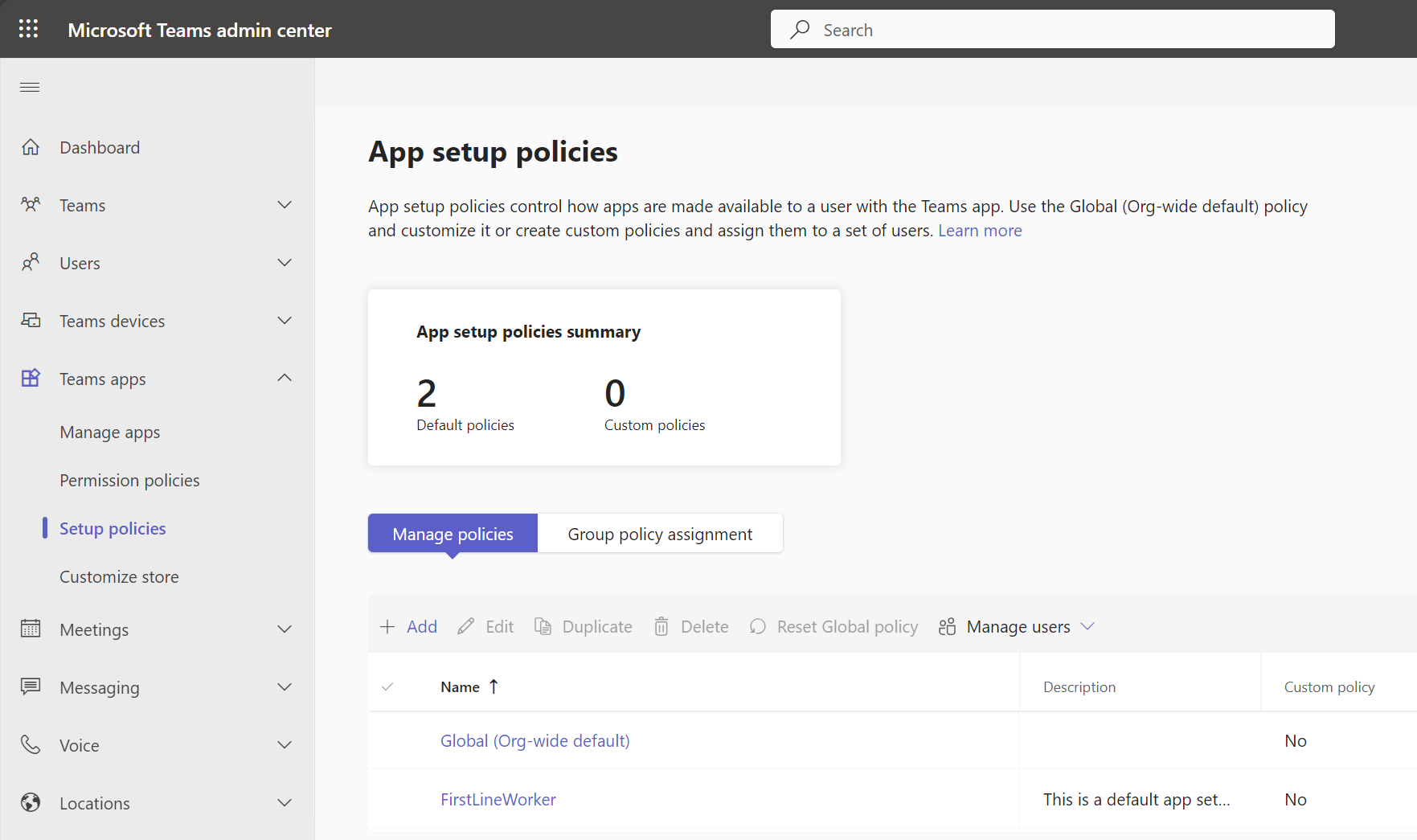
Navigate to Microsoft Teams admin center > Teams app > Setup policies.
-
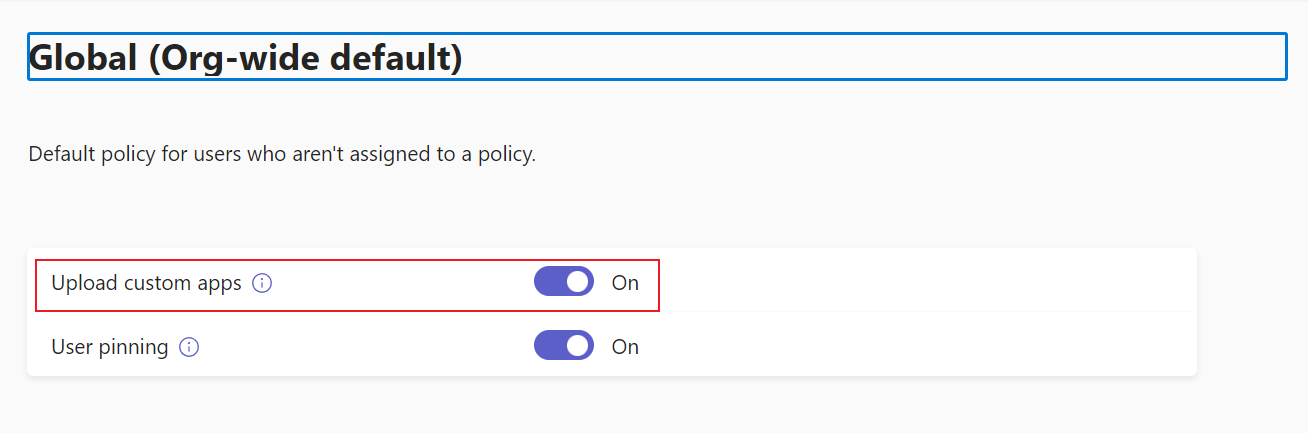
Click Global (Org-wide default) and enable the Upload custom apps setting.
-
Click Save to save the changes.
-
-
If you only want to deploy the MyBiz Teams app for specific users or groups, you can create a setup policy in the Microsoft Teams admin center and assign the policy to the specific users or groups. For details, refer to the following instructions:
Ensure you have the Microsoft Teams admin role.
-
To deploy the app for specific users:
-
Navigate to Microsoft Teams admin center > Teams apps > Setup policies. The App setup policies page appears.
-
Click Add to access the Add page. Enter a name and a description for the policy, and click the Add apps in the Installed apps section to access the Add installed apps panel.
-
Enter MyBiz in the search box, and click Select next to MyBiz app in the drop-down list.
-
Click Add in the panel to add the installed MyBiz app to the policy.
-
Click Save to create the policy.
-
Under the Manage policies tab, select the newly created policy, click Manage users, and click Assign users to access the Manage users panel.
-
Enter the username in the search box and click the Add next to the desired user to add the user.
-
Click Apply to apply the policy to the users. Then, these users can use the app directly without adding it manually.
-
-
To add the app for specific groups:
-
Navigate to the Microsoft Teams admin center > Teams apps > Setup policies > Group policy assignment tab.
-
Click Add to access the Assign policy to group panel.
-
Enter the display name of a group in the search box and click the Add next to the desired group to add the group.
-
Select a policy for the selected groups.
-
Configure the rank for the groups.
-
Click Apply to apply the selected policy to the groups. Then, all users in these groups can use the app directly without adding it manually.
-