
Home > Books > Create and Manage Books
Download this articleCreate and Manage Books
You can create books in MyBiz to display the information of Salesforce objects. Refer to the following sections to create and manage books.
Create Books
Refer to the following steps to create a book:
-
Click Book in the upper-left corner to access the creation panel.
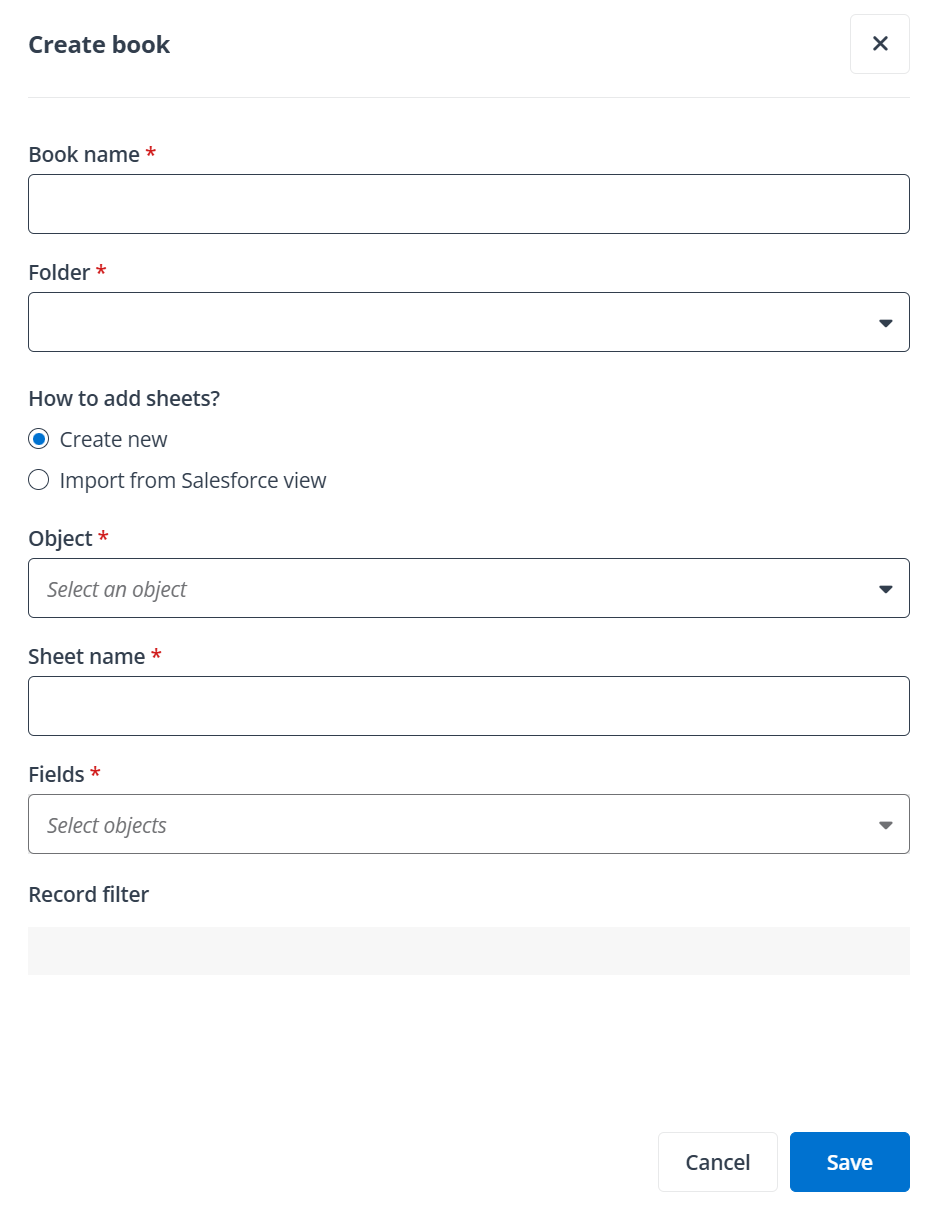
Create book panel in end user portal/Teams app.
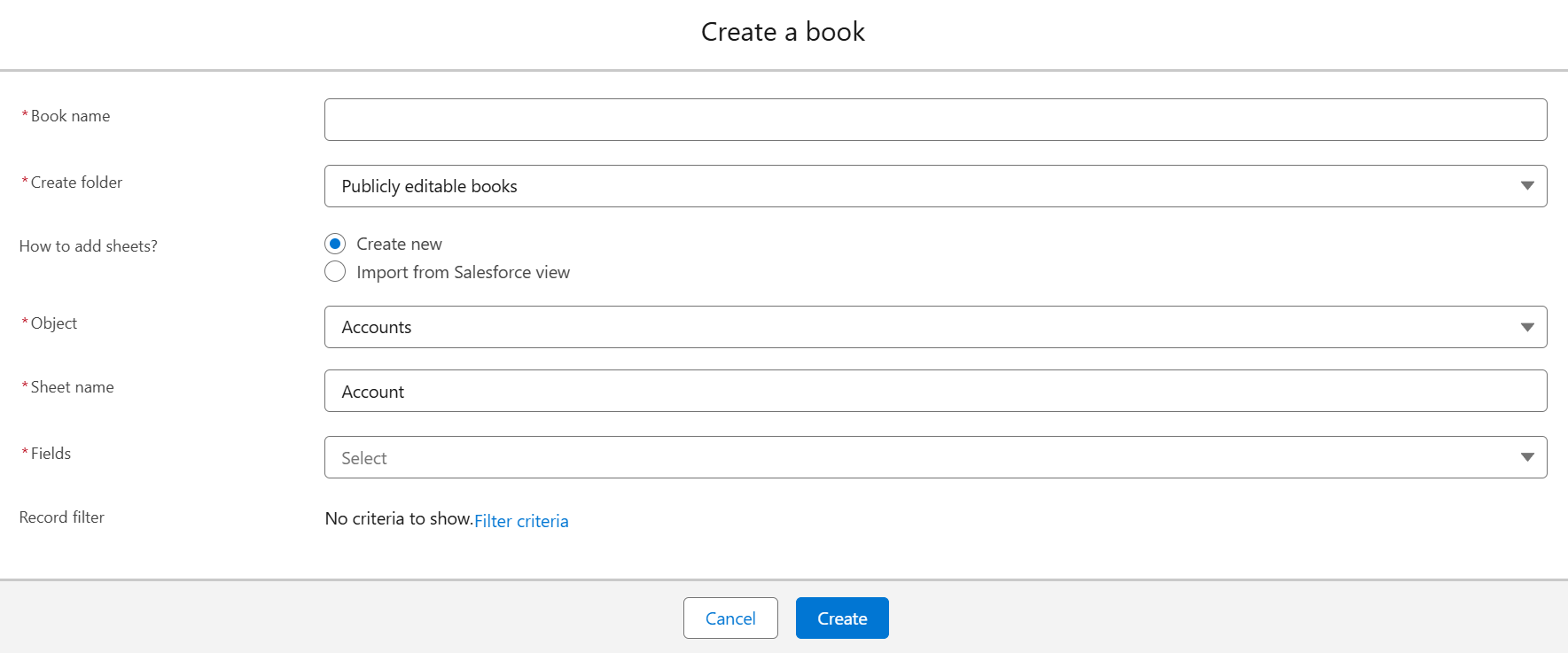
Create a book panel in Salesforce app.
-
Enter a name for the book.
-
Select in which folder to create the book. You can also click Create folder to create a new folder.
-
Select how to add sheets to the book.
-
Create new – Complete the following information and click Save to create the book.
-
Object – The objects that you have permissions to in Salesforce will be automatically synchronized to MyBiz. Select an object from the drop-down list.
-
Sheet name – By default, the selected object name will be automatically filled in the Sheet name field. You can update the name based on your needs.
-
Fields – This field will be available after you select an object. Select the fields as columns you want to display in the book.
-
Record filter – Click Add criterion to configure a filter criterion based on your needs. To add more criteria, click the Add button next to a criterion. To delete a criterion, click the Delete button next to the criterion. By default, records that meet all criteria will be displayed. You can click All to change the filter logic to Any. Then, records that meet any of the criteria will be displayed.
-
-
Import from Salesforce view – Complete the following steps:
-
Select the object to which the view you want to import belongs from the drop-down list.
-
Click Next to access the details of the object views panel. All views of the object will be listed in the left. Click a view from the left and you can view the displayed fields and configured filter criteria of the view.
-
Select one or multiple views from the left and click Save to create the book.
-
-
View Book Details
To view the details of a book, click the arrow button in front of a folder in the left navigation. Then, click the More button next to the desired book and click Details to access the Details panel. On the panel you can view the created time, last modified time, last modified user, owner, and access permission of the book. You can also click the Pencil button next to the Owner field to edit the owner.
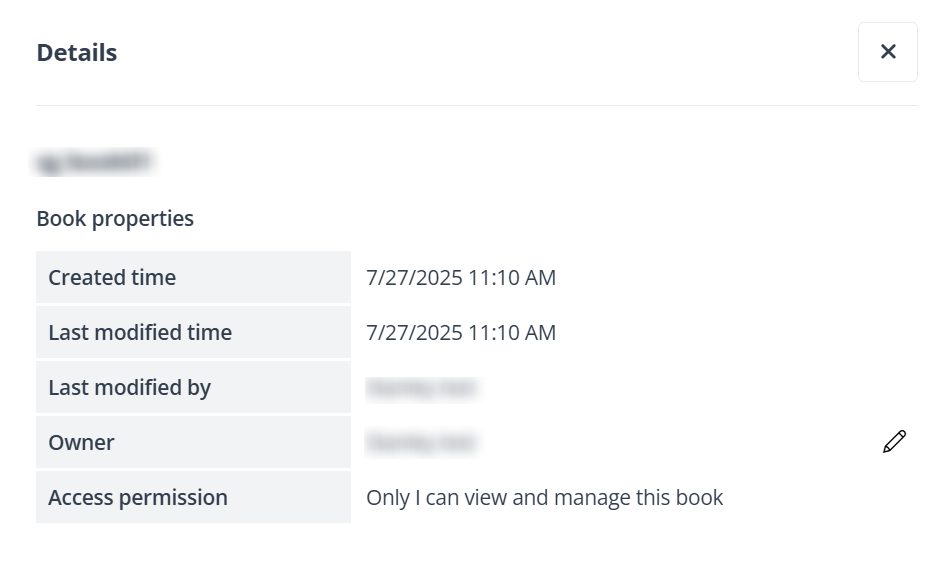
Details panel in end user portal/Teams app.
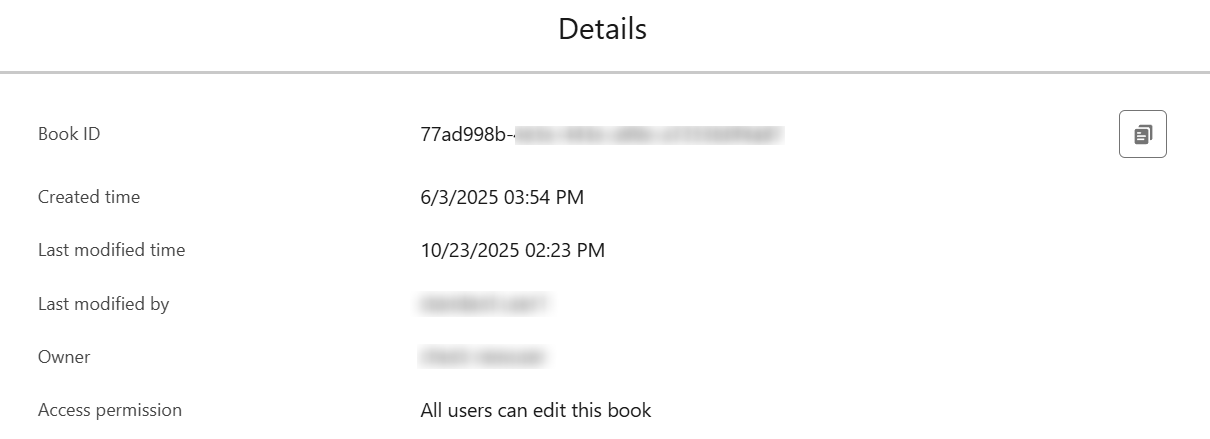
Details window in Salesforce app.
Edit Books
Click the arrow button in front of a folder in the left navigation and click the desired book name to open the book. Then, you can also perform the following actions to manage the book:
-
Rename a book – Click the More button next to a book in the left navigation and click Rename to access the Rename the book window. Enter the new name in the Book name text box and click Save to rename the book.
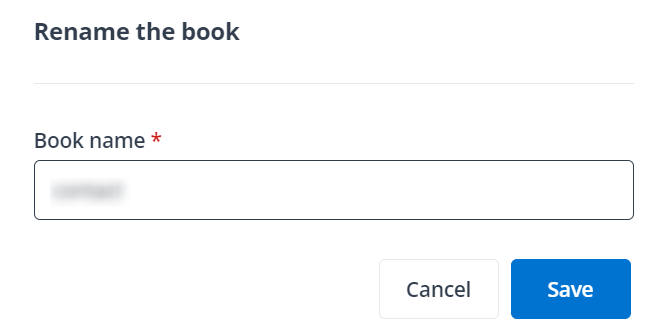
Rename the book window in end user portal/Teams app.
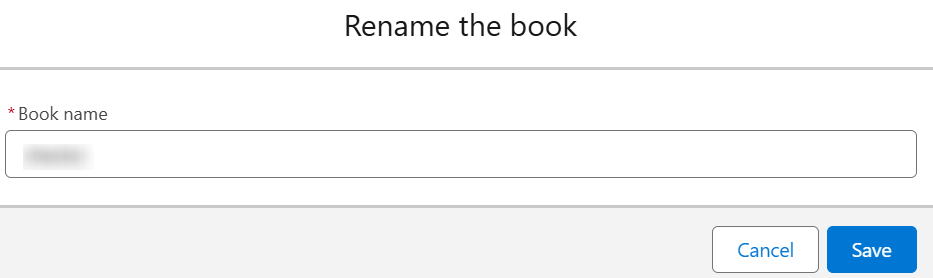
Rename the book window in Salesforce app.
-
Delete a book – Click the More button next to a book in the left navigation, click Delete, and click Delete in the Delete the book? window to delete the book.
-
Create and manage a sheet – Refer to Create and Manage Sheets.
-
Move a book – Click Move to, select a folder, and click Save to move the book to the folder.
-
Move up – Click Move up to move the book up to the book above it.
-
Move down – Click Move down to move the book below its next book.
Import Salesforce Views to Books
MyBiz allows you import an existing view in Salesforce to a book. Refer to the following steps for details.
-
Click the arrow button in front of a folder in the left navigation.
-
Click the More button next to a book and click Import from Salesforce view to access the Import from Salesforce view window.
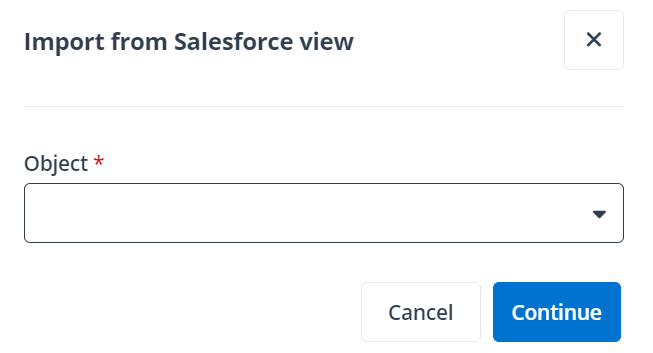
Import from Salesforce view window in end user portal/Teams app.
![Import from Salesforce view of [Object Name] window in Salesforce app.](/en/avepoint-mybiz/books/images/image38.png "Import from Salesforce view of [Object Name] window in Salesforce app.")
Import from Salesforce view of [Object Name] window in Salesforce app.
-
Select the object to which the view you want to import belongs from the drop-down list and click Continue to access the details of the object views panel.
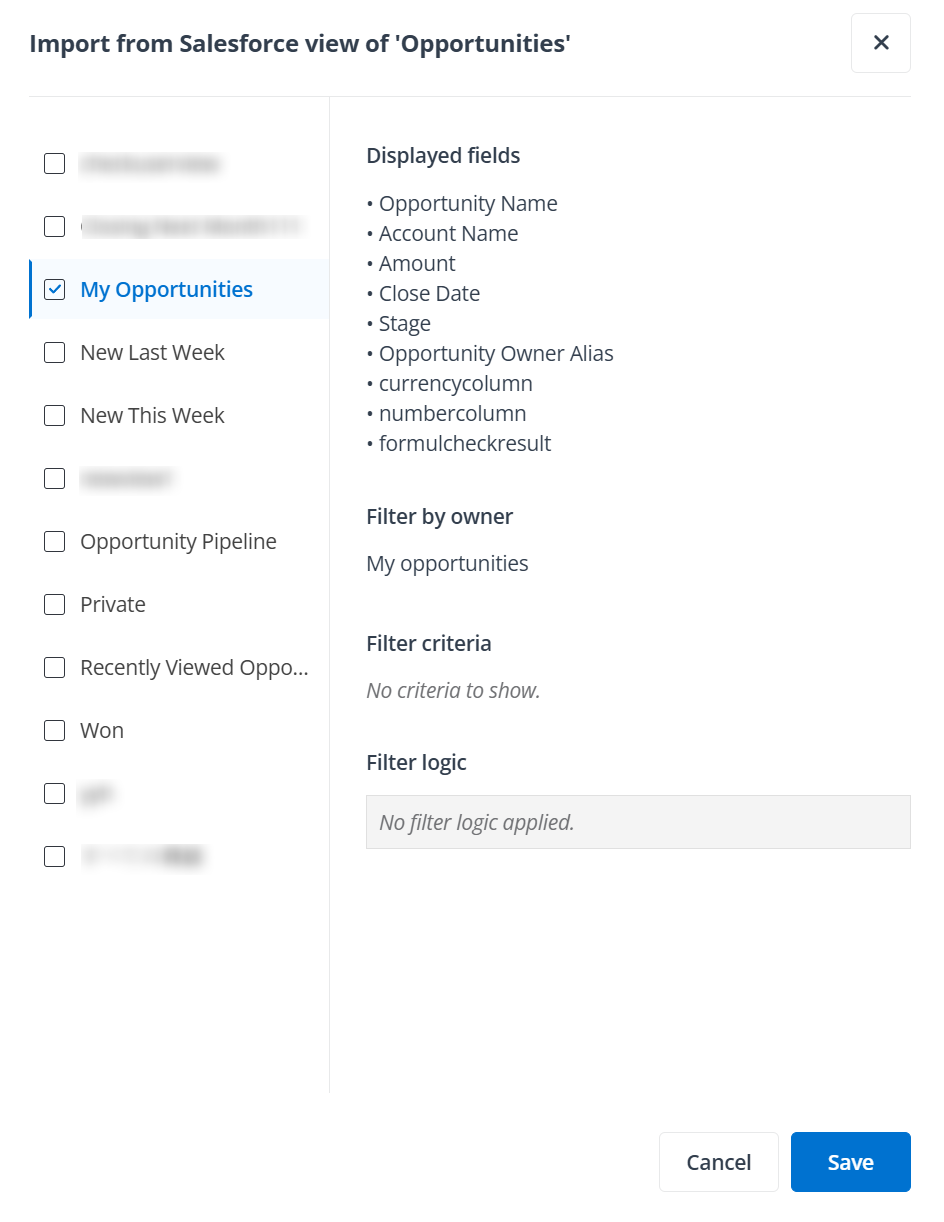
Details of the object views in end user portal/Teams app.
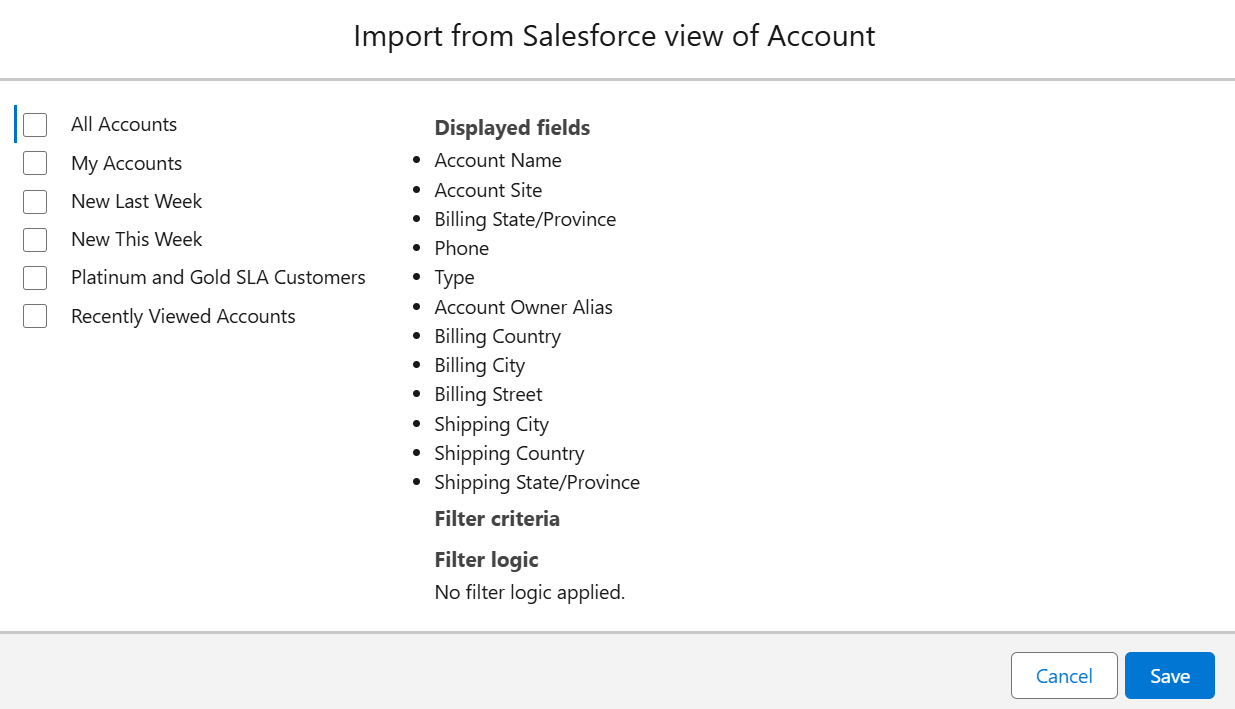
Object views window in Salesforce app.
-
All views of the object will be listed in the left. Click a view from the left and you can review the view's configurations, including the displayed fields, filter criteria and logic, and the data access scope defined by the view's owner.
Select one or multiple views from the left and click Save to import the views.
Share Private Books
Refer to the following steps to share a private book:
-
Click the arrow button in front of the Private books folder in the left navigation.
-
Click the More button next to a book and click Share to access the Share the book window.
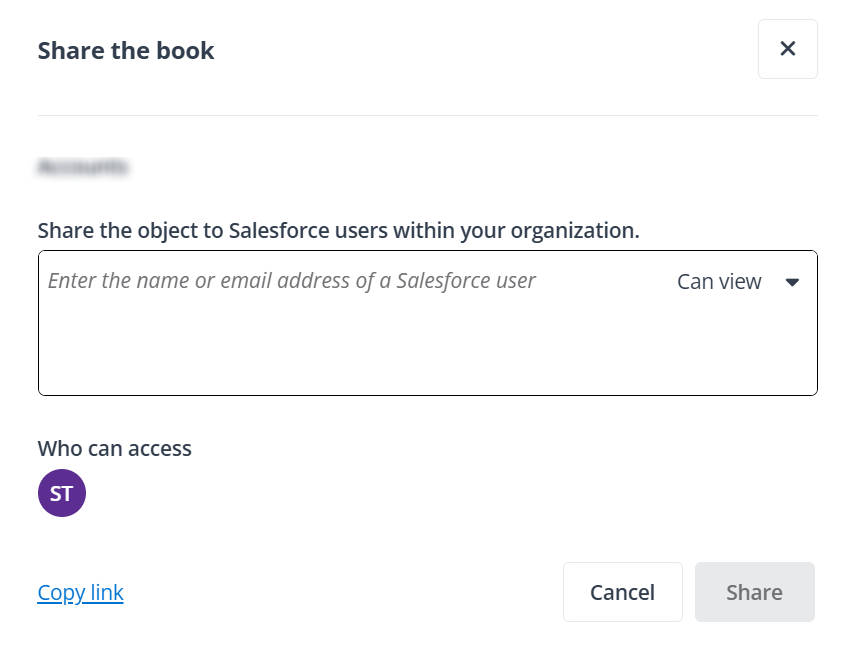
Share the book window in end user portal/Teams app.
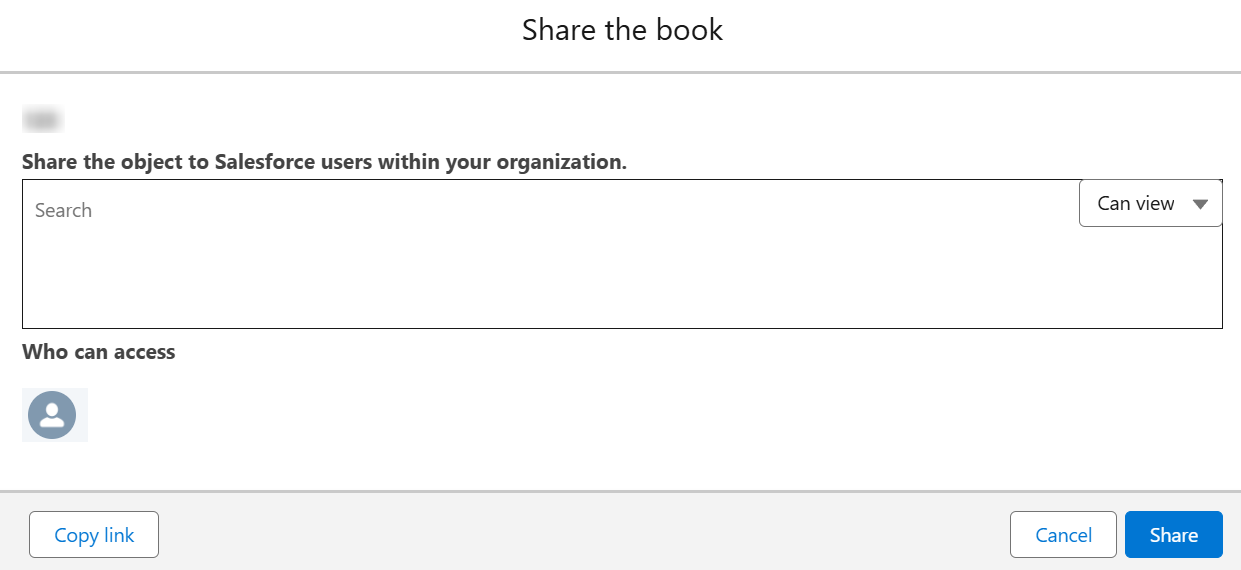
Share the book window in Salesforce app.
-
Enter the username or full name of one or more active Salesforce users in the text box and click the permission in the upper-right corner to assign permission to these users.
-
Click Share to share the book with these users, or click Copy link and send the copied link to these users.
Notify Shared Users (Only for MyBiz Teams App)
After sharing a book to specified users via MyBiz Teams app, you can refer to the following steps to send a Teams notification to these users:
-
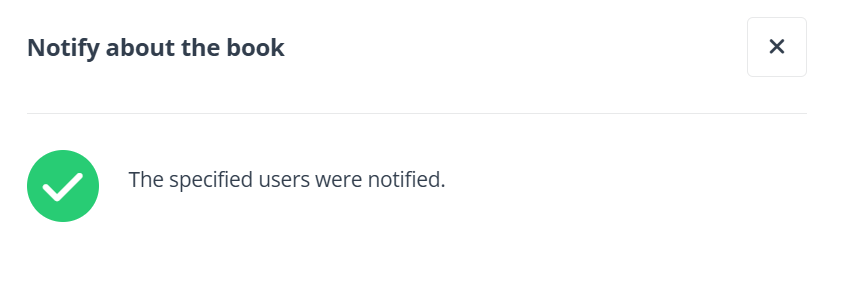
Click Notify. The Notify about the book window appears.
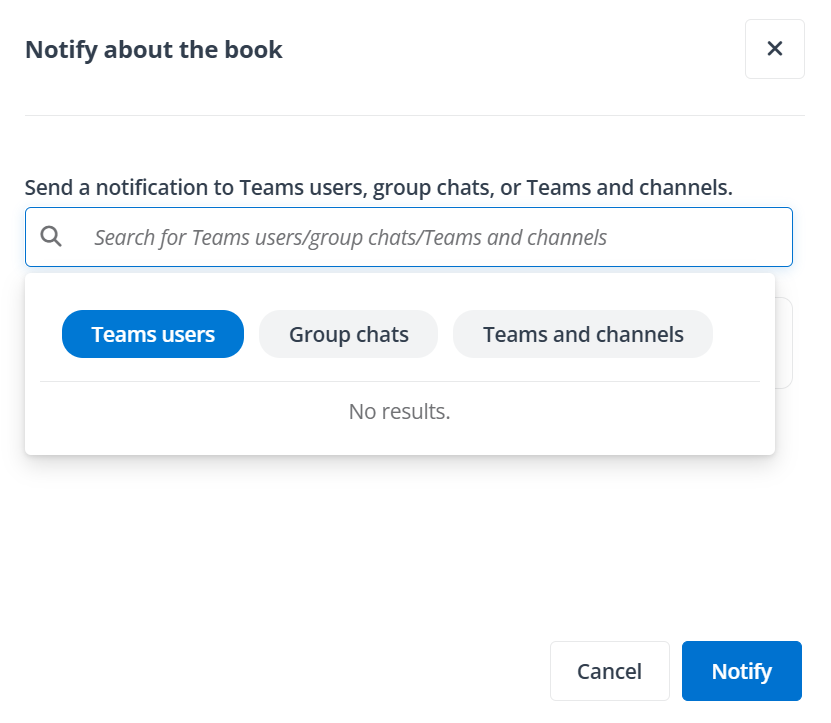
-
Enter the name of users, group chats, or teams and channels in the text box, and click Notify to send a Teams notification to them as a reminder.
Manage Private Book Access
Refer to the following steps to manage access of a private book:
-
Click the arrow button in front of the Private books folder in the left navigation.
-
Click the More button next to a book and click Share to access the Share the book window.
-
Click the users in the Who can access section to access the Manage access window.
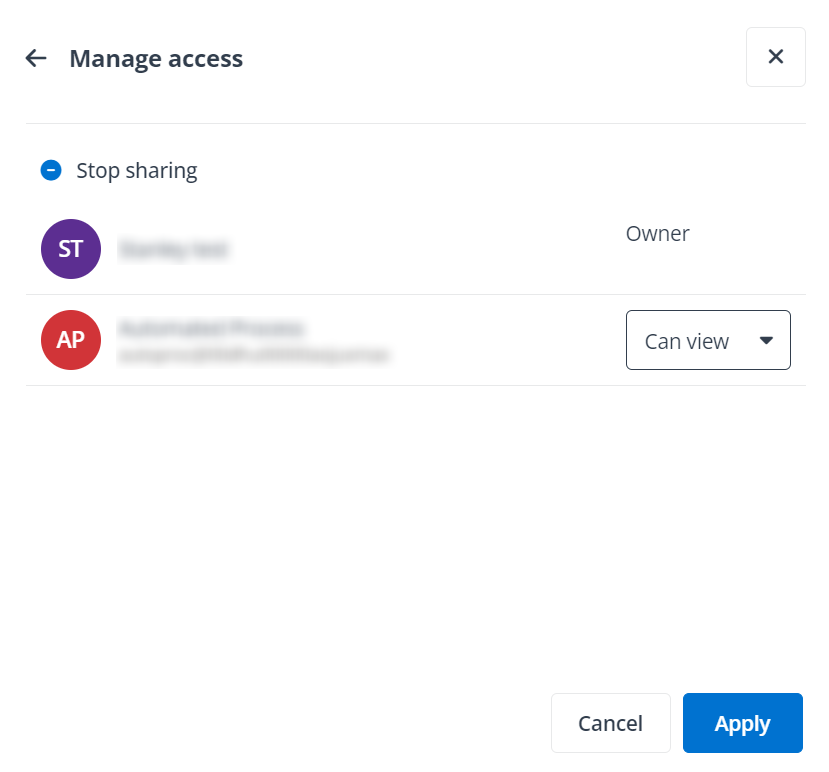
Manage access window in end user portal/Teams app.
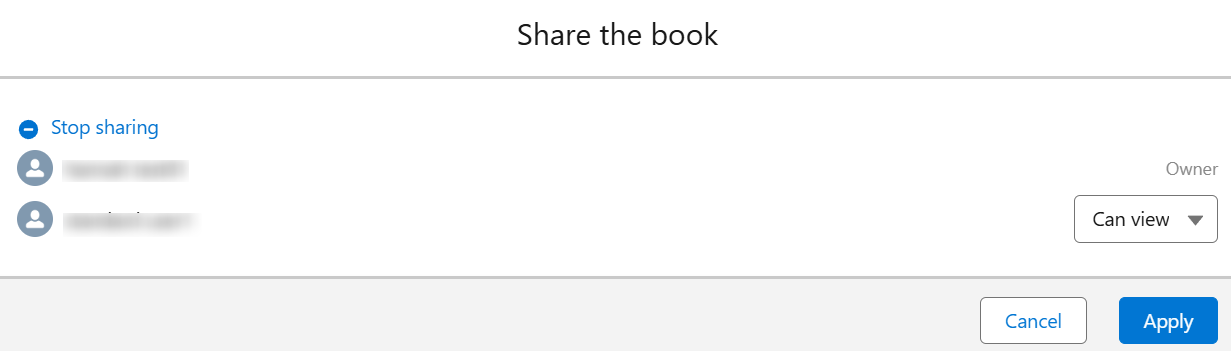
Manage access window in Salesforce app.
-
Click the permission next to a user, select a new permission, and click Apply to update the permission of the user. The permission of the book owner cannot be edited.
-
You can also click Stop sharing to remove the permissions of all shared users. After you stop the data sharing, only the owner can access the book.