
Home > Books > Create and Manage Sheets
Download this articleCreate and Manage Sheets
In MyBiz, a book contains one or multiple sheets to display your Salesforce data. Refer to the following sections to create and manage sheets in your books.
Create Sheets
As a book owner, you can refer to the following steps to create a sheet:
-
Click the arrow button in front of a folder in the left navigation.
-
Click the More button next to a book in the left navigation and click Create sheet to access the Create sheet panel.
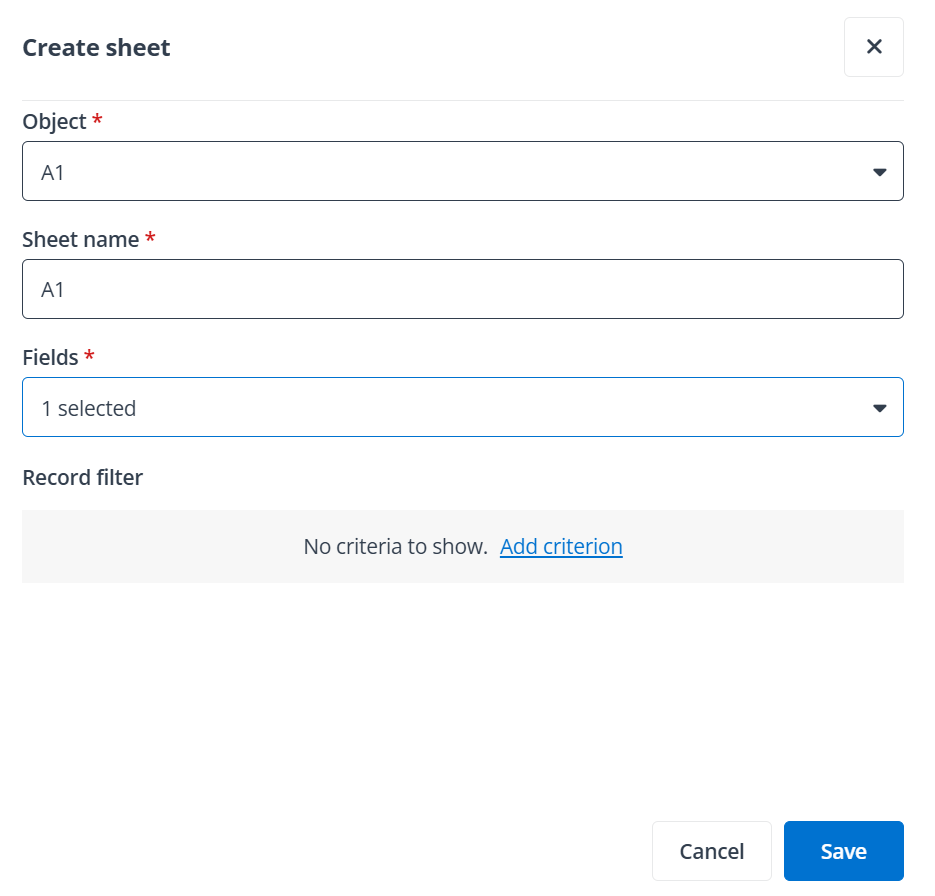
Create sheet panel in end user portal/Teams app.
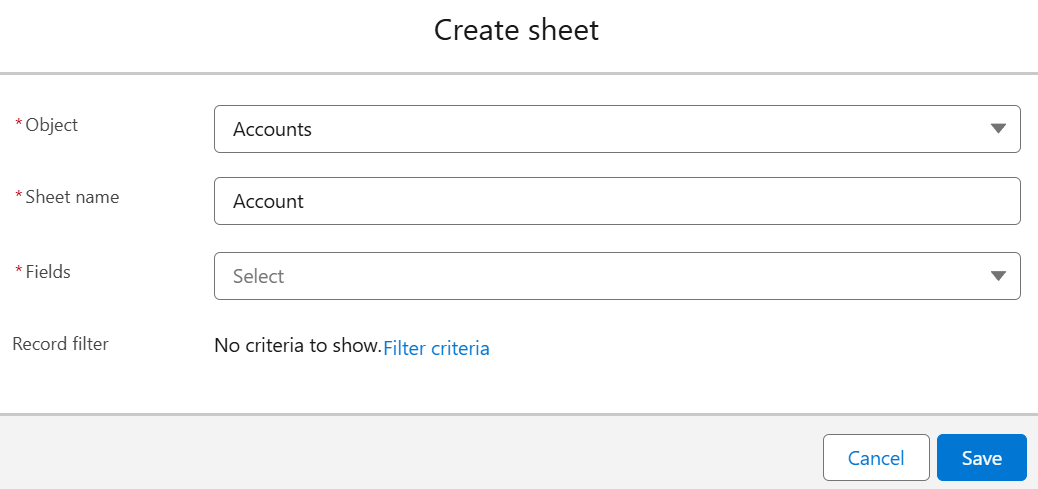
Create sheet window in Salesforce app.
-
Select an object from the drop-down list.
-
By default, the object name will be automatically filled in. You can enter a new name for the sheet.
-
Select the fields you want to display in the sheet.
-
(Optional) Click Add criterion to configure a filter criterion based on your needs. To add more criteria, click the Add button next to a criterion. To delete a criterion, click the Delete button next to a criterion. By default, records that meet all criteria will be displayed. You can click All to change the filter logic to Any. Then, records that meet any of the criteria will be displayed.
-
Click Save to create the sheet.
Create related Sheets
As a book owner, you can refer to the following steps to create a relate sheet for a sheet:
-
Click the arrow button in front of a folder in the left navigation and click the desired book name to view the sheets in the book.
NOTEYou can only create related sheets for public books and shared books for which you are the owner.
-
Right-click a sheet and click Create related sheet to access the Create related sheet window.
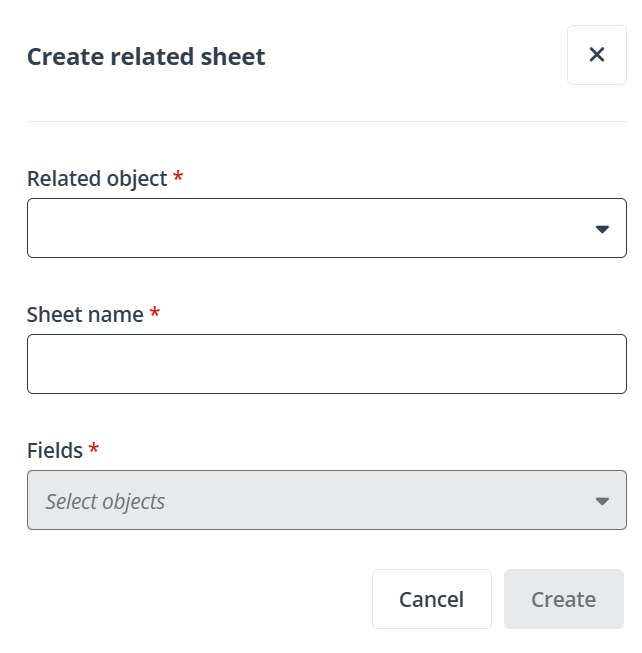
Create related sheet in end user portal/Teams app.
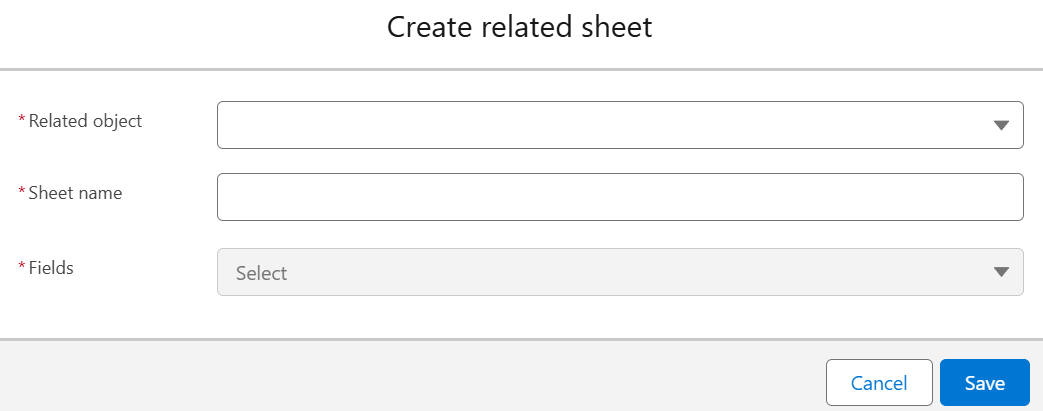
Create related sheet in Salesforce app.
-
Select a related object from the drop-down list.
-
Enter a name for the new sheet.
-
Select the fields as columns you want to display in the sheet.
-
Click Continue to add the related object information to the new sheet.
View Sheets
Click the arrow button in front of a folder in the left navigation and click the desired book name to view the sheets in the book. You can perform the following actions to view a sheet:
-
Enter full screen – Click the Enter full screen button to view the sheet in the full screen.
-
Exit full screen – Click the Exit full screen button to exit the full screen.
-
Refresh – Click Refresh to discard the updates on the sheet and synchronize the updates on the object from Salesforce.
-
Basic filter – Click Show basic filter in the upper-right corner to show the basic filter panel. Click Add column filter and all columns in the sheet will be displayed. Click the desired column to add it as a filter. If the column is of the choice type, select one or multiple values as the filter criteria. If the column is of the text type, enter one or multiple values, and configure the match type. If you enter multiple values, separate each value with a semicolon (;). Then, click Apply to filter data in the sheet meet all your configurations.
-
You can also click Clear to clear all configured filter values or click Hide basic filter to hide the filter panel.
NOTEEach column can only be added once.
-
Advanced filter – For MyBiz Teams app, click the Advanced filter button in the upper-right corner to access the Advanced filter panel.
For MyBiz End user portal and MyBiz Salesforce app, click Advanced filter in the upper-right corner to access the Advanced filter panel.
Then, click Add criterion to configure a filter criterion based on your needs. To add more criteria, click the Add button next to a criterion. To delete a criterion, click the Delete (button next to a criterion. By default, records that meet all criteria will be displayed. You can click All to change the filter logic to Any. Then, records that meet any of the criteria will be displayed.
After the configurations, click Apply to use the configured criteria to filter the data in the sheet.
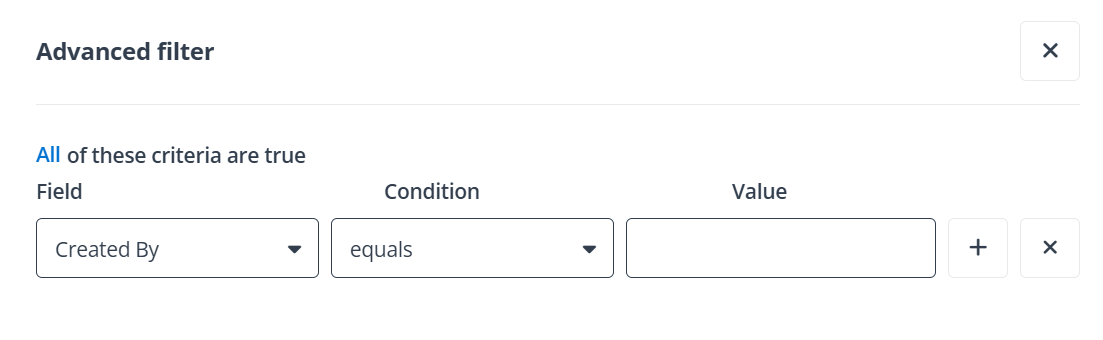
Advanced filter panel in end user portal/Teams app.
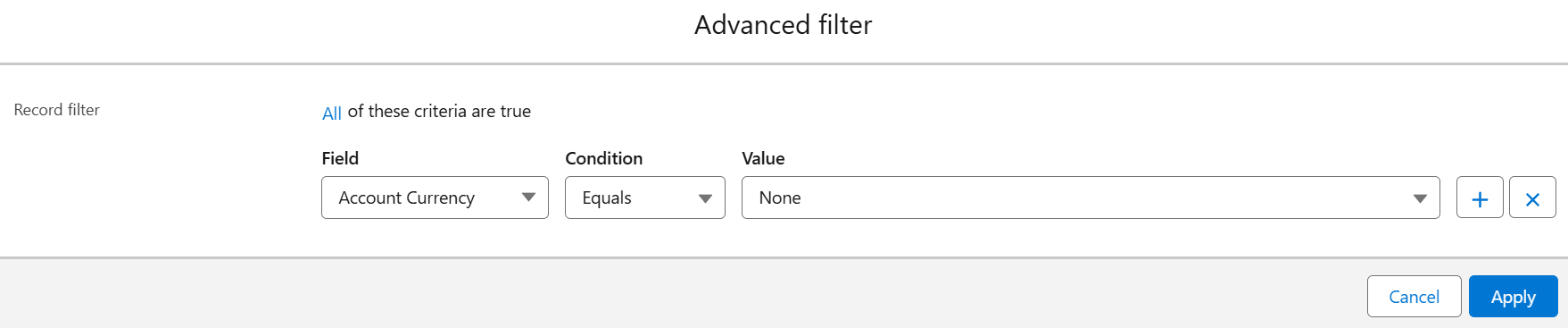
Advanced filter in Salesforce app.
-
Column sort – For MyBiz Teams app, click the Column sort button in the upper-right corner to access the Column sort window.
For MyBiz End user portal and MyBiz Salesforce app, click Column sort in the upper-right corner to access the Column sort window.
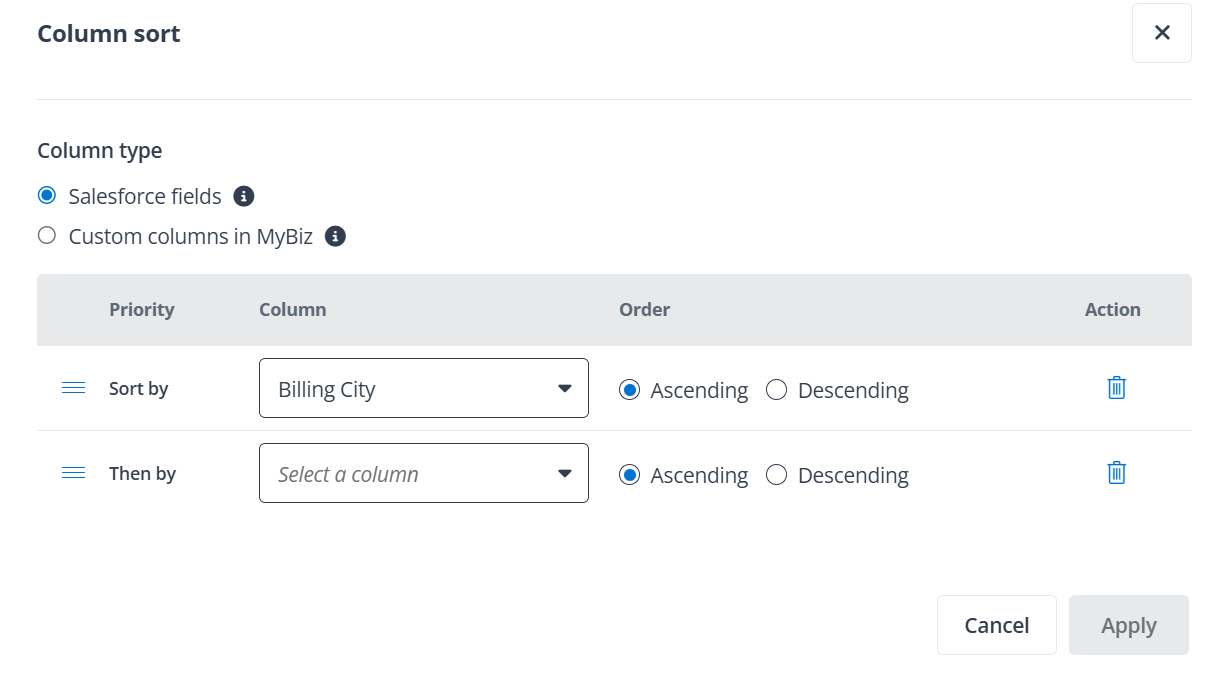
In the window, select the column type. Note that Salesforce fields support both single-column and multi-column sorting, while custom columns in MyBiz only support single-column sorting.
Then, select a column from the drop-down list and define to sort the column values in ascending or descending order. For Salesforce fields sorting, you can click Add a sort column to add up to 5 columns and define the sort order. You can also adjust the sort order of a column via dragging the order button in front of the column priority and dropping the column to the desired location.
To delete a column, click the Delete button next to the column.
After the configurations, click Apply to sort the column values based on your configurations.
NOTEIf you double-click a column that is not selected in the Column sort window, the column will be added to the window and the columns configured before will be removed from the window.
-
Edit columns – For MyBiz Teams app, click the Edit columns button in the upper-right corner to access the Edit columns panel.
For MyBiz End user portal and MyBiz Salesforce app, click Edit columns in the upper-right corner to access the Edit columns panel.
On the panel, you can click Add column and refer to the following instructions to add a column:
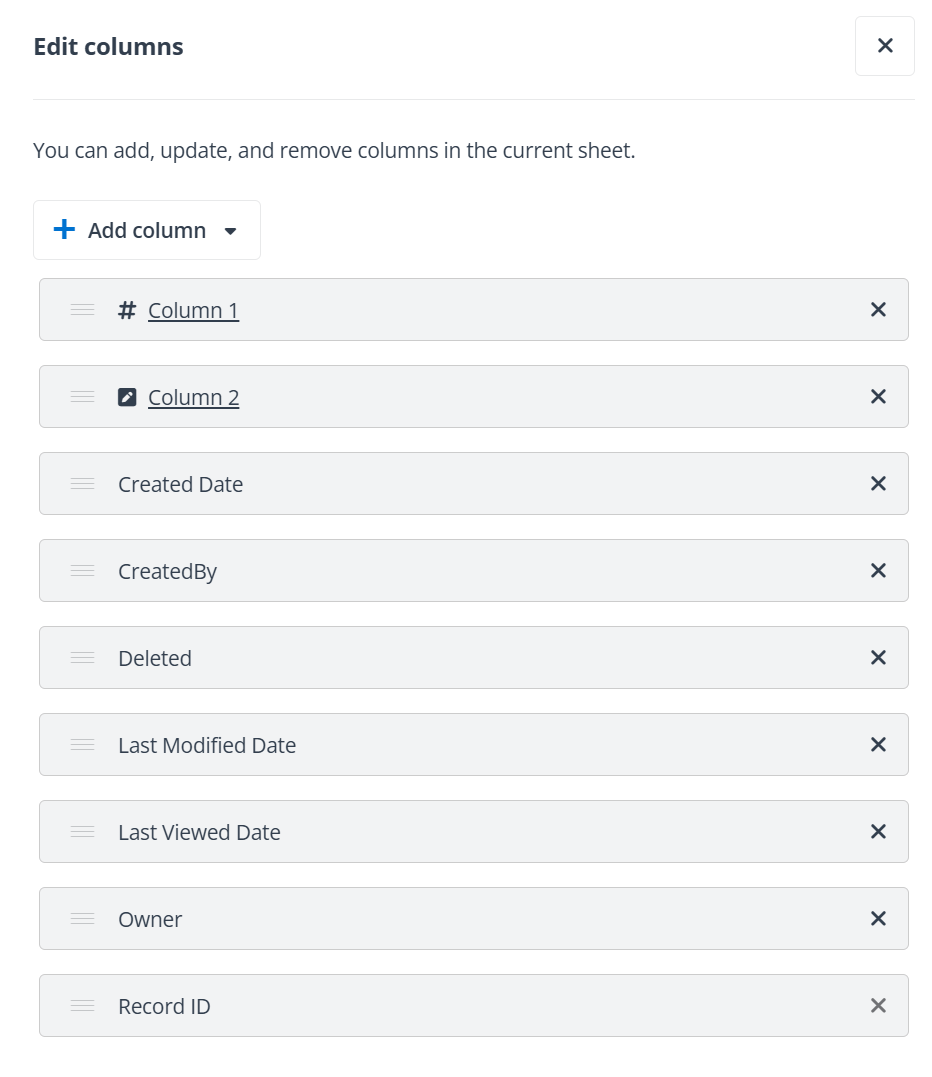
Edit columns panel in end user portal/Teams app.
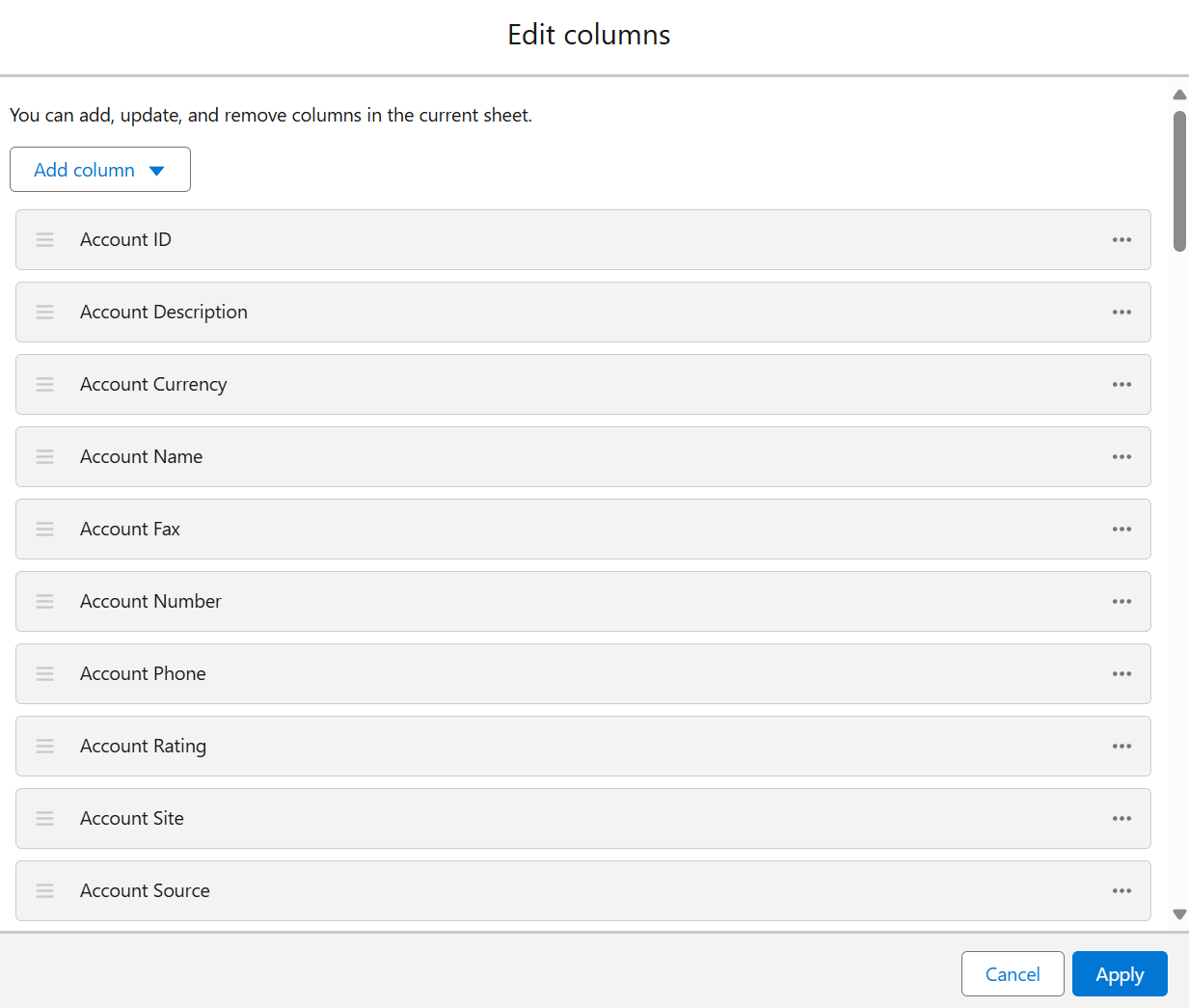
Edit columns window in Salesforce app.
-
Field column – Display or hide columns corresponding to Salesforce object fields in the current sheet. Click Add field columns to access the Add field columns panel, select or deselect columns to display or hide the columns in the sheet, and click Save to save your configurations. You can enter the keywords of a column in the search box and press Enter on the keyboard to search for the column.
-
Custom column – Enter a name for the column and complete the following instructions to add the column:
-
Single text – Click Single text, configure the visibility for the column, and click Save to save your configurations.
-
Picklist (Single-select) – Click Picklist (Single-select), configure the visibility for the column, configure values for the picklist, and click Save to save your configurations.
You can click Add to add more values. To delete a value, click the Delete button next to the value.
-
Picklist (Multiple-select) – Click Picklist (Multiple-select), configure the visibility for the column, configure values for the picklist, and click Save to save your configurations.
You can click Add to add more values. To delete a value, click the Delete button next to the value.
-
Checkbox – Click Checkbox, configure the visibility for the column, and click Save to save your configurations.
-
Formula – Click Formula, configure the visibility for the column, enter the desired formulas in the text box, and click Save to save your configurations. For more supported formulas, refer to Appendix A - Supported Formulas.
NOTEMake sure you use the column name to configure the formula. For example: =SUM([ColumnA],[ColumnB]).
To adjust the order of columns, hover your mouse over a column and drag it to the desired location.
To delete an added column, click the More button next to the column and click Remove.
To rename a field column, click the More button next to the column and click Rename. The Rename window appears. Enter the new name for the column in the Column name in MyBiz field and click Update to rename the column. Note that the name changes only apply to sheets in MyBiz and will not affect the fields in Salesforce.
To rename a custom column, click the column name to edit the name and click Save to save the updates.
To apply formula to a Salesforce field column, click the More button next to the column and click Settings. The Settings panel appears. Enable the Apply formula feature, select a formula from the drop-down list, and click Save to apply the formula to the column. Supported formulas: AVG, COUNT, COUNTUNIQUE, MIN, MAX, and SUM.
To set a column as a required or read-only field, click the More button next to the column and click Settings. The Settings panel appears. Enable the Set as required or Set as read-only, and click Save.
NOTEIf the column corresponds to a required or read-only field in Salesforce, the setting cannot be changed.
For Salesforce field columns of the Text type, you can also apply picklist to the columns. Refer to the following steps for details:
-
Click the More button next to the column and click Settings. The Settings panel appears.
-
Enable the Apply picklist feature.
-
Select the selection type for the picklist.
-
Enter a value in the text box. Click Add to add more values. To delete a value, click the Delete button next to the value.
For fields that are marked as unique and External ID in Salesforce, auto-numbered fields, and fields that are unique within the object (e.g. email address, URL, phone number), you can click the More button next to the column and click Mark as unique key to mark the column value as the unique key of the record. Then, when you update, create, or delete records in bulk, you can use the column value to identify the record. For details, refer to Create and Manage Sheets.
-
-
Preview a record – Click a record name to view the record details and the detailed information of related records.
Under the Record details tab, you can view the detailed information of the record.
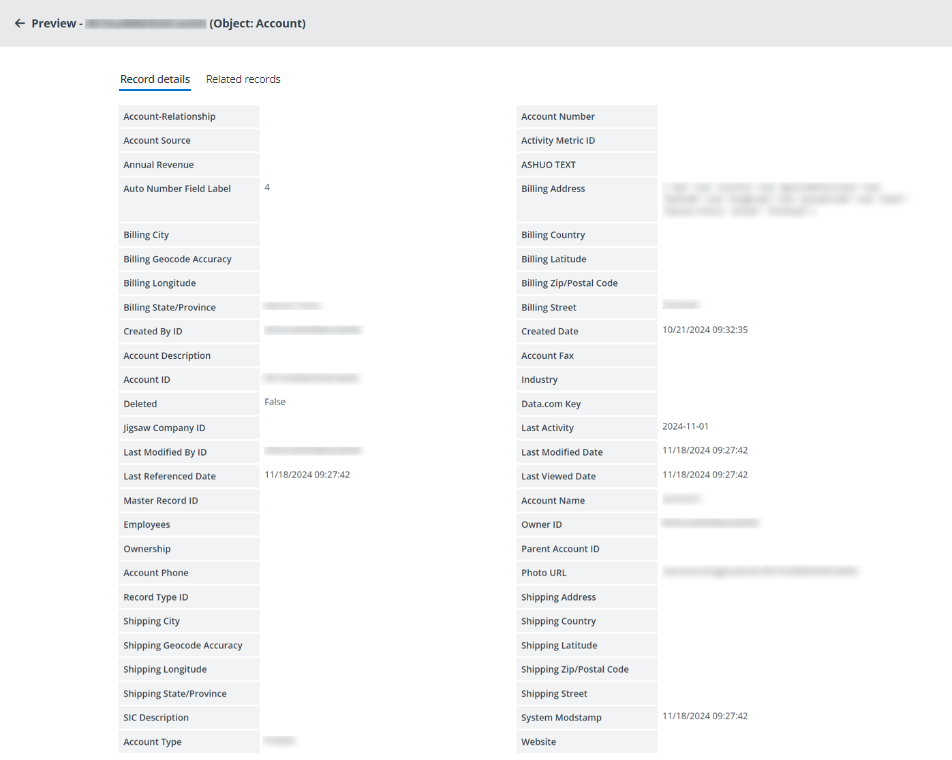
Record details page in end user portal/Teams app.
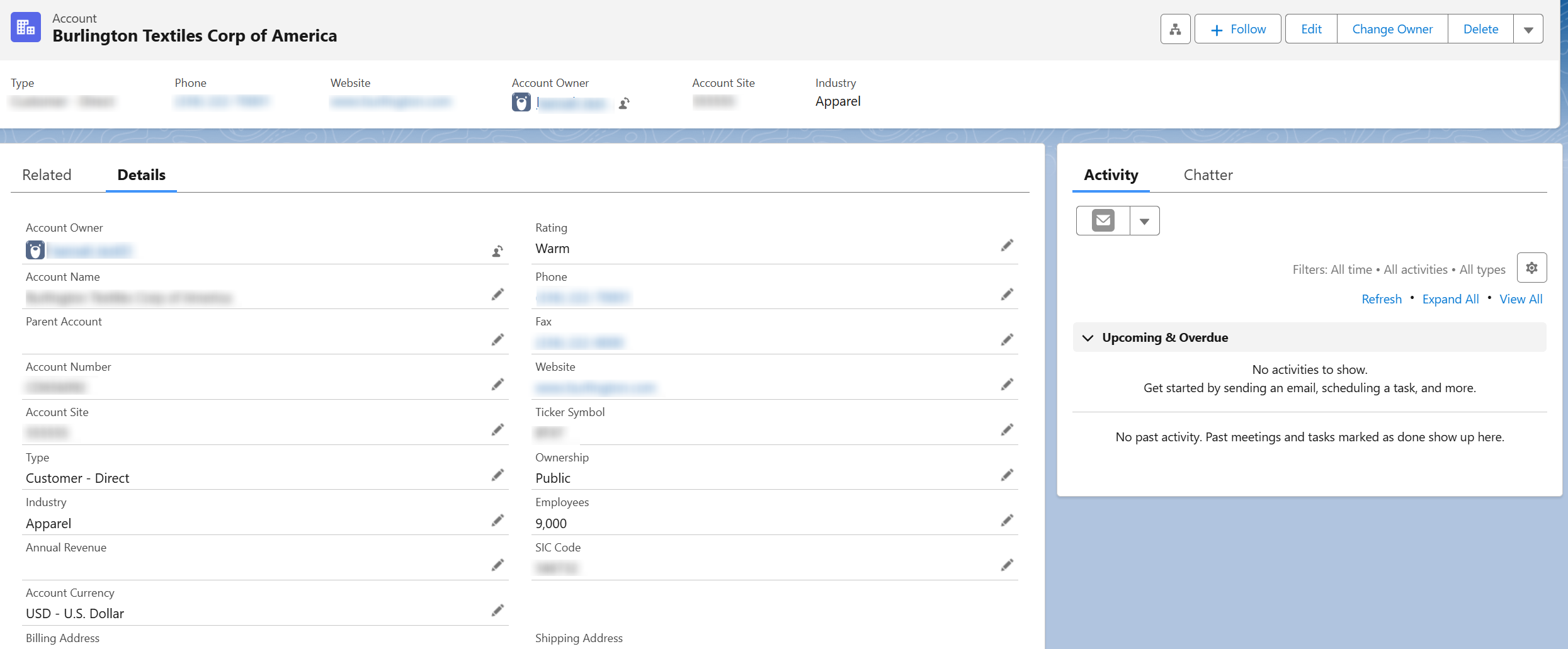
Details tab in Salesforce app.
Under the Related records tab, you can view the related objects and the number of related records in each object. To view the details of a related record, you can expand an object section and click the record link to view the detailed information. If the record has related files, documents, notes, or attachments, you can click the file, document, note, or attachment name to download it to your local device.
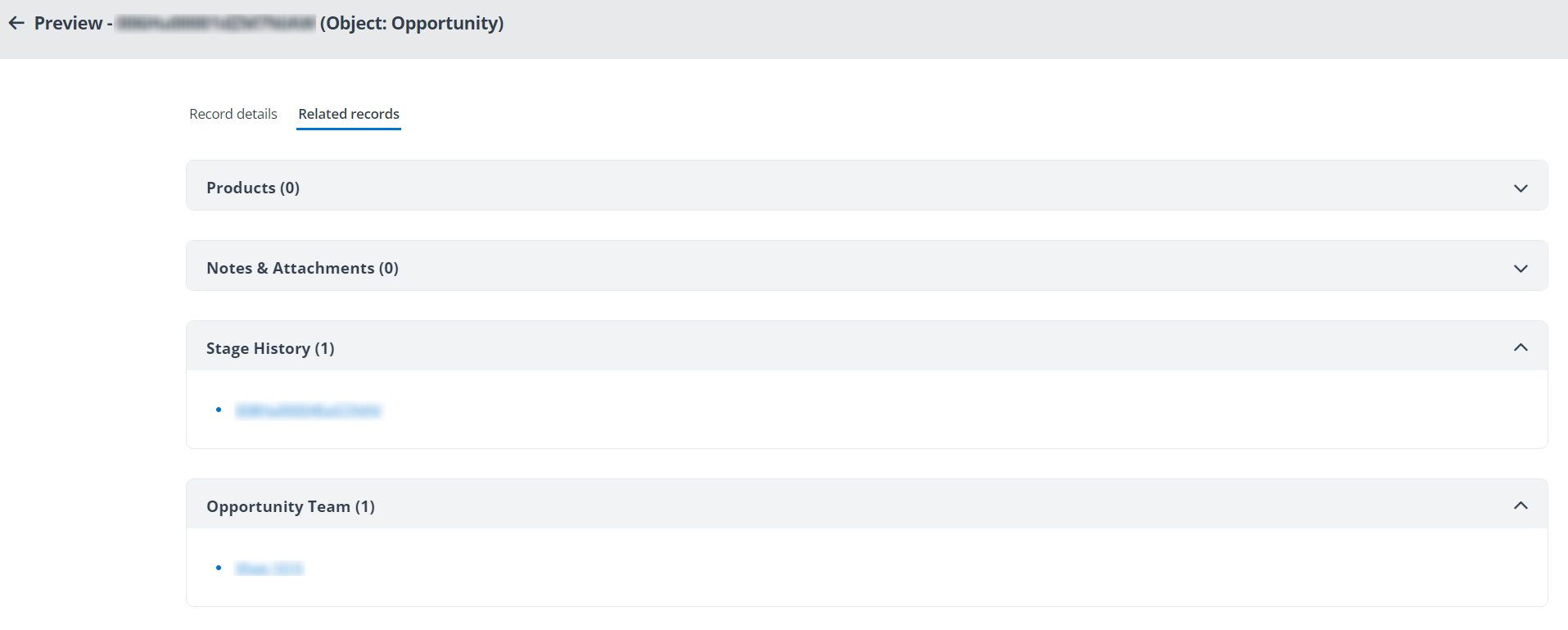
Related records tab in end user portal/Teams app.
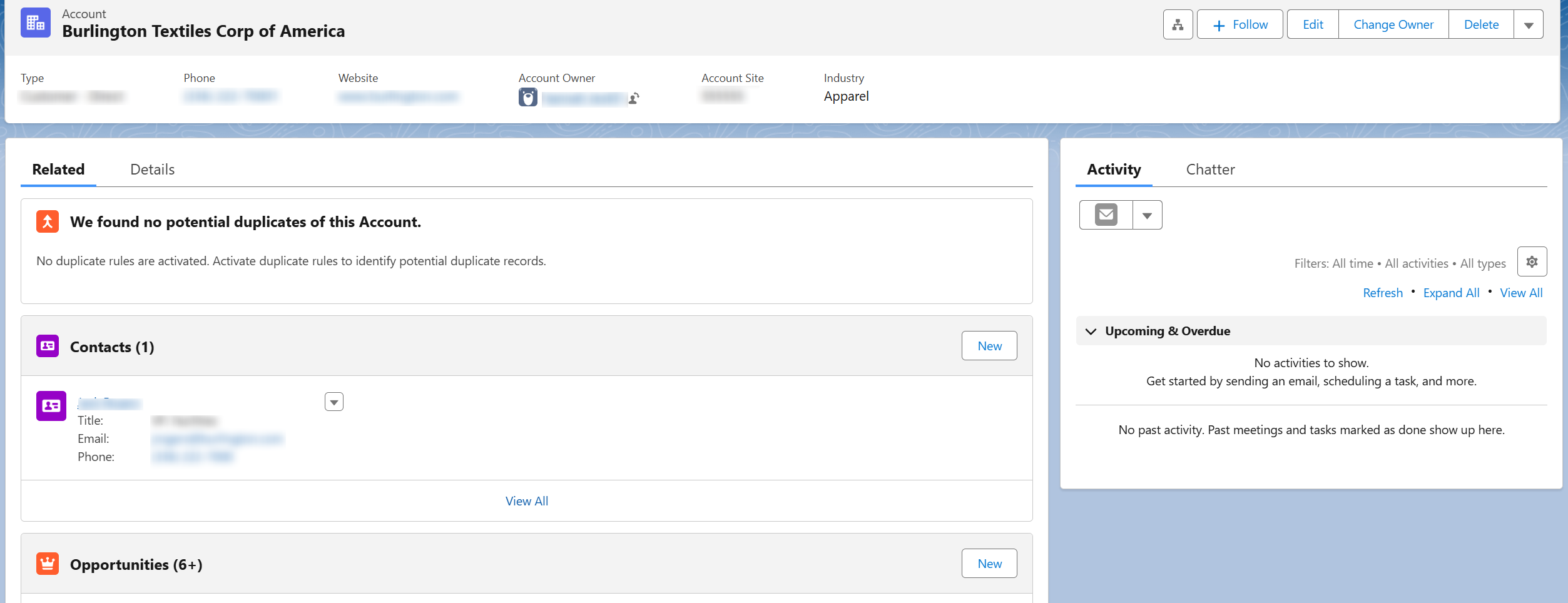
Related tab in Salesforce app.
-
Version history – Click Version history to access the Version history panel and view the user activities on the sheet.
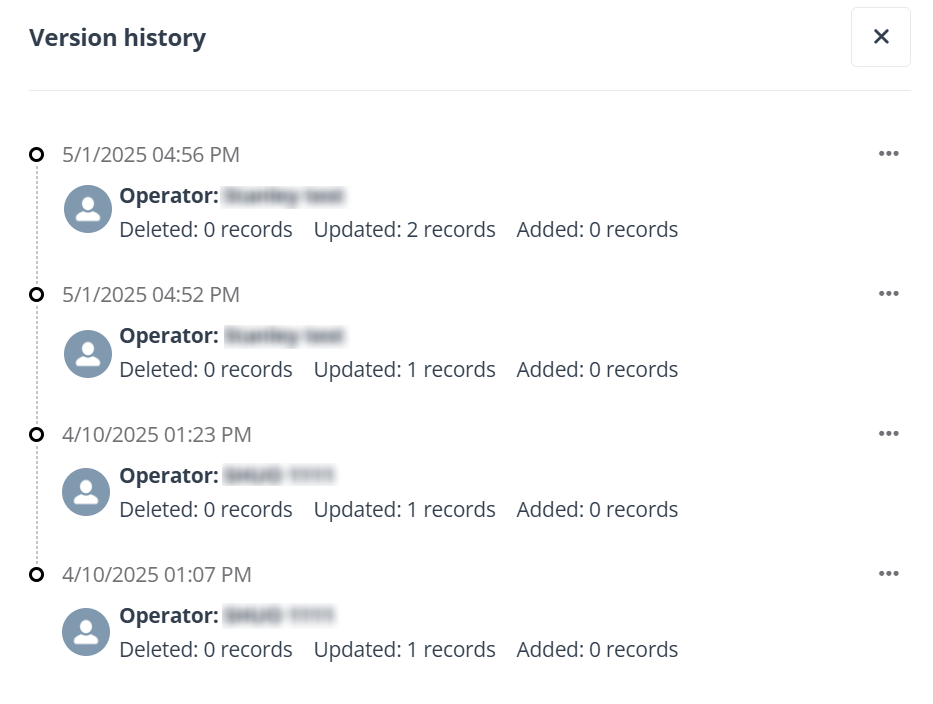
View history panel in end user portal/Teams app.
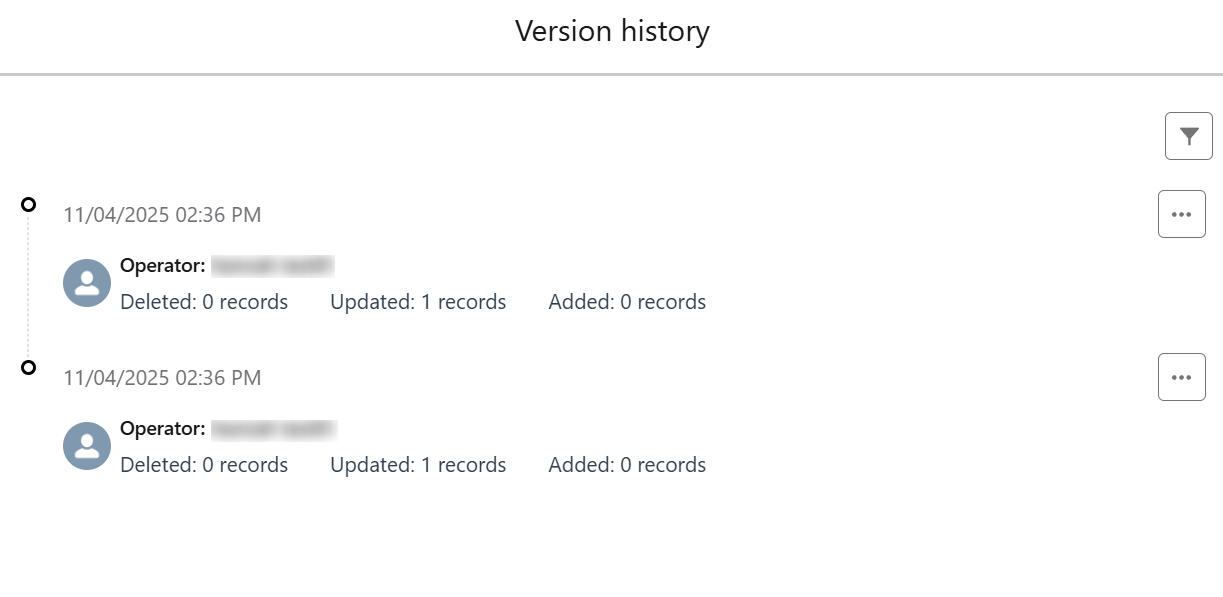
Version history window in Salesforce app.
You can click the More button next to a record and click Change log to view the details of the record.
To revert the changes on a record, select the changes and click Revert to Salesforce. The changes will be reverted to both MyBiz and Salesforce.
NOTEWhether the records can be successfully reverted depends on whether you have sufficient permissions in both MyBiz and Salesforce.
-
Change sheet layout – If the current sheet has a related sheet, the related sheet is added to the right of the original sheet by default. You can click the layout button in the upper-right corner of the related sheet to put the sheet to the right of the original sheet. To put the sheet below the original sheet, click the layout button in the upper-right corner.
-
Collapse or expand sheet – By default, the related sheet is expanded, you can click the Collapse button in the upper-right corner of the related sheet to collapse it. To expand it again, click the Expand button in the upper-right corner.
-
Sort in ascending order – Right-click a column name and click Sort in ascending order to sort the column values in ascending order. You can double-click the column name to sort the column values in descending order.
-
Sort in descending order – Right-click a column name and click Sort in descending order to sort the column values in descending order. You can double-click the column name to sort the column values in ascending order.
-
Hide column – Right-click a column name and click Hide to hide the column.
-
Show all columns – Right-click the cell in the upper-left corner and click Show all to show all hidden columns.
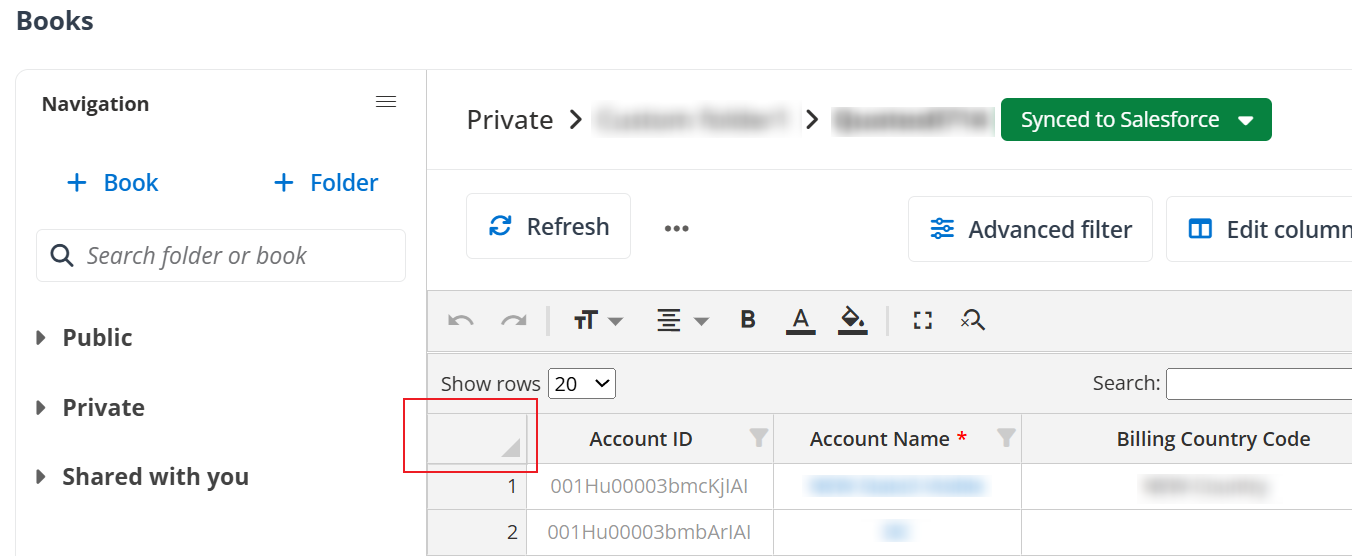
The cell in the upper-left corner in end user portal/Teams app.
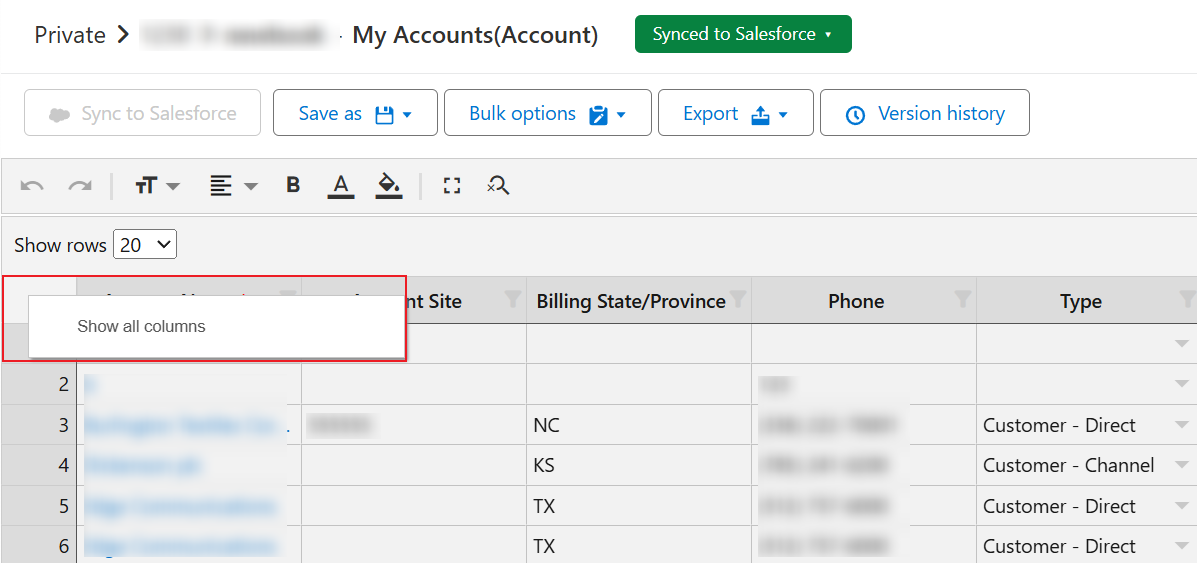
Show all columns in Salesforce app.
-
Filter column values – Click the Filter button next to a column, configure the values to be displayed or hidden by selecting or deselecting the value, and click OK to filter the column values. You can enter the keywords of the value in the search box to search the value.
-
Freeze cells – To freeze a column, right-click the name of the column to the right of the desired column and click Freeze.
To freeze a row, right-click the number of the row below the desired row and click Freeze.
-
Unfreeze cells – To unfreeze a column, right-click the name of the column to the right of the desired column and click Unfreeze.
To unfreeze a row, right-click the number of the row below the desired row and click Unfreeze.
-
Adjust column width – Hover your mouse over the edge of a column and drag the column horizontally to a desired width.
-
Adjust row height – Hover your mouse over the edge of a row and drag the column vertically to a desired height.
Edit Sheets
Click the arrow button in front of a folder in the left navigation and click the desired book name to view the sheets in the book. You can perform the following actions to manage each sheet in the book:
-
Bulk editing – Hover your mouse over the lower-right corner of a cell and drag it horizontally or vertically to the desired range of cells.
-
Insert a row – Right-click the number of a row and click Insert a new row above or Insert a new row below to insert a new row.
-
Delete rows – Select one or multiple rows, right-click the row number field, and Click Delete selected rows to delete the rows.
-
Add task – Right-click the number of a row, click Add task to access the Add task window. Configure the required information for the task and click Save to add the task.
-
Add note – Right-click the number of a row, click Add note to access the Add note window. Configure the required information for the note and click Save to add the note.
-
Mass add tasks – Select one or multiple rows, right-click the row number field, and click Mass add tasks to access the Mass add tasks window. Configure the required information for the task and click Save to add tasks for bulk records.
-
Mass add notes – Select one or multiple rows, right-click the row number field, and click Mass add notes to access the Mass add notes window. Configure the required information for the note and click Save to add notes for bulk records.
-
Undo – When there are edits in the sheet, you can click the Undo button to revert your last edit.
-
Redo – When there are edits in the sheet, you can click the Redo button to revert your newest edit.
-
Font size – Click the Font size button and select a size to adjust the font size.
-
Alignment – Click the Alignment button and select a style to adjust the text alignment.
-
Bold – Click the Bold button to bold the selected texts.
-
Font color – Click the Font color button and select a desired color to change the font color.
-
Fill color – Click the Fill color button and select a desired color to highlight the cells.
-
Search and replace – Click the Search and replace button to open the Search and replace window. To search for the information, enter the keywords of the information in the Find text box and click Search. You can click Previous or Next to view the search results. If you want to replace the search results, also enter the new value in the Replace by text box. You can click Replace to replace the current search result, or click Replace all to replace all search results.
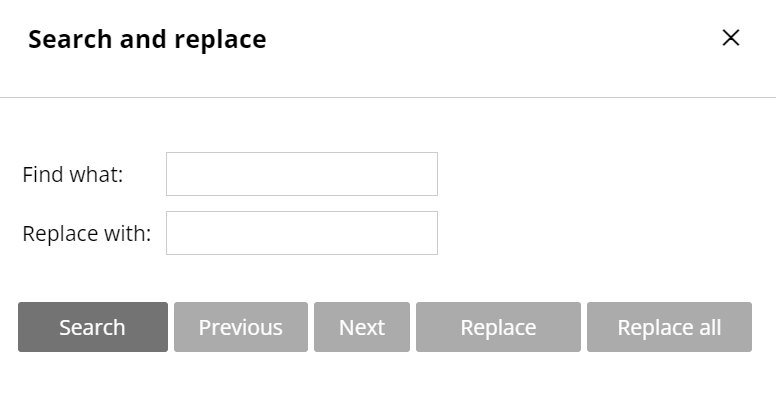
-
Rename a sheet – Right-click the sheet and click Rename to access the Rename the sheet window. Enter the new name in the New sheet name text box and click Save to rename the sheet.
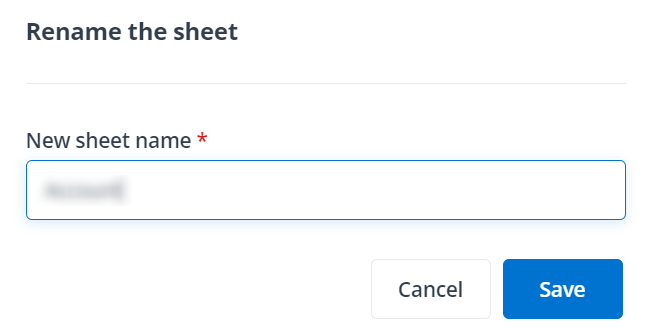
Rename the sheet window in end user portal/Teams app.
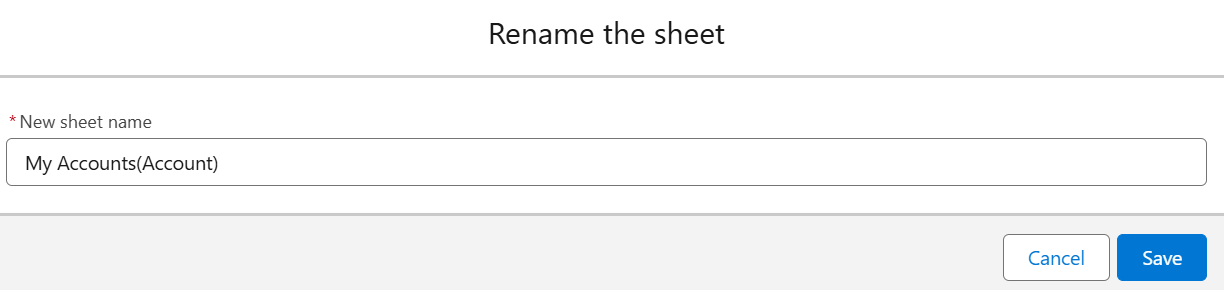
Rename the sheet window in Salesforce app.
-
Delete a sheet – Right-click the sheet, click Delete, and click Delete in the Delete the sheet? window to delete the sheet.
-
Sync to Salesforce – After updating a sheet, you can click Sync to Salesforce to sync your updates to Salesforce.
After you sync the updates on a draft to Salesforce, note the following:
-
The draft will become the major version of the sheet and the draft version will disappear from the version drop-down list.
-
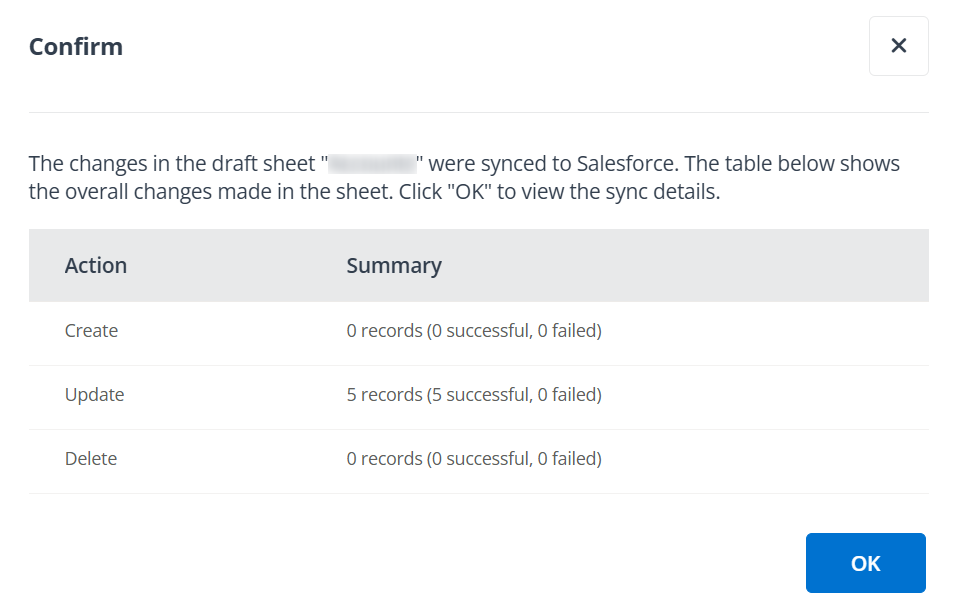
A window will appear showing the summary of changes on the sheet. You can click OK to view the sync details.
-
-
Save as new draft – After updating a sheet, you can click Save as new draft to access the Save as new draft window. Enter a name for the draft and click Save to save your updates as a draft. The updates in the draft will not be synced to Salesforce. If the sheet has multiple drafts, you can click the blue drop-down list next to the book name to switch the versions.
-
Save as new sheet – After updating a sheet, you can click Save as new sheet to access the Save as new sheet window. Enter a name for the new sheet and click Save to save your updates as a new sheet.
NOTEThis feature only available for sheets that have been synced to Salesforce.
-
Delete a draft – Click Delete and click Delete in the Delete the draft? window to delete the draft of the sheet.
-
Show chatter (Only available in MyBiz Salesforce app) – Right-click the sheet, click Show chatter to access the chatter panel. Then, click the row number of a record to view its chatter. You can perform actions such as posting, creating polls, sharing files, etc.
NOTETo use this feature, make sure the Chatter Settings are enabled in Salesforce and the Enable Feed Tracking setting is enabled for the object and field column.
MyBiz also supports using shortcut keys to perform the above actions and some common actions. Refer to Appendix B - Supported Shortcut Keys for details.
Export Sheets
MyBiz allows you to export records to your local device.
-
Click the arrow button in front of a folder in the left navigation and click the desired book name to view the sheets in the book.
-
Click the desired sheet name to access the sheet.
-
Click Export and select to export records in the current page or records in the current sheet as an Excel file to the download location of your browser.
There are some notes that need your attention:
-
If the updates have been synced to Salesforce, the data in the exported sheet will be the same as the data in Salesforce.
-
If the updates have been saved as a draft, the updates will be included in the exported sheet.
-
Even if the updates have not been synced to Salesforce or saved as a draft, the updates will be included in the exported sheet.
-
Share Private Sheets
Refer to the following steps to share the major version or a draft version of a private sheet:
-
Click the arrow button in front of the Private books folder in the left navigation and click the desired book name to view the sheets in the book.
-
Click a desired sheet and perform one of the following actions to share the sheet:
-
To share the major version of the sheet, click Share to access the Share the sheet window.
-
To share a draft version of the sheet, click the drop-down list next to the book name, select the desired draft, and click Share to access the Share the sheet window.
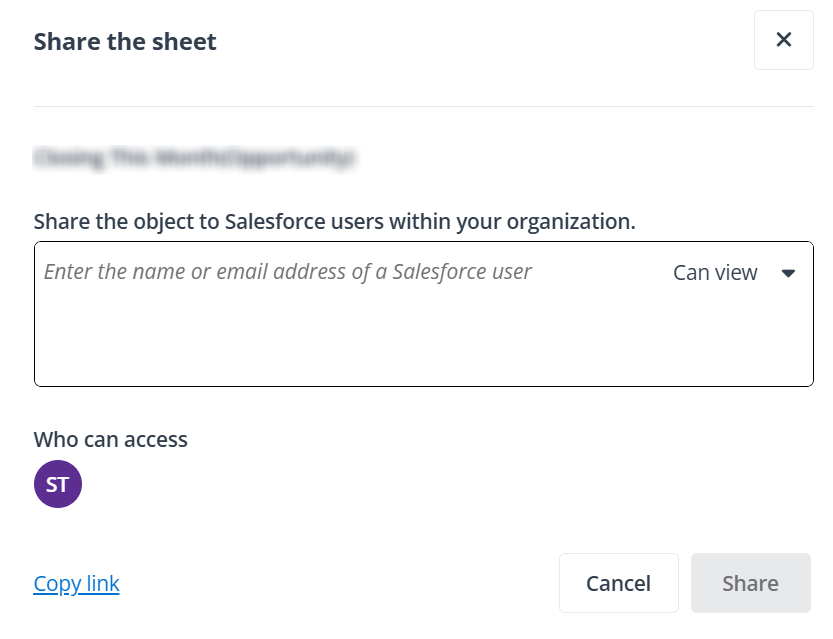
Share the sheet window in end user portal/Teams app.
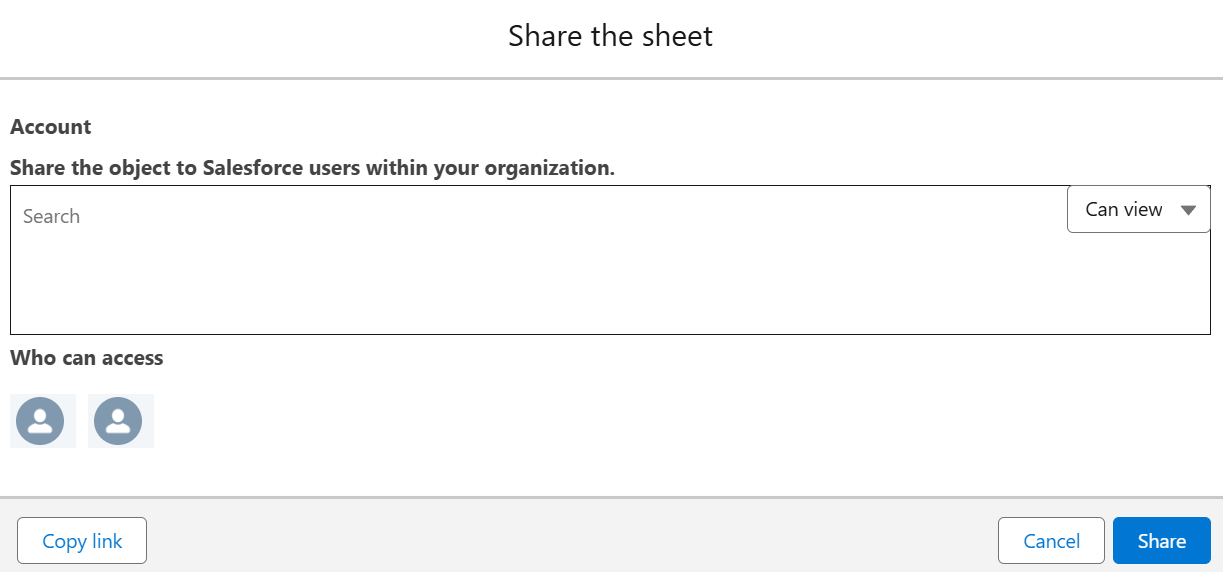
Share the sheet window in end user portal.
-
-
Enter the username or full name of one or more active Salesforce users in the text box and click the permission in the upper-right corner to assign permission to these users.
-
Click Share to share the sheet with these users, or click Copy link and send the copied link to these users.
If the sheet is shared to others, but the shared users do not have permission to the object in Salesforce, they cannot see the sheet in MyBiz. If the shared users do not have permission to the records in Salesforce, they cannot see these records in MyBiz even they have permission to the shared sheet.
Notify Shared Users (Only for MyBiz Teams App)
After sharing a sheet to specified users via MyBiz Teams app, you can refer to the following steps to send a Teams notification to these users:
-
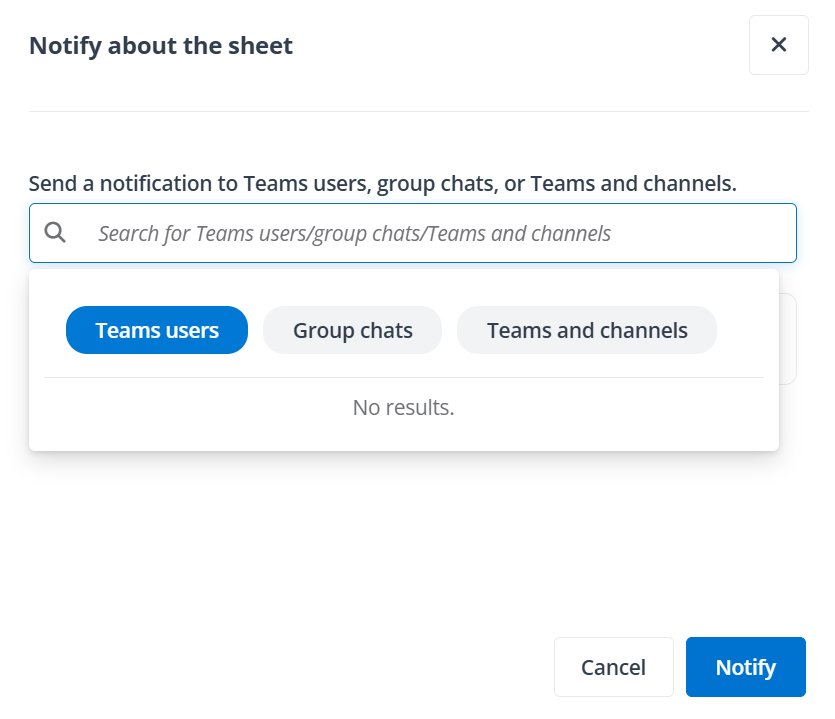
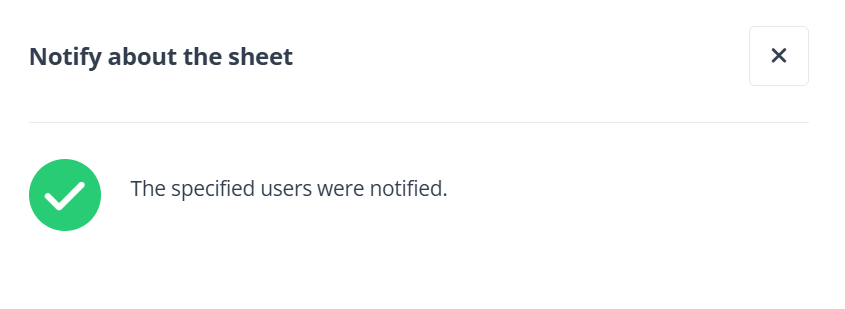
Click Notify. The Notify about the sheet window appears.
-
Enter the name of users, group chats, or teams and channels in the text box, and click Notify to send a Teams notification to them as a reminder.
Manage Private Sheet Access
Refer to the following steps to manage access of a private sheet:
-
Click the arrow button in front of the Private books folder in the left navigation and click the desired book name to view the sheets in the book.
-
In a sheet, click Share to access the Share the sheet window.
-
Click the users in the Who can access section to access the Manage access window.
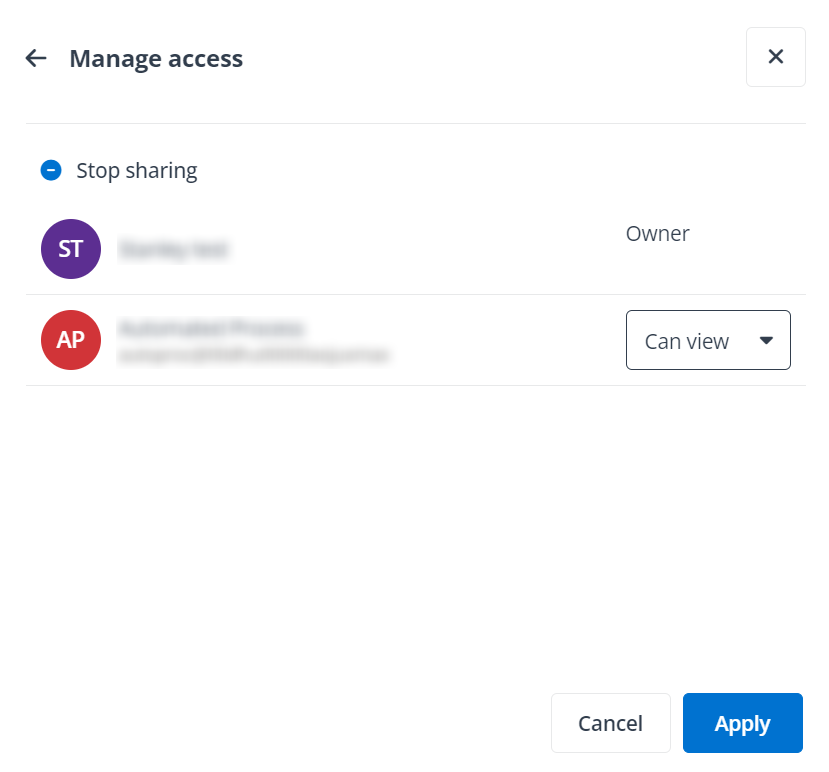
Manage access window in end user portal/Teams app.
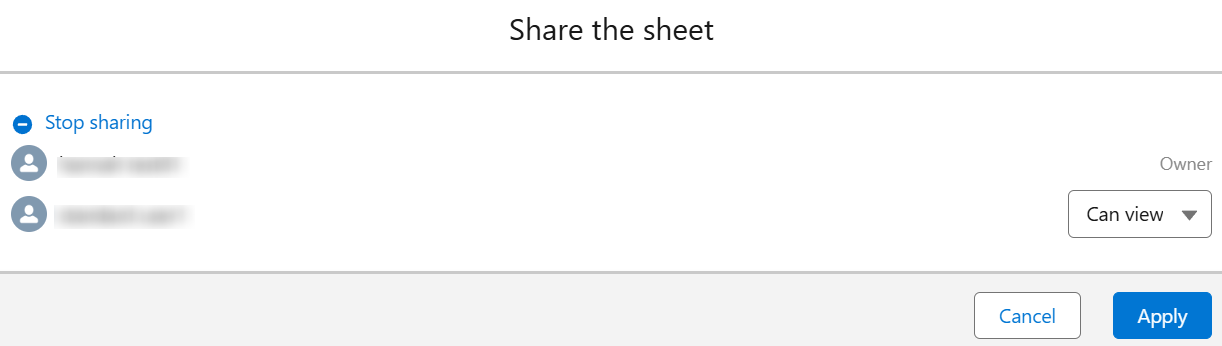
Manage access window in Salesforce app.
-
Click the permission next to a user, select a new permission, and click Apply to update the permission of the user. The permission of the owner cannot be edited.
You can also click Stop sharing to remove the permissions of all shared users. After you stop the data sharing, only the book owner can access the sheet.
Manage Impact of Sheet Changes
The impact scope of sheet changes is displayed on the top of each sheet. If you are the sheet owner, you can click the drop-down list to change the impact scope.
-
Allow authorized users to make personal changes – A user's changes to the sheet will only be applied within their own view.
-
Allow authorized users to make global – Any user's changes to the sheet will be applied to all users’ view.
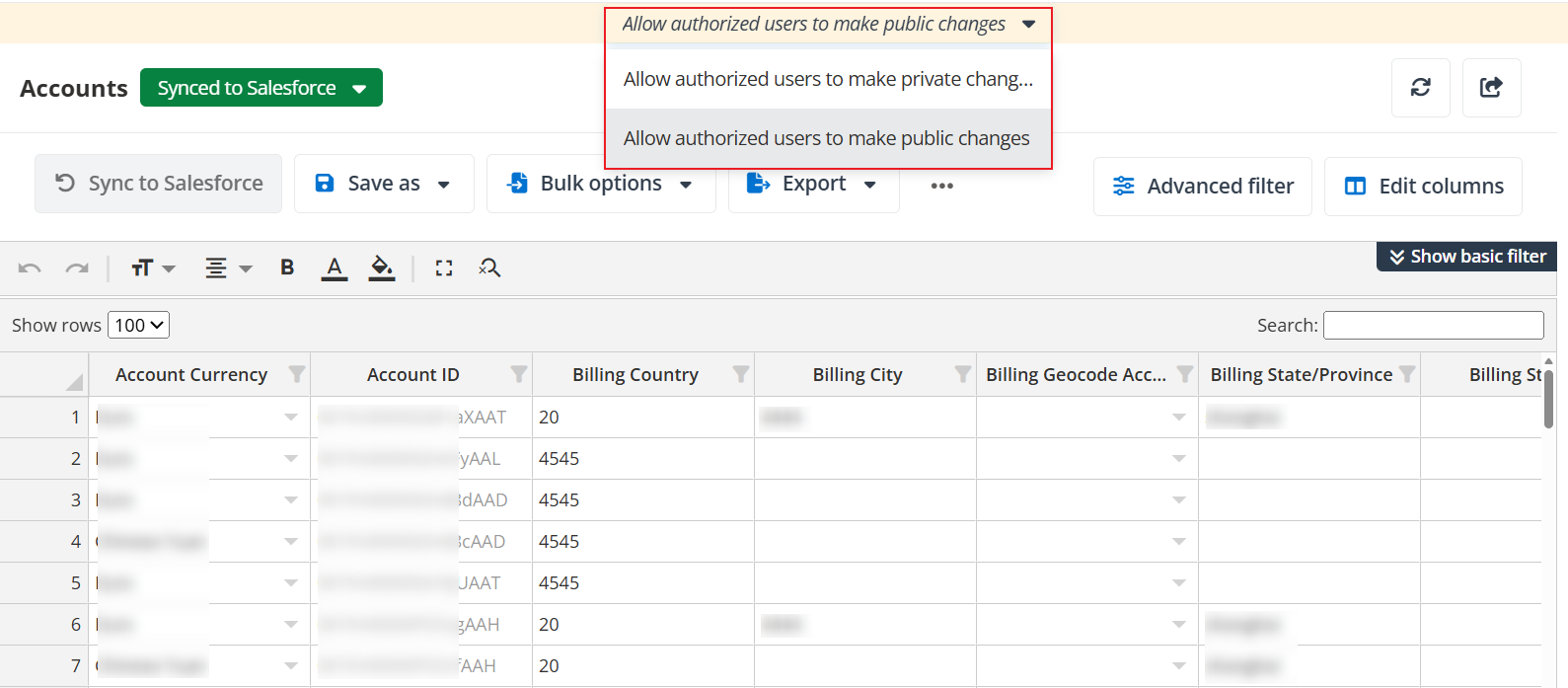
Options in end user portal/Teams app.
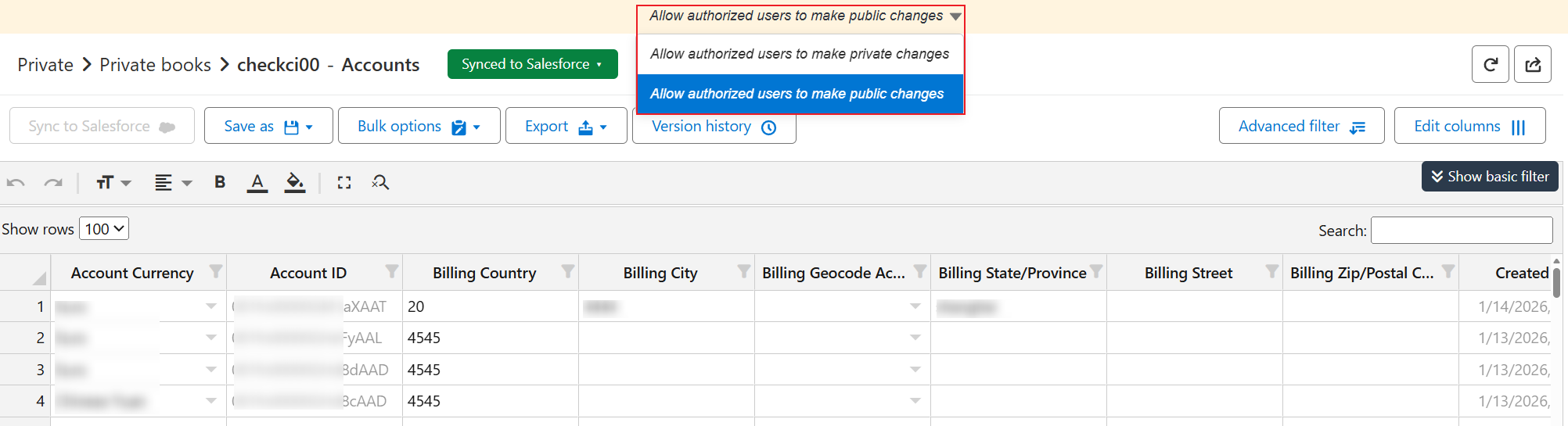
Options in Salesforce app.
Create/Update Records in Bulk
Refer to the following steps to create or update records in bulk:
-
Click the arrow button in front of a folder in the left navigation and click the desired book name to view the sheets in the book.
-
Click the desired sheet name to access the sheet.
-
Click Bulk operations > Import. The Import window appears.
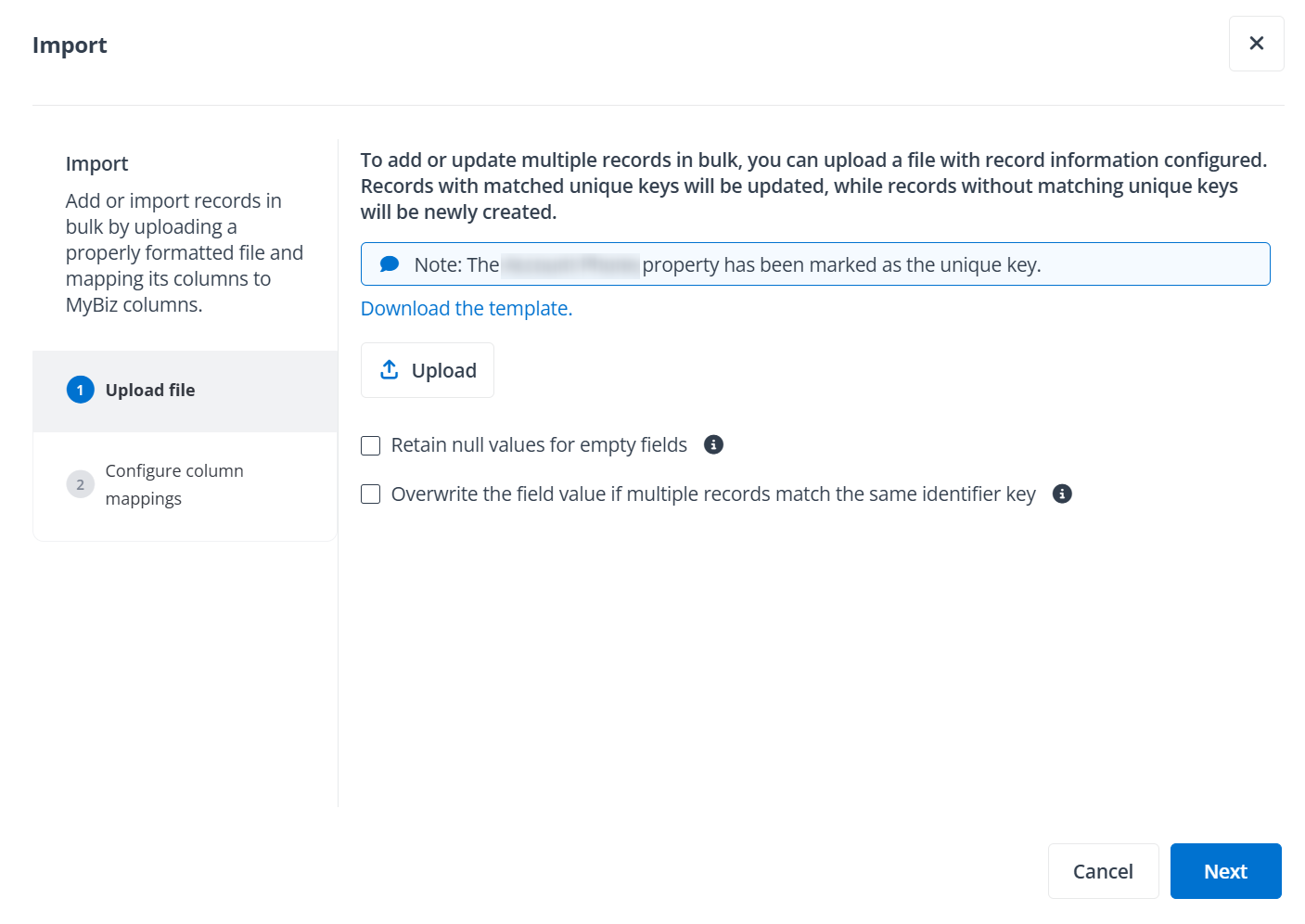
Import window in end user portal/Teams app.
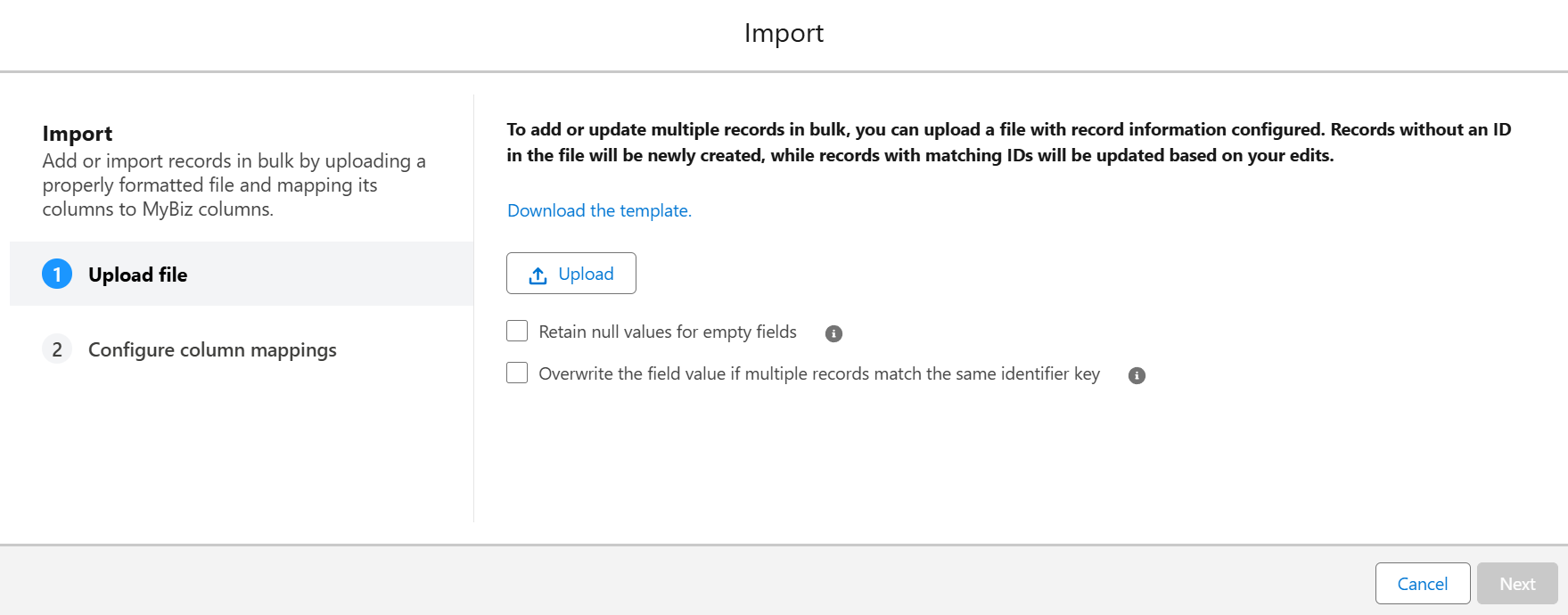
Import window in Salesforce app.
-
Click Download the template to download an Excel file with columns in the current sheet.
-
If you do not mark the unique key, refer to the following instructions:
-
For the records you want to add, configure the record information without the IDs in the file.
-
For the records you want to update, copy the record IDs to the file and configure the new information for the records. You can also export the records and update the records in the exported file.
If you mark the unique key, refer to the following instructions:
-
For the records you want to add, configure the record information without the unique key values in the file.
-
For the records you want to update, copy the unique key values to the file and configure the new information for the records. You can also export the records and update the records in the exported file.
-
-
Click Upload to upload the configured Excel file.
If there are some empty fields in the file and you want to retain the null value, select the Retain null values for empty fields checkbox below the Upload button.
If there are multiple records matching the same identifier key in the upload file, you can select the Overview the field value if multiple records match the same identifier key checkbox below the Upload button to overwrite the previous field value with the latest value.
-
Click Next to map the columns in the file to MyBiz columns.
The columns in the uploaded file will be automatically mapped to MyBiz columns based on their names. You can manually adjust the mapped MyBiz columns.
NOTEEach MyBiz column can only be mapped once.
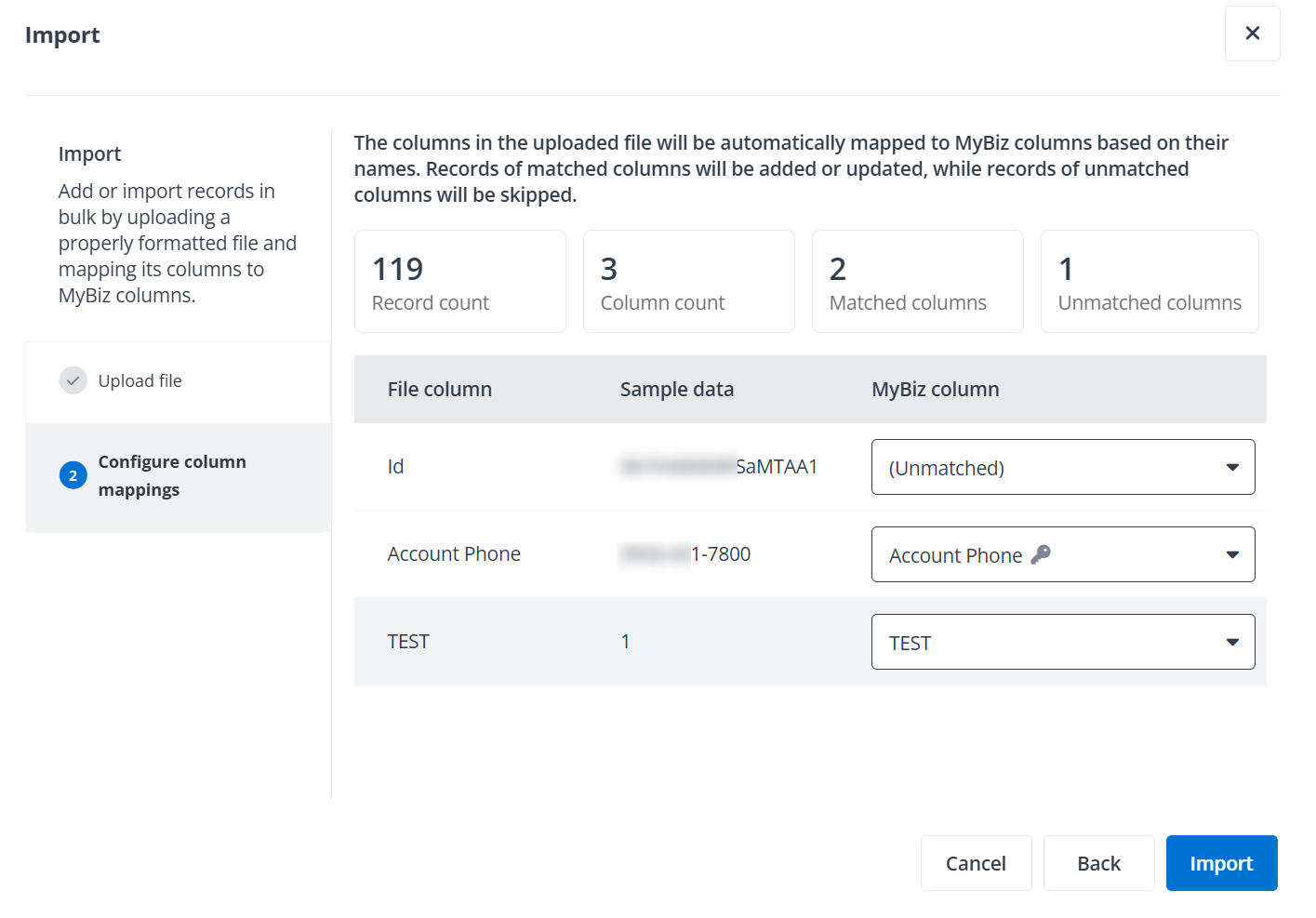
Configure column mappings in end user portal/Teams app.
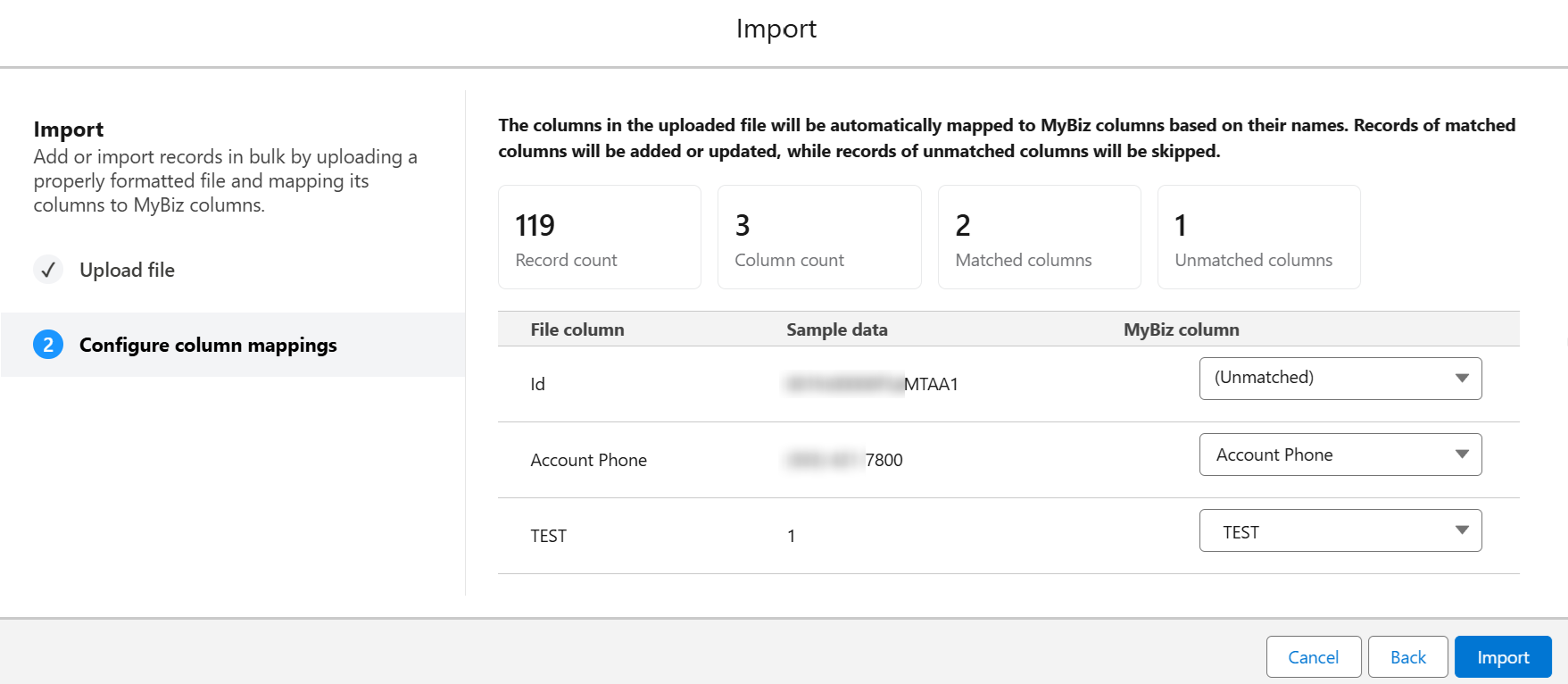
Configure column mappings in Salesforce app.
-
Click Import to create the records and add them to the sheet.
For records of matched columns, if there are matched identifier keys (unique keys or record IDs) in MyBiz, they will be updated. If there are no matched identifier keys in MyBiz, they will be newly added.
For records of unmatched columns, they will be skipped.
Delete Records in Bulk
Refer to the following steps to delete records in bulk:
-
Click the arrow button in front of a folder in the left navigation and click the desired book name to view the sheets in the book.
-
Click the desired sheet name to access the sheet.
-
Click Bulk operations > Bulk delete. The Bulk delete window appears.
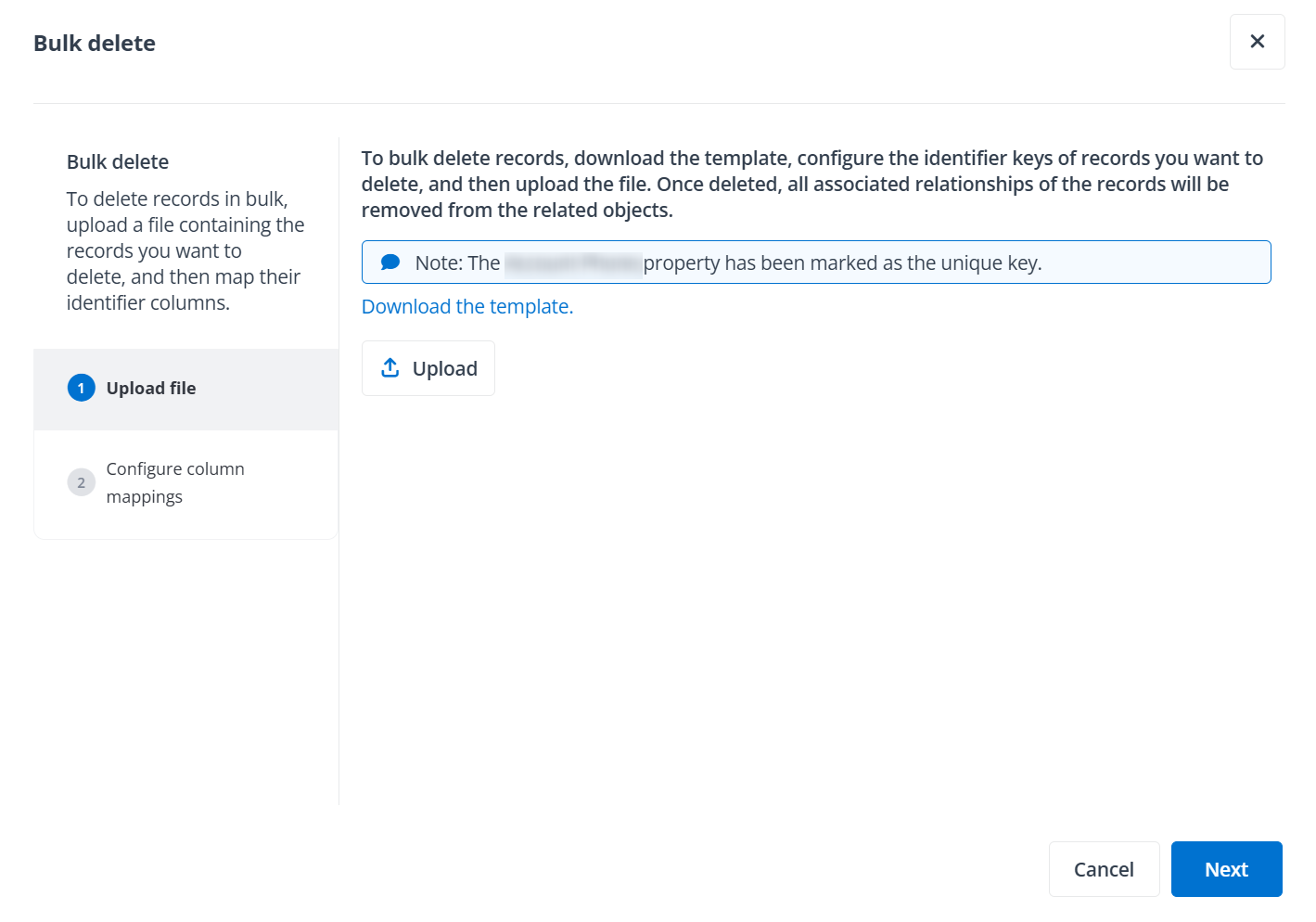
Bulk delete window in end user portal/Teams app.
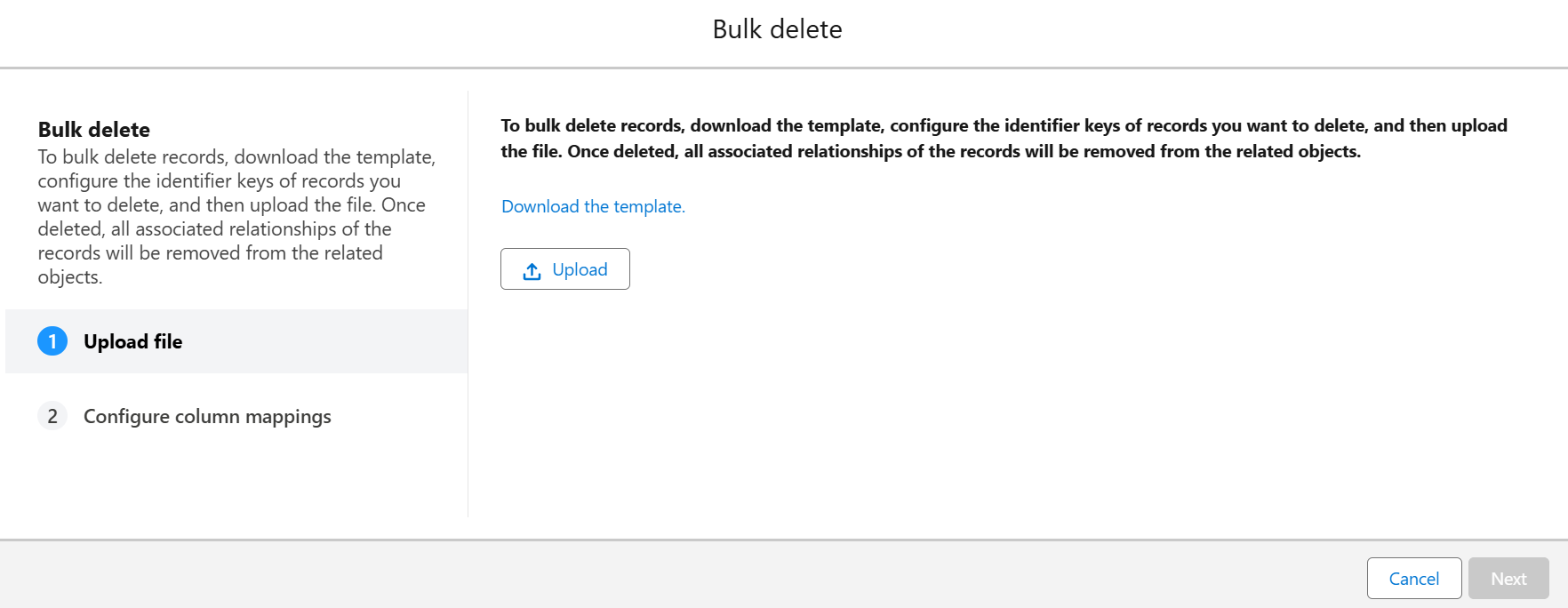
Bulk delete window in Salesforce app.
-
Click the Download the template link to download the template file.
-
Configure the records you want to delete in the file and save it.
NOTEIf you mark the unique key, make sure you have copied the unique key column values of records you want to delete to the file.
-
Then, click Upload to upload the file.
-
Click Next to map the columns in the file to MyBiz columns.
If you do not mark the unique key, records will be identified and deleted based on the record IDs. You can select a column to serve as the record ID column. Records that match the values in the specified record ID column will be deleted, while other records in the file will be skipped.
If you mark the unique keys, the columns in the uploaded file will be automatically mapped to MyBiz columns based on their names. You can manually adjust the mapped columns. Records that match the values in the specified unique key columns will be deleted, while other records in the file will be skipped.
NOTEEach column can only be mapped once. You must map at least one column to the identifier column (record ID or unique key) to identify the records to be deleted.
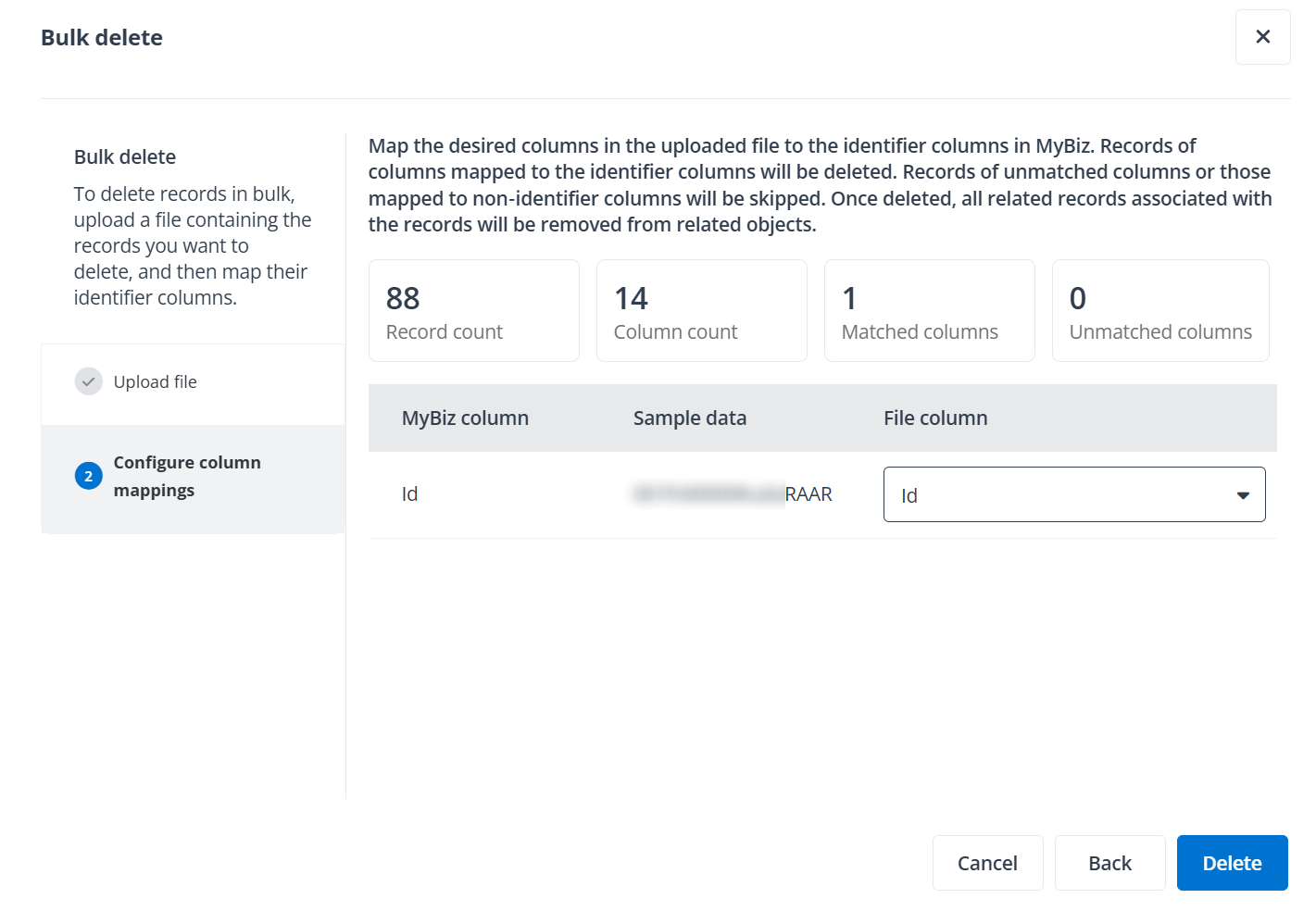
Configure column mappings in end user portal/Teams app.
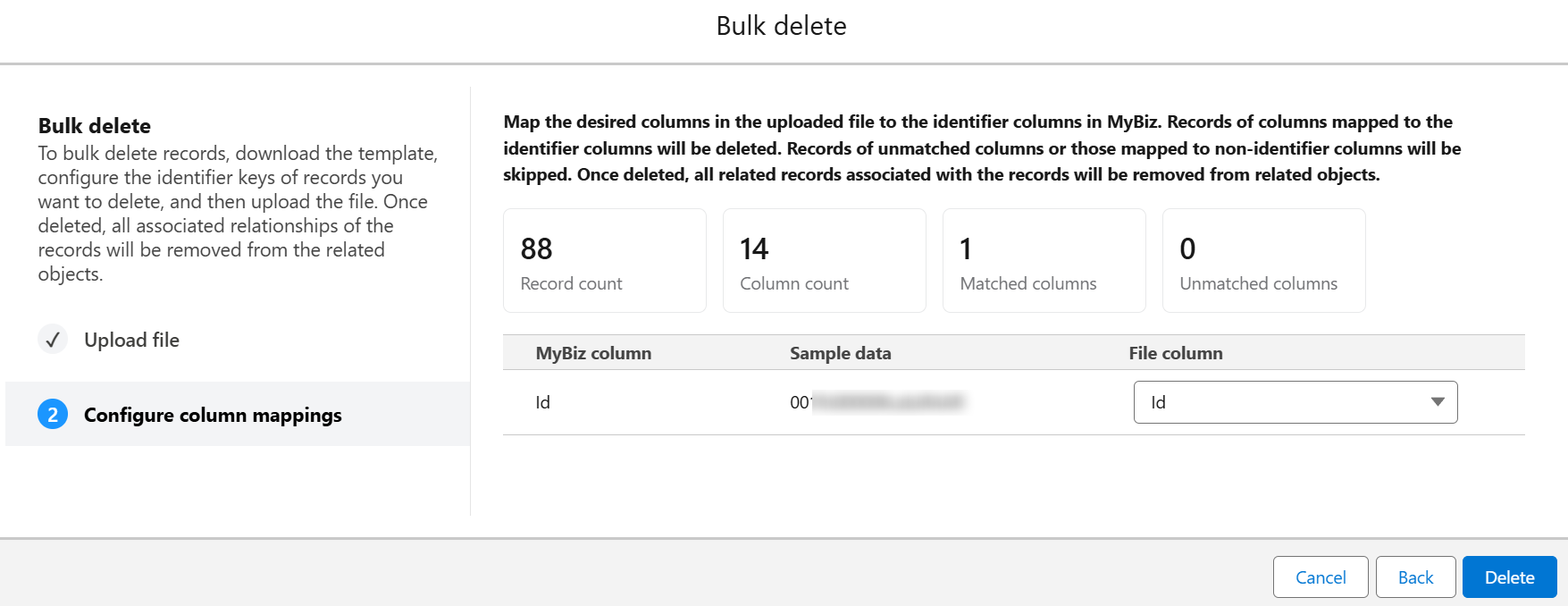
Configure column mappings in Salesforce app.
-
Click Delete to delete records in bulk. Once deleted, all associated relationships of the records will be removed from the related objects.
Configure Personal Profile
Refer to the following steps to configure your personal profile:
-
Click the arrow button in front of a folder in the left navigation and click the desired book name to view the sheets in the book.
-
Click the Configure personal profile button in the upper-right corner of the page. The Configure personal profile panel appears.
NOTEIn Salesforce app, click the Configure personal profile button to access the Configure personal profile window.
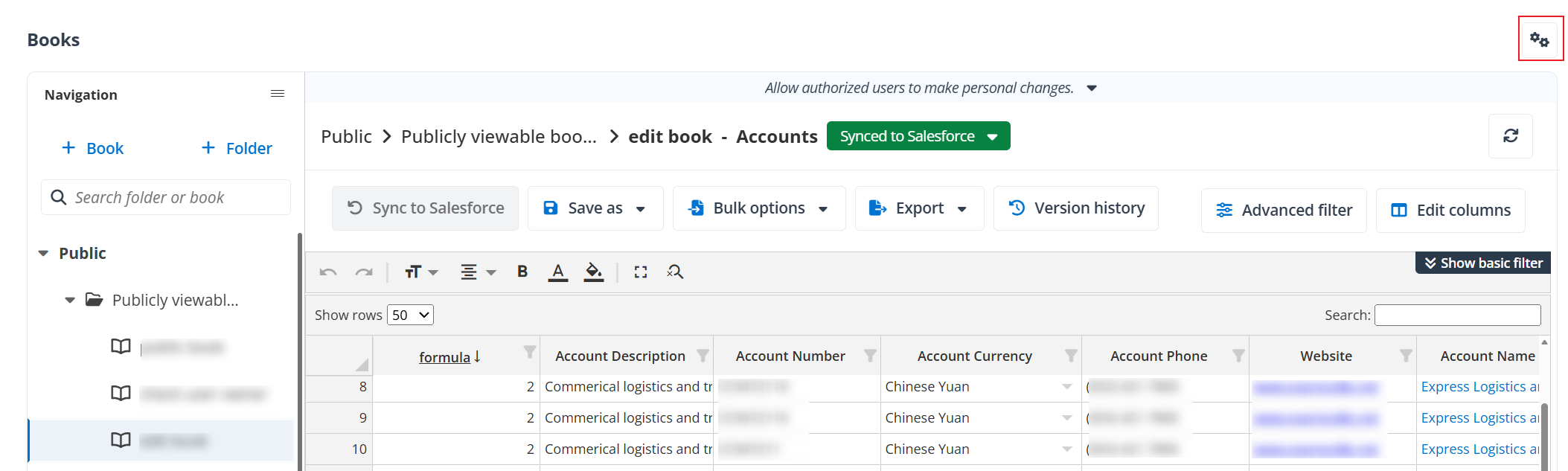
Configure personal profile button in end user portal/Teams app.
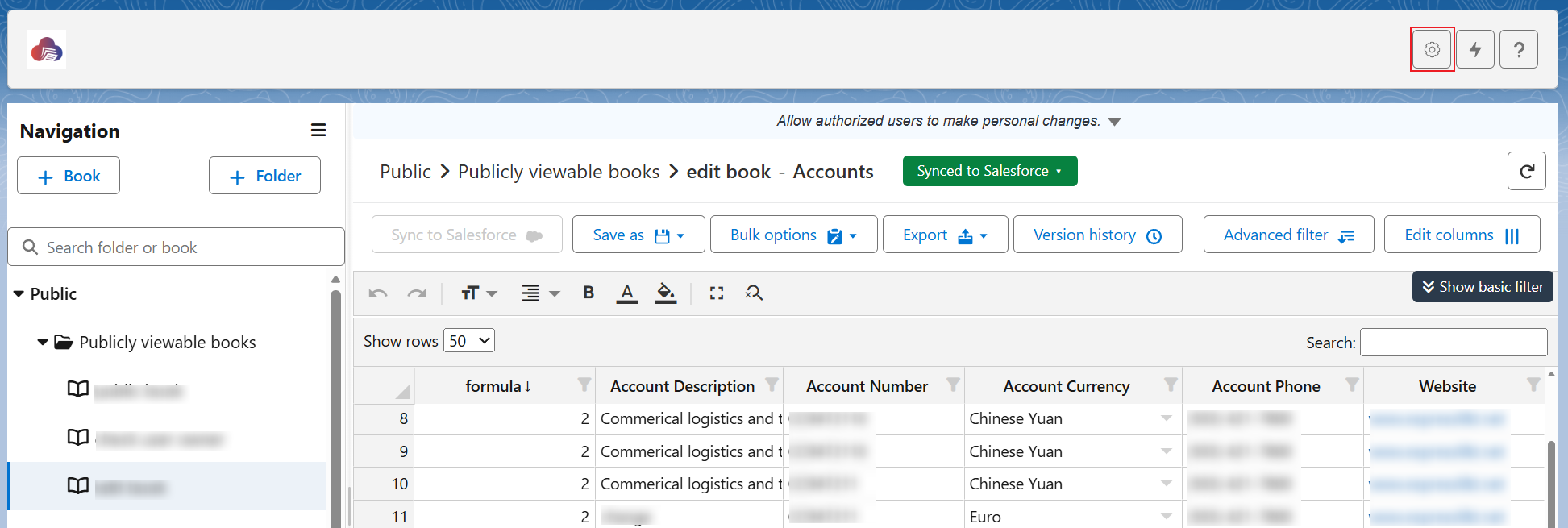
Configure personal profile button in Salesforce app.
-
Switch the toggle of each feature to enable or disable a feature.
-
Click Save to save the changes. Disabled features will be hidden from your interface.