
Home > Troubleshooting
Download this articleTroubleshooting
This troubleshooting guide is aimed at addressing unexpected issues and errors that you may encounter when using AvePoint Cloud Backup for Salesforce®.
DuplicateName
Issue:
Some records encountered exceptions in the restore with the following error code:
- DuplicateName
Details:
Salesforce does not allow duplicate names for records within the same object. The name of the record you are trying to restore conflicts with existing records in the Salesforce environment.
Solution:
To resolve this error due to duplicate records in the Salesforce environment, consider renaming the record with the duplicate name. If the existing record is no longer needed, you can delete it.
For sandbox seeding, you can configure sandbox seeding settings in Cloud Backup for Salesforce® to delete the existing data of the specified objects from the sandbox before the seeding process.
DuplicateValue
Issue:
Some records encountered exceptions in the restore with the following error code:
- DuplicateValue
Details:
There are two possible reasons:
-
The current configuration in the Salesforce environment may include active duplication rules designed to prevent the entry of duplicate data.
-
The object may have unique fields that do not allow different records to have the same value.
Solution:
For the first reason, refer to the following scenarios:
-
If the prevention of duplicate records aligns with your data management objectives, this message serves merely as a confirmation of the active rules. In this case, no further action is required, and any error messages regarding duplicates can be disregarded.
-
If the enforcement of duplicate prevention rules does not fit your use case, you can manually deactivate these rules within your Salesforce environment.
-
For the second reason, you can uncheck the Do not allow duplicate values option for this field in the Salesforce environment.

FlowException
Issue:
Some records of an object encountered exceptions in the restore with the following error code:
- FlowException
Details:
There is an active flow under the object in your Salesforce environment and the flow is a blocker to restore jobs.
Solution:
You can disable the corresponding flow in your Salesforce environment or enable the Deactivate related triggers, flows, workflow rules, and processes during the restore option when configuring restore settings in Cloud Backup for Salesforce®.
GlobalPicklistNotExist
Issue:
Some records encountered exceptions in the restore with the following error code:
- GlobalPicklistNotExist
Details:
The field of the records is a picklist.
If you restore the data to the original organization, the picklist field uses the values from a global picklist, but the global picklist does not exist in your Salesforce environment now.
If you restore the data to another organization, the picklist field uses the values from a global picklist in the source organization, but the global picklist does not exist in the destination organization.
The field name is provided in the Comment column of the job report.

Solution:
If you restore the data to the original organization, create the global picklist first in your Salesforce environment before the restore.
If you restore the data to another organization, create the global picklist first in the destination organization before the restore.
You can also create the global picklist by restoring metadata in AvePoint Cloud Backup for Salesforce®. Follow the steps below:
-
Get the Global Value Set of the global picklist in the Salesforce environment.

-
Follow the steps in the User Guide to find the Global Value Set in AvePoint Cloud Backup for Salesforce® and restore it to the Salesforce environment.

InsufficientAccess
Issue:
Some metadata or records of an object encountered exceptions in the backup/restore with the following error code:
- InsufficientAccess
Details:
In the backup, the error occurs due to insufficient access permissions.
In the restore, the error may be due to the object not being supported for creation or update in the Salesforce environment. Please verify this in the latest Salesforce documentation. If the object is allowed for creation and update, the issue occurs due to insufficient access permissions**.**
Solution:
If you encounter an error in the backup, please grant the Modify Metadata Through Metadata API Functions/Modify All Data permission to the authenticated user for the organization connection.
If you encounter an error in the restore, we recommend granting the Modify All Data permission to the authenticated user for the organization connection.
InsufficientAccessReferenceId
Issue:
Some records encountered exceptions in the restore with the following error code:
- InsufficientAccessReferenceId
Details:
The parent object records do not exist in the Salesforce environment.
Solution:
If you did not select the option to restore the parent object records, select it and rerun the restore job.
If you already selected this option, the exception may be due to the unsuccessful restore of the parent object records. Resolve the errors in the restore of the parent object records and rerun the restore job.
InvalidEmailAddress
Issue:
Some records encountered exceptions in the restore with the following error code:
- InvalidEmailAddress
Details:
Due to your email settings in the destination Salesforce environment, Cloud Backup for Salesforce® will validate the email address in the restore process. The email address is invalid.
Solution:
Follow the steps to update the settings in the destination Salesforce environment and perform the restore again.
-
Click your avatar in the destination organization, then select Settings in the dropdown menu.
-
In the left sidebar, select Email > My Email Settings.
-
Select Send through Salesforce, and save the updates.

InvalidNamespace
Issue:
Some records encountered exceptions in the restore with the following error code:
- InvalidNamespace
Details:
The records use a namespace that belongs to a third-party package. Cloud Backup for Salesforce® does not support the backup and restore of third-party packages.
InvalidRecordType
Issue:
Some child object records were skipped in the restore with the following error code:
- InvalidRecordType
Details:
The authenticated user for the organization connection lacks the necessary permissions for the current record type.
Solution:
Grant the permission of the record type to the authenticated user in Salesforce.

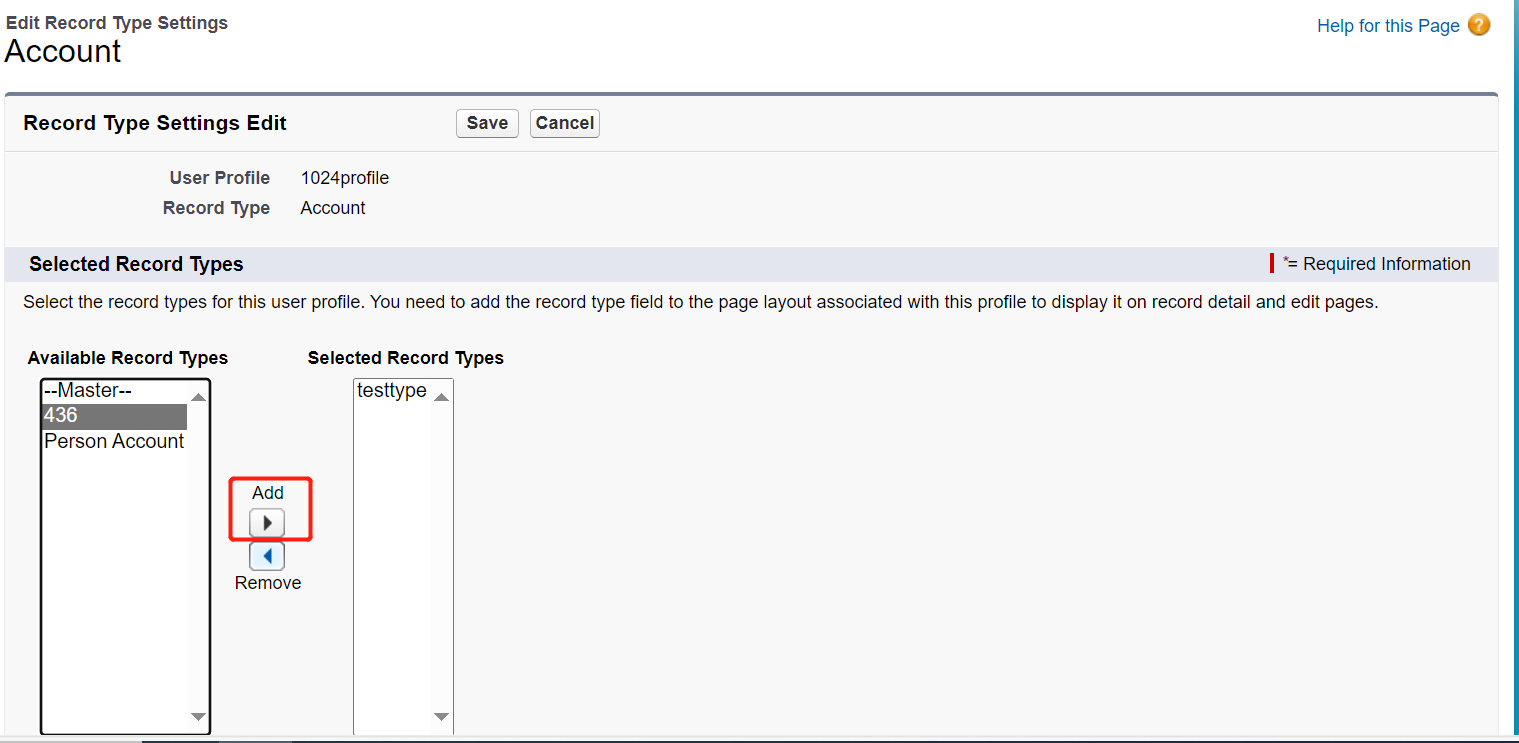
If the specified record type does not exist in your Salesforce environment, select to restore parent object records and rerun the restore job in the Cloud Backup for Salesforce® interface.
LookupFilterRule
Issue:
Some records of an object encountered exceptions in the restore with the following error code:
- LookupFilterRule
Details:
There is a lookup filter on the field of the object in your Salesforce environment and the lookup filter is a blocker to restore jobs. The field name is provided in the Comment column of the job report.
Solution:
You can manually deactivate the corresponding lookup filter in your Salesforce environment.
ManagedObject
Issue:
Some records encountered exceptions in the restore with the following error code:
- ManagedObject
Details:
These records are generated from third-party apps. Cloud Backup for Salesforce® does not support restoring records associated with third-party apps.
MetadataMissingParent
Issue:
Some metadata encountered exceptions in the restore with the following error code:
- MetadataMissingParent
Details:
The required parent metadata has encountered exceptions in the restore process.
Solution:
Try to address the error on the parent metadata and perform the restore again.
MoreThanOneSender
Issue:
Some records encountered exceptions in the restore with the following error code:
- MoreThanOneSender
Details:
The sender address of the email conflicts with the predefined value set for the From field in the Salesforce environment.
Solution:
Follow the steps to delete the predefined value in Salesforce environment and perform the restore again:
-
Go to Classic Salesforce > Setup > Customize > Cases > Buttons, Links, and Actions.
-
Click Email.
-
In the Predefined Field Values section, click Del to delete the predefined value configured for From field.

MissAuditFieldPermission
Issue:
Some records encountered exceptions in the restore with the following error code:
- MissAuditFieldPermission
Details:
The consent user for the app profile does not have sufficient permissions to create or update the following fields: CreatedDate, CreatedById, and LastModifiedById.
Solution:
If you encounter an error in the restore, please grant the Set Audit Fields upon Record Creation permission to the consent user for the app profile.
MissValueForPicklist
Issue:
Some records encountered exceptions in the restore with the following error code:
- MissValueForPicklist
Details:
The field of the records is a picklist.
If you restore the data to the original organization, some picklist values previously included in your Salesforce environment are not included now.
If you restore the data to another organization, some picklist values in the source organization are not included in the picklist field in the destination organization or there are no corresponding values in the destination organization.
The field name and the values are provided in the Comment column of the job report.
Solution:
If you restore the data to the original organization, check whether there are corresponding values in your Salesforce organization.
If you restore the data to another organization, check whether there are corresponding values in the destination organization.
If yes, you can add the missing values to the picklist field.
MultipleAccountsException
Issue:
Some records of an object encountered exceptions in the restore with the following error code:
- MultipleAccountsException
Details:
The object is the AccountContactRelation. It represents a relationship between a contact and one or more accounts. The Allow users to relate a contact to multiple accounts setting is disabled in the Salesforce environment and limits the restore of such relationships.
Solution:
Enable the Allow users to relate a contact to multiple accounts setting in Account Settings in the Salesforce environment.

NoBackupData
Issue:
Some records encountered exceptions in the restore with the following error code:
- NoBackupData
Details:
The records might be the parent or child object records of other records, so they are included in the restore process. However, the records do not exist in our backup data.
There are two possible reasons:
-
When creating the sandbox, data is copied from the production environment. It is likely that the data was not fully copied, and therefore, the records do not exist in the Salesforce environment and haven’t been backed up.
-
The authenticated user for the organization connection lacks the necessary permissions for this object, resulting in the records not being backed up.
Solution:
Please verify if the records exist in your Salesforce environment. If they exist, grant necessary permissions for the records and run a backup job.
NotEnabledForFeed
Issue:
Some records of an object encountered exceptions in the restore with the following error code:
- NotEnabledForFeed
Details:
The Feed Tracking was enabled for the object fields before the backup, but it was not enabled the corresponding object fields in the destination.
Solution:
Follow the steps to update the settings for the object in the destination Salesforce environment and perform the restore again.
-
Click Setup on the upper right corner of your destination organization, then search and select Chatter.

-
Click Customize field tracking in your feeds.
-
Select the corresponding object and enable feed tracking for its fields.

ObjectNotFound
Issue:
Some records of an object encountered exceptions in the archive with the following error code:
- ObjectNotFound
Details:
The associated object was deleted in Salesforce environment.
RecordSizeTooLarge
Issue:
Some records of an object encountered exceptions in the restore with the following error code:
- RecordSizeTooLarge
Details:
The file is larger than 30 MB limit for the SOAP API and cannot be restored.
ReferenceConvertedLeadException
Issue:
Some records of an object encountered exceptions in the restore with the following error code:
- ReferenceConvertedLeadException
Details:
The parent of the object is a converted lead object. Cloud Backup for Salesforce® does not support restoring records associated with converted lead objects.
RelationshipAlreadyExist
Issue:
Some metadata encountered exceptions in the restore with the following error code:
- RelationshipAlreadyExist
Details:
Salesforce does not allow duplicate child relationship names. The child relationship names between the metadata you are trying to restore conflicts with existing child relationship names in the Salesforce environment.
Solution:
To resolve this error due to duplicate child relationship names in the Salesforce environment, consider renaming the child relationship with the duplicate name.
If the object or reference field has been deleted but not erased, erase the deleted object or reference field before running the restore job.
RequiredParentNotExist
Issue:
Some child object records encountered exceptions in the restore with the following error code:
- RequiredParentNotExist
Details:
The required parent object records do not exist in the Salesforce environment.
Solution:
If you did not select the option to restore the parent object records, select it and rerun the restore job.
If you already selected this option, the exception may be due to the unsuccessful restore of the parent object records. Resolve the errors in the restore of the parent object records and rerun the restore job.
StorageLimitExceeded
Issue:
Some records encountered exceptions in the restore with the following error code:
- StorageLimitExceeded
Details:
The storage of the destination organization has exceeded the limit and there is not enough storage for the restore.
Solution:
You can either delete some existing data in the destination organization or increase the storage limit to provide enough storage for the restore.
StringTooLong
Issue:
Some records encountered exceptions in the restore with the following error code:
- StringTooLong
Details:
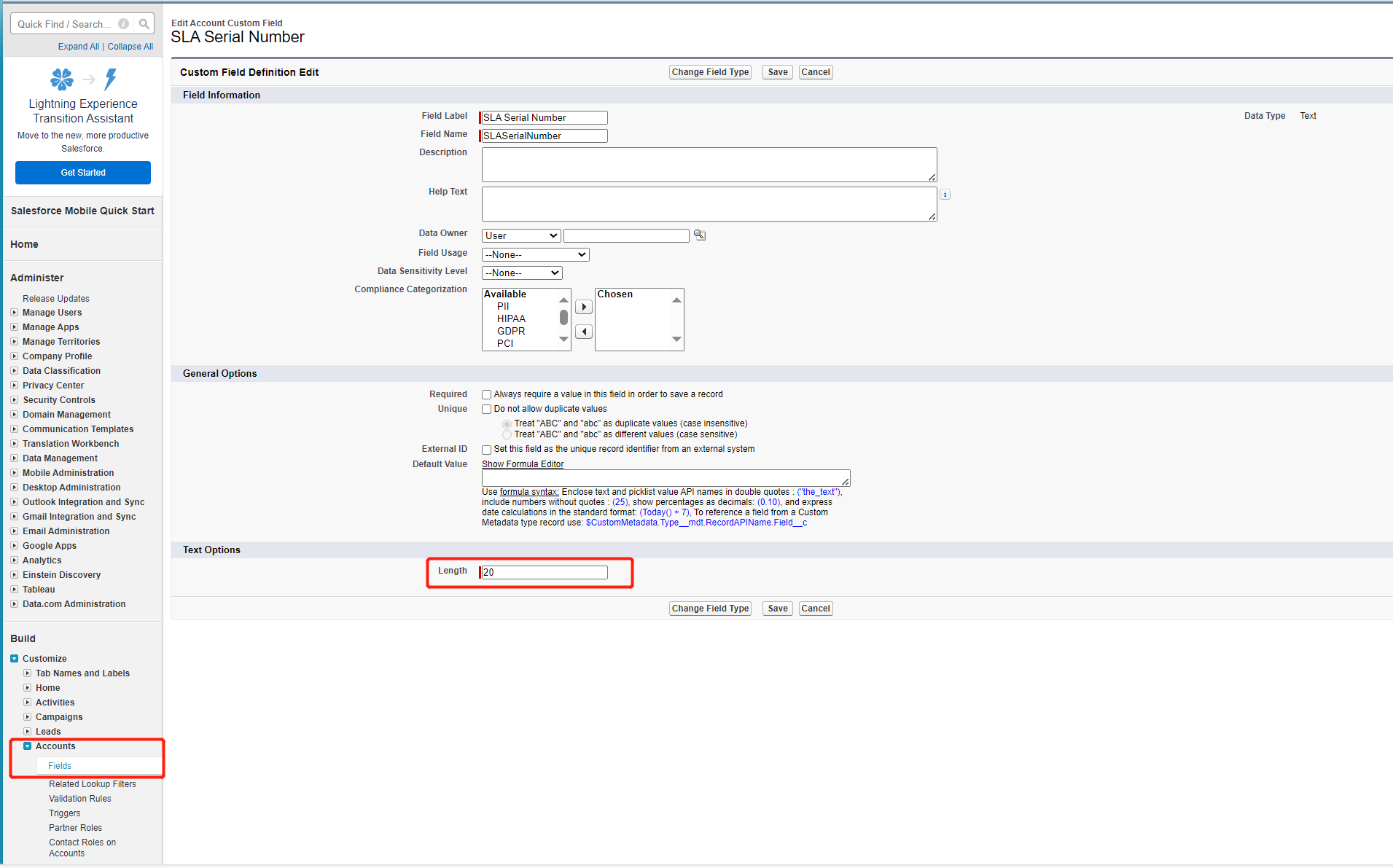
The length of the field value in the backup data exceeds the length limit of the field in the destination Salesforce organization.
Solution:
Modify the length limit of the field in the destination Salesforce organization.
Third-PartyRulesOrValidation
Issue:
Some records encountered exceptions in the restore with the following error code:
- Third-PartyRulesOrValidation
Details:
There are active third-party automations (triggers, flows, workflow rules, processes, and validation rules) in your Salesforce environment that block restore jobs.
Solution:
Cloud Backup for Salesforce® does not support deactivating third-party automations. You can deactivate the corresponding triggers, flows, workflow rules, processes, and validation rules of the third-party apps in your Salesforce environment.
TriggerException
Issue:
Some records of an object encountered exceptions in the restore with the following error code:
- TriggerException
Details:
There is an active trigger under the object in your Salesforce environment and the trigger is a blocker to restore jobs.
Solution:
You can disable the corresponding trigger in your Salesforce environment or enable the Deactivate related triggers, flows, workflow rules, and processes during the restore option when configuring restore settings in Cloud Backup for Salesforce®.
UnableToLockRow
Issue:
Some records encountered exceptions in the restore with the following error code:
- UnableToLockRow
Details:
The records are currently being accessed by a third-party API, rendering them unavailable for restoration through our API currently. For details, refer to the Salesforce article: Error 'Unable to lock row - Record currently unavailable'.
Solution:
The most appropriate action to resolve this issue is to attempt to rerun the restoration job later when the records may no longer be used by the third-party API.
UnsupportCreate
Issue:
Some records of an object encountered exceptions in the restore with the following error code:
- UnsupportCreate
Details:
Due to Salesforce API limitations, it’s not supported to create this type of object or its fields in the Salesforce environment.
*Note: For the EmailMessage object, the creation is only supported when the email is in Draft status.
UnsupportUpdate
Issue:
Some records of an object encountered exceptions in the restore with the following error code:
- UnsupportUpdate
Details:
Due to Salesforce API limitations, it’s not supported to update this type of object or its fields in the Salesforce environment.
*Note: Certain objects can only be updated when specific field values are met. If the field value does not satisfy these conditions, it may result in this error. For the field and its corresponding value, refer to the job report comment.
ValidationException
Issue:
Some records of an object encountered exceptions in the restore with the following error code:
- ValidationException
Details:
There is an active validation rule on the object in your Salesforce environment and the validation rule is a blocker to restore jobs.
Solution:
You can deactivate the corresponding validation rule in your Salesforce environment or enable the Deactivate all validation rules during the restore option when configuring restore settings in Cloud Backup for Salesforce®.