Home > Integrate with Tableau and Power BI > Connect to Tableau
Download this articleConnect to Tableau
The following two endpoints are provided to connect to Tableau:
SQL Server
To connect Tableau to SQL Server, complete the following steps:
-
Launch Tableau Desktop on your computer.
-
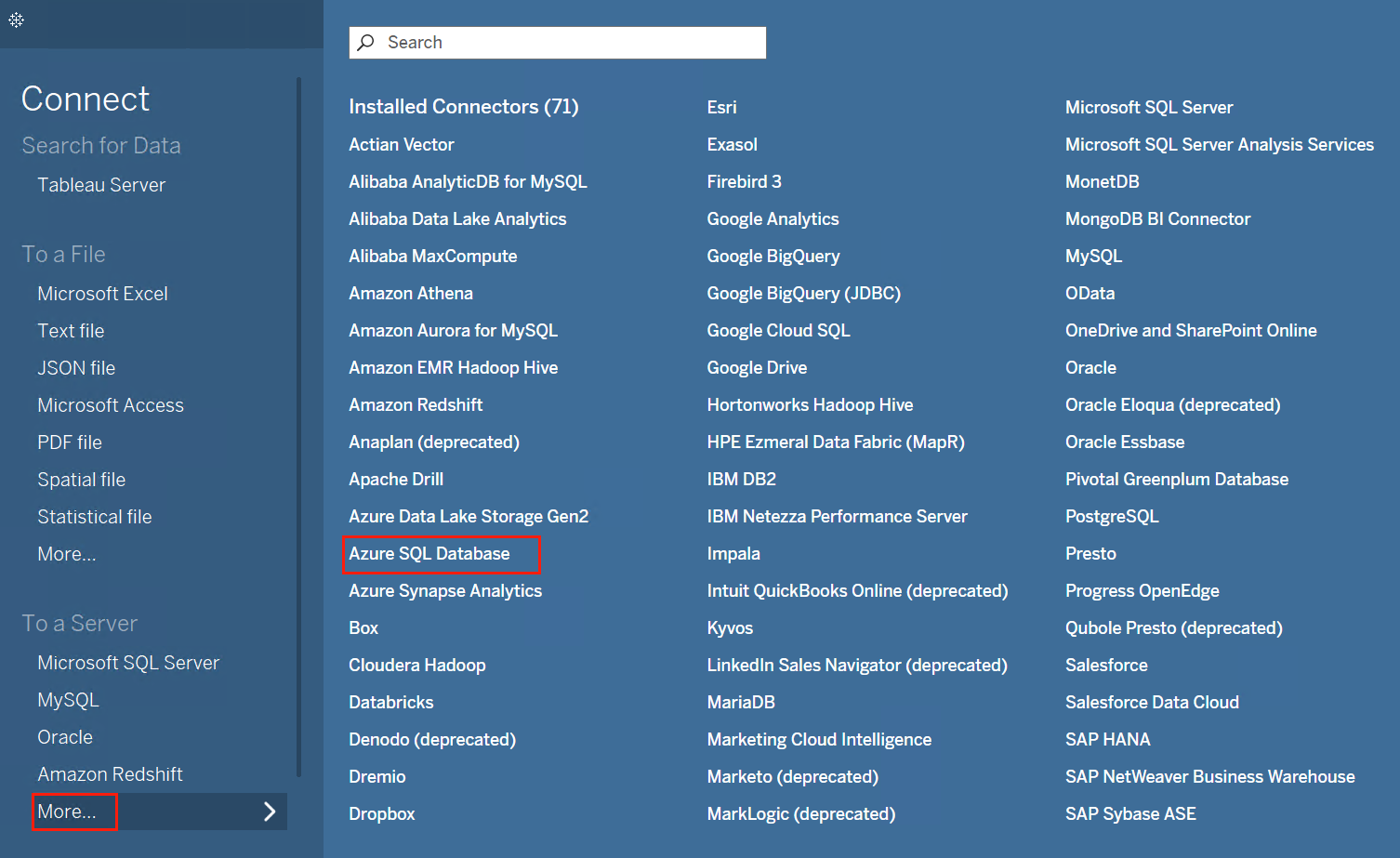
In the Connect pane, click More in the To a Server section and select Azure SQL Database.
-
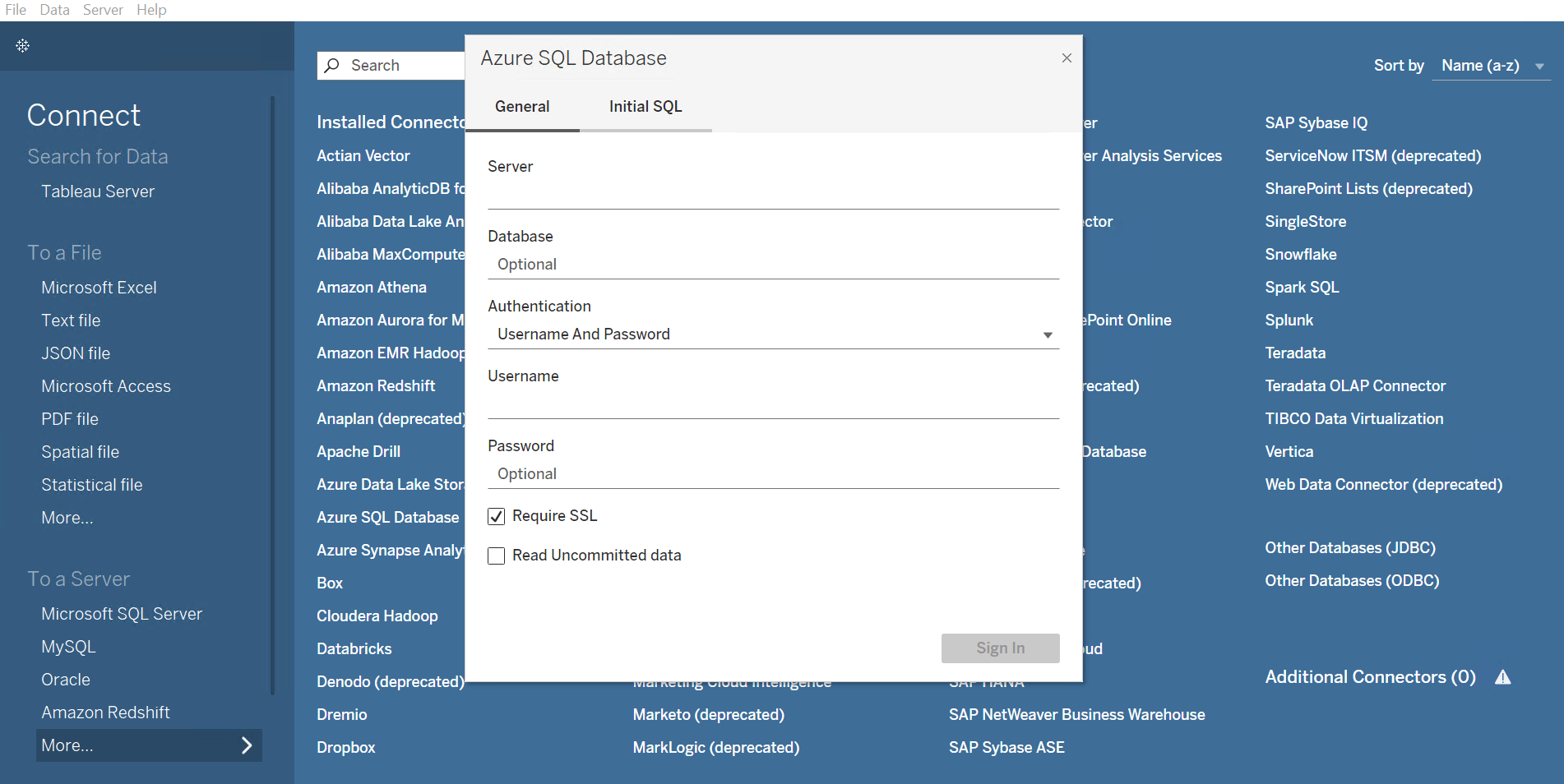
In the Azure SQL Database window, enter the Server and Database. In the Authentication field, select Username And Password, and then enter the Username and Password.
-
To get the Server and Database, complete the following steps:
-
Navigate to the Cloud Backup for Salesforce® interface.
-
Click Data service.
-
On the Data service page, click the More commands button on the upper right corner of the corresponding data service tile. Then select Get connection details.
-
In the Connection details page, you can click the Copy icon to copy the Server host name and Database of the SQL endpoint directly.
-
-
To grant access to users to the SQL Server database, refer to Manage Users.
-
-
Click Sign in. Then refer to Generate a Data Report in Tableau to generate and publish a data report in Tableau.
OData Feed
To connect Tableau to OData, complete the following steps:
-
Launch Tableau Desktop on your computer.
-
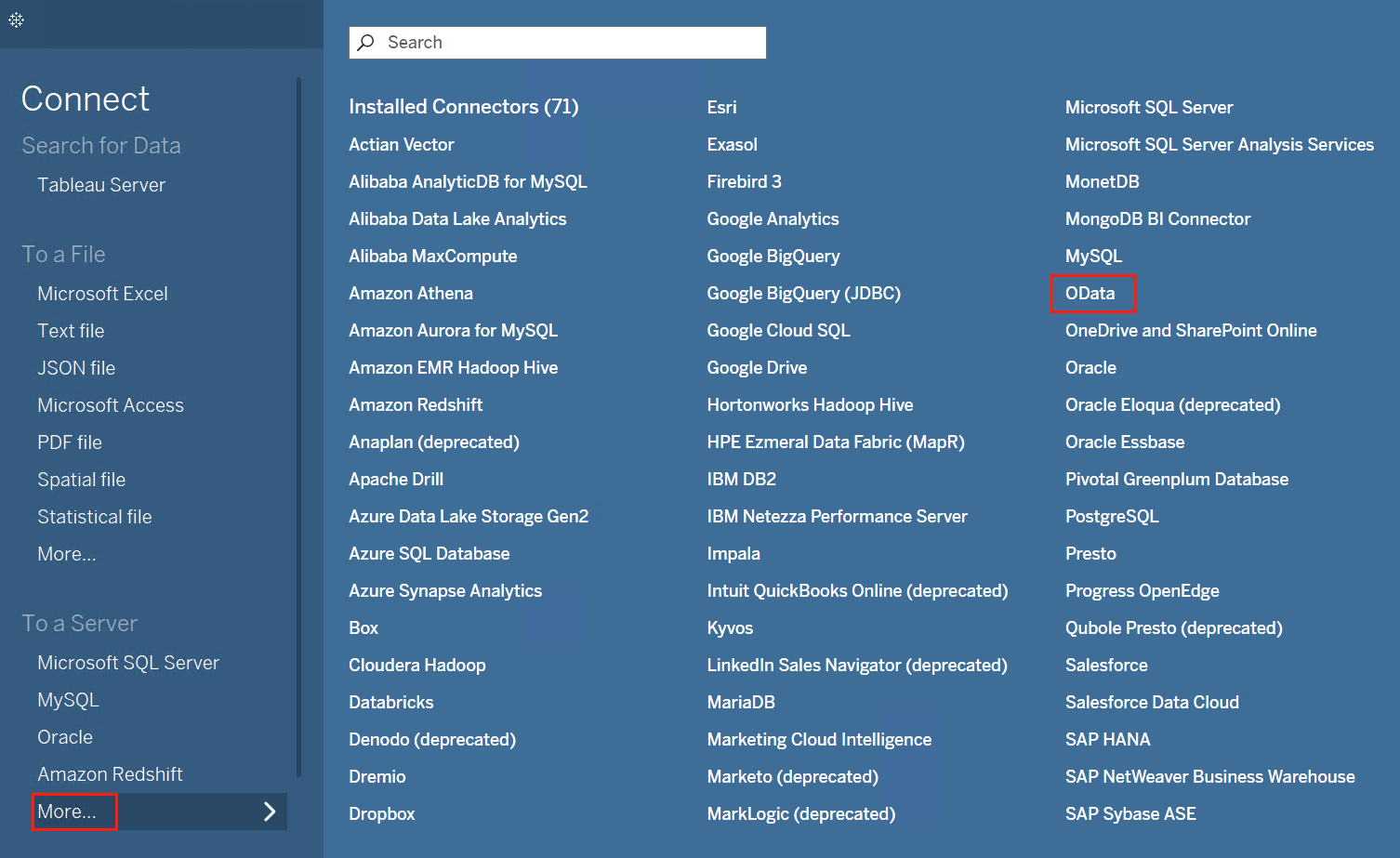
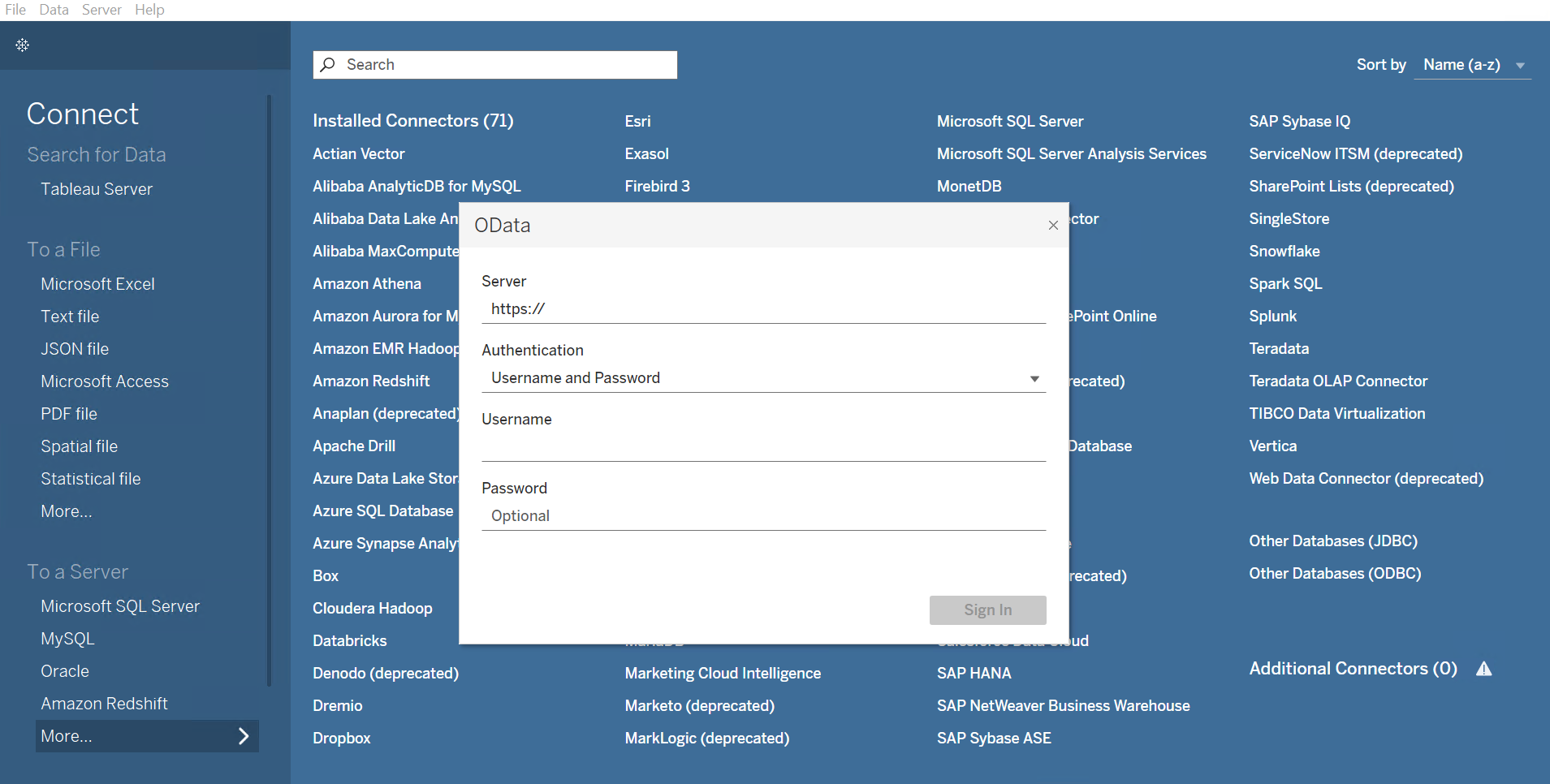
In the Connect pane, click More in the To a Server section and select OData.
-
In the OData window, enter the URL in the Server field. In the Authentication field, select Username and Password, and then enter the Username and Password.
-
To get the URL, complete the following steps:
-
Navigate to the Cloud Backup for Salesforce® interface.
-
Click Data service.
-
On the Data service page, click the More commands button on the upper right corner of the corresponding data service tile. Then select Get connection details.
-
In the Connection details page, you can click the Copy icon to copy the URL of the OData endpoint directly.
-
-
To grant access to users to the OData feed, refer to Manage Users.
-
-
Click Sign in. Then refer to Generate a Data Report in Tableau to generate and publish a data report in Tableau.
Generate a Data Report in Tableau
After connecting your Salesforce backup data to Tableau, complete the following steps to generate a data report in Tableau:
-
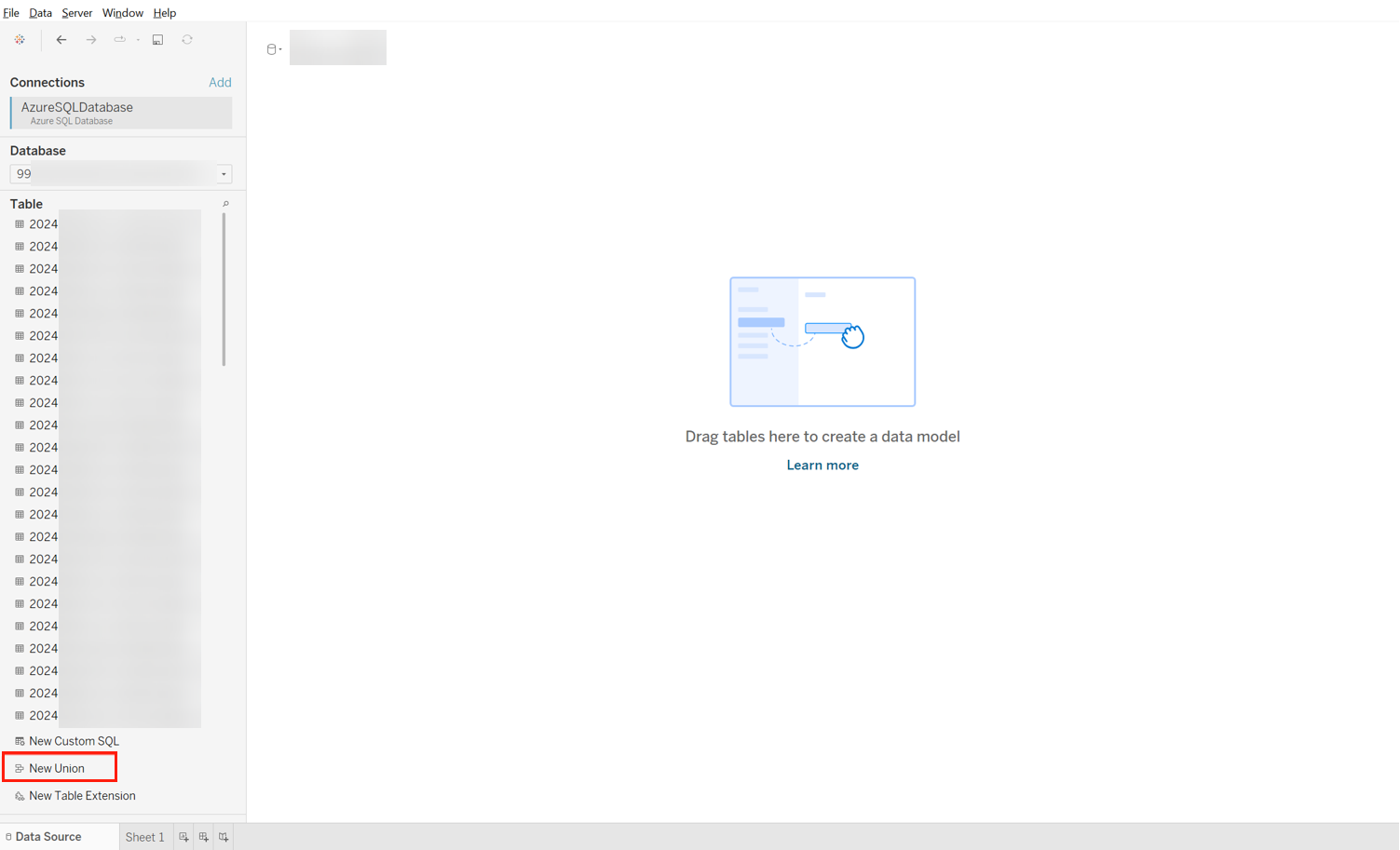
After connecting your Salesforce backup data, double-click New Union in the left pane.
-
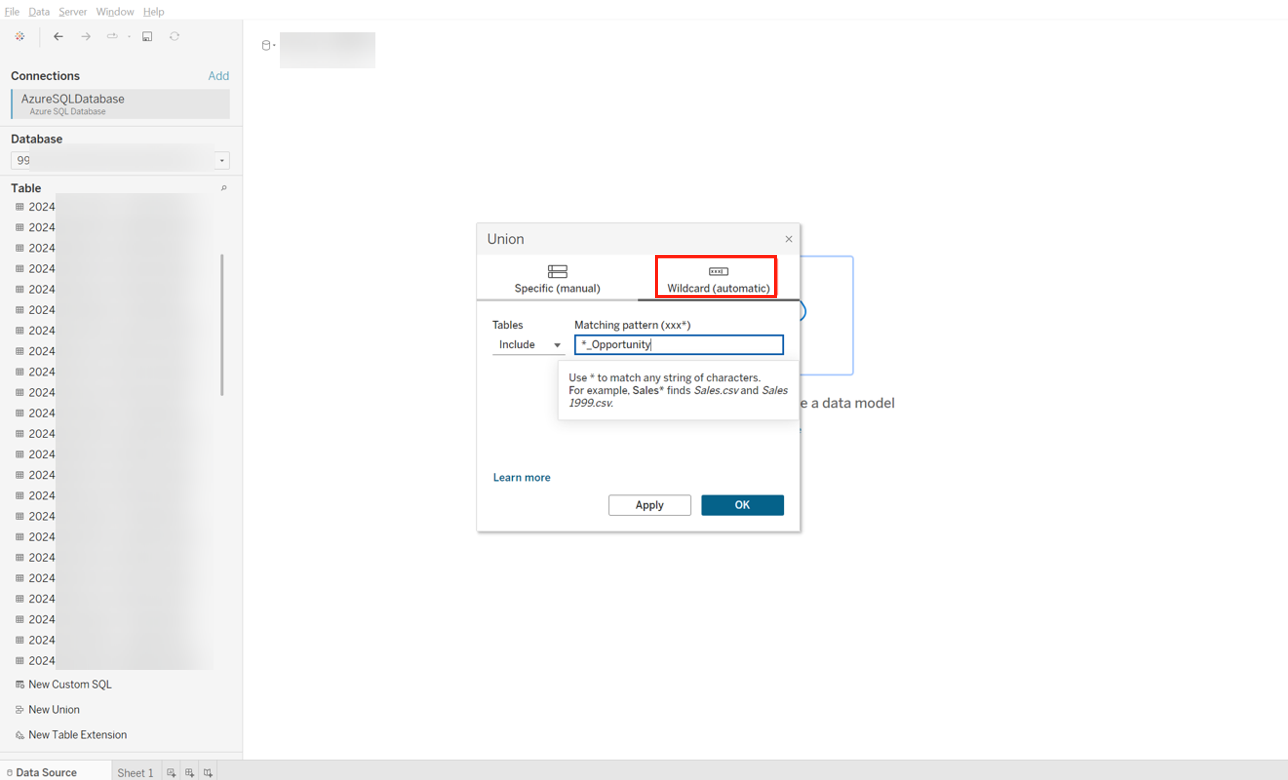
In the pop-up window, select the Wildcard (automate) tab. In the Matching pattern field, enter *_Object. Replace Object with an object type to include all tables of the object. Then click OK.
-
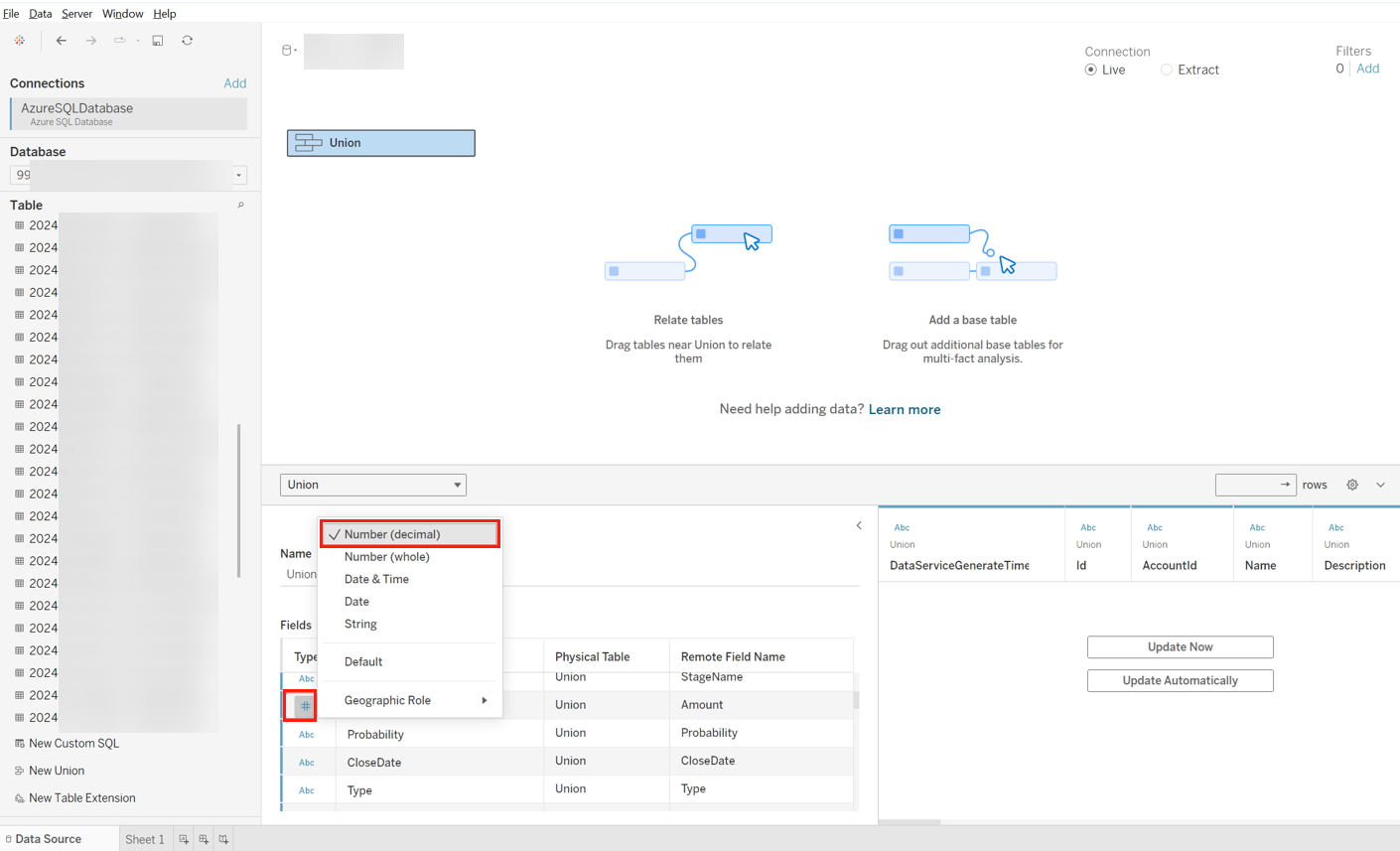
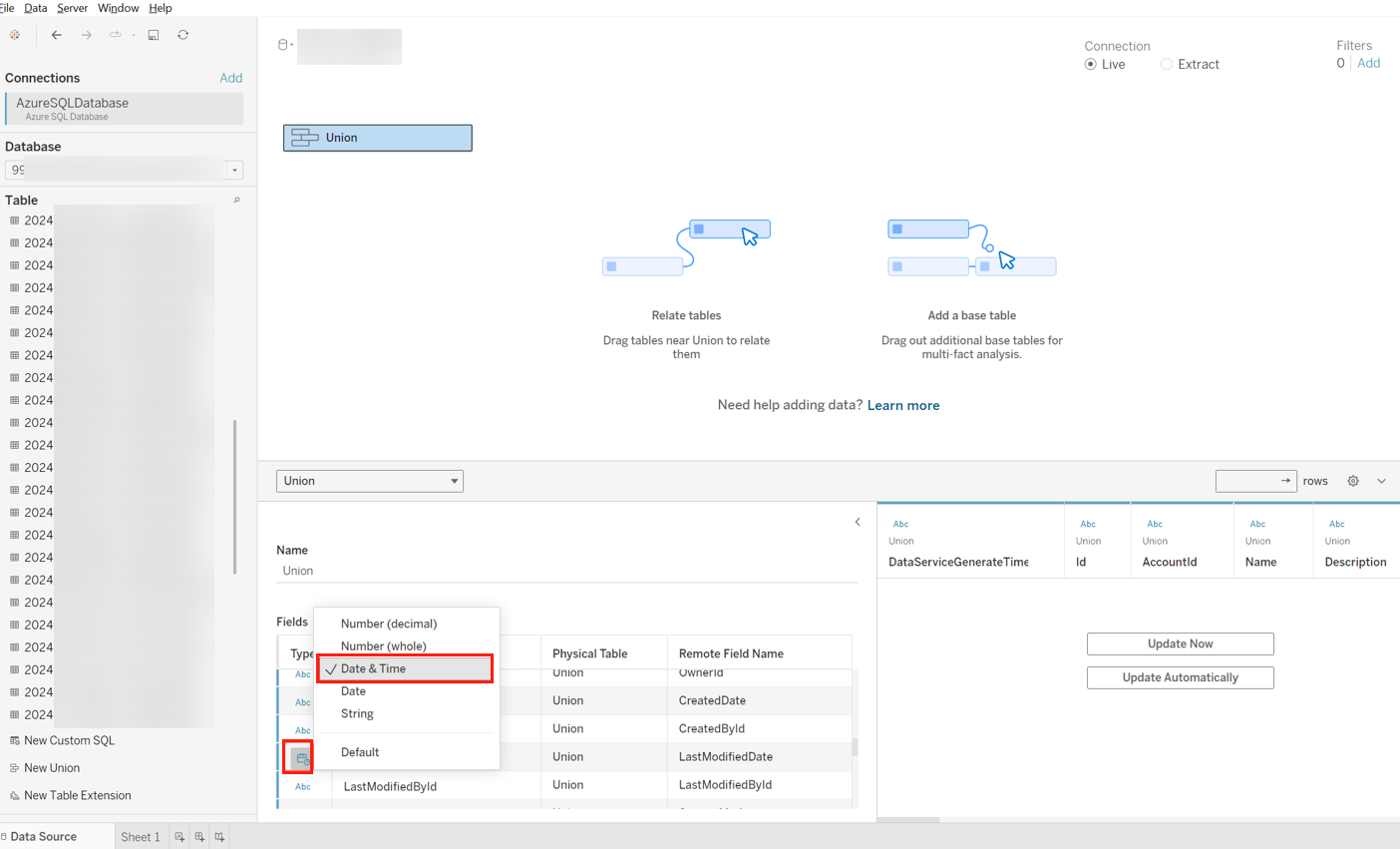
Since all fields are currently strings, change necessary fields to the correct type. For example, click the Type icon in the Amount row to change the type to Number (decimal), and click the Type icon in the LastModifiedDate row to change the type to Date &Time.
-
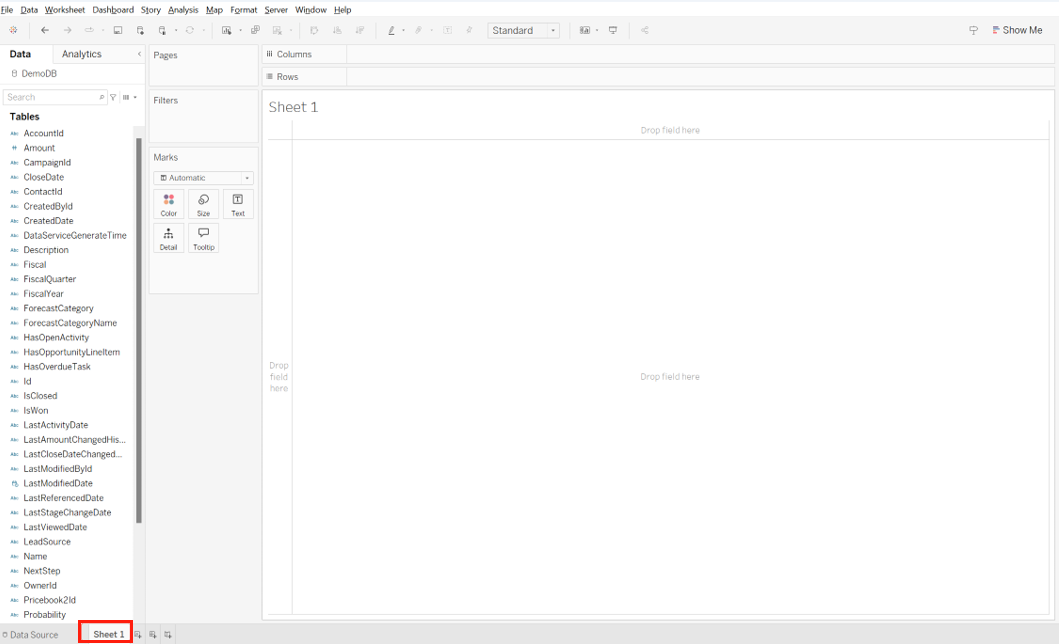
Click Sheet 1 at the bottom to open the sheet.
-
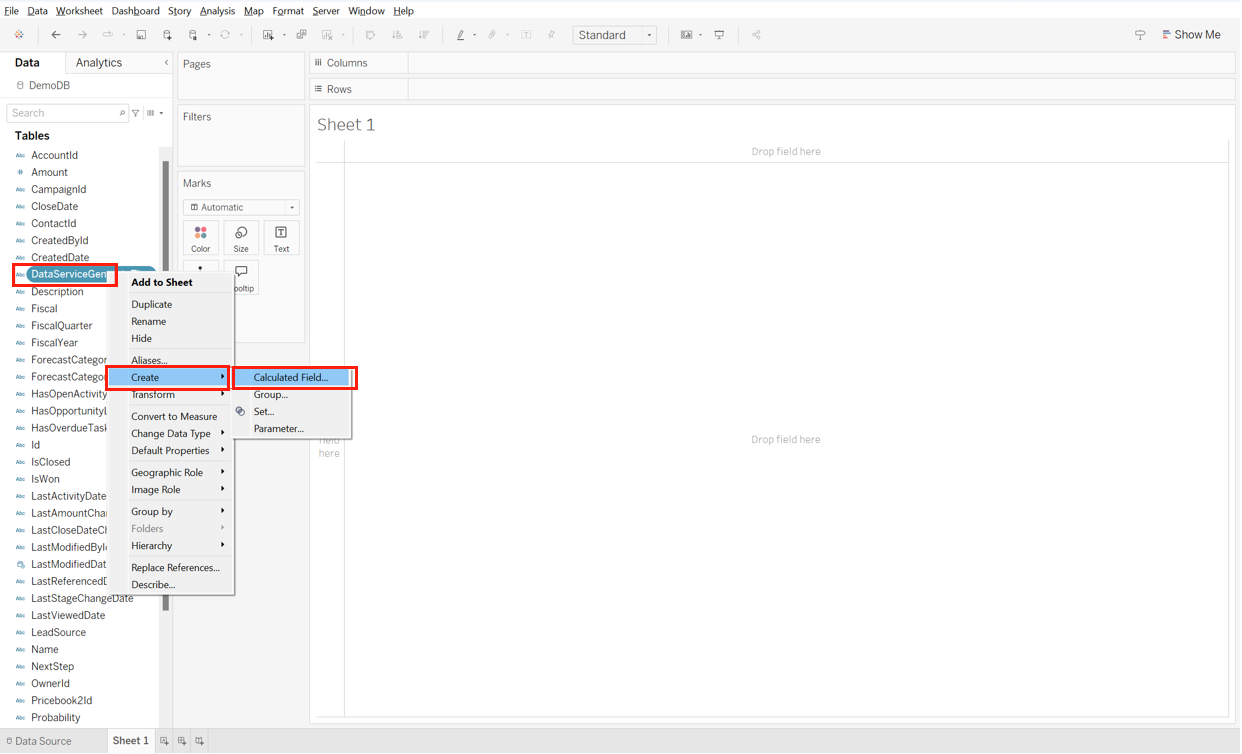
In the Tables pane, right-click DataServiceGenerateTime and select Create > Calculated Field….
-
In the pop-up field, change the name to JobDate and enter the following calculation in the text box to change the format to Date. Then click OK.

-
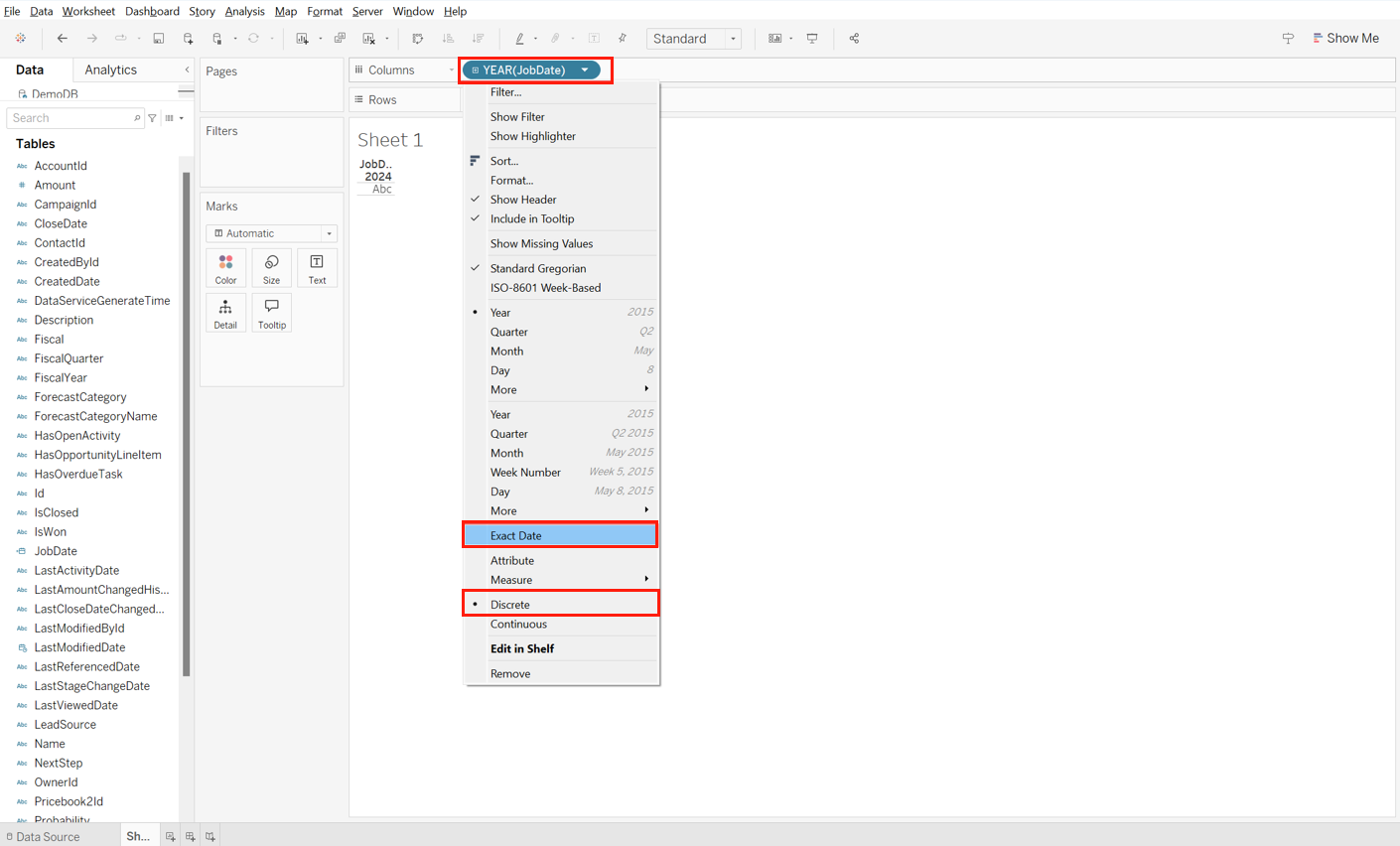
Drag the JobDate table to the Columns field. Next, click the drop-down arrow of JobDate in the Columns field and select Exact Date. Then click JobDate again to select Discrete.
-
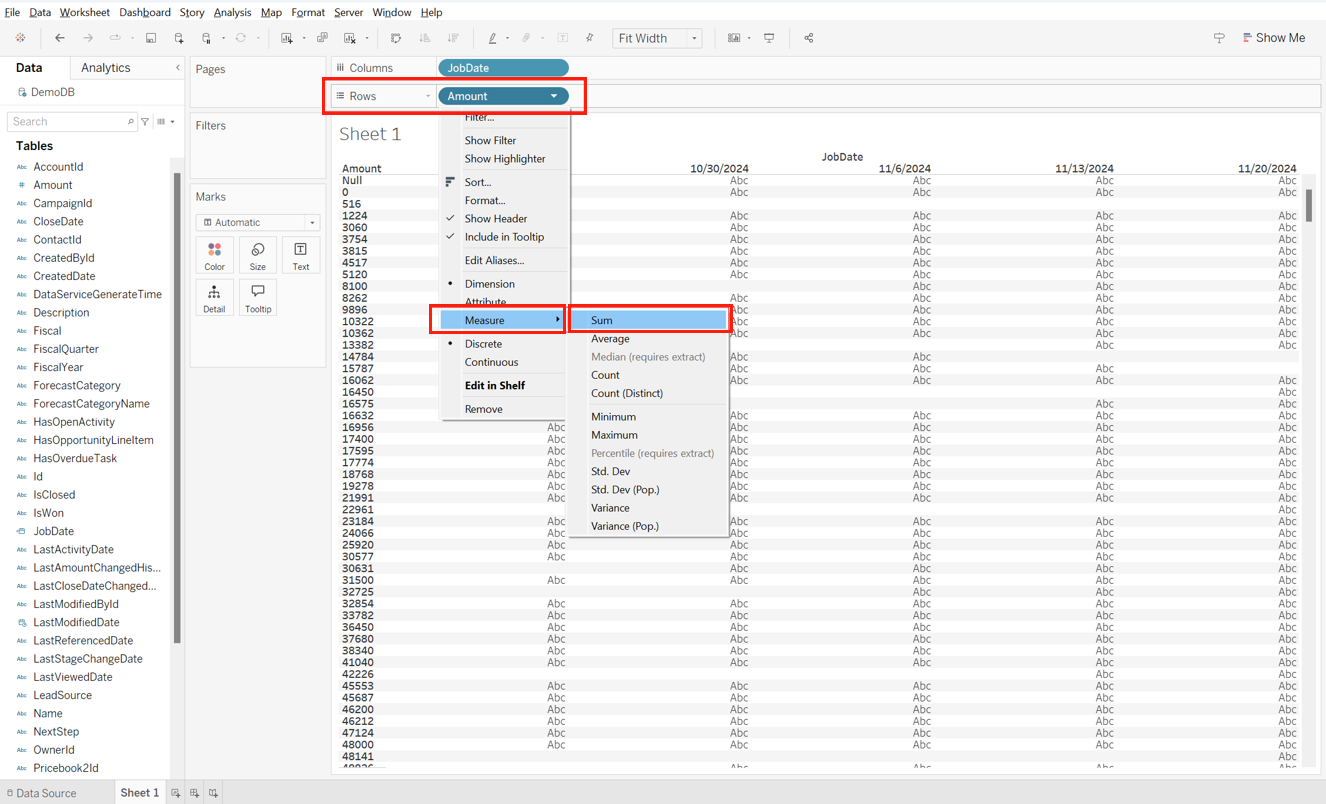
Drag the Amount table to the Rows field*.* Then click the drop-down arrow of Amount in the Rows field and select Measure > Sum.
-
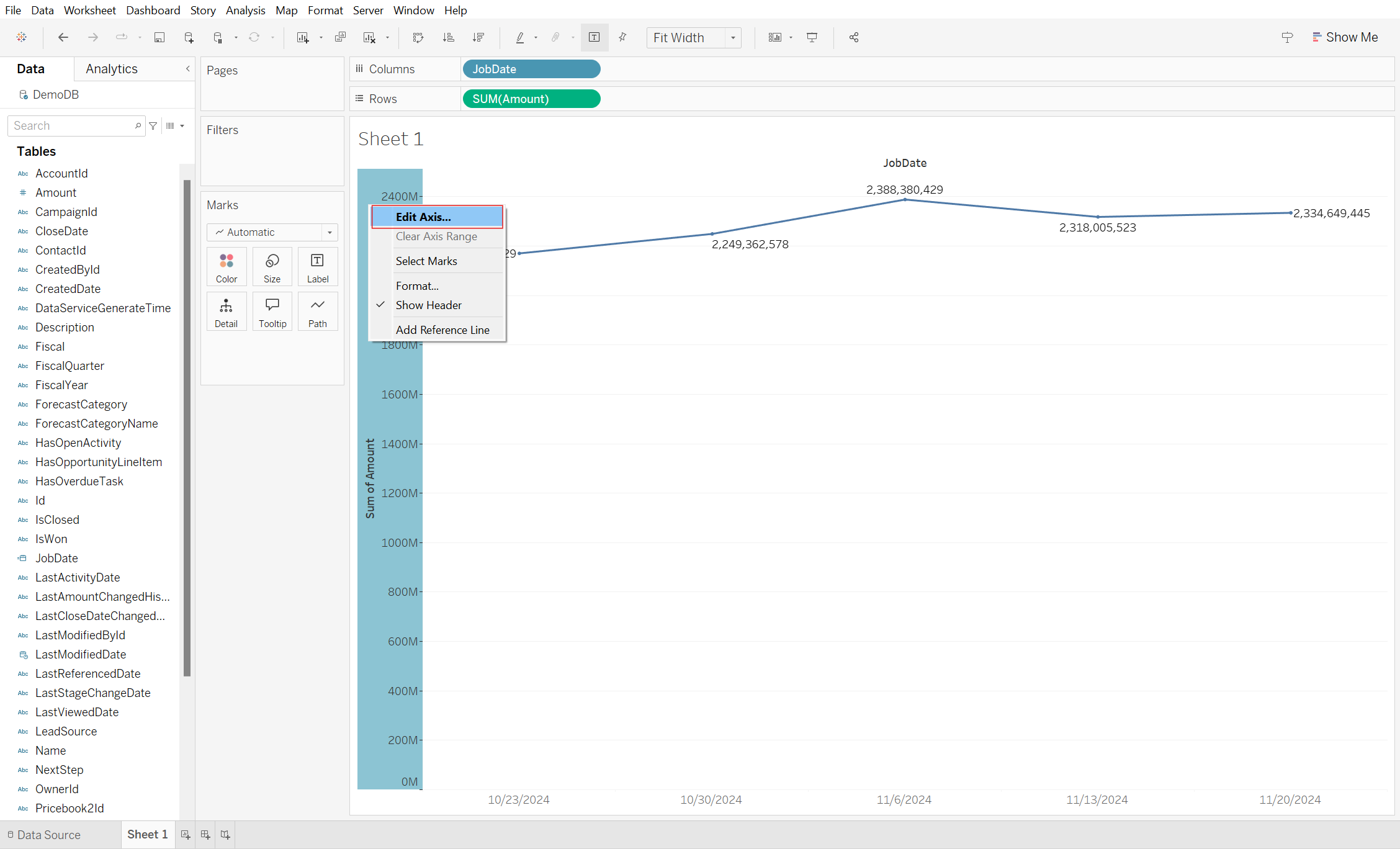
Right-click the axis and select Edit Axis….
-
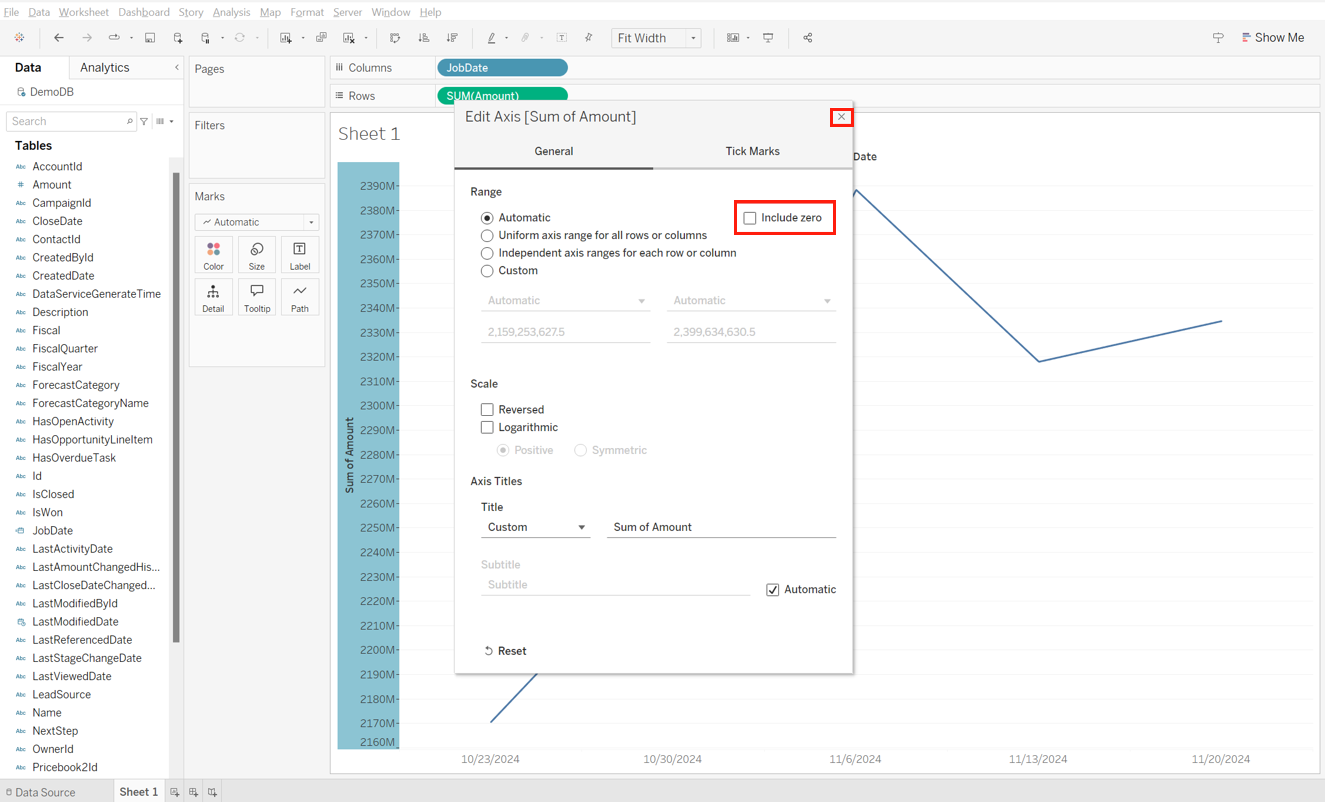
In the pop-up window, uncheck Include zero and then click × to close the window.
-
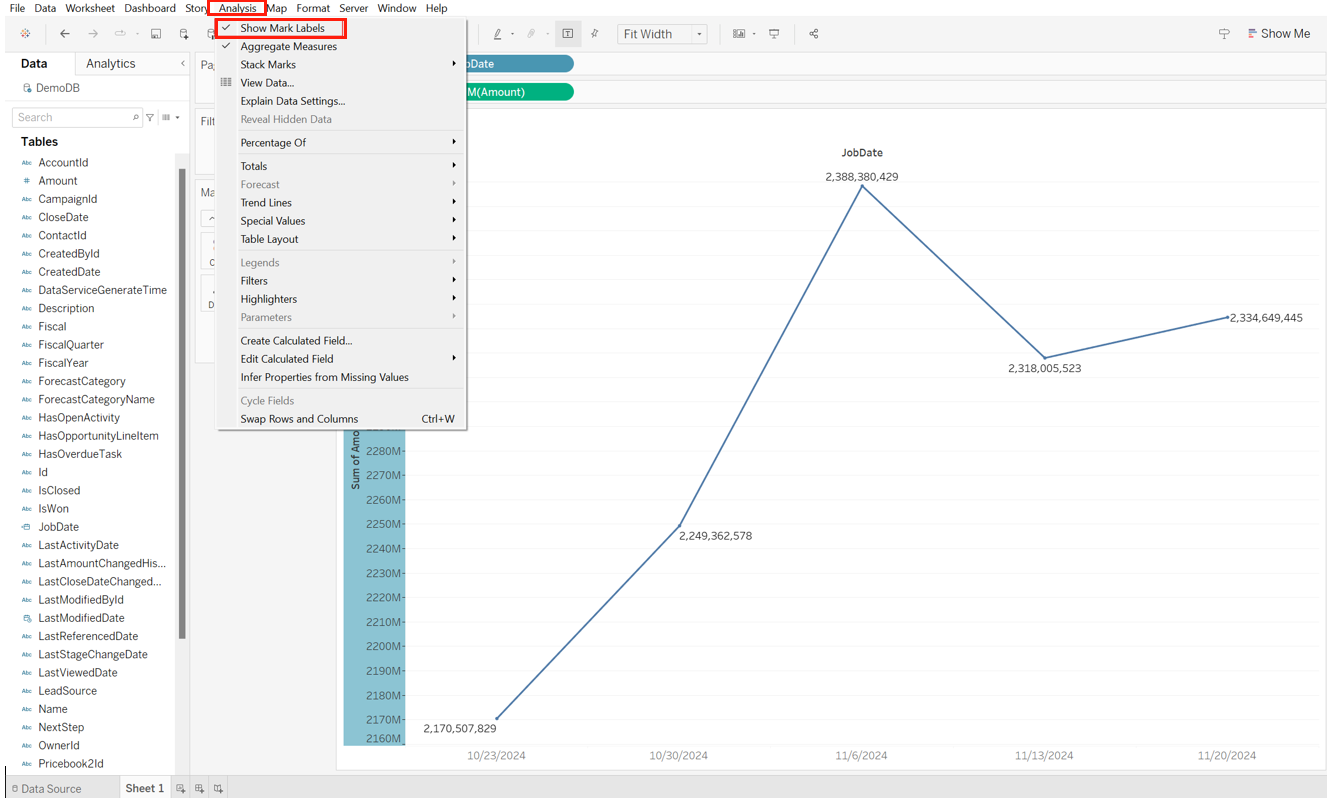
In the ribbon, click the Analysis tab and select Show Mark Labels to enable data labels.
-
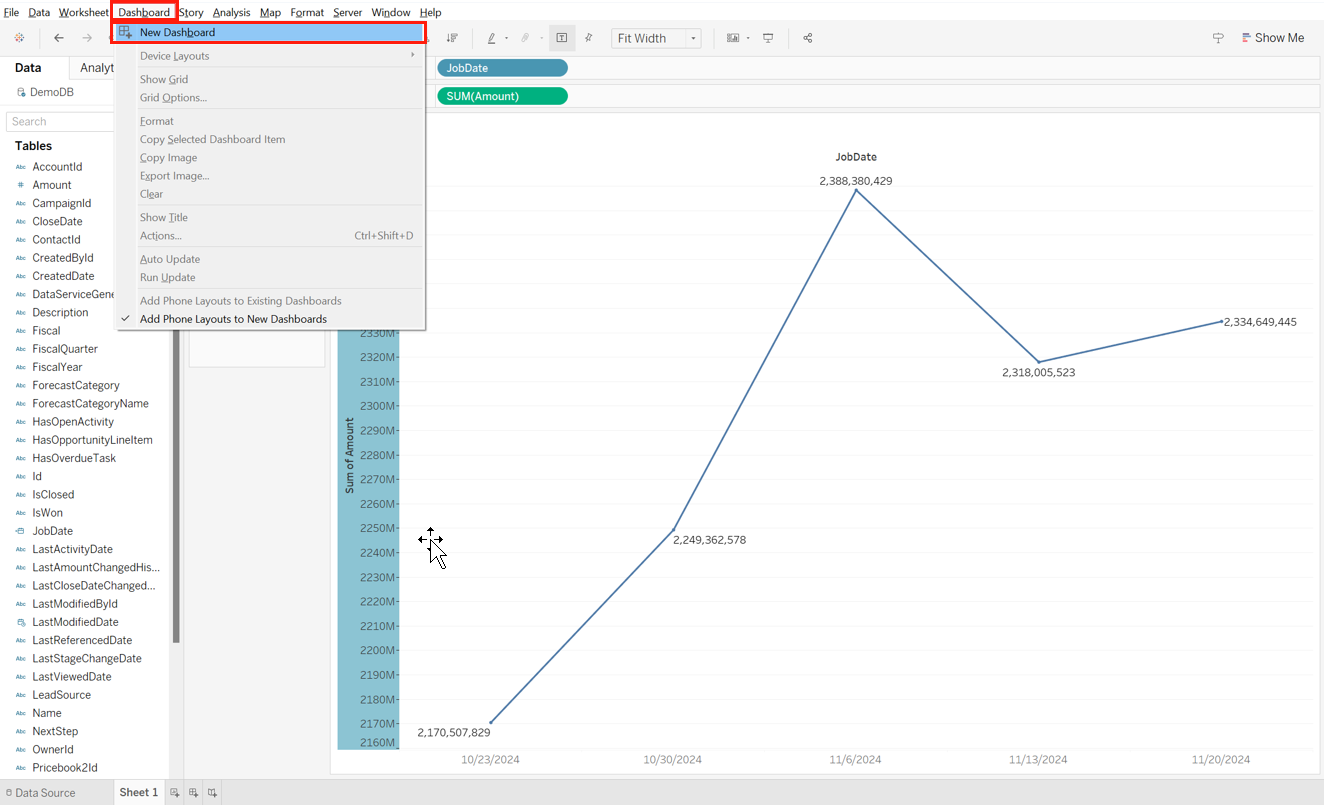
Click the Dashboard tab and select New Dashboard.
-
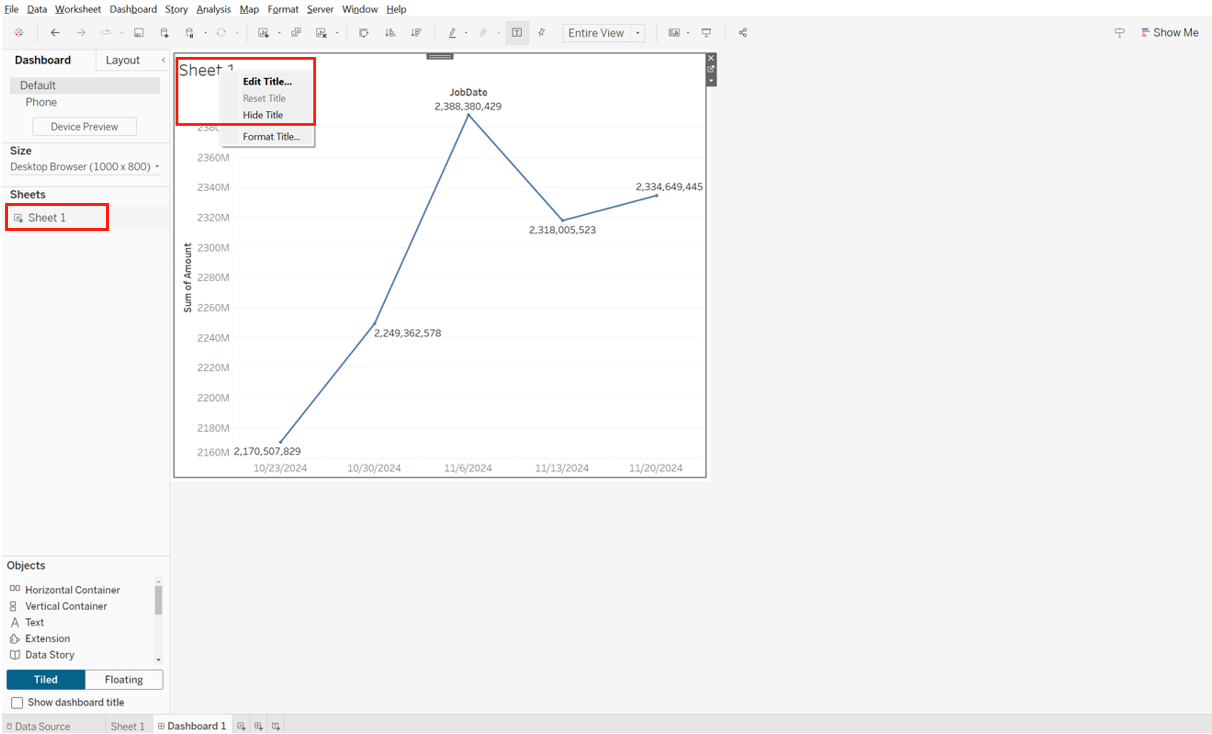
In the new dashboard, drag Sheet 1 in the Sheets section to the new dashboard. Right-click Sheet 1 in the new dashboard to Edit Title or Hide Title.
-
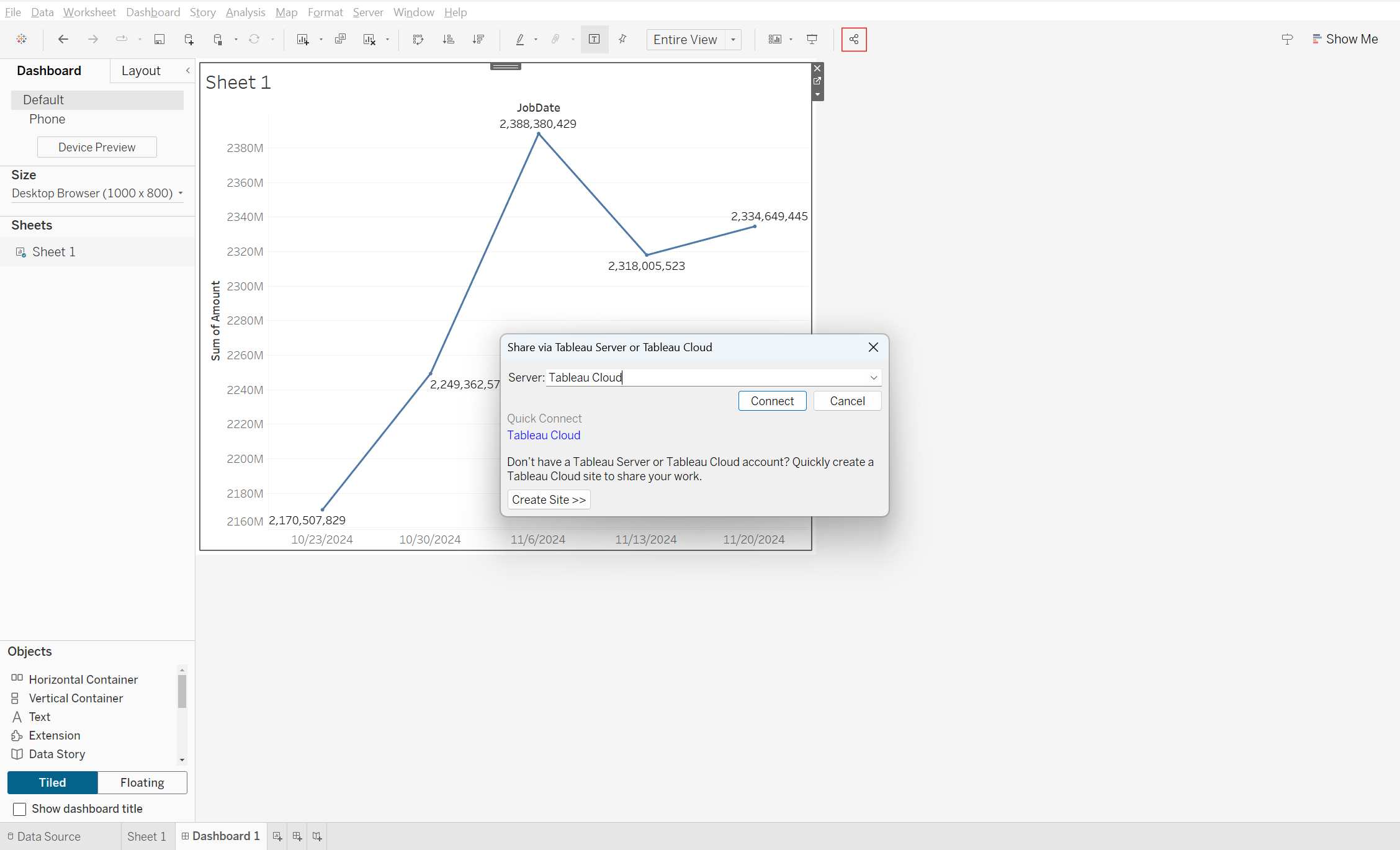
Click the Share Workbook With Others icon to publish the dashboard to Tableau Cloud. Tableau Cloud account, password and Tableau site URL are required to connect to Tableau Cloud.
-
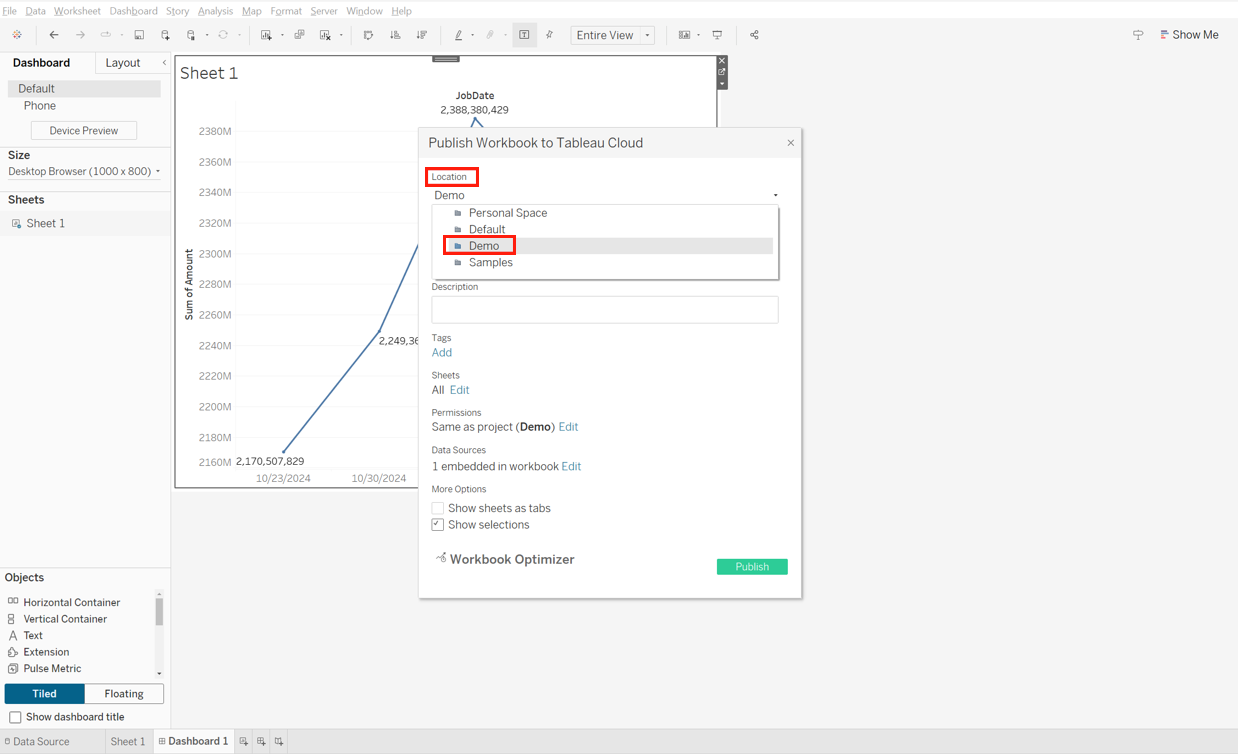
In the Location field, select the project.
-
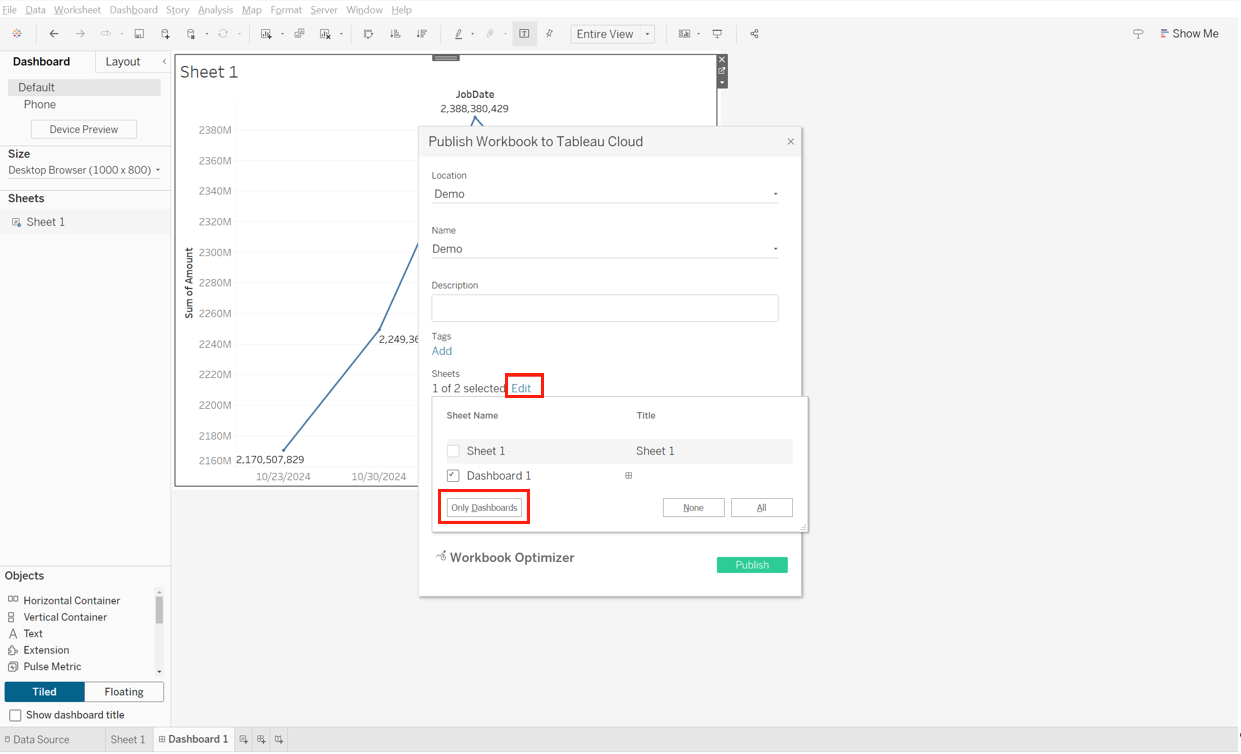
In the Sheets section, click Edit and select Only Dashboards.
-
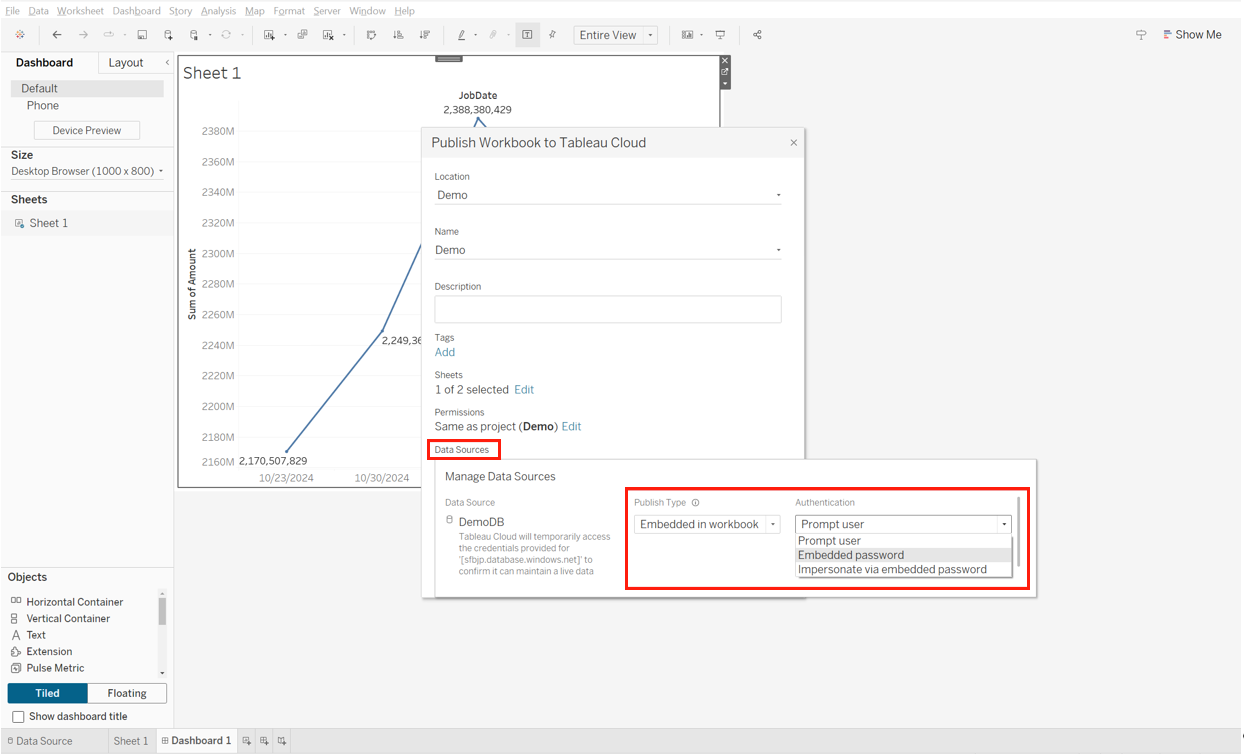
In the Data Sources section, click Edit. Then select Embedded in workbook for Publish Type and Embedded password for Authentication.
-
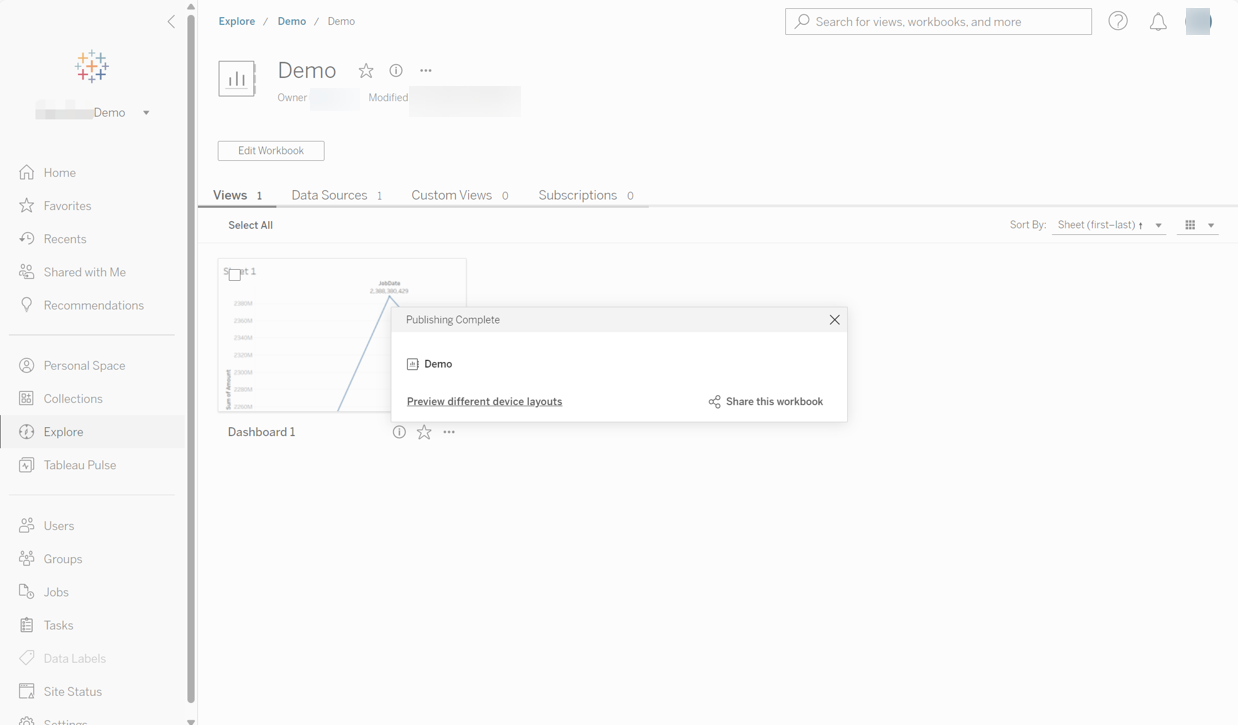
Click Publish and you will be redirected to Tableau Cloud.