Home > Integrate with Tableau and Power BI > Connect to Power BI
Download this articleConnect to Power BI
The following two endpoints are provided to connect to Power BI:
SQL Server
To connect Power BI to SQL Server, complete the following steps:
-
Launch Power BI Desktop on your computer.
-
Take actions according to the following two conditions:
-
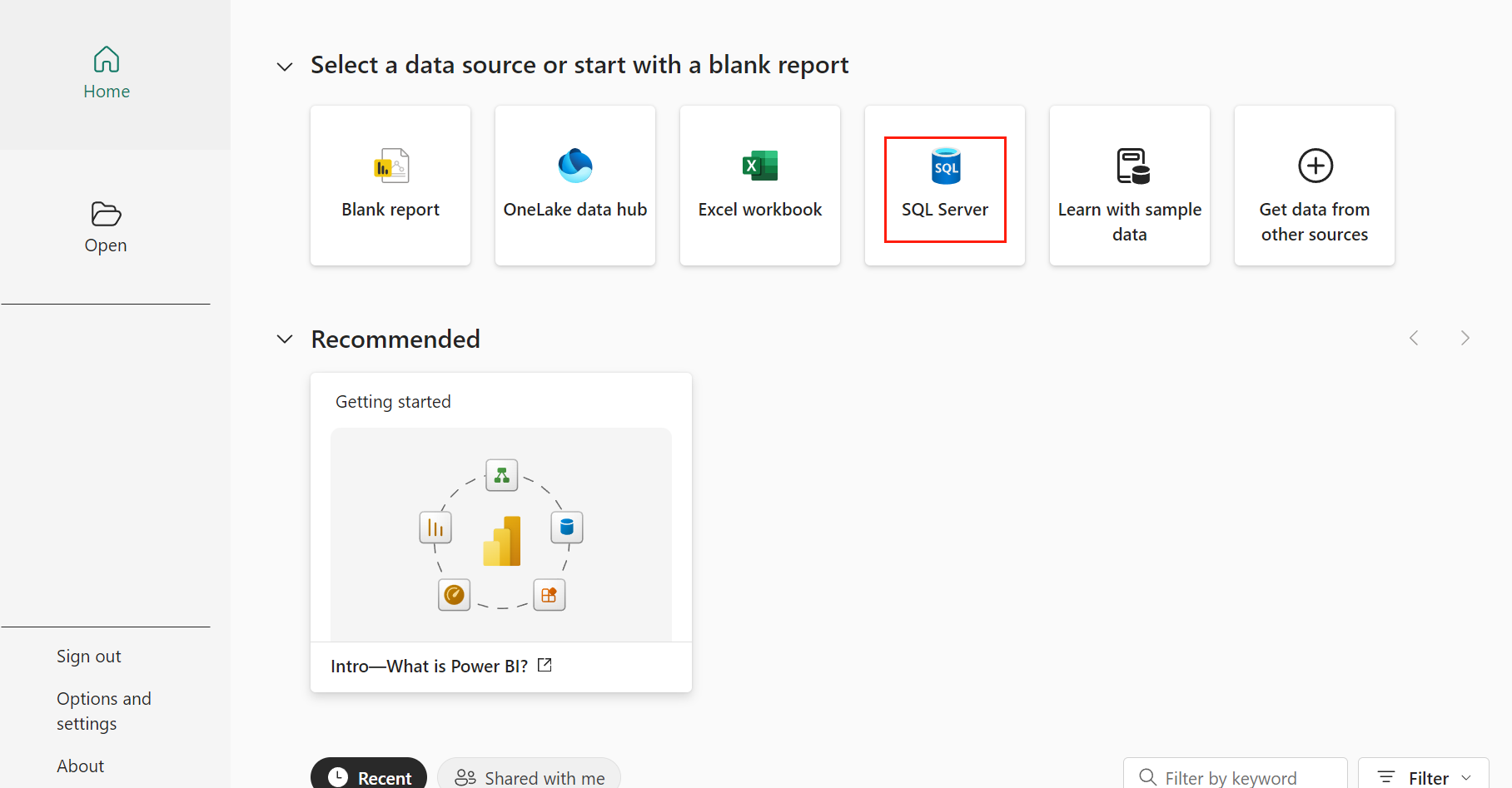
If you are on the Home page, click the SQL Server as the data source.
-
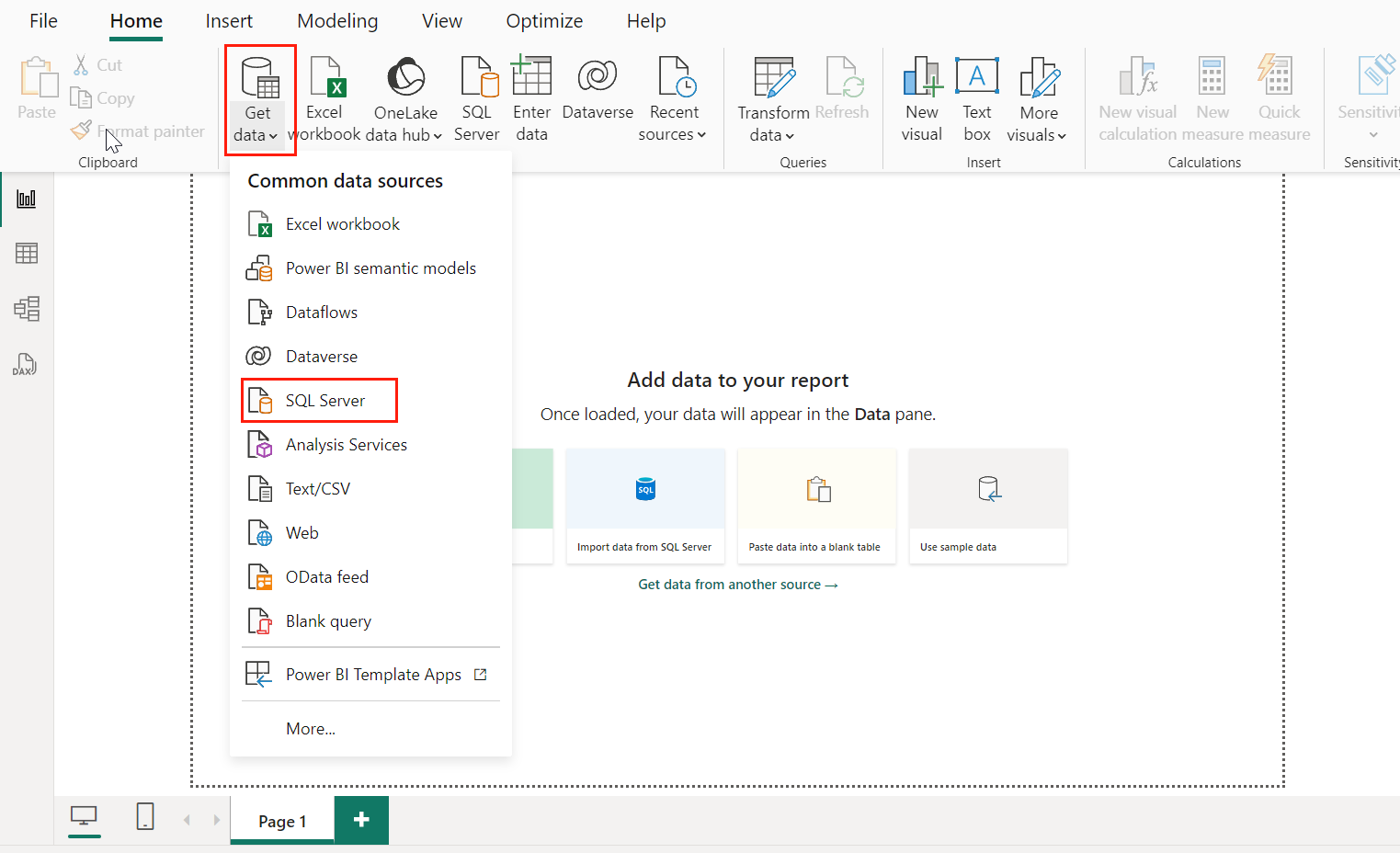
If you are already in the report page, click Get Data in the ribbon on the Home tab. Then select SQL Server.
-
-
In the SQL Server database window, enter the Server and Database. To get the Server and Database, complete the following steps:
-
Navigate to the Cloud Backup for Salesforce® interface.
-
Click Data service.
-
On the Data service page, click the More commands button on the upper right corner of the corresponding data service tile. Then select Get connection details.
-
In the Connection details page, you can click the Copy button to copy the Server host name and Database of the SQL endpoint directly.
-
-
Select Import as the Data Connectivity mode, and click OK. Then refer to Generate a Data Report in Power BI to generate and publish a data report in Power BI.
If it’s your first time to connect to the database, complete the following steps for authentication:
-
In the window for authentication, click Database.
-
Enter the User name and Password for authentication. To grant access to users to the SQL Server database, refer to Manage Users.
-
Select the option including both the server and database as the level to apply the settings.
-
Click Connect.
-
OData Feed
To connect Power BI to OData Feed, complete the following steps:
-
Launch Power BI Desktop on your computer.
-
Take actions according to the following two conditions:
-
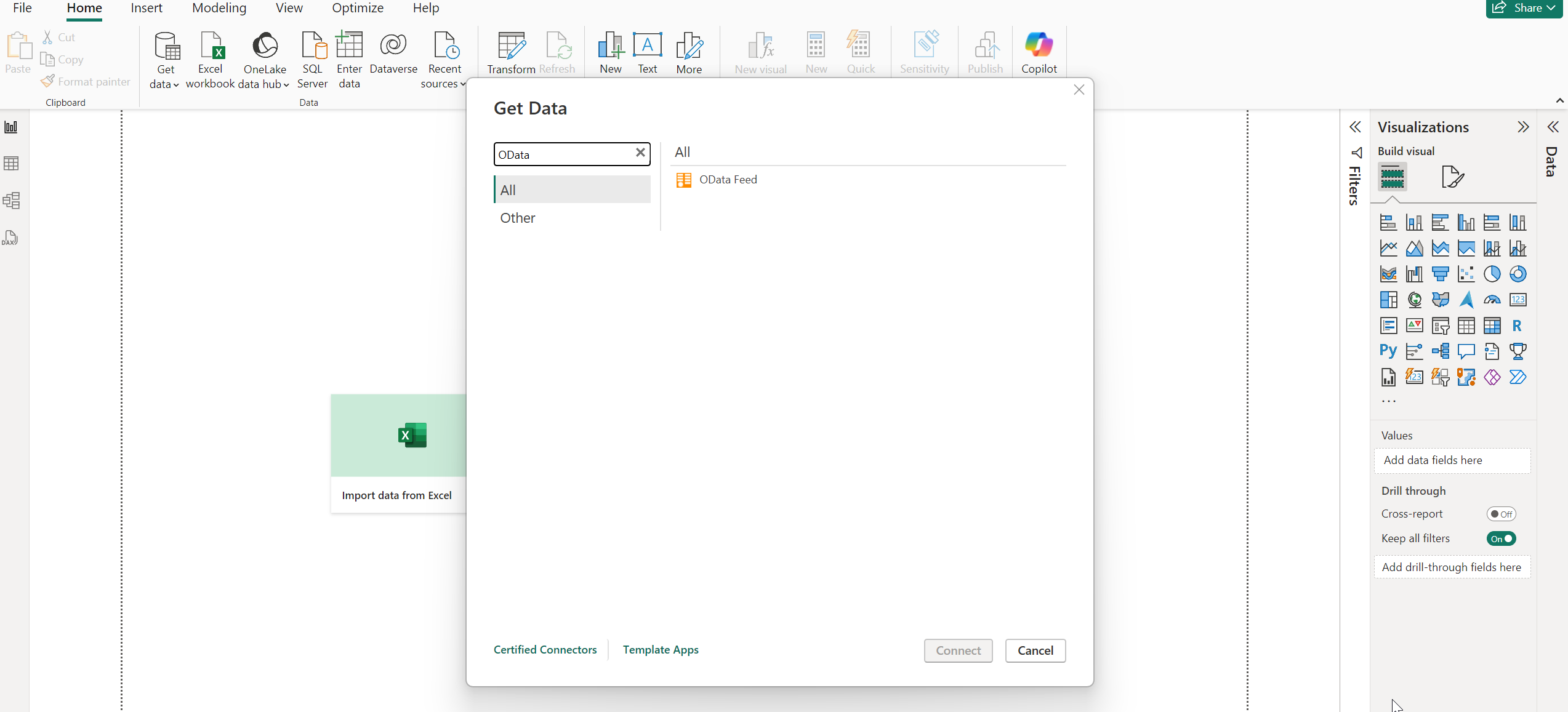
If you are on the Home page, click Get data from other sources. Then search and select OData Feed as the data source. Click Connect.
-
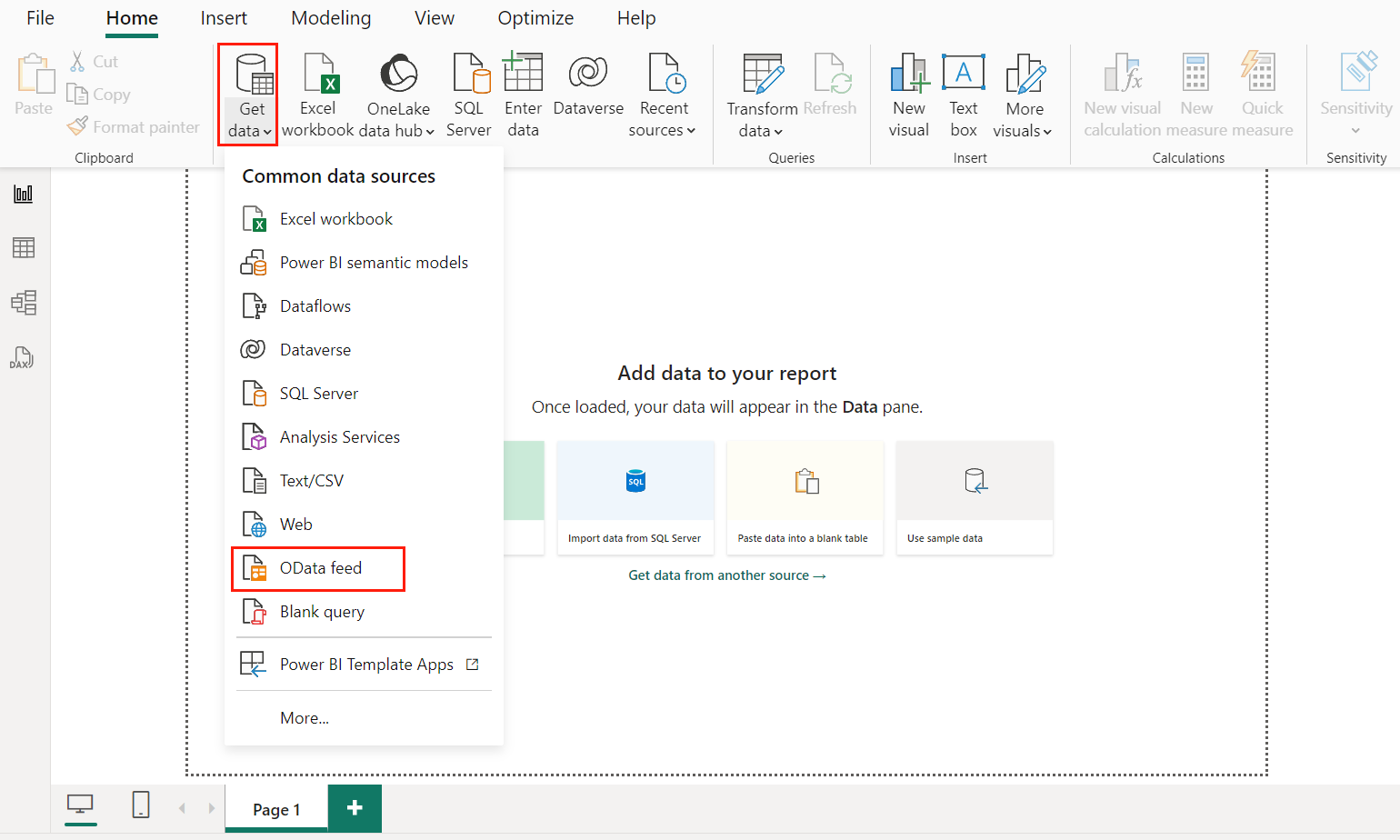
If you are already on the report page, click Get Data in the ribbon on the Home tab. Then select OData feed.
-
-
In the OData feed window, enter the URL. To get the URL, complete the following steps:
-
Navigate to the Cloud Backup for Salesforce® interface.
-
Click Data service.
-
On the Data service page, click the More commands button on the upper right corner of the corresponding data service tile. Then select Get connection details.
-
In the Connection details page, you can click the Copy button to copy the URL of the OData endpoint directly.
-
-
Select Import as the Data Connectivity mode, and click OK. Then refer to Generate a Data Report in Power BI to generate and publish a data report in Power BI.
*Note: If it’s your first time to connect to the OData feed, complete the following steps for authentication:
-
In the window for authentication, click Base.
-
Enter the User name and Password for authentication. To grant access to users to the OData feed, refer to Manage Users.
-
Select the option including the OData feed URL as the level to apply the settings.
-
Click Connect.
-
Generate a Data Report in Power BI
After connecting your Salesforce backup data to Power BI, complete the following steps to generate a data report in Power BI:
-
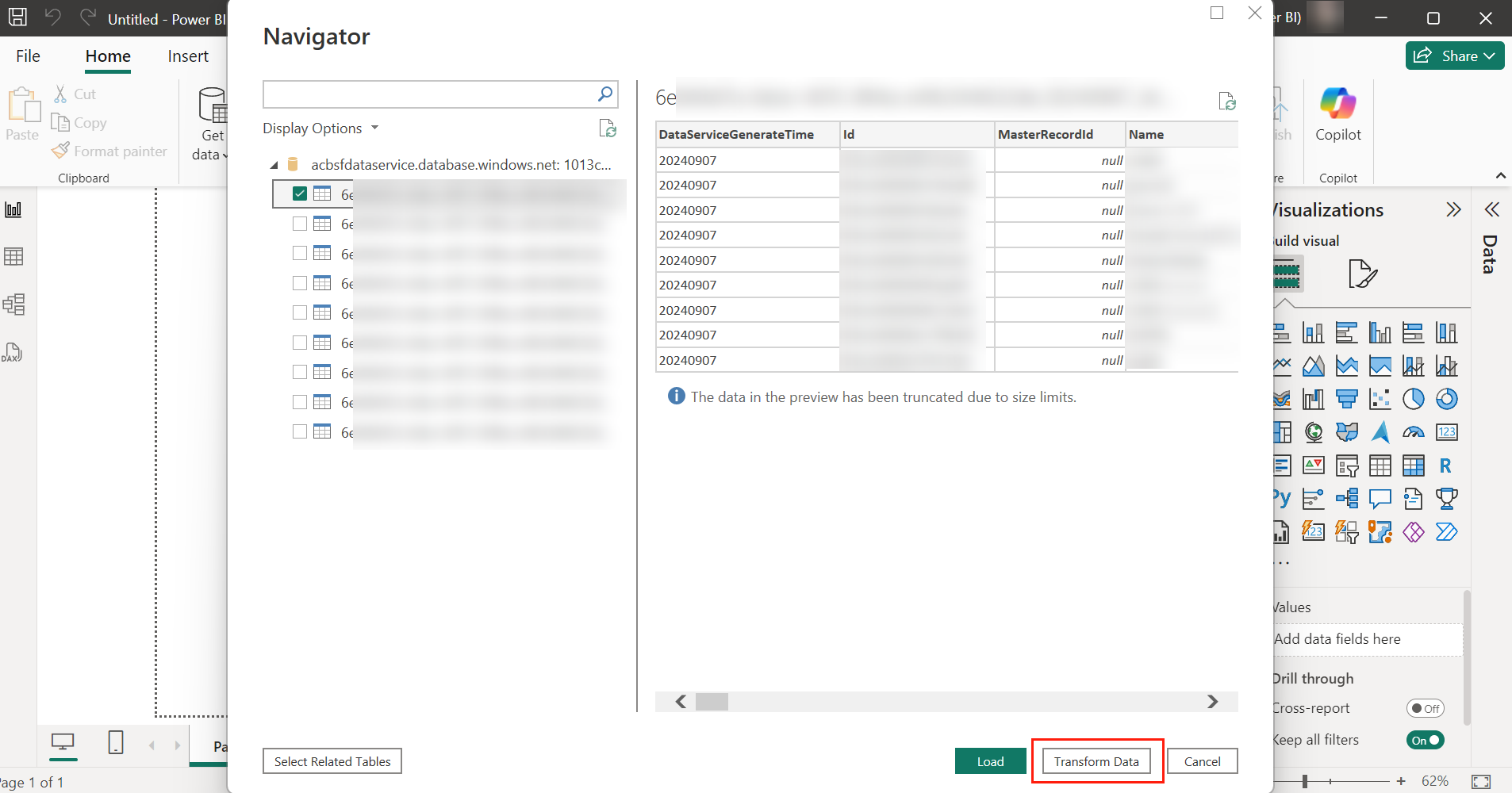
After connecting your Salesforce backup data, select the tables in the left pane and click Transform Data. The Power Query Editor window appears.
-
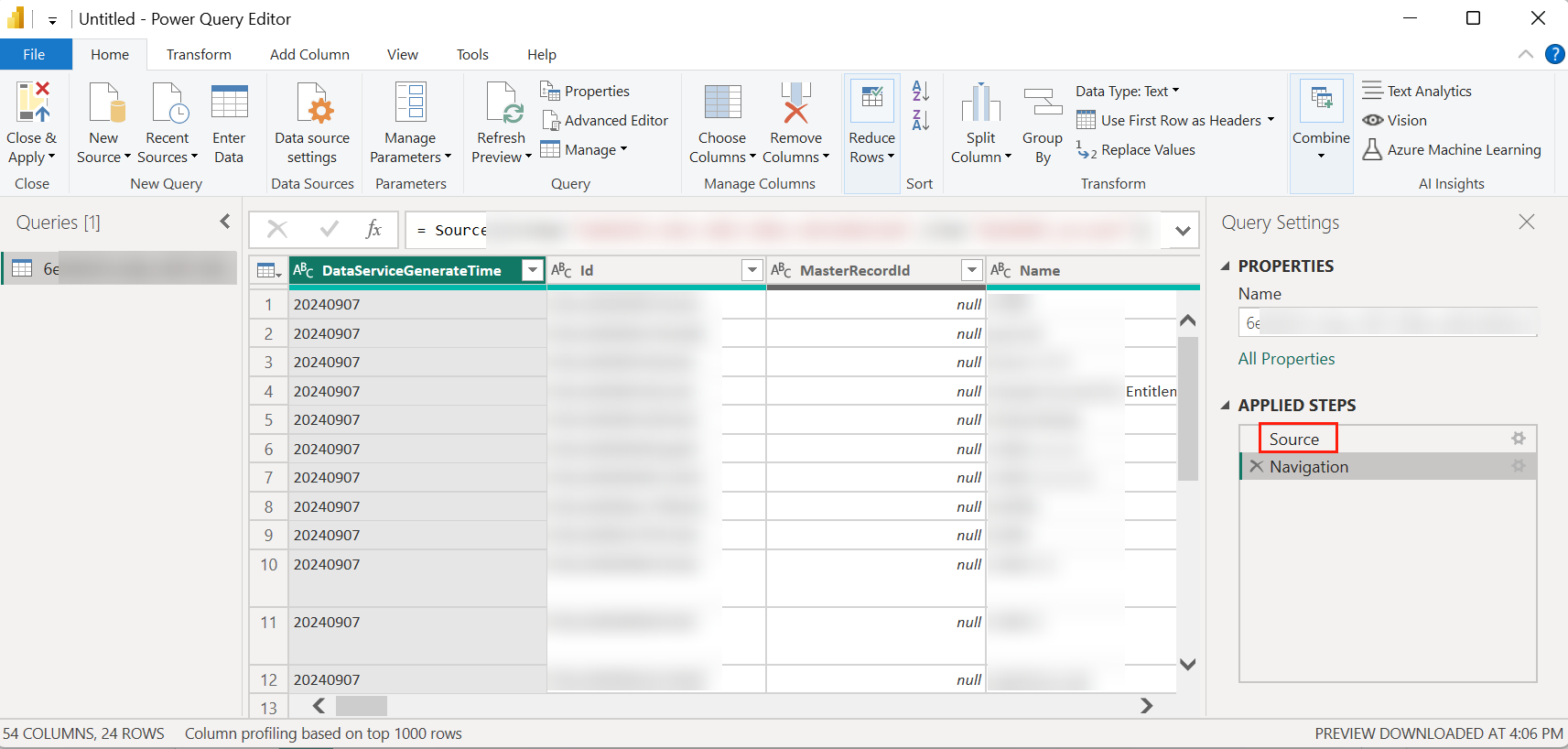
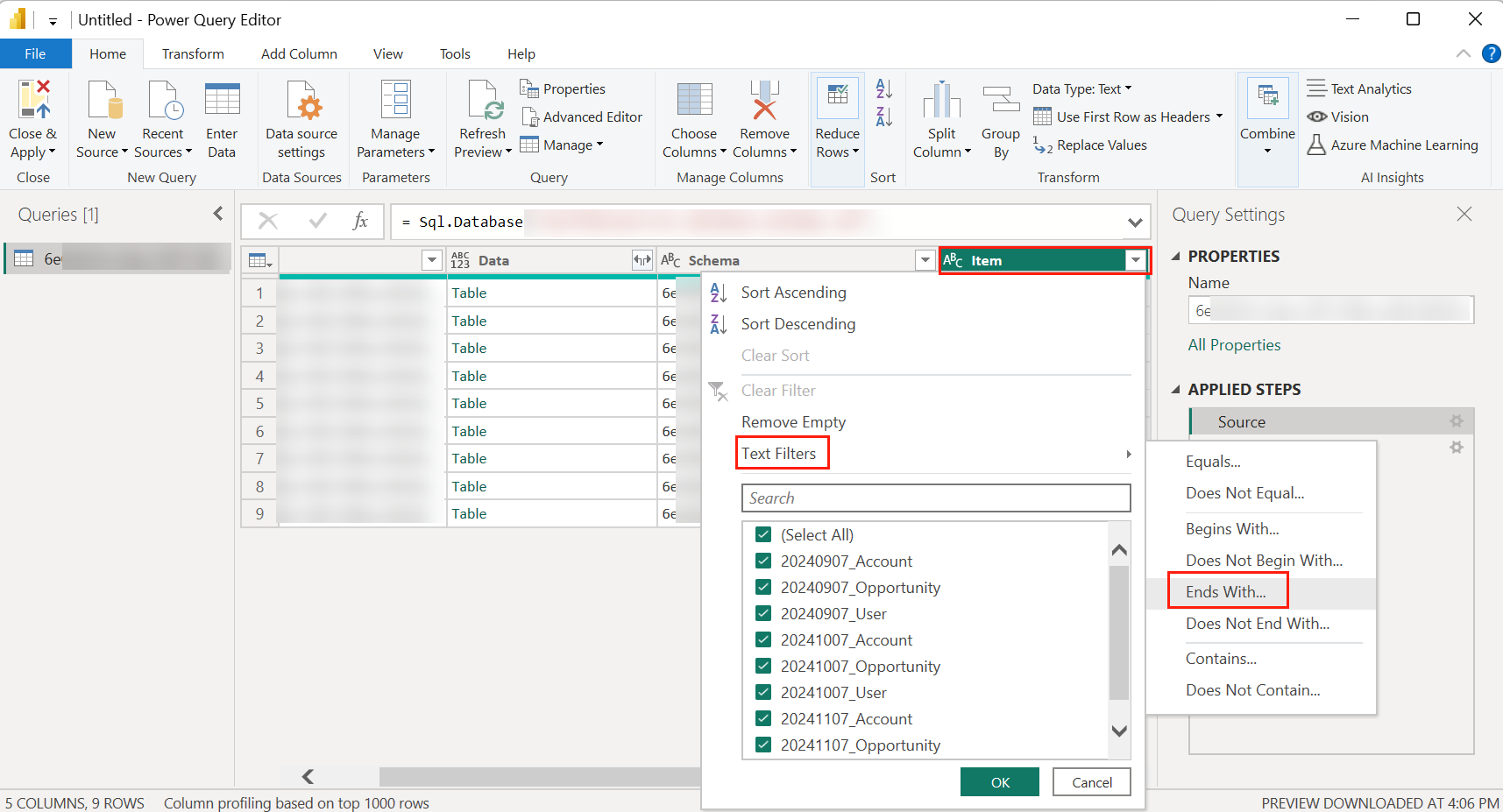
In the Power Query Editor window, click Source in the APPLIED STEPS section.
-
Then click the drop-down list of the Item column and use Text filters > Ends with to filter the data.
-
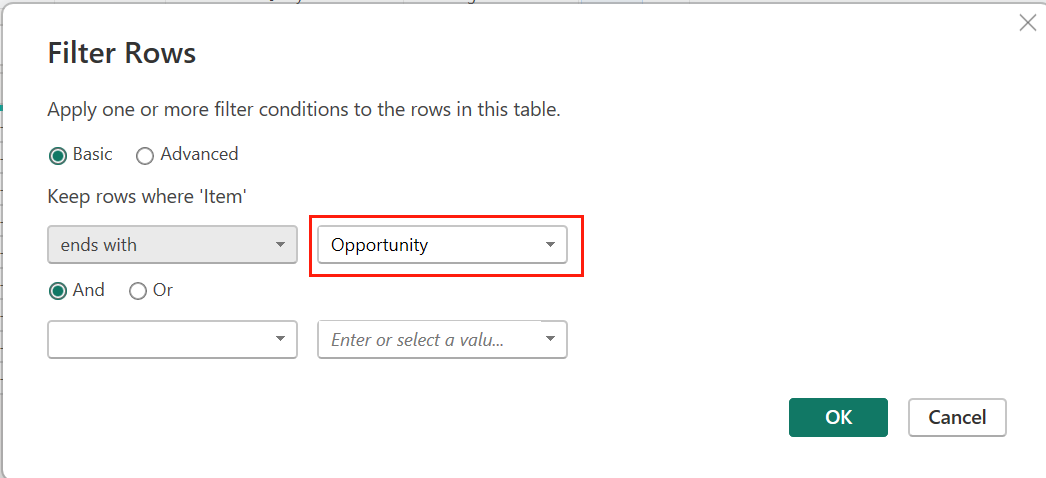
In the Filter Rows window, enter an object to filter the data.
-
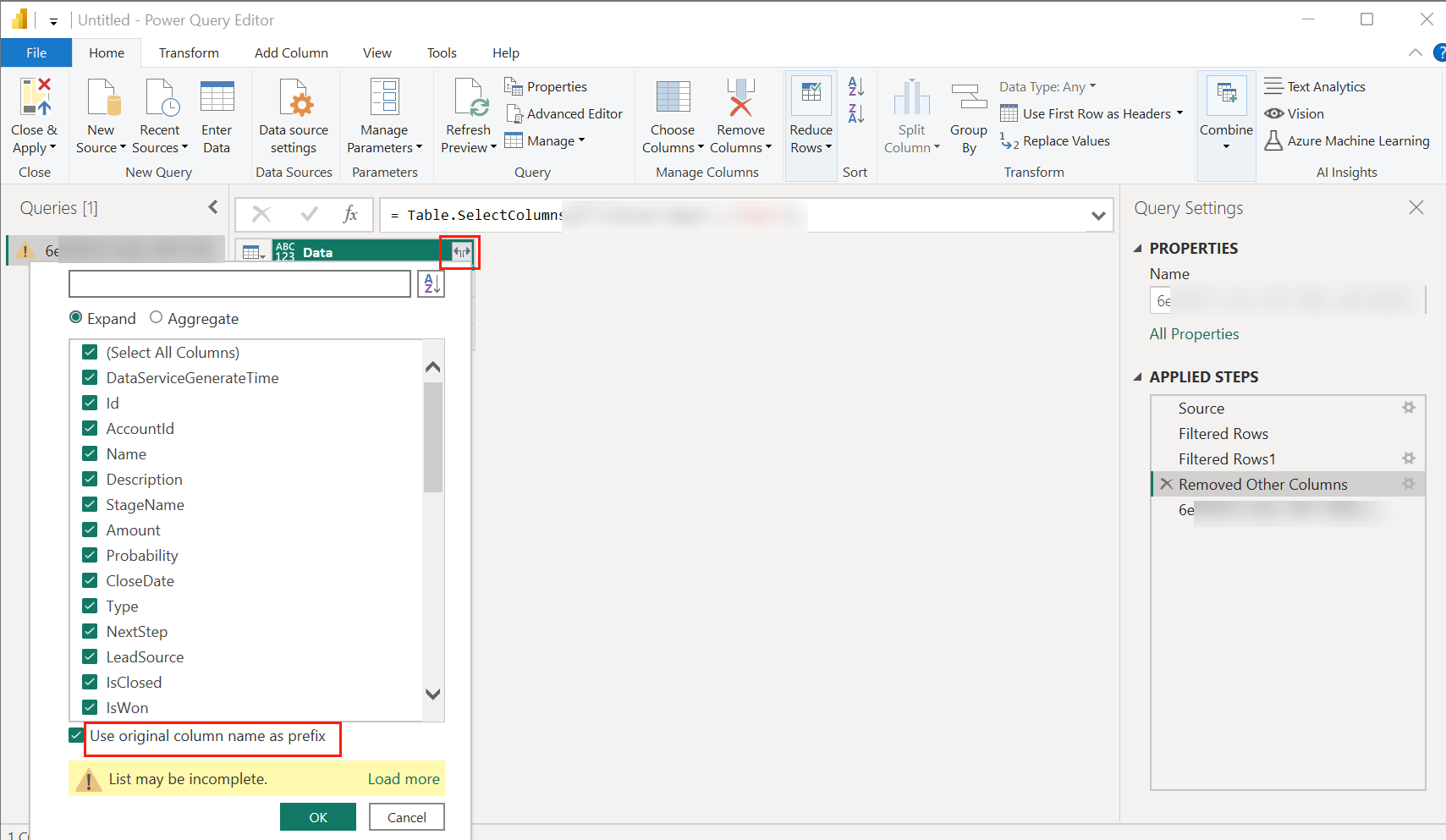
Click to select the Data column and click Remove Other Columns.

-
Click the Expand button of the Data column. Then select some necessary columns such as DataServiceGenerateTime, Id, AccountId, Name, StageName, Amount, CloseDate, ForecastCategory, OwnerId, CreatedDate, LastModifiedDate, FiscalQuarter, FiscalYear, and Fiscal. Then, uncheck the Use original column name as prefix option and click OK.
-
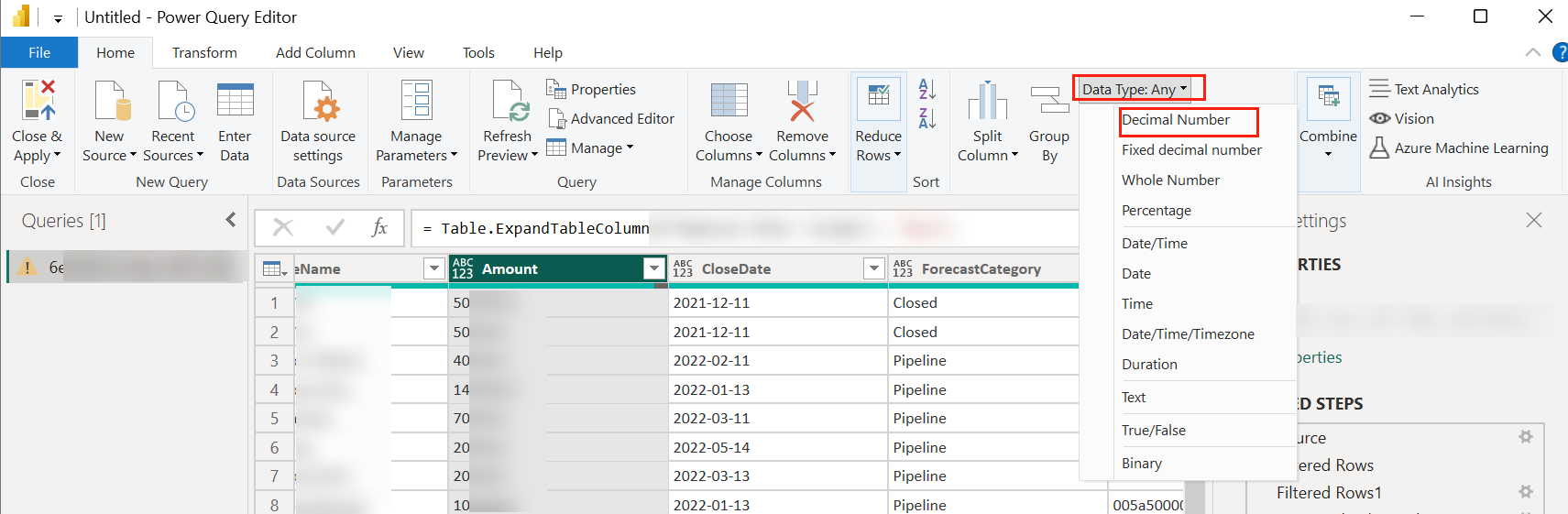
Click to select the Amount column and change the Data type to Decimal Number.
-
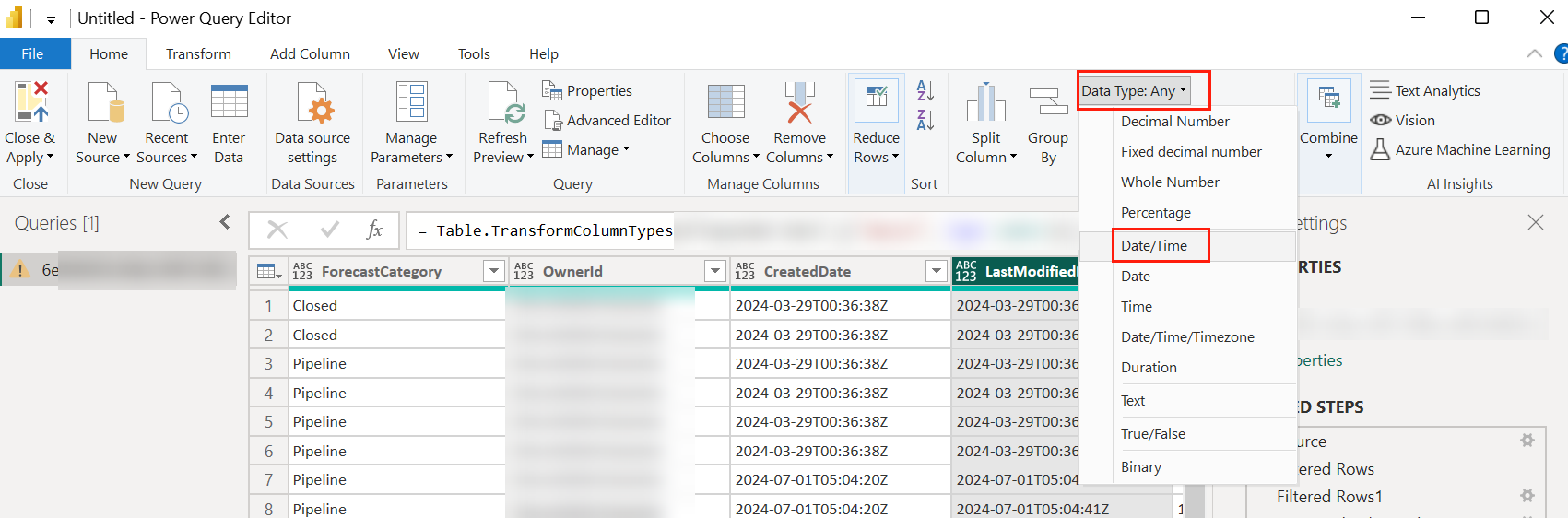
Click to select the LastModifiedDate column and change the Data type to Date/Time.
-
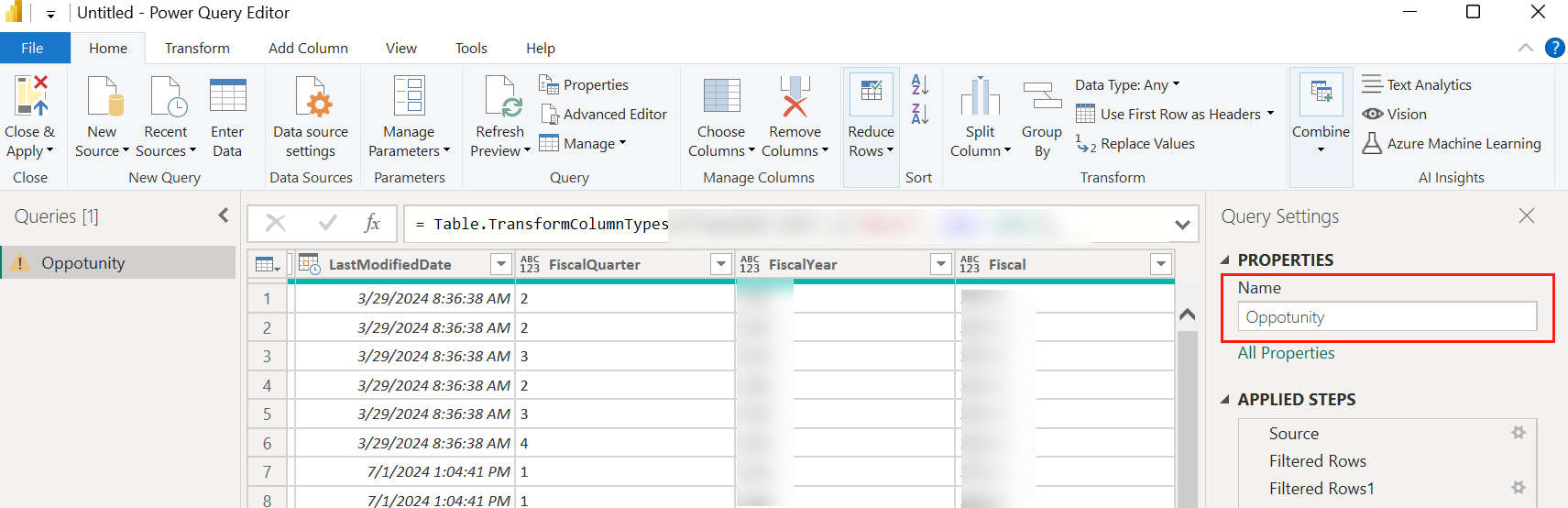
Rename the table to the corresponding object.
-
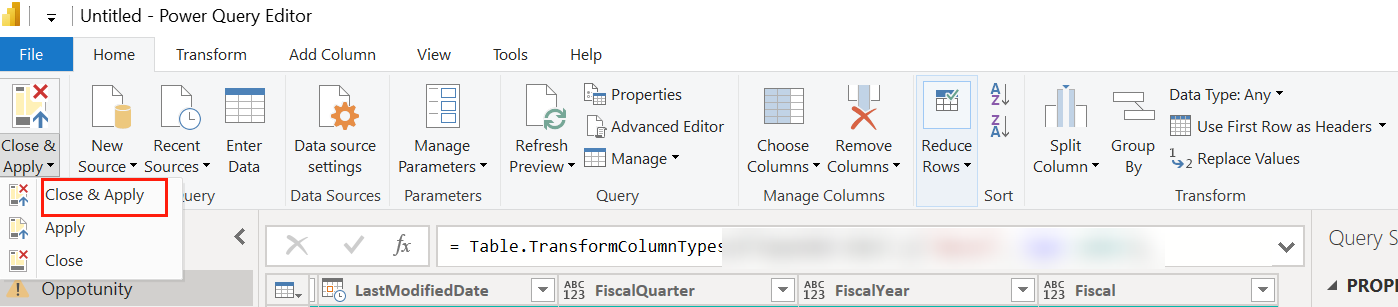
In the Home tab of the ribbon, click Close & Apply. Wait to load data.
-
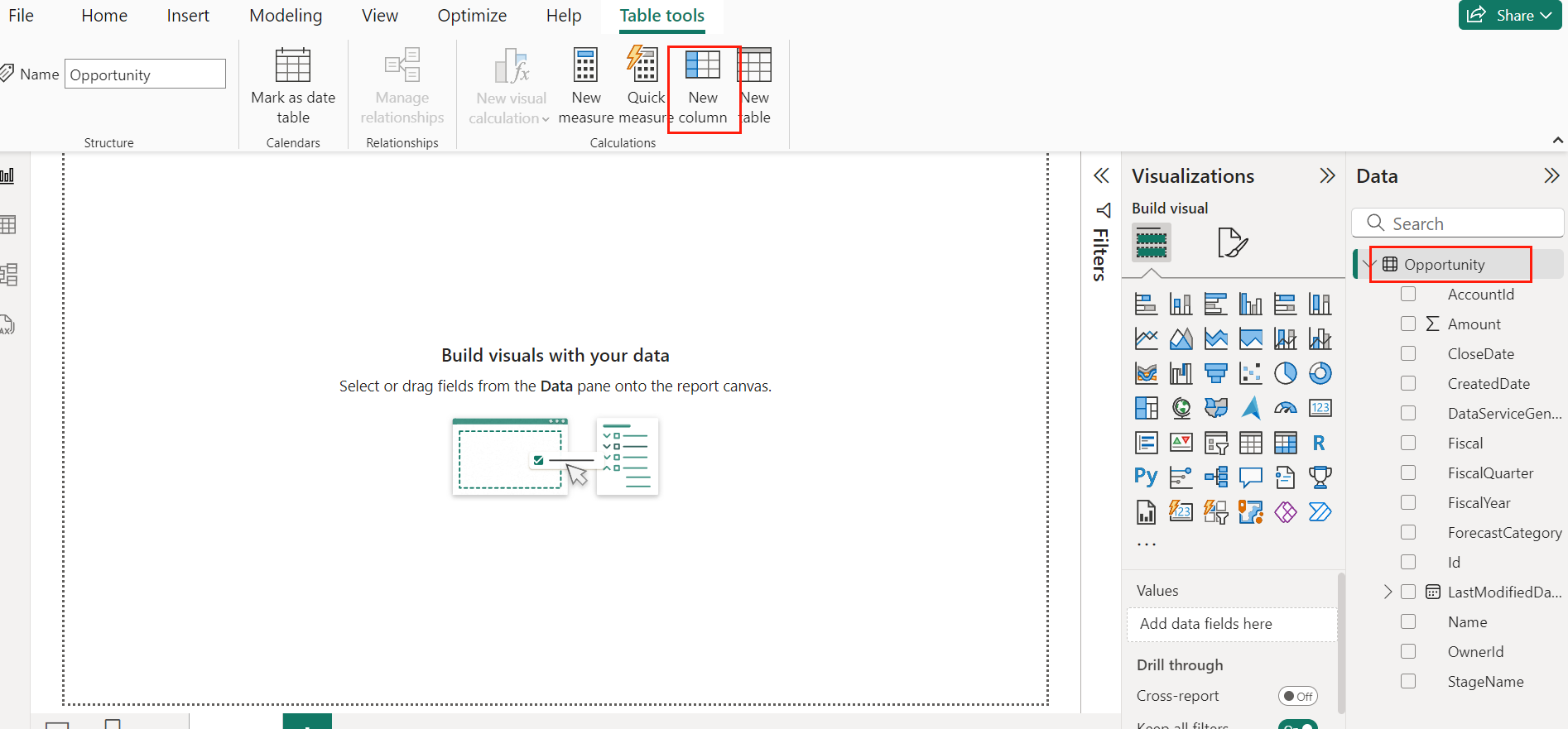
Click the Opportunity table in the right pane and click New column in the ribbon.
-
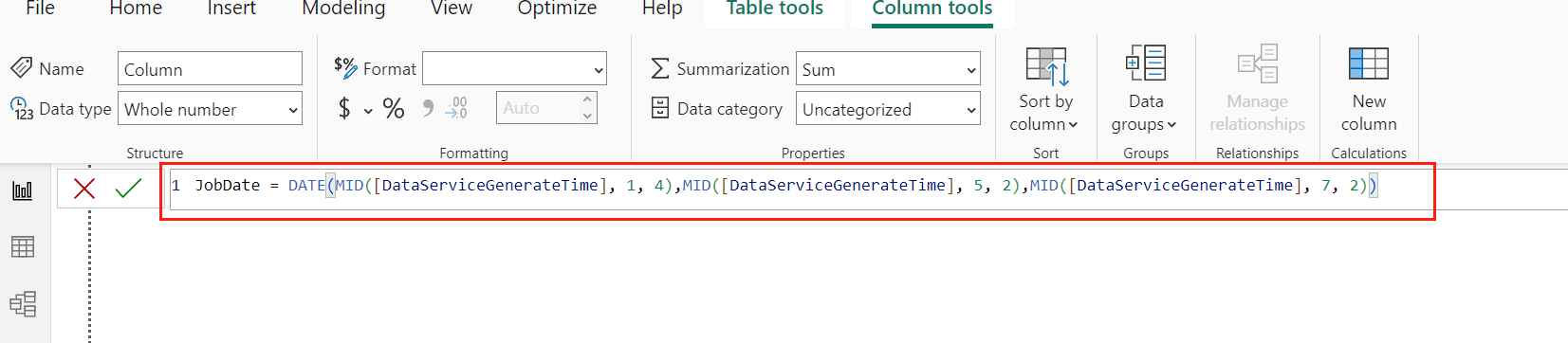
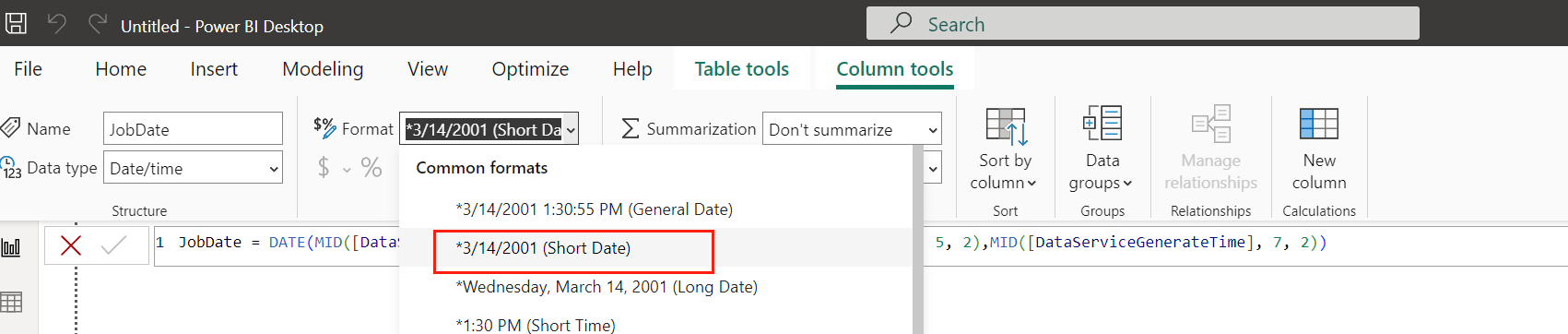
Enter the following formula to the text box and change its format to Short Date.
-
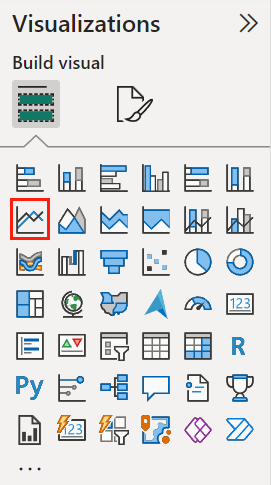
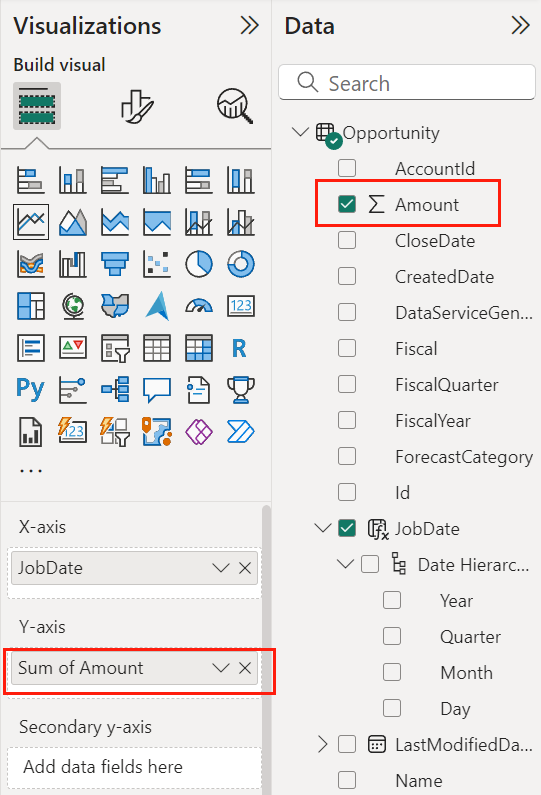
In Visualizations, click the Line chart button to create a line chart.
-
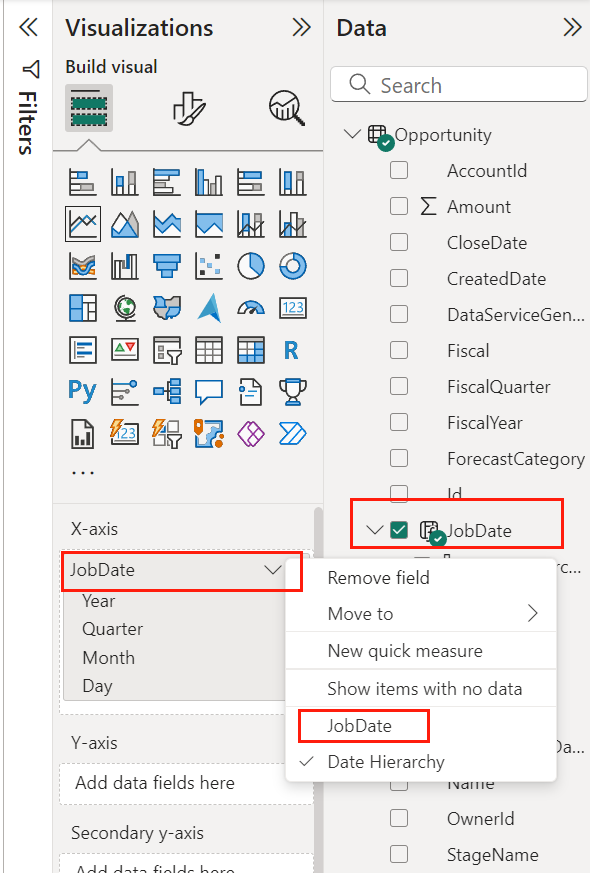
Select the newly created JobDate column to add it to the X-axis field. Then right-click the field and select JobDate.
-
Select the Amount column to add it to the Y-axis and then resize the chart.
-
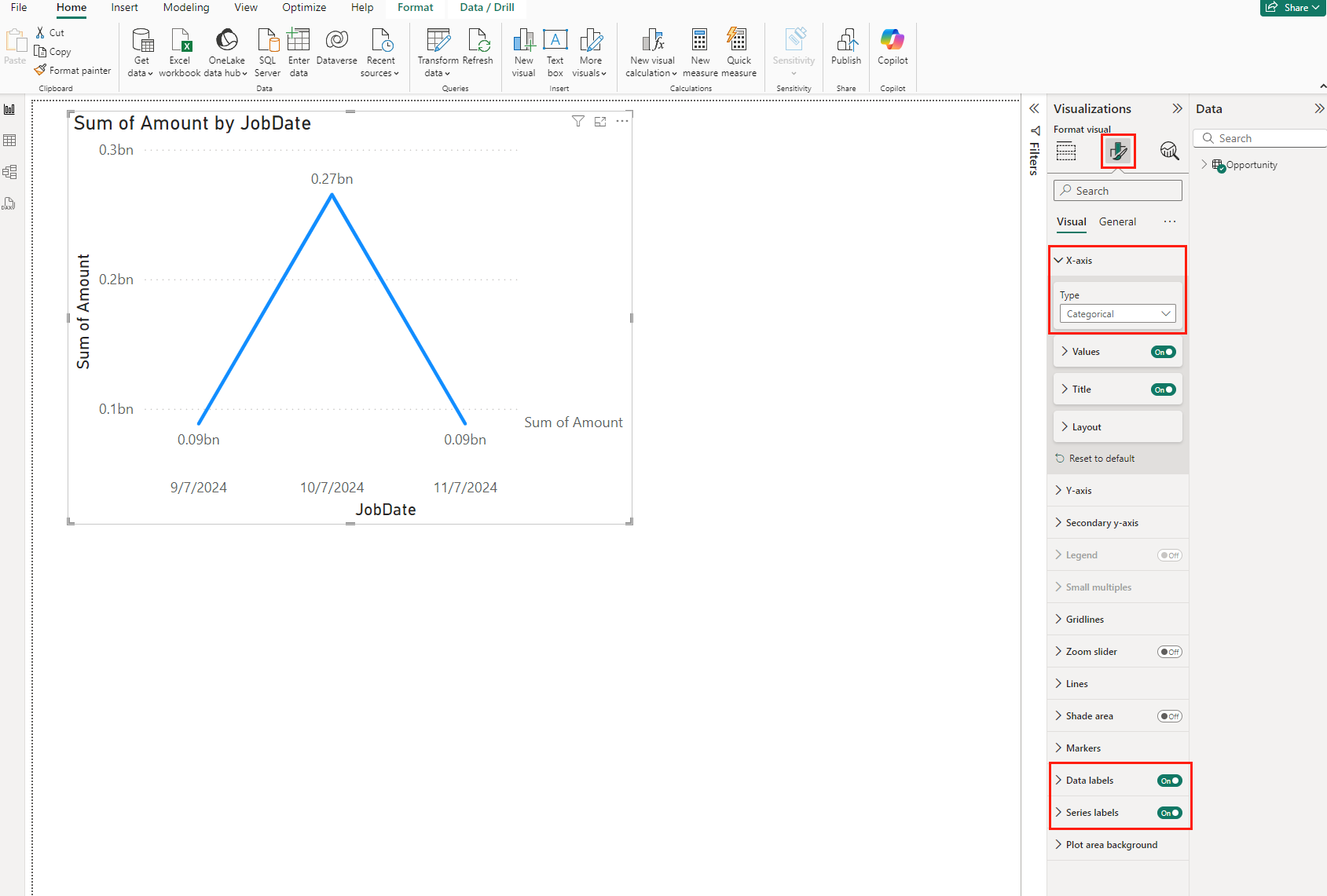
In Visualizations, click the Format your visual button. Then change the Type in the X-axis section to Categorical, and enable Data labels and Total labels.
-
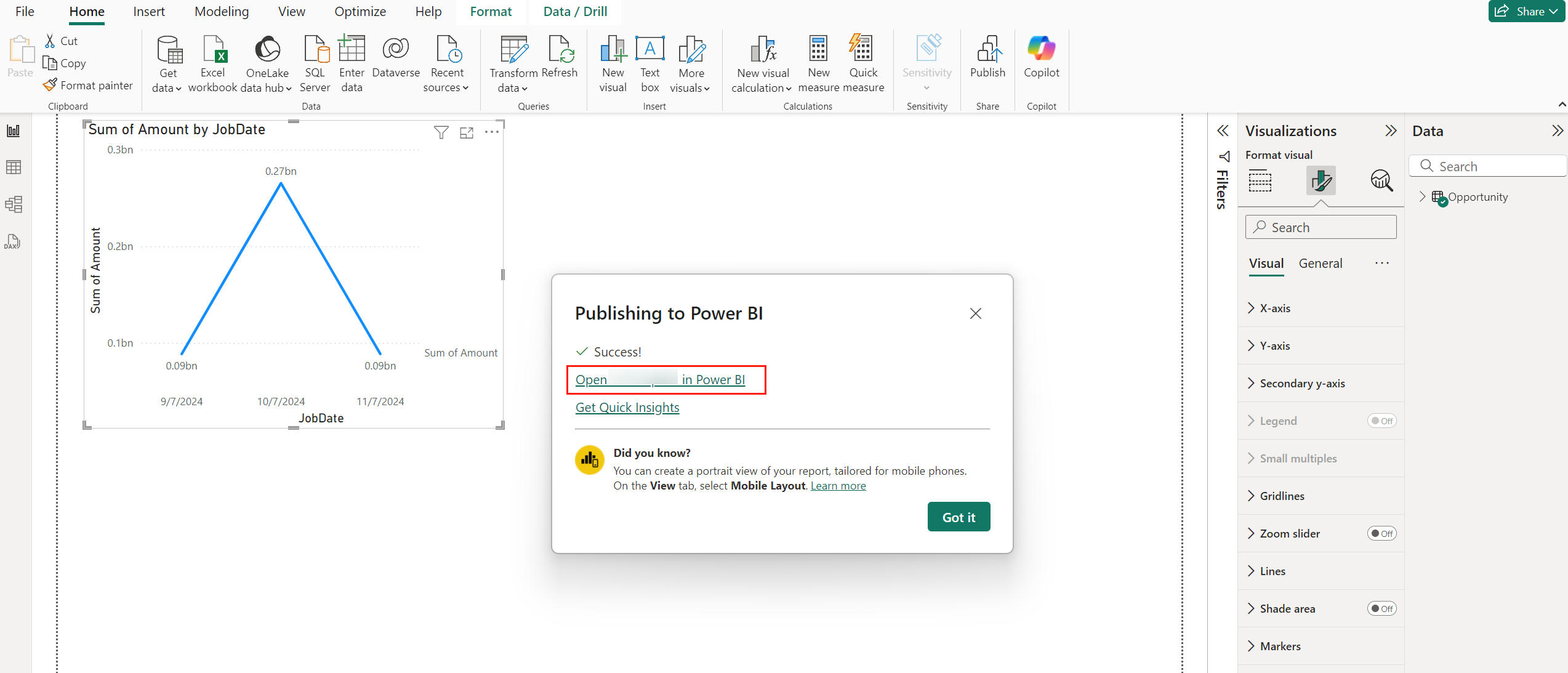
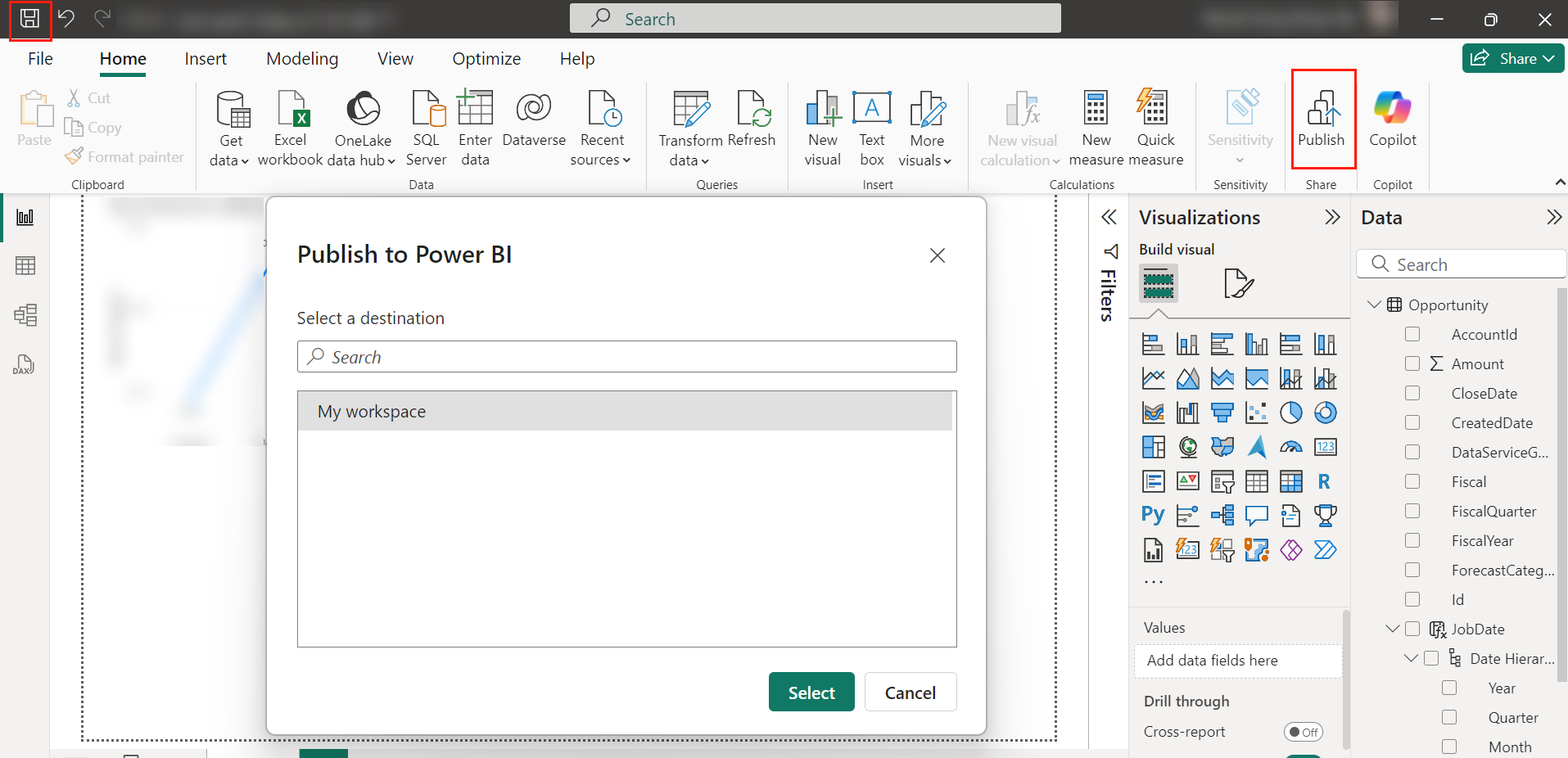
Click Save to save the report and then click Publish to publish it to Power BI.
-
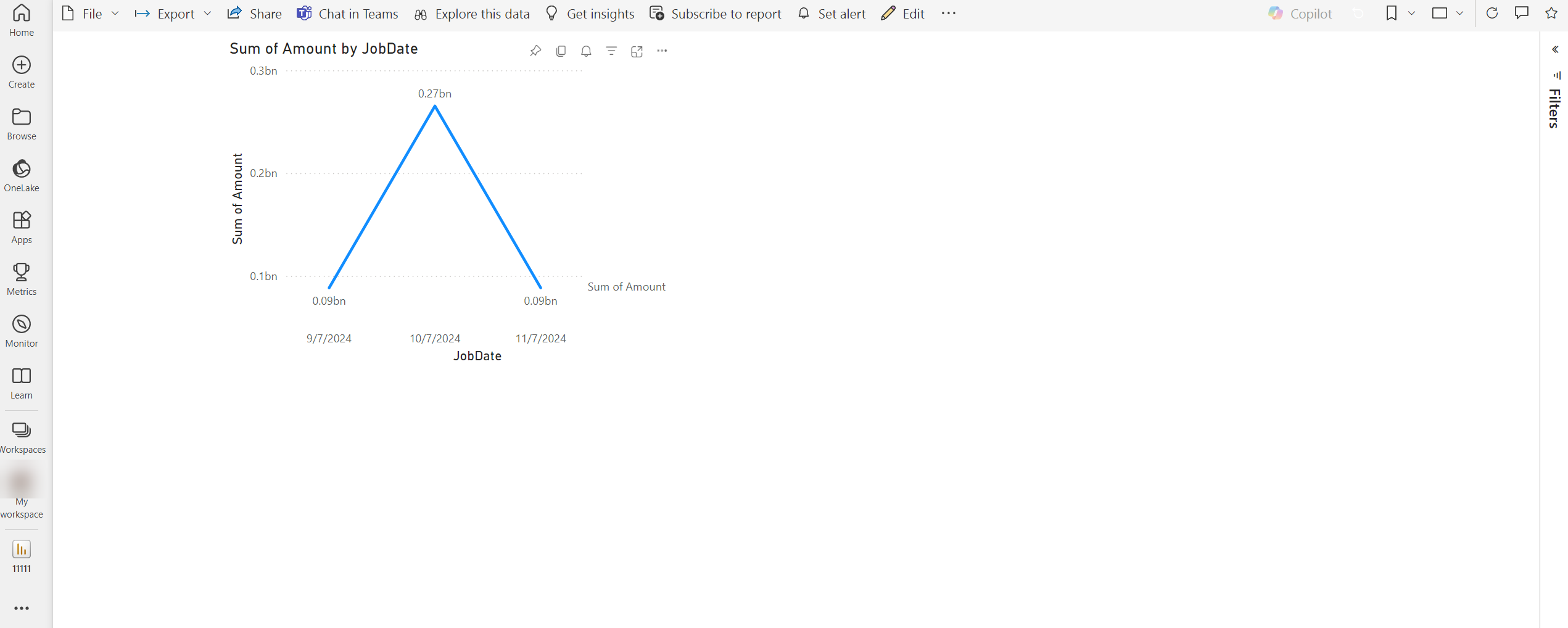
After successfully publishing the report to Power BI, click the option in the window to open it directly in Power BI.