
Home > Archive a Salesforce Organization > Manage Inactive Data Analysis
Download this articleManage Inactive Data Analysis
AvePoint Cloud Backup for Salesforce® supports Inactive data analysis to help identify data that is no longer actively used or frequently accessed. On the top of the Archive > Inactive data analysis page, you can select an organization to view the generated inactive data analysis report of the organization based on the last analysis job.

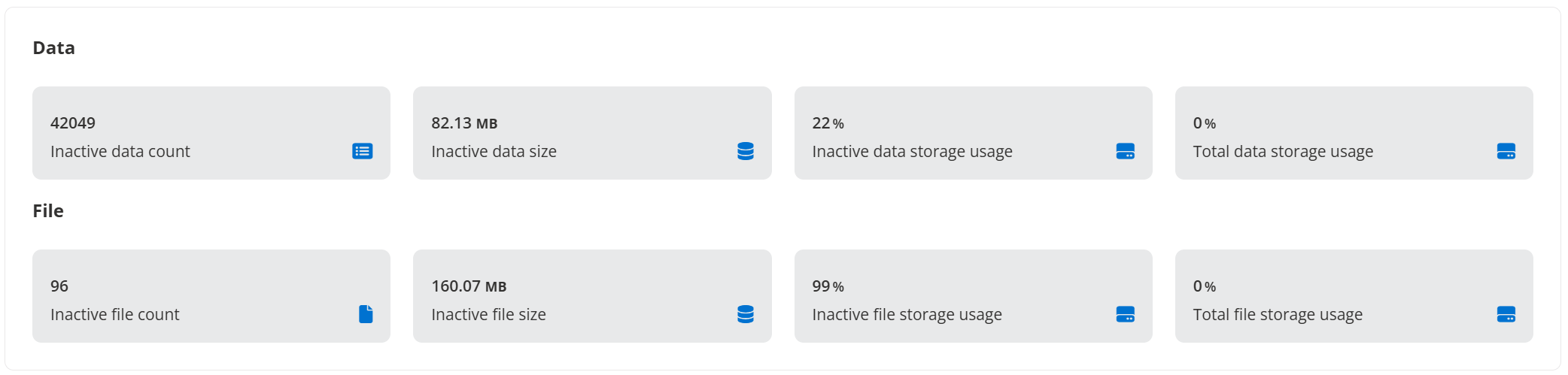
In the section with summary cards, the following are provided based on the last analysis job:
-
Inactive data count – Displays the total count of inactive data.
-
Inactive data size – Displays the total size of inactive data.
-
Inactive data storage usage – Displays the percentage of inactive data size relative to the total size in Salesforce.
-
Total data storage usage – Displays the percentage of all data size used relative to the total size in Salesforce.
-
Inactive file count – Displays the total count of inactive files.
-
Inactive file size – Displays the total size of inactive files.
-
Inactive file storage usage – Displays the percentage of inactive file size relative to the total size in Salesforce.
-
Total file storage usage – Displays the percentage of all file size used relative to the total size in Salesforce.
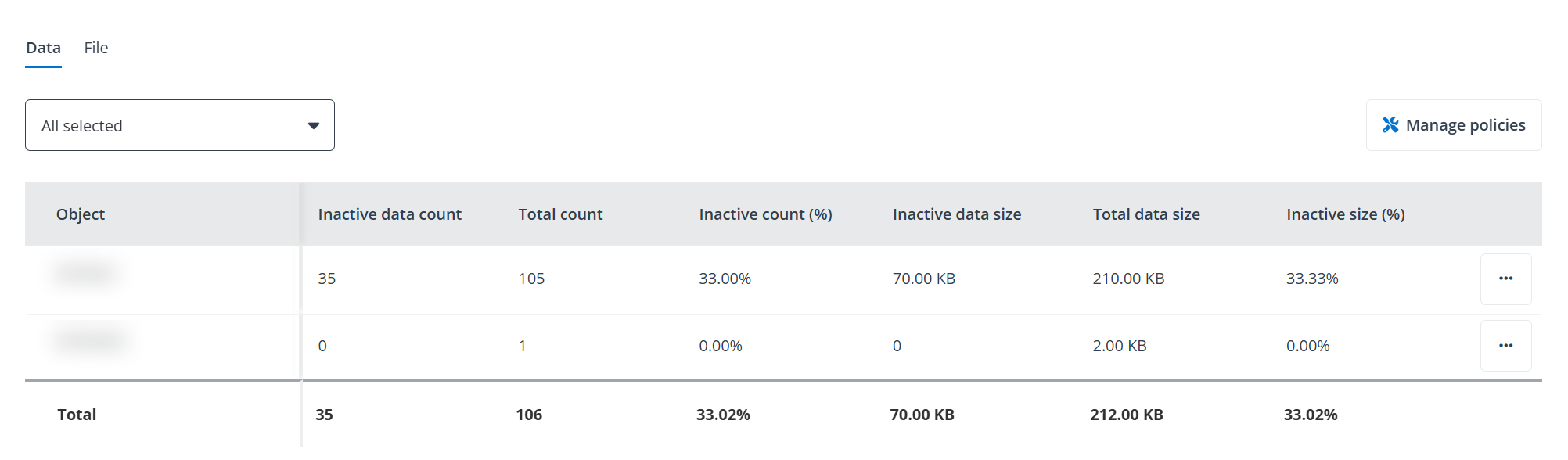
In the section for detailed information, you can select objects from the drop-down list above the table to view the detailed usage of inactive data/files in the table and their growth over time in the chart. By default, all objects within the scope of the last analysis job will be pre-selected.
Click Manage policies to be redirected to the Manage Policies page, where you can manage archive policies for the organization. To create/edit archive policy for a specific object, click the More commands button next to the object, then select Create archive policy/Edit archive policy.
The Total count may be delayed compared to the data in Salesforce due to Salesforce API limitations.
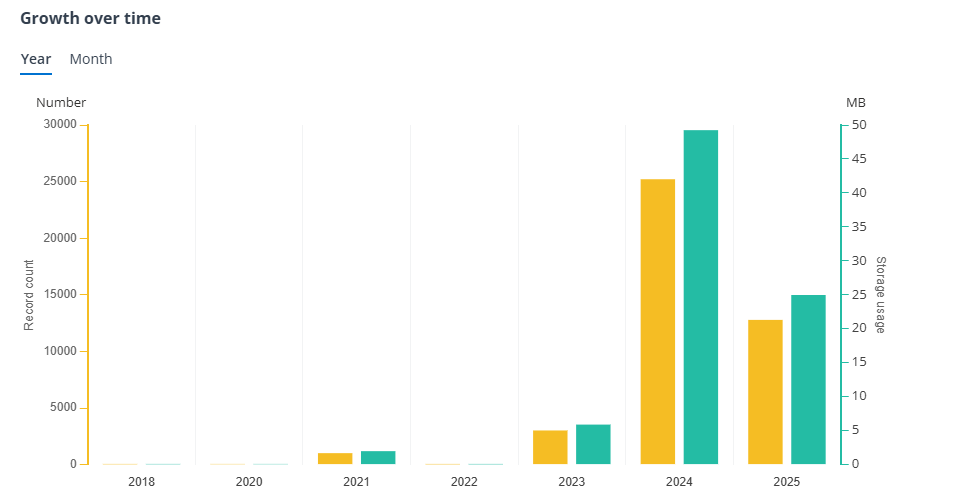
In the Growth over time chart, there are two tabs: Year and Month. You can hover your mouse over each bar for specifics. For the monthly report, data for the last 24 months will be displayed, and you can select the time range from the drop-down list.
Run Inactive Data Analysis
To run an inactive data analysis job, complete the following steps:
-
Click Archive in the left navigation.
-
Click Inactive data analysis.
-
On the Inactive data analysis page, you can select the organization to view the corresponding inactive data analysis report.
-
Click the Run analysis button.
-
On the Run analysis page, complete the following configurations:
-
Organization – Select the organization for which you want to run analysis.
-
Object – Select the objects for which you want to run analysis.
-
Conditions – Configure the conditions for the analysis.
-
Apply conditions to all objects – You can specify whether records must meet all or any of the configured criteria to be archived. By default, the condition is All of these criteria are true (and), meaning that records must meet all the configured criteria to be identified as inactive data. You can click to change the condition to Any of these criteria are true (or). In this case, records that meet any of the configured criteria will be identified as inactive data.
You can configure conditions for the analysis by selecting the Field and configuring the Value to define the conditions to filter the records.
Click the Add icon next to the condition and repeat the steps above to add more conditions. To remove a condition, click the Remove icon.
-
Apply conditions to specific objects – You can configure advanced conditions for the selected objects with a granular analysis. Once applied, the system will use only these new conditions instead of the common filters.
Click Add conditions to configure conditions. By default, the condition is All of these criteria are true (and), meaning that records must meet all the configured criteria to be identified as inactive data. You can click to change the condition to Any of these criteria are true (or). In this case, records that meet any of the configured criteria will be identified as inactive data.
Configure the Object, Field, Operator, and Value to filter the records. Click the Add icon next to the condition and repeat the steps above to add more conditions for the selected object. To remove a condition, click the Remove icon.
You can click Add conditions to add more condition groups for different objects. To remove a condition group, click Remove icon on the upper-right corner of the condition group.
-
-
-
Once completed, click Run to run an analysis job.