
Home > Archive a Salesforce Organization > Manage Archive Policies
Download this articleManage Archive Policies
On the top of the Archive > Archive policies page, you can select an organization for a comprehensive view of the archive policies and storage usage for your organization. For all archive policies in the organization, click the Archive policies button. The Archive page is automatically refreshed daily, and the object list used to create archive policies is also be updated. You can also click the Refresh button next to the last updated time to manually retrieve the latest archive information and object list for the selected organization.

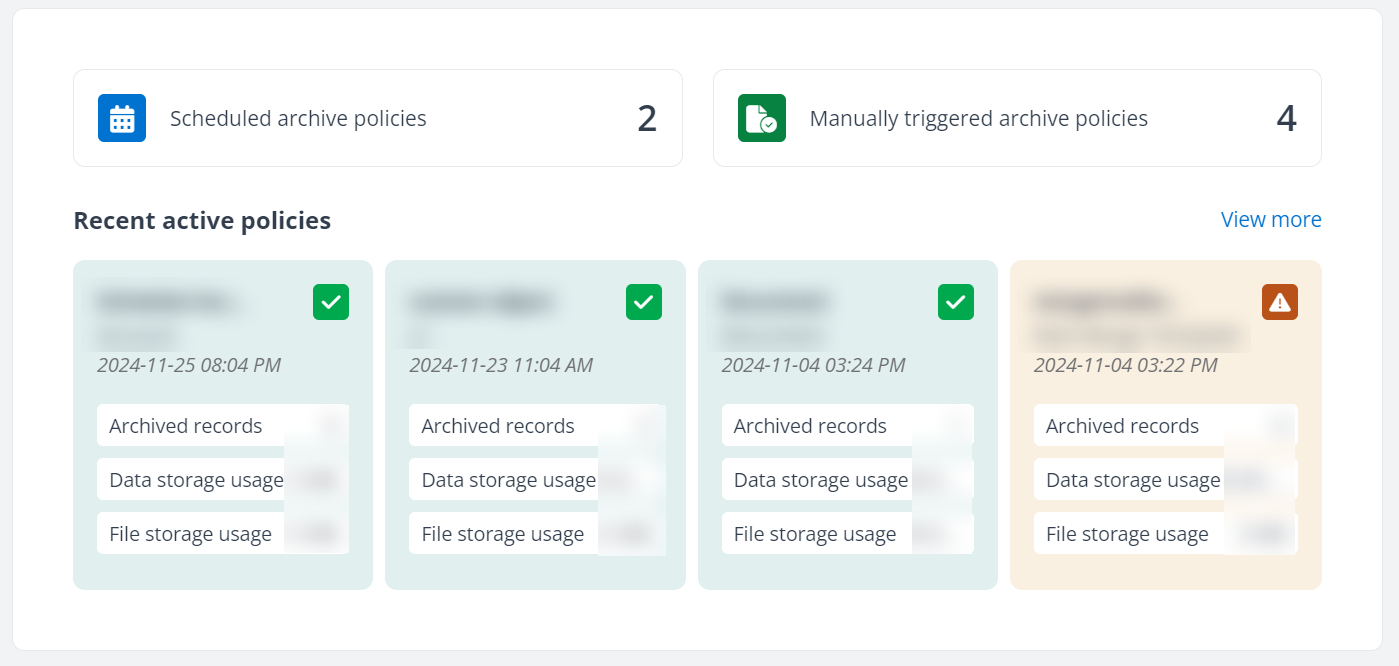
In the section for archive policies, you can view the total count of active policies with or without schedule enabled. The four most recent archive policies for the selected organization are listed, ordered by the last job completion time. Each policy displays the total number of records and data/file storage size archived by the policy. You can click View more for all archive policies in the organization.
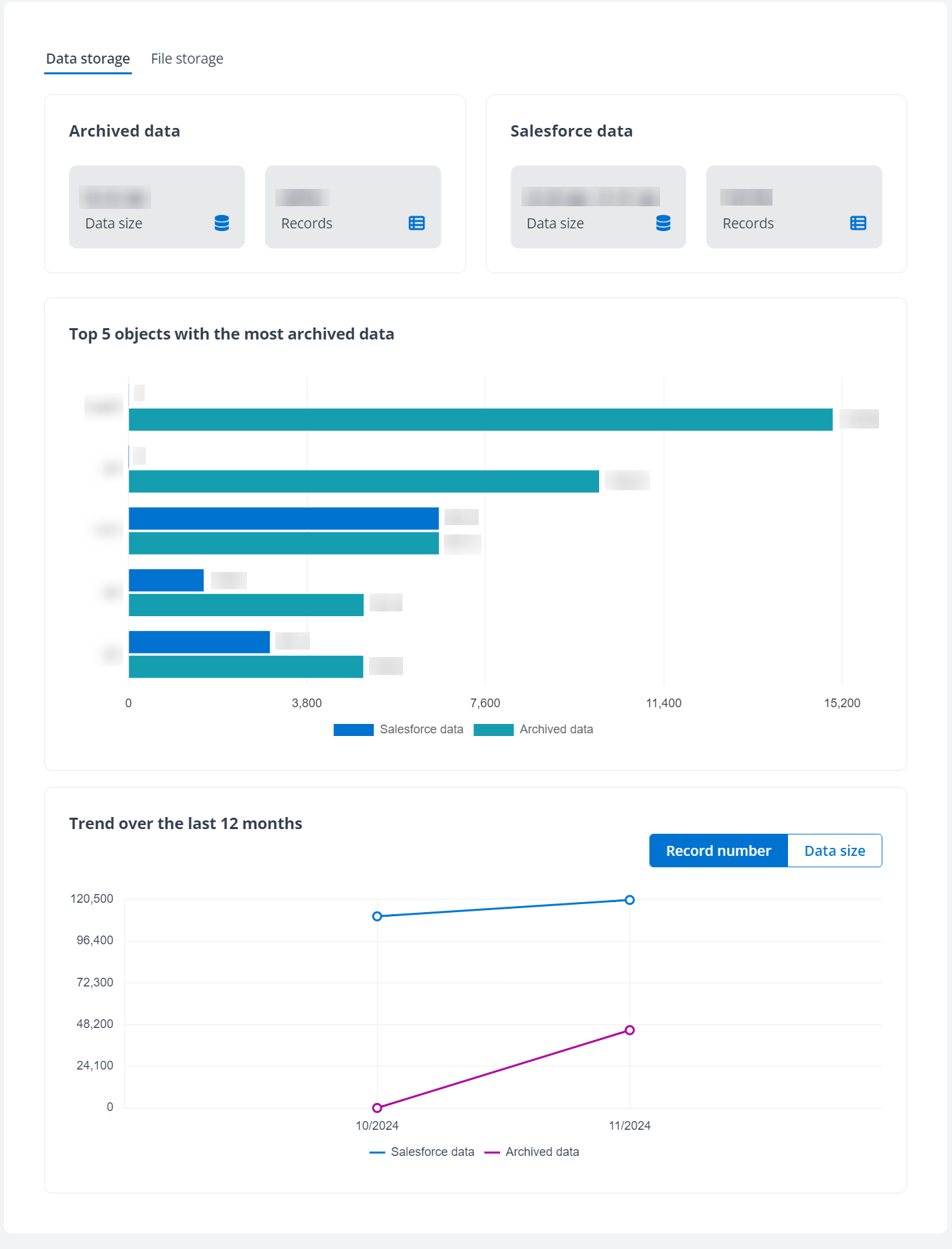
In the section for storage usage, there are two tabs: Data storage and File storage. In each tab, you can view the data size and record number separately for data archived by AvePoint and for current data in the Salesforce environment. For the Trend over the last 12 months, you can click on points in the chart to get information for each corresponding month. In the Data storage tab, the top 5 objects with the most archived data are also listed, along with the number of records archived and those currently in the Salesforce environment.
Create an Archiving Policy
Complete the following steps to create an archive policy. With a trial subscription, you can create up to 5 policies.
-
Click Archive in the left navigation.
-
Click Archive policies.
-
On the Archive policies page, select the organization for which you want to create archive policies.
-
Click the Archive policies button next to the selected organization or click View more in the Recent active policies section to navigate to the Manage policies page.
-
On the Manage policies page, click the Create button above the table. The Create an archive policy panel appears.
-
In the General information step, enter a name for the policy. You can also enter a Description for future reference.
-
Click Next to configure the data scope.
-
In the Organization field, select the organization for which you are creating the archive policy. Note that the organization cannot be changed once saved.
-
From the Object drop-down list, select the object for which you want to archive data. Note that the object cannot be changed once saved, and each object can only be included in one archive policy.
If the object you select is Content Document, you need to select a parent object. Its related content documents will be archived.
NOTEIf the Content Document has multiple parent links, those links might be lost when the document is archived. This means the document may no longer point to other parents still in Salesforce.
-
Two methods are provided to filter the records for archiving: Archive conditions and SOQL query.
NOTEIf the object you select is Content Document, records can only be filtered by Archive conditions.
-
Archive conditions – In the Archive conditions section, click Add new conditions. You can specify whether records must meet all or any of the configured criteria to be archived. By default, the condition is All of these criteria are true (and), meaning that records must meet all configured criteria to be archived. You can click the condition to change it to Any of these criteria are true (or). In this case, records that meet any of the configured criteria will be archived.
Follow the steps to configure conditions for the archive policy:
-
Select the Field and Operator, and configure the Value to define the archive conditions to filter the records.
-
Click the Add icon next to the condition and repeat the steps above to add more conditions. To remove a condition, click the Remove icon.
-
-
SOQL query – Click Switch to SOQL query and enter SOQL query in the text box. Ensure that the source object in the query matches the object you selected.
-
-
Configure the following settings:
-
Archive related child objects – Turn on/off the toggle to define whether to archive records of the first-level child objects of the selected object.
If you turn on the toggle, click Add child object to add a child object to the policy and select a Lookup field. You can continue to click Add child object to add more objects.
*Note: In certain cases, when a record is deleted, Salesforce logic requires that all related records must also be deleted. In such instances, all related records will be removed together.
-
Include related Content Document – Turn on/off the toggle to define whether to archive related content documents of the selected object.
-
Skip archiving records updated or created within the specific days – Turn on/off this toggle to exclude any records created or modified within a specified number of days, regardless of whether they meet the archive conditions.
-
Maximum number of records permitted in one archive job – Set a limit on the number of records archived in a single job to enhance performance and manage Salesforce API limits. The default is 10,000 records, with a maximum of 2 million records.
-
-
Click Next to configure archive settings.
-
In the Retention policy section, select a condition and configure the period. Archived data that meets the condition will be deleted.
-
Turn on/off the Enable scheduled archiving toggle to define whether to set a schedule for the policy. Once enabled, select the frequency, start date, and time for running the policy.
-
Click Next to go to the Overview page and review the policy settings.
-
You can take the following actions:
-
Save & Run – Save the archive policy and start an archive job according to the policy.
-
Save & Simulate – Save the archive policy and start a simulation job according to the policy. This can help avoid unintended changes in your Salesforce environment and ensure that you are only removing the data that you want.
-
Save – Save the archive policy.
-
Back – Return to the previous page.
-
Cancel – Close the panel without saving any configurations.
On the Manage policies page, you can select the existing policies and perform the following actions:
-
Archive – Click the Archive button above the table to manually run archive job for an existing policy. Note that the job will not start if there is already a running job for the organization.
-
Simulate – Click the Simulate button to run a simulation job for existing policies.
-
Make a copy – Click Make a copy and complete the following configurations:
-
Destination organization – Select the destination organization.
-
Policy name – Enter the policy name.
-
Description – Enter the description if required.
-
-
Edit – Click Edit to edit the selected policy. Note that the organization and object selected for the policy cannot be changed.
-
Delete – Click Delete to delete the selected policies.
-