
Home > Job Monitor
Download this articleJob Monitor
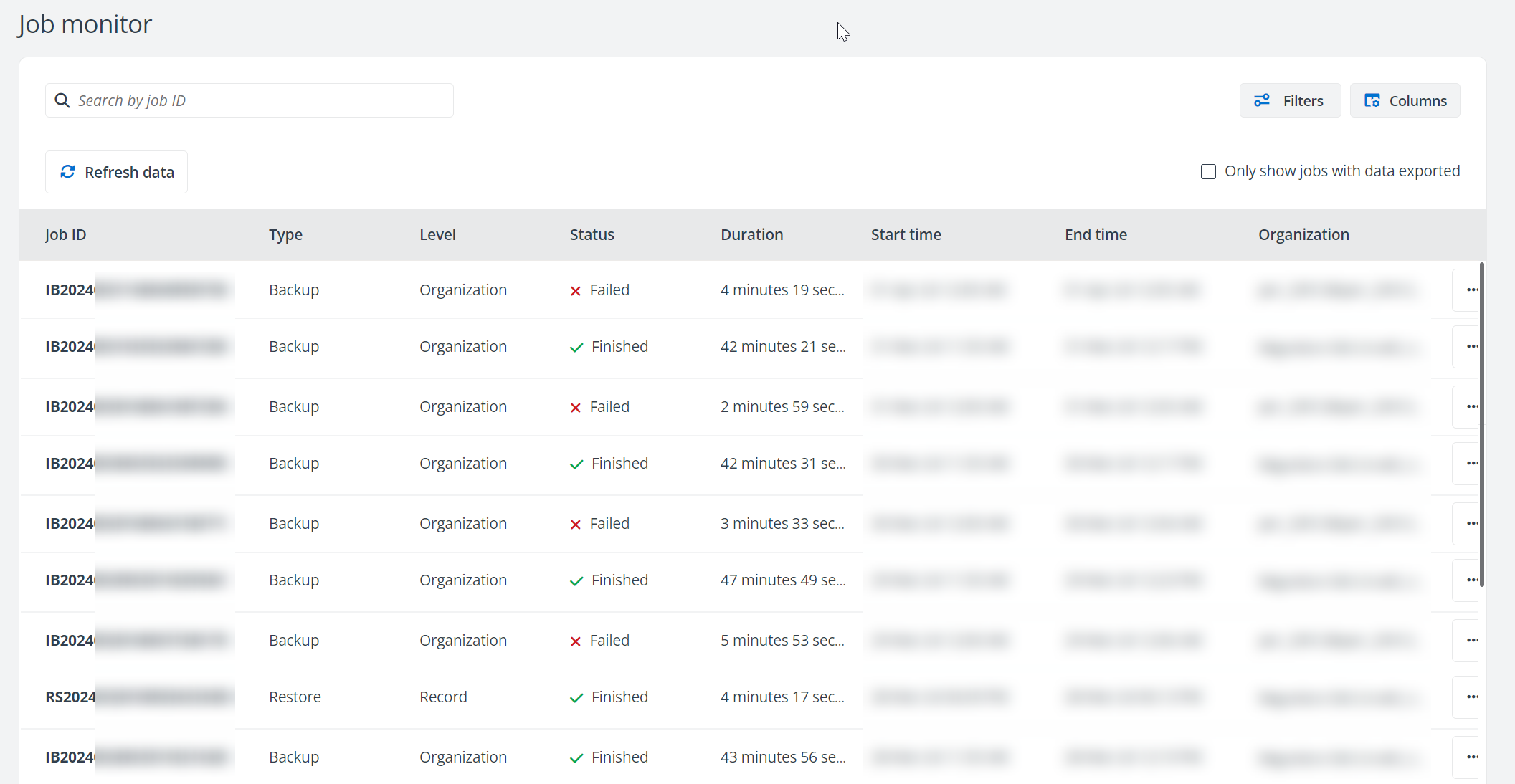
The Job monitor page displays the operations that have taken place in AvePoint Cloud Backup for Salesforce®.
-
Backup – The data backup job.
-
On demand backup – The on-demand backup job.
-
Audit log backup – The audit log backup job.
- Archive – The archive job.
-
Simulation – The simulation job.
-
Restore – The restore or pre-restore job.
-
Compare – The compare objects or compare metadata job.
-
Audit log backup export – The audit log export job.
-
Backup export – The backup data export job that is run by clicking Export records or Export files of a backup job in the job monitor. Note that there is a monthly limit (100 GB) on the capacity of files that can be exported.
-
On-demand export – The backup and archived data export job that is run by clicking Export while restoring records. Note that there is a monthly limit (100 GB) on the capacity of files that can be exported.
-
Auto-export – The automatic export job of backup data based on the scheduled export policy.
-
Audit log auto-export – The automatic export job of audit logs based on the scheduled export policy.
-
Data Cleanup – The data cleanup job to clean up field values of records.
-
Sandbox seeding – The sandbox seeding or pre-seeding job.
-
Discover – The discover job.
-
Data service – The data service job.
-
Retention – The archived data retention job.
You can perform the following actions on the job records:
-
Use the search box to search for the records by job ID.
-
Click Filters to filter the records by Data range, Level, Type, Status and Organization.
-
Click Columns to choose the columns you want to display on this page.
-
Click the Refresh data button to refresh the records.
-
Click Export and select a date range to export the records. Note that the maximum date range is one year.
-
Select the Only show jobs with data exported checkbox to view the jobs for which the data has been exported to download data.
-
Click the Job ID link of a record to view the job details. Refer to View Job Details for details.
-
Hover your mouse over a record, click the More commands button, and select an action if necessary:
-
Download report – Download a job report that contains the summary of the job information and details about the job. We are implementing error codes into job reports as a self-service approach for troubleshooting. Clicking the error code link in the downloaded job report will open the troubleshooting guide.
For archive jobs, you can download two types of job reports:
-
Simple report – Includes exceptions and skipped records. To download a simple report, click Download simple report.
-
Detailed report – Includes exceptions and skipped records, as well as successful records.
To download a detailed report, click Generate detailed report to start generating the job report first. After the job report is successfully generated, the dot icon will be displayed on the more actions button. To download the report, click the more actions button and click Download report from the drop-down menu.
NOTEIf a scheduled retention job deletes records before the detailed report is generated, the report may still include records that no longer exist.
-
-
Export records – Export detailed backup data in a backup job to CSV files or MySQL files. In the Export records panel, select whether to export detailed backup data to CSV files or MySQL files, and whether you want to export the changed records after the last backup job or export all backup data in the current cycle. Then click Export. An export job will be added to the job queue, and you can view the progress of the job in the job monitor.
Note the following:
-
By default, the export capacity limit for your tenant is 100 GB per month.
-
You cannot start an export job when there is an existing export job running for the same organization.
-
By default, ContentVersion objects are exported with their parent ContentDocument. If the export capacity limit for this month is reached, the export of the latest ContentVersion will be skipped. However, the export of ContentDocument will continue. If this is an urgent issue, you can contact your AvePoint support team for assistance.
-
-
Export files – Export files of the protected objects. In the prompted window, select the objects for which you would like to export files, and whether you want to export the changed data after the last backup job or export all backup data in the current cycle, and then click Export. Only the following object types are supported: Attachment, ContentNote, Content Version, Dataset Export Part, Document, EmailCapture, Event Log File, External Data Part, Mail Merge Template, MobileApplicationDetail, QuoteDocument, and Static Resource. An export job will be added to the job queue, and you can view the progress of the job in the job monitor. Note that there is a monthly limit (100 GB) on the capacity of files that can be exported.
NOTEThe EmailCapture and MobileApplicationDetail objects are not supported for archived data.
-
Export metadata – Export metadata in a backup job into a ZIP file.
NOTESeveral built-in Salesforce profiles do not have the same name when they are exported. If you create a custom profile with the same name as the exported name of the built-in Salesforce profile, the custom profile will overwrite the built-in profile. To avoid overwriting the built-in Salesforce profiles, refer to Appendix D - Exported Profile Names for Built-in Salesforce Profiles before naming a custom profile.
-
Download data – In the Download data panel, copy the password and click Download to save the CSV files or MySQL files to a local location after any export job is completed. Files exceeding 50 GB will be divided into multiple smaller files. You can then download each of these files individually.
NOTEWhen you use AvePoint’s default storage, the exported data can be retained for 7 days. If you want to download data, make sure you download it within 7 days after the export job is completed.
-
Rerun – Rerun the archive, simulation, restore, export, discover, and data cleanup jobs. If you rerun a restore job, all data will be restored again.
Note the following:
-
Only failed, finished with an exception, skipped, and stopped jobs can be rerun.
-
Backup and retention jobs cannot be rerun.
-
-
Stop – Stop an in-progress job.
NOTEBackup and discover jobs cannot be stopped.
-
View Job Details
On the Job details page, you can view the settings of the job, or the data details in the job. For backup and archive jobs in progress, successful items and items with exceptions during the backup or archive are provided. You can also perform the following actions to manage the job:
-
Click Download report to download a job report that contains the summary of the job information and details about the job. For failed or skipped restore job, you can get the Old Record ID in the job report. We are implementing error codes into job reports as a self-service approach for troubleshooting. Clicking the error code link in the downloaded job report will open the troubleshooting guide.
By default, only records with exceptions are included in the detailed job report for restore jobs. If you need to view successful and skipped records, please contact AvePoint support for assistance.
-
For a backup job, you can view the General Information and backup details of data and metadata.

-
Under the Data tab, you can click Filters to filter the objects by object type or number range of removed/changed/added records. You can Export records or Export files of the protected objects.
To export records, select the objects that you want to export and click Export records. In the Export records panel, select whether to export detailed backup data to CSV files or MySQL files, and whether you want to export the changed data after the last backup job or export all backup data in the current cycle. Then click Export.
To export files, click Export files first. In the Export files window, select the objects for which you would like to export files, and whether you want to export the changed data after the last backup job or export all backup data in the current cycle, and then click Export. Only the following object types are supported: Attachment, Document, Static Resource, Mail Merge Template, Content Version, Event Log File, Dataset Export Part, and External Data Part.
An export job will be added to the job queue, and you can view the progress of the job in the job monitor.
NOTEYou cannot start an export job when there is an existing export job running for the same organization. There is a monthly limit (100 GB) on the capacity of files that can be exported, and the exported data is only available for 7 days.
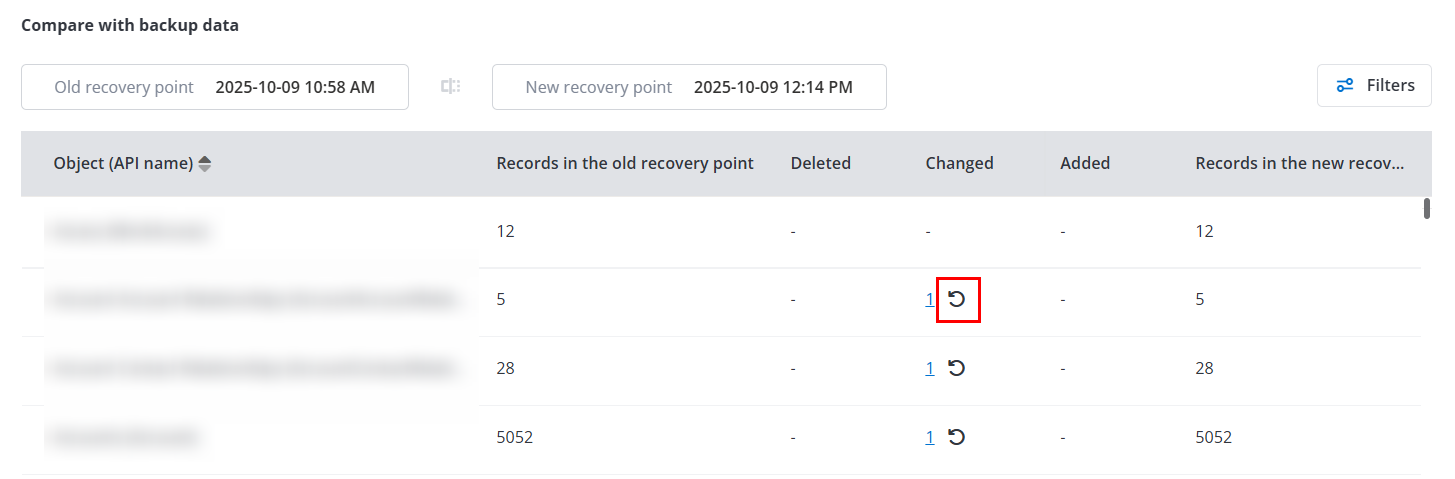
Click the Compare link to go to the Compare objects feature if you want to view the details of the deleted, changed, and added data with the last backup job. After the comparison, you can click the number link to view details and restore the deleted or changed records from the old backup job to the current organization by clicking the restore button next to the number.
-
Under the Metadata tab, you can use the search box to search for metadata by metadata type.
Click Export metadata to export metadata into a ZIP file.
NOTESeveral built-in Salesforce profiles do not have the same name when they are exported. If you create a custom profile with the same name as the exported name of the built-in Salesforce profile, the custom profile will overwrite the built-in profile. To avoid overwriting the built-in Salesforce profiles, refer to Appendix D - Exported Profile Names for Built-in Salesforce Profiles before naming a custom profile.
-
-
For an archive job, you can view the number of successful items and items with exceptions in the job. The General Information of the job is also provided, including the Duration, Operator, Policy name, and Object.

-
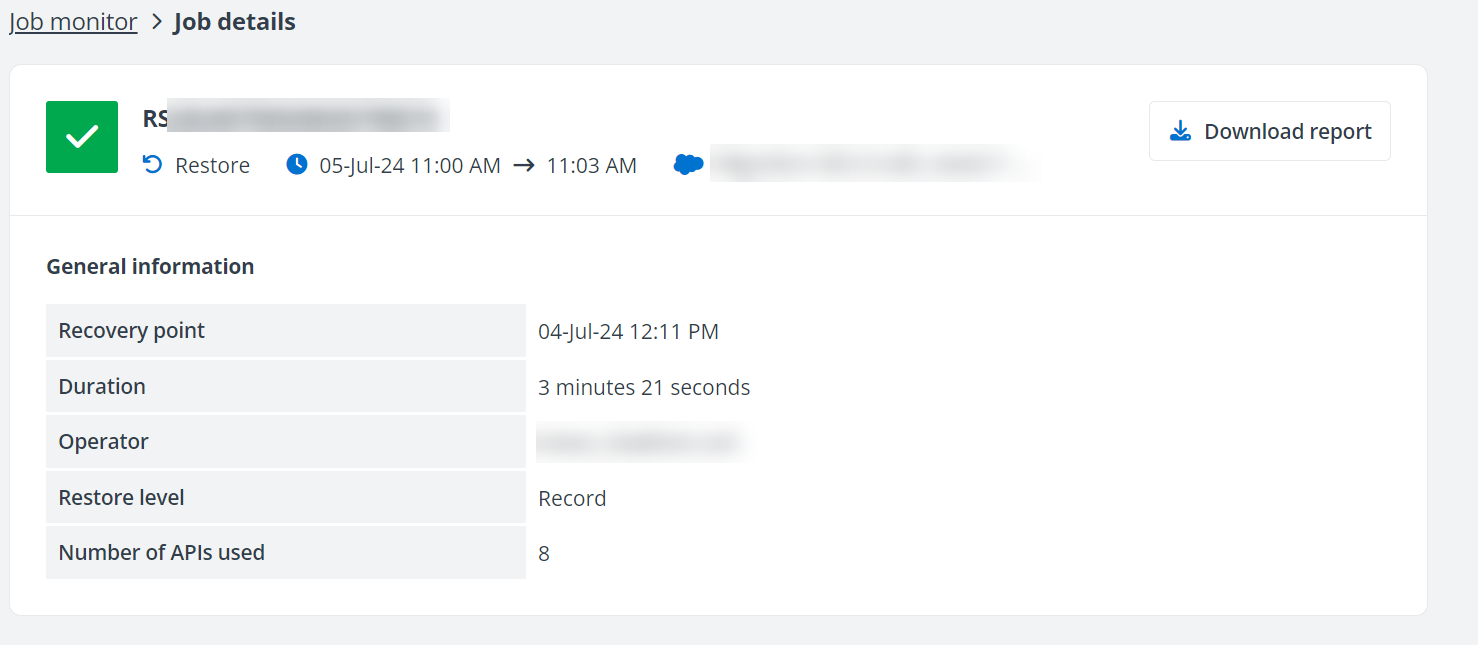
For a restore job, you can view the General Information of the job, including the Recovery point, Duration, Operator, Restore level, and Number of APIs used.
-
For a discover job, you can view the General Information and discover results. Only objects and records for which you have permission are listed in the discover report. In General information, you can click the Object link to list the objects searching from. You can also click Filters to filter the discovered records by object type. To preview the record, click the Record ID. The record details and related records are provided.

To take actions to the discovered records, select the records you desired. You can select the checkbox next to the Record ID to select all available records, or select the checkbox next to an object to select all available records of the object. Then you can take the following actions:
-
Compare – To compare the backup data of the selected records with the current Salesforce data., click Compare to start the compare process. After the compare job has started, you can go to the job monitor to track the progress. After the job is finished, you can click the Job ID link to view the compare result.
-
Restore – To restore the selected records, click Restore to jump to the restore steps. For details to restore records, refer to Restore Records.
-
Data cleanup – To clear the field values of the selected records, click Data cleanup to jump to the cleanup steps. For details on data cleanup, refer to Data Cleanup.
-
Export – To export the selected backup records to CSV files or MySQL files, click Export. If you select the records of the following object types: Attachment, Document, Static Resource, Mail Merge Template, Event Log File and Content Version, you can select to export Records only or export Records and files of the objects. Note that the MySQL file format only supports exporting records, and any files will keep their original formats. The export job may take a long time depending on the number of records or selected time range, and it may slow down other running jobs. There is a monthly limit (100 GB) on the capacity of files that can be exported.
-
-
For a data export or audit log export job, click the Download export data link to download and save the CSV files or MySQL files to a local location after the job completes. To obtain the password of the downloaded files, click the Show password button. Files exceeding 50 GB will be divided into multiple smaller files. You can then download each of these files individually.
NOTEWhen you use AvePoint’s default storage, the exported data can be retained for 7 days. If you want to download data, make sure you download it within 7 days after the export job is completed.

-
For a compare objects job, you can view the total number of records and the number of deleted, changed, and added records. Click Filters to filter the objects by object type or number range of removed/changed/added records.
-
Click the number link of the deleted records to view the detailed information about the deleted records on the Delete details page. You can click Download on the Delete details page to download a ZIP file to view the information about the deleted records.
-
Click the number link of the changed records to view the detailed information about the changed records on the Change details page. You can click Download on the Change details page to download a ZIP file to view the information about the changed records. Select the Only show changed fields checkbox to only view the fields that have been changed.
-
Click the number link of the added records to view the detailed information about the added records on the Add details page. You can also click Download on the Add details page to download a ZIP file to view the information about the added records.
If you have the Restore records permission, you can also restore the deleted or changed records from the old backup job to the current organization by clicking the Restore button next to the number.

-
-
For a compare metadata job, you can view the total number of metadata and the number of deleted, changed, and added metadata. Click Filters to filter the records by metadata type or number range of removed/changed/added metadata.
-
Click the Download button next to the number of the deleted or added metadata to download a ZIP file to view the detailed information about the deleted or added metadata.
-
Click the number link of the changed metadata to view detailed information about the metadata.
If you have the Restore metadata permission, you can also restore the deleted or changed metadata from the old backup job to the current organization by clicking the Restore button next to the number.

-
-
For a pre-restore or pre-seeding job, you can view the General Information and review job recommendations. You can adjust the settings directly on this page.
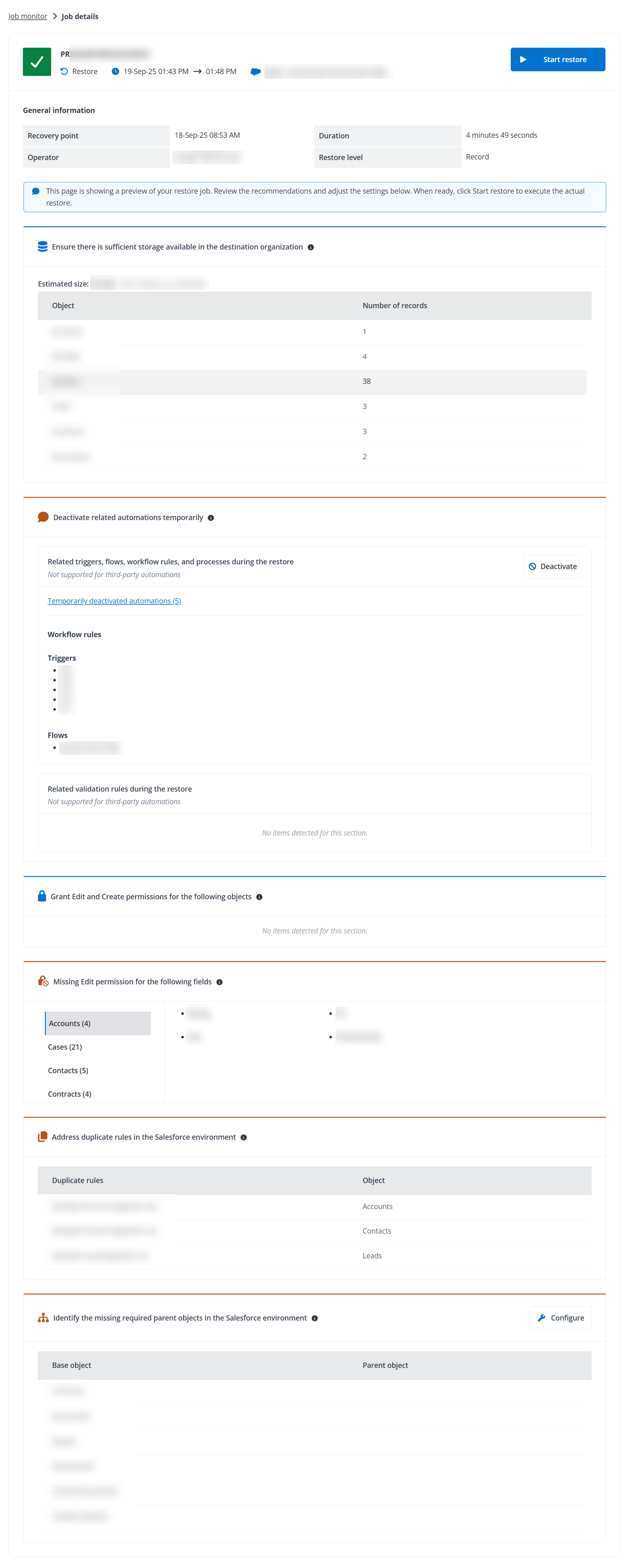
When ready, click Start restore/seeding on the upper right corner of the page to execute the actual restore/seeding and the settings you just adjusted will apply to the actual restore/seeding. For pre-seeding jobs, the changes you made on this page will also apply to this sandbox seeding template when you start the sandbox seeding job.
In the page, four sections of recommendations are provided:
-
Ensure there is sufficient storage available in the destination organization – The objects included in the job are listed in the table together with the number of records in each object, and the estimated size of the data is provided. If the storage available in the destination organization is insufficient, you can either delete some existing data in the destination organization or increase the storage limit to provide enough storage for the restore or seeding.
-
Deactivate related automations temporarily – Cloud Backup for Salesforce® will check related triggers, flows and processes, workflow rules, and validation rules in the destination environment, and display them in this section.
To customize the deactivation scope, you can click Deactivate and define the deactivation scope to deactivate related automations temporarily:
-
All related automations – All the related automations will be deactivated during the restore.
-
Custom deactivation scope – Select the automations you want to deactivate during the restore.
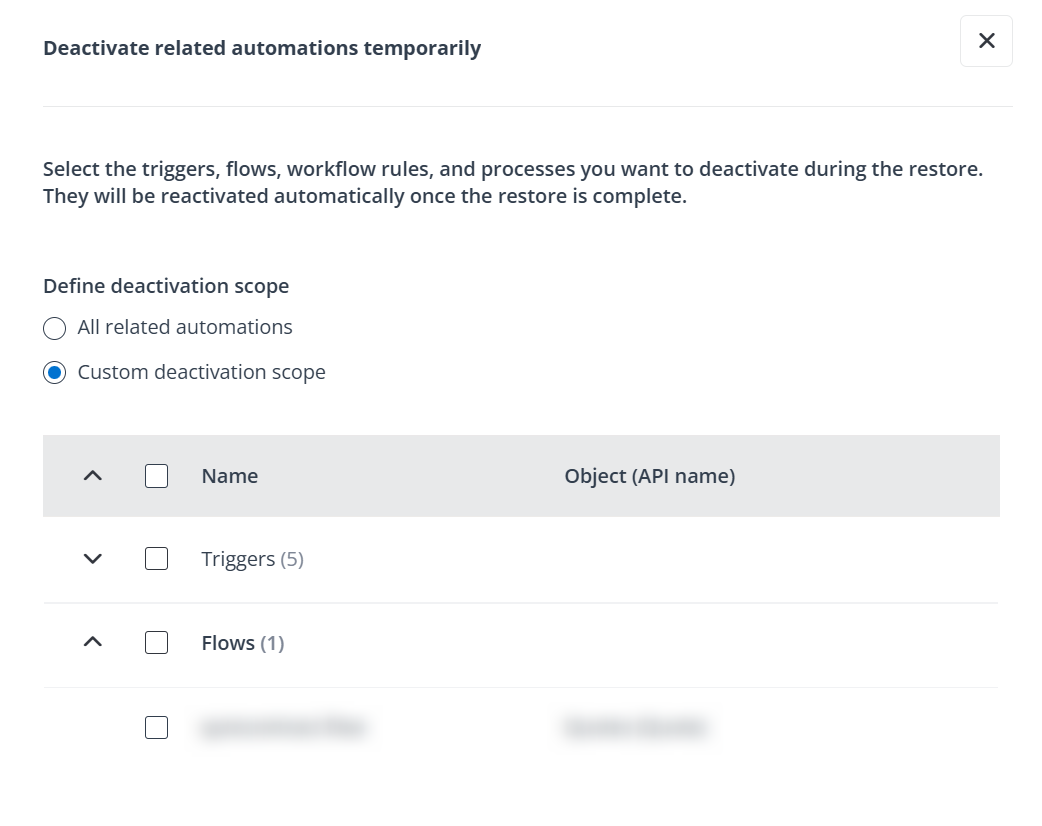
Note that the settings do not apply to third-party automations.
You can review the current deactivation scope by clicking Temporarily deactivated automations. To remove an automation from the scope, click More commands button next to the automation in the panel, then click Remove.
-
-
Grant Edit and Create permissions for the following objects – The account that connect the Salesforce organization in AvePoint Online Services does not have Edit and Create permissions to objects listed in this section. To successfully restore or seed the objects, grant the Edit and Create permissions to the objects in your Salesforce environment.
-
Missing Edit permission for the following fields – The account that connect the Salesforce organization in AvePoint Online Services lacks Edit permission for the fields listed in this section. To correctly restore or seed the corresponding field values, grant Edit permission for these fields in Salesforce. Otherwise, the field values will be blank after the restore or seeding.
-
Address duplicate rules in the Salesforce environment – Active duplication rules in the Salesforce environment are listed in this section. They are designed to prevent the creation of duplicate data. To address duplicate rules, refer to the Troubleshooting Guide.
-
Identify the missing required parent objects in the Salesforce environment – For the objects in the Base object column, their required parent object records do not exist in the Salesforce environment. To resolve the issue, click Configure on the upper right corner of the section, and select the required parent objects to restore them together.
-
-
For a data service job, you can view the General Information. In General information, you can click the Object link to list the objects included in the data service job.

-
For a retention job, you can view the number of successful items and items with exceptions in the job. The General Information of the job is also provided, including the Duration, Operator, Policy name, and Object.
