
Home > Management Control
Download this articleManagement Control
Administrator’s management control features can be accessed on the Management tab.
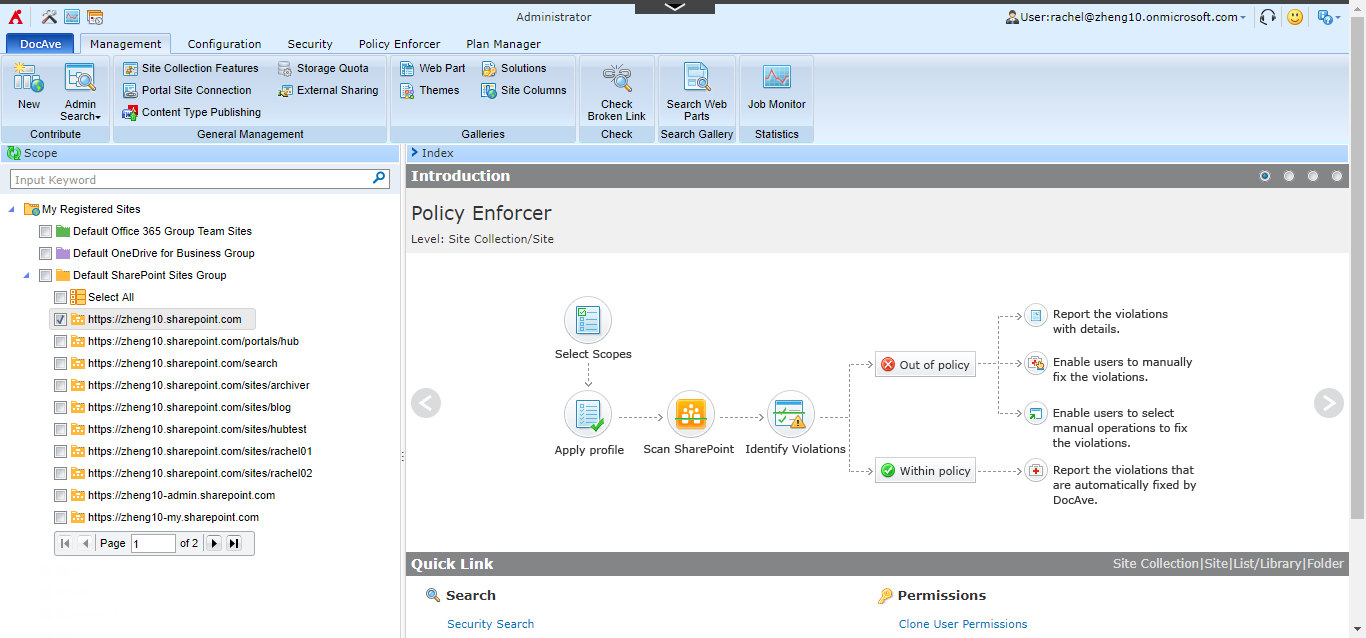
The following tables illustrate all management control features at each object level under the Management tab.
Level - Sites Container
| Feature | Description |
|---|---|
| New Site Collection | This feature allows you to create a new SharePoint Online site collection directly. Note that this feature is not available for OneDrive node. |
| Admin Search | This feature allows you to search for specific objects within a selected scope. |
| Check Link | This feature allows you to search for links in SharePoint. |
| Check Broken Link | This feature allows you to search for broken links that cannot be accessed in SharePoint. |
| Search Web Parts | This feature allows you to search for a specified web part and perform further operations on the search results. |
Level - Site Collection
| Feature | Description |
|---|---|
| New | This feature allows you to create a new SharePoint Online site collection directly. |
| Delete | This feature allows you to permanently remove SharePoint Online site collections and all contained content. Note that this feature is not available for OneDrive and Microsoft 365 group team sites nodes. |
| Admin Search | This feature allows you to search for specific objects within a selected scope. |
| Site Collection Features | This feature allows you to manage site collection features for the selected site collection. |
| Portal Site Connection | This feature allows you to configure the connection to a portal site for the selected site collection. |
| Content Type Publishing | This feature allows you to configure content type hub settings for the selected site collection. |
| Storage Quota | This feature allows you to configure the storage quota for the selected site collection. |
| External Sharing | This feature allows you to configure the sharing settings for the selected site collection. |
| Web Part | This feature allows you to edit web part settings and configure which web parts are available to page owners. |
| Themes | This feature allows you to view and manage existing themes in the site collection, and select one to define the fonts and colors for the selected site collection. |
| Solutions | This feature allows you to view and manage existing solutions in the site collection. |
| Site Columns | This feature allows you to view all columns in the site collection. |
| Check Link | This feature allows you to search for links in SharePoint. |
| Check Broken Link | This feature allows you to search for broken links that cannot be accessed in SharePoint. |
| Search Web Parts | This feature allows you to search for a specified web part and perform further operations on the search results. |
Level - Site
| Feature | Description |
|---|---|
| New > New Subsite | This feature allows you to create a new SharePoint Online site directly. |
| New > New List/Library | This feature allows you to create a new SharePoint Online list/library directly. |
| Delete | This feature allows you to permanently remove sites and all contained content. Note that this feature is not available for Microsoft 365 group team sites nodes. |
| Admin Search | This feature allows you to search for specific objects within a selected scope. |
| Site Features | This feature allows you to manage site features for the selected site. |
| Reset to Site Definition | This feature allows you to remove all customizations from a single page or all pages on the selected site. |
| Regional Settings | This feature allows you to edit regional settings for the selected site or sites. |
| Site Columns | This feature allows you to view all columns on the site. |
| Site Content Types | This feature allows you to view all content types in the selected site and create a new content type for the site. |
| Master Pages and Page Layouts | This feature allows you to view all existing master pages on the selected site. |
| Check Link | This feature allows you to search for links in SharePoint. |
| Check Broken Link | This feature allows you to search for broken links that cannot be accessed in SharePoint. |
| Search Web Parts | This feature allows you to search for a specified web part and perform further operations on the search results. |
Level - List/Library
| Feature | Description |
|---|---|
| New Folder | This feature allows you to create a new SharePoint Online folder directly. |
| Delete | This feature allows you to permanently remove lists/libraries and all contained content. Note this feature is not available for Microsoft 365 group team sites nodes. |
| Admin Search | This feature allows you to search for specific objects within a selected scope. |
| No Checked In Version Files | This feature allows you to manage files that have no checked-in version. |
| Workflow Settings | This feature allows you to modify the settings of workflows associated with the selected list/library or use the menu to add a workflow to the selected list/library. |
| Metadata and Keywords Settings | This feature allows you to add an Enterprise Keywords column to the selected lists and/or libraries and enable Keyword synchronization. |
Level - Folder
| Feature | Description |
|---|---|
| New Folder | This feature allows you to create a new SharePoint Online folder directly. |
| Delete | This feature allows you to permanently remove folders and all contained content. Note that this feature is not available for Microsoft 365 group team sites nodes. |
| Admin Search | This feature allows you to search for specific objects within a selected scope. |
| View Properties | This feature allows you to view the properties of the selected folder. |
Level - Item
| Feature | Description |
|---|---|
| Delete | This feature allows you to remove items permanently. Note that this feature is not available for Microsoft 365 group team sites nodes. |
| Admin Search | This feature allows you to search for specific objects within a selected scope. |
You can perform an Advanced Search on the My Registered Sites node or the containers on the data tree to search for the desired site collections via keyword in the URL. To perform the Advanced Search, right-click the node and then click Advanced Search. Configure the search conditions and click Search. To clear the search result on the data tree, right-click the My Registered Sites node or the container, and then click Refresh.