
Home > Policy Enforcer > Configure Defined Groups
Download this articleConfigure Defined Groups
Defined groups allow you to apply the following Policy Enforcer rules to multiple SharePoint Online users and/or groups in bulk. While configuring any of these rules in the Configure Rule interface, you can use the Defined Groups field to choose users and groups that will be affected by the rule. For details on the configurations in the Configure Rule interface, refer to Configure a Policy Enforcer Rule.
-
Copy
-
Content Creation/Content Upload
-
Delete
-
Grant, Revoke, and/or Modify Permissions Privilege
-
Move
-
Permission Modification Protection
-
User Permission Enforcement
-
User/Group Restriction
To create a defined group, complete the following steps:
-
Select the desired nodes on the tree.
-
On the Policy Enforcer tab, click Defined Group on the ribbon. The Defined Group interface appears.
-
Click Create in the Manage group on the ribbon.
-
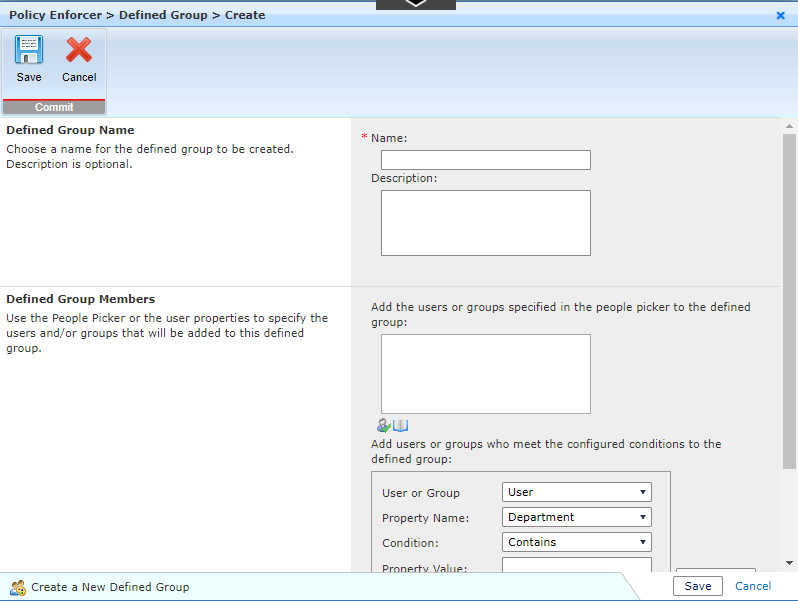
In the window for creating a new defined group, complete the following steps:
-
Defined Group Name – Enter a Name with an optional Description.
-
Defined Group Members – Use the people picker or the user properties to designate which SharePoint Online users/groups and/or Active Directory users/groups will be added into this defined group.
-
Click Save to create this defined group.
-
-
After creating a new defined group, you can also make changes to the existing defined groups on the Policy Enforcer > Defined Group page:
-
View Details – Select an existing defined group and click View Details on the ribbon to view the detailed information of the selected defined group.
-
Edit – Select an existing defined group and click Edit on the ribbon to edit this selected defined group.
-
Delete – Select one or more existing defined groups and click Delete on the ribbon to delete the selected defined groups.
-
The tables below detail the supported user/group properties that you can use in defined groups to identify specific users or groups.
Level - User
| Property Name | Description | Condition |
|---|---|---|
| Department | Manages users whose department meets the configured condition. | Equals |
| Department | Manages users whose department meets the configured condition. | Contains |
| Department | Manages users whose department meets the configured condition. | Matches |
| Display Name | Manages users whose display name meets the configured condition. | Equals |
| Display Name | Manages users whose display name meets the configured condition. | Contains |
| Display Name | Manages users whose display name meets the configured condition. | Matches |
| Job Title | Manages users whose job title meets the configured condition. | Equals |
| Job Title | Manages users whose job title meets the configured condition. | Contains |
| Job Title | Manages users whose job title meets the configured condition. | Matches |
| Office | Manages users whose office meets the configured condition. | Equals |
| Office | Manages users whose office meets the configured condition. | Contains |
| Office | Manages users whose office meets the configured condition. | Matches |
| User Type | Manages users whose user type meets the configured condition. | Equals |
| User Principal Name | Manage users whose user principal name meets the configured condition. | Equals |
| User Principal Name | Manage users whose user principal name meets the configured condition. | Contains |
| User Principal Name | Manage users whose user principal name meets the configured condition. | Matches |
Level - Group
| Property Name | Description | Condition |
|---|---|---|
| Display Name | Manages groups whose display name meets the configured condition. | Equals |
| Display Name | Manages groups whose display name meets the configured condition. | Contains |
| Display Name | Manages groups whose display name meets the configured condition. | Matches |