
Home > Policy Enforcer > Configure the Source Collection Policy
Download this articleConfigure the Source Collection Policy
Before creating the Policy Enforcer profile, you must configure the source collection policy to determine the data of which types of SharePoint Online events and/or conditions will be collected by Policy Enforcer. The Policy Enforcer rules use the collected data to identify whether the corresponding SharePoint Online events and conditions are within policy or out of policy.
To configure the source collection policy, complete the following steps:
-
On the Policy Enforcer tab, click Source Management on the ribbon.
-
Click Create in the Manage group on the ribbon to create a new source collection policy.
-
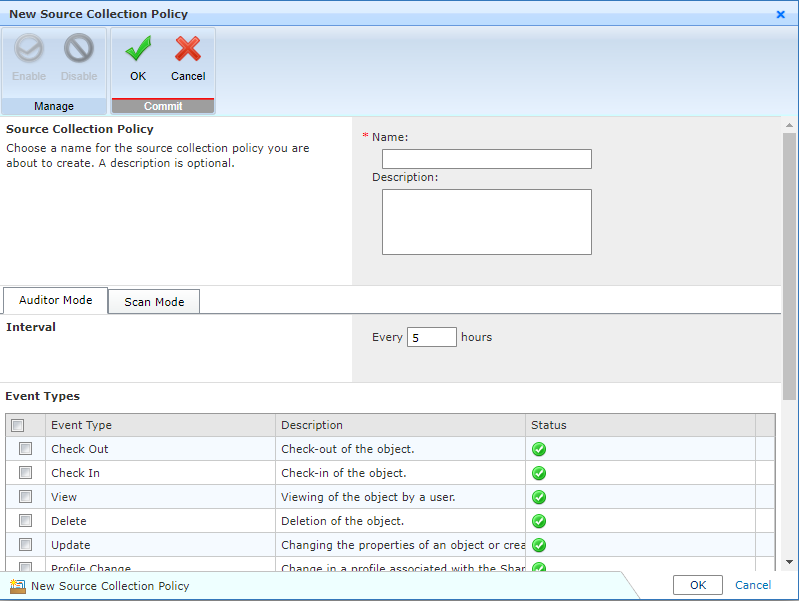
In the New Source Collection Policy window, complete the following steps:
-
Source Collection Policy – Enter the policy Name, followed by an optional Description.
-
Select Auditor Mode or Scan Mode, and then select to enable or disable the corresponding event types for the selected mode.
-
Auditor Mode – Click the Auditor Mode tab and then complete the following configurations.
-
Interval – Designate how often this source collection mode will run to collect the Audit events of the enabled event types in SharePoint Online to identify out-of-policy objects. The collected data is stored as Job Data. The frequency of collection can improve the quality of remediation but can impact SharePoint Online performance.
-
Event Types – By default, all event types are enabled to ensure all of the available audit events can be collected by Administrator to identify out-of-policy objects in SharePoint Online. To change an event type’ status in this source collection policy, select the event type whose status you want to change, click Disable to disable the selected event type, or click Enable to enable the event type. The Audit events of the disabled event type will not be collected by Administrator to identify out-of-policy objects.
-
-
Scan Mode – Click the Scan Mode tab and then complete the following configurations.
-
Interval – Designate how often this source collection mode will run to scan the conditions of the enabled event types in SharePoint Online to identify out-of-policy objects, settings, permissions, and/or features. The collected data is stored as Job Data. The frequency of collection can improve the quality of remediation but can impact SharePoint Online performance.
-
Event Types – By default, all of the event types are enabled to ensure all of the available conditions can be collected by Administrator to identify out-of-policy objects in SharePoint Online. To change the status of event type in this source collection policy, select the event type whose status you want to change, click Disable to disable the selected event type, or click Enable to enable the event type. The corresponding conditions of the disabled event type will not be collected by Administrator to identify out-of-policy objects.
-
-
-
Click OK to save the configuration of the source collection policy.
-
After creating a new source collection policy, you can also make changes to the existing source collection policies on the Policy Enforcer > Source Management page:
-
Set as Default – Select an existing policy and click Set as Default on the ribbon to set the selected policy as the default source collection policy for all of the Policy Enforcer profiles to be created.
-
Edit – Select an existing policy and click Edit on the ribbon to edit this policy.
-
Delete – Select one or more existing policies and click Delete on the ribbon to delete the selected policies permanently.