
Home > Reports > View Budget Reports
Download this articleView Budget Reports
In Budget report, if you want to view the license cost budget report of your tenants, you can click the Cost sub tab under the Tenants or User containers/User container groups tabs to view the budget report for license cost in your tenants or user containers/user container groups.
View Budget Report by Tenant/Container Costs
You can view the following columns in the budget reports for license cost:
-
Total license budget ($) – The total license budget you have configured for this tenant or user container/user container group.
-
Consumed budget for current month ($) – The license cost budget consumed by this tenant or user container/user container group in the current month.
-
Total consumed budget ($) – The total license cost budget consumed by this tenant or user container/user container group.
-
Remaining budget ($) – The remaining license cost budget in this tenant or user container/user container group.
-
Status – The status of the license cost budget, including:
-
Within budget – The consumed license cost budget of a tenant or user container/user container group is within the configured license cost budget.
-
Over budget – The consumed license budget of a tenant or user container/user container group exceeds the configured license budget.
-
Warning – The consumed license budget of a tenant or user container/user container group exceeds the license budget threshold configured in Settings > General settings. Refer to the General section to configure the license budget threshold.
-
Budget needs to be set – You have not configured the license cost budget for this tenant or user container/user container group.
-
The currency unit used for the budget reports is mapped with your Data Center configured in AvePoint Online Services by default. You can also configure your preferred currency unit on the General Settings page. See General.
Set License Budget for Tenants/Containers
To set the license budget for tenants or user containers/user container groups whose status is Budget needs to be set. Click Set license budget in the Total license budget column to set the budget on the License budget page. For details on configuring the license cost budget, see Set License Budget.
View and Manage User Licenses
To view the license budget detailed statistics of a tenant, click the number in the Total consumed budget column under the Tenants > Cost tab.
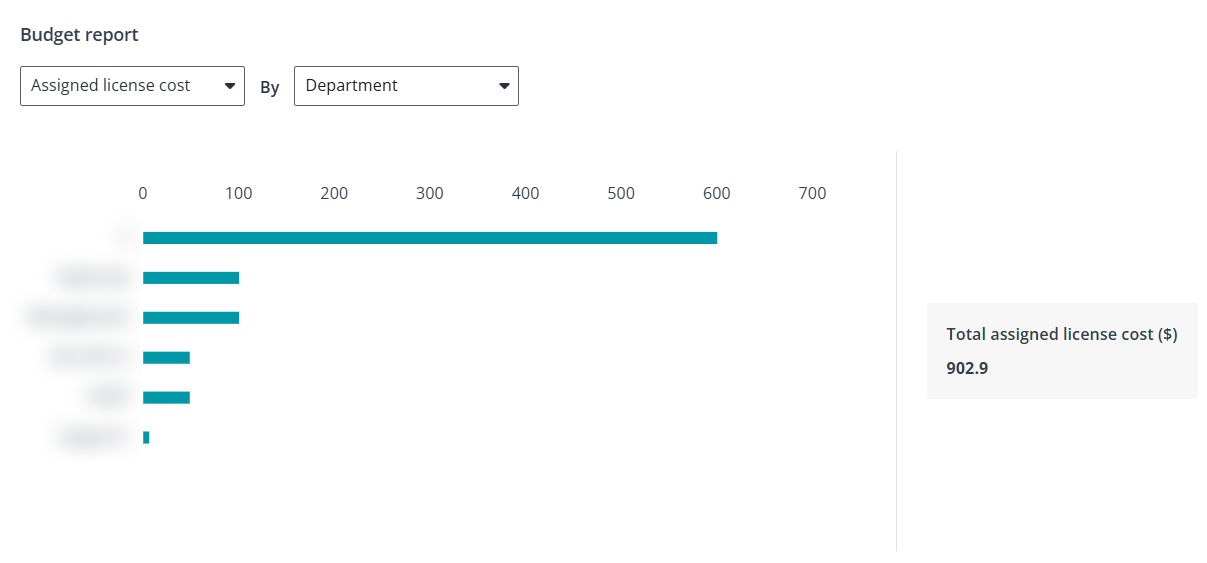
At the top of the License budget details page, the Budget report section provides a breakdown of tenant license costs by user property.
In the dropdown lists above the chart, select whether you want to view Assigned license cost or User count. Then, select the user property used for the breakdown. The chart updates based on your selections.
Selecting a bar in the chart automatically filters the Users table below based on the chosen user property. Additionally, the total budget shown at the top of the page updates dynamically based on the applied filters.
To manage licenses for users in the tenants or user containers/user container groups, follow the steps below:
-
Click the number of consumed budgets to go to the License budget details page.
-
Select the users whose licenses you want to manage.
-
Click Manage user licenses in batch or Manage user licenses individually. For details on managing user licenses, see Manage User Licenses.
NOTEBy managing user licenses in batch, the users’ previous licenses will be removed, and the new licenses will be assigned.
View Budget Report by Tenant/Container License Pool
You can also view the report of the license pool budget in tenants or user containers/user container groups. To view the reports, you can click the License pool sub tab under the Tenants or User containers/User container groups tabs in the Budget report.
You can view the following columns in the budget reports for the license pool:
-
Subscription – The subscription in your tenant or user container/user container group.
-
Total licenses in budget – The total number of licenses configured as the license pool budget.
-
Consumed licenses – The number of consumed licenses of the subscription in your tenant or user container/user container group.
-
Remaining licenses in budget – The number of licenses remaining in the budget.
-
Status - The status of the license cost budget, including:
-
Within budget – The consumed number of licenses in a tenant or user container/user container group is within the configured license pool budget.
-
Over budget – The consumed number of licenses in a tenant or user container/user container group exceeds the configured license budget.
-
Warning – The consumed number of licenses in a tenant or user container/user container group exceeds the license budget threshold configured in Settings > General settings. Refer to the General section to configure the license budget threshold.
-
Budget needs to be set – You have not configured the license pool budget for this tenant or user container/user container group.
-
You can perform the following actions:
-
Set license budget. You can click Set license budget in the total licenses in the budget column for each subscription to set the license pool budget for tenants or user containers/user container groups individually. For details on configuring the license pool budget, see Set License Budget.
-
Use the filter button to filter your desired content in the budget report.