
Home > Dashboard > Licenses Dashboard
Download this articleLicenses Dashboard
The following sections are displayed on Dashboard > Licenses, including:
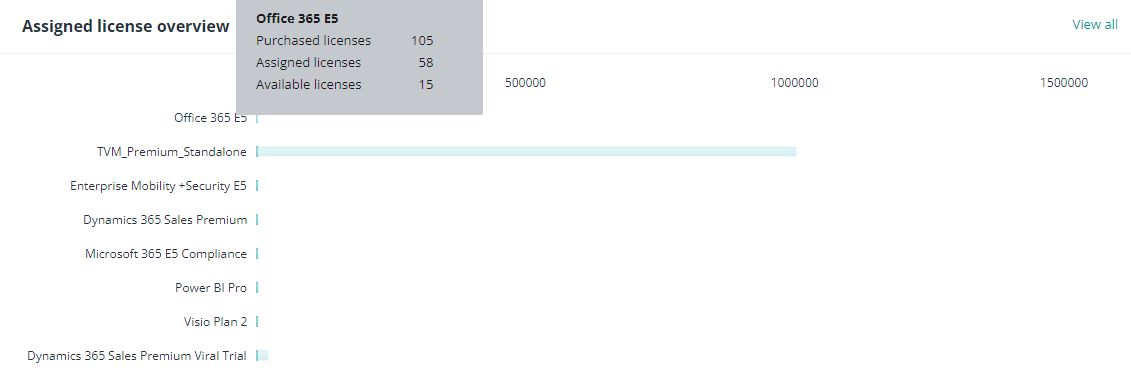
Assigned License Overview
This section shows the overview of the license assignment in the selected tenants and user container/container groups. To view this section, you need the View and export license report permission. You can hover your mouse over the bars to view the following information:
-
Purchased licenses – The number of licenses you have purchased.
-
Assigned licenses – The number of licenses you have assigned to users.
-
Available license – The number of licenses that can be assigned to users.
Click View more on the top right of the section to view the detailed report of subscriptions.
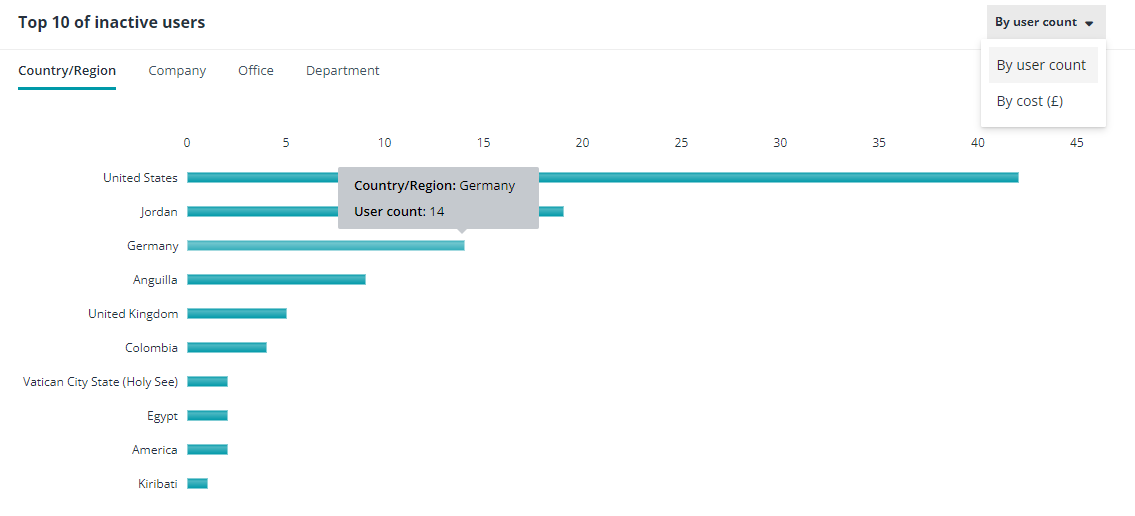
Top 10 Inactive Users
This section shows the rankings of countries/regions, companies, offices, and departments by the number of inactive users within or by the license cost of inactive users within. To view this section, you need the View and export license report permission. You can hover your mouse over the bars to view the number of inactive users or the license cost of inactive users.
You can click Country/Region, Company, Office, and Department to switch between the rankings. To switch the ranking category between user count and license cost, click By user count or By cost on the top right of the section.
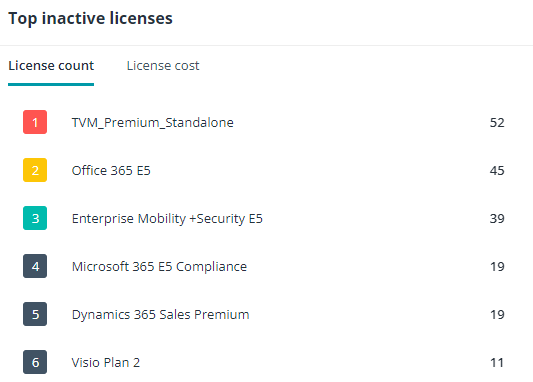
Top Inactive Licenses
This section shows the rankings of inactive licenses by the license count or the license cost. To view this section, you need the View and export license report permission.
You can click License count and License cost to switch between the rankings.
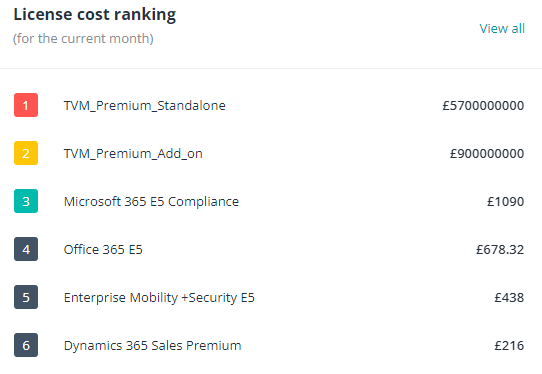
License Cost Ranking
This section shows the ranking of subscriptions by the cost of the licenses. To view this section, you need the View and export license report permission.
Click View more on the top right of the section to view the detailed report of subscriptions.
Copilot License Summary
This section provides an overview of Copilot license usage and helps you track adoption against your available licenses.
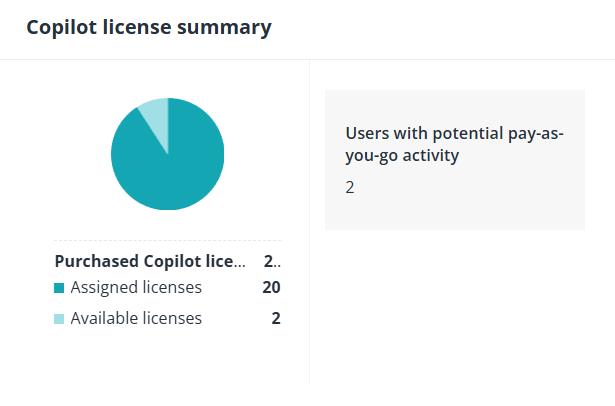
Number of Purchased licenses, Assigned licenses, and Available licenses are displayed in the left section while the number of Users with potential pay-as-you-go activity are displayed in the right section.
To enable the display of this section:
-
A tyGraph subscription is required. For more details on AvePoint tyGraph, contact your sales representative.
-
Enable the Copilot adoption data display in Settings > General.