
Home > Dashboard > Overview Dashboard
Download this articleOverview Dashboard
The following sections are displayed on Dashboard > Overview, including:
Attention Required
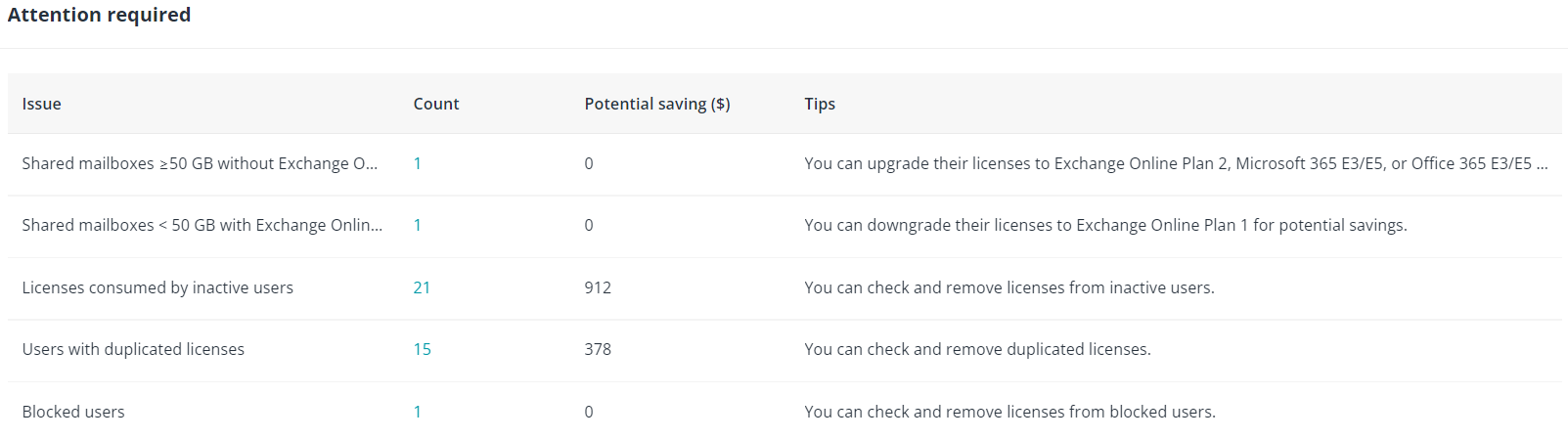
This section shows the license usage and user status that requires your attention. For each issue, tips on license management and potential savings are also provided for your reference. When you have the View and export license report permission, you can click the number in the Count column to check the details and perform management actions in the license report.
This section lists the issues that require your attention, including:
-
Shared mailboxes ≥ 50 GB without Exchange Online Plan 2, Microsoft 365 E3/E5, or Office 365 E3/E5 licenses
-
Shared mailboxes < 50 GB with Exchange Online Plan 2, Microsoft 365 E3/E5, or Office 365 E3/E5 licenses
-
Licenses consumed by inactive users
-
Users with duplicated licenses
-
Blocked users
Shared mailboxes ≥ 50 GB without Exchange Online Plan 2, Microsoft 365 E3/E5, or Office 365 E3/E5 Licenses
To view the shared mailboxes whose size is more than or equal to 50 GB but without Exchange Online Plan 2, Microsoft 365 E3/E5, or Office 365 E3/E5 licenses, click the shared mailbox count. If you want to increase the size limit of the mailboxes by assigning Exchange Online Plan 2, Microsoft E3, Microsoft E5, Office 365 E3, or Office 365 E5 licenses to them, refer to Manage Subscriptions and User Licenses.
Shared mailboxes < 50 GB with Exchange Online Plan 2, Microsoft 365 E3/E5, or Office 365 E3/E5 Licenses
To view the shared mailboxes whose size is less than 50 GB and with Exchange Online Plan 2, Microsoft 365 E3/E5, or Office 365 E3/E5 licenses, click the shared mailbox count. If you want to downgrade the Exchange Online Plan 2, Microsoft E3, Microsoft E5, Office E3, or Office E5 licenses assigned to the shared mailboxes to Exchange Online Plan 1 for possible savings, refer to Manage Subscriptions and User Licenses.
Licenses Consumed by Inactive Users
To view all licenses used by inactive users, click the number in the Countcolumn and then refer to the View and Export License Reports section for more information.
- If you cannot view licenses consumed by inactive users, contact the application administrator to configure the Inactive User Alert.
- The users who have not logged in to their Microsoft services are also regarded as inactive users when the time since they were created meets the inactive user alert threshold.
Users with Duplicated Licenses
You can view the number of users with duplicated licenses to check and decide whether the duplicated licenses should be removed.
To view the users with duplicated licenses, click the number in the Count column and then refer to the View and Export License Reports section for more information.
Users are identified as users with duplicated licenses when they have licenses for service plans in more than one of the following categories at the same time.
| Category 1 | Category 2 | Category 3 | Category 4 |
|---|---|---|---|
| Microsoft 365 E5 | Exchange Online (Plan 2) OneDrive for business (Plan 2) SharePoint (Plan 2) Microsoft Entra ID P2 Azure Information Protection Premium P2 | Exchange Online (Plan 1) OneDrive for business (Plan 1) SharePoint (Plan 1) Microsoft Entra ID P1 Azure Information Protection Premium P1 | Azure Information Protection for Office 365 |
| Microsoft 365 E5 | Microsoft 365 Audio Conferencing Microsoft Intune Plan 1 Microsoft Defender for Cloud Apps | ||
| Microsoft 365 E3 | Exchange Online (Plan 2) OneDrive for business (Plan 2) SharePoint (Plan 2) | Exchange Online (Plan 1) OneDrive for business (Plan 1) SharePoint (Plan 2) | |
| Microsoft 365 E3 | Microsoft Entra ID P1 Azure Information Protection Premium P1 | ||
| Microsoft 365 F3 | Microsoft Entra ID P1 Azure Information Protection Premium P1 Microsoft Intune Plan 1 Microsoft Defender for Cloud Apps | ||
| Office 365 E5 | Exchange Online (Plan 2) OneDrive for business (Plan 2) SharePoint (Plan 2) | Exchange Online (Plan 1) OneDrive for business (Plan 1) SharePoint (Plan 1) | |
| Office 365 E5 | Microsoft Defender for Cloud Apps Microsoft Stream | ||
| Office 365 E3 | Exchange Online (Plan 2) OneDrive for business (Plan 2) SharePoint (Plan 2) | Exchange Online (Plan 1) OneDrive for business (Plan 1) SharePoint (Plan 1) | |
| Office 365 E3 | Microsoft Stream | ||
| Office 365 E1 | Exchange Online (Plan 1) OneDrive for business (Plan 1) SharePoint (Plan 1) |
Blocked Users
You can view the number of users who have been blocked from signing in but still have licenses assigned and decide whether the user licenses should be removed.
To view the blocked users with licenses, click the number in the Count column and then refer to the View and Export License Reports section for more information.
License Summary
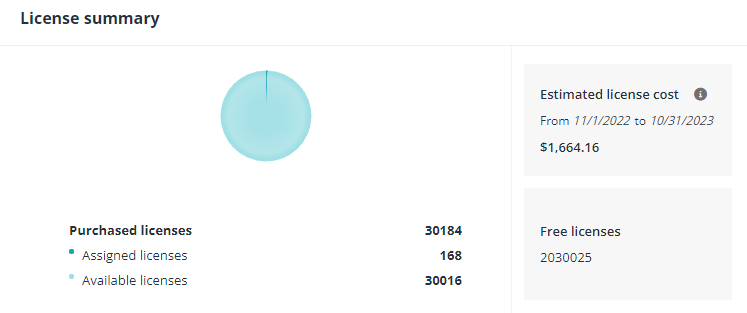
This section shows the license overview of the selected tenants and user container groups. To view this section, you need the View and export license report permission. You can view the following information in the License summary section:
-
Purchased licenses – The total license count of the selected tenants.
-
Assigned licenses – The assigned license count of the selected tenants.
-
Available licenses – The available license count of the selected tenants.
-
Estimated license cost – The estimated license cost of the following year. The cost is calculated based on the data of the license cost trend.
-
Free licenses – The free license count of the selected tenants.
License Cost Trend
In this section, when you have the View cost report permission, you can view the trends of license cost and license loss of the selected tenants and user container/container groups. You can view the trends for the following durations:
-
Last month
-
Last 3 months
-
Last 6 months
-
Last year
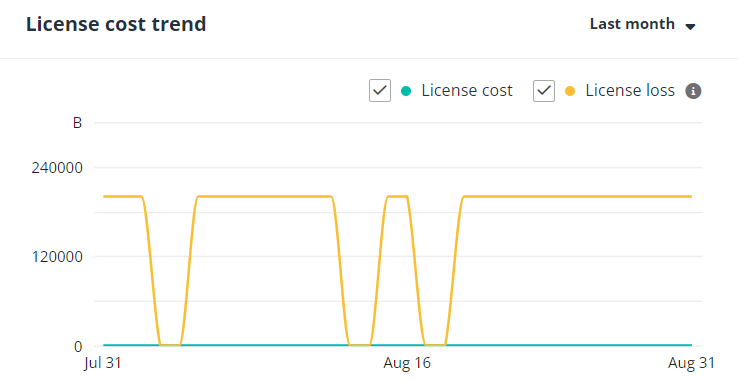
Select License cost and License loss on the top right of the chart to view the corresponding trends. The License cost refers to the cost of assigned licenses based on the configured license unit cost. The License loss refers to the cost of unassigned licenses apart from the cost of disabled subscriptions.
If you cannot view data in this section, you need to set License Unit Cost and License Budget.
Newly Created Users
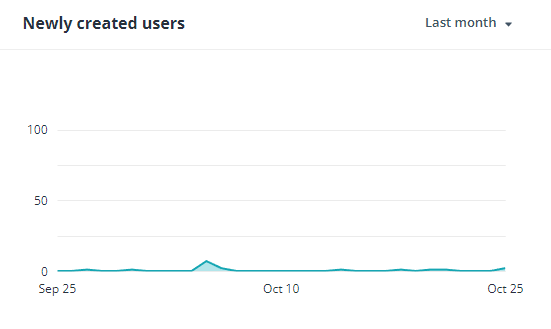
In this section, with the View and export license report permission, you can monitor the newly created users in your tenants and specified containers/container groups. You can view the trend of the number of newly created users for the following durations:
-
Last month
-
Last 3 months
-
Last 6 months
To view the number of newly created users on a specific day, hover your mouse over the line.
You can click the line to navigate to the License report page and manage the licenses for the newly created users.
License Budget Monitor
In this section, with the View budget report permission, you can monitor the license cost budget, and the license pool budget of multiple tenants and user containers/container groups you manage. The following two statuses will be displayed:
-
Over budget – The consumed license budget of a tenant or user container/container group exceeds the configured license budget.
-
Warning – The consumed license budget of a tenant or user container/container group exceeds the license budget threshold configured in Settings > General settings. Refer to the General section to configure the license budget threshold.
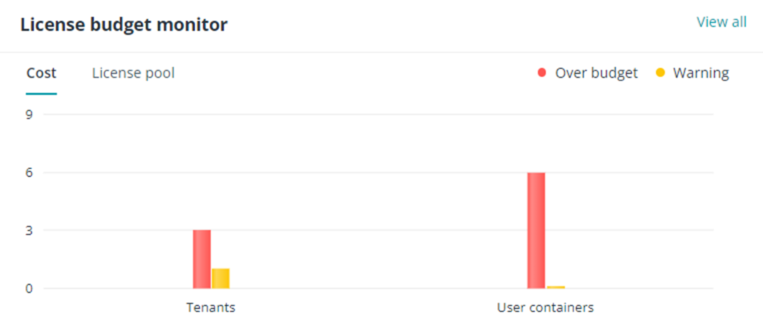
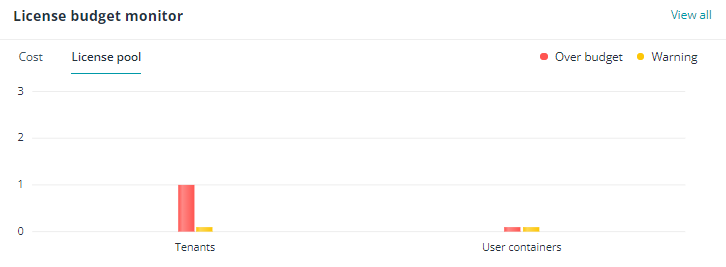
If you cannot view data in this section, you need to set License Unit Cost and License Budget.
License Assignment Trend
The License assignment trend chart shows the number of licenses assigned of a subscription in the following time periods:
-
Last 3 months
-
Last 6 months
-
Last 9 months
-
Last year
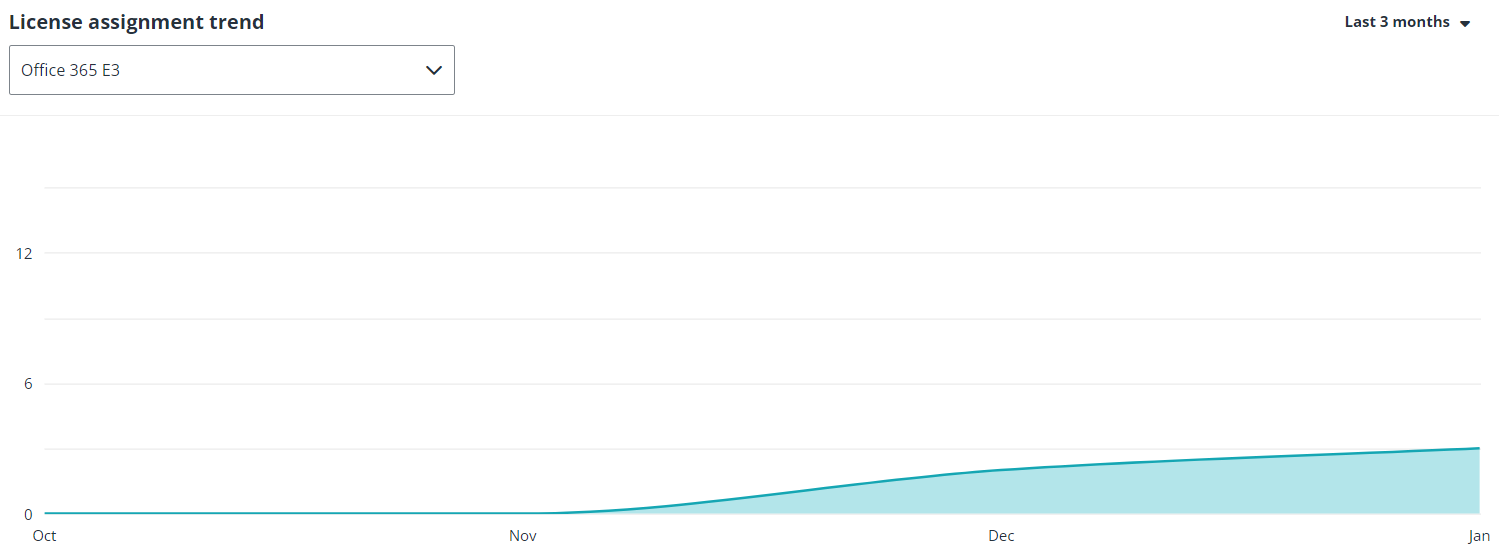
Use the drop-down list in the top left to switch the subscription.
To view the number of licenses assigned in the month, hover your mouse over the line.