
Home > tyGraph Power BI Release Notes > tyGraph for OneDrive Power BI Release Notes > January 2022
Download this articleJanuary 2022
We are pleased to introduce a much lighter and cleaner version of our OneDrive set of reports. The new dashboard-like layout on every page maximizes the use of the canvas. By moving the slicers from the left hand area of the reports to the Filters Pane, we have maximized the reporting space to make room for more meaningful visuals in order to tell a better story.
Reports
-
OneDrive Overview
-
The package icon navigates to this Dev Blog.
-
Clicking on the settings icon will show the report configuration information and harvester/database versions for easier troubleshooting.
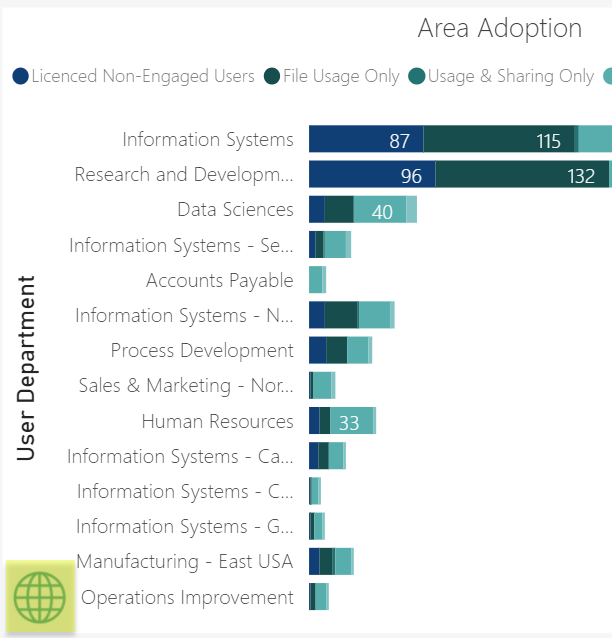
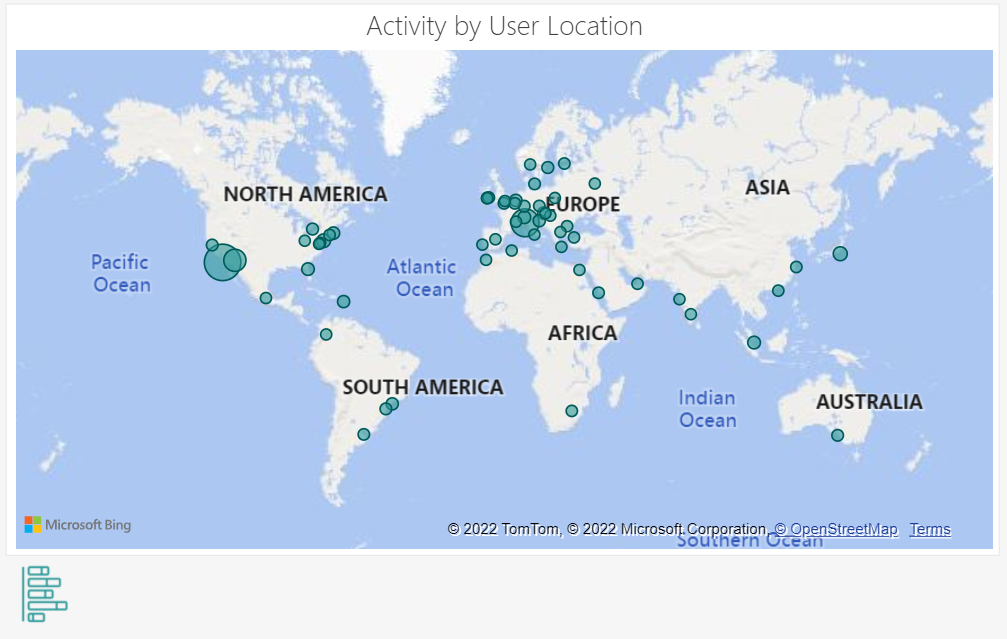
- The globe icon in Area Adoption will display a world map with activity volume by geography.
-
-
Non Adoption Detail
- Merged the two "Licensed Non-Engaged Users" bar charts into one. The user can move up and down the hierarchy of organizational data by clicking on the up and down arrows in the header of the visual.
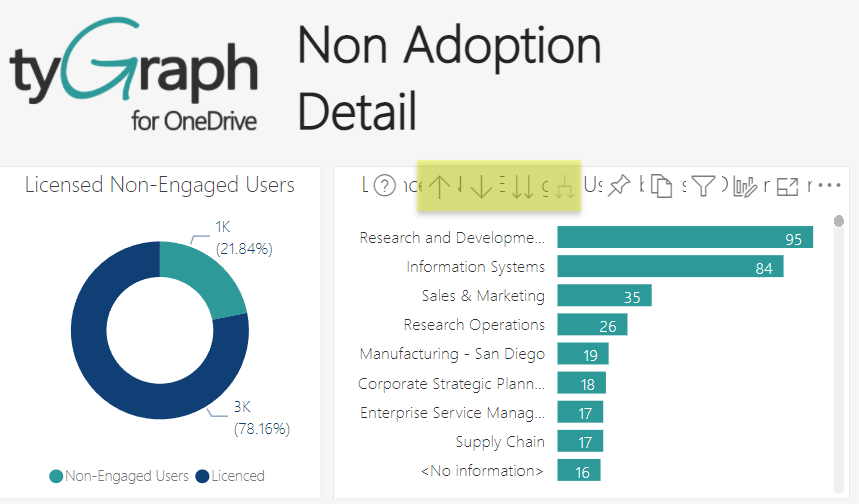
- Replaced the "Licensed Non-Engaged Users" card with the donut chart on the left to better represent the non-engaged users out of all licensed users.
-
OneDrive Storage
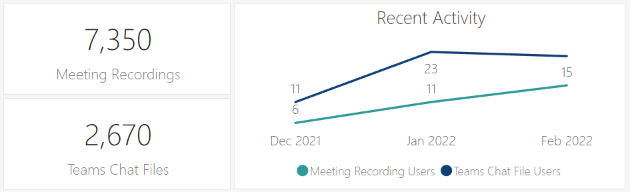
- Added information about the storage of Teams Chat Files and Meeting Recordings
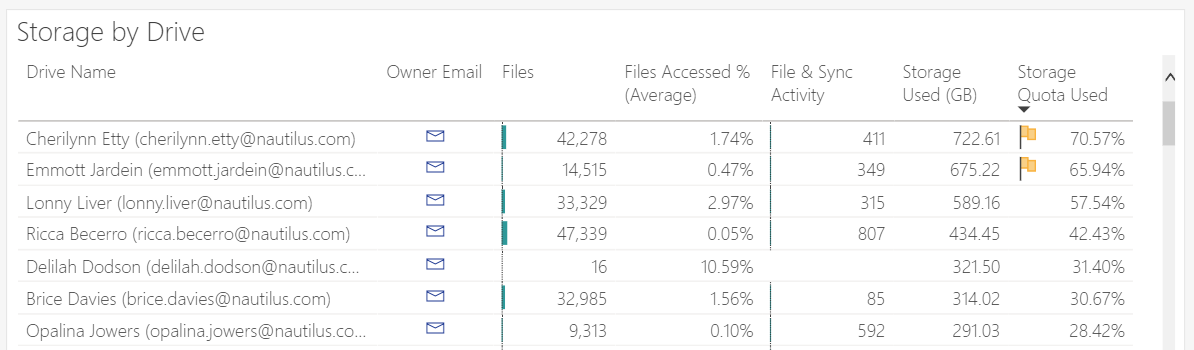
- Added indicator flags when the storage Quota Used is approaching high levels. A yellow flag for 65%-90% and a red flag for above 90% used capacity.
-
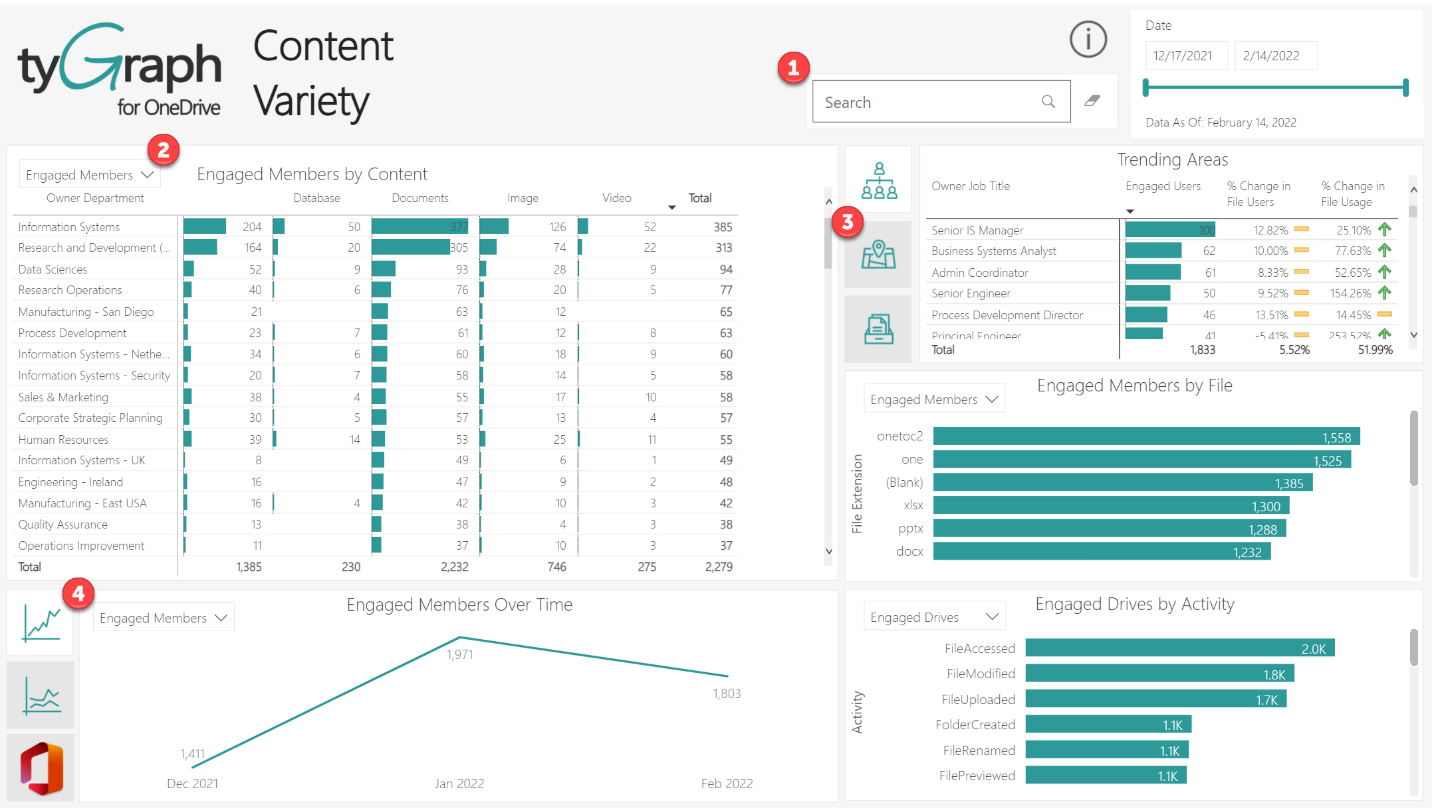
Content Variety (formerly File Type Activity)
-
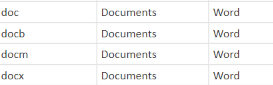
A search box to easily filter on File Type, File Extension or File Extension Grouping. For example, you can search for all "Documents", or "Word", or specific extensions like "docx".
-
The measure drop downs in the various visuals allows you to view the table or chart by a specific measure. Activity volume, Engaged Drives, or Engaged Members.
-
The 3 stacked icons allow you to view the new Trending Areas visual and the table to the left by
-
Organizational Hierarchy (Organization, BU, Department, Building, Job Title)
-
Location Hierarchy (Country, State, City, Postal Code, Address)
-
File Type (Type, Extension, Extension Group)
-
Added Multiple Experiences for Content Activity Over Time