
Home > Settings > Notifications
Download this articleNotifications
Refer to the following sections for notification settings and email templates.
Notification Settings
Refer to the following sections for job notification settings and adaptive card settings.
Job Notification
In Settings > Notification > Notification settings > Job notification, you can choose whether to send email notifications for job exceptions and job summary reports.
For job exceptions, you can manage the following configurations:
-
Send notifications when job exceptions occur – Turn on the toggle to send email notifications when the job status is unfinished.
-
Send notifications to the following users – Enter the email addresses to specify the recipients who will receive the email notifications.
-
Send notifications for jobs with the following statuses – Select the job statuses when to trigger the email notification: Skipped, Failed, and Finished with exception.
For job summary reports, you can manage the following configurations:
-
Receive summary report – Turn on the toggle to send job summary reports based on the configured frequency.
-
Frequency – Select the frequency for sending job summary reports. Select Daily to send a job summary report every day at 00:00 UTC; select Weekly to send a job summary report every Monday at 00:00 UTC.
-
Content – Choose whether or not to send job details as an attachment to the job summary report.
-
Send notifications to the following users – Enter the email addresses to specify the recipients who will receive the job summary reports.
Adaptive Card
Policies for Microsoft 365 supports a human-in-the-loop verification step for automated assignments of site owners, site collection administrators, and Group/Team owners. Newly assigned site owners, site collection administrators, or Group/Team owners are provided with one-click options to accept or reject the assignment, and their responses will be recorded in the violation details page of the related rules.
Process Overview
To use this feature, you need to complete the following steps in order:
-
Register a Microsoft Entra app.
Create a new app registration in Microsoft Entra. For instructions, refer to Register an app in Azure. If you already have an existing Microsoft Entra app registration, you can skip this step.
-
Register an actionable email provider.
Pay special attention to the following configurations when registering an actionable email provider:
-
Sender email address – When specifying the sender email address from which actionable emails will originate, enter
Policies_Team@avepointonlineservices.comor the designated Microsoft 365 account that you have configured as the email sender through AvePoint Online Services > Administration > General settings > Email settings. -
Target URLs – When specifying the target URLs, enter the Policies for Microsoft 365 API URLs according to the environment and data center you are using. For details, refer to the Target URLs in Actionable Email Provider section below.
For detailed instructions on registering an actionable email provider, refer to Register an Actionable Email Provider.
-
-
Configure actionable messages settings.
Navigate to Settings > Notification > Notification settings > Adaptive card to enable actionable messages on notification emails and complete tenant configurations.
-
Configure adaptive card email templates.
Configure adaptive card email templates to be used when sending email notifications to newly assigned site owners, site collection administrators, or owners. For detailed instructions, refer to Adaptive Card Email Templates.
-
Create a policy with the related rules. In each rule, ensure that:
-
The auto-fix rule action is enabled to automatically assign site owners, site collection administrators, or Group/Team owners.
-
Send email notifications to newly assigned site owners, site collection administrators, or Group/Team owners is enabled, and an adaptive card email template is selected.
-
-
Enforce the policy.
-
Newly assigned site owners, site collection administrators, or Group/Team owners will be notified, and they can accept or reject the assignment through:
-
Email notification
-
The MyHub > Tasks and to-dos interface
A MyHub subscription is required for integration.
-
Target URLs in Actionable Email Provider
Policies for Microsoft 365 API URLs and their associated environments are listed below:
-
The production environment for commercial use:
-
Australia Southeast (Victoria):
https://graph-au.avepointonlineservices.com/policies -
Canada Central (Toronto):
https://graph-ca.avepointonlineservices.com/policies -
East US (Virginia):
https://graph-us.avepointonlineservices.com/policies -
France Central (Paris):
https://graph-fr.avepointonlineservices.com/policies -
Germany West Central (Frankfurt):
https://graph-de.avepointonlineservices.com/policies -
Japan West (Osaka):
https://graph-jp.avepointonlineservices.com/policies -
Korea Central (Seoul):
https://graph-kr.avepointonlineservices.com/policies -
North Europe (Ireland):
https://graph-ne.avepointonlineservices.com/policies -
South Africa North (Johannesburg):
https://graph-za.avepointonlineservices.com/policies -
Southeast Asia (Singapore):
https://graph-sg.avepointonlineservices.com/policies -
Switzerland North (Zurich):
https://graph-ch.avepointonlineservices.com/policies -
UK South (London):
https://graph-uk.avepointonlineservices.com/policies -
West Europe (Netherlands):
https://graph-we.avepointonlineservices.com/policies -
United Arab Emirates (Dubai):
https://graph-uae.avepointonlineservices.com/policies
-
-
The production environment for U.S. Government Public Sector:
- US Gov Virginia (Virginia):
https://graph-gov.avepointonlineservices.com/policies
- US Gov Virginia (Virginia):
-
The production environment for 21Vianet:
- China North:
https://graph.avepointonlineservices.cn/policies
- China North:
-
The insider environment:
-
East US (Virginia):
https://graph-insider-us.avepointonlineservices.com/policies -
North Europe (Ireland):
https://graph-insider-ne.avepointonlineservices.com/policies
-
Tenant Configurations
Refer to the following steps to complete the configuration of a tenant:
-
Click Add tenant.
-
Select a tenant. A tenant will be hidden from the list if it has already been configured.
-
MsEntra application ID – Enter the ID of the Microsoft Entra app you registered.
-
Provider ID – Enter the ID of the actionable email provider you registered.
-
Click Submit.
To edit the configuration of a tenant, click the More actions button next to the tenant and click Edit configuration.
To remove the configuration of a tenant, click the More actions button next to the tenant and click Remove configuration.
Email Templates
Refer to the following sections for email templates used in Policies for Microsoft 365.
Admin Email Templates
Admin email templates will be used when you want to send violation notifications to users who are more likely to own the configured policies. You can designate these users by entering their usernames or selecting the corresponding checkboxes within each rule. Note that users who perform actions that violate rule settings do not receive these notifications.
Create an Admin Email Template
There is a built-in admin email template, and you can customize it to meet your requirements. You can also create multiple admin email templates as needed.
To create an email template for administrators, complete the following steps:
-
On the Settings > Notification > Email templates > Admin email template page, click Create email template. The Create admin email template page appears.
-
General information – Complete the general information as below:
-
Name – Enter a name for the email template.
-
Description – Enter an optional description for future reference.
-
Language – Select an option:
-
Follow the default email template – If you select this option, the email template will use the same language as the one defined in the default email template.
-
Use the default language – If you select this option, the email template will use the language set in AvePoint Online Services > Administration > General settings > Culture settings.
Currently, Policies for Microsoft 365 only supports sending email notifications in English, Japanese, French, and German. If the language you set in AvePoint Online Services is none of the above, email notifications will be sent in English.
-
Select a language – If you select this option, you need to select a language from the drop-down list. The email template will use the selected language.
-
-
Allow attachments – Choose if you want to allow attachments in email notifications.
Alternatively, you can follow the configurations set in the default email template.
-
-
Email content – Customize the email content as below:
You can click View example to view the email template example.
-
Subject – Enter a subject for the email notification.
Alternatively, you can follow the configurations set in the default email template.
-
Attachment name – If attachments are allowed to be inserted, enter the name for the attachment in the email notification.
Alternatively, you can follow the configurations set in the default email template.
-
Email header – Upload an image for the email header. The maximum image size is 1 MB, and the image format must be JPG, BMP, or PNG.
Alternatively, you can follow the configurations set in the default email template.
-
Message body – Enter the message body shown in the email notification. A rich text editor is supported.
Alternatively, you can follow the configurations set in the default email template.
-
Table content – Select the content shown in the table. You can select from the following:
-
Rule name – The rules in the policy that have been violated.
-
Rule description – The description of the violated rules.
Additionally, you can choose to display a hyperlink to the Policies for Microsoft 365 User Guide under the rule description, so that users can access the document for more information. Note that this link will not be displayed in emails sent to users who do not have subscriptions to access Policies for Microsoft 365.
-
Location/Object – The location or object that violates the policy.
Additionally, you can choose to display a hyperlink to the Violations report page of Policies for Microsoft 365, so that users can view violation details. Note that this link will not be displayed in emails sent to users who do not have subscriptions to access Policies for Microsoft 365.
For the out-of-policy object identified by the following rules, its name or location will include a hyperlink. Clicking it will open the corresponding file directly. Currently supported file extensions: .xlsx, .csv, .docx, .rtf, .pdf, .txt, .html, and .pptx.
-
Restrict Sharing Links
-
Content Creation and Upload Restriction
-
Deletion Restriction
-
Guest User Full Control Permission Restriction
-
Permission Inheritance Protection
-
Restrict Sharing Links with Edit Permission
-
Sharing Link Expiration Enforcement
-
-
Dynamic object name reference – The workspace-specific identifiers for identifying the affected object.
-
For SharePoint sites and OneDrives, the site name will be displayed.
-
For Microsoft 365 Groups and Teams, the Group or Team name will be displayed.
-
For Exchange mailboxes and Microsoft 365 users, the email address will be displayed.
-
For security groups, the group name and group ID will be displayed.
-
For distribution groups, the group name will be displayed.
-
-
Collection time – The time when the violation was collected.
-
Auto fix violations – Whether the policy has enabled the auto fix violations setting.
-
Comment for specific rules – Select this option if you want to show your comment in the table when the specified rule is violated.
You need to select an object type, rule name, and enter your comment for the violation of the selected rule. Click Add rule to add additional rules to this template.
Alternatively, you can follow the configurations set in the default email template.
-
Customized row – Click Add another row to add a customized row in the table. You can enter the content in the two columns for the customized rows.
-
-
Other content – Select whether to show the other content in the email notification, including:
-
The View All Violations button – The link with which users can access Policies for Microsoft 365 and view all violations. This link will not be displayed in the emails sent to users who do not have subscriptions to access Policies for Microsoft 365.
-
Email footer with copyright – The email footer with AvePoint copyright message.
Alternatively, you can follow the configurations set in the default email template.
-
-
-
Click Preview to preview the email template.
-
Click Create to create the email template, or you can click Cancel to cancel without saving any changes.
Set a Default Admin Email Template
Among all admin email templates, you can set one as the default. To set an email template as the default, turn on the Default toggle of that email template in the template table. When configuring a rule and choosing to send an email notification to admins, this default template will be automatically applied. You can use another email template in the rule settings if needed.
End User Email Templates
End-user email templates will be used when you want to notify users whose actions violate rule settings. To enable these notifications, select the Include users whose actions violate rule settings checkbox within each rule.
Create an End User Email Template
There is a built-in end-user email template, and you can customize it to meet your requirements. You can also create multiple end-user email templates as needed.
To create an email template for end users, complete the following steps:
-
On the Settings > Notification > Email templates > End-user email template page, click Create email template. The Create end-user email template page appears.
-
General information – Complete the general information as below:
-
Name – Enter a name for the email template.
-
Description – Enter an optional description for future reference.
-
Language – Select an option:
-
Follow the default email template – If you select this option, the email template will use the same language as the one defined in the default email template.
-
Use the default language – If you select this option, the email template will use the language set in AvePoint Online Services > Administration > General settings > Culture settings.
Currently, Policies for Microsoft 365 only supports sending email notifications in English, Japanese, French, and German. If the language you set in AvePoint Online Services is none of the above, email notifications will be sent in English.
-
Select a language – If you select this option, you need to select a language from the drop-down list. The email template will use the selected language.
-
-
Allow attachments – Choose if you want to allow attachments in email notifications.
Alternatively, you can follow the configurations set in the default email template.
-
-
Email content – Customize the email content as below:
You can click View example to view the email template example.
-
Subject – Enter a subject for the email notification.
Alternatively, you can follow the configurations set in the default email template.
-
Attachment name – If attachments are allowed to be inserted, enter the name for the attachment in the email notification.
Alternatively, you can follow the configurations set in the default email template.
-
Email header – Upload an image for the email header. The maximum image size is 1 MB, and the image format must be JPG, BMP, or PNG.
Alternatively, you can follow the configurations set in the default email template.
-
Message body – Enter the message body shown in the email notification. A rich text editor is supported.
Alternatively, you can set the configurations in the default email template.
-
Table content – Select the content shown in the table. You can select from the following:
-
Rule name – The rules in the policy that have been violated.
-
Rule description – The description of the violated rules.
-
Location/Object – The location or object that violates the policy.
For the out-of-policy object identified by the following rules, its name or location will include a hyperlink. Clicking it will open the corresponding file directly. Currently supported file extensions: .xlsx, .csv, .docx, .rtf, .pdf, .txt, .html, and .pptx.
-
Restrict Sharing Links
-
Content Creation and Upload Restriction
-
Deletion Restriction
-
Guest User Full Control Permission Restriction
-
Permission Inheritance Protection
-
Restrict Sharing Links with Edit Permission
-
Sharing Link Expiration Enforcement
-
-
Dynamic object name reference – The workspace-specific identifiers for identifying the affected object.
-
For SharePoint sites and OneDrives, the site name will be displayed.
-
For Microsoft 365 Groups and Teams, the Group or Team name will be displayed.
-
For Exchange mailboxes and Microsoft 365 users, the email address will be displayed.
-
For security groups, the group name and group ID will be displayed.
-
For distribution groups, the group name will be displayed.
-
-
Collection time – The time when the violation was collected.
-
Auto fix – Whether the violated policy has enabled auto fix.
-
Comment for specific rules – Select to show your comment in the table when the specified rule is violated.
You need to select an object type, rule name, and enter your comment for the violation of the selected rule. Click Add rule to add additional rules to this template.
Alternatively, you can follow the configurations set in the default email template.
-
Customized row – Click Add another row to add a customized row to the table. You can enter the content in the two columns for the customized rows.
-
-
Other content – Select whether to show Email footer with copyright in the email notification. If selected, there will be an email footer with an AvePoint copyright message.
Alternatively, you can follow the configurations set in the default email template.
-
-
Click Preview to preview the email template.
-
Click Create to create the email template, or you can click Cancel to cancel without saving any changes.
Set a Default End User Email Template
Among all end-user email templates, you can set one as the default. To set an email template as the default, turn on the Default toggle of that email template in the template table. When configuring a rule and choosing to send an email notification to end users, this default template will be automatically applied. You can use another email template in the rule settings if needed.
Adaptive Card Email Templates
Adaptive card email templates are exclusively available for email notifications related to site owner, site collection administrator, or Group/Team owner assignments. Newly assigned site owners, site collection administrators, or Group/Team owners can view the object name and URL, and use one-click options to accept or reject the assignment. This functionality is supported both directly within the email notification and through the MyHub > Tasks and to-dos interface.
Related rules:
-
Site Owner Number Restriction
-
Site Collection Administrator Number Restriction
-
Owner Number Restriction
-
Private Channel Owner Number Restriction
When enabling the auto-fix rule action of the rules listed above, enable the setting to send email notifications to newly assigned site owners, site collection administrators, or Group/Team owners. Then, the Adaptive card email template option will be available. You can choose the adaptive card email template that you want to use.
The Adaptive card email template option is unavailable during manual fixes (the auto-fix violations feature is not enabled during rule configurations).
Create an Adaptive Card Email Template
There is a built-in adaptive card email template, and you can customize it to meet your requirements. You can also create multiple adaptive card email templates as needed.
To create an adaptive card email template, complete the following steps:
-
On the Settings > Notification > Email templates > Adaptive card email template page, click Create email template. The Create adaptive card email template page appears.
-
General information – Complete the general information as below:
-
Name – Enter a name for the email template.
-
Description – Enter an optional description for future reference.
-
Language – Select an option:
-
Follow the default email template – If you select this option, the email template will use the same language as the one defined in the default email template.
-
Use the default language – If you select this option, the email template will use the language set in AvePoint Online Services > Administration > General settings > Culture settings.
Currently, Policies for Microsoft 365 only supports sending email notifications in English, Japanese, French, and German. If the language you set in AvePoint Online Services is none of the above, email notifications will be sent in English.
-
Select a language – If you select this option, you need to select a language from the drop-down list. The email template will use the selected language.
-
-
-
Overdue time – Set the length of the overdue period and specify the action to be taken once the deadline has passed:
-
Overdue duration – Enter a positive integer and choose the appropriate time unit (Hours, Days, Weeks, or Months), with a maximum limit of 10 years. The default unit is Days.
-
Action upon overdue – Choose the action that Policies for Microsoft 365 will automatically perform when the overdue period is reached. Available options include:
-
Automatically accept assignment (Default)
-
Automatically reject assignment
-
-
-
Email content – Customize the email content as below:
You can click View example to view the email template example.
-
Subject – Enter a subject for the email notification.
Alternatively, you can follow the configurations set in the default email template.
-
Message body – Enter the message body shown in the email notification. You can insert the Overdue time parameter to the message body. The term overdue time is a placeholder that will be automatically updated with the exact date and time when the email is sent.
Alternatively, you can follow the configurations in the default email template.
-
-
Click Preview to preview the email template.
-
Click Create to create the email template, or you can click Cancel to cancel without saving any changes.
Email Notification
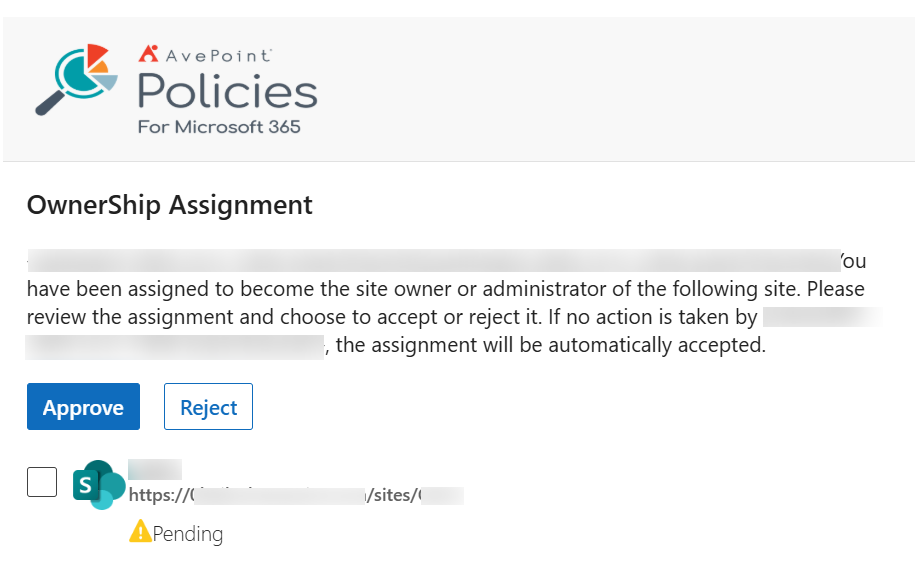
In the email notification, you can find the object name and URL. Click Accept or Reject to accept or reject the assignment.
MyHub > Tasks and To-dos
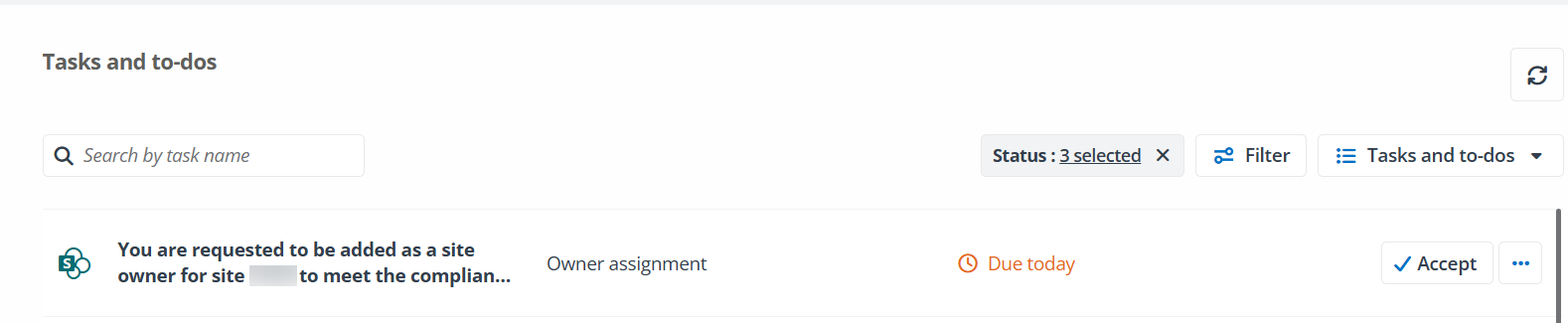
On the MyHub > Tasks and to-dos interface, assignment tasks are displayed. Next to a specific task, click View details to view task details, and then click Accept or Decline to accept or reject the assignment.
Violation Audits
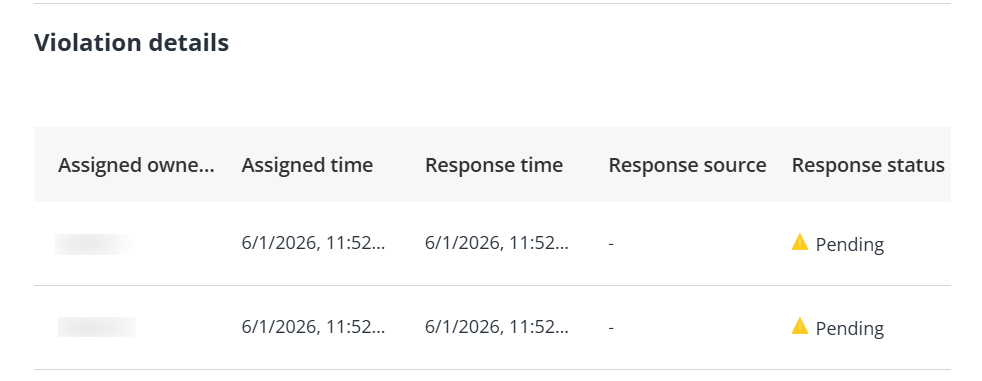
All accept or reject responses from newly assigned site owners, site collection administrators, or Group/Team owners are recorded on the violation details page for the related rules, allowing you to track and audit user decisions.
Before the assignment is processed, the response status is set to Pending. It is automatically updated to Accepted or Rejected once the newly assigned site owners, site collection administrators, or Group/Team owners accept or reject the assignments.
Set a Default Adaptive Card Email Template
Among all adaptive card email templates, you can set one as the default. To set an email template as the default, turn on the Default toggle of that email template in the template table. When configuring a rule and choosing to send an email notification to newly assigned site owners, site collection administrators, or Group/Team owners, this default template will be automatically applied. You can use another email template in the rule settings if needed.