
Home > Appendices > Assign Teams Administrator Role to Azure App
Download this articleAssign Teams Administrator Role to Azure App
To assign the Teams Administrator role to an Azure app, refer to the following steps:
-
Log in to Microsoft Entra admin center (or Microsoft Azure portal), and go to Microsoft Entra ID.
-
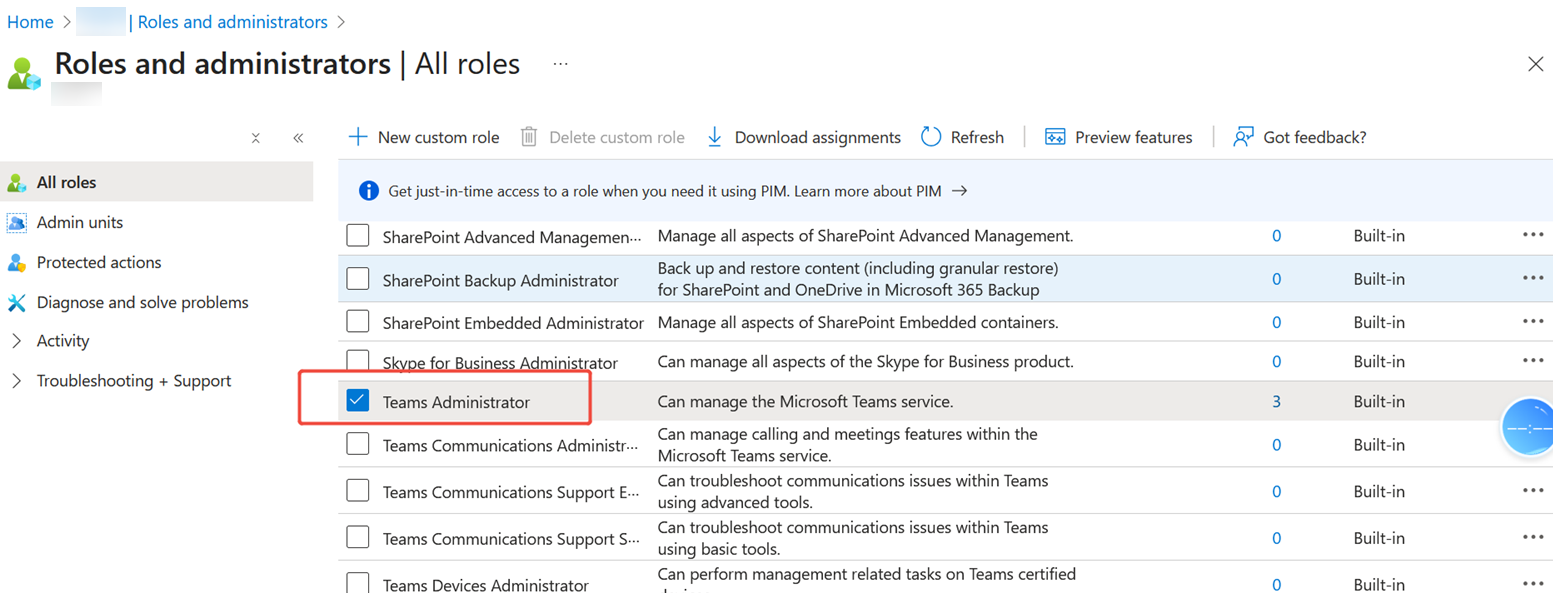
Click Roles and administrators in the left pane, and then click the Teams Administrator role you want to assign.
-
On the Assignments page that opens, click Add assignments.
-
On the Add assignments page, enter the app name (or application ID) in the search box to search for the app to which you want to assign the role.
-
Select the app and click Add to assign the role. Note that the assigned role will take effect in about 30 minutes.
On this page