Home > Configure Policies and Insights Settings
Download this articleConfigure Policies and Insights Settings
To create a template with Policies and Insights settings based on a source tenant, you need to configure the settings required for it first.
Policies for Microsoft 365
Refer to the following steps to configure the settings of Policies for Microsoft 365 for the source tenant:
-
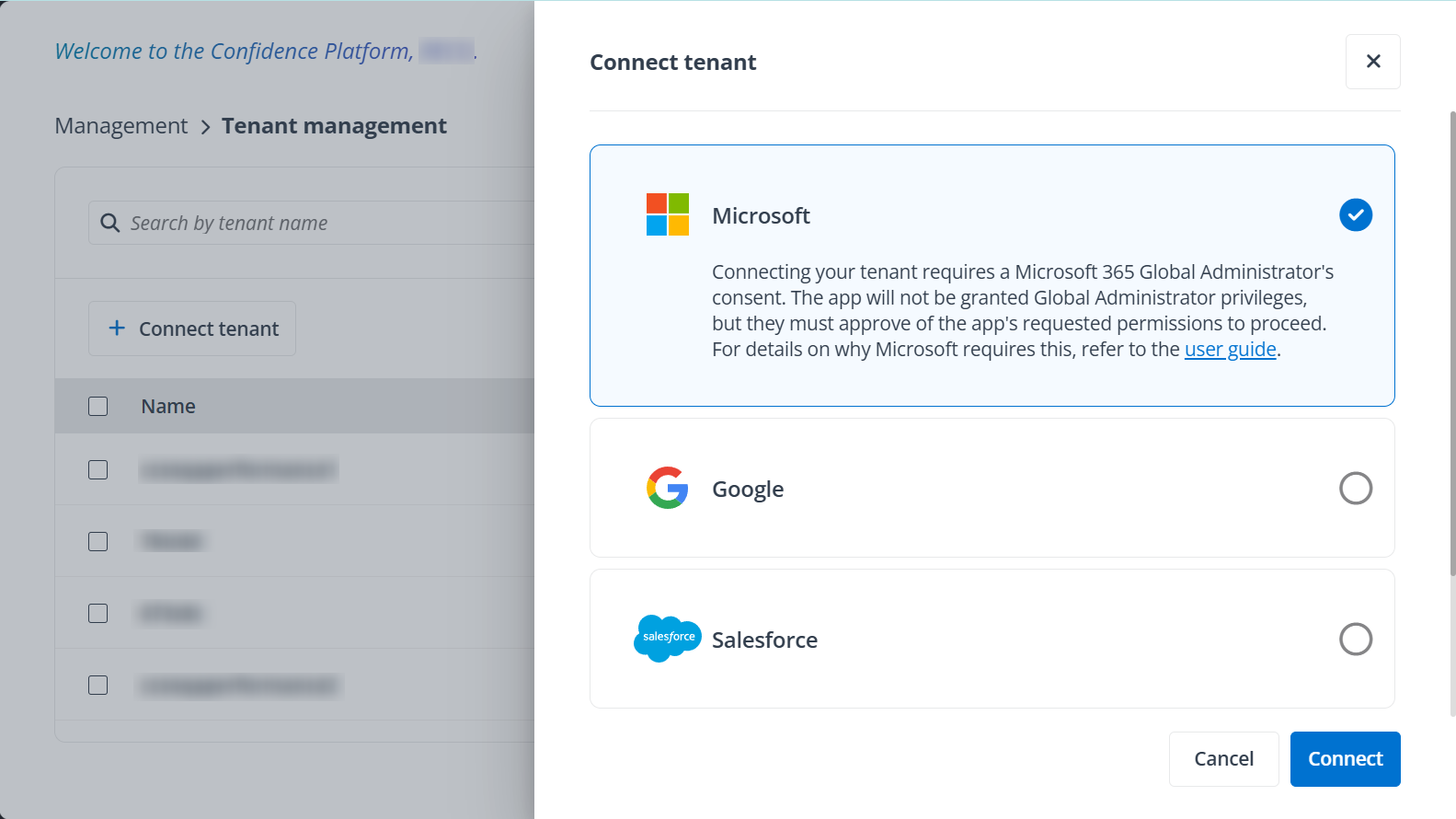
Log in to AvePoint Online Services, and then connect to your source Microsoft 365 tenant in Management > Tenant management. See Connect Tenants for details.
NOTEConnecting to a Microsoft 365 tenant requires a Microsoft 365 Global Administrator’s consent.
-
Configure app profiles in Management > App management. When configuring an app profile, select your source tenant and the Policies for Microsoft 365 service first, and then choose Classic mode, Modern mode, or Custom mode to configure the app profile. For the app profiles that Policies for Microsoft 365 needs and the permissions that should be accepted when you authorize the corresponding app, see Permissions for App Profile Authentication.
NOTEA Microsoft 365 Global Administrator account is required to create or re-authorize the apps.
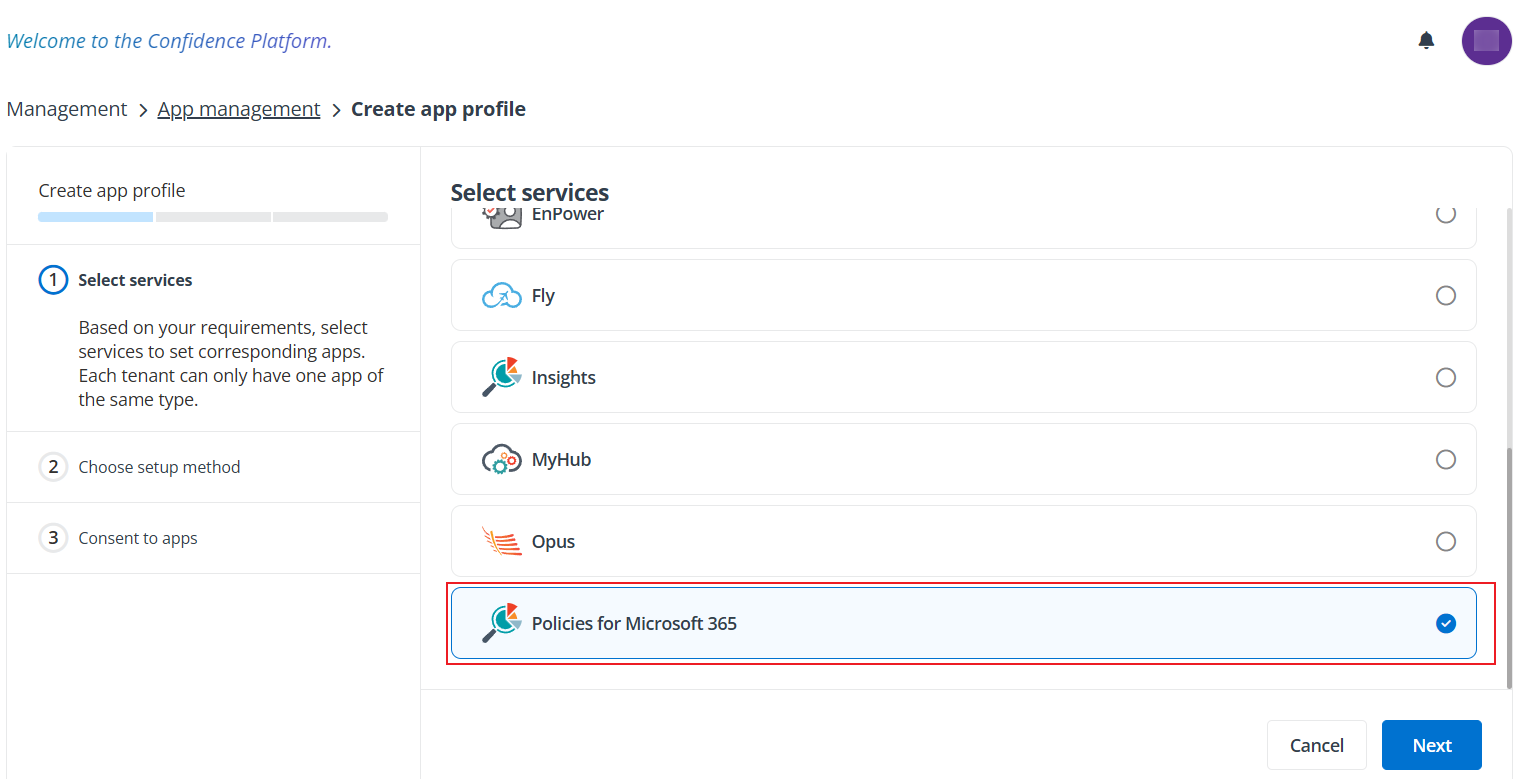
Select a service.
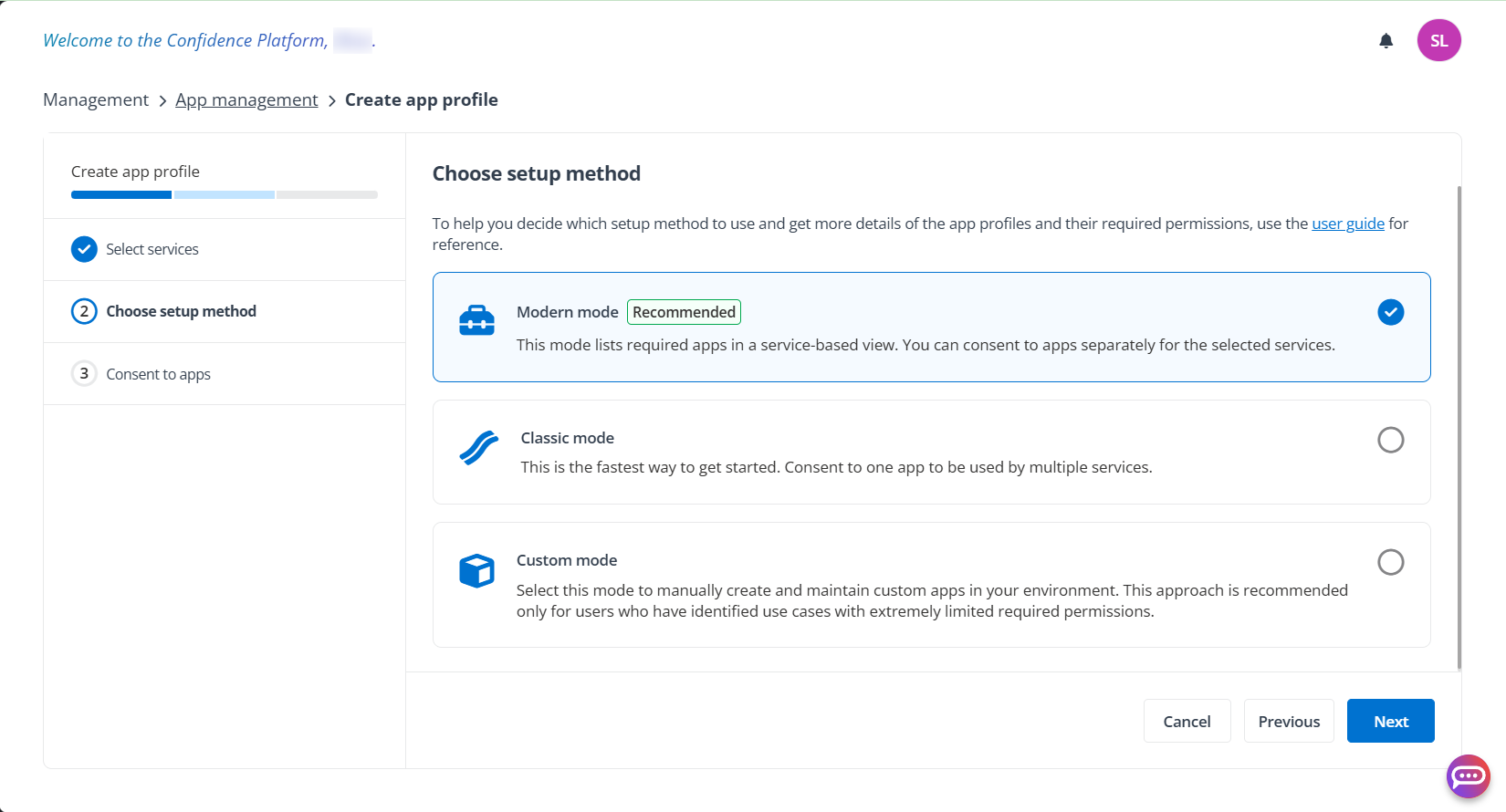
Choose a setup method.
-
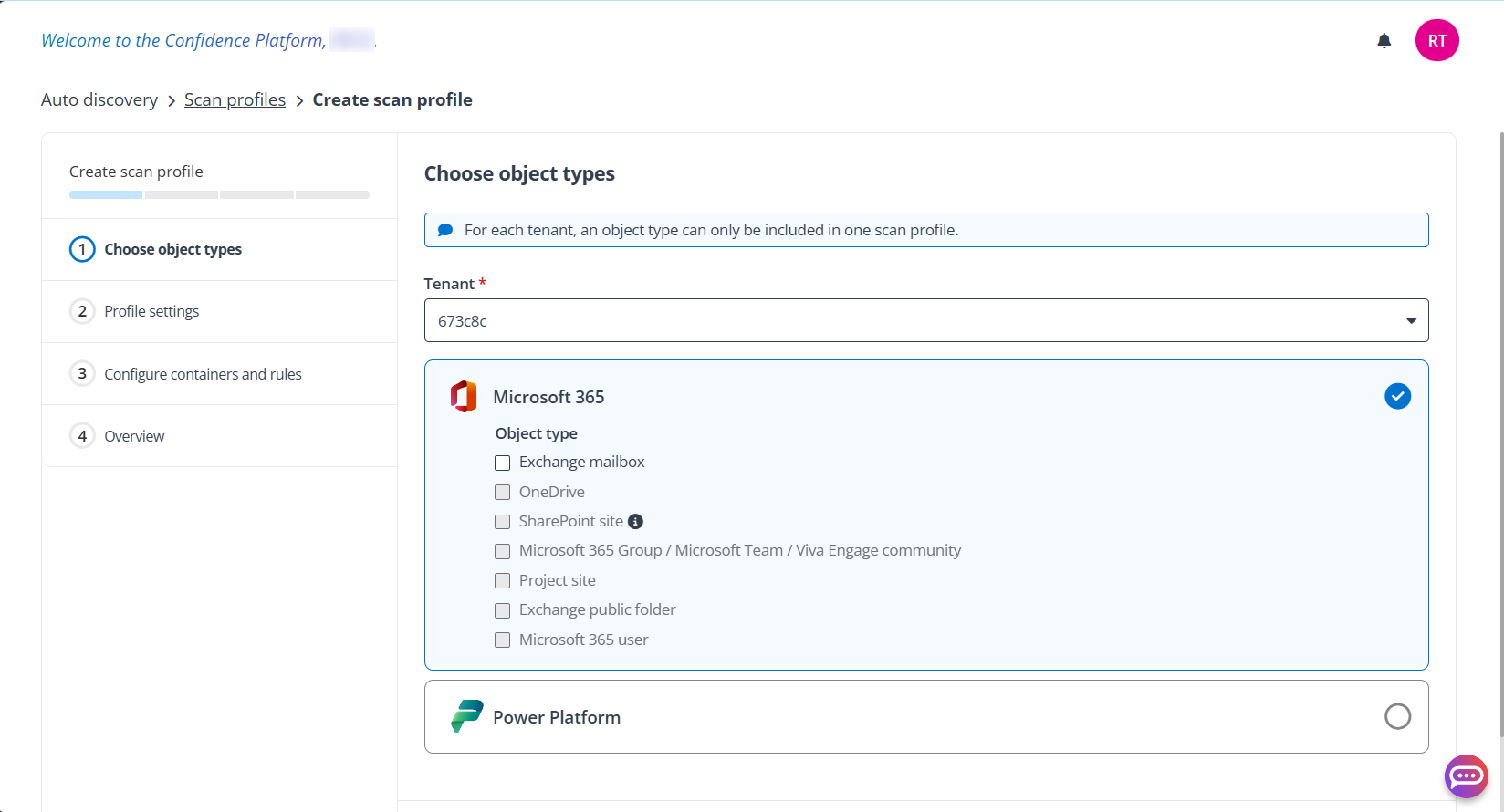
Configure Auto Discovery for your source tenant in Auto discovery > Scan profiles. Refer to Manage Scan Profiles for details.
-
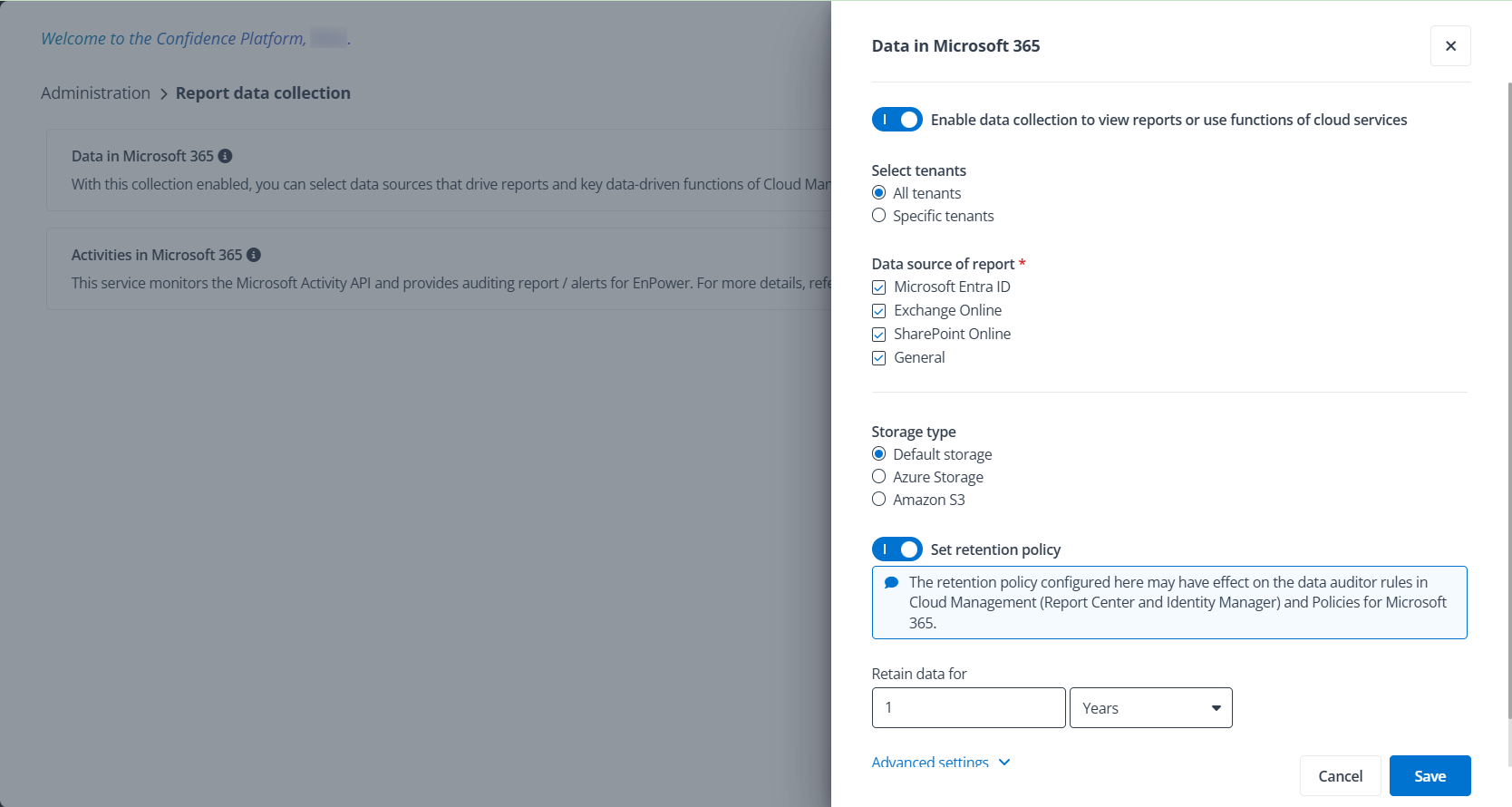
Enable the report data collection for your source tenant in Administration > Report data collection. Make sure Data in Microsoft 365 is enabled, and select all data sources (select SharePoint Online and Microsoft Entra ID at least). Refer to Enable Report Data Collection for details.
-
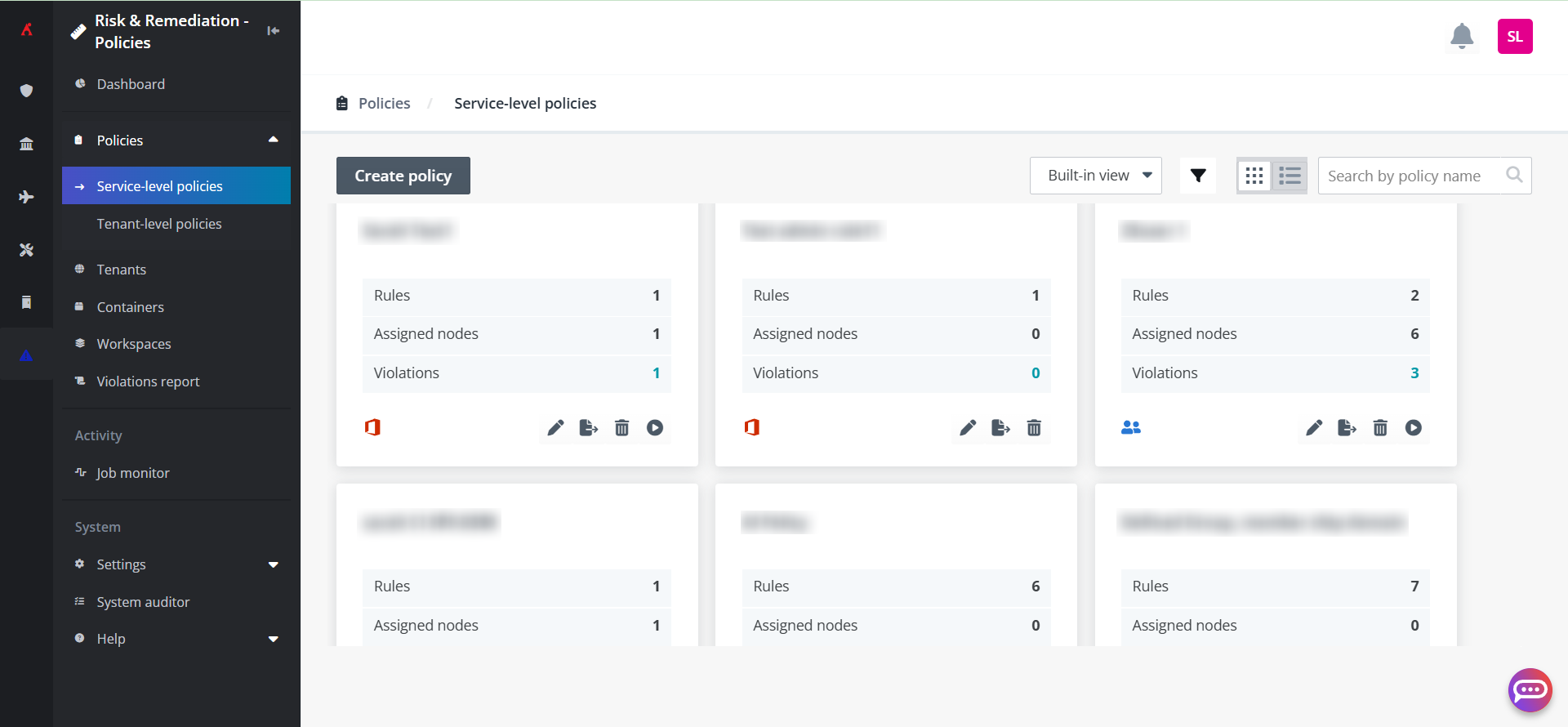
Create policies and rules for the source tenant in Policies for Microsoft 365. Refer to the Policies for Microsoft 365 User Guide for instructions.
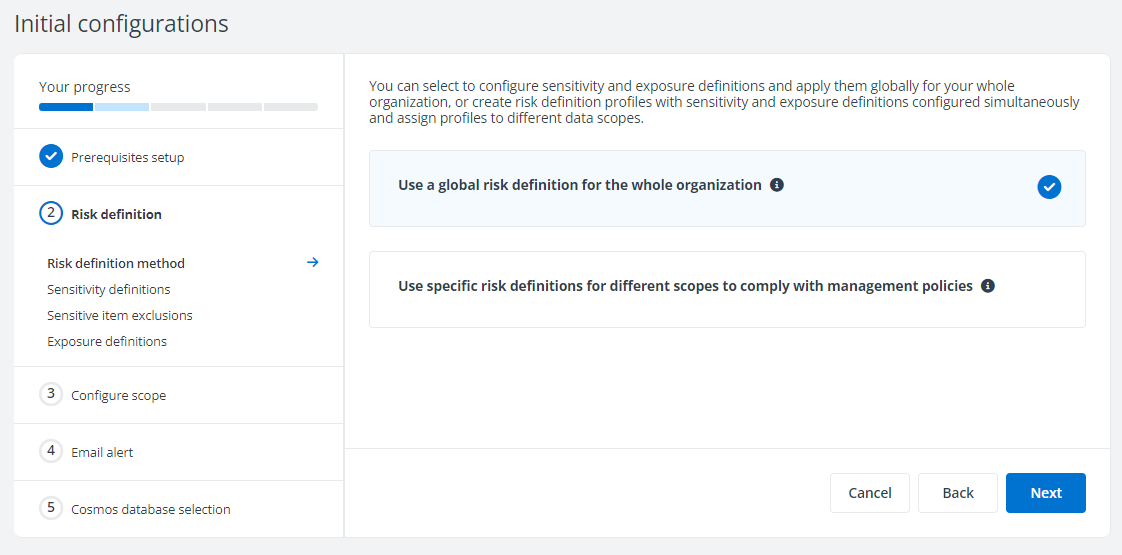
Insights
Refer to the following steps to complete the settings of Insights for the source tenant:
-
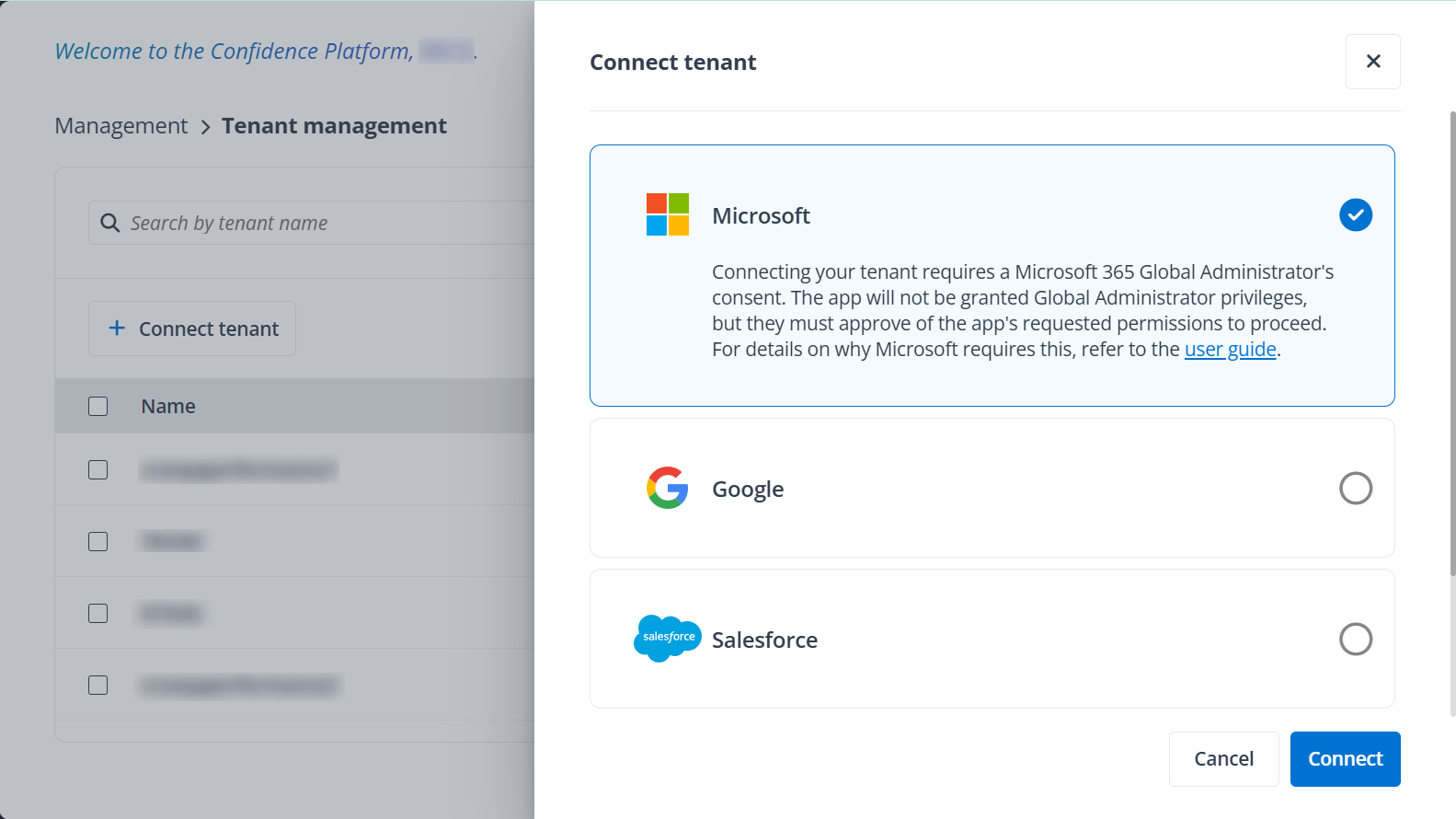
Log in to AvePoint Online Services, and then connect to your source Microsoft 365 tenant in Management > Tenant management. See Connect Tenants for details.
NOTEConnecting to a Microsoft 365 tenant requires a Microsoft 365 Global Administrator’s consent.
-
Configure app profiles in Management > App management. When configuring an app profile, select your source tenant and the Insights service first, and then choose Classic mode, Modern mode, or Custom mode to configure the app profile. For the app profiles that Insights needs and the permissions that should be accepted when you authorize the corresponding app, see Permissions for App Authorization.
NOTEA Microsoft 365 Global Administrator account is required to create or re-authorize the apps.
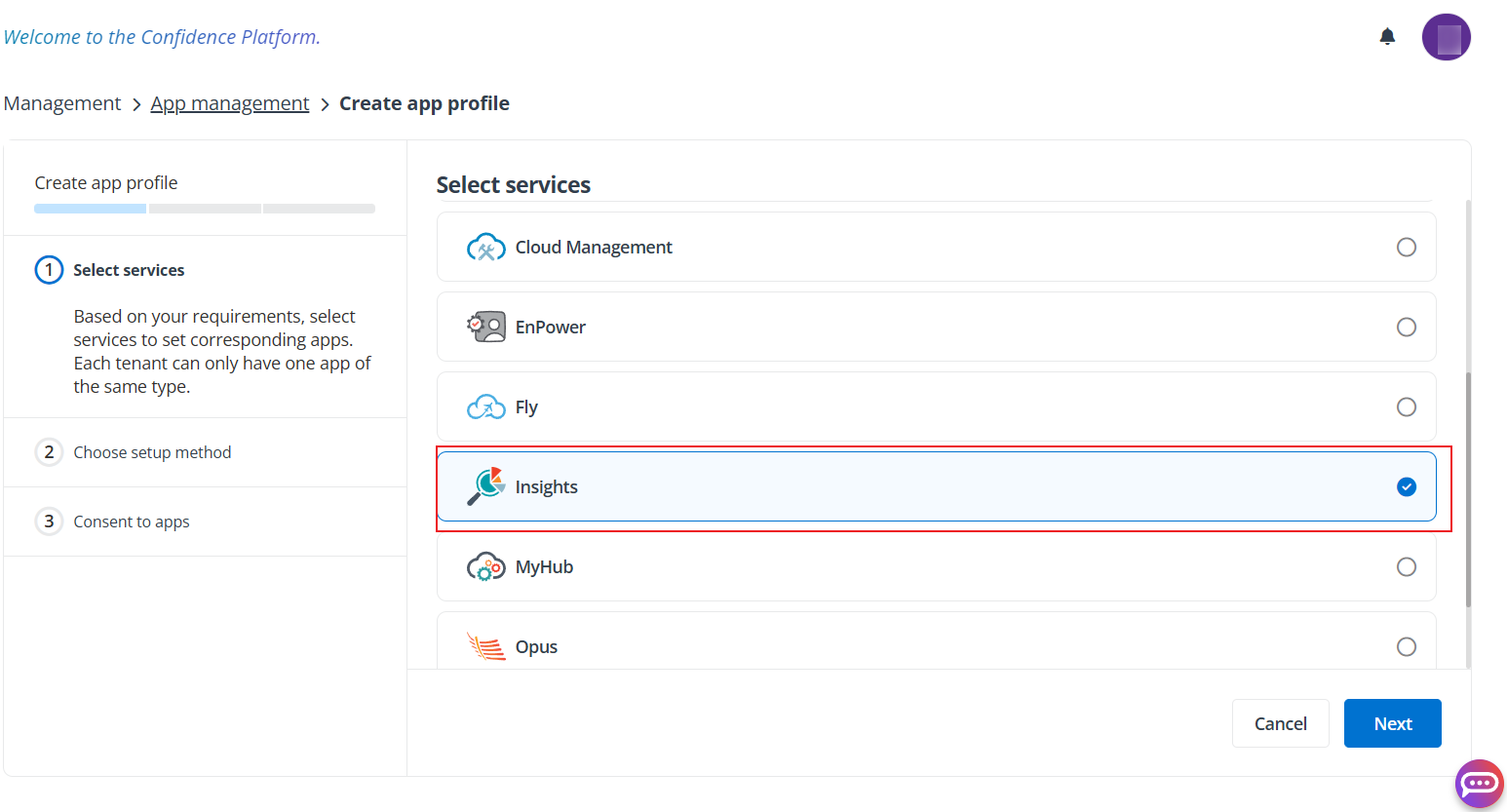
Select a service.
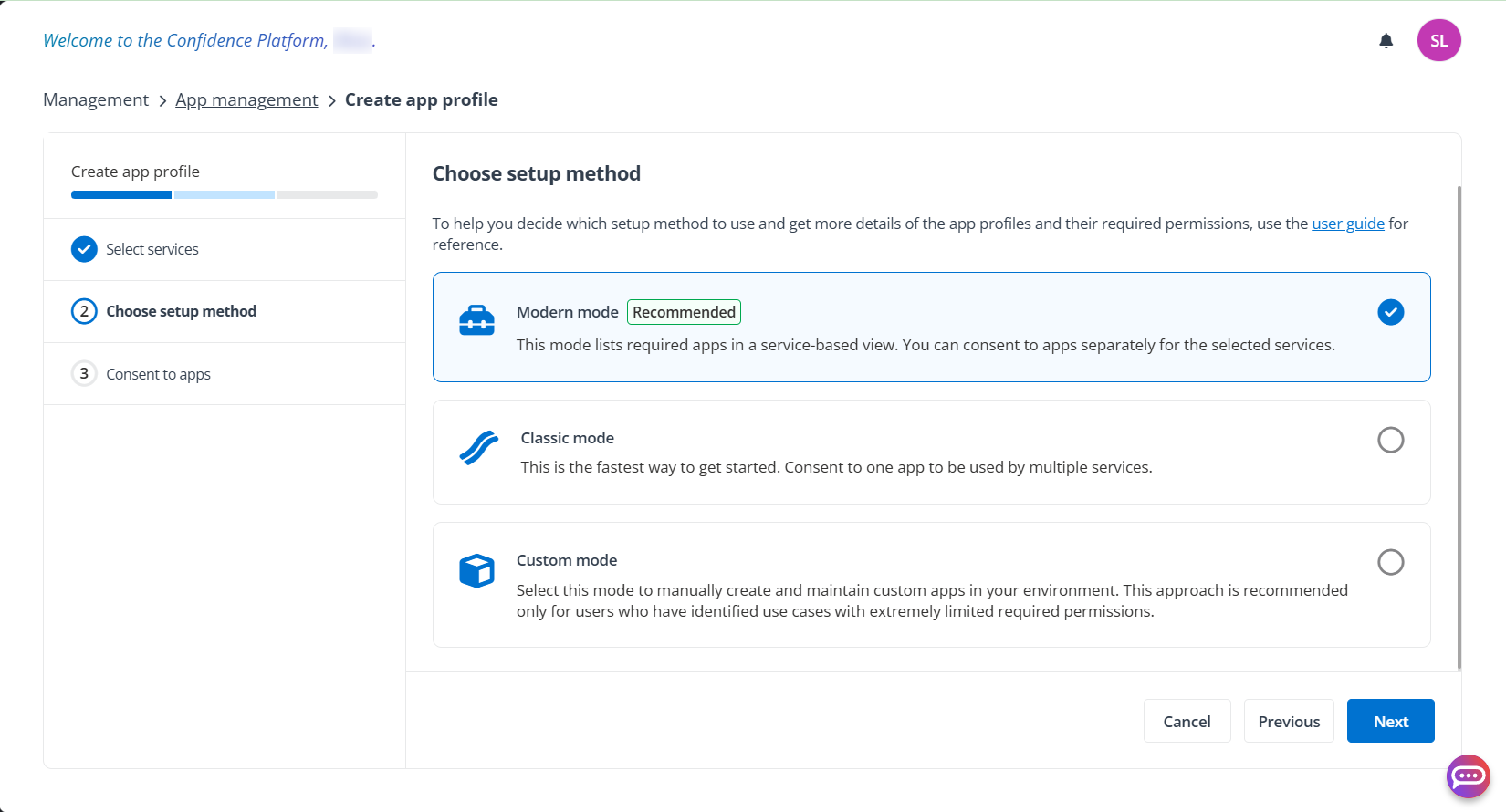
Choose a setup method.
-
Configure Auto Discovery for your source tenant in Auto discovery > Scan profiles. Refer to Auto Discovery for details.
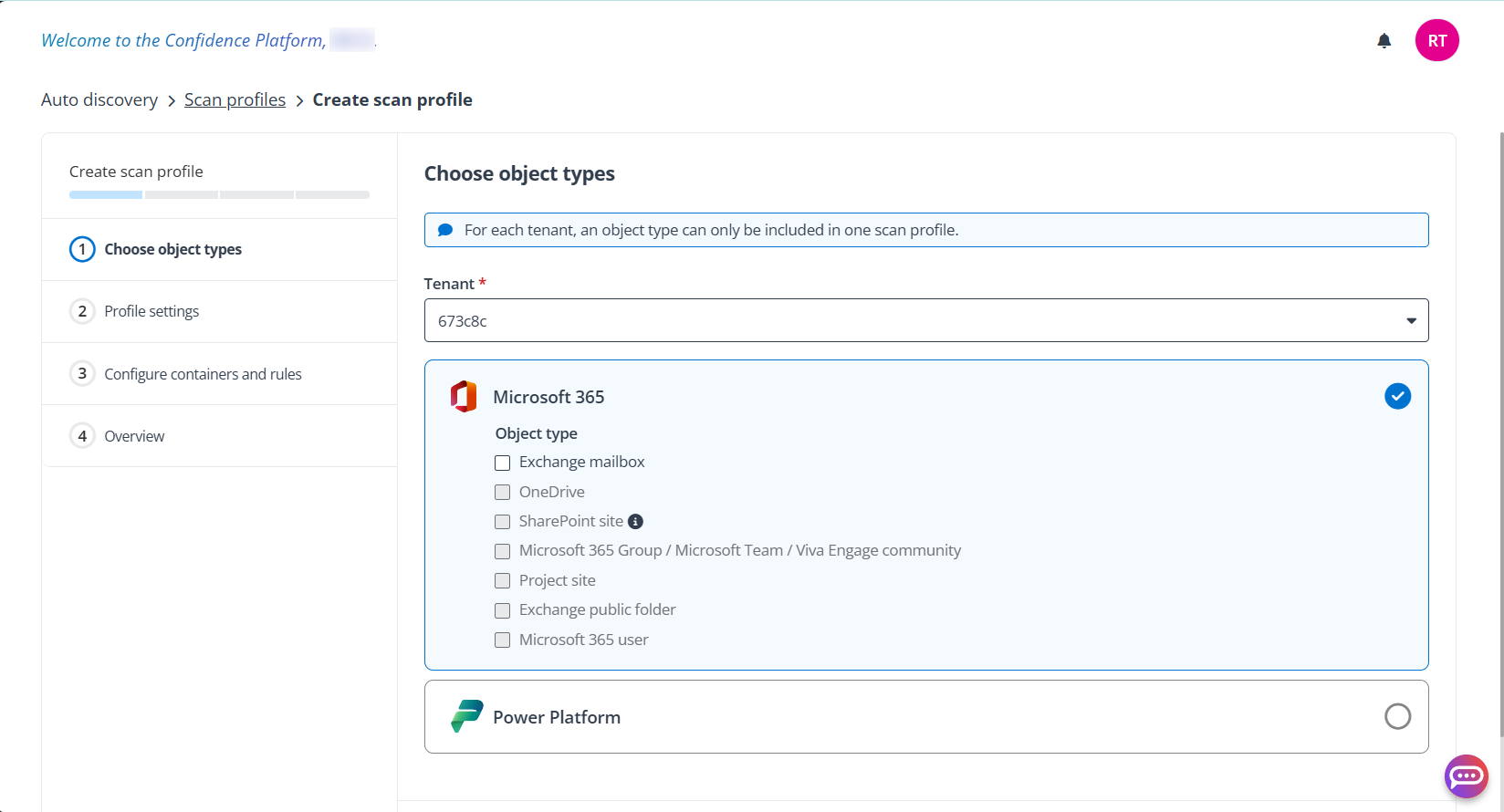
-
Turn on Audit Log Search for your source tenant in Microsoft 365 Compliance Center. This may take up to 24 hours. Refer to Turn auditing on or off for details.
-
Configure risk definitions for the source tenant in Insights. Refer to the Insights User Guide for instructions.