
Home > Manage Data Center Mappings (Cloud Backup for Microsoft 365)
Export to PDFManage Data Center Mappings (Cloud Backup for Microsoft 365)
If your Cloud Backup for Microsoft 365 enterprise subscription has multi-geo capabilities, you can navigate to Administration > Data center mappings to map your Microsoft 365 geo locations to AvePoint data centers.
*Note: Before you configure data center mappings for a Microsoft 365 tenant, ensure an app profile has been configured for the tenant.
Follow the instructions in Step 1: Configure Mappings for Microsoft 365 Geo Locations and Step 2: Define Central Locations in Microsoft 365 Tenants to complete configurations.
The Central AOS location is the data center where your primary AvePoint Online Services tenant initially signed up. All data managed before your multi-geo capabilities or data related to other services will be stored here. Note that the data is not shared with multi-geo tenants, even in the same data center.
Step 1: Configure Mappings for Microsoft 365 Geo Locations
Before you configure mappings, your organization’s backup data is stored in the central AOS location where your primary tenant initially signed up.
Follow the steps below to configure mappings between your Microsoft 365 geo locations and AvePoint data centers:
-
Click Add mapping.
-
Select a geo location from the Microsoft 365 geo location drop-down list.
*Note: To check the geo locations in a Microsoft 365 tenant, refer to the following Get Microsoft 365 Geo Locations section.
-
For each geo location, choose one of the following methods to configure a mapping:
-
To keep the backup data of the geo location in the central AOS location, select the Keep in central AOS location checkbox. The central AOS location will be displayed in the AvePoint Online Services data center field and cannot be changed.
-
If you do not select the Keep in central AOS location checkbox, the AvePoint Online Services data center field will display the data center which the geo location will be mapped.
In the following scenarios, you can select a data center from the AvePoint Online Services data center drop-down list:
-
AvePoint Online Services has more than one data center corresponding to a Microsoft 365 geo location.
-
The data center corresponding to a Microsoft 365 geo location has not been supported in AvePoint Online Services yet.
-
-
-
In the following scenarios, you can configure storage locations for your organization’s geo locations by selecting AvePoint storage or Bring your own storage.
-
New geo locations are added, and your organization uses AvePoint storage.
-
Your organization signs up for AvePoint Online Services after July 12, 2020, and uses AvePoint storage.
-
-
Click Save to save the mappings.
*Note: These mappings will be used to create boundaries between different geo locations in your environment, and the saved mappings cannot be changed. Cloud Backup for Microsoft 365 will back up the data of these geo locations once again, and the backup data will be stored in different AvePoint Online Services data centers according to the mappings, and the storage type for each region cannot be changed once saved.
Get Microsoft 365 Geo Locations
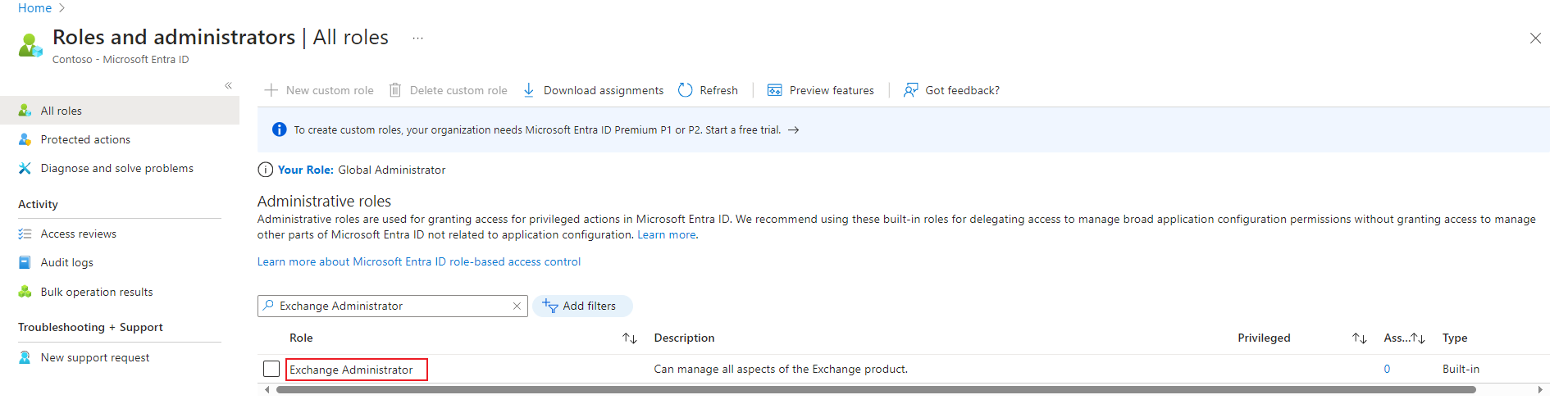
Refer to the following instructions to get geo locations in a Microsoft 365 tenant:
Step 2: Define Central Locations in Microsoft 365 Tenants
The central locations in your organizations’ Microsoft 365 tenants cannot be retrieved due to Microsoft API limitations. For each multi-geo Microsoft 365 tenant, follow the steps below to define the central location in the tenant:
-
Click Add central location.
-
The Microsoft 365 tenant domain field lists tenants based on app profiles configured in AvePoint Online Services. Select a tenant from the drop-down list.
-
The Microsoft Entra ID, SharePoint, and Exchange fields list geo locations that you configured in Step 1: Configure Mappings for Microsoft 365 Geo Locations. Select the tenant’s central location from the Microsoft Entra ID, SharePoint, and Exchange drop-down lists.
*Note: To check the central location in a Microsoft 365 tenant, refer to the following Get Microsoft 365 Central Location section.
-
Click Save.
Get Microsoft 365 Central Location
Refer to the following instructions to get the central location in a Microsoft 365 tenant: