
Home > Azure Security Management > Manage Inventory of a Tenant
この記事をダウンロードManage Inventory of a Tenant
Click Inventory in the left navigation for a tenant to open the Inventory page, where you can monitor Azure resources, resource groups, and subscriptions, enable risk scan, manage identity access, and perform backup and restore operations to help protect resources.
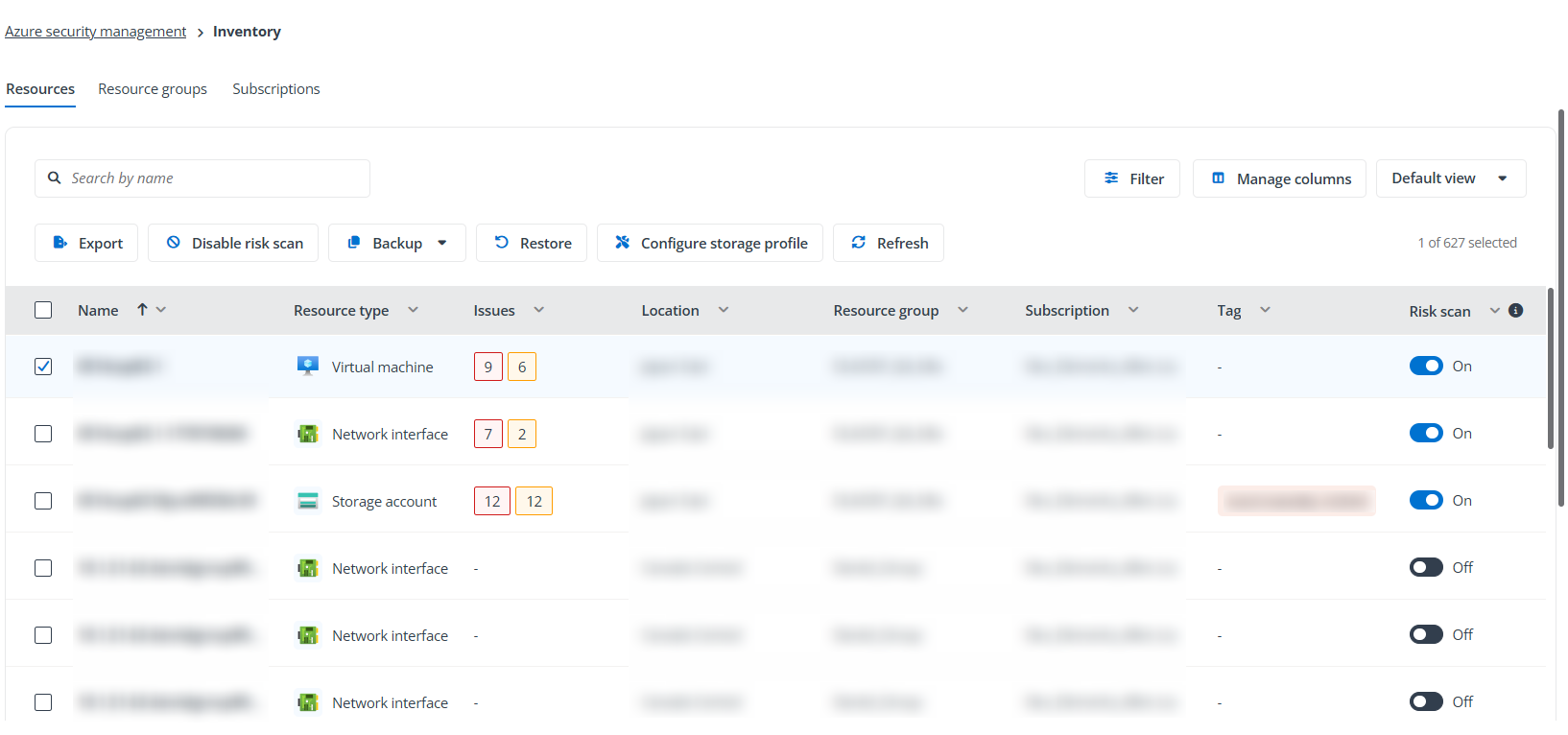
On this page, you can view Resources, Resource groups, and Subscriptions, each organized under its own tab. The table provides key information for each record, such as its name, issue status, tags, and risk scan status.
-
You can enable risk scan for selected resources/resource groups/subscriptions by selecting the records and clicking Enable risk scan or Disable risk scan. Optionally, turn toggle on/off in the Risk scan column to enable or disable risk scan.
-
Under the Resources tab, you can save the current column layout as a custom view. Click Default view > Save as, then enter a name for the view. You can switch to this custom view at any time.
-
Organization Settings > Users
-
Organization Settings > Permissions > Project Collection Administrators > Members
Click the name link in the first column to access the resource/resource group/subscription details in the following tabs.
To export the currently displayed resources, resource groups, or subscriptions, click Export. Select the columns to include: the current visible columns or all columns, select the file format: .xlsx or .csv, and click Export.
Basics
Under this tab, the general information of the resource/resource group/subscription is displayed, including security information, tags, etc.
Identity access
This tab provides visibility into identity access associated with a resource, resource group, or subscription. It allows you to review role assignments from Azure and assess potential access risks identified by Elements.
Role assignments
This tab allows you to view and manage Azure role assignments for the current resource/resource group/subscription. All role assignment data is retrieved directly from Microsoft Azure.
The following actions are available:
-
To add a role assignment, click Add. Refer to the Add a role assignment section below for details.
-
To remove role assignments, select the records and click Remove role assignment. Click Remove in the pop-up window to confirm the action.
Note that if the role assignment is inherited from another scope such as resource group and subscription, it cannot be removed. You need to access the scope in the Scope column to remove it.
Add a role assignment
To add a role assignment, complete the following steps:
-
Click Add under the Role assignments tab.
-
In the Roles step, select the tab for the type of role you want to assign.
-
Job function roles – Roles for general Azure resource management or roles for specific services.
-
Privileged administrator roles – Roles that grant privileged access, such as Owner, Contributor, User Access Administrator, or Role Based Access Control Administrator.
-
-
Select a role from the list and click Next.
-
In the Members steps, enter an optional description for the role assignment.
-
Click Add member. Search and select the users, groups, or service principals to assign the selected role, and then click Save.
-
Click Add to add the role assignment.
Risk access analytics
This tab provides insights generated by Elements to help identify potentially risky access (based on role assignments).
There are several cards under this tab to show the number of risky accesses by the type: Inactive users, Unique permission (only has access to the current resource), Guests, Risky users, Temporary access. You can click the checkbox on each card to show the specific type of access records.
In the access list, you can select the records and click Remove risky access to remove the role assignment from this resource to disable access. Click Remove in the pop-up window to confirm the action.
Note that if access is inherited from another scope such as resource group and subscription, it cannot be removed. You need to access the scope to remove it.
Issues
It lists tenant issues along with their severity levels, status, and detection details, etc.
To export the currently displayed issues, click Export. Select the columns to include: the current visible columns or all columns, select the file format: .xlsx or .csv, and click Export.
Click the issue link to access the Issue details page. There are three tabs on the page:
-
General – This tab displays core information about the risk issue, such as detection time, status, and affected resource details.
The Remediation section provides AI‑generated recommendations to help resolve the detected issue. Click Generate in the upper-right corner to create remediation guidance. Once generated, the remediation content is saved and remains available until the user clicks Regenerate.
-
Security graph – The tab provides a visual view of the relationships between the affected resource and related Azure resources. For related resources, you can also click the icon of the resource to view its details.
-
Audit logs – This tab displays all action records performed to the current issue.
The Actions menu in the upper-right corner allows you to manage the issue status directly from the details page:
These actions are also available by selecting the issues in the issue list and clicking the Actions button.
-
Mark as fixed – Mark the issue as resolved after remediation has been completed. Enter your comment and click Save.
-
Dismiss – Dismiss the issue when it is considered acceptable or not applicable.
-
Resume – Resume the previously dismissed issue so that it is tracked and monitored again.
Security graph
This tab is only available for resources, and it provides a visual view of the relationships between the current resource and related Azure resources. For related resources, you can also click the icon of the resource to view its details.
Software vulnerability
This tab is only available for virtual machines, and it lists the detected software vulnerabilities on the machine.
To export the currently displayed vulnerabilities, click Export. Select the columns to include: the current visible columns or all columns, select the file format: .xlsx or .csv, and click Export.
You can click the vulnerability ID link to view the details of the vulnerability, such as its description, affected scope, and audit logs.
The Actions menu in the upper-right corner allows you to manage the vulnerability status directly from the details page:
These actions are also available by selecting the vulnerabilities in the vulnerability list and clicking the Actions button.
-
Mark as fixed – Mark the vulnerability as resolved after remediation has been completed. Enter your comment and click Save.
-
Dismiss – Dismiss the vulnerability when it is considered acceptable or not applicable.
-
Resume – Resume the previously dismissed vulnerability so that it is tracked and monitored again.
Microsoft audit
This tab shows the Microsoft audit logs for current resource, resource group, or subscription.
Audit logs
This tab displays all action records performed to the current resource, resource group, or subscription in Elements.