
Preparation
Before the migration, you need to identify what object types you want to migrate. Refer to the Supported and Unsupported List.
1. Create a service account or app profile with required permissions
To connect Fly to your SharePoint Online, create a service account or an app profile with required permissions in AvePoint Online Services. Refer to the latest Required Permissions to check the required permissions for SharePoint Online Migration.
Users with Multi-Factor Authentication (MFA) enabled cannot be used as the service account to perform migrations. You can use a delegated app profile instead.
2. Filter site collections (optional)
If there are many site collections in your tenant and you only want to migrate some of them, you need to prepare a custom app profile with different set of permissions and apply the app to the desired site collections. Refer to Permissions for Source SharePoint Online for details.
3. Run the source tenant discovery (optional)
Before you migrate from SharePoint Online, you can run a tenant discovery for SharePoint Online to scan and report the object count, object type, object size, and other details. According to the discovery reports, you can better understand your source environment and plan for your migrations. Refer to the user guide for Tenant Discovery for details.
4. Grant Term Store Administrator privilege to service account/app profile
To migrate managed metadata columns with terms, the source and destination service accounts/consent users of delegated profiles must be added to Term Store Administrators before the migration.
Go to the Term store page in SharePoint admin center and add the migration service account to the Admins.
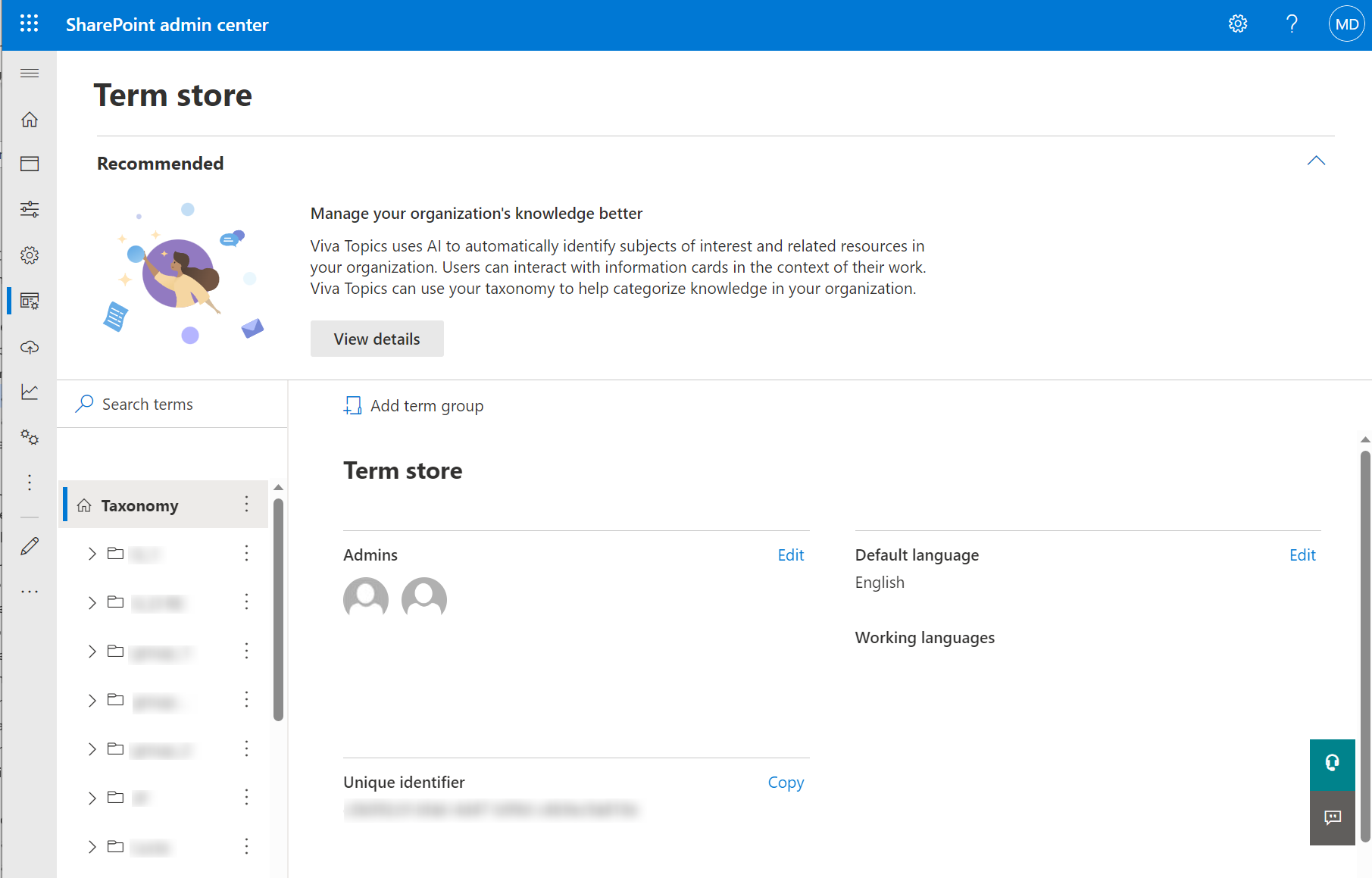
URL of the Term Store management: https://{TenantName}-admin.sharepoint.com/_layouts/15/online/AdminHome.aspx#/termStoreAdminCenter.
5. Provision all necessary users/groups in the destination tenant
Fly does not automatically create new users in Microsoft 365. There are different ways to add new Microsoft 365 users:
-
Adding users individually. See instructions here.
-
Adding users in bulk. See instructions here.
-
Adding users via PowerShell. See instructions here.
-
Synchronizing users from local Active Directory to Microsoft 365 via Microsoft Entra Sync or Microsoft Entra connect. See instructions here.
6. Provision all necessary external users in the destination tenant
You can export the external users and import them into the destination tenant before the migration by downloading and running the PowerShell scripts.
7. Check destination retention policies
If retention policies are configured for the source data, check to make sure the destination retention policies are the same as the source retention policies. Otherwise, the destination data may be deleted due to different retention policies.
8. Prepare sensitivity labels in the destination (optional)
If the source tenant does not have sensitivity labels, you can ignore this step.
If the source tenant has sensitivity labels, and you want to replace the source labels with destination ones, make sure the destination labels already exist before the migration.
Refer to Create and publish sensitivity labels to create and publish Labels.
9. Migration throughput
For SharePoint Online migrations, generally, a reasonable migration speed is 2 GB/hour/mapping. For the number of mappings that can be run, it is automatically allocated based on the subscription you purchased. The more user seats you purchase, the more mappings you can run in a project.
However, SharePoint Online consists of files and various items/metadata/settings. The data rate may not be the only factor to reflect the migration performance. For example, the site features/content types/other metadata/settings and list items usually take up a small size, but the larger overhead and processing time caused by migration, even the regions of migration, will impact the data rate. Pilot Migration is recommended as the best practice for you to test the actual migration performance. The actual migration performance may vary based on the data complexity.
10. Create source and destination connections
Refer to Create a Connection to connect to your source and destination SharePoint Online. The connection including both the app profile and service account is recommended.
11. Design the migration policy
A SharePoint migration policy allows you to configure the conflict resolution, filter policy, user mapping, column mapping, content type mapping, template mapping, URL mapping and other options for SharePoint Online Migration. Refer to Configure a Migration Policy for details.
To ensure the maximum preservation of source data, we recommend you use Merge as the container level conflict resolution and use Overwrite by last modified time as the content level conflict resolution.
If the file/item has more than 100 versions, it will take more time to migrate the data. Therefore, we recommend that you use the version filter policy to migrate no more than 100 versions. Refer to Filter Policies for details.
12. Migrate hub sites to the destination (optional)
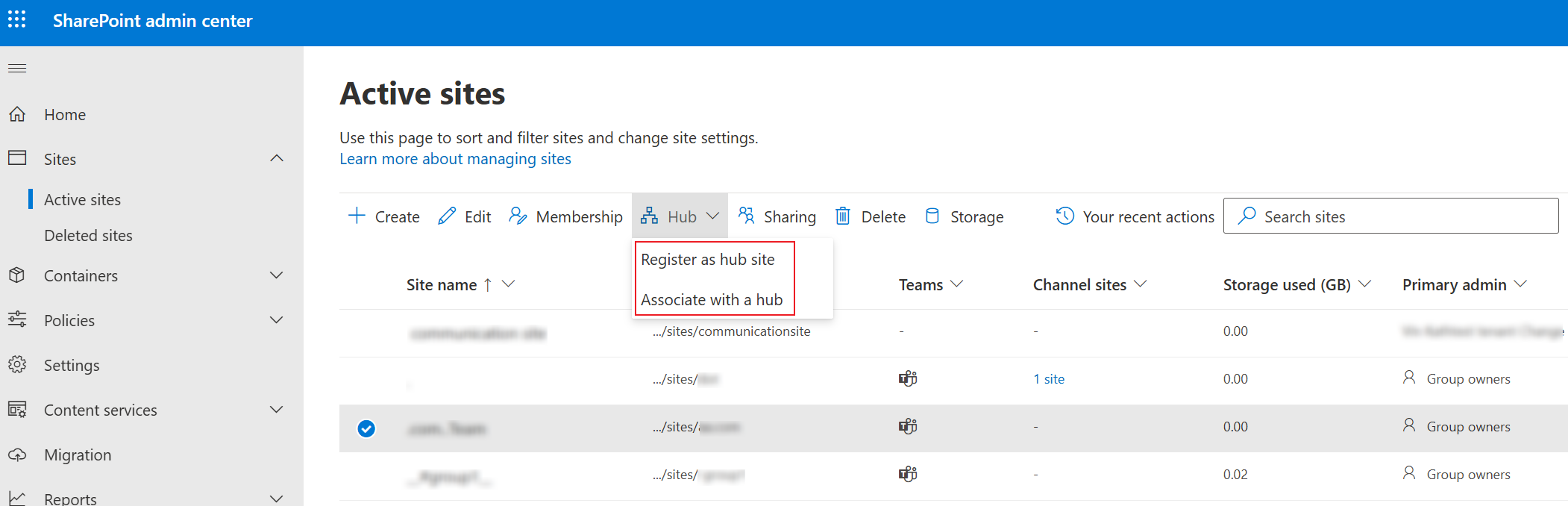
To migrate a hub site in the source, you can configure a project mapping to map the hub site to a modern site collection. After the site collection has been migrated, you can register the destination site collection as a hub site in SharePoint admin center. Then, manually associate desired site collections with the hub site.
13. Migrate content type hub sites to the destination (optional)
To migrate a content type hub site in the source, you can configure a project mapping to map the source content type hub site to an existing destination content type hub site. Then, only select the Site and list content types and Site and list columns checkboxes in the migration policy and use the policy to migrate the content type hub site. After the migration, you can manually publish the desired content types in the destination content type hub site.
14. Plan a pilot run
We recommend that you do a pilot run for the following purposes:
-
Get familiar with Fly interface and understand the whole migration process.
-
Discover any potential issues early and resolve them before production migration.
-
Understand the throttling situation in case content size is large, and then try to resolve it with the destination.
A pilot migration should be as close to the wave migration as possible and involve all steps that any wave will involve.
Refer to Run Migrations to Migrate Objects for details.