
Home > Tenant to Tenant Migration Process > Preparation
Download this articlePreparation
Refer to the following sections to prepare for the migration.
1. Prepare the source environment
1.1 Create a service account/app profile with required permissions
To connect Fly to your source Microsoft 365 tenant and the components within, create a service account or an app profile with sufficient permissions in AvePoint Online Services. Refer to the user guide to check the required permissions for migrations.
Users with Multi-Factor Authentication (MFA) enabled cannot be used as the service account to perform migrations. You can use a delegated app profile instead.
1.2 Run the source tenant discovery (optional)
Before your migrations from Microsoft 365 tenants, you can run a tenant discovery to scan and report the object count, object type, object size, and other details of the corresponding workspace. According to the discovery reports, you can better understand your source environment and plan for your migrations. Refer to the user guide for Tenant Discovery for details.
2. Prepare the destination environment
2.1 Create a service account/app profile with required permissions
To connect Fly to your destination Microsoft 365 tenant and the components within, create a service account or an app profile with sufficient permissions in AvePoint Online Services. Refer to user guide to check the required permissions for migrations.
Users with Multi-Factor Authentication (MFA) enabled cannot be used as the service account to perform migrations. You can use a delegated app profile instead.
2.2 Create users in the destination tenant or sync AD users
Fly does not automatically create new users in Microsoft 365. To make sure that everything works as expected, all users need to be added to the destination tenant. There are different ways to add new Microsoft 365 users:
-
Adding users individually. See instructions here.
-
Adding users in bulk. See instructions here.
-
Adding users via PowerShell. See instructions here.
-
Synchronizing users from local Active Directory to Microsoft 365 via Microsoft Entra Sync or Microsoft Entra connect. See instructions here.
2.3 Create all necessary external users in the destination tenant
External users cannot be migrated in the migration. You can export external users and import them into the destination tenant before the migration. Refer to the following steps for details.
-
Make sure you have the Azure AD PowerShell Module installed before running the scripts. See instructions here.
-
Run the PowerShell script to export the external users from the source tenant to a CSV file. (You can click the link to download the script.)
-
Run the PowerShell script to import the users in the CSV file to the destination tenant. (You can click the link to download the script.)
2.4 Assign licenses to destination users
For Exchange Online migrations, you can manually assign Microsoft 365 licenses to users that will be used as destination mailboxes before the migration. You can also use Fly to assign Microsoft 365 licenses to the users during the migration.
For SharePoint Online/OneDrive/ Microsoft Teams Chat migrations, manually assign Microsoft 365 licenses to all destination OneDrive users.
For Microsoft Teams migrations, if you want Fly to assign the Team Owner role to destination users in the migration, manually assign Microsoft 365 licenses to all destination users.
For Microsoft 365 Groups migrations, if you want Fly to assign the Group Owner role to destination users in the migration, manually assign Microsoft 365 licenses to all destination users.
2.5 Other preparations
You may also need to make the following preparations for your SharePoint Online / OneDrive / Exchange Online / Microsoft Teams Chat Migrations.
SharePoint Online/OneDrive Migration
Provision OneDrive in the destination tenant
Fly can create the destination OneDrive objects automatically in the migration if they do not exist before the migration. If you only use the app profile to connect to the destination or want to achieve a better migration performance, we recommend that you create the corresponding OneDrive objects before the migration. Refer to Pre-provision OneDrive for users in your organization to pre-provision OneDrive via PowerShell.
Allow custom script on the destination SharePoint sites
In Microsoft 365, the script is not allowed on OneDrive or the root site for your organization. If you want to migrate pages to these sites, you need to allow custom script to run on personal sites and self-service created sites. Refer to allow custom script for details.
Check destination retention policies
If retention policies are configured for the source data, check to make sure the destination retention policies are the same as the source retention policies. Otherwise, the destination data may be deleted due to different retention policies.
Deploy the Nintex workflow app in the destination tenant
If you want to migrate Nintex workflows to Microsoft 365, make sure the Nintex workflow app has been installed and trusted in a site of your destination tenant. Then, when you migrate Nintex workflows to this tenant, Fly can automatically install the Nintex workflow app to other destination sites.
Grant Term Store Administrator privilege to service account
To migrate managed metadata columns with terms, the source and destination service accounts must be added to Term Store Administrators before the migration.
Go to the Term store page in SharePoint admin center and add the migration service account to the Admins.
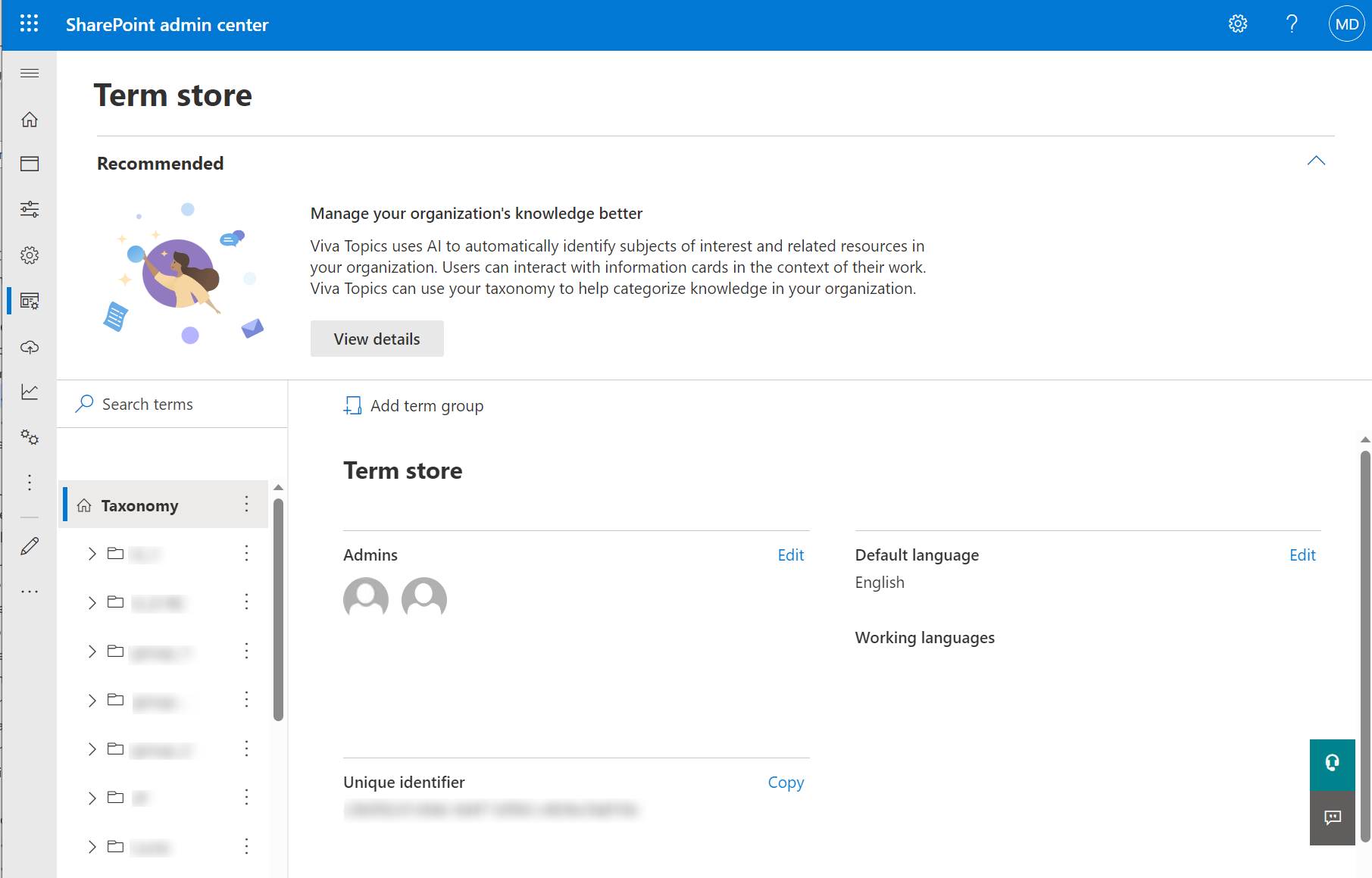
URL of the Term Store management: https://{TenantName}-admin.sharepoint.com/_layouts/15/online/AdminHome.aspx#/termStoreAdminCenter.
Exchange Online Migration
Disable Litigation Hold and Single Item Recovery (Optional)
During migrations, if you need to repair the migrated data and overwrite many items, we recommend that you disable both litigation hold and single item recovery on related destination mailboxes. If litigation hold or single item recovery is enabled, when items are deleted or overwritten, Exchange will automatically move those items to the Recoverable Items folder and take up storage there.
Litigation hold is not enabled by default while single item recovery is.
Refer to In-Place Hold and Litigation Hold in Exchange Online and Enable or disable single item recovery for a mailbox in Exchange Online for details.
Sample PowerShell Command:
Check destination retention policies
If retention policies are configured for the source data, check to make sure the destination retention policies are the same as the source retention policies. Otherwise, the destination data may be deleted due to different retention policies.
Handle large mail items for migration to destination mailboxes
-
Microsoft sets a default limit of 35 MB as the maximum size of a received message. We recommend increasing this to 150 MB before the migration to avoid any potential exceptions. Refer to larger email messages to configure the limit.
Sample PowerShell command:
-
Other limits such as rule quota limitation. Inbox rules are limited to 256 KB for all rules. Refer to Modify the space used by Inbox rules in Exchange Online to configure the limit.
Sample PowerShell command:
Lift the EWS throttling restrictions
Microsoft 365 uses throttling to manage Microsoft 365 operations to ensure security and service availability. The throttling limits will affect migration performance. Go to the Microsoft 365 admin center to lift the EWS throttling restrictions.
-
Go to the Help (?) section of the Microsoft 365 admin center.
-
Enter EWS throttling as the search phrase.
-
Click Run Tests when you are asked to check your environment. Essentially, the tests check what EWS throttling applies to the tenant.
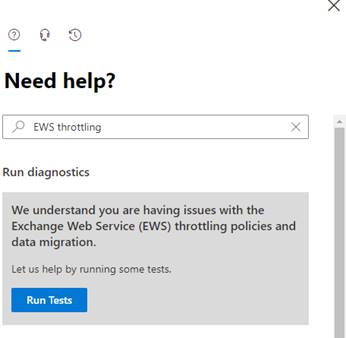
-
The support assistant checks the tenant settings and concludes that EWS is throttled (the normal situation). You will be offered the chance to update the settings to the tenant EWS policy to lift throttling for 30, 60, or 90 days.
-
Select the number of days to adjust the policy, and then click Update Settings.
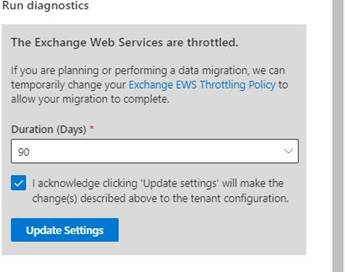
-
After a short delay, the support assistant will confirm that the settings have been changed.
Microsoft Teams Chat Migration
Create a placeholder account in the destination tenant
Source chats will be converted to group chats due to API limitations. A placeholder account is required in the destination connection to create the group chats and must meet the following criteria:
-
The account must be an active user in the destination tenant, which does not need any licenses or admin roles.
-
The account cannot be the same as the service account or any destination chat user in the migration.
3. Migration Performance
Migration performance can be impacted by network infrastructure, file size, migration time, and throttling. Understanding these will help you better plan and maximize the efficiency of your migrations.
Migration Throughput
SharePoint Online Migration Throughput
Generally, a reasonable migration speed is 2 GB/hour/mapping. The number of mappings that run in parallel is automatically allocated based on your purchased subscription. The more subscriptions you purchase, the more mappings you can run in parallel.
OneDrive Migration Throughput
Generally, a reasonable migration speed is 4 GB/hour/mapping. The number of mappings that run in parallel is automatically allocated based on your purchased subscription. The more subscriptions you purchase, the more mappings you can run in parallel.
Exchange Online Migration Throughput
Generally, a reasonable migration speed is 1 GB/hour/mapping. The number of mappings that run in parallel is automatically allocated based on your purchased subscription. The more subscriptions you purchase, the more mappings you can run in parallel.
Microsoft Teams Migration Throughput
Conversations can be migrated as post messages or HTML files. The following throughput shows the speed at which conversations are migrated as post messages. If you want a higher speed, you can migrate the conversations that are sent earlier as HTML files.
-
If the destination connection has an app profile and the destination Teams are newly created during the migration, a reasonable Teams migration speed is 5000 messages/hour/mapping.
-
If the destination connection does not have an app profile or the destination Teams already exist before the migration, a reasonable Teams migration speed is 1200 messages/hour/mapping.
The number of mappings that run in parallel is automatically allocated based on your purchased subscription. The more subscriptions you purchase, the more mappings you can run in parallel.
Microsoft Teams Chat Migration Throughput
Generally, the average migration rate of chat messages ranges from 1000/hour/mapping to 4000/hour/mapping, depending on your tenant's performance. The number of mappings that run in parallel is automatically allocated based on your purchased subscription. The more subscriptions you purchase, the more mappings you can run in parallel.
There are many factors which may affect the migration performance:
-
The above throughput number is for the full migration. Generally, it may be lower for the incremental migration since Fly needs to spend quite some time checking the migrated items’ status for the incremental migration.
-
The above results are only ideal values after many tests. Migration speed of different tenants may be different. We recommend that you estimate the daily throughput in the same way as the results of the pilot job.
-
If your Planner is particularly large, the overall migration speed may be slowed down.
If a higher throughput is required, you can use different source and destination service accounts for different projects.
Microsoft 365 and Office 365 Throttling
Microsoft 365 and Office 365 use various throttling mechanisms to help ensure security and service availability. The following types of throttling can affect the migration performance:
| Type | Description | Best Practice |
|---|---|---|
| User throttling | User throttling is the most restrictive throttling method in Microsoft 365 and Office 365. Since user throttling is set up to work against an individual end user, any application-level usage will easily exceed the throttling policy and result in slower data migration. | |
| Resource health-based throttling | 1. Resource health-based throttling is the least aggressive throttling method. It occurs to prevent a service availability issue that can affect end users and critical service operations. 2.Throttling is implemented to ensure the best user experience and reliability of SharePoint. It is primarily used to load balance the database and can occur if you misconfigure migration settings, such as migrating all your content in a single task or attempting to migrate during peak hours. | Run the migration during off-peak hours. |