
Preparation
Before the migration, you need to identify what object types you want to migrate. Refer to the Supported and Unsupported List.
1. Create an app profile with required permissions for source Exchange Online Public Folder
To connect Fly to your Exchange Online Public Folder, we recommend creating an app profile with the required permissions in AvePoint Online Services. Refer to Required Permissions to check the required permissions for Exchange Online Public Folder.
2. Create a service account or an app profile with required permissions for destination Exchange Online
To connect Fly to your Exchange Online, create a service account or an app profile with the required permissions in AvePoint Online Services. Refer to Required Permissions to check the required permissions for Exchange Online.
Users with Multi-Factor Authentication (MFA) enabled cannot be used as the service account to perform migrations. You can use a delegated app profile instead.
3. Create shared mailboxes in destination tenant
Add new Microsoft 365 shared mailboxes in Exchange Online, or sync users from on-premises Active Directory and convert them to shared mailboxes. Refer to the user guide about how to prepare users.
The storage limit for a standard shared mailbox is 50 GB. For more information, refer to Storage Limits and Storage Limits Across Standalone Plans in the Mailbox Storage Limits section. If your source public folders contain a large amount of data, ensure that each mapping targets a different destination shared mailbox where possible. It is also recommended to split large source folders according to the public folder hierarchy to reduce the risk of data loss and help ensure the migration completes successfully.
4. Handle large mail items for migration to destination mailboxes
Microsoft sets a default limit of 35 MB as the maximum size of a received message. We recommend increasing this to 150 MB before the migration to avoid any potential exceptions. Refer to larger email messages to configure the limit.
Sample PowerShell command:
Set-Mailbox -Identity user@contoso.com -MaxReceiveSize 150MB
5. Check destination retention policies
If retention policies are configured for the source data, check to make sure the destination retention policies are the same as the source retention policies. Otherwise, the destination data may be deleted due to different retention policies.
6. Throttling limits
Microsoft uses throttling to manage Microsoft 365 operations and throttling limits will affect migration performance. Go to the Microsoft 365 admin center to lift the throttling restrictions.
-
Go to the Help (?) section of the Microsoft 365 admin center.
-
Enter EWS throttling as the search phrase.
-
Click Run Tests when you are asked to check your environment. Essentially, the tests check what EWS throttling applies to the tenant.

-
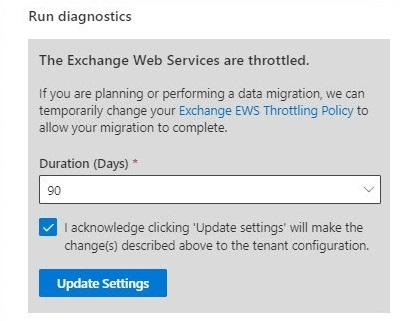
The support assistant checks the tenant settings and concludes that EWS is throttled (the normal situation). You will then be offered the chance to update the settings to the tenant EWS policy to lift throttling for 30, 60, or 90 days.
-
Select a number of days to adjust the policy, and then click Update Settings.
-
After a short delay, the support assistant will confirm that the settings have been changed.
7. Prepare sensitivity labels in destination (optional)
To keep the source sensitivity labels applied on emails in the source tenant to the destination, before the migration, you need to create and publish the sensitivity labels in the destination. Refer to Create and publish sensitivity labels for details.
8. Migration throughput
For email migrations, generally, a reasonable migration speed is 1.5 GB/hour/mapping. For the number of mappings that can be run, it is automatically allocated based on the subscription you purchased. The more user seats you purchase, the more mappings you can run in a project.
There are many factors which may affect migration performance:
-
The above throughput number is for full migration. Generally, it may be lower for incremental migration since Fly needs to spend quite some time in checking the migrated item status for incremental migration.
-
There may be throttling issues in the source and destination, which affect the migration performance.
9. Create source and destination connections
Refer to Create a Connection to connect Fly to your source and destination Microsoft 365 tenants.
Project setup
Generally, we recommend that you create a project based on the business unit, such as divisions.
Other setup
Set mailbox mapping files and user mapping files (optional).
10. Design the migration policy
An Exchange Online migration policy allows you to configure the migration scope of objects, conflict resolutions, user mappings, and advanced options for Exchange Online Public Folder migrations. Refer to Create a Migration Policy for details.
Synchronize deletion is unavailable for folder-level migration jobs.
11. Plan a pilot run
We recommend that you perform a pilot run for the following purposes:
-
Get familiar with Fly interface and understand the whole migration process.
-
Discover any potential issues early and resolve them before production migration.
-
Understand the throttling situation in case the content size is large, and then try to resolve with source and destination.