
Home > SharePoint Online to SharePoint Online Migration Process > Migration Execution
Download this articleMigration Execution
Based on your source tenant discovery report, you need to prepare a final mapping file to list the mappings of source data and destination location. As you may have a heavy load of content to migrate, we recommend you separate your mappings into multiple waves according to your departments for easy management. Keep communicating with users about the migration status.
1. Configure projects and mappings in Fly
To configure projects and mappings, refer to Create a Project and Create Migration Mappings for details.
If there are too many subsites and lists in your site collection, the migration job may fail. When the number of subsites and lists in your site collection exceeds 1000, we recommend that you split sites in the site collection. Fly provides a script for you to automatically split the sites. Refer to the following steps for details:
-
Click here and find the SplitMappings.ps1 script.
-
Download the SplitMappings.ps1 script to the machine where you want to execute the script.
-
Open the SplitMappings.ps1 file, and configure the source and destination site collection URLs, and the directory where you want to store the Mapping.csv file generated after running the script. In the Mapping.csv file, URLs of source site collection and sites will be listed in the Source URL column, and their corresponding destination URLs will be listed in the Destination URL column based on the configured destination URL. The source site collection and sites will be migrated based on the file.
$SrcSiteUrl = " "
$DestSiteUrl = " "
$OutputFilePath = "C:***\Mapping.csv"

-
Save the SplitMappings.ps1 file.
-
Run the script with PnP PowerShell as administrator. After running the script, the Mapping.csv file will be generated and stored in the configured directory.
-
Import mappings in bulk to your project by importing the Mapping.csv file.
-
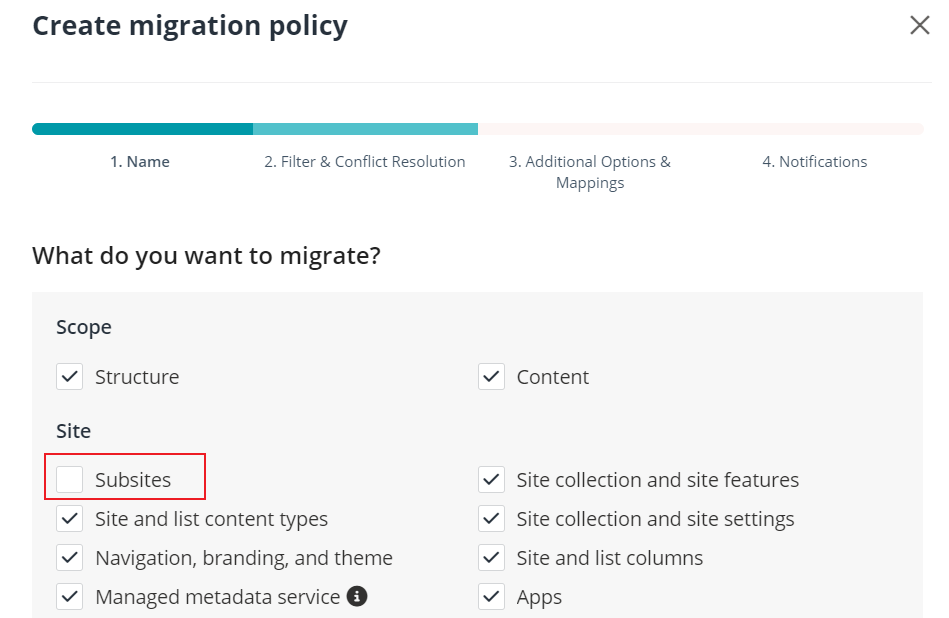
Deselect the Subsites checkbox in the migration policy. Then, you can refer to Run Migrations to Migrate Objects to run the migration job.
If there are too many subfolders in a folder, the migration job may fail. When the number of subfolders in the folder exceeds 500, we recommend you split subfolders in the folder. Fly provides a script for you to automatically split the subfolders. Refer to the following steps for details:
-
Click here and find the SplitMappingForFolder.ps1 script.
-
Download the SplitMappingForFolder.ps1 script to the machine where you want to execute the script.
-
Open the SplitMappingForFolder.ps1 file, and configure the source and destination tenant domain and site collection URLs, the directory where you want to store the Mapping.csv file generated after running the script, and the relative URL of the folder/list you want to split. In the Mapping.csv file, URLs of source subfolders will be listed in the Source URL column, and their corresponding destination URLs will be listed in the Destination URL column. The source subfolders will be migrated based on the file.
$SourceTenantDomain = " "
$DestnationTenantDomain = " "
$SrcSiteUrl = " "
$DestSiteUrl = " "
$OutputFilePath = "C:***\Mapping.csv"
$FolderServerRelativeUrl=" "

-
Save the SplitMappingForFolder.ps1 file.
-
Run the script with PnP PowerShell as administrator. After running the script, the Mapping.csv file will be generated and stored in the configured directory.
-
Import mappings in bulk to your project by importing the Mapping.csv file.
-
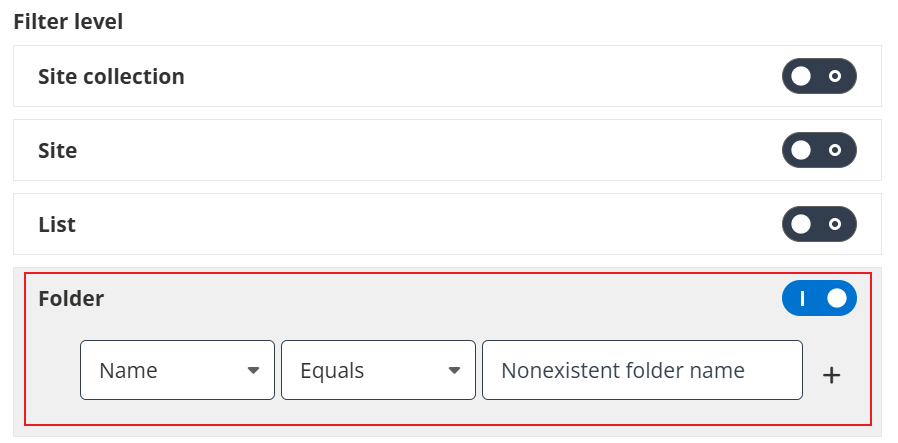
Configure a new project for the parent folder of the split subfolders. Then, configure a folder level filter policy to filter out the subfolders in the folder. Make sure the folder name you configured does not exist in the parent folder. Then, you can refer to Run Migrations to Migrate Objects to run the migration job.
2. Perform regular full migrations
Before running the job, we recommend that you verify the mappings to ensure that the mappings are available for migration. Refer to Pre-analyze Mappings for details.
Then you can run a full migration job to migrate the objects based on your configured migration policy. Refer to Run Migrations to Migrate Objects for details.
3. Perform regular incremental migrations
Handle new, updated, and failed data. Refer to Run Migrations to Migrate Objects about how to perform regular incremental migrations.
4. Compare the source and destination storage (optional)
After the migration, you can compare the number and size of files in the source and destination by accessing the following URL:
sitecollectionurl/_layouts/15/storman.aspx
-
If the number of files is different after the migration, check if the files that are not in the destination are failed in the migration. If the files fail to be migrated, check the comments of failed files. After you fix the errors, rerun the migration job. If there are no records for these files, contact Support and provide the screenshots of these files and job ID to analyze the error.
-
If the size of files is different after the migration, for example, the source file size is 10 MB, but the migrated file size is 100 MB, check the actual size of the source and migrated files in the source and destination libraries. Then, refer to the following instructions to resolve this issue:
-
If the actual size of the source file is 10 MB, the actual size of the migrated file is 10 MB, but the migrated file size displayed in the destination Storage Metrics page is 100 MB, it may be an issue of Microsoft.
-
If the actual size of the source file is 100 MB, the actual size of the migrated file is 100 MB, but the source file size displayed in the Storage Metrics page is 10 MB, it may be an issue of Microsoft.
-
If the actual size of the source file is 10 MB but the actual size of the migrated file is 100 MB, it is an issue of Fly. Contact Support and provide the screenshots of version histories of the source and migrated files, and screenshots of the Storage Metrics pages of the source and destination by accessing the following URL to analyze the error:
sitecollectionurl/_layouts/15/storman.aspx
-
5. Validate migration results
-
Check the mapping report. If the mapping fails or finishes with exceptions, you can check the error code and comment for the mapping in the Migration error section. You can click the error code to view the details and recommendations of the code in the Troubleshooting Guide, which can assist you in resolving or avoiding the error.
-
Check the item count and permissions in the destination. If permissions are failed to be migrated, you can run a Migrate permissions only migration job.
-
Check site/list settings in the destination.
-
Check pages and webparts in the destination.
-
Check workflows in the destination.
-
Check navigations in the destination.
-
New data can be created in destination.
-
6. Set the source site to read only
Before executing the final delta/incremental migration, make sure that no data will be changed or created in the source during the migration to enforce the data consistency.
-
To set a site collection as read only, run the following script using PowerShell:
-
To unlock a site collection, run the following script using PowerShell:
7. Perform the final incremental migration for current wave
At the end of the migration project, we recommend you run a final incremental job to ensure all source data are migrated to the destination.
8. Run migrations for all other waves (optional)
This step is only needed if you have separated the migration plans into multiple waves.
9. Perform the final cutover
After the domain name of your source tenant is changed to your destination tenant for go-live, if you want to perform a final incremental migration to migrate the new or modified data to the destination, you must change the host names of the source and destination site collection URLs in Fly first. Refer to User Guide for details.